라벨
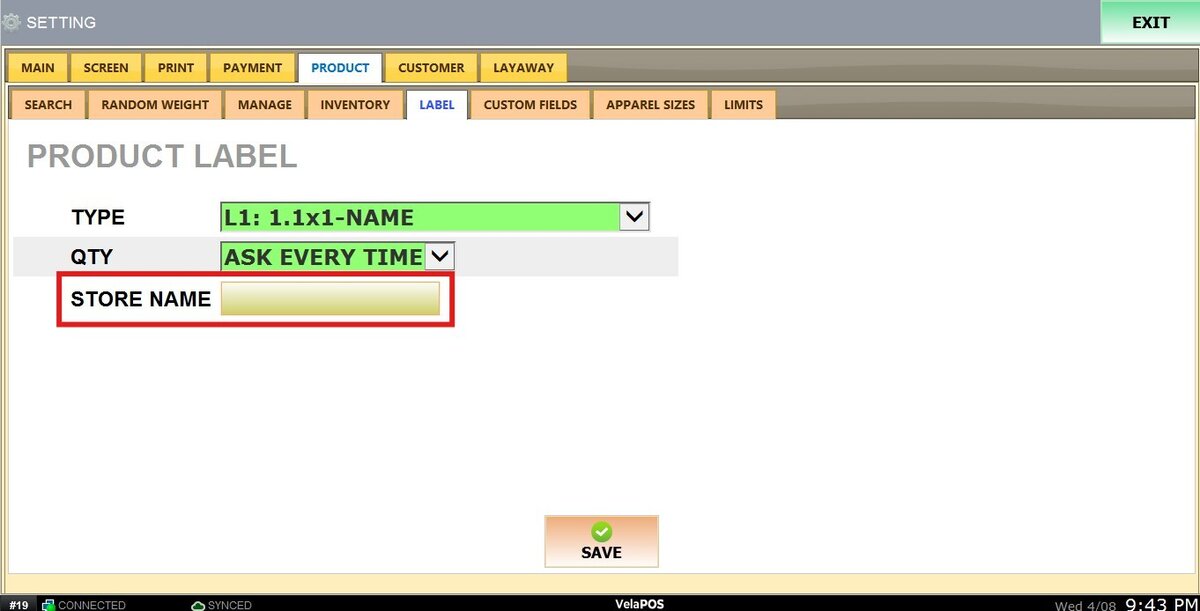
This guide explains how to configure product label settings in the POS system. These settings control how labels are printed from the Product Management screen, including label type, quantity and the store name displayed.
Main Screen>MENU> SETTINGS> PRODUCT> LABEL
Go to MENU, then click on SETTINGS.

Under the PRODUCT tab, select LABEL.
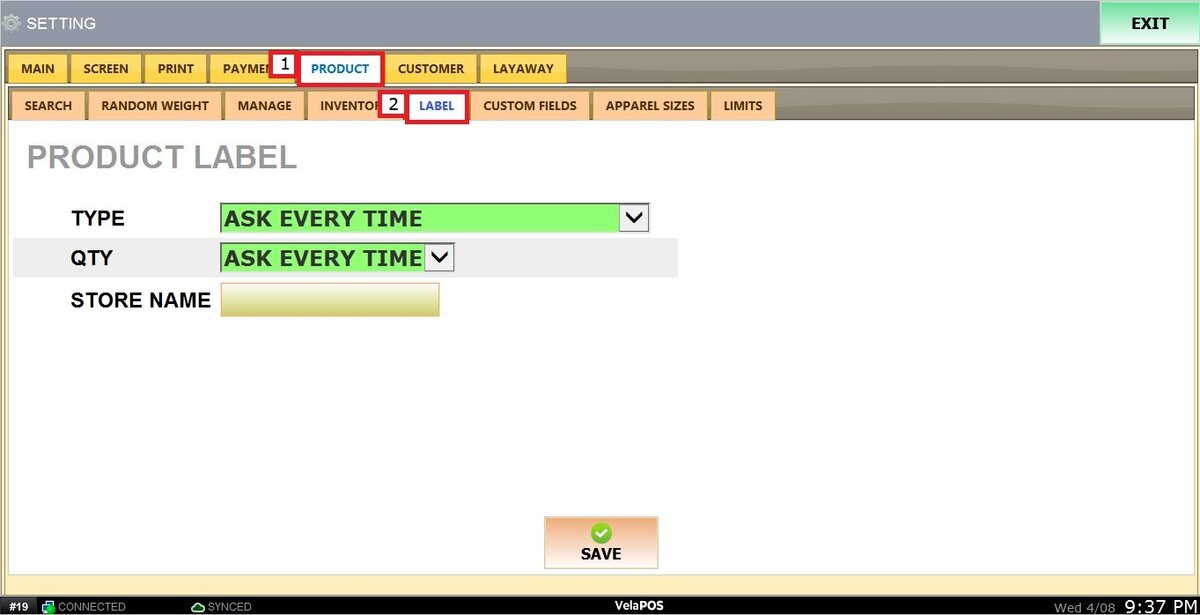
Within the LABEL tab, you will find three configurable sections:
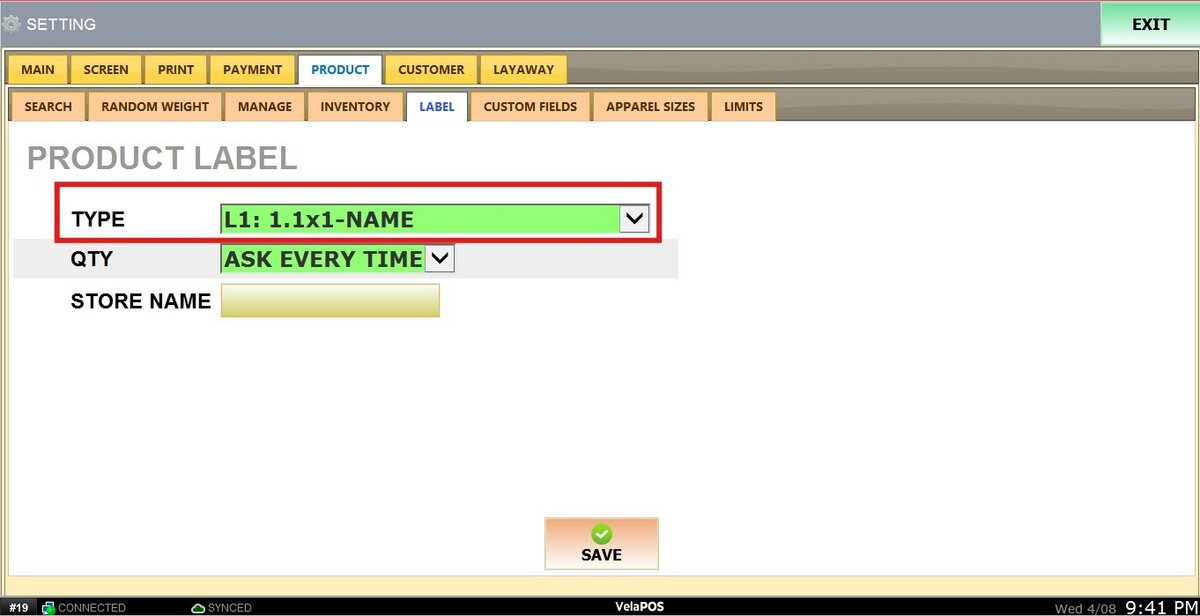
1. TYPE: select the label type that will be printed automatically.
Ask Every Time: Prompts the user to choose a label type each time a label is printed.
Defined Type: Select a specific label type to be used automatically
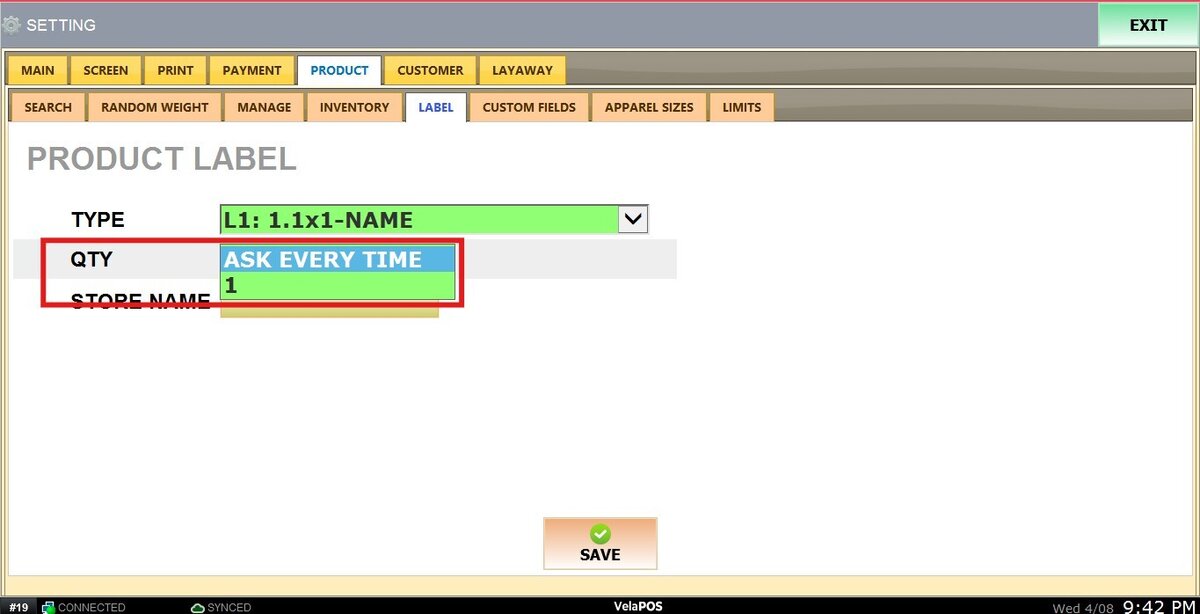
2. QTY: Controls how many labels are printed per action.
Ask Every Time: Displays a number pad to manually enter the quantity before printing.
1: Automatically prints one label each time.
3. STORE NAME: Allows you to customize the store name printed on labels.
When configured, this will override the default store name registered in the POS system.
To learn how to print labels using these settings, refer to the Print Label, guide.
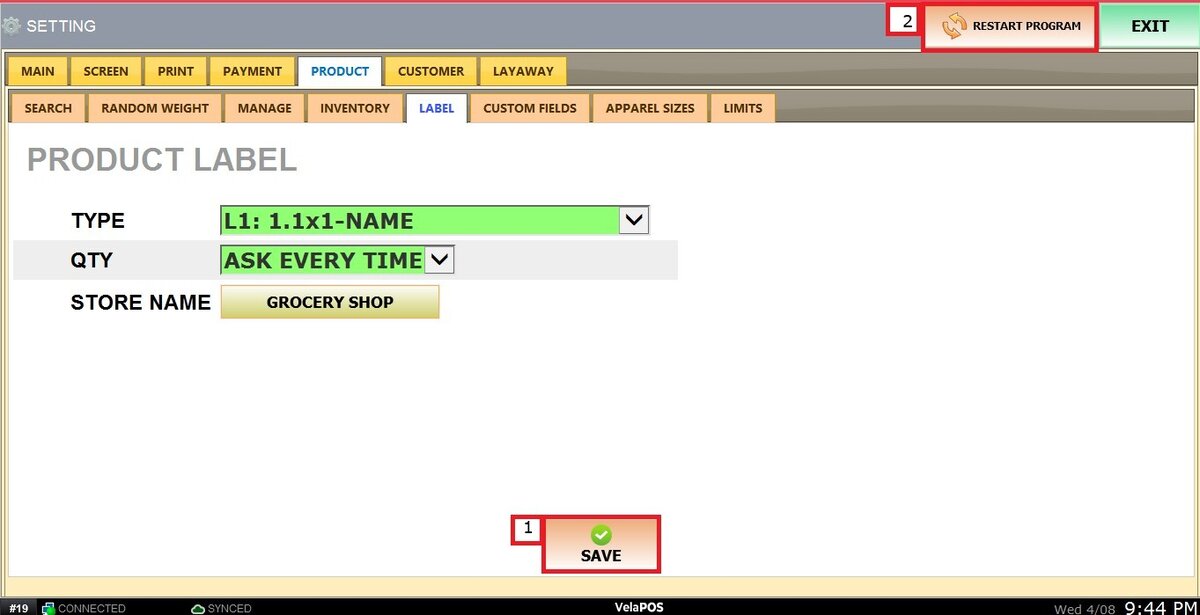
After applying the changes please click on SAVE on RESTART THE PROGRAM.