Report Tab
This report provides a detailed summary of a product's activity, allowing users to monitor its performance by organizing data into four areas: SUMMARY, TRANSACTIONS, INVENTORIES, and COST ANALYSIS.
Main Screen > MENU > PRODUCTS > Product DETAIL > RPT Tab
Go to MENU and press PRODUCTS
In the products section, search for an item and click on its DETAIL button.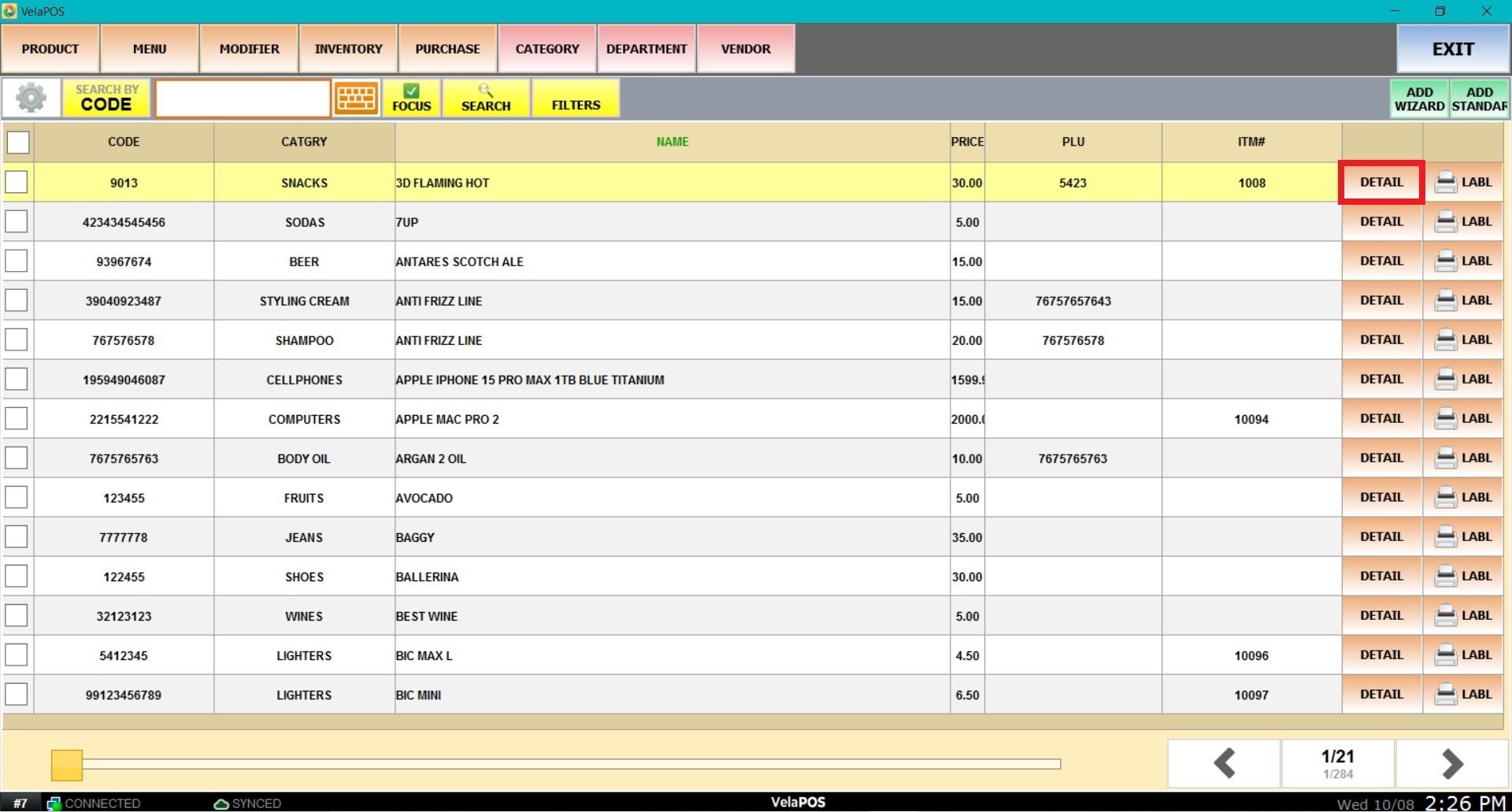
In the product detail view, click on the RPT tab.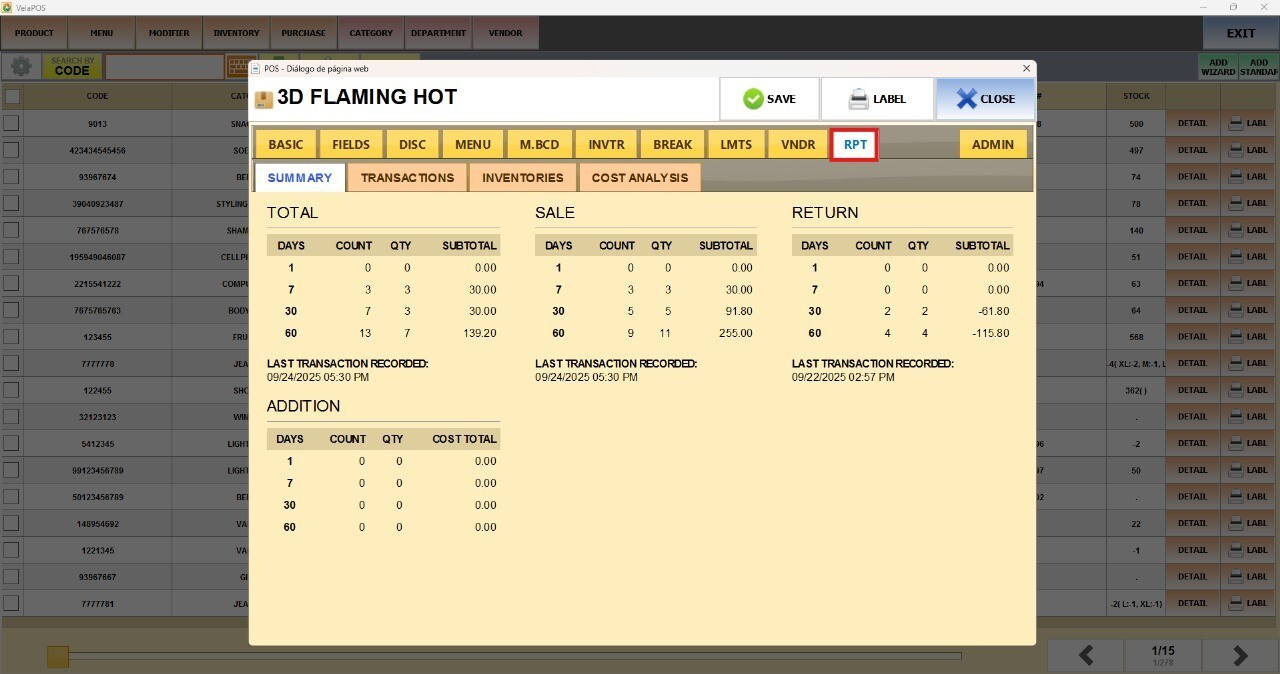
SUMMARY
Displays product performance over the last 7, 30, and 90 days. It is divided into four sections: Total, Sale, Return, and Addition. Each section shows the COUNT (number of transactions of that type) and the QTY (total quantity of the product included in those transactions).
TRANSACTIONS
Shows a list of all transactions involving this item, ordered by date, along with ticket subtotals, applied discounts, and the employee who processed each sale.
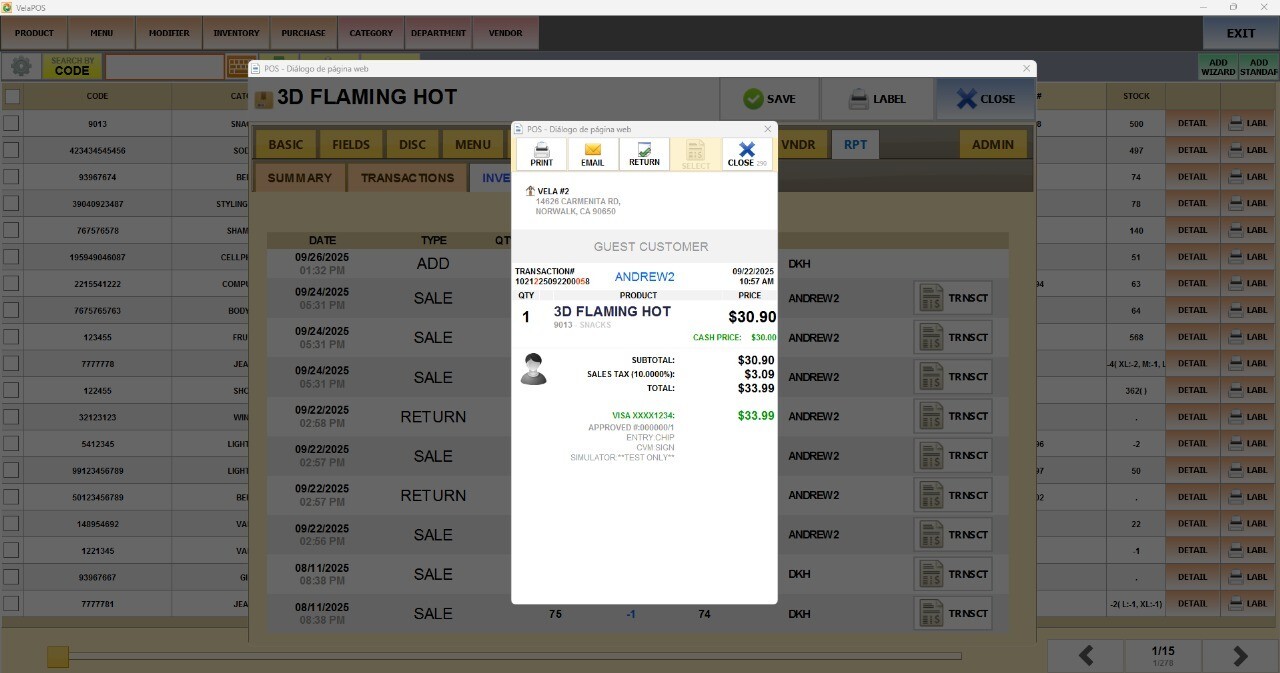
Tip: Each row includes a VIEW button to access more detailed information about that specific transaction. (Store and location info, customer name, transaction date and time, items purchased, subtotal, taxes and fees, total amount paid, payment method, and change).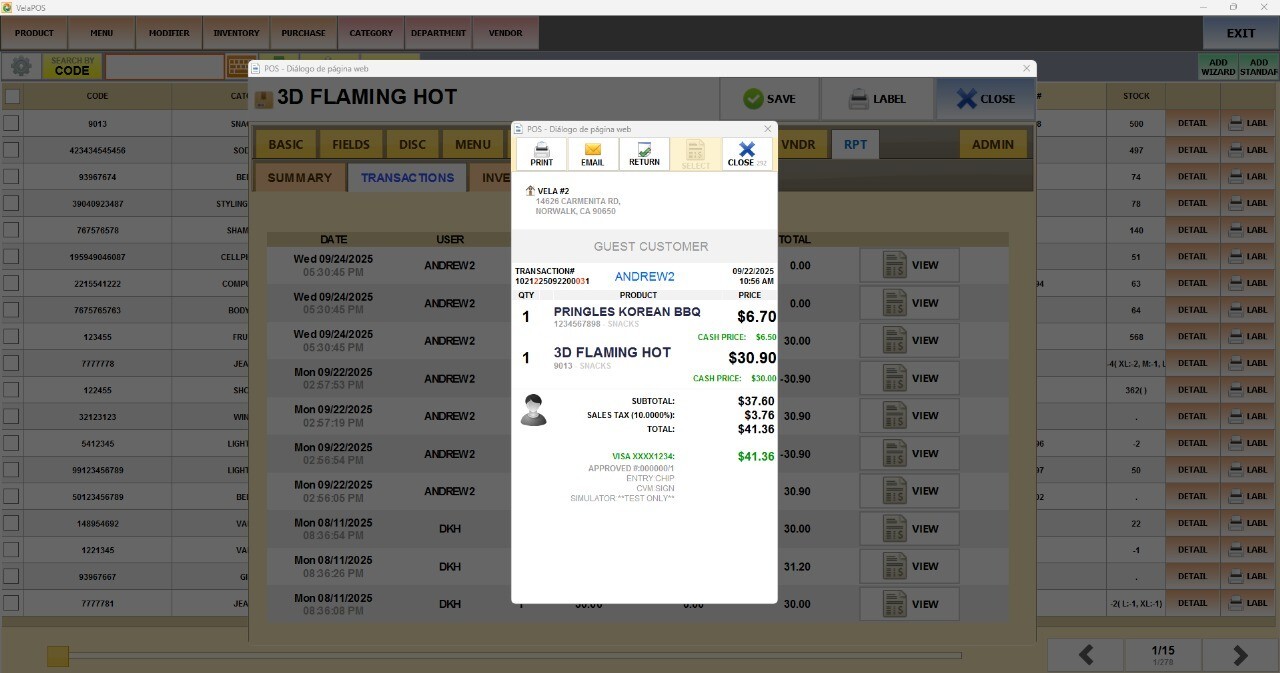
INVENTORIES
Shows how the product stock has evolved over time, including sales, returns, and additions.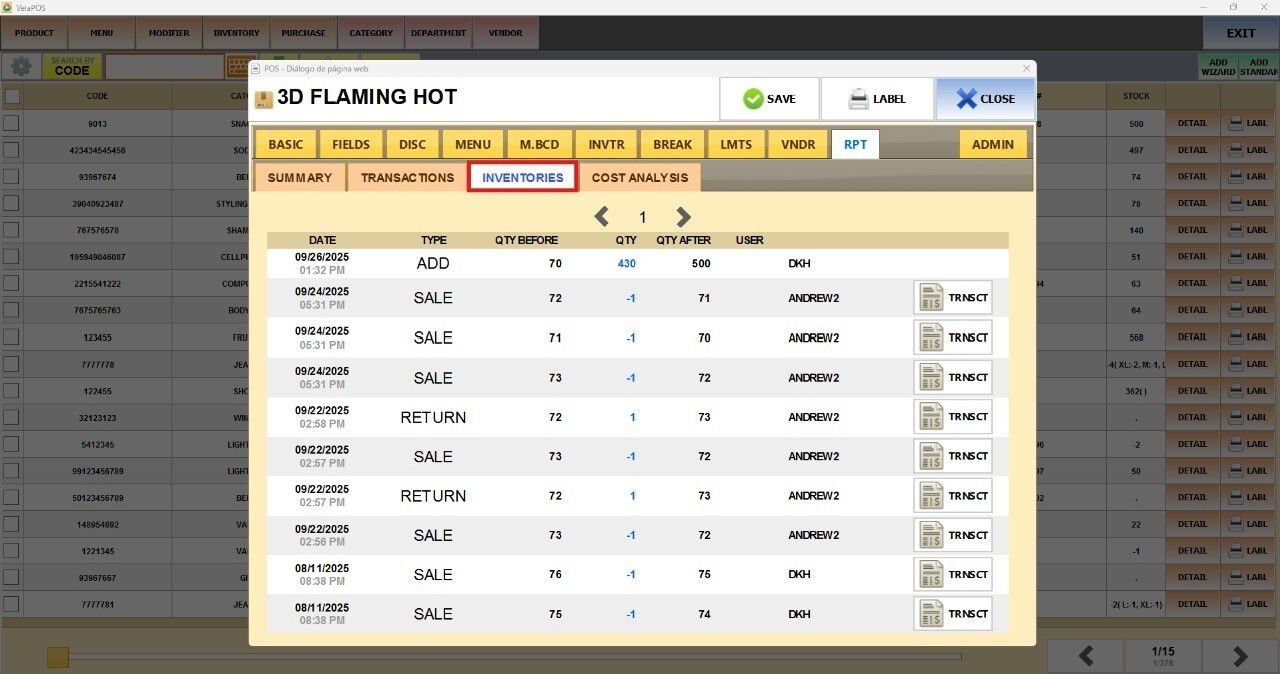
Tip: Each row includes a TRANSCT button that opens a pop-up window with all the details of the sale, return, or addition. Use it to check what was sold, how it was paid for, and to confirm totals—all without leaving the product screen.
COST ANALYSIS
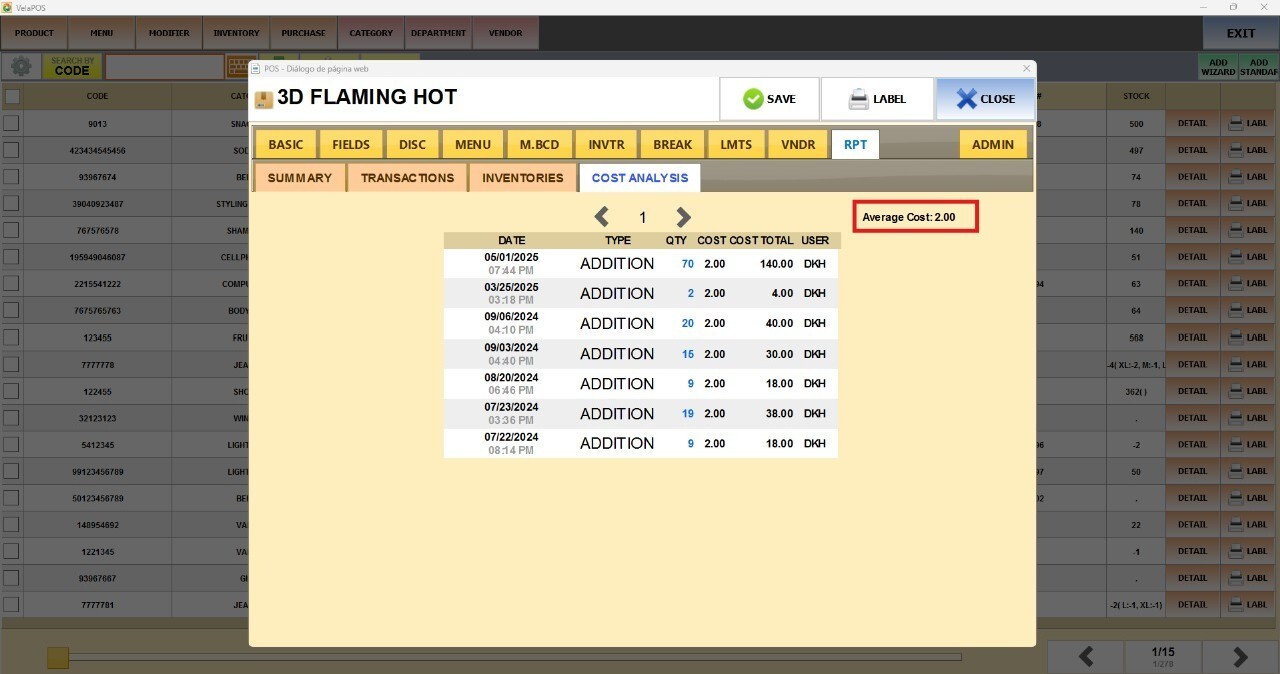
Displays the unit cost of each inventory addition and the corresponding total quantity.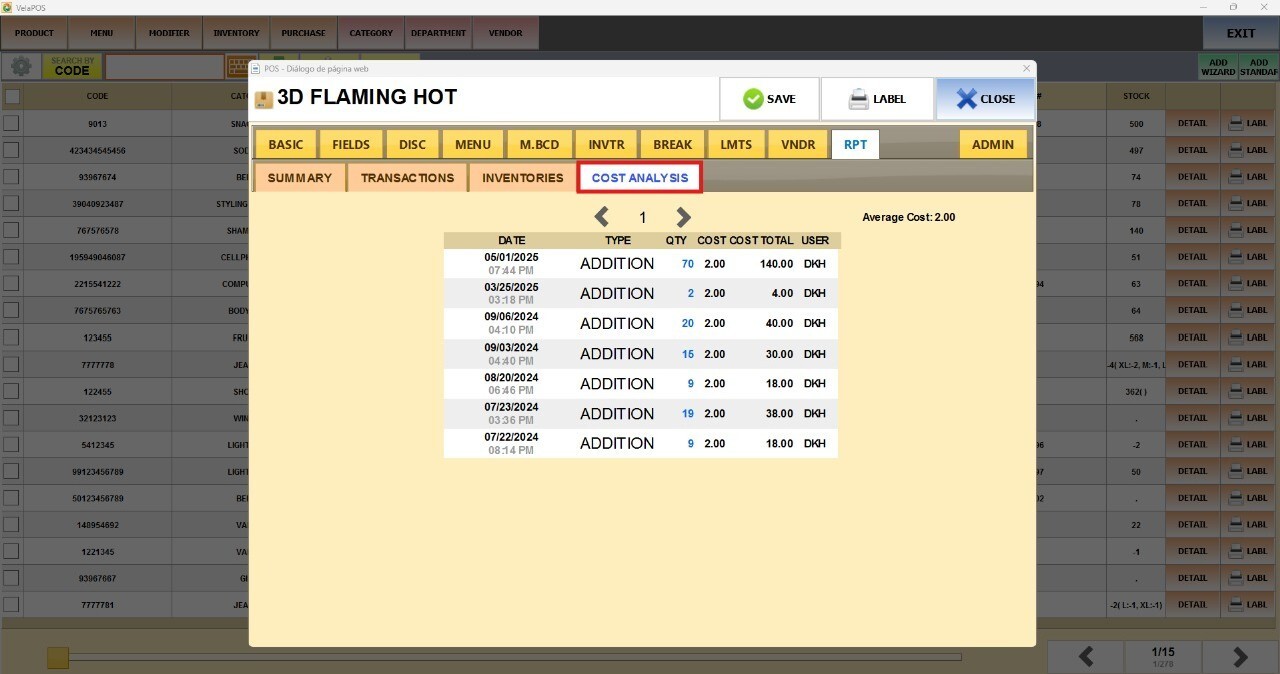
Tip: At the top, you will see the AVERAGE COST of the product.