Location Price Type: Location Price Selection
This feature controls which price tier is used at the location when the Level price type is selected for a product.
Main Screen> MENU> SETTINGS> PRODUCT> PRICE.
Go to MENU, then select SETTINGS.
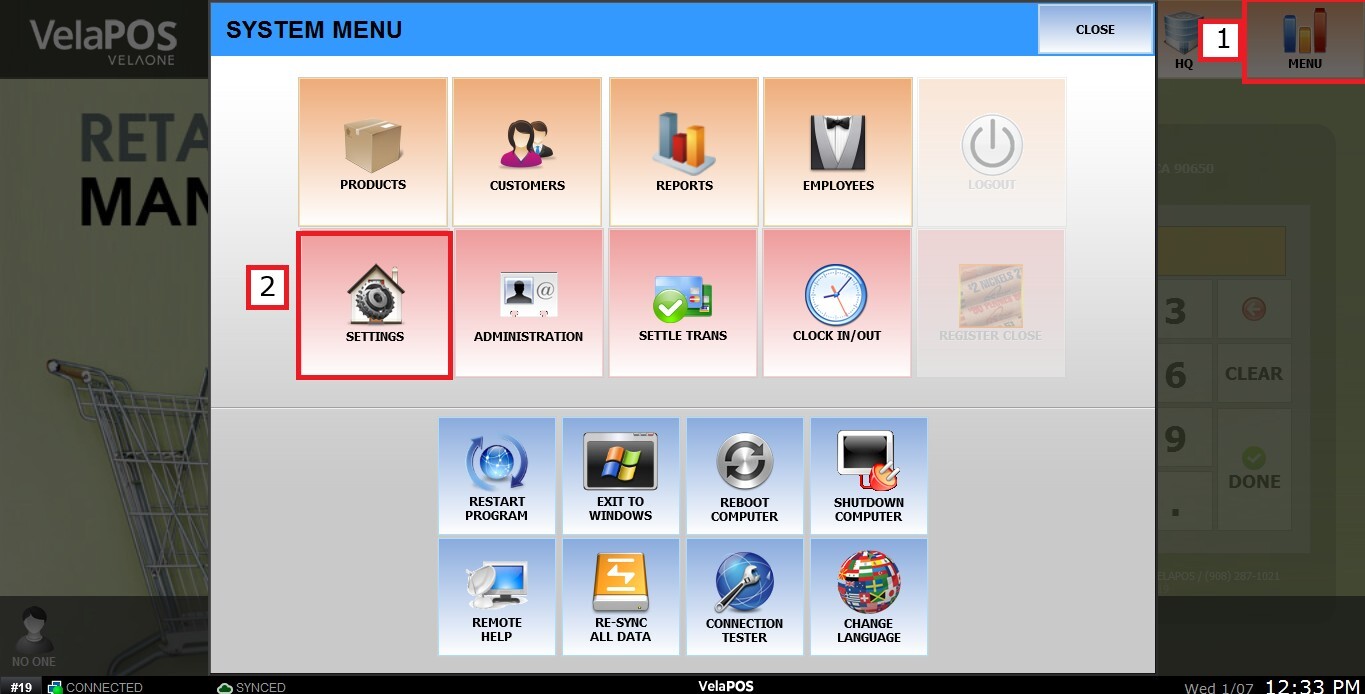
Under the PRODUCT tab, select PRICE.

On the LOCATION PRICE TYPE, select LOCATION PRICE SELECTION.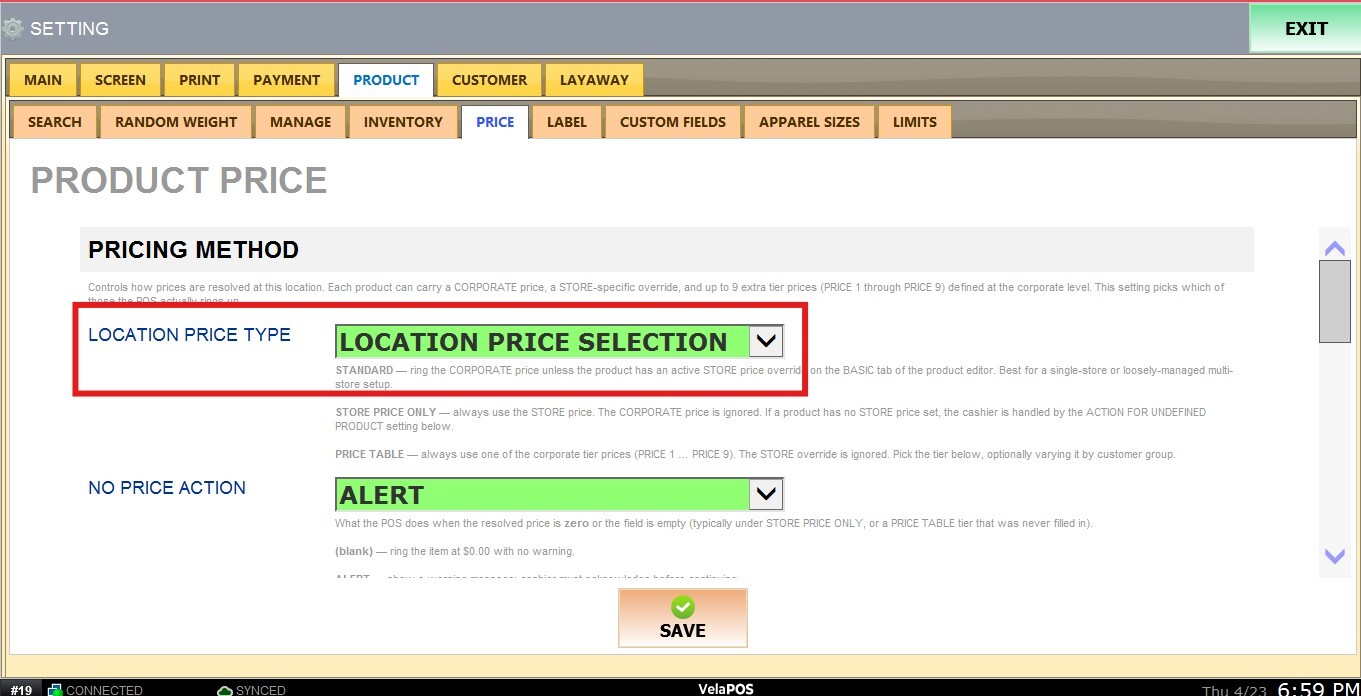
By selecting this option, an additional section will be unlocked.
LOCATION PRICE SELECTION
Tier prices are configured per product in the PRICES tab of the product details. If a selected tier is blank or set to 0.00, the system will automatically fall back to the corporate price.
Location Price Selection: This section is a dropdown menu that will contain which price will define the default tier for every sale at this location, from Corporate Price and Price 1 to 9.
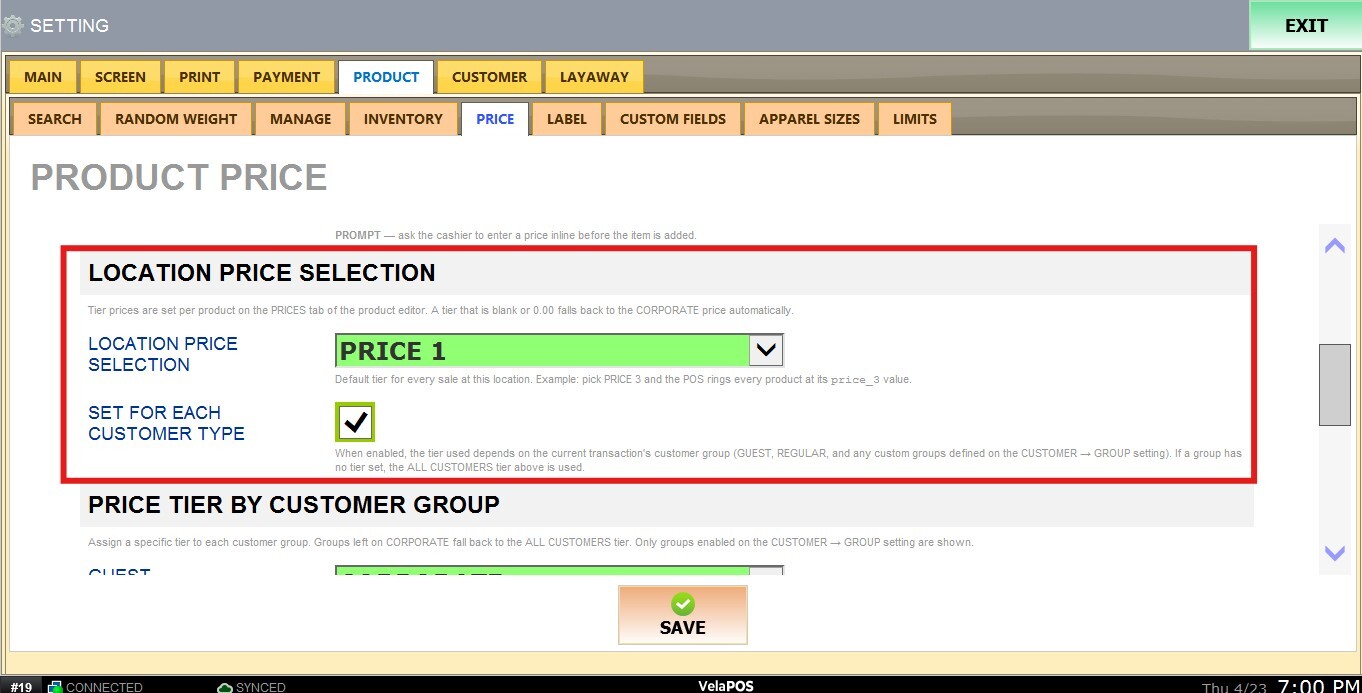
Set for Each Customer Type: When enabled, the price tier is determined by the customer group assigned to the current transaction (GUEST, REGULAR, and any custom groups defined in CUSTOMER GROUP). If no tier is set for a specific group, the system will default to the ALL CUSTOMERS tier.

PRICE TIER BY CUSTOMER GROUP
Assigns a specific price tier to each customer group. Groups set to CORPORATE will fall back to the ALL CUSTOMERS tier. Only customer groups enabled in CUSTOMER GROUP will be displayed.

Result:
In the item details, you will be able to see the Using Price, which indicates the price tier currently selected and applied.

On the sales screen, if no customer is selected, the system will display the default (regular) price.

When selecting a customer who belongs to a group with an assigned price tier, the system will automatically apply that price.
