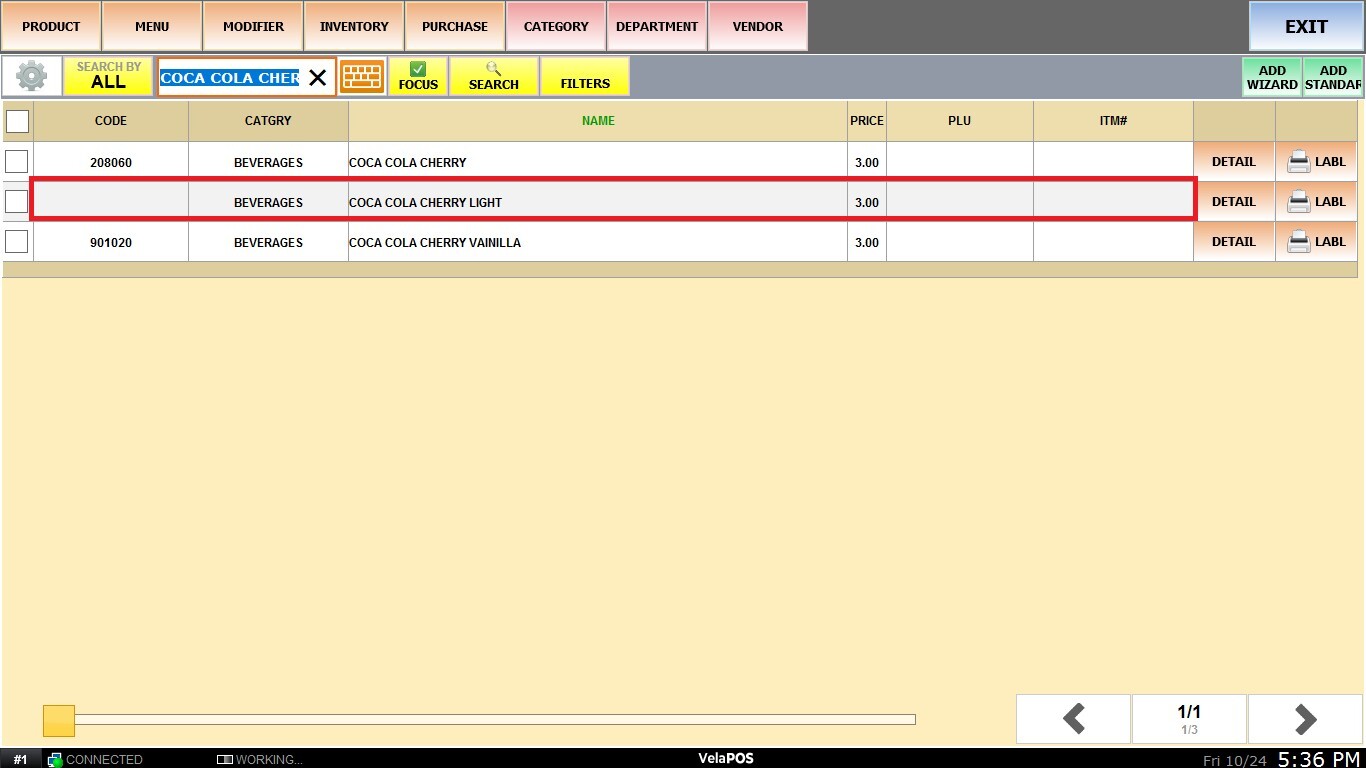
Admin
This option allows you to manage products efficiently by offering you the options to suspend or copy them as needed.
MENU>PRODUCTS>Select an ITEM>DETAIL>ADMIN
Click on MENU and PRODUCTS.
Choose a product and press DETAIL.
Open the ADMIN tab. There, you can suspend or copy products..jpeg)
Suspend Products:
This option allows you to deactivate a product so that it no longer appears on the sales screen or in the product list. The product remains stored in the system and can be reactivated when needed.
Click on SUSPEND PRODUCT.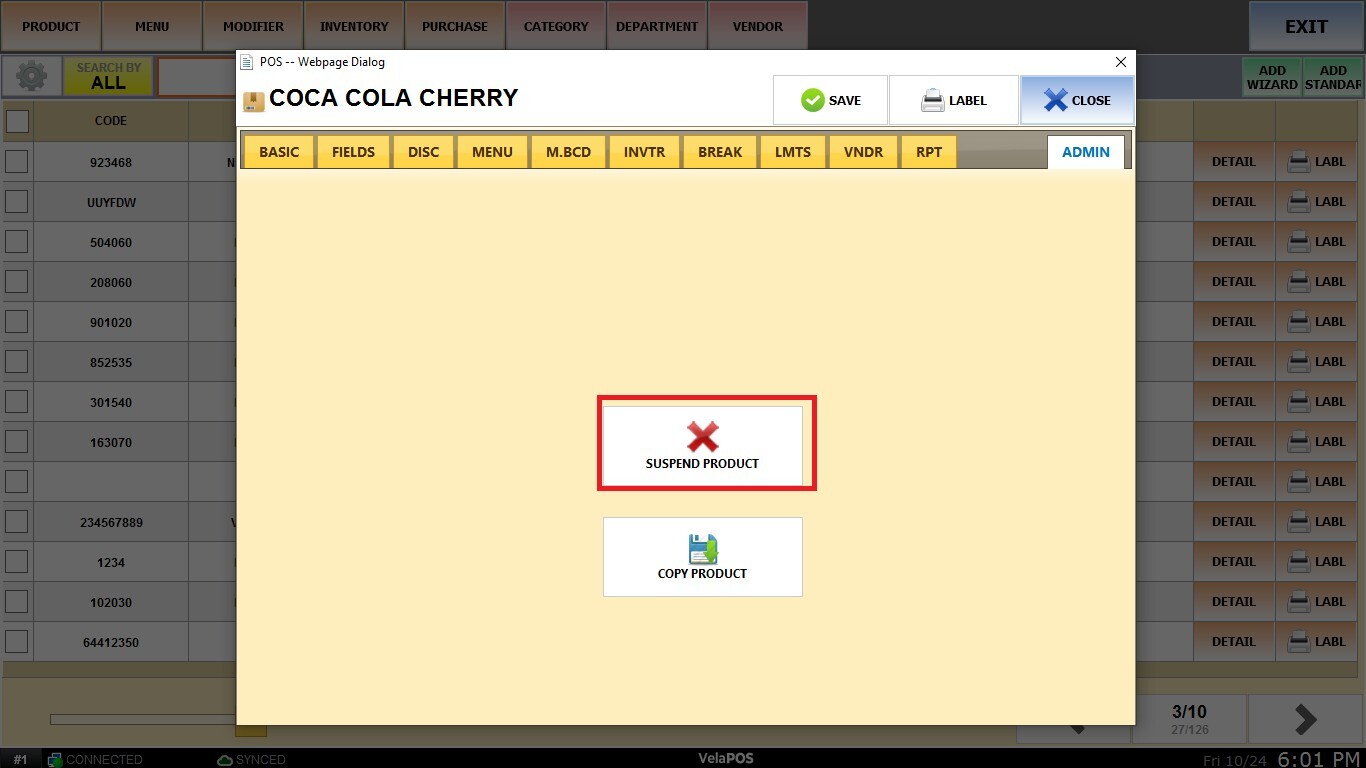
To select multiple products at once, return to the product list, check the boxes and press SELECTED.
Click on CHANGE STATUS.
Choose INACTIVE (SUSPEND PRODUCTS)
Press PROCESS.
Once suspended, the products will no longer appear on the sales screen or in the product list.
Reactivate Suspended Products:
In the product list, click on FILTERS.
Choose STATUS.
Select SUSPENDED.
Press APPLY.
A list of all suspended products will appear. Click on DETAIL, go to ADMIN and select RESTORE PRODUCT.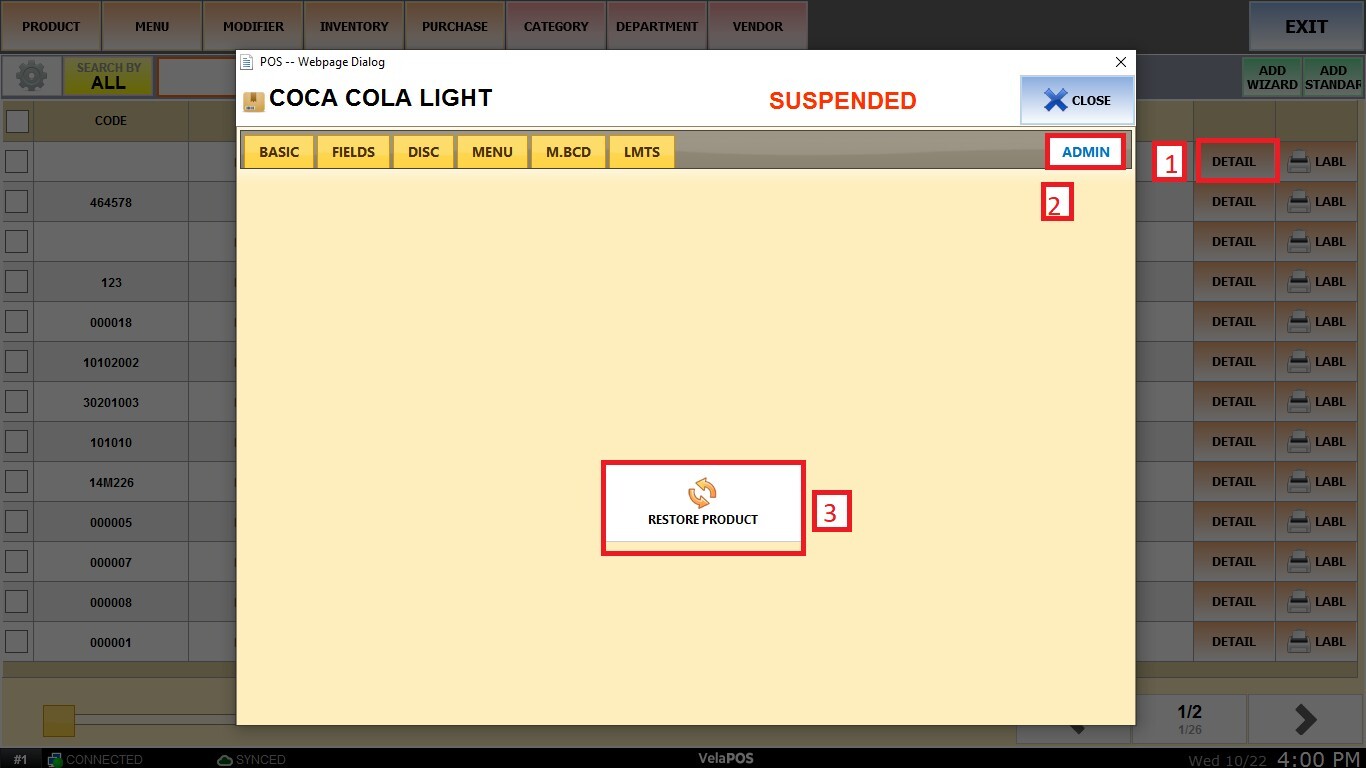
Copy Products:
This option creates a new product by duplicating an existing one. It is useful when you need to add items with similar characteristics, as it avoids having to enter all the information again.
Click on COPY PRODUCT.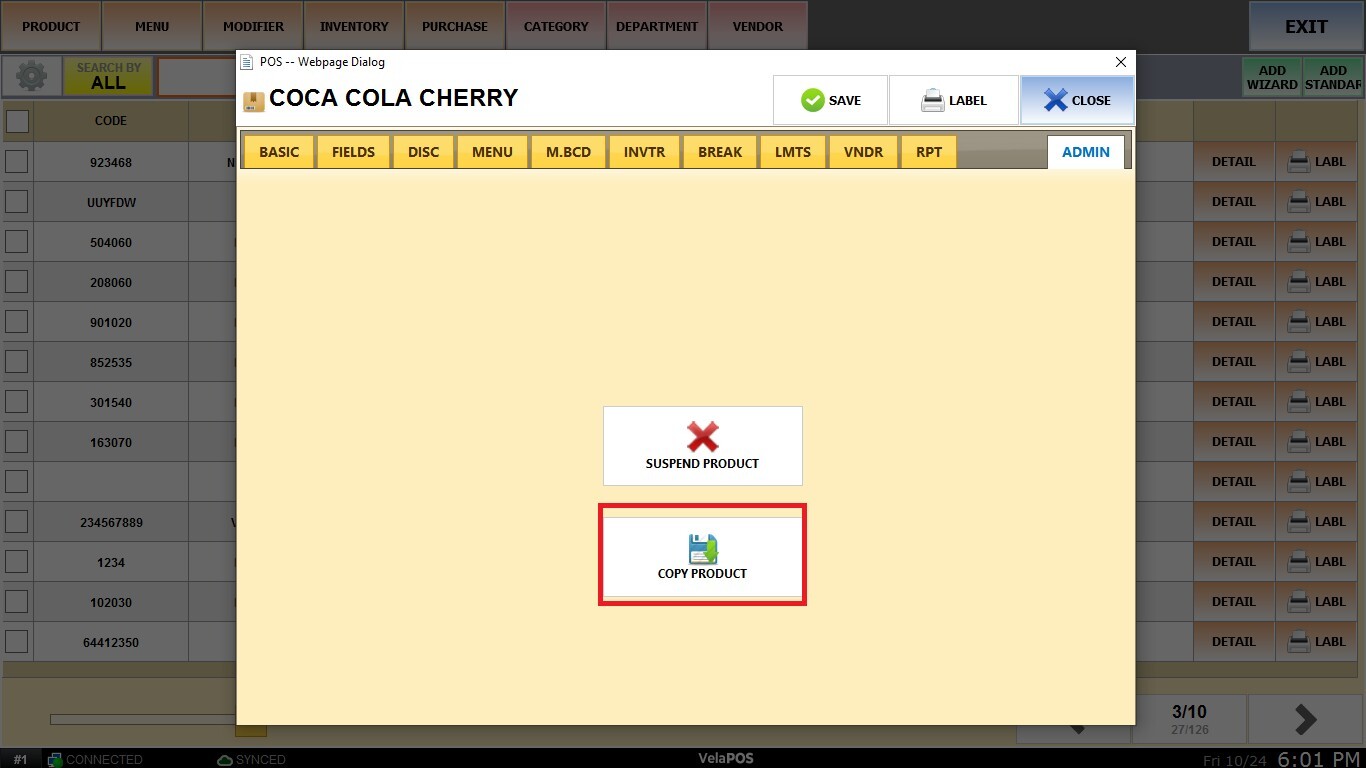
Enter the name and press ENTER.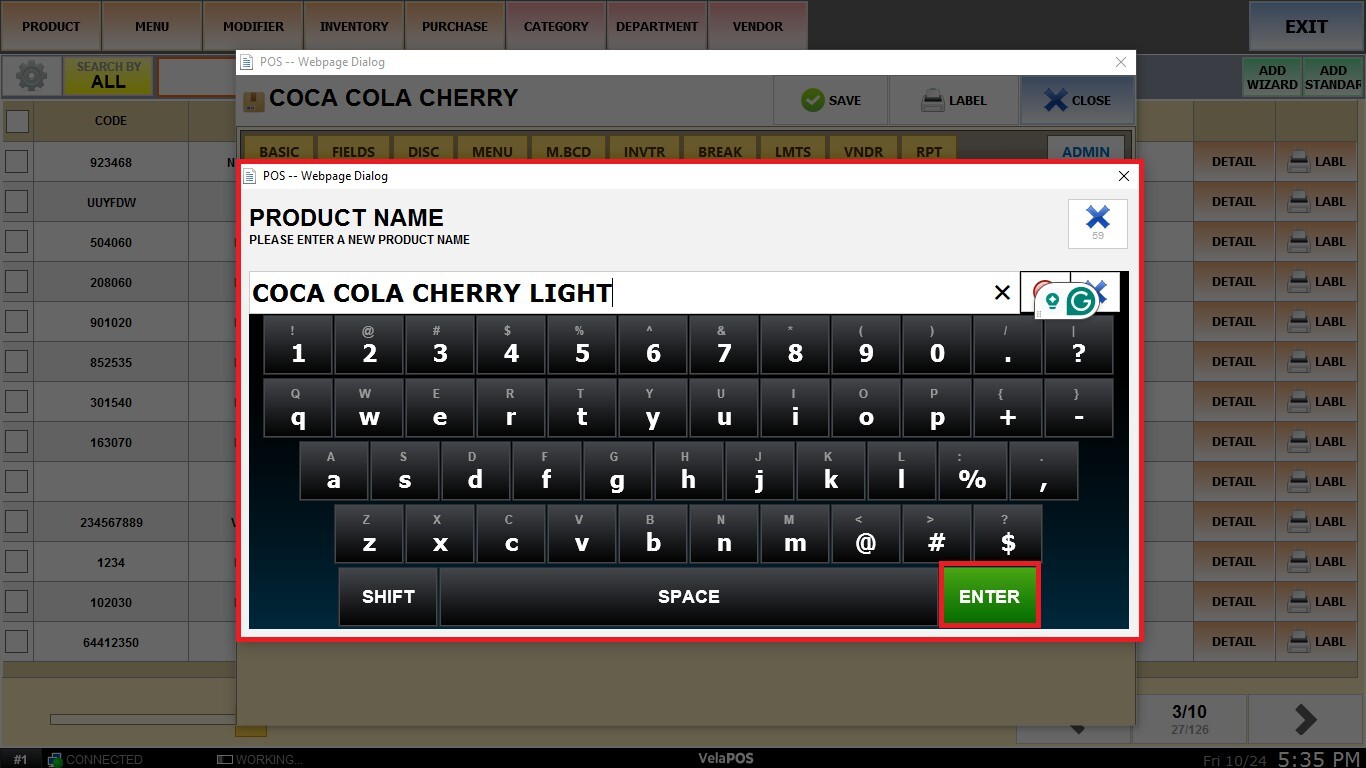
Edit any necessary fields for the new product (name, barcode, price, SKU, etc.) and click on SAVE.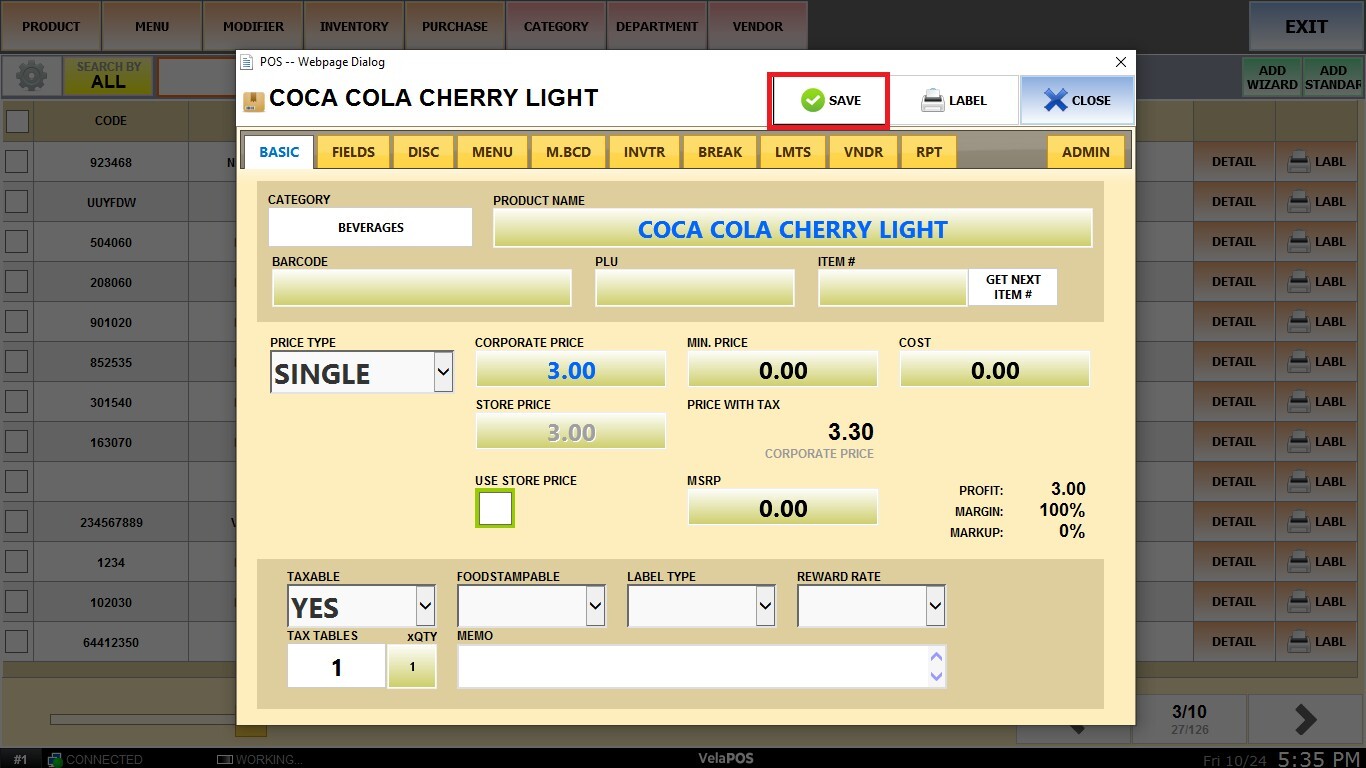
Result: