Limits
In this tab, you can set quantity limits per sale for a specific product. The restriction applies only to that individual item.
MENU > PRODUCTS > Product DETAIL
Go to MENU and select PRODUCTS.
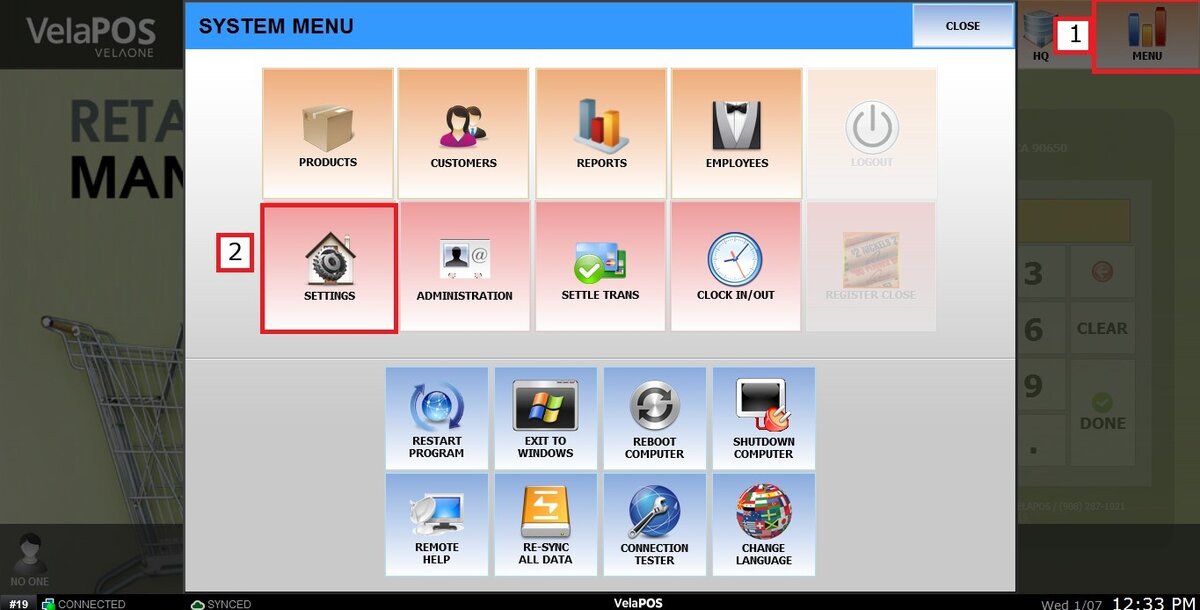
Within the PRODUCT section, locate the item you wish to configure and press DETAIL.

See the LIMITS SETTINGS guide to understand how to create Sales Limits
Open the LIMITS tab and use the SALES LIMIT dropdown menu to select one of the available limits already created in the system.

Hint: A product can be linked to up to five Sales Limit Groups, but only one will be active at the time of checkout. To control which group applies, refer to the Limits Setup section.
Once the limit is selected, press SAVE to apply it.

Hint: If a product has its own assigned limit, it will override any limit inherited from its category.
Result:
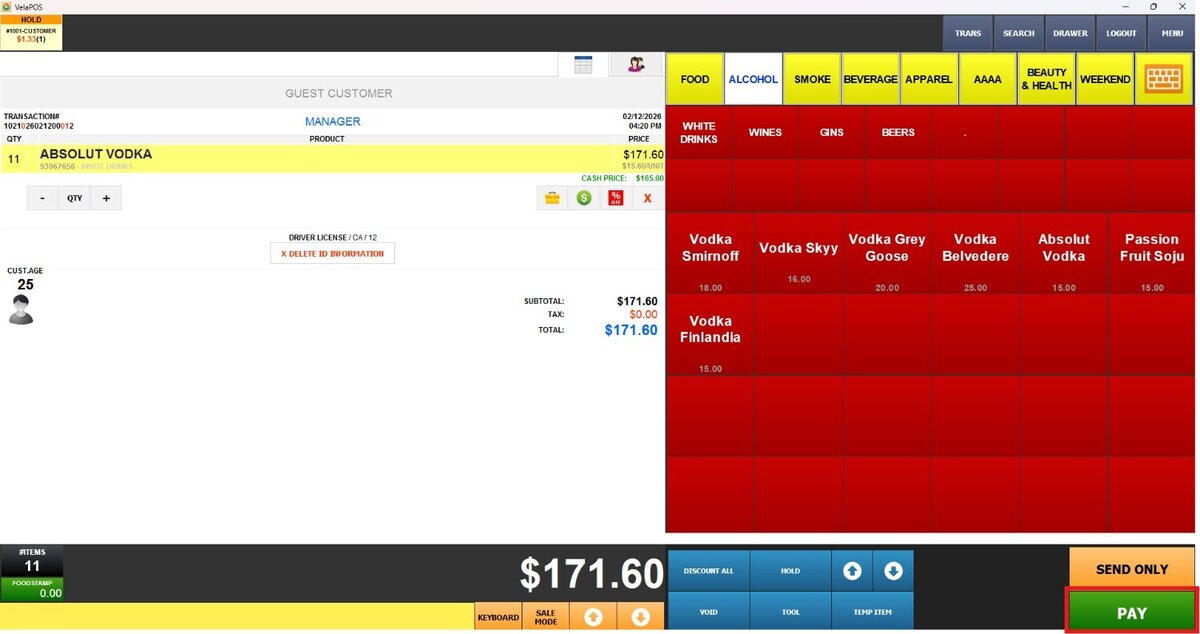
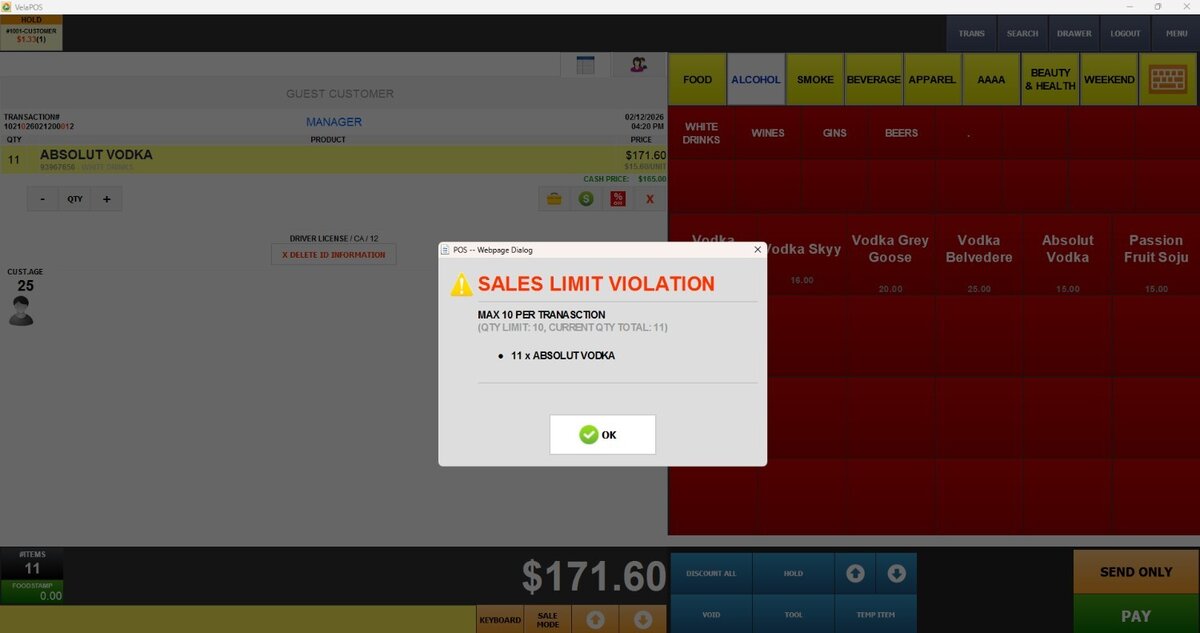
When you ring up the product on the sales screen, the system will monitor the assigned limit. If the quantity exceeds the maximum allowed, a warning will appear upon pressing PAY, and the transaction will be blocked until the quantity is adjusted.