Fields
This function allows you to add custom details to a product, adapting it to your business’s specific needs and making product searches more efficient.
Main Screen > MENU > PRODUCT > Select product > FIELDS Tab
Click on MENU and then select PRODUCT.
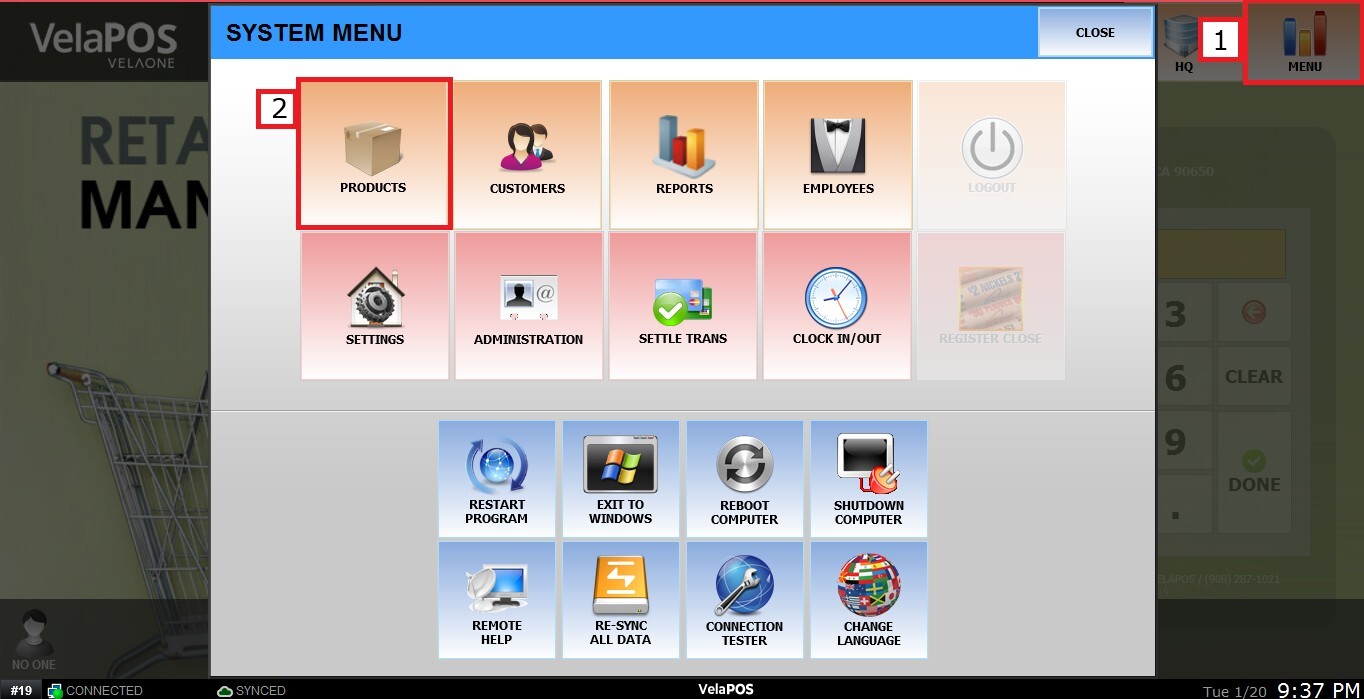
In PRODUCT, search for the item you need to edit and click on DETAIL.

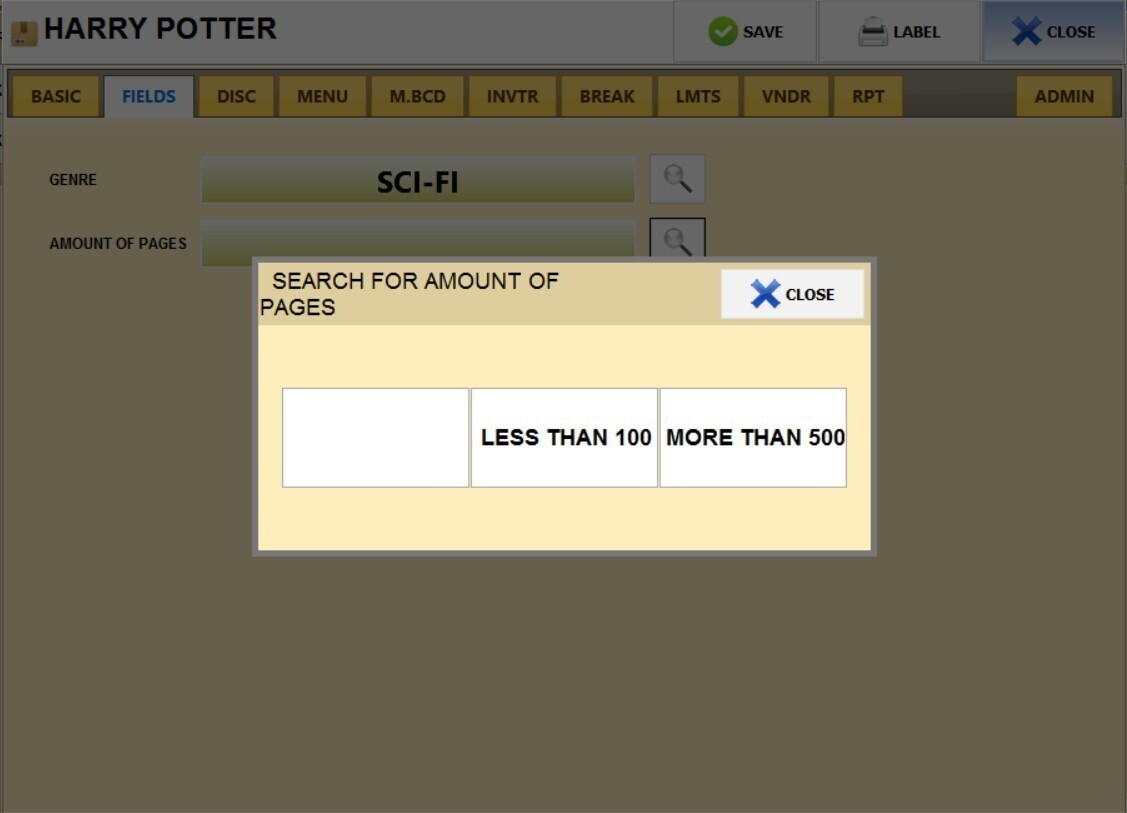
Open the FIELDS tab.

The product search field settings will be displayed.
Tip: You can define or update custom fields for your products, to se how refer to Custom Fields settings guide.
To enter information into a field, you have two methods:
1. Type directly into the empty field to add new data.
2. Click on the magnifying glass icon to select previously recorded information.
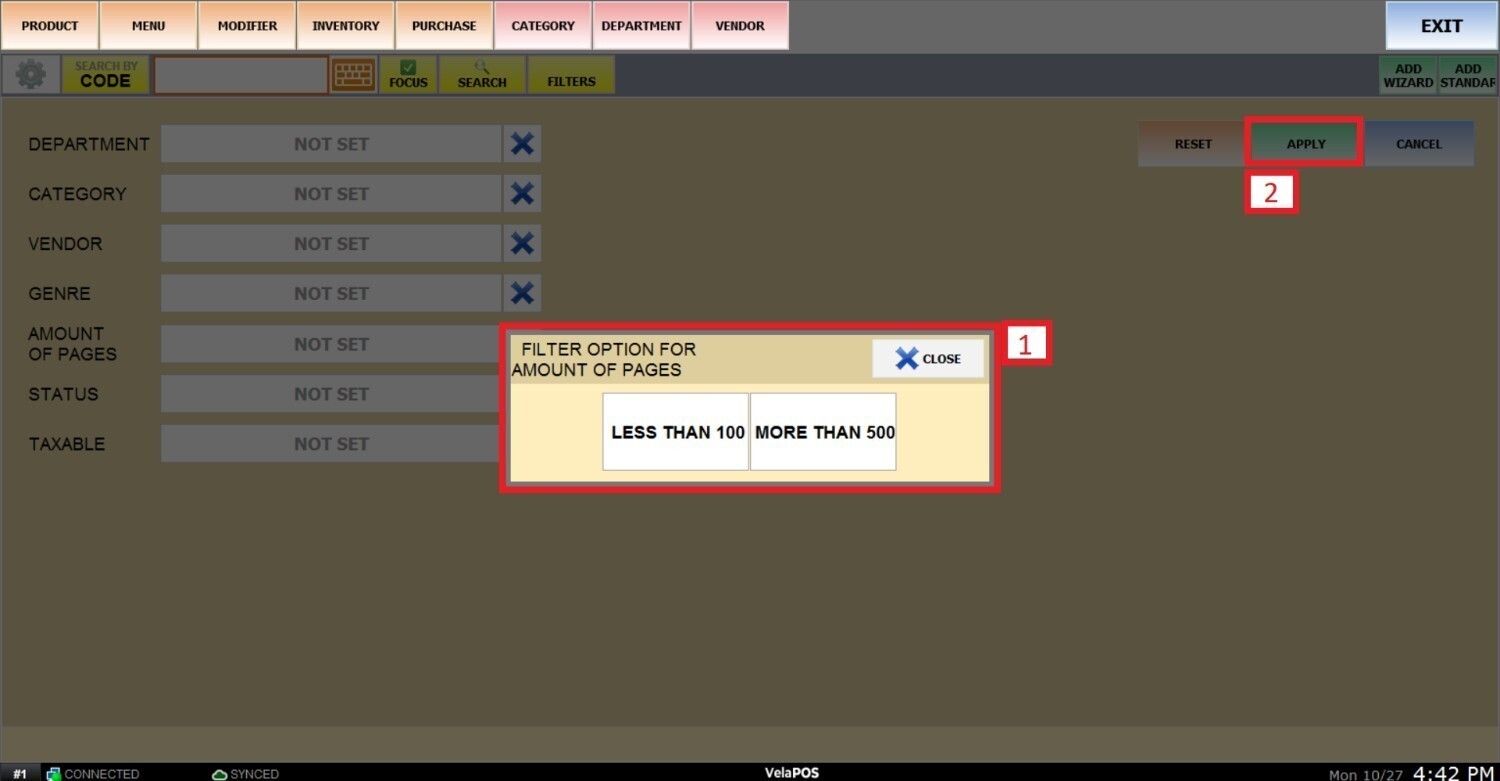
Tip: When searching for a product, you can filter results by any field to display all products that match that criteria.
In PRODUCT, click on FILTERS and click on the bar next to the desired field.

Choose a criteria from the list and press APPLY.