Vendor
This section allows you to associate each item with its supplier. You can assign a supplier to the product, edit its information or add a new one, and enter its product code and case size.
Main Screen > MENU > PRODUCTS > Product DETAIL > VENDOR Tab
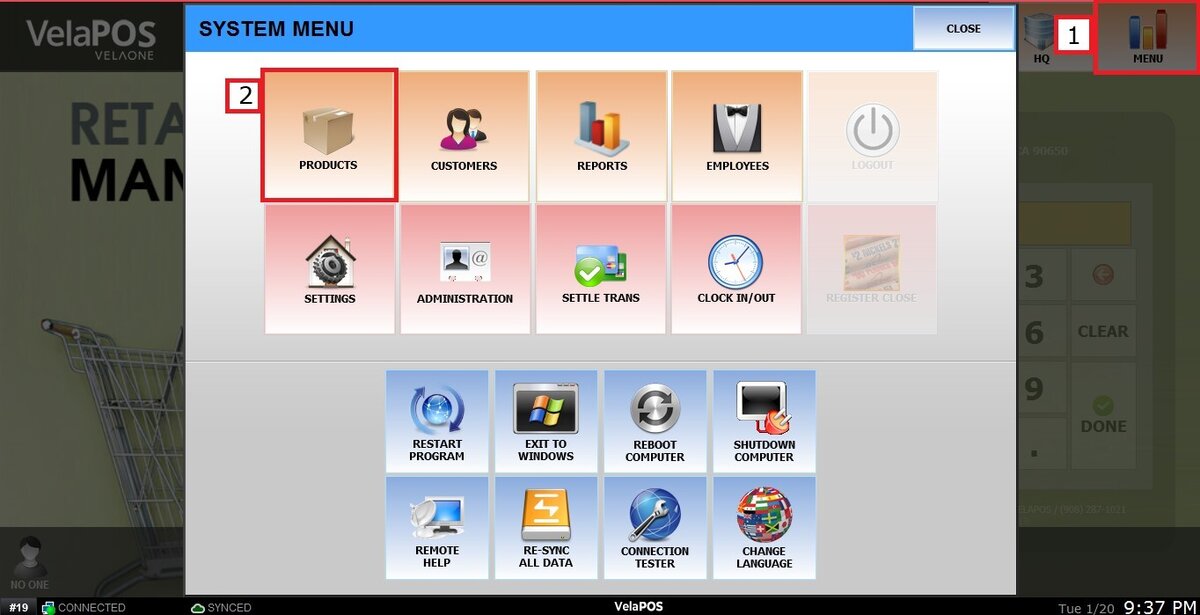
Go to MENU and click on PRODUCTS
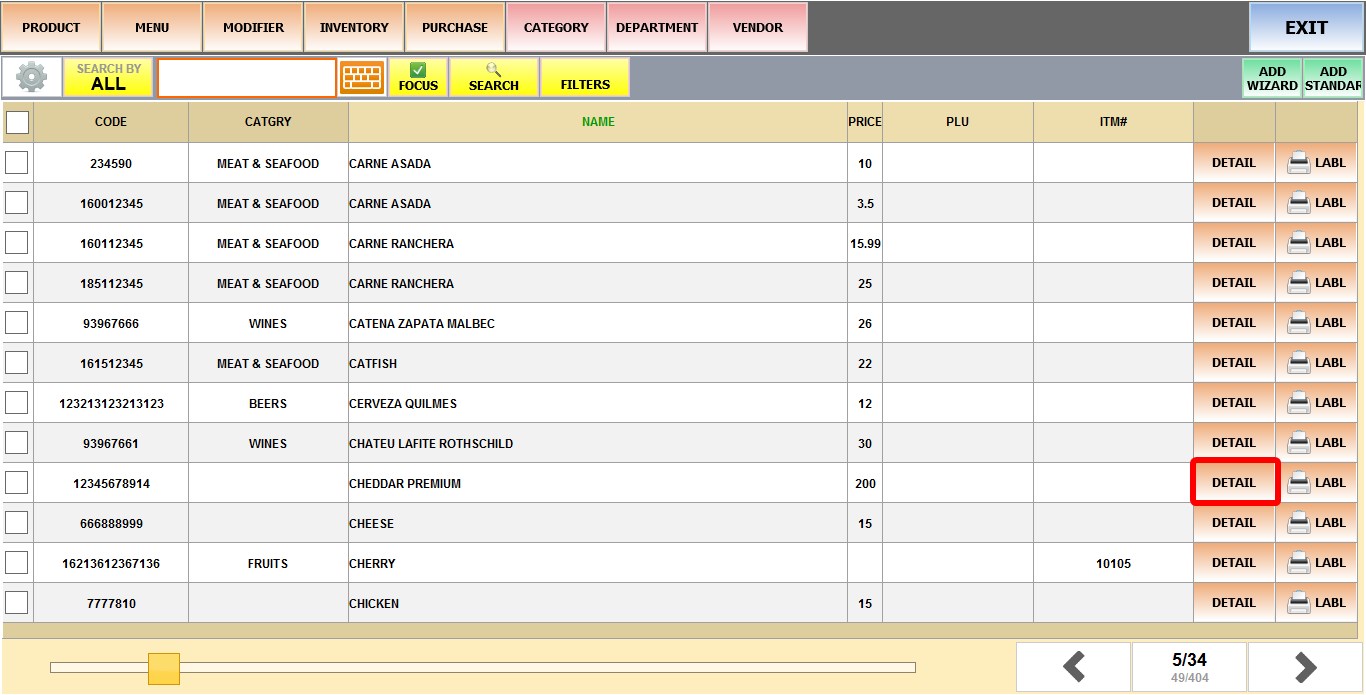
In the products section, search for the desired item and click on its DETAIL.
Go to the VENDOR (VNDR) tab.

VENDOR
Click on the VENDOR field to select a supplier from the dropdown menu.


EDIT
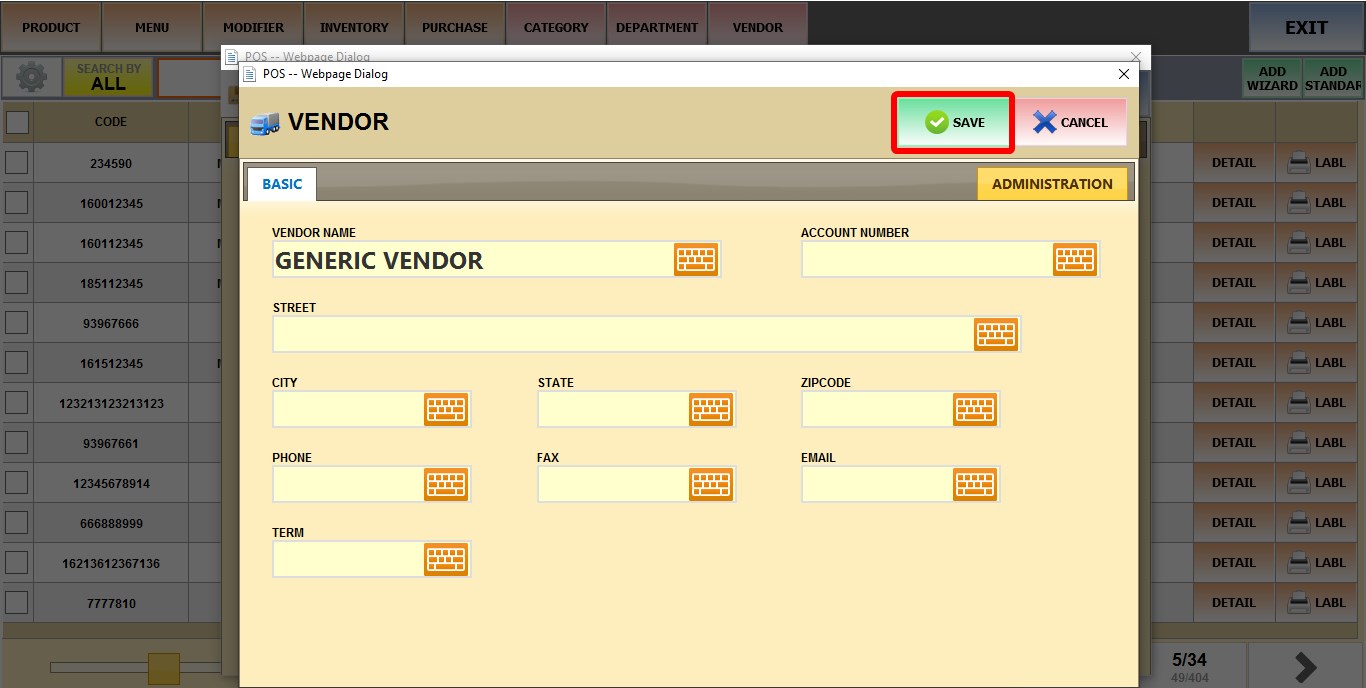
If you have selected a supplier, you can click EDIT to update its information.

Select any field to update the supplier’s data (name, address, or contact information).
Once the changes are made, click SAVE to apply them.
ADD
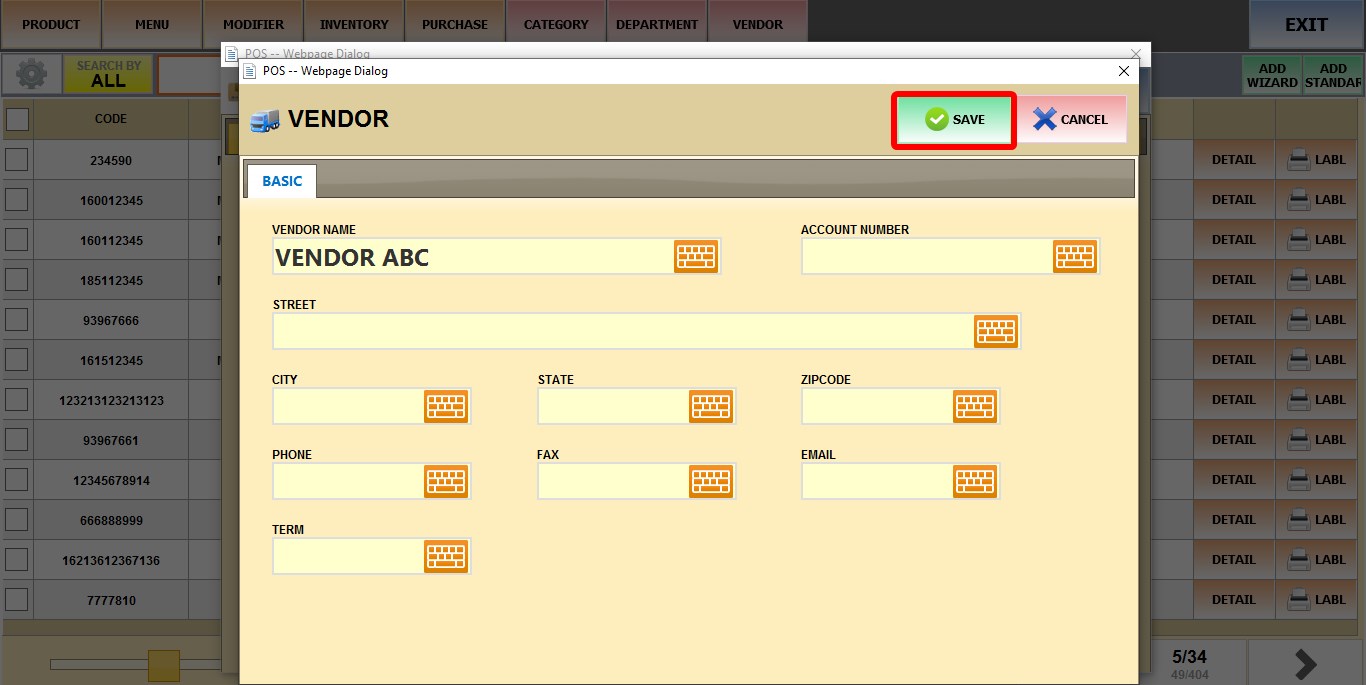
To add a new supplier, click ADD.

A pop-up window will appear where you can enter all the supplier’s information.
Once the information is completed, click SAVE to register the new supplier.
Hint: To view the newly registered supplier, check the Supplier List.
Vendor Product Code
Stores the code used by the supplier, which helps ensure that orders placed match the supplier’s system.
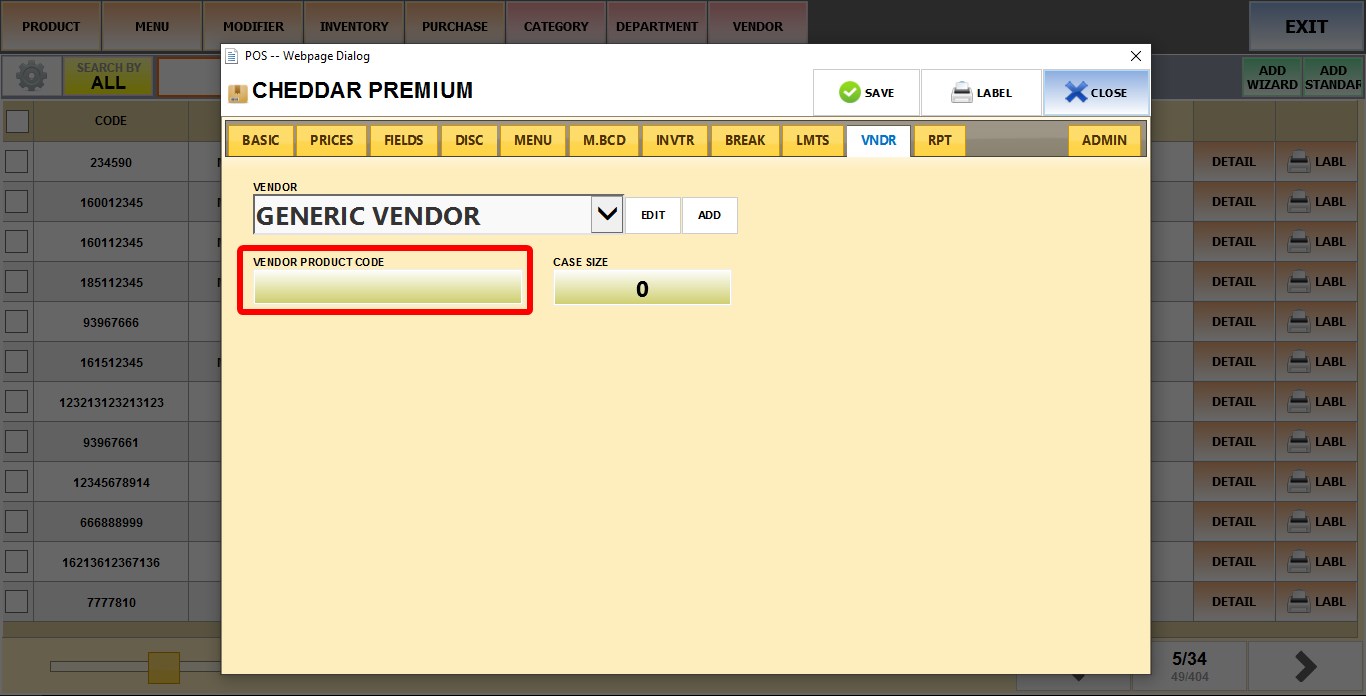
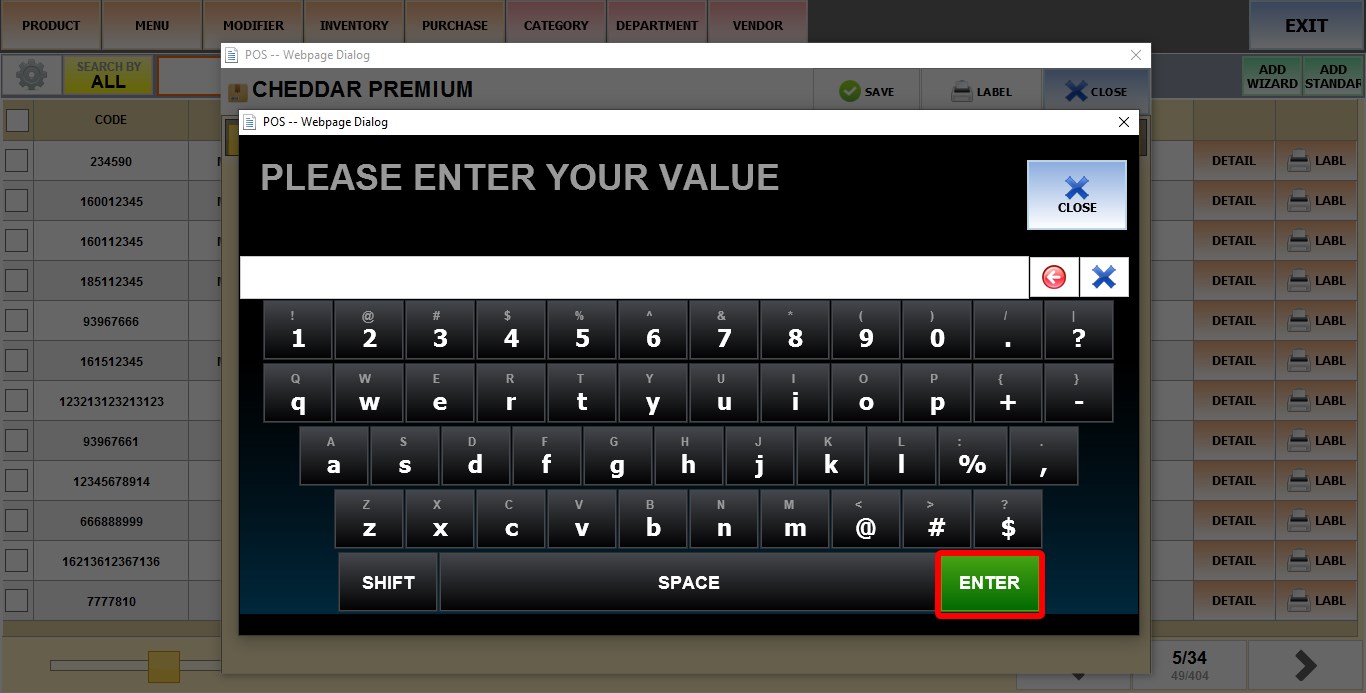
Enter the code in the pop-up window and press ENTER.
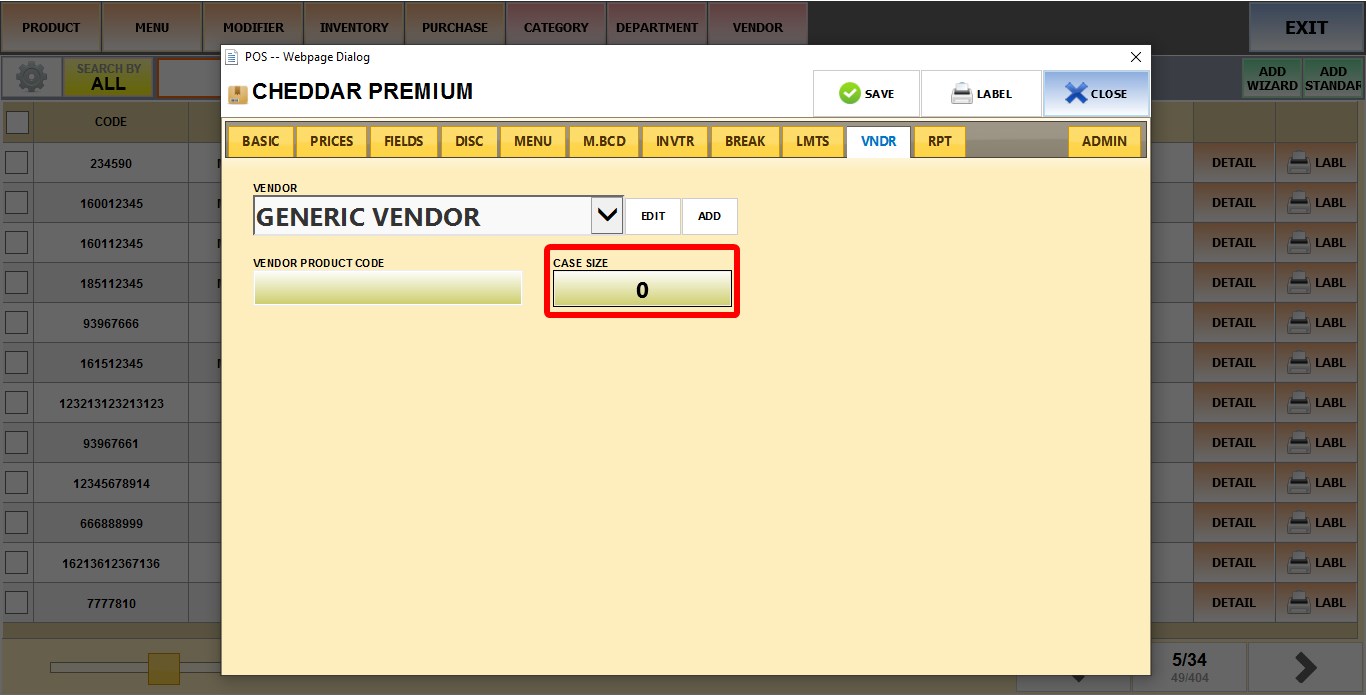
Case Size
You can enter the number of units included in a supplier’s case for this item.
Click on the field under CASE SIZE.
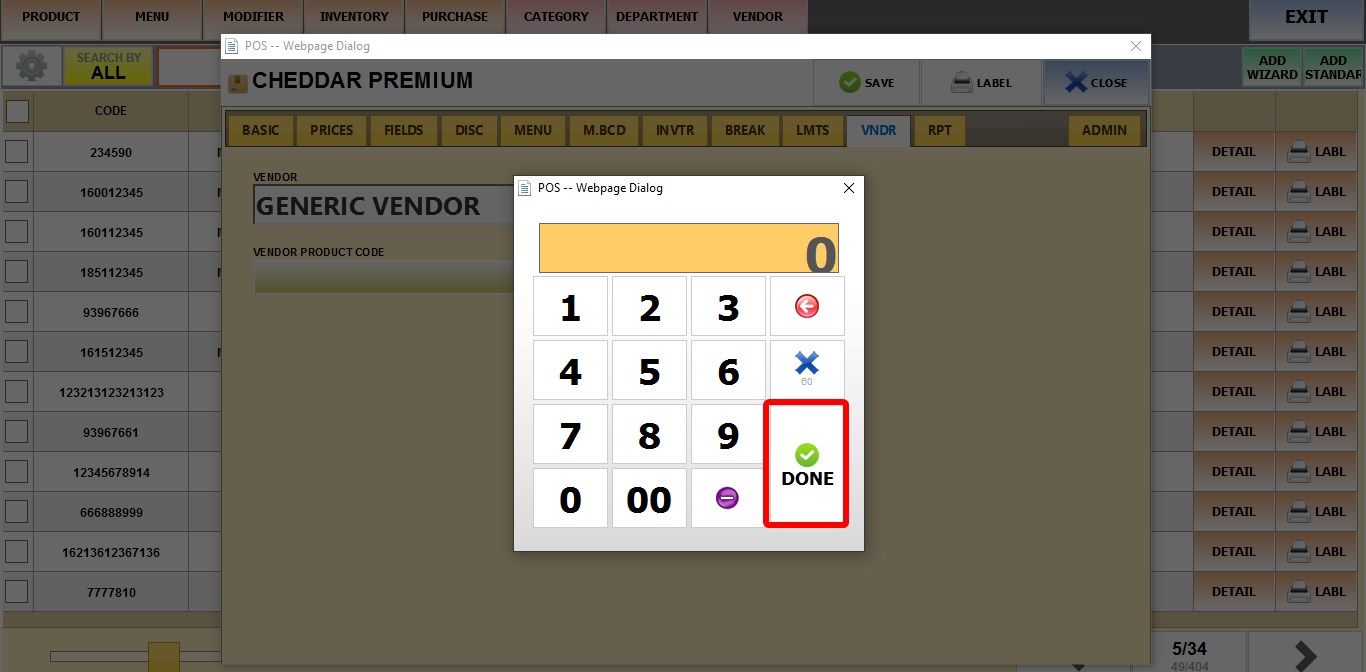
On the numeric keypad that appears, enter the quantity.
Once you are dong changing these settings. Click SAVE.
