MSG 1-5
This setting controls the messages displayed on the customer screen and manages their visual customization.
Main Screen>MENU > SETTING > SCREEN > CUSTOMER DISPLAY > MSG 1-5
Go to MENU, then click on SETTINGS.
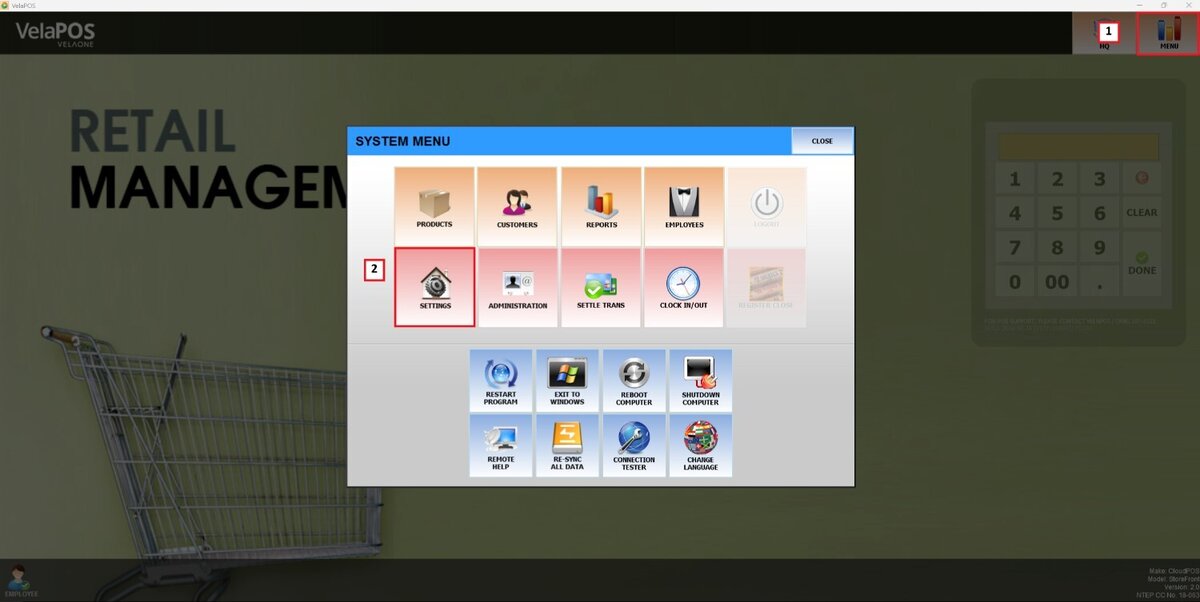
Under SCREEN, select CUSTOMER DISPLAY, and in MSG 1-5, see the available configuration options.
.jpeg)
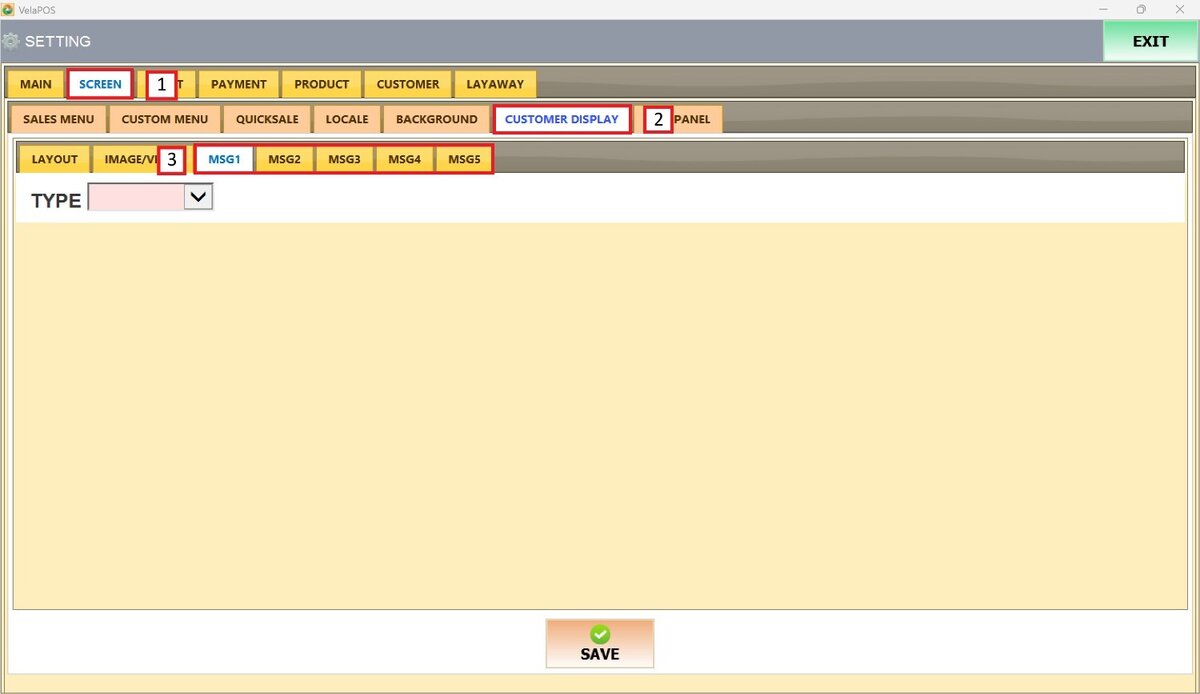
TYPE
Open the TYPE drop-down menu to see the different text styles provided by the system.
1. BASIC TEXT: Format the text by selecting a font size (large, medium, or small) and choosing a color from the dropdown menu.
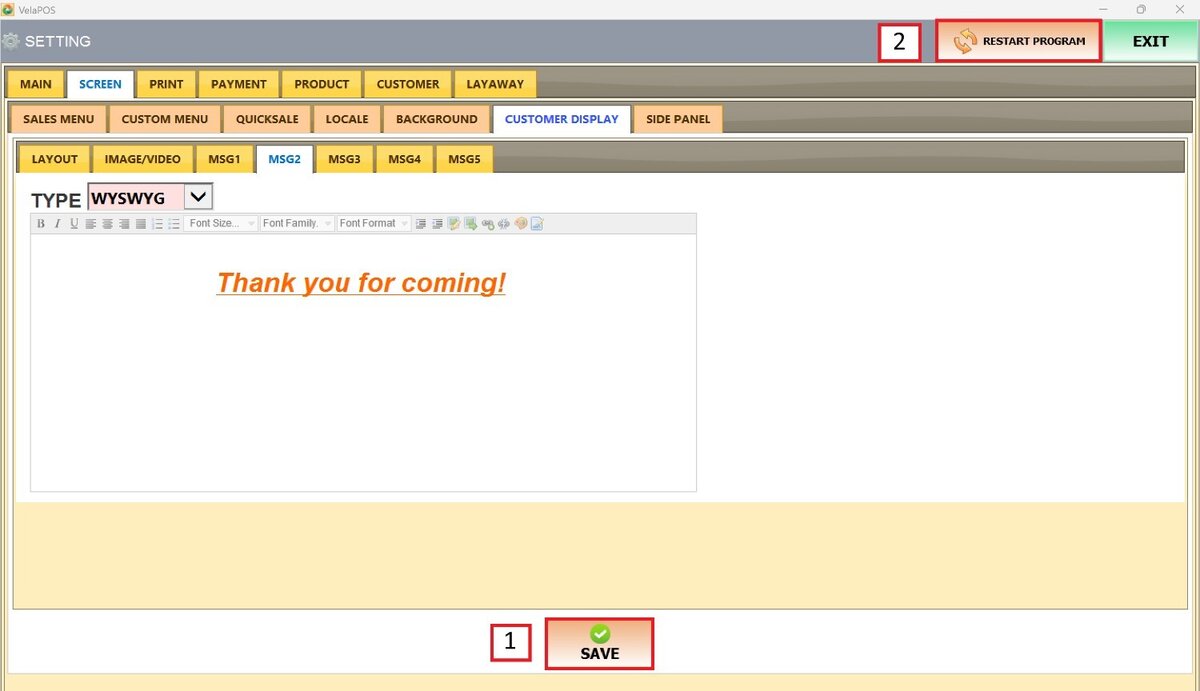
2. WYSWYG: This option provides a rich text editor for more advanced and visually appealing messages.

BASIC TEXT
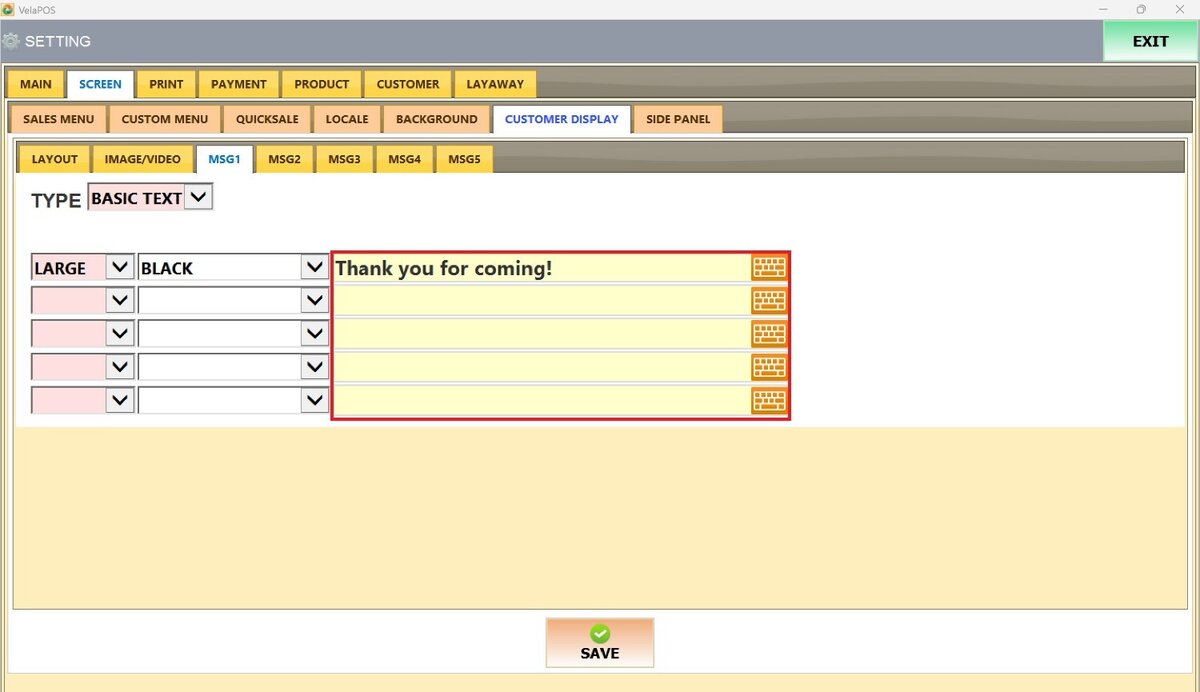
Open the drop-down menu in the first column to choose the desired font size: Large, Medium, or Small.
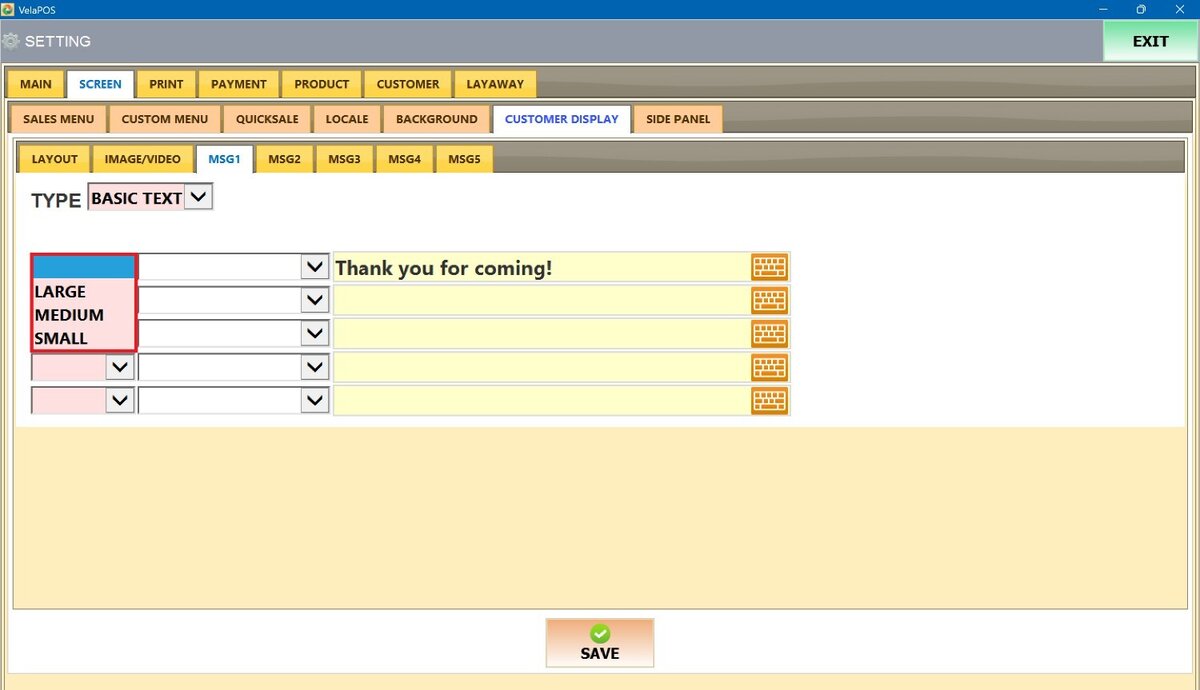
Expand the drop-down menu in the second column to view and choose the font color options provided by the system.

Five input fields are available in the last column for adding the customer-facing messages.
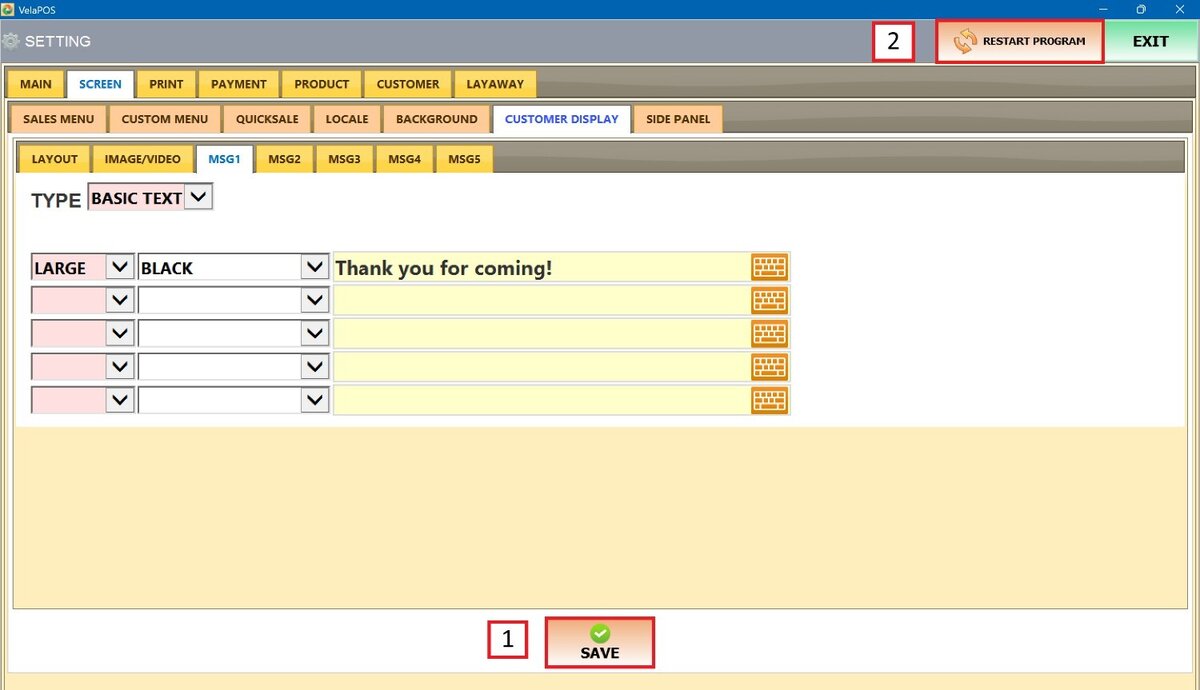
Once everything is set up, press SAVE and RESTART THE PROGRAM to apply the modifications.
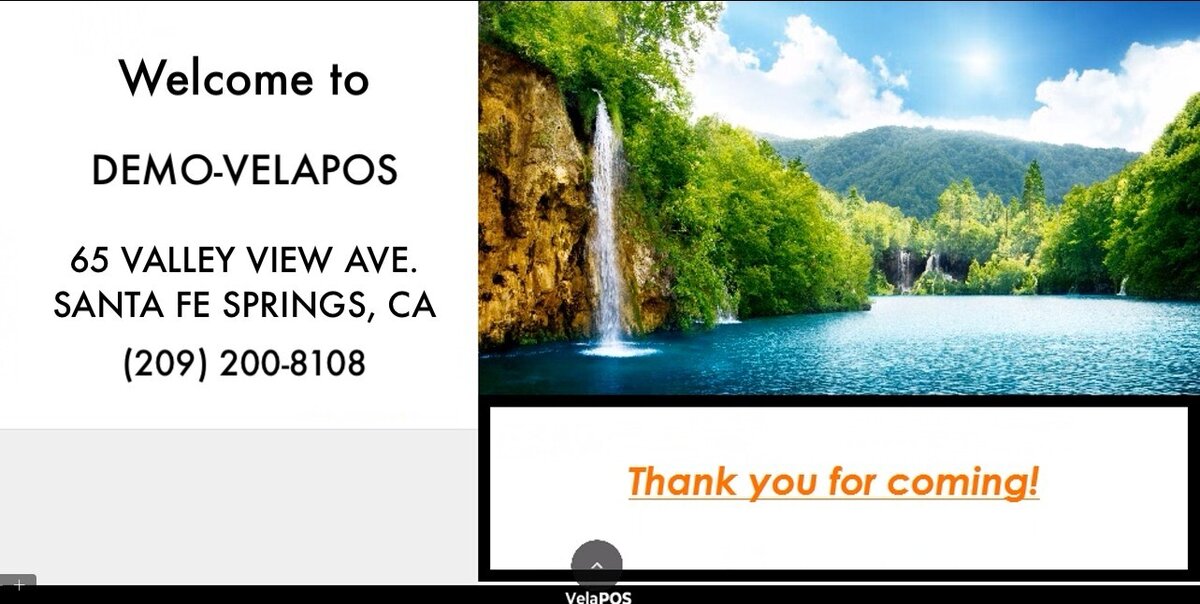
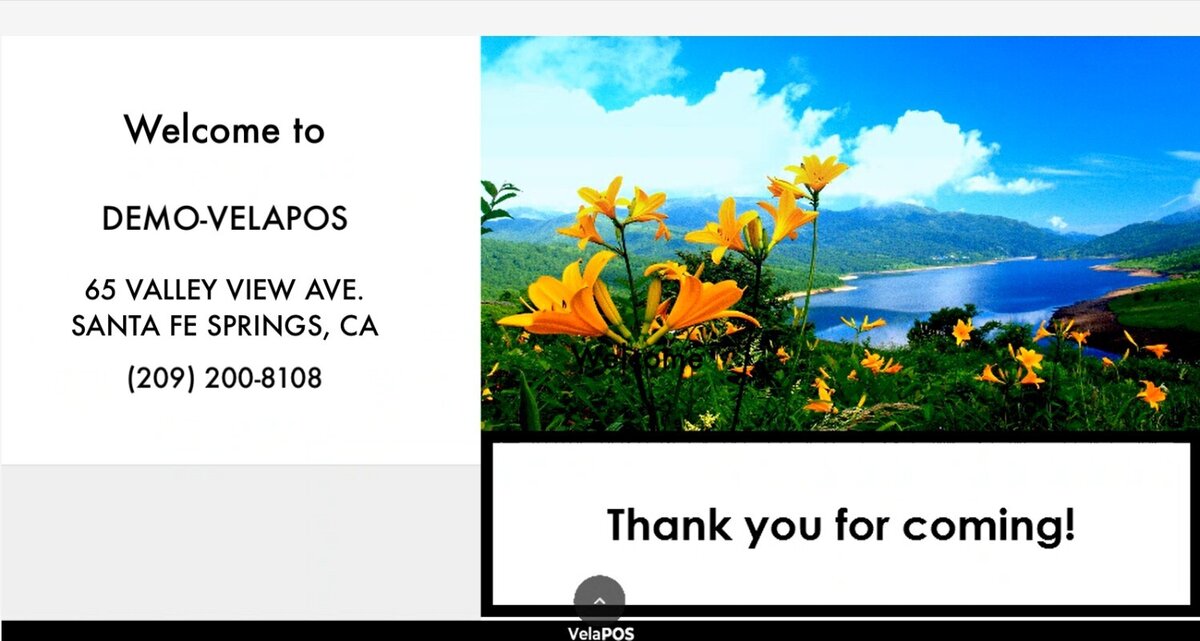
Results:
WYSWYG
Selecting this option opens a blank input box with a formatting toolbar. Messages can be customized with styled text (bold, italic, underline) and enriched with images, videos, or links.
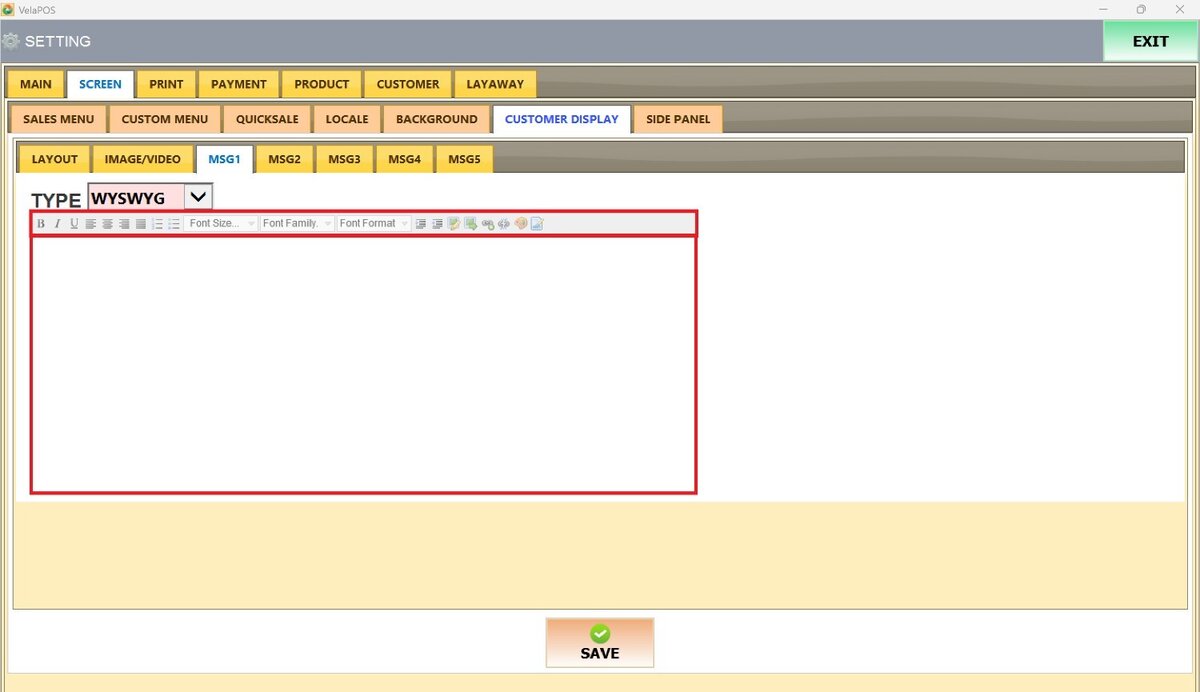
The box serves as a live preview of how the message will appear on the customer display. In this example, the text is centered, italicized, underlined, and in orange.
Once the text is customized, press SAVE and RESTART THE PROGRAM to apply the changes.
Results: