Transfer Gear Icon
With the Gear Icon, you can access the Transfer Reporting tool, which allows you to generate and export a customized list of inventory transfers to an Excel file.
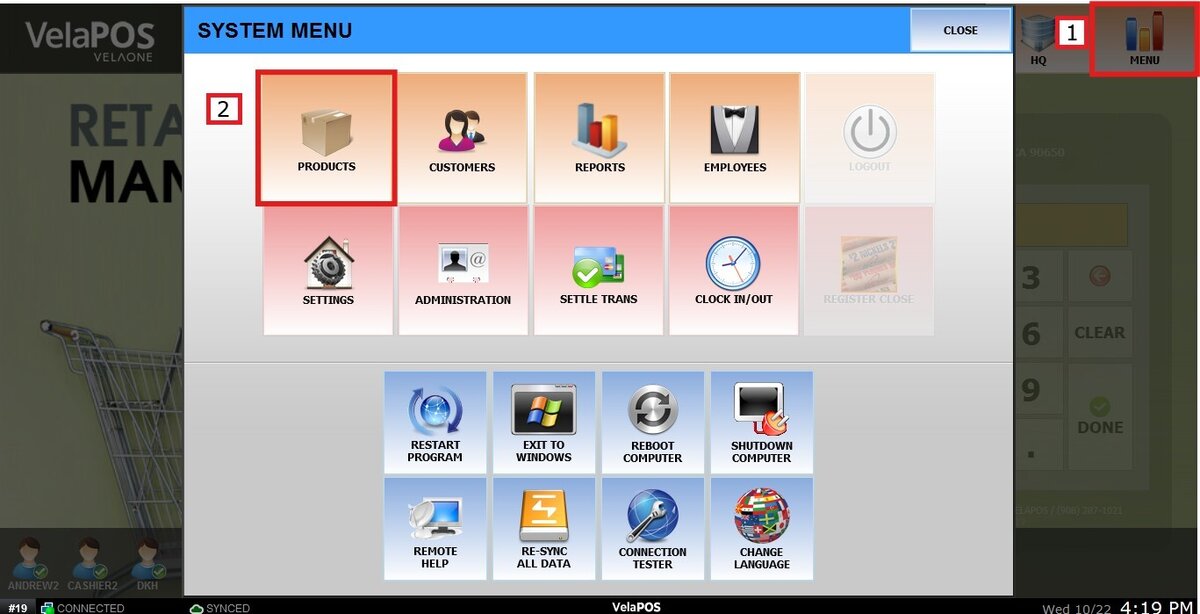
MENU > PRODUCTS > INVENTORY > TRANSFERS > GEAR ICON
Go to MENU, then select PRODUCTS.
On the INVENTORY tab, select TRANSFERS, then click on the GEAR ICON.
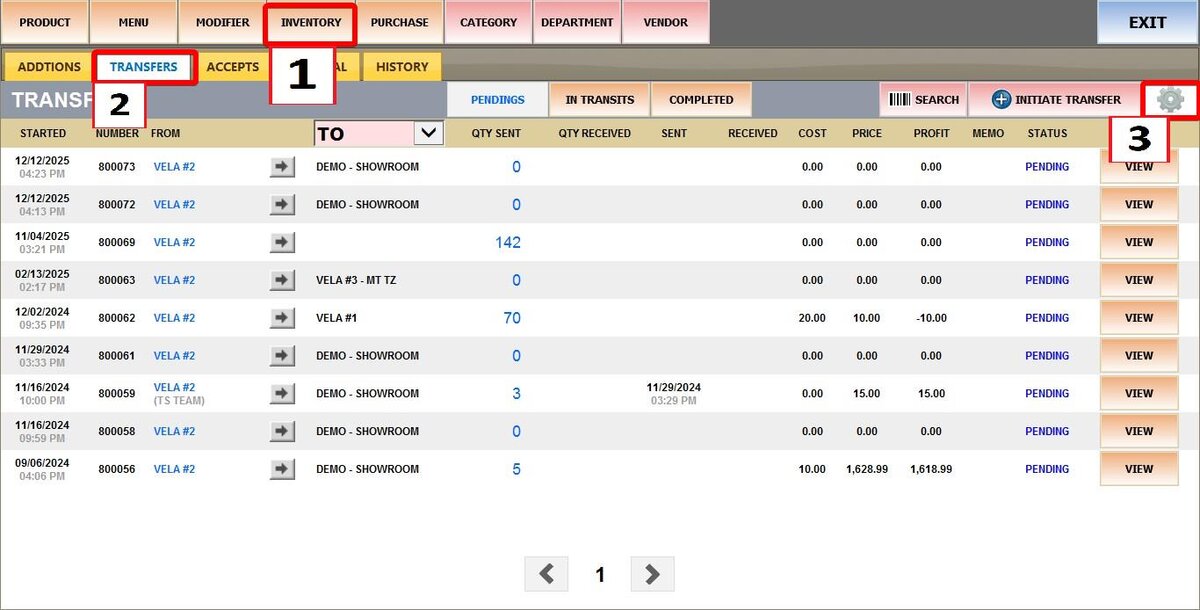
Click EXPORT TO EXCEL

You can apply the following filters to customize the report:
START AND END DATE
Select a specific date range using the calendar (year, month, and day) to define which transfers are included.

STORE (TO)
Use the dropdown menu to select a specific destination store, or choose ALL STORES to include all locations.
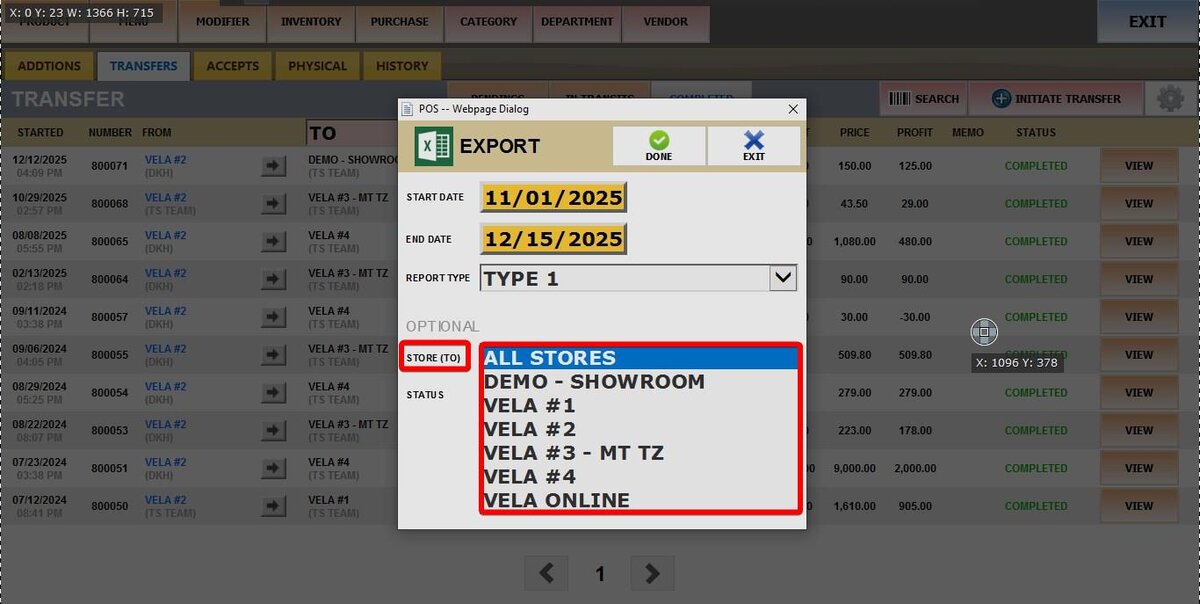
STATUS
Choose the transfer status you want to report on:
1. Completed: Transfers that have been fully received and accepted.
2. In Transit: Transfers that have been sent but not yet received.
3. Pending: Transfers that have been created but not yet sent.

Once all filters are set, click DONE. You will be prompted to choose a location on your computer to save the file.
Result:
An Excel file will be generated containing all transfer records that match the selected criteria.
