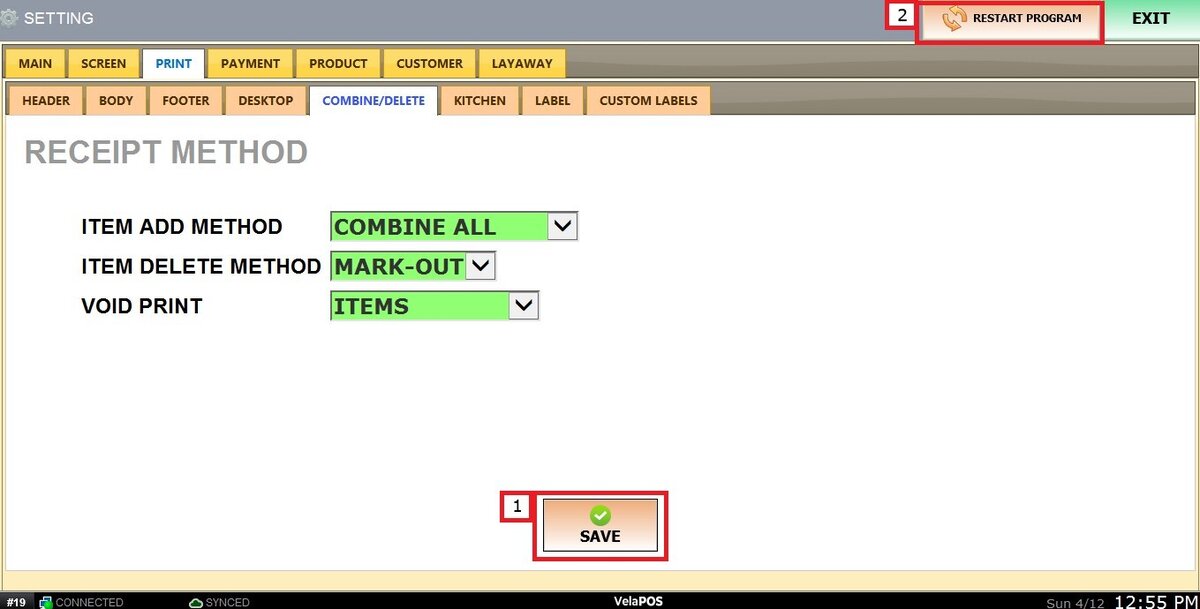
Combine/Delete
These settings control how items are grouped and how deletions are handled on kitchen tickets. These options help keep receipts clear and organized by reducing duplicate lines and defining how removed or voided items appear.
Main Screen > MENU> SETTINGS> PRINT> COMBINE/DELETE.
Go to MENU, then select SETTINGS.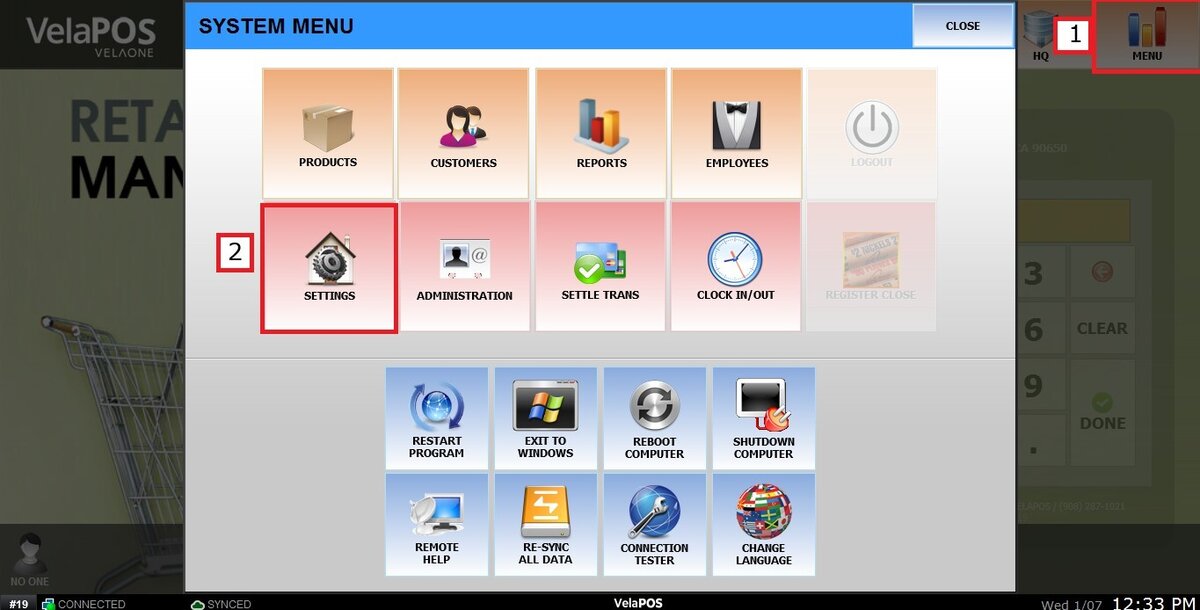
Under the PRINT tab, select COMBINE/DELETE.
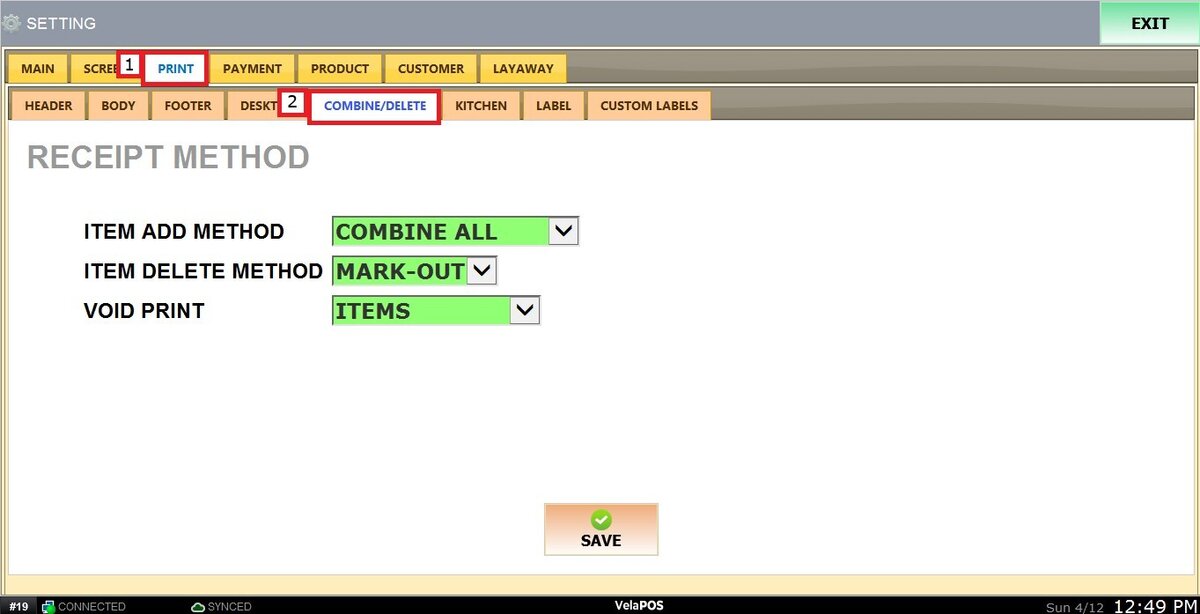
ITEM ADD METHOD
Choose how items are displayed when added to an order:
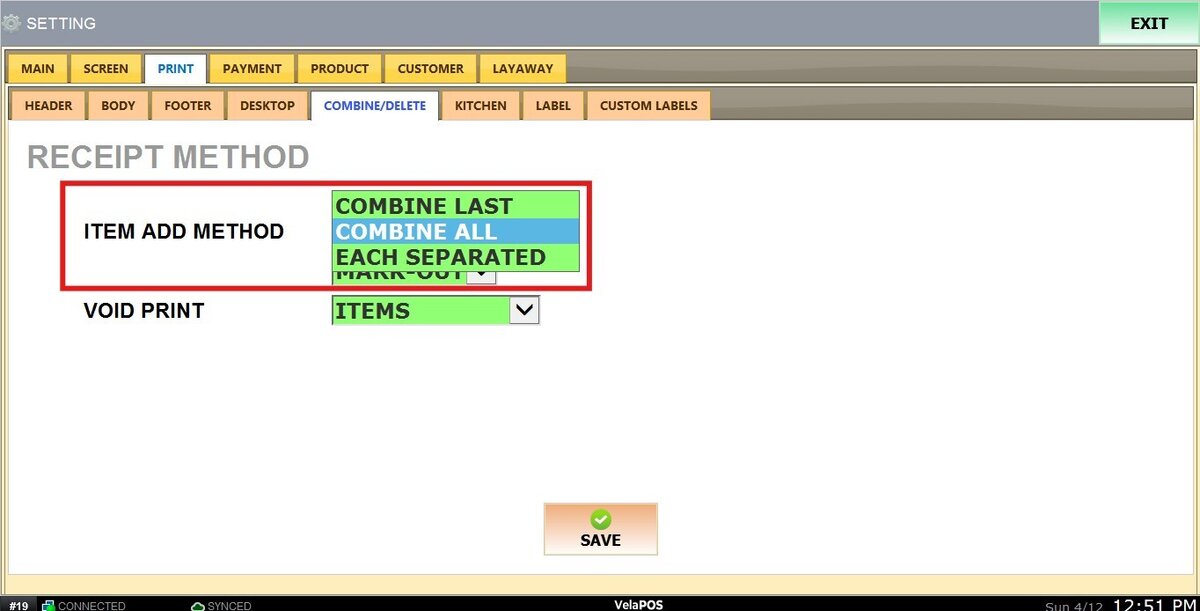
1. EACH SEPARATED: Each item is printed on a separate line.
2. COMBINE LAST: Only the most recently added identical item is combined.
3. COMBINE ALL: All identical items are combined into a single line with a total quantity.
Results:
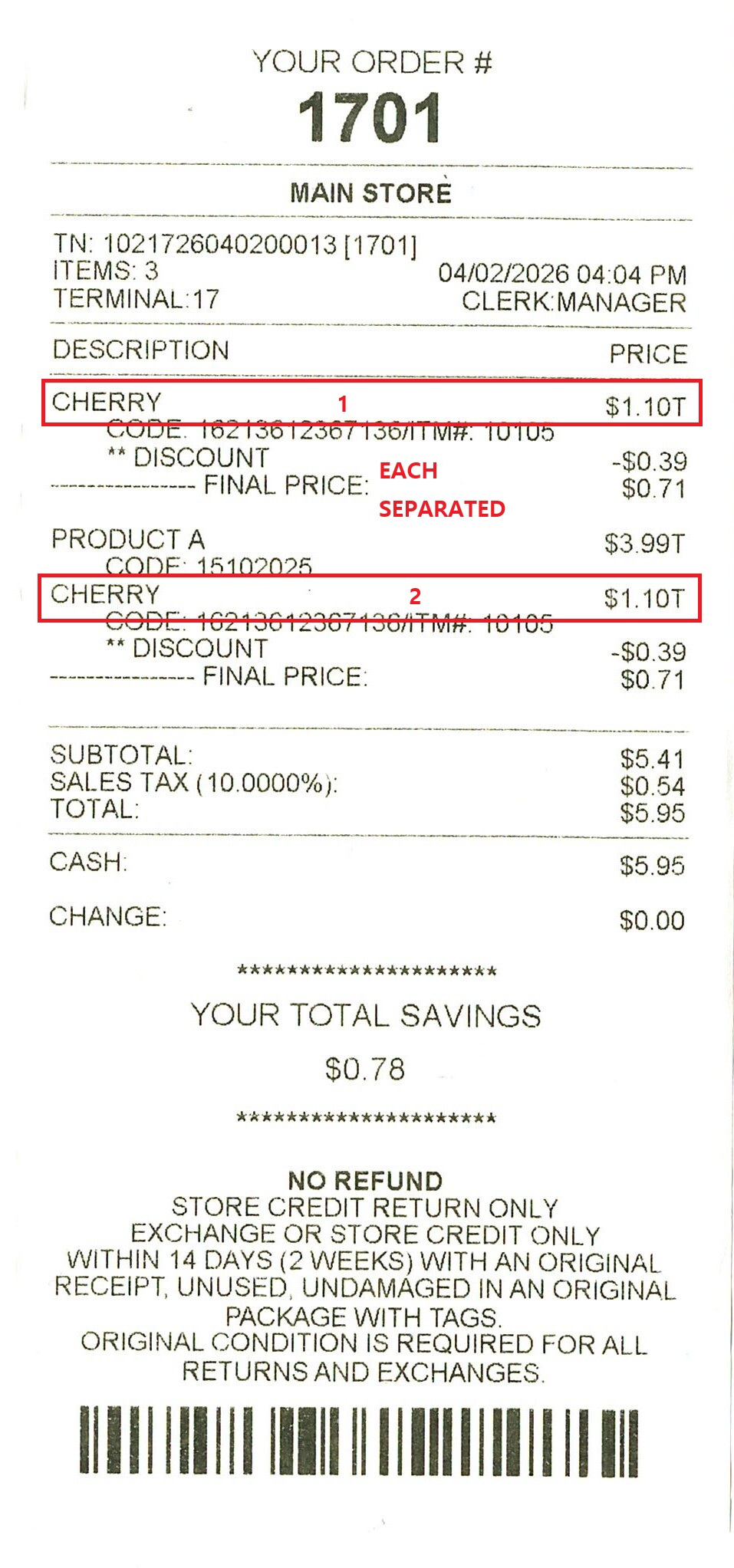
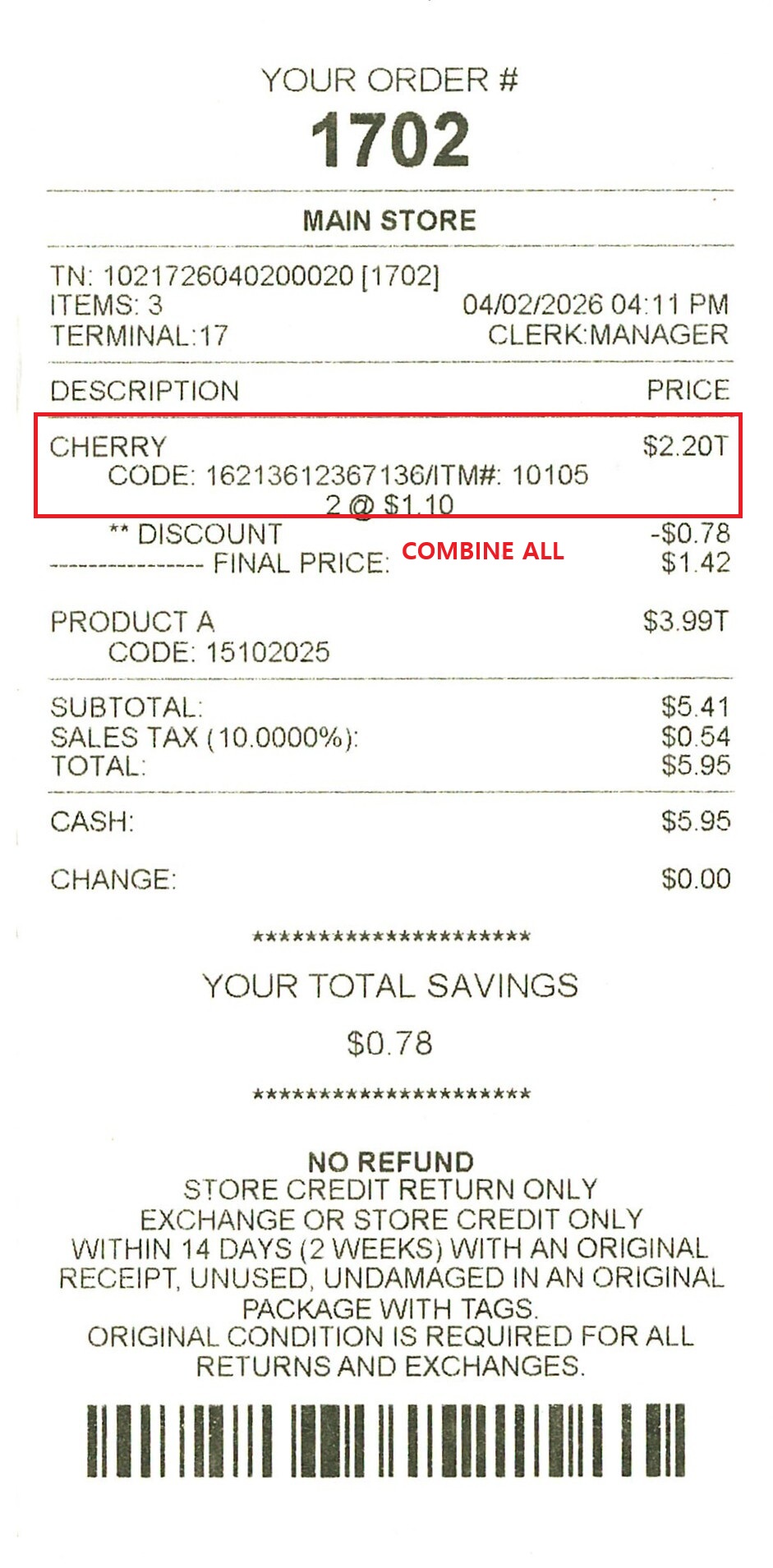
ITEM DELETE METHOD
Choose how deleted items appear on the ticket:
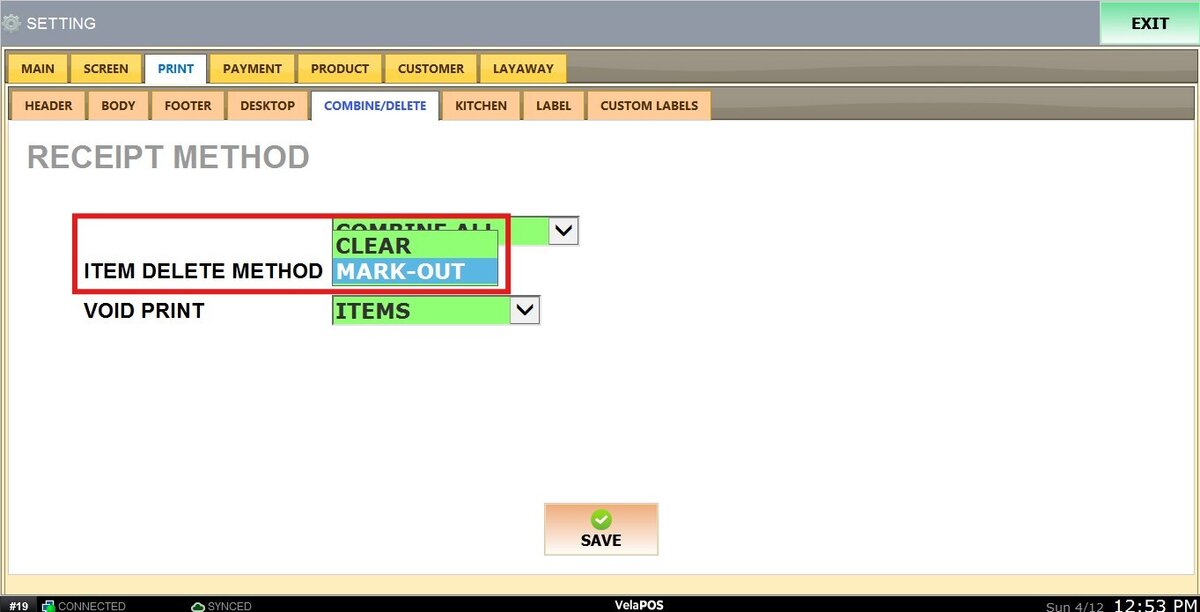
1. CLEAR: Deleted items are completely removed from the receipt.
2. MARK-OUT: Deleted items remain visible with a mark (void/cancel line).
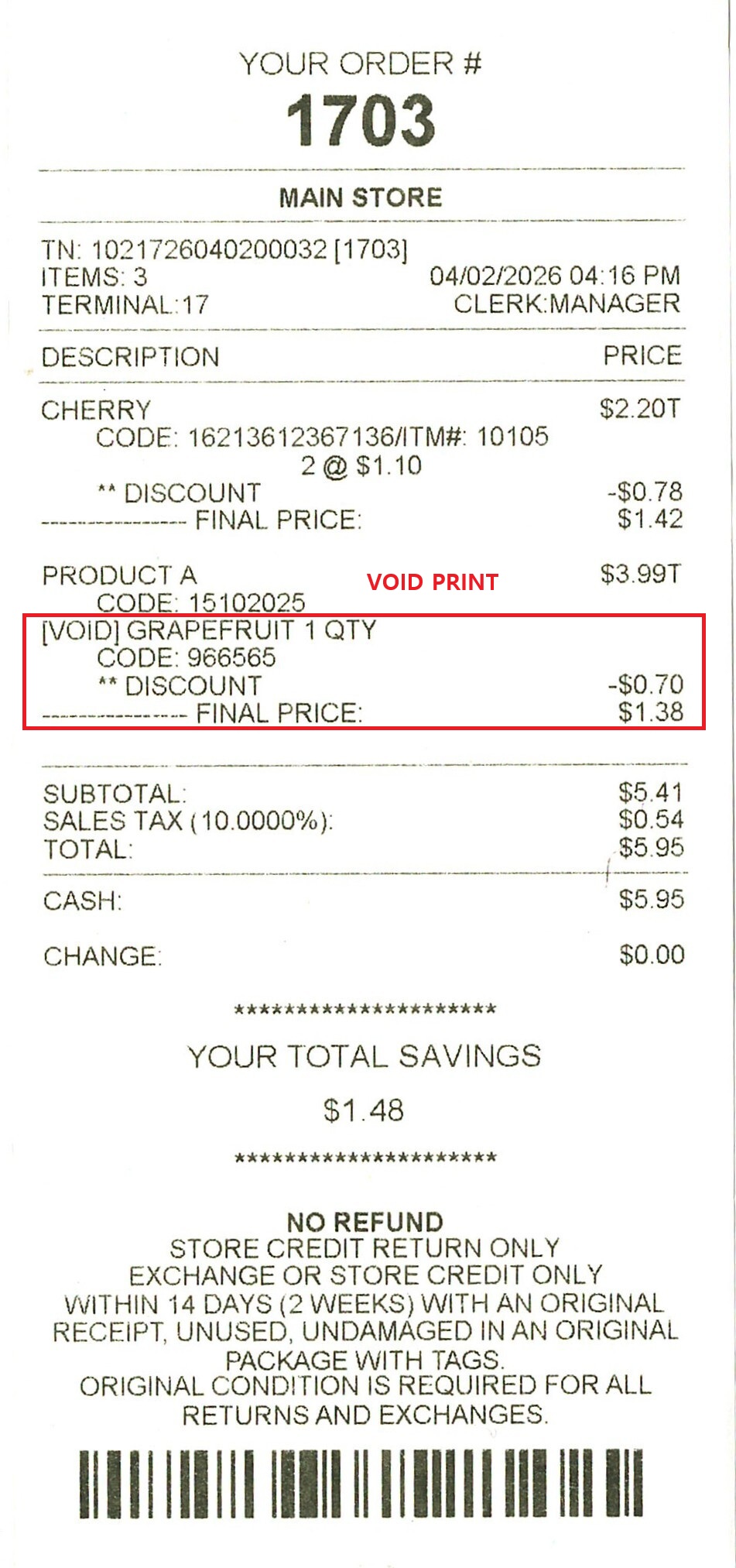
VOID PRINT
Control how voided items or transactions are printed:
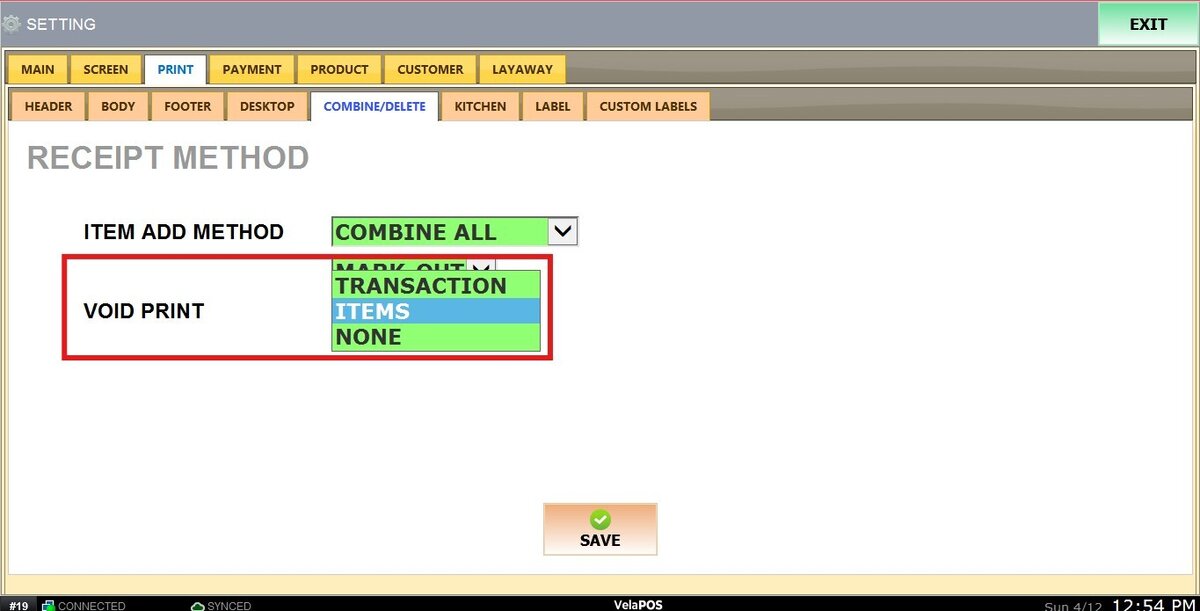
1. TRANSACTION: Prints when the entire transaction is voided.
2. ITEMS: Prints all voided items.
3. NONE: Does not print any void information.
Results:
To apply all changes, click on SAVE and RESTART THE PROGRAM.