Customer
In the Customer tab, you can configure how customer profiles are handled during transactions.
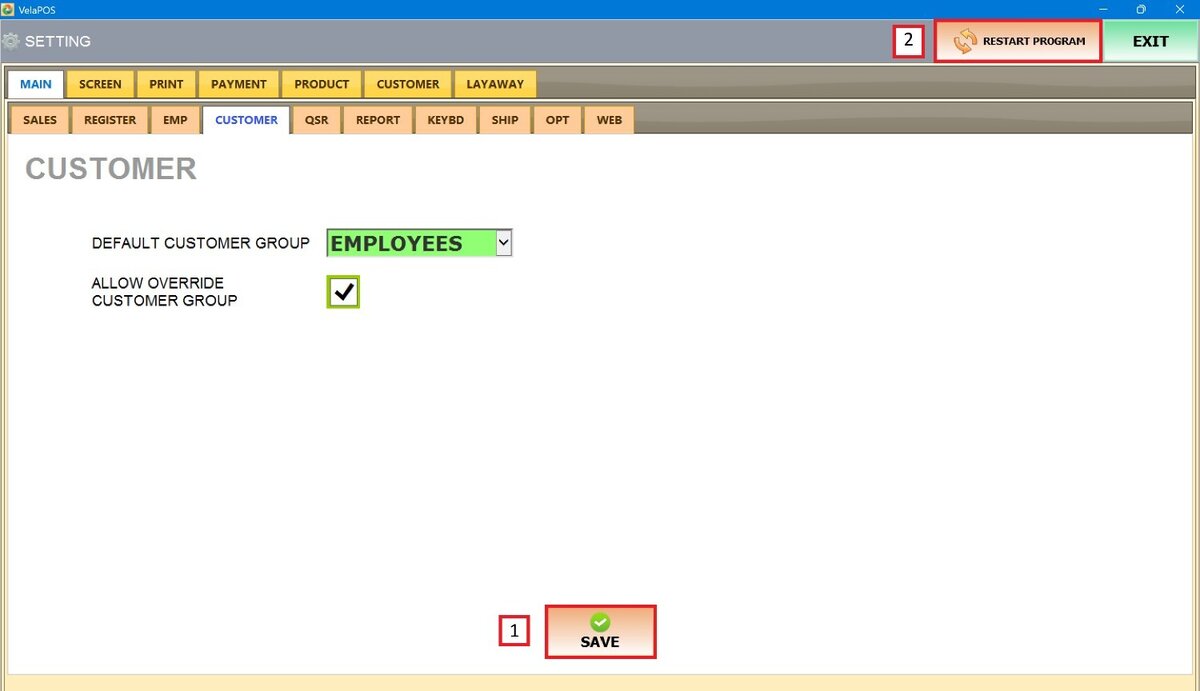
Main Screen> MENU> SETTINGS> MAIN> CUSTOMER
Go to MENU and press SETTINGS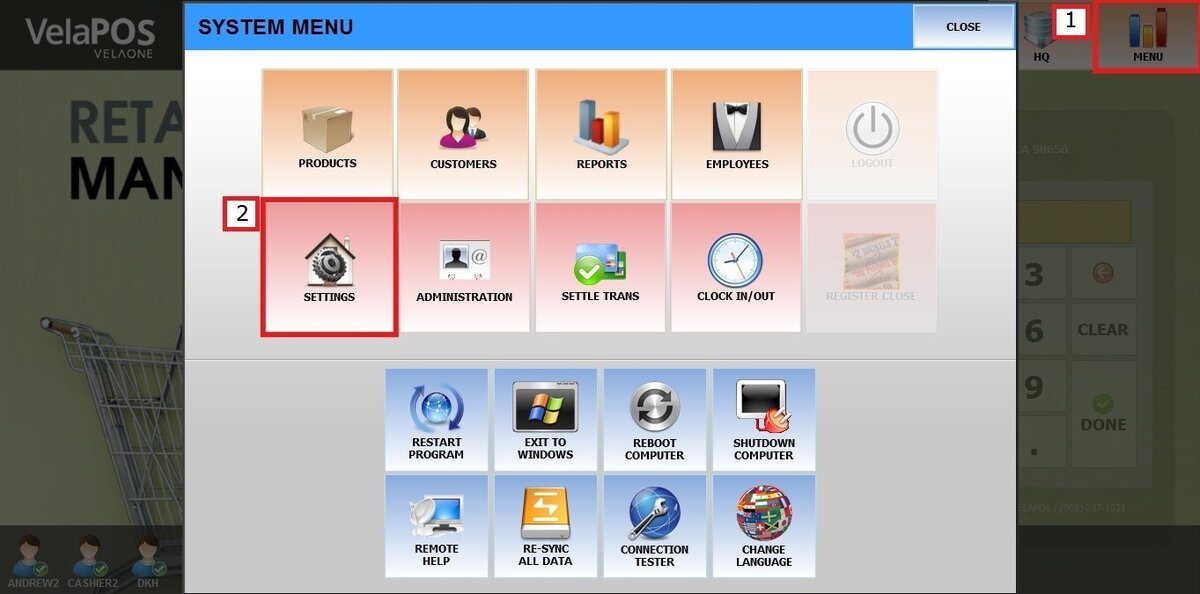
Under MAIN, select CUSTOMER
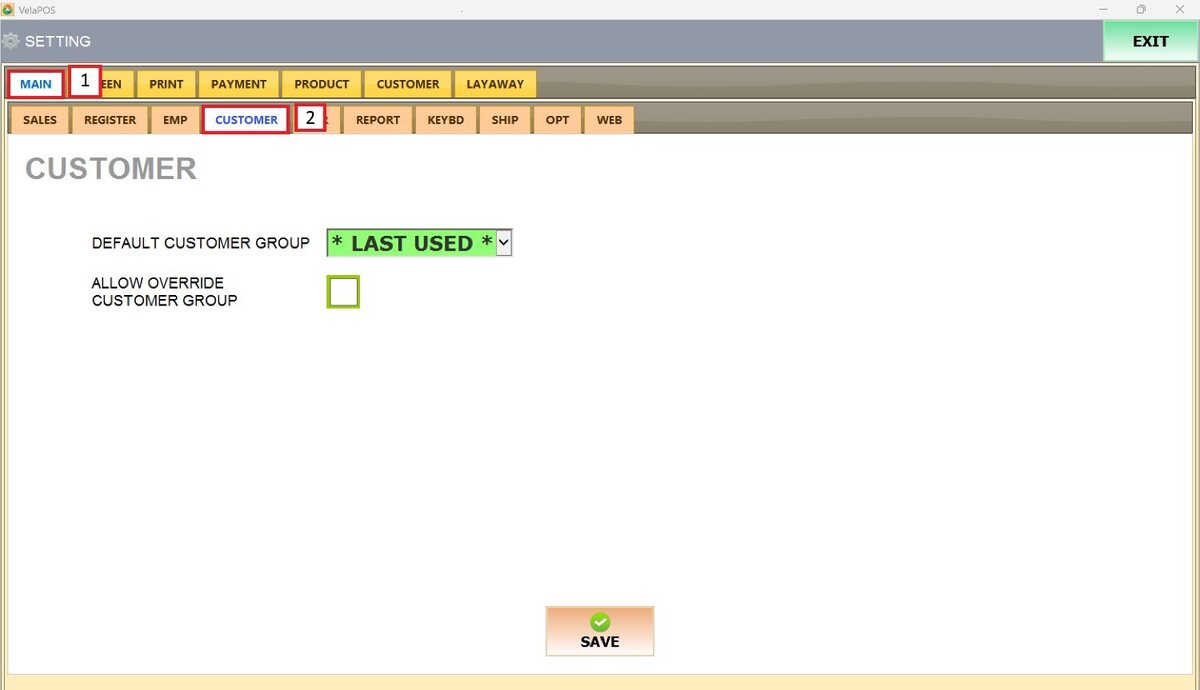
DEFAULT CUSTOMER GROUP
This option allows you to set the default customer group that is applied when a new sale begins.
Open the drop-down menu, review the available customer group options, and select one.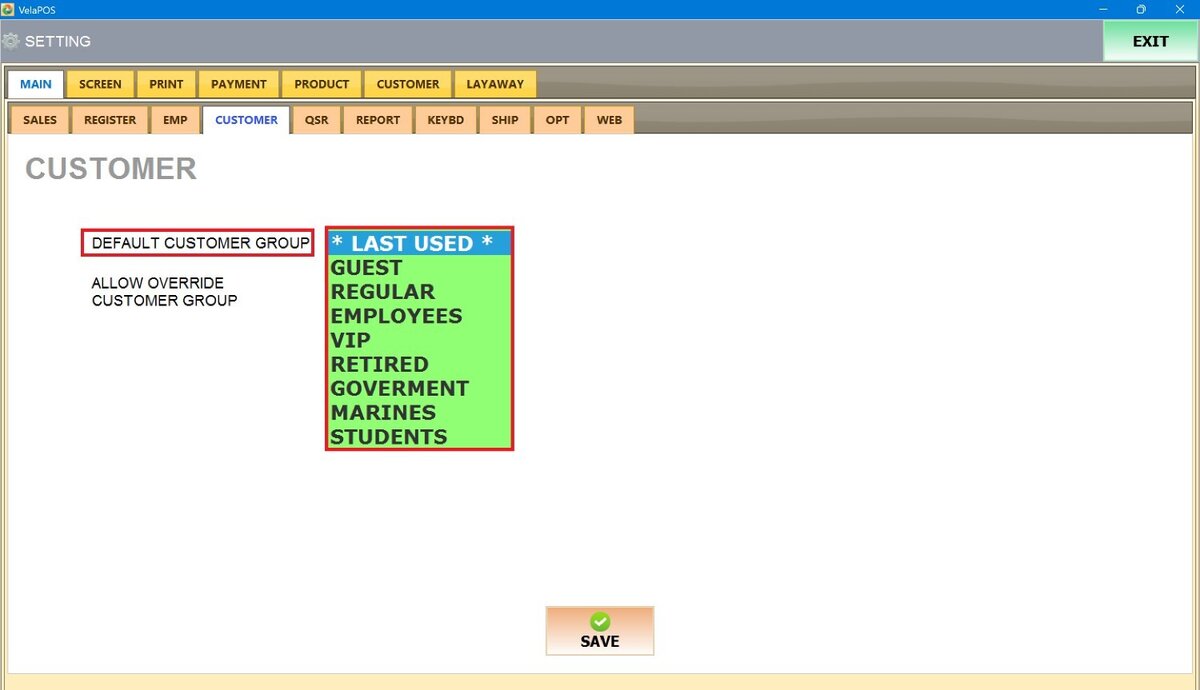
Press SAVE to store the change, and RESTART THE PROGRAM to ensure the updates are applied correctly.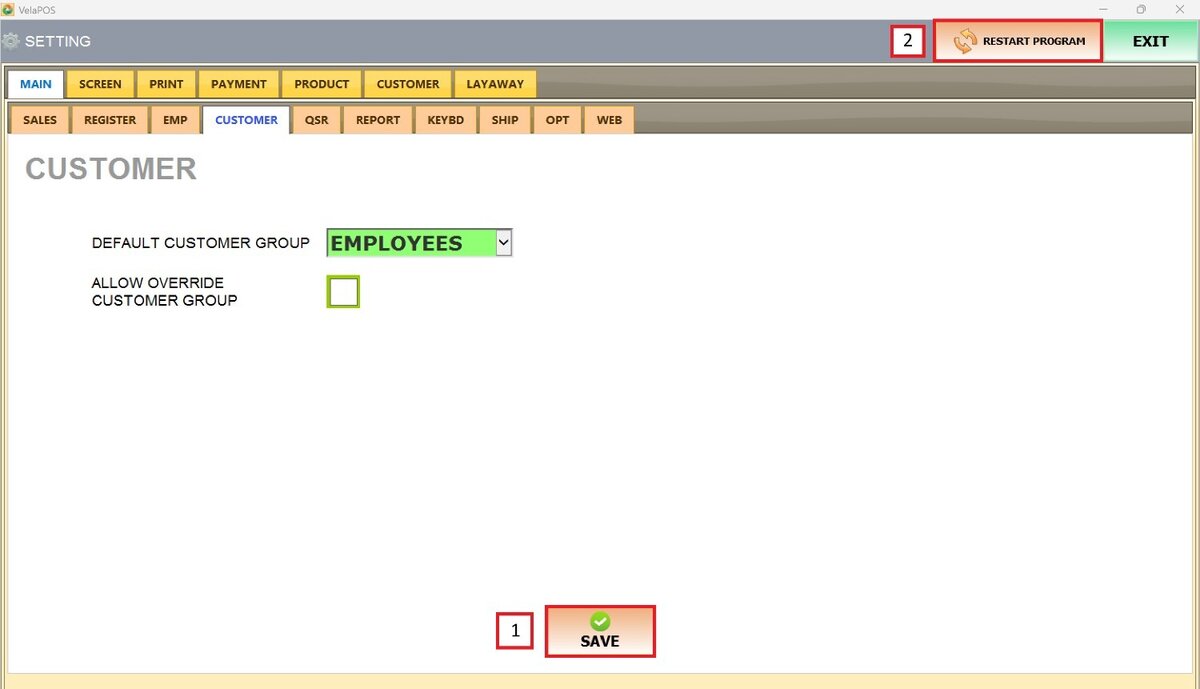
Result:
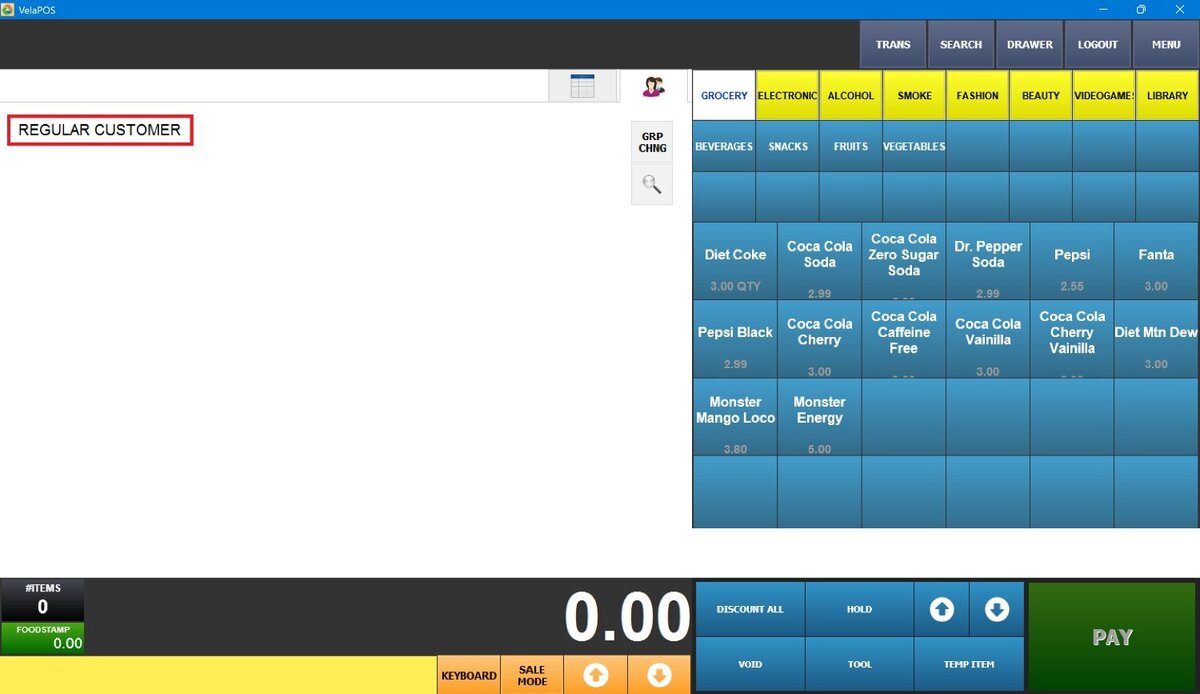
The selected customer group will be displayed on the Sales Screen.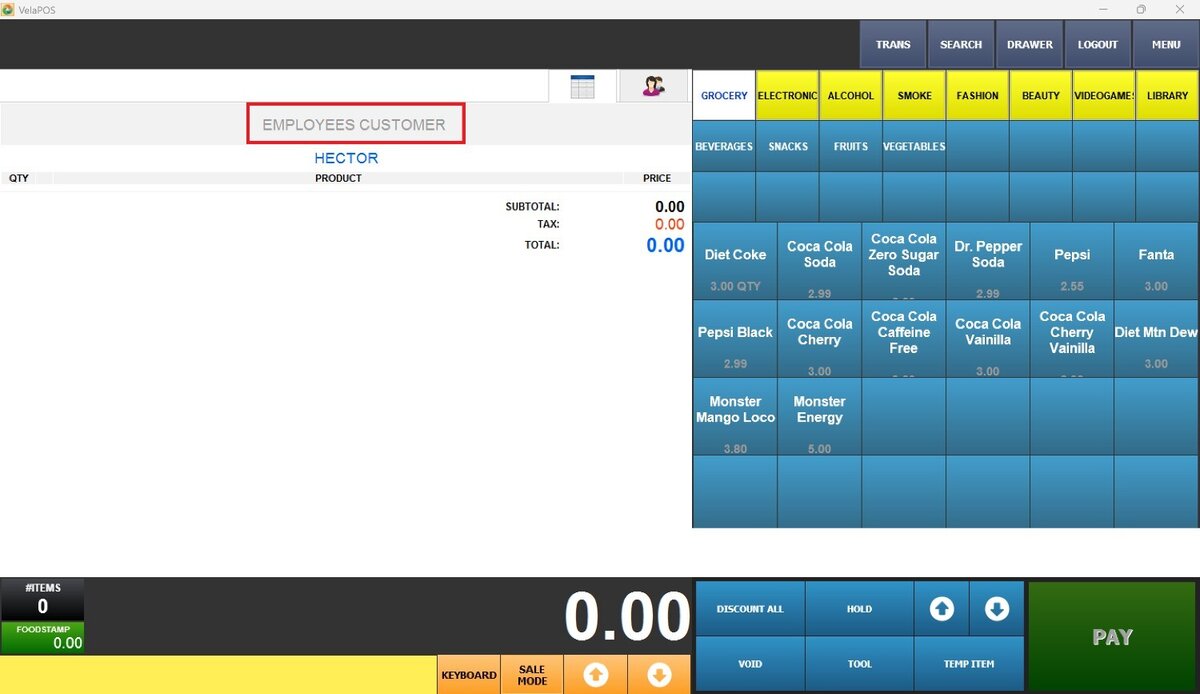
ALLOW OVERRIDE CUSTOMER GROUP
This option allows you to manually change the customer group during a transaction.
Leave the box unchecked to disable this option.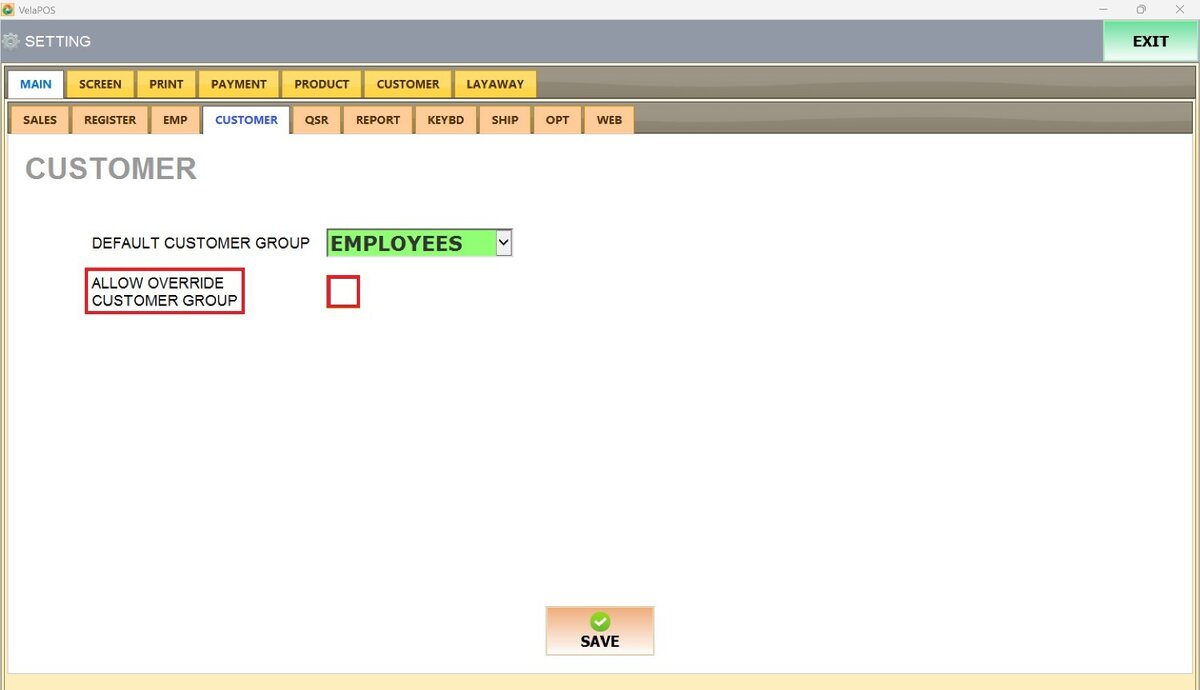
Check the box to allow changes during the sale.
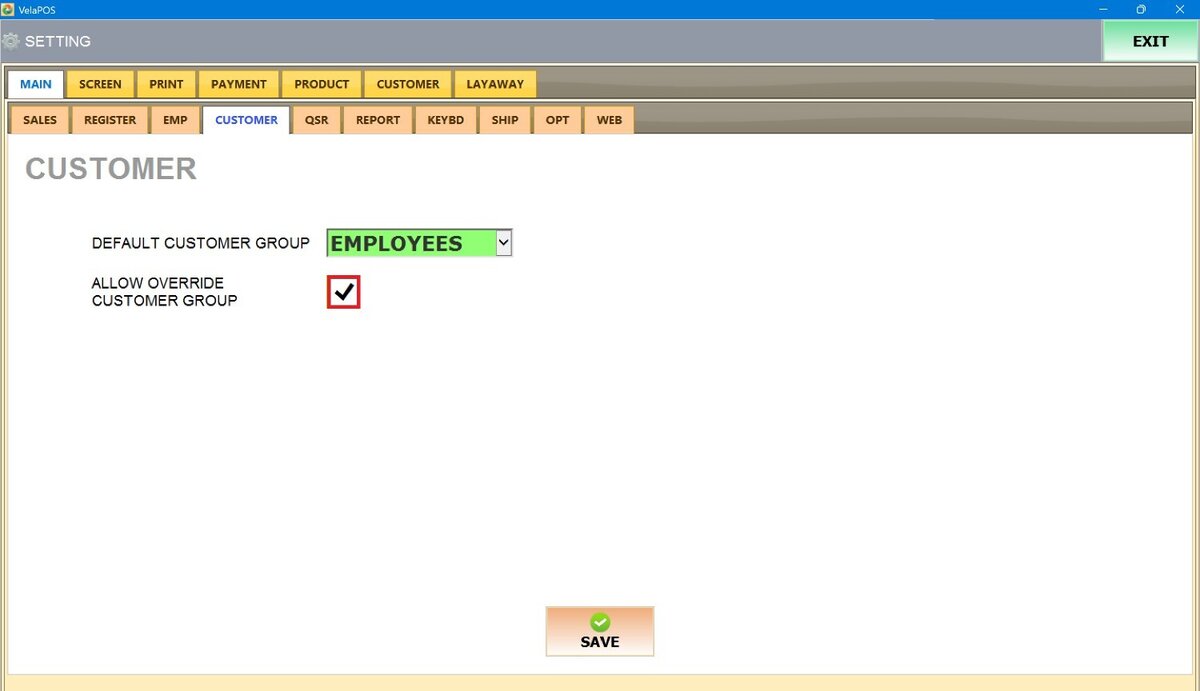
Press SAVE and RESTART THE PROGRAM to apply the changes.
Result:
If disabled, the GRP CHNG button will not appear on the Sales Screen.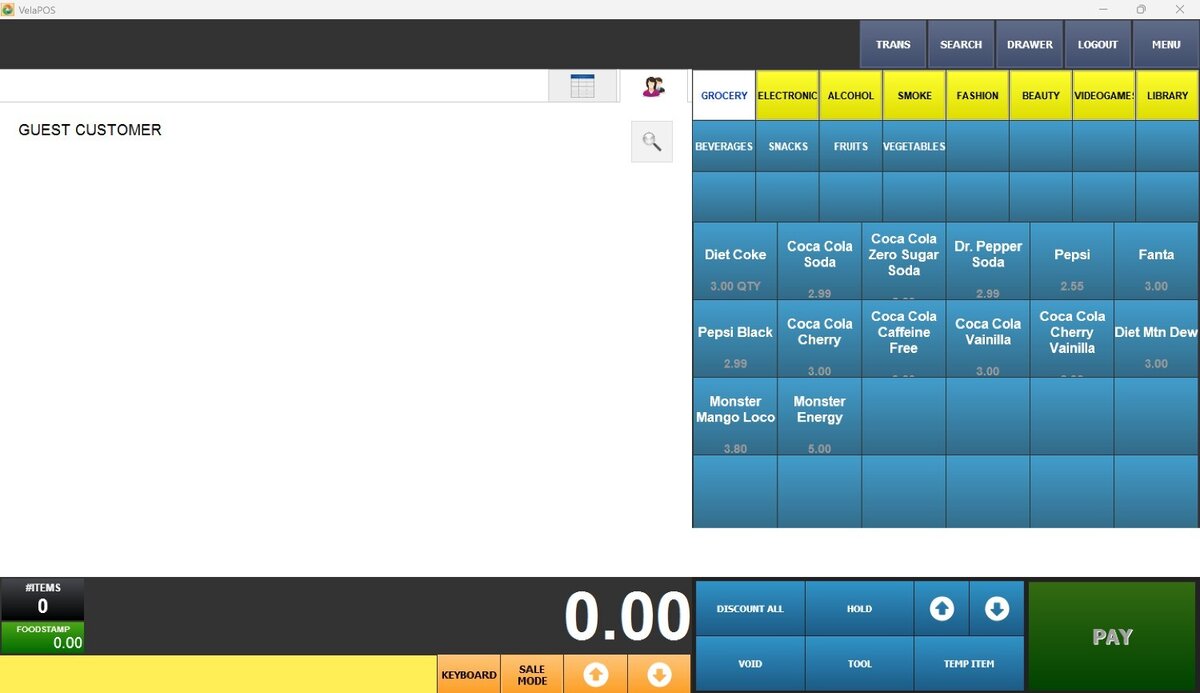
When this option is enabled, the GRP CHNG button is visible on the Sales Screen. Tap the two-people icon and select GRP CHNG.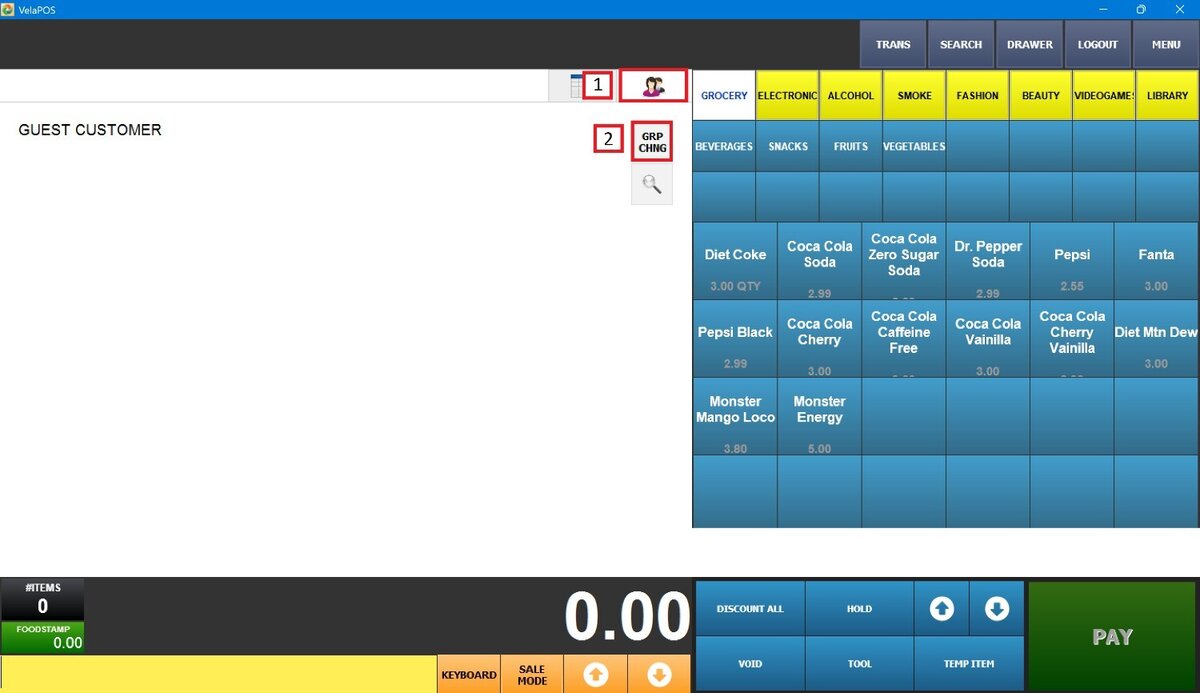
This opens the customer group selection screen, where you can choose the desired customer group.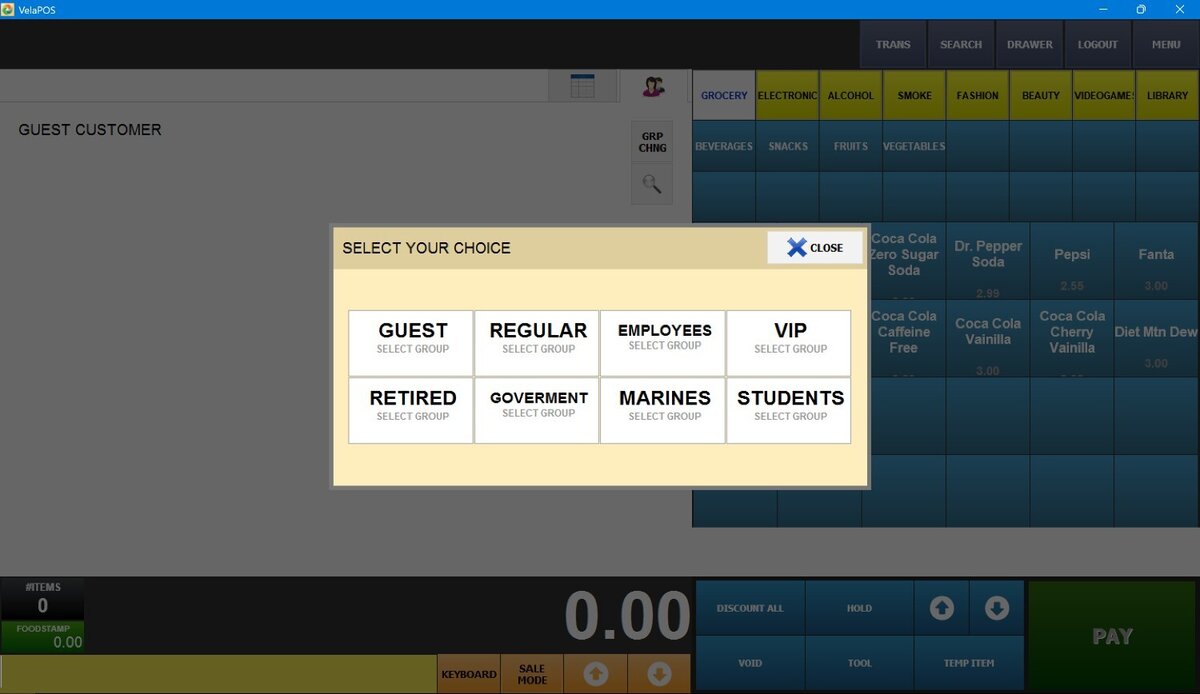
Once selected, the customer group will appear on the left side of the Sales Screen.