Product Discount Tab
This function allows you to assign a discount rule to an individual product, either for all customer groups or for a specific one.
Main Screen > MENU > PRODUCTS > Product DETAIL > DISC
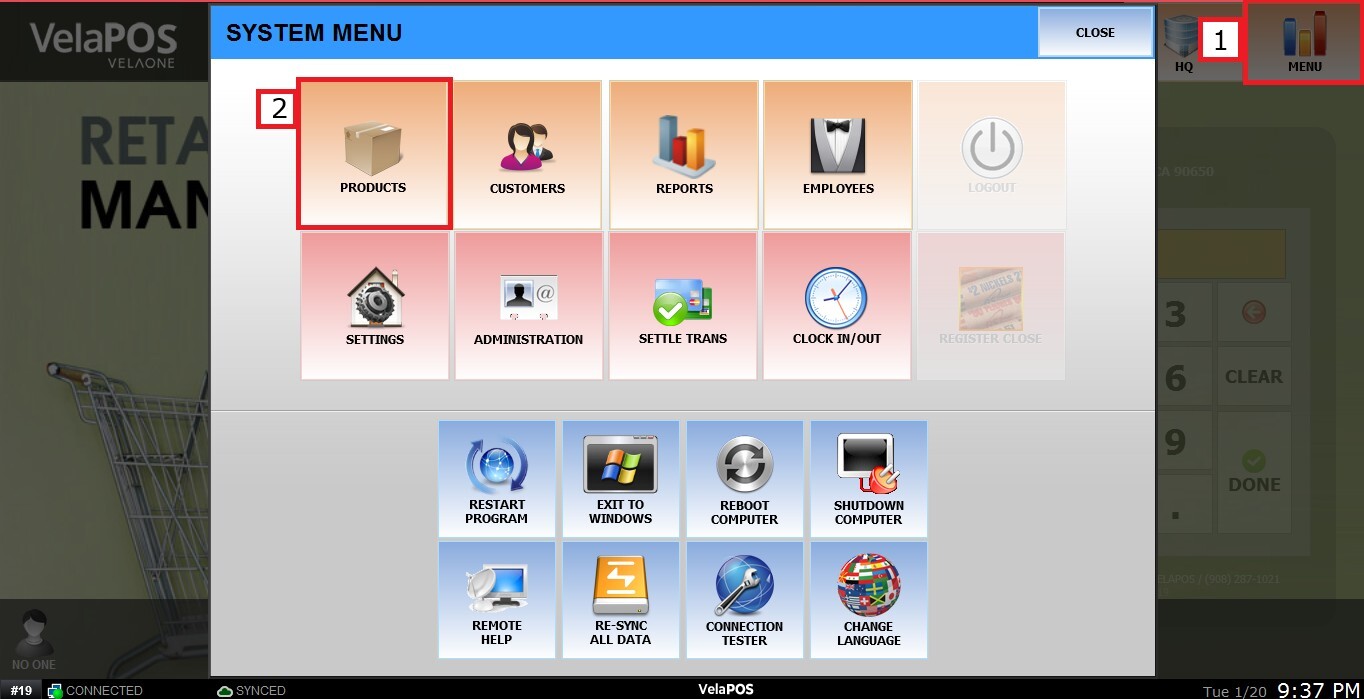
On the main screen, go to MENU and select PRODUCTS.
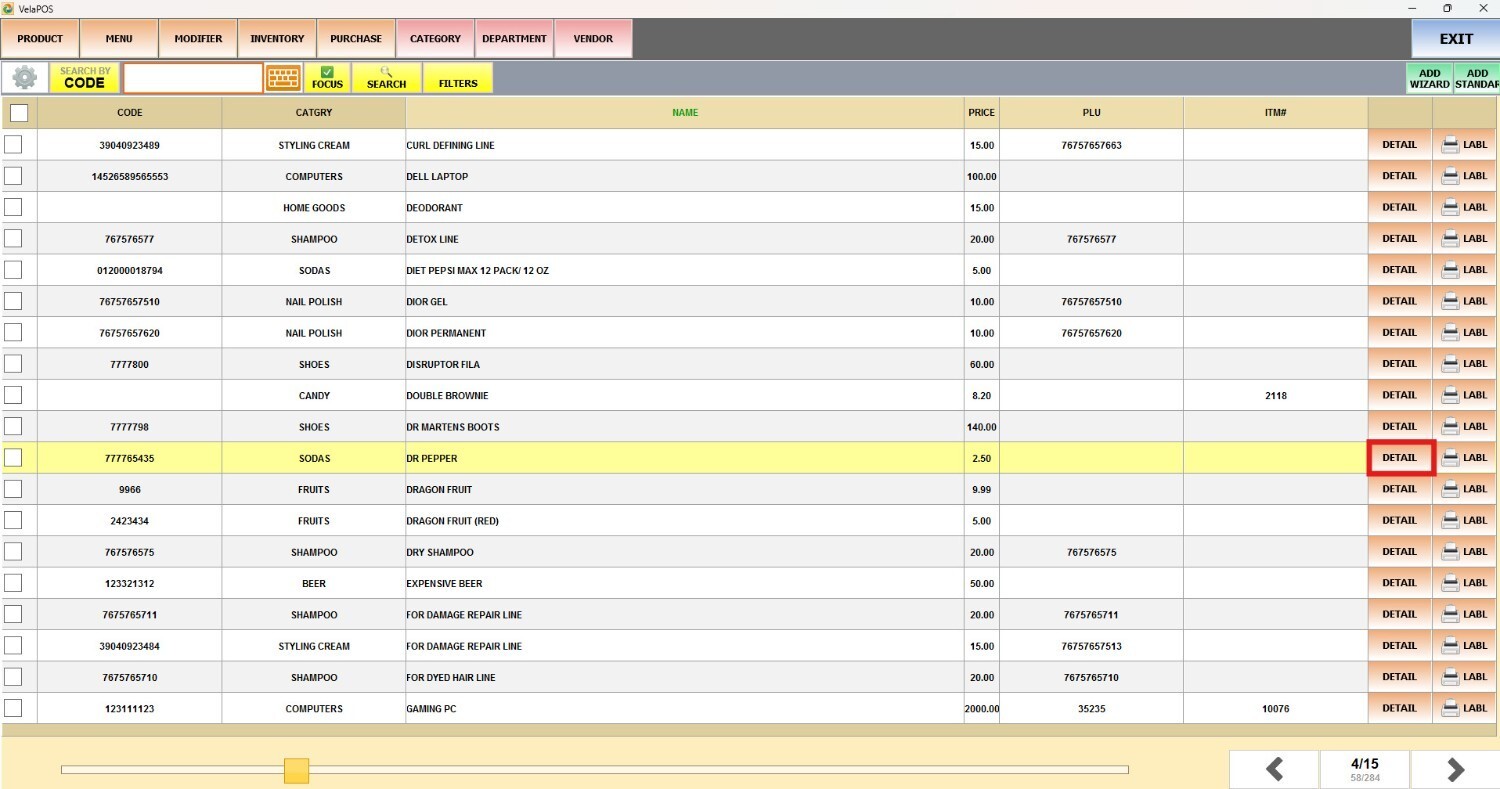
In the PRODUCT section, click on the product’s DETAIL.
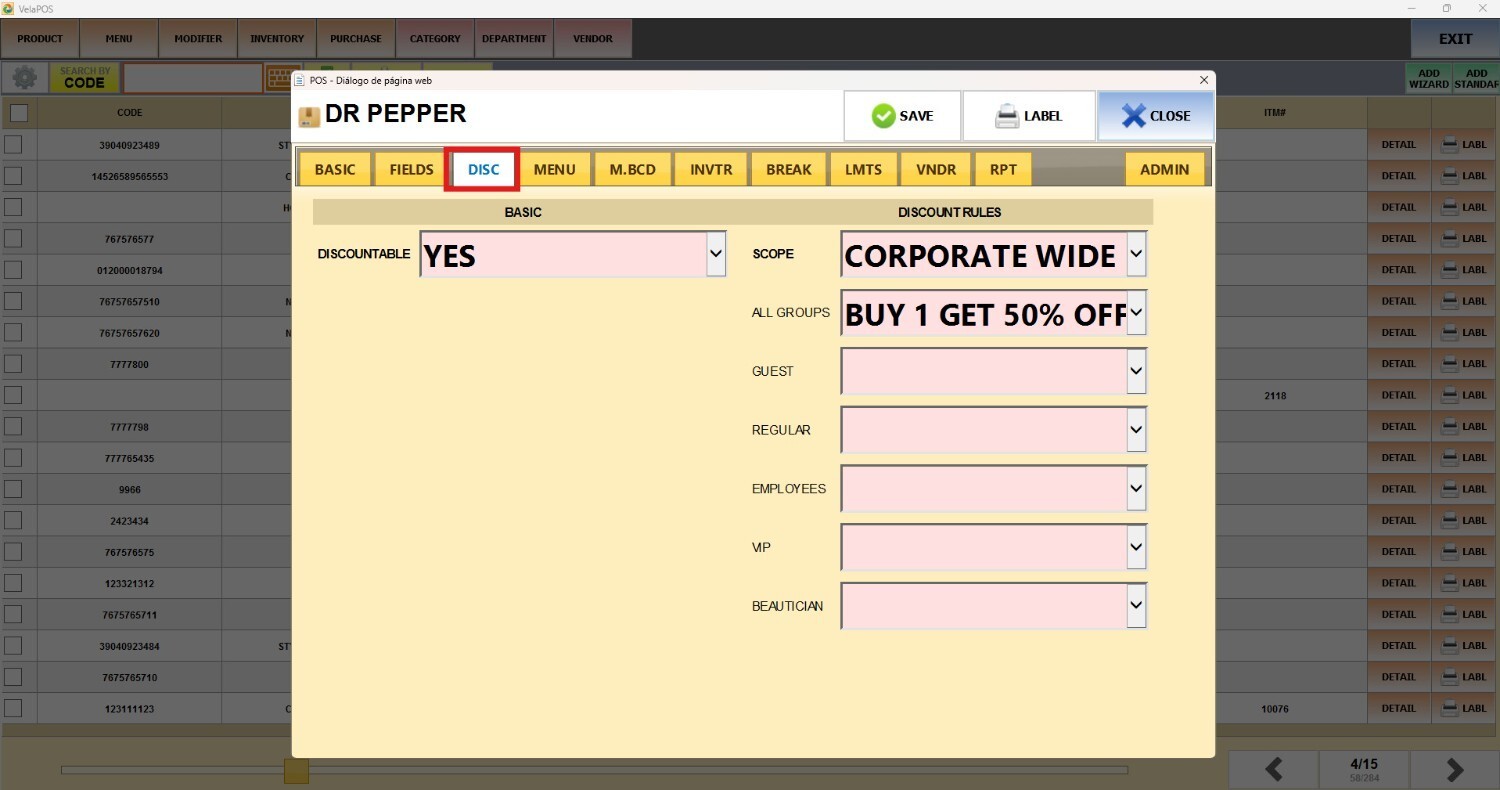
Go to the DISC tab.
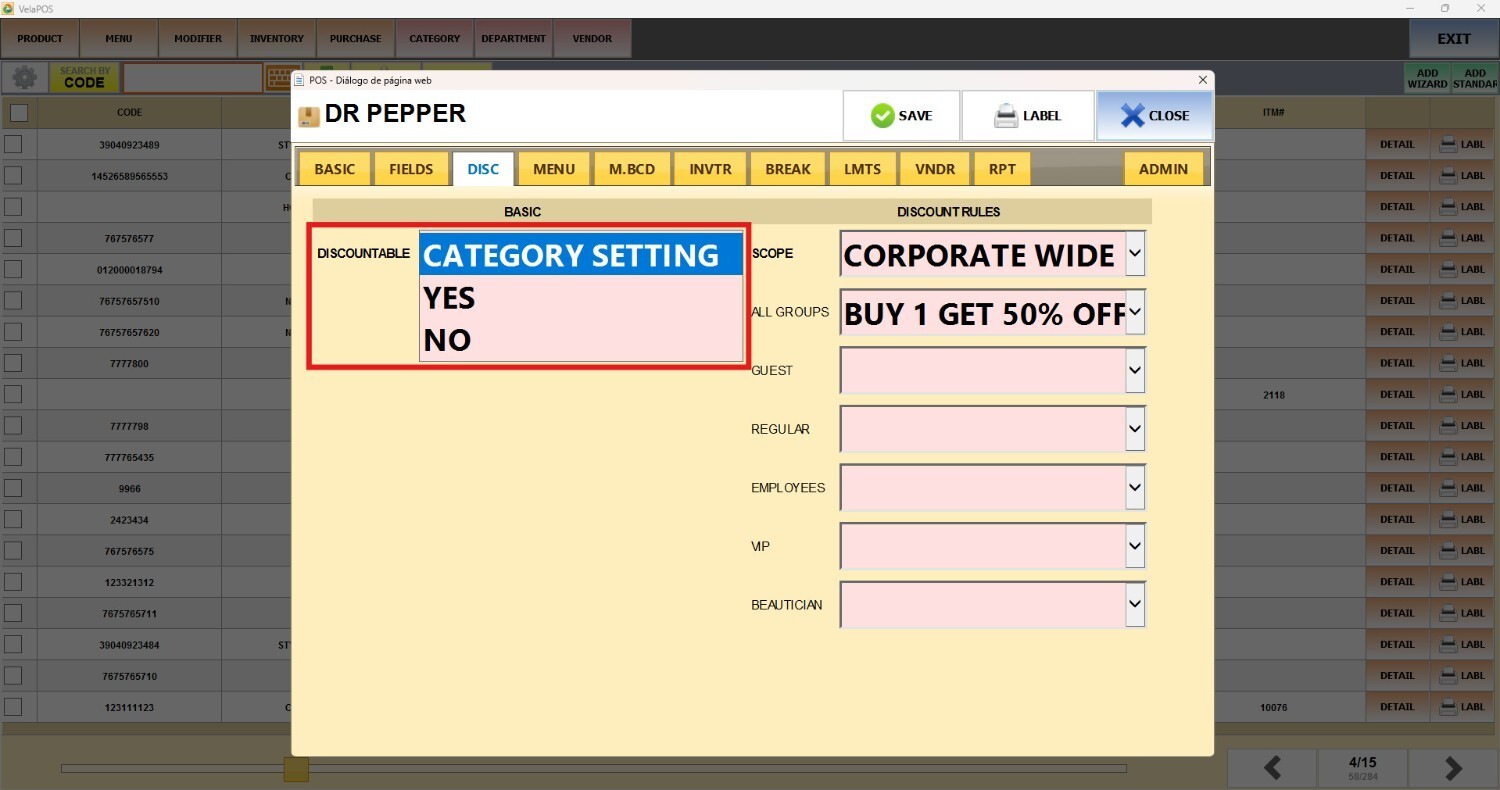
Discountable
Select from three options to enable or disable discount rules for this item:
1. CATEGORY SETTING: The product will have the same discounts as the category.
2. YES: Enables the applied discount rule.
3. NO: Discount rules will not apply to this item.
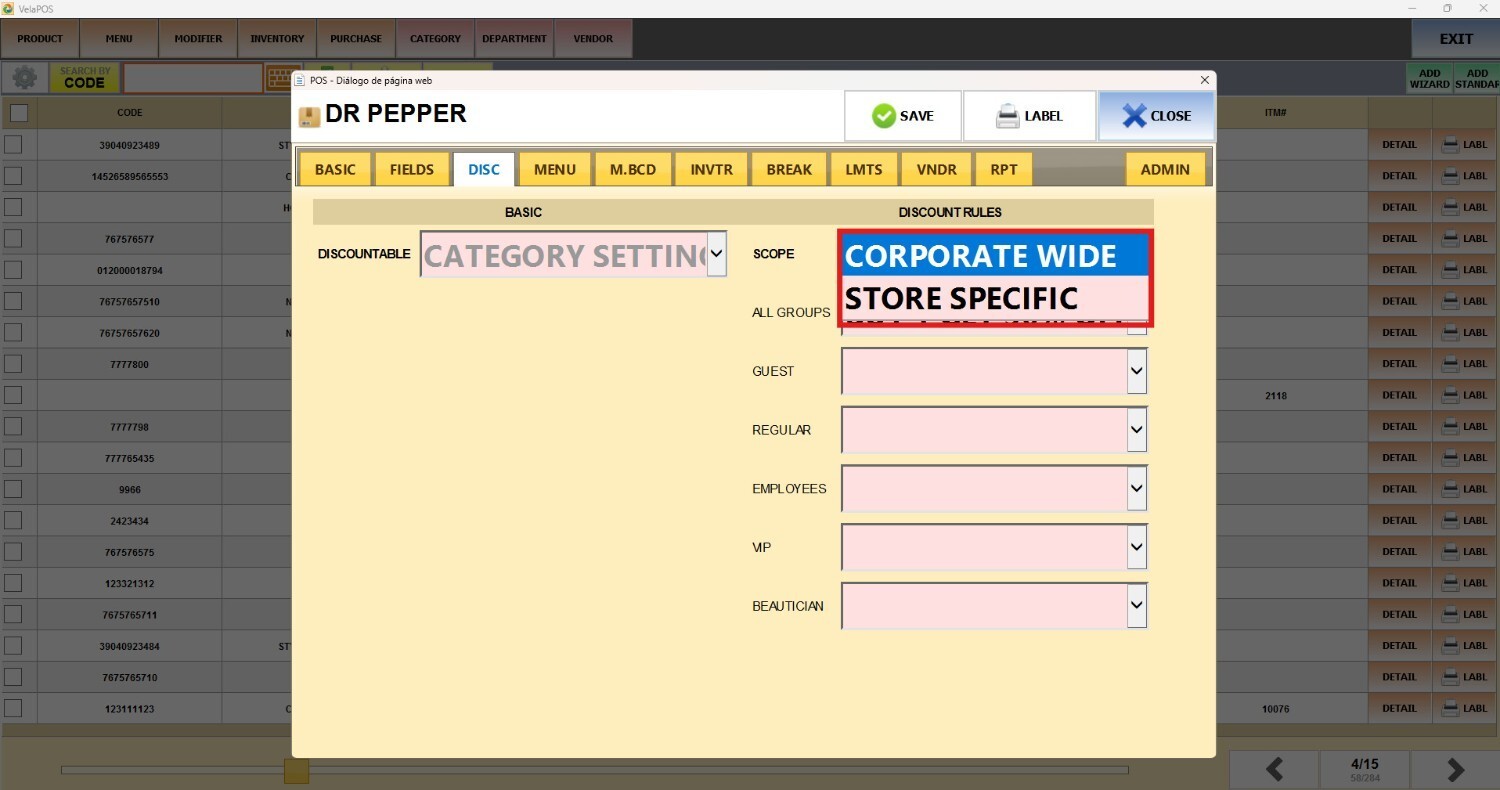
Scope
You can choose to apply the product discount to all stores with CORPORATE WIDE or only to the current location with STORE SPECIFIC.
Add the discount under ALL GROUPS to apply it regardless of the customer group, or select a specific group.
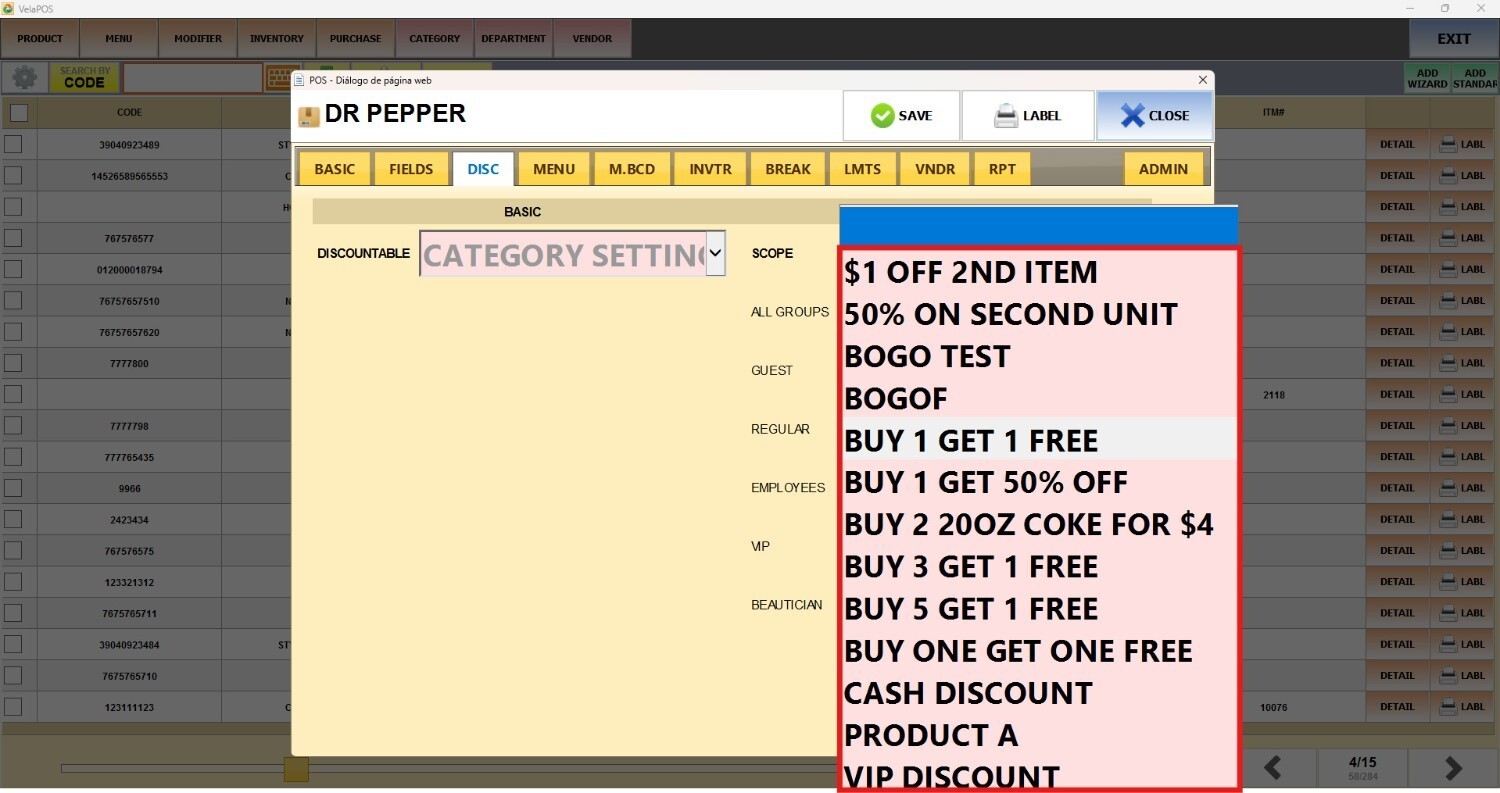
Note: If no discount options are shown, refer to Discount Rule to configure them. To learn how to set up customer groups, refer to Customer Groups.
Once the discount is configured for the product, click on SAVE.
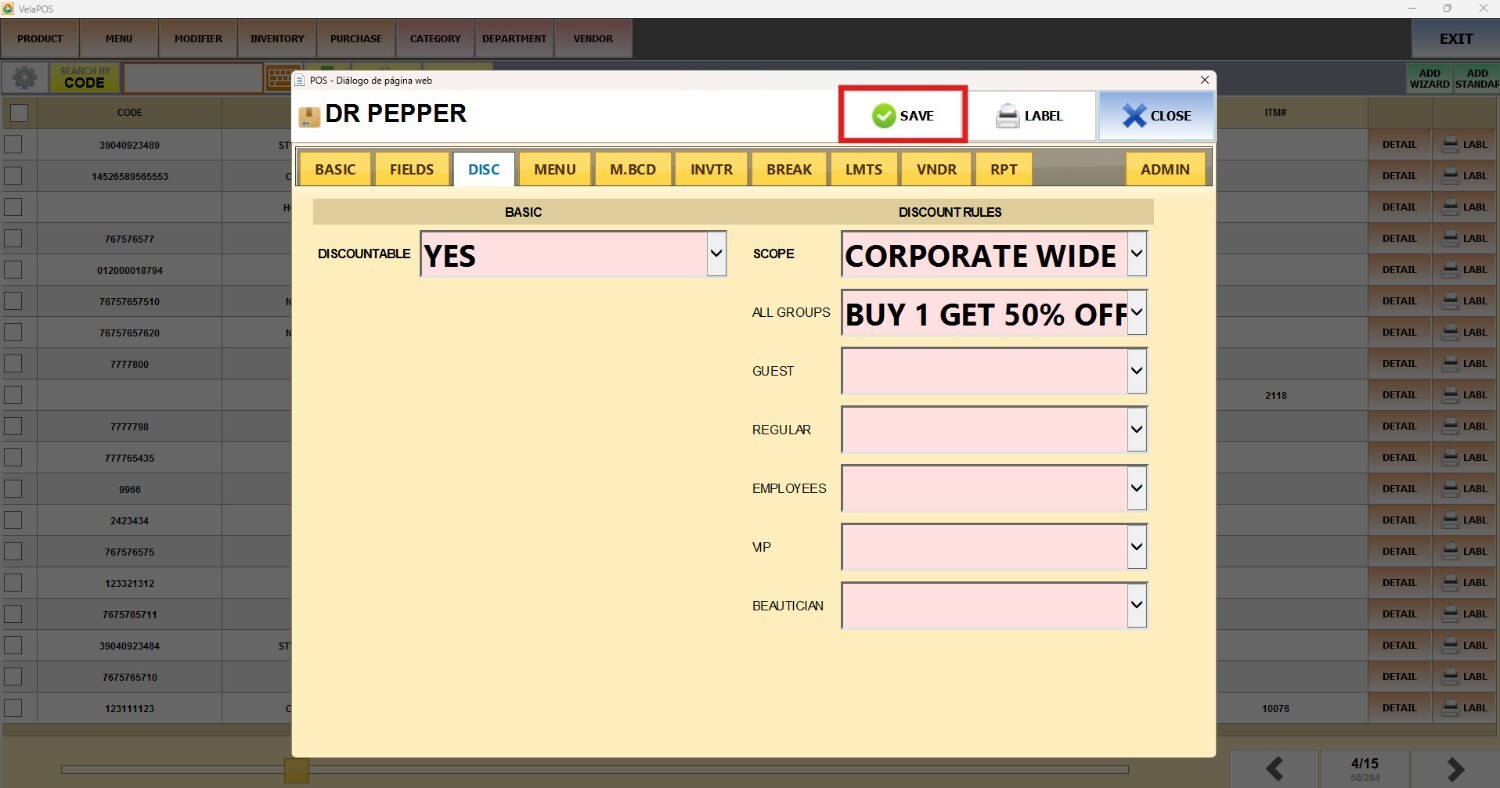
Result:
The discount will be automatically applied to the item when the rule is met, as shown in Rule Discount guide.