Custom Labels
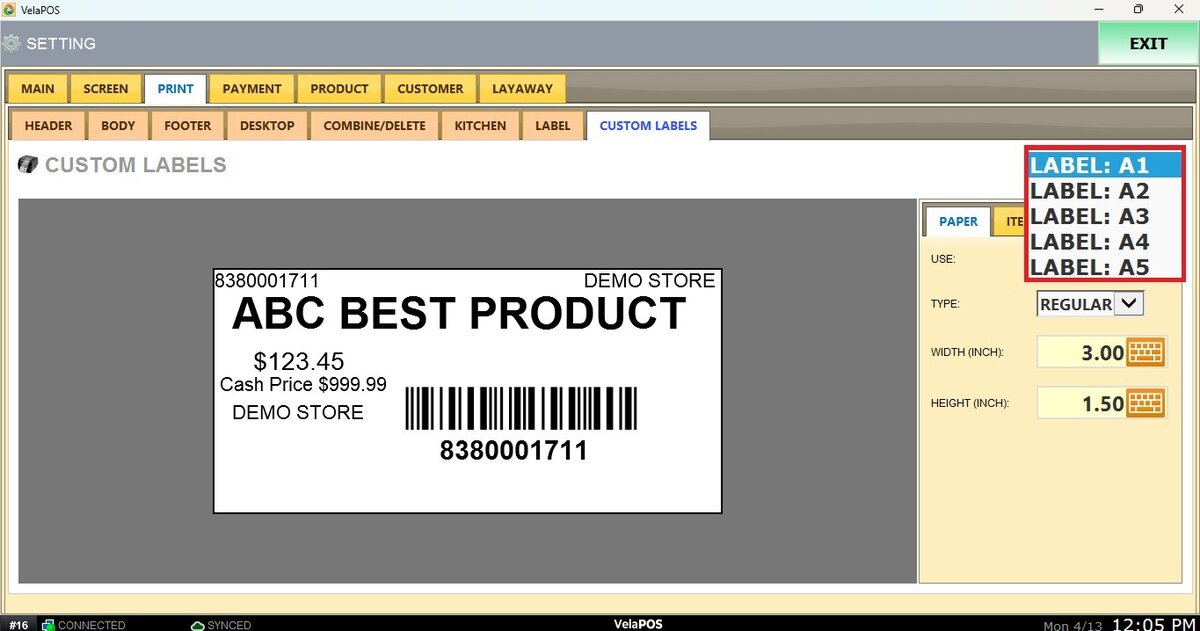
This feature allows you to create and print labels tailored to your store’s needs. It gives you control over what information is displayed, such as item name, price, barcode, and other product details. You can customize the layout by adjusting font size, position, and style to match your labeling preferences. This flexibility makes it easier to design labels that align with your store operations and improve product identification.
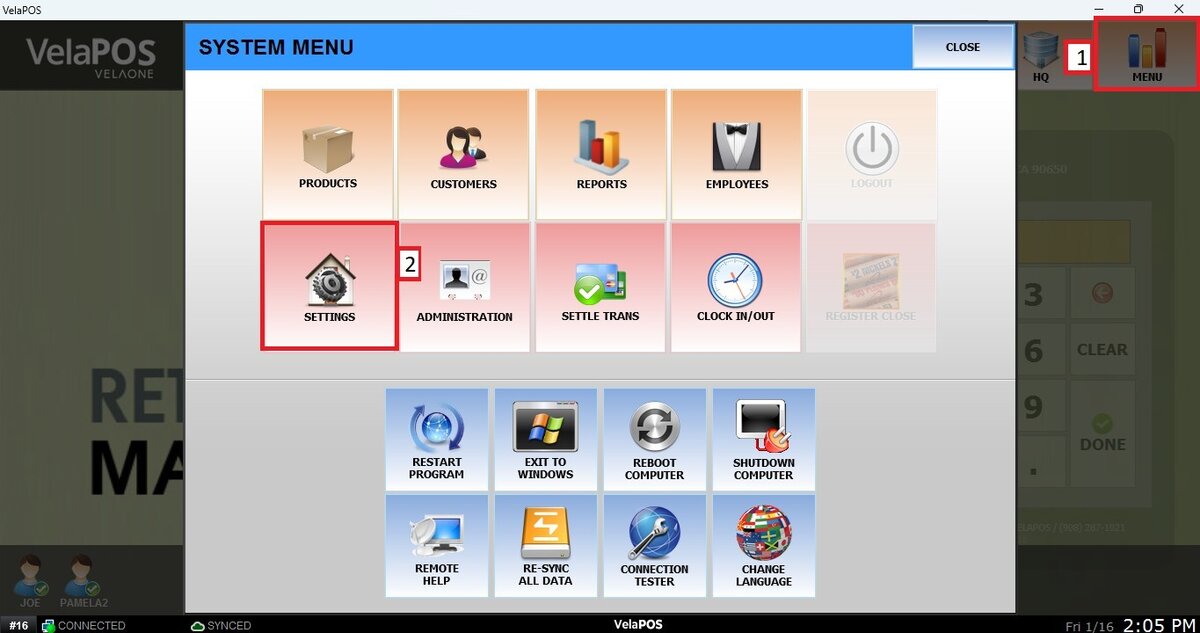
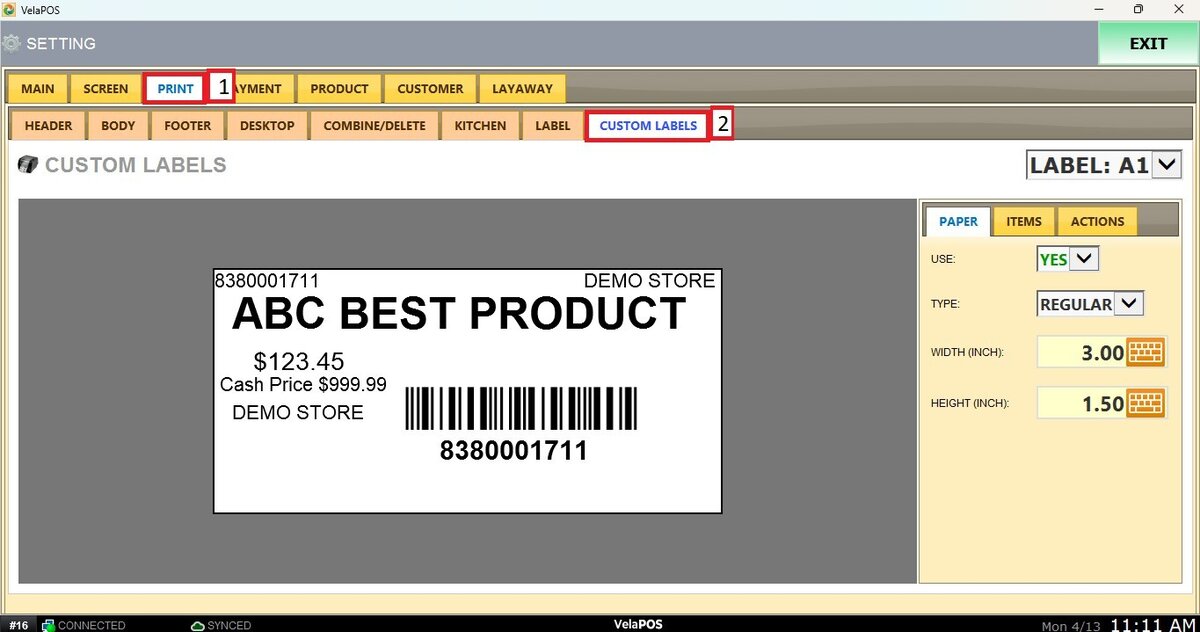
Main Screen>MENU> SETTINGS> PRINT> LABEL
Go to MENU, then click on SETTINGS.
Under the PRINT tab, select LABEL.
PAPER
Adjusts the overall label configuration, including its size and format.
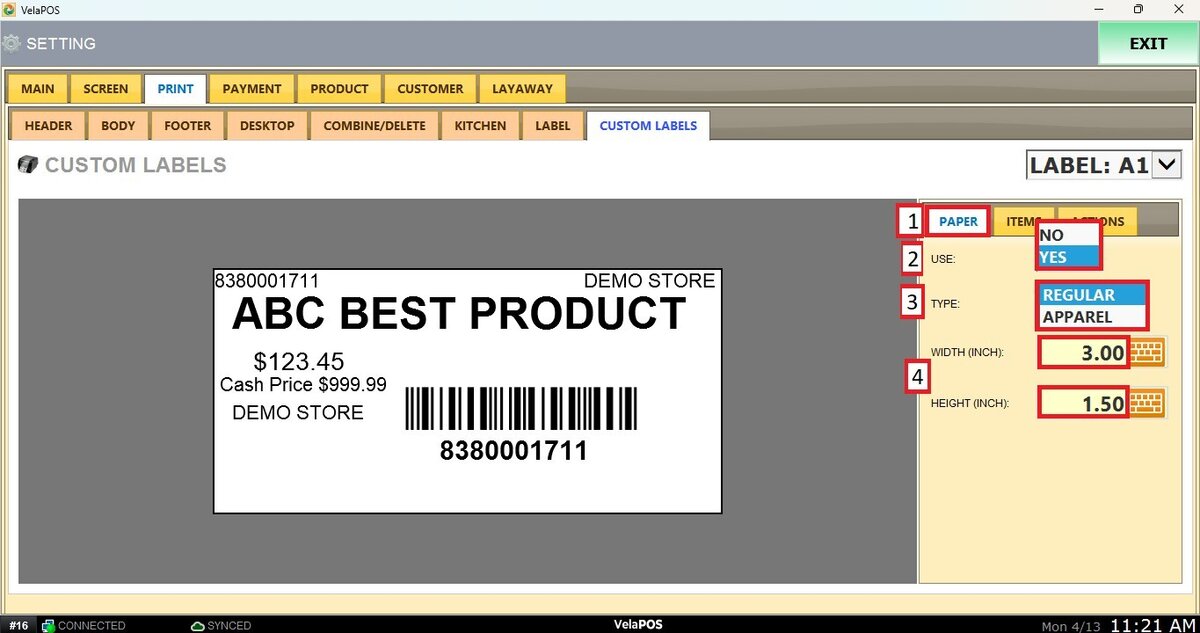
2. USE: Enable or disable the label configuration, YES or NO.
3. TYPE: Select the label type from the drop-down menu, REGULAR or APPAREL SIZE.
4. WIDTH AND HEIGHT (INCH): Define the label dimensions.
ITEMS
2. ADD COMPONENT: Select from the list the component to add to the label.
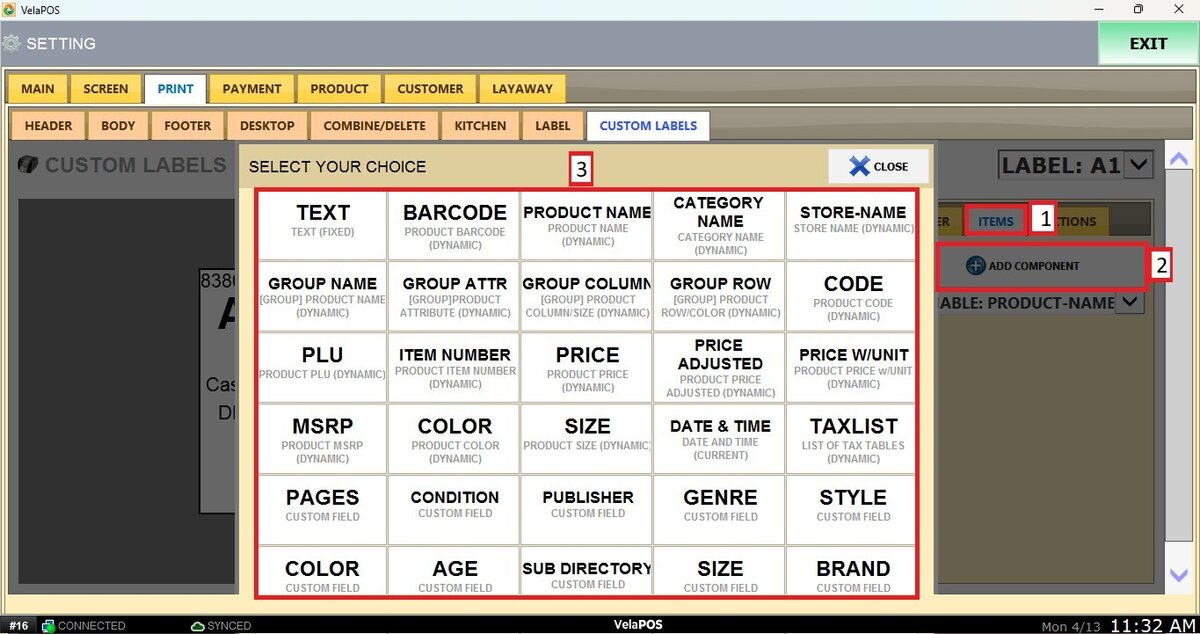
3. VARIABLE: Select the variable to modify. The available options depend on the components added to the label.
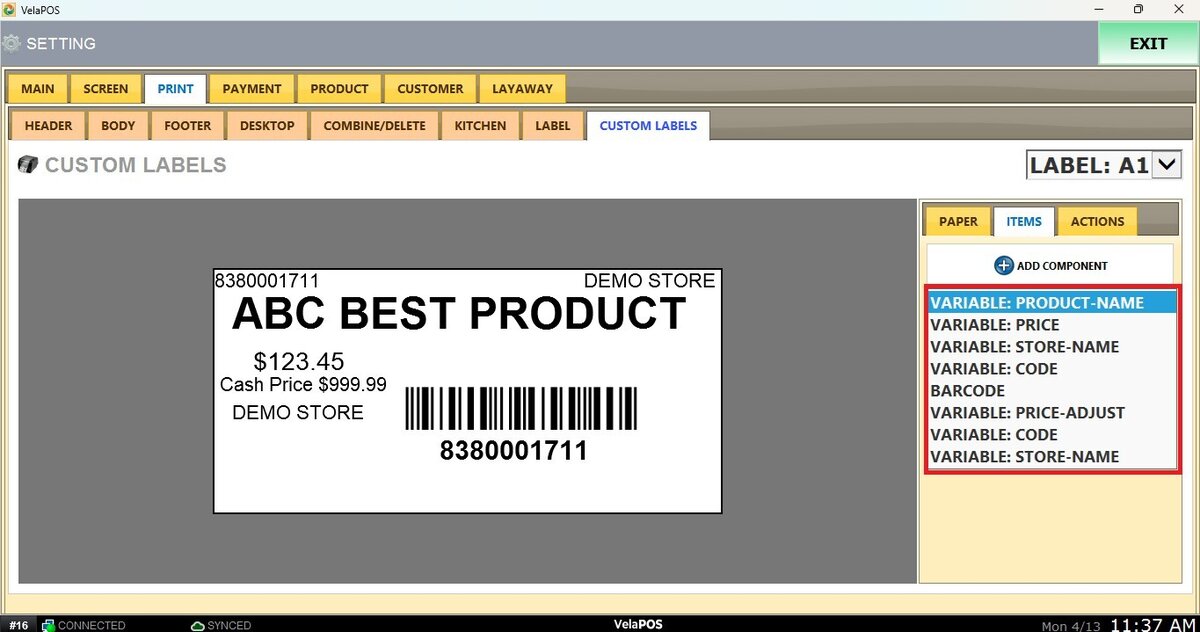
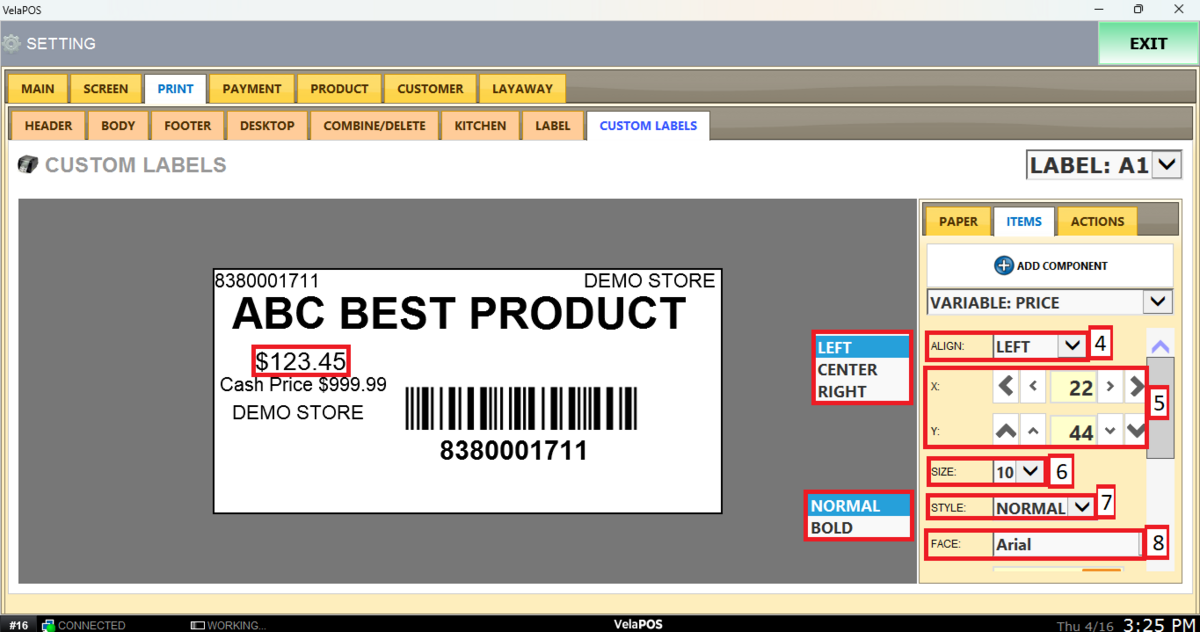
4. Align: Select the variable to modify. The available options depend on the components added to the label.
5. X and Y: Use the arrows to adjust the position of the item with more precision. Alignment is used as the origin point (X = horizontal, Y = vertical).
6. Size: Select the item size from the drop-down menu.
7. Style: Select the item style from the drop-down menu (Bold or Normal).
8. Face: Select the item size from the drop-down menu.
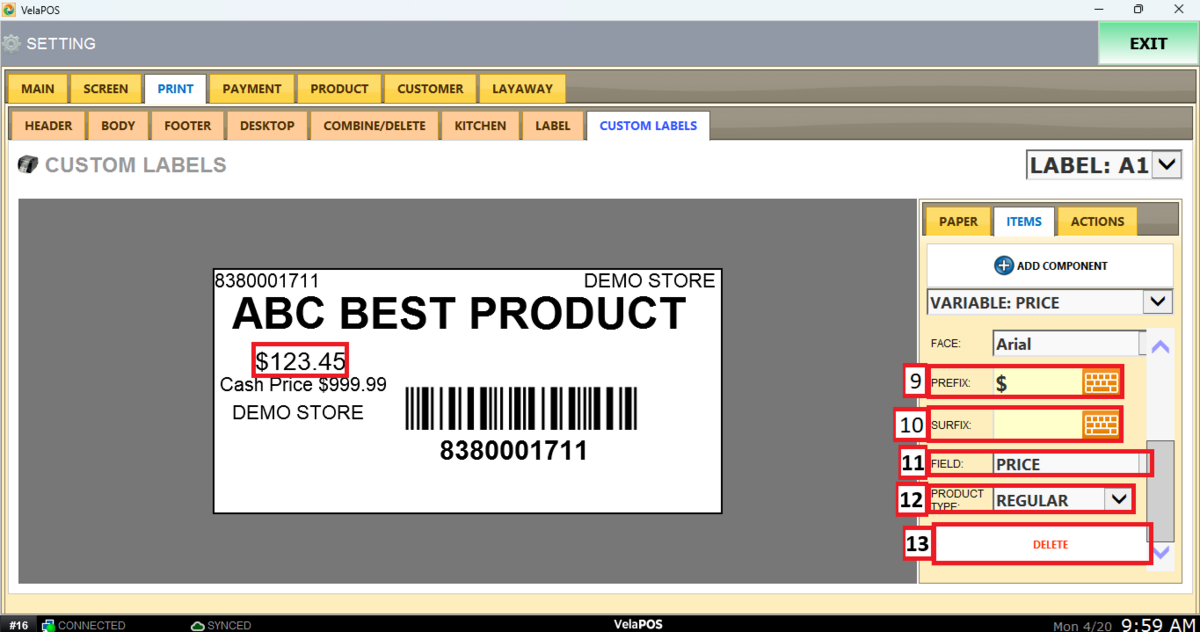
9. Prefix: Enter a prefix for the item (e.g., $).
10. Surfix: Enter a suffix for the item.
11. Field: Select the field for the variable. This allows you to quickly change the variable without adding a new component.
12. Product Type: Select the product type (Regular or Apparel) to determine how information such as size is displayed.
13. Delete: Erase the Variable that you have selected.
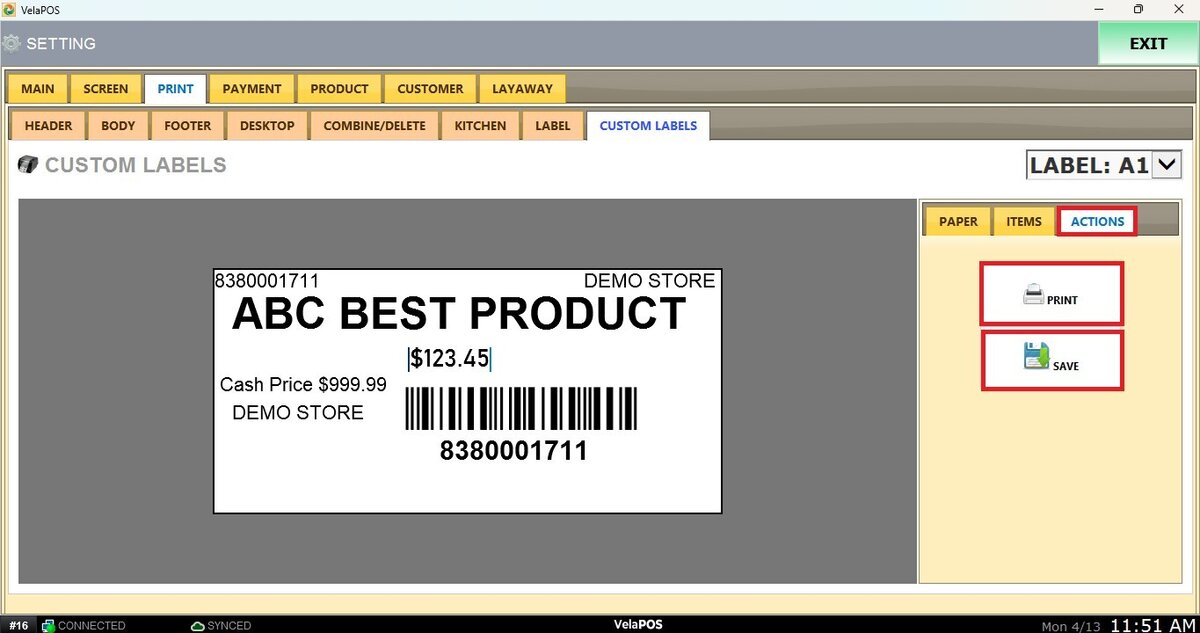
ACTION
Print: Print a label.
Save: Press SAVE to apply the changes.
You can have up to 5 different custom labels, select and modify by clicking on the drop-down menu
You can check up more information about Label print on: Label, and to see how you can select these labels for your products on: Product Labels.