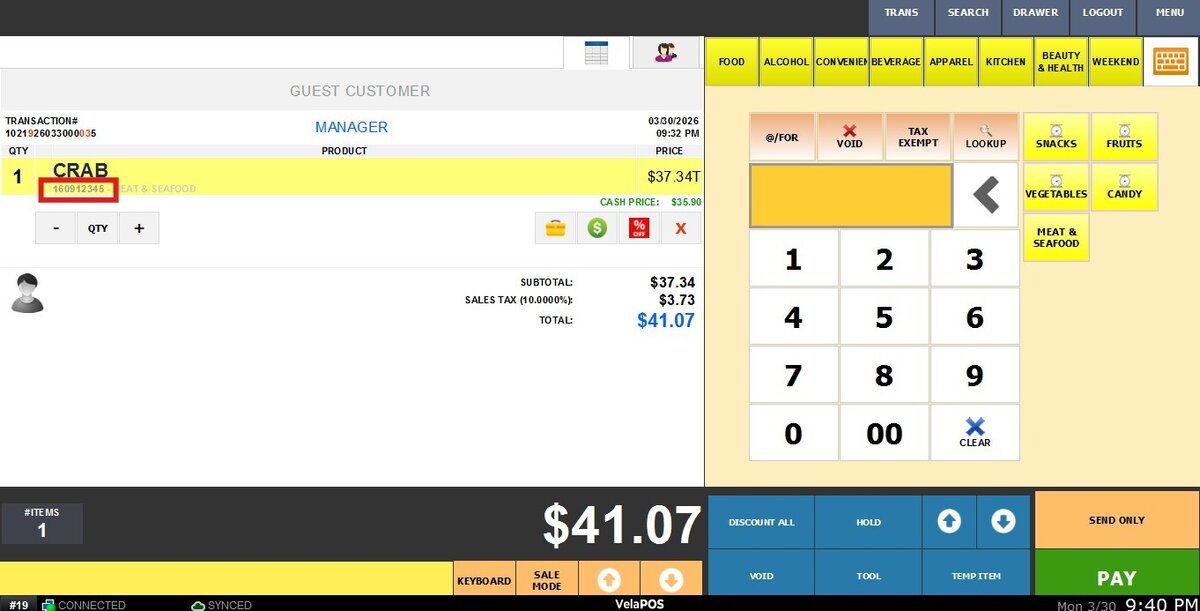
Quicksale
This feature is designed for fast and efficient transactions, allowing you to ring up items quickly without navigating through the full POS workflow. It is especially useful in high-volume environments where speed and simplicity are essential.
Main Screen>Number Pad> Sales Screen> KEYBOARD BUTTON
Enter your personal password using the NUMBER PAD.

Once in the Sales Screen, click the KEYBOARD button to enter Quick Sale Mode
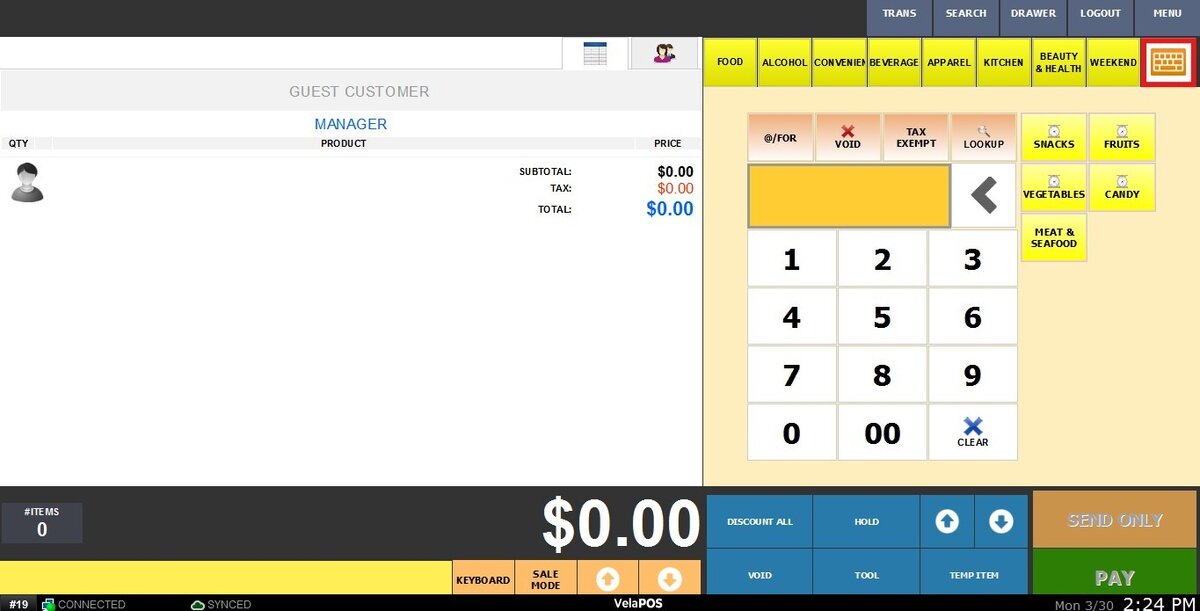
USING QUICK SALE
Enter the price of the item using the number pad.
Select one of the configured Quick Sale buttons
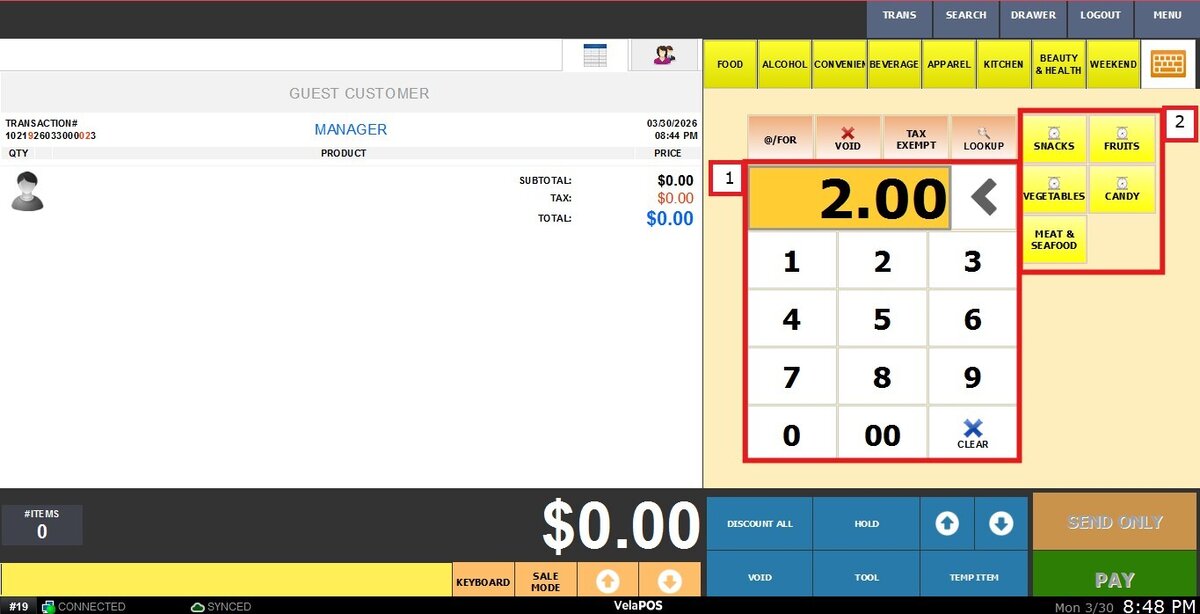
Note: To learn how to create Quick Sale buttons, refer to the Quicksale settings guide.
BUTTON TYPES
1. REGULAR BUTTONS: After entering the price and selecting a regular button, the item is added directly to the transaction.
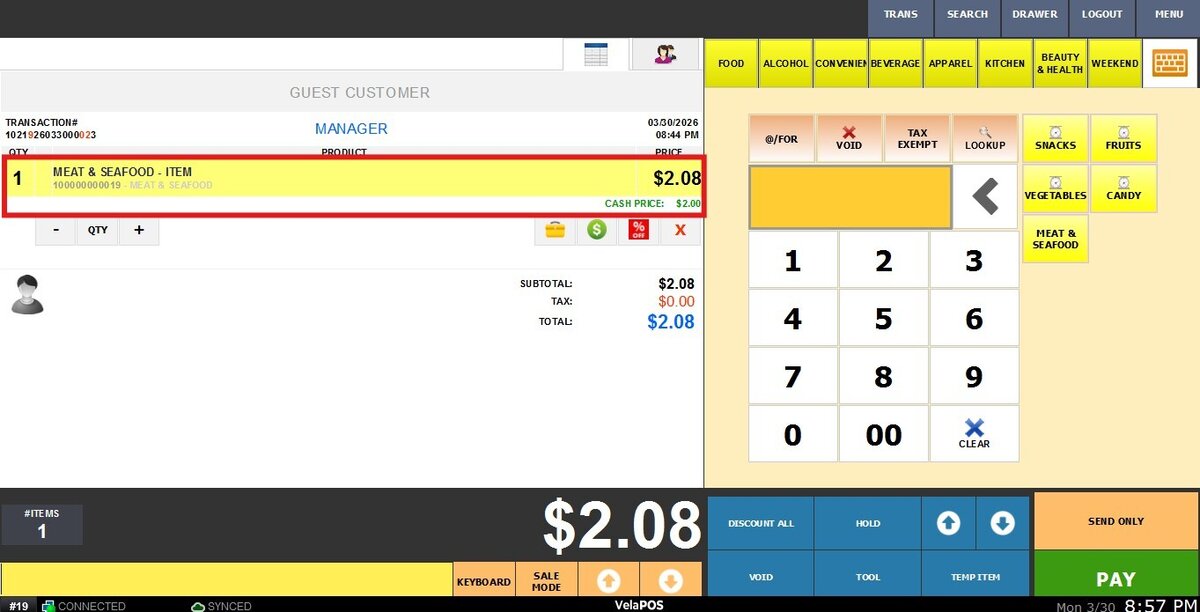
2. WEIGHT BUTTONS (SCALE ICON): After entering the price and selecting a weight button, the system will prompt the weight screen.
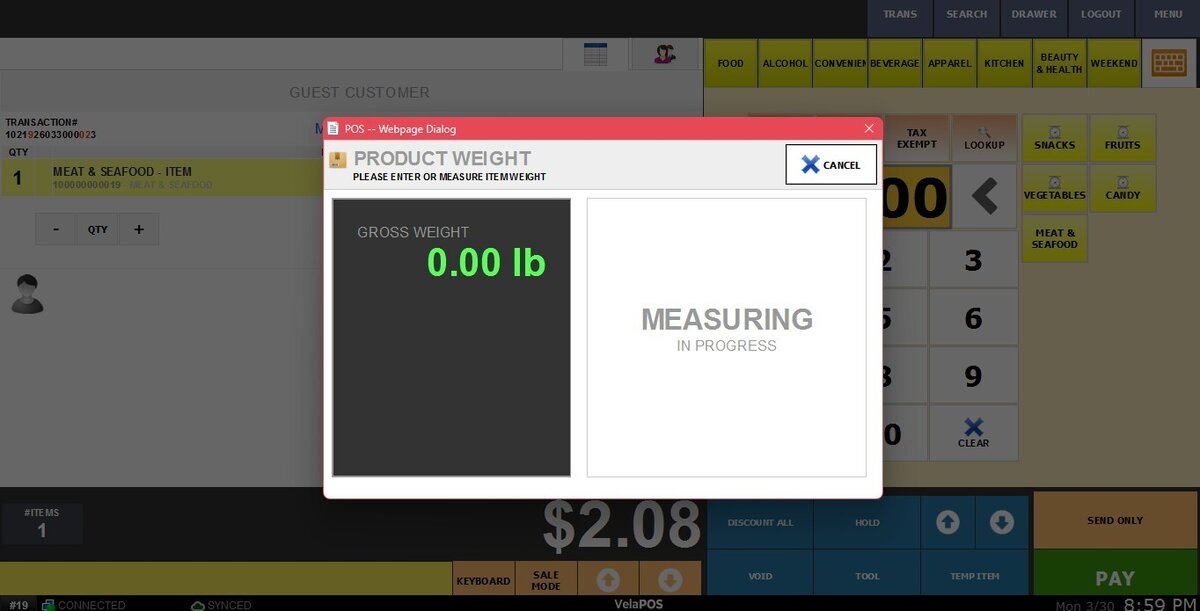
After weighing, the system automatically calculates the total (weight × price)
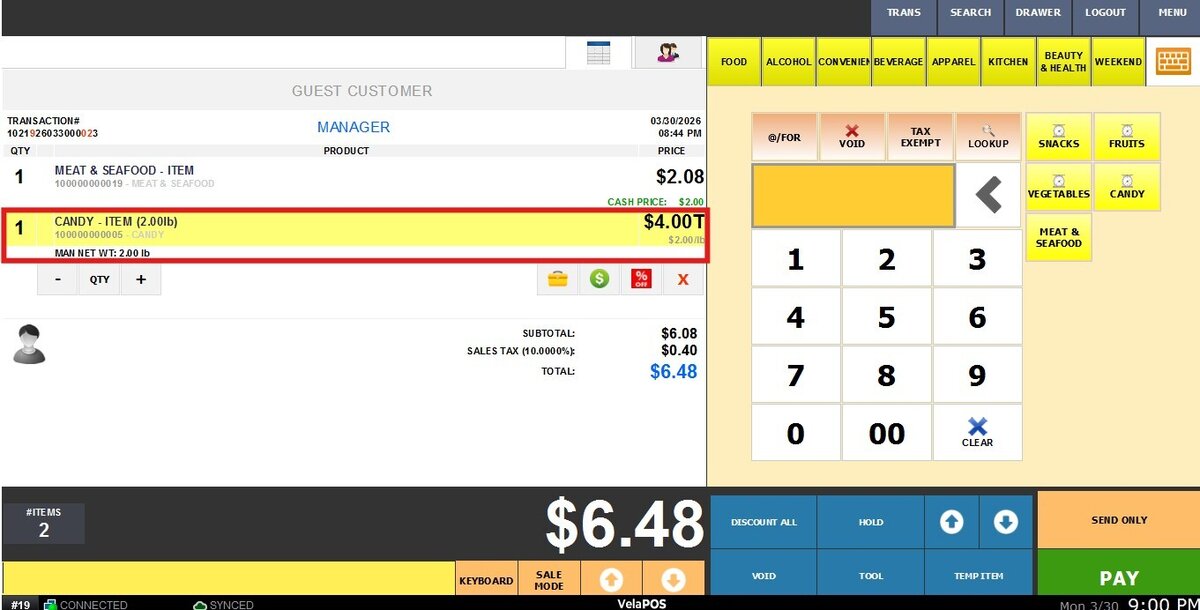
QUICKSALE TOOLBAR
Located at the top of the number pad screen, this toolbar allows you to modify items before being added to the transaction:
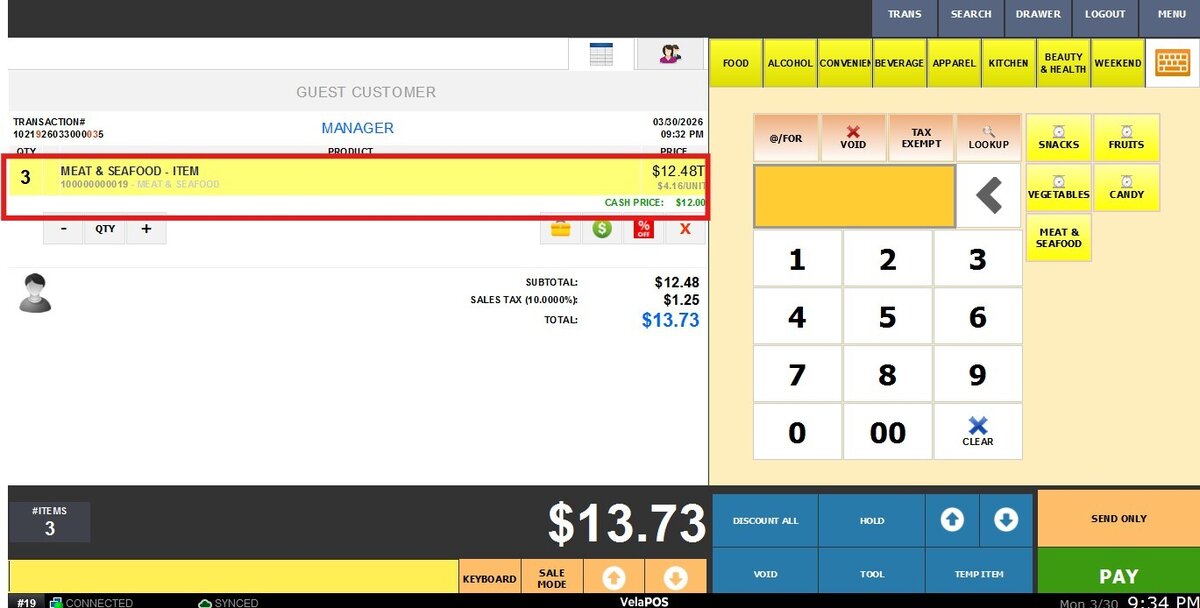
1. @/FOR: Quantity Multiplier
Enter the QTY, press @/FOR
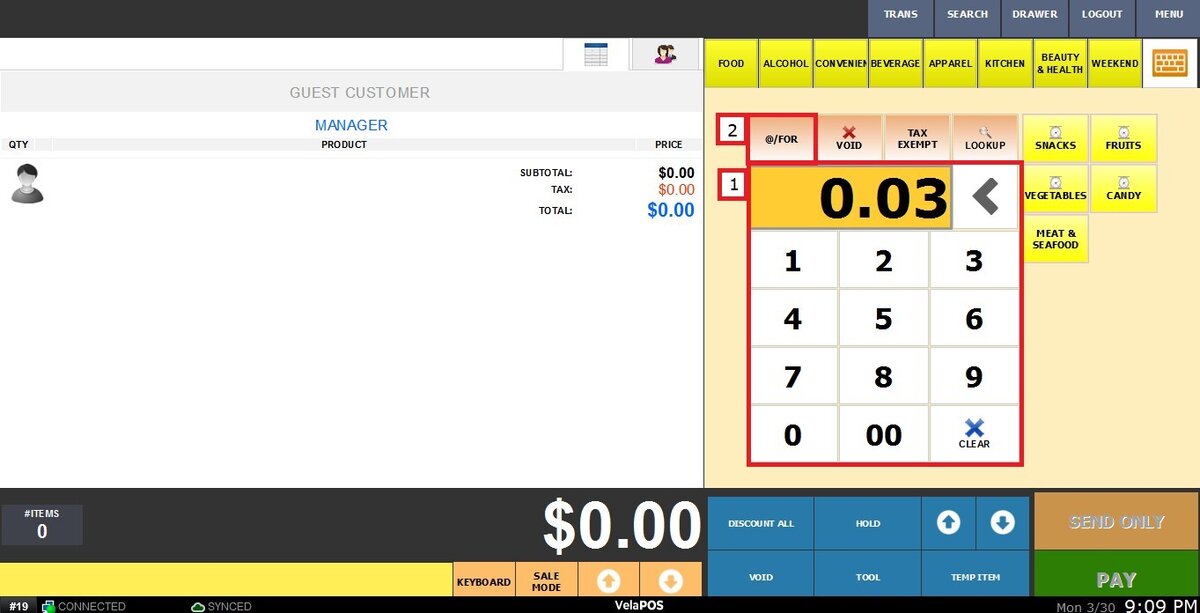
The system will display the entered quantity. Then, follow the standard Quick Sale steps to complete the item entry.
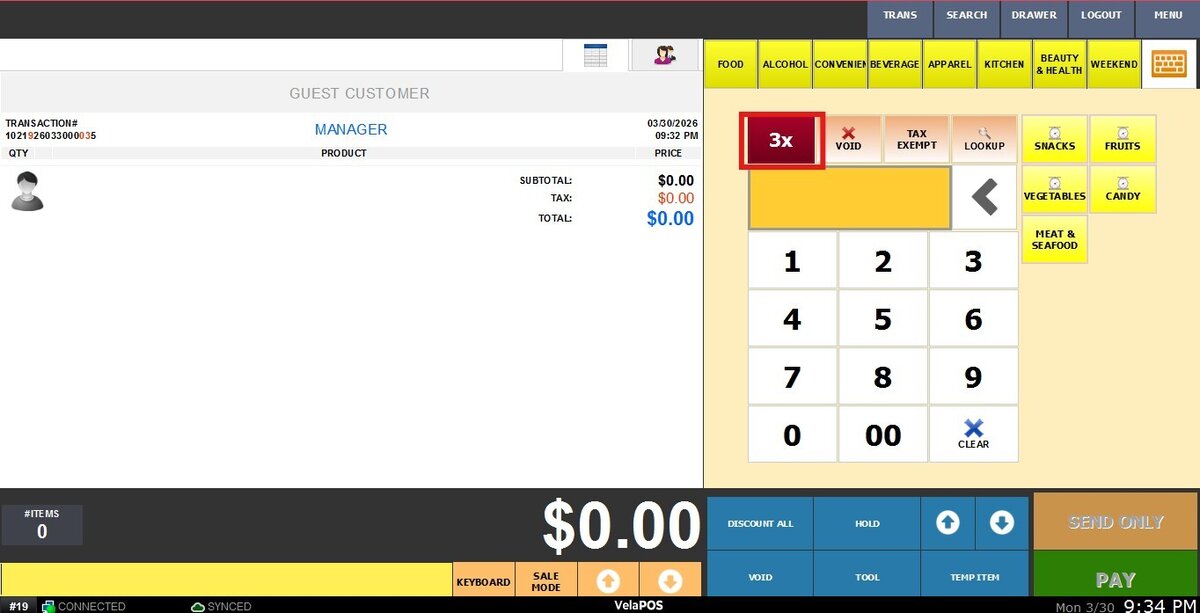
The system will automatically calculate the total (quantity × price)
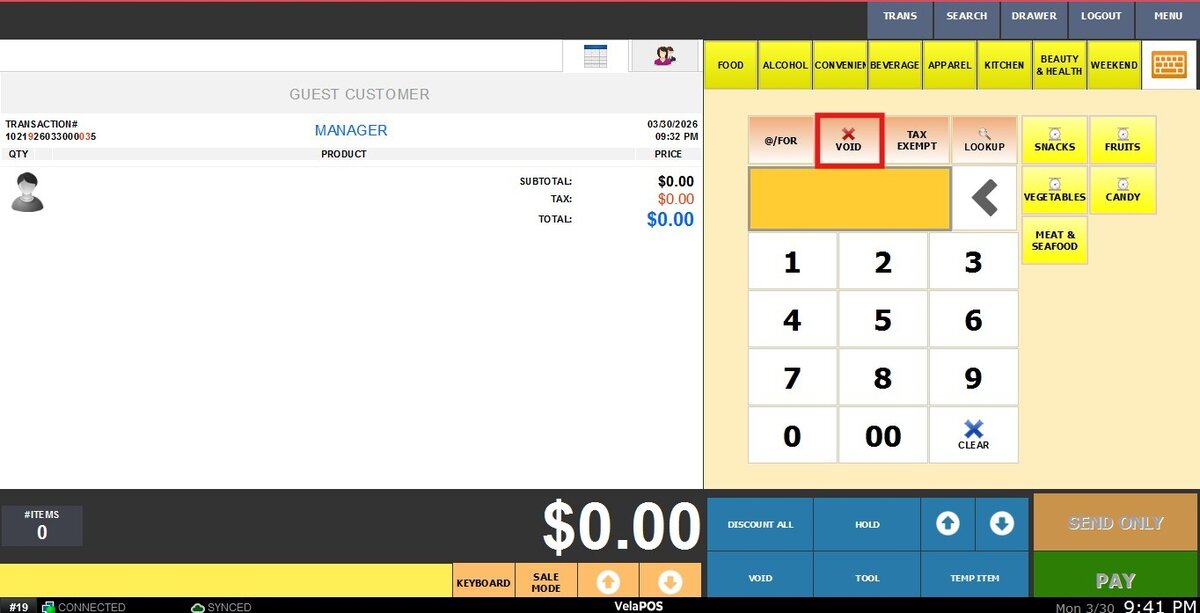
2. X VOID: Removes the selected item from the transaction.
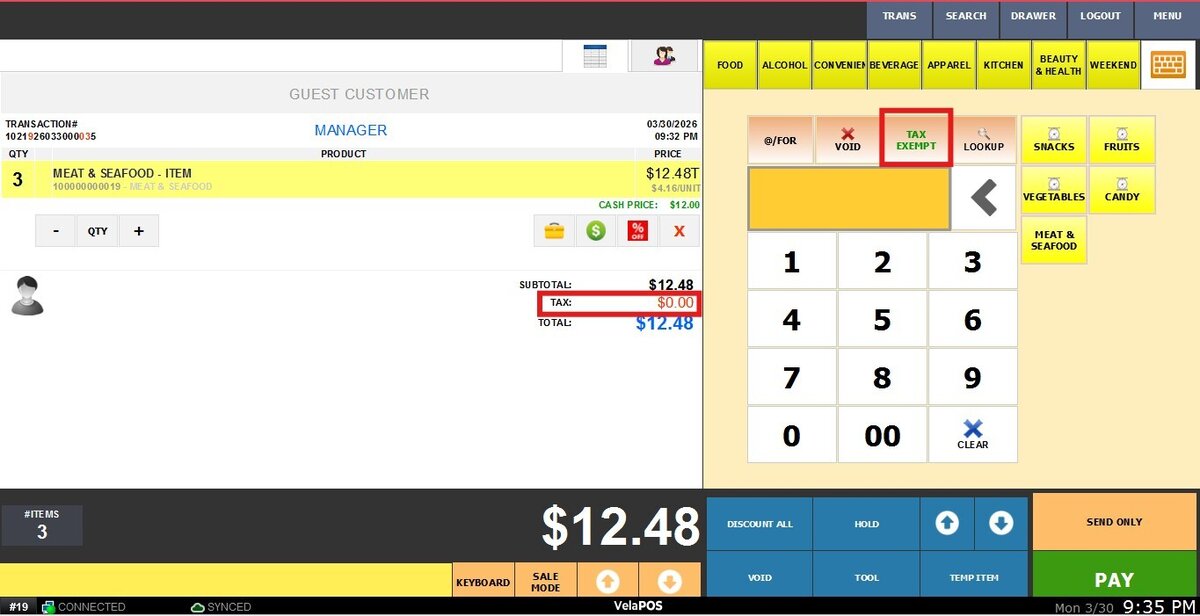
3. TAX EXEMPT: Removes tax from an item.
Select this option before entering the price to apply it correctly.
4. LOOK UP: Allows you to add items using their barcode.
Enter the barcode using the number pad, press LOOK UP.
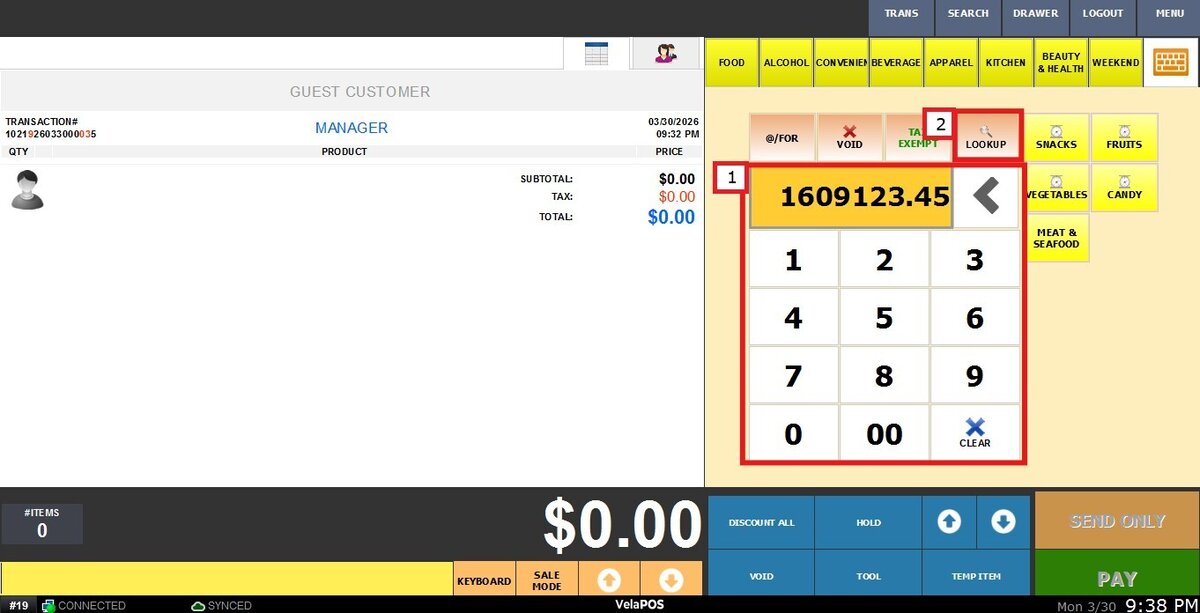
The item will be added automatically to the transaction.