Transfer
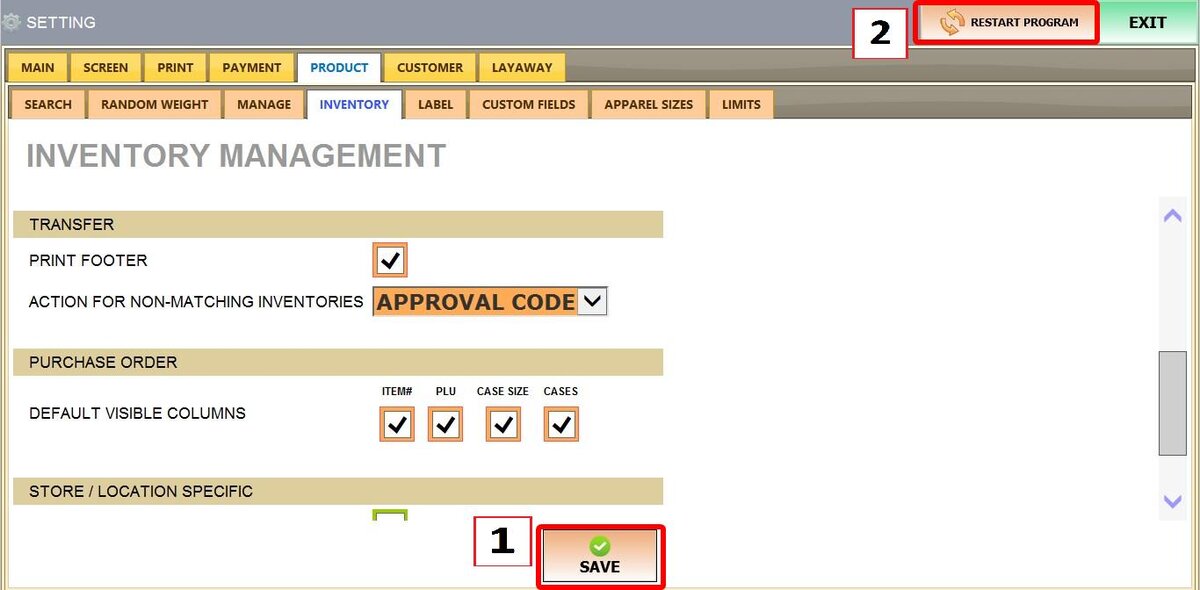
You can customize how your POS handles inventory transfers between store locations. By configuring these options, you can ensure that physical paperwork is professionally formatted for signatures and that any discrepancies in stock counts are either flagged or restricted for security.
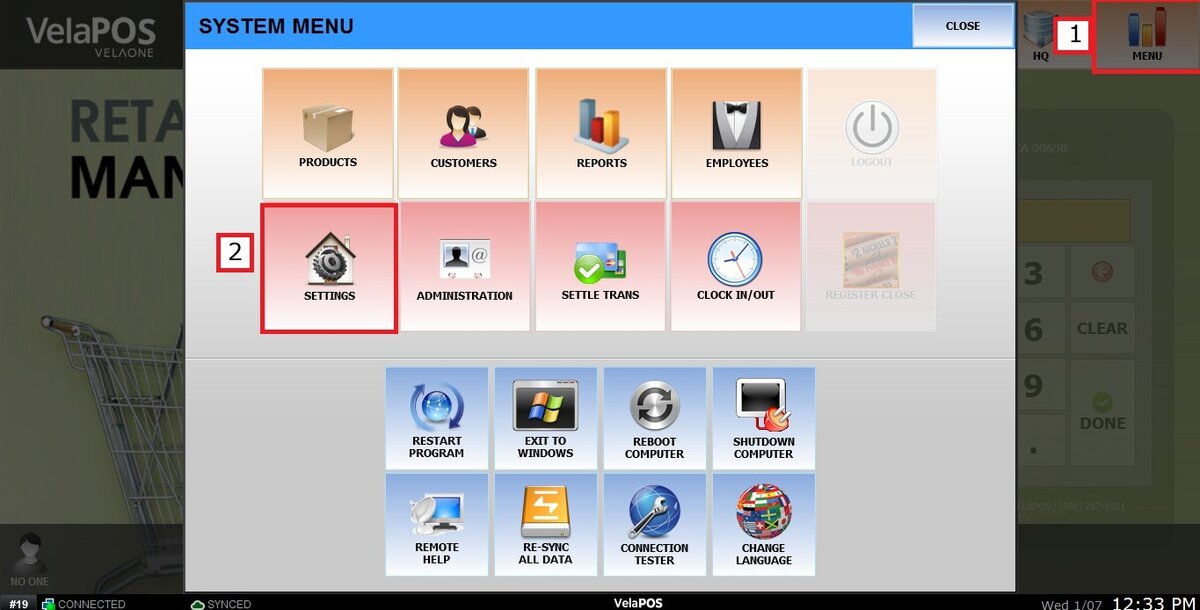
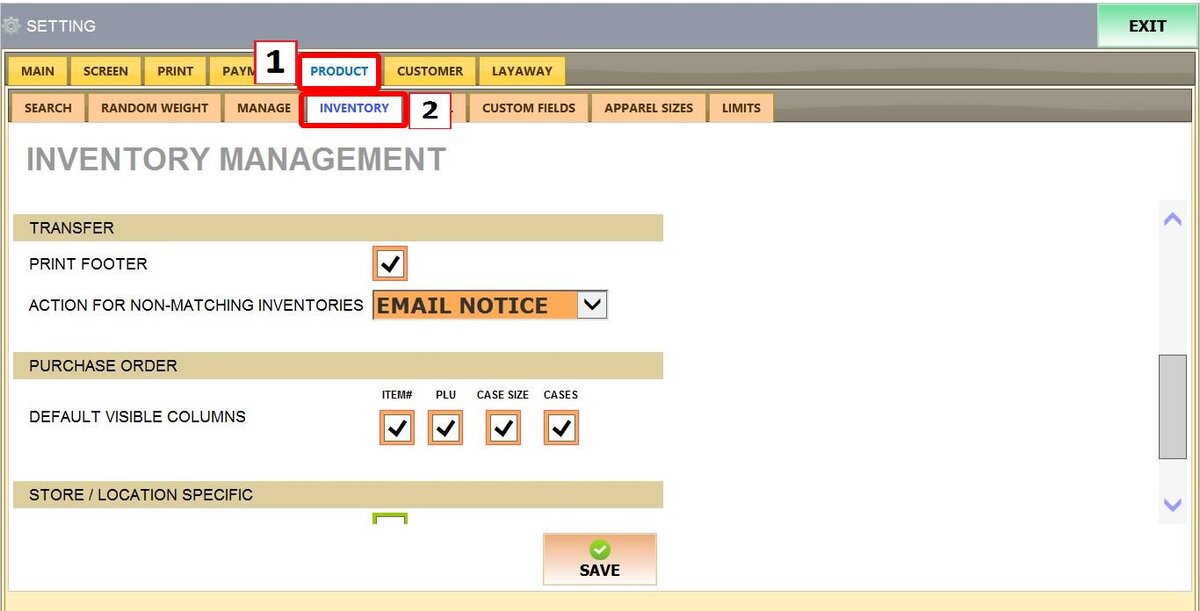
Main Screen > MENU > SETTINGS > PRODUCT > INVENTORY
Go to MENU, then SETTINGS.
Go to PRODUCT then INVENTORY.
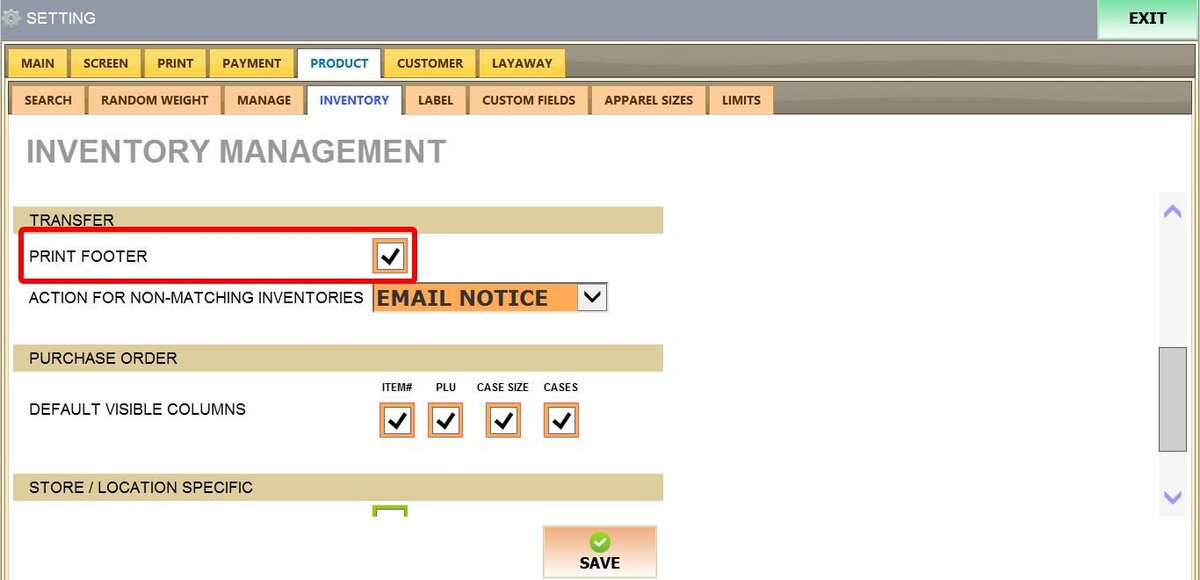
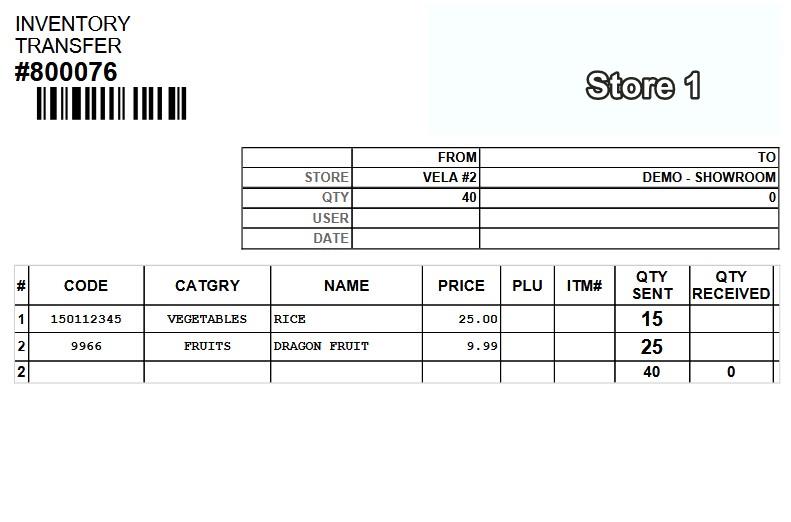
1. PRINT FOOTER: This setting determines if a signature and timestamp section appears on the printed transfer document.
When checked, the printed PDF for the Transfer will include lines for Received By, Date, Time, and Delivered By.
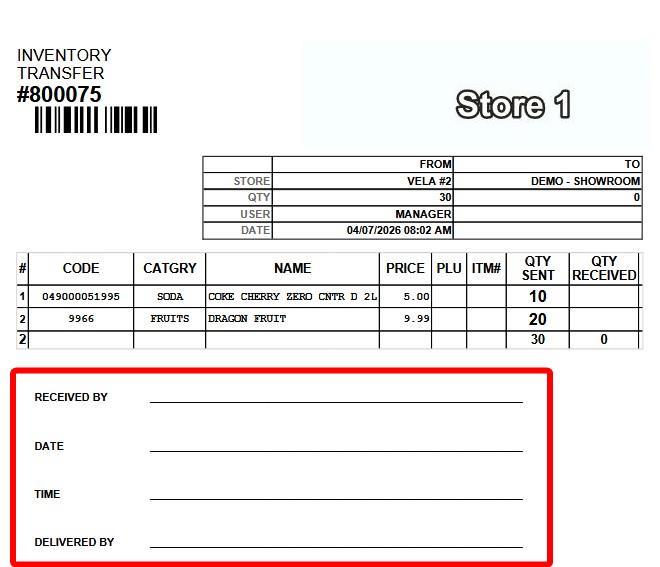
If disabled, the bottom of the page remains blank.
2. ACTION FOR NON-MATCHING INVENTORIES: Controls what happens when the receiving store counts a different amount of stock than what was sent. You can choose how strict the system should be when a mismatch occurs.
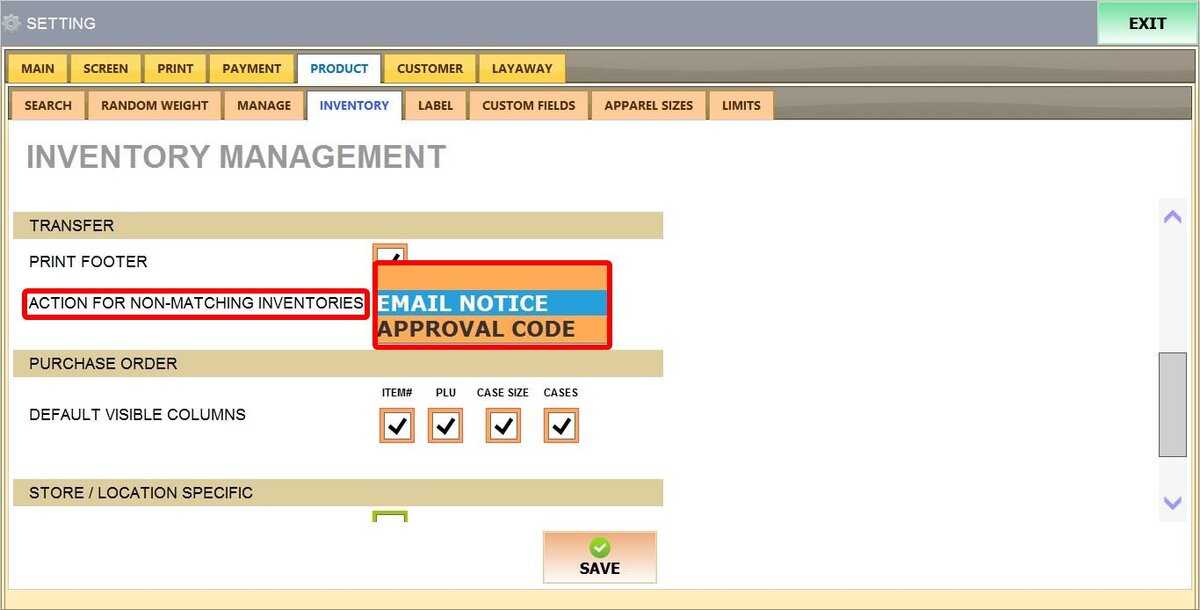
BLANK: No action is taken by the system. The system will not notify anyone or prevent the user from completing a transfer with incorrect numbers.
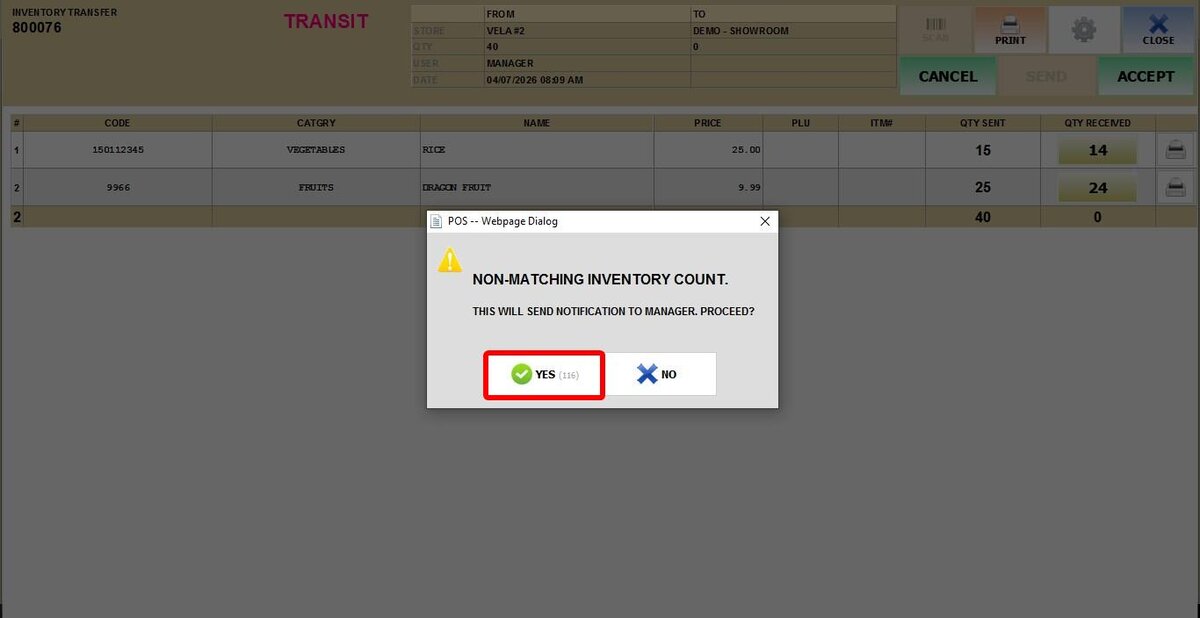
EMAIL NOTICE: An automated email alert is sent. If Store A sends 10 items but Store B only accepts 9, the POS will prompt the user that a notification is being sent to the manager before allowing the transfer to finish.
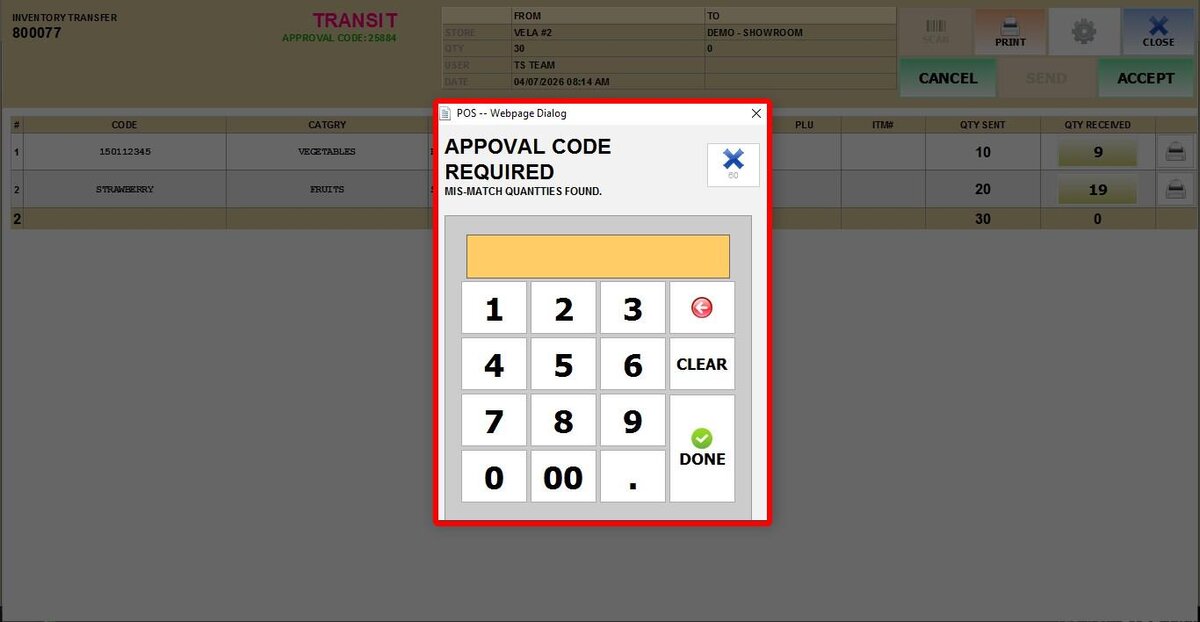
APPROVAL CODE: An approval code is required to finalize a mismatched transfer. If the counts do not match, the POS will lock the transaction. The receiving user must enter an Approval Code to proceed.
The person who initiated the transfer can find this code by going to MENU > INVENTORY > TRANSFER > IN TRANSIT > VIEW. This ensures that only a manager or a trusted employee with access to the sending store's POS can authorize a discrepancy.
After configuring settings, SAVE and RESTART THE PROGRAM to apply the changes.
See Transfer Inventory to see how transfers are done.