Storecard Tools
This tool enables checking a customer's store card balance from the Sales Screen.
Main Screen> NUMBER PAD> Sales Screen > TOOL> CHECK BALANCE
On the Main Screen, go to the NUMBER PAD and input the assigned personal password.

On the Sales Screen, click on TOOL
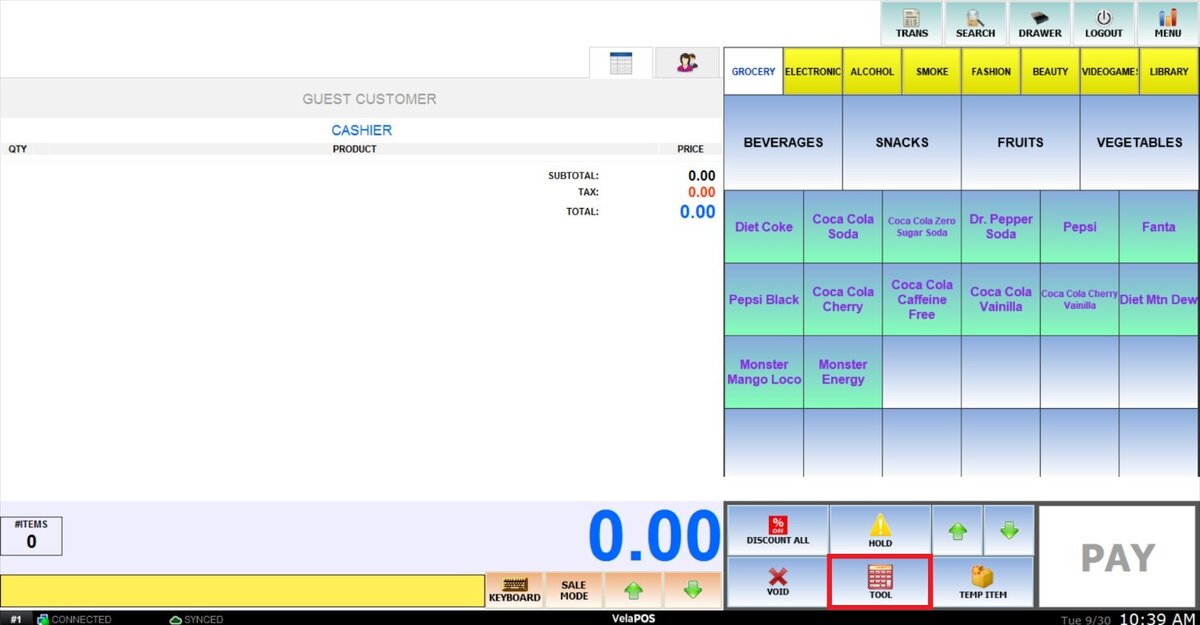
Select STORECARD CHECK BALANCE.
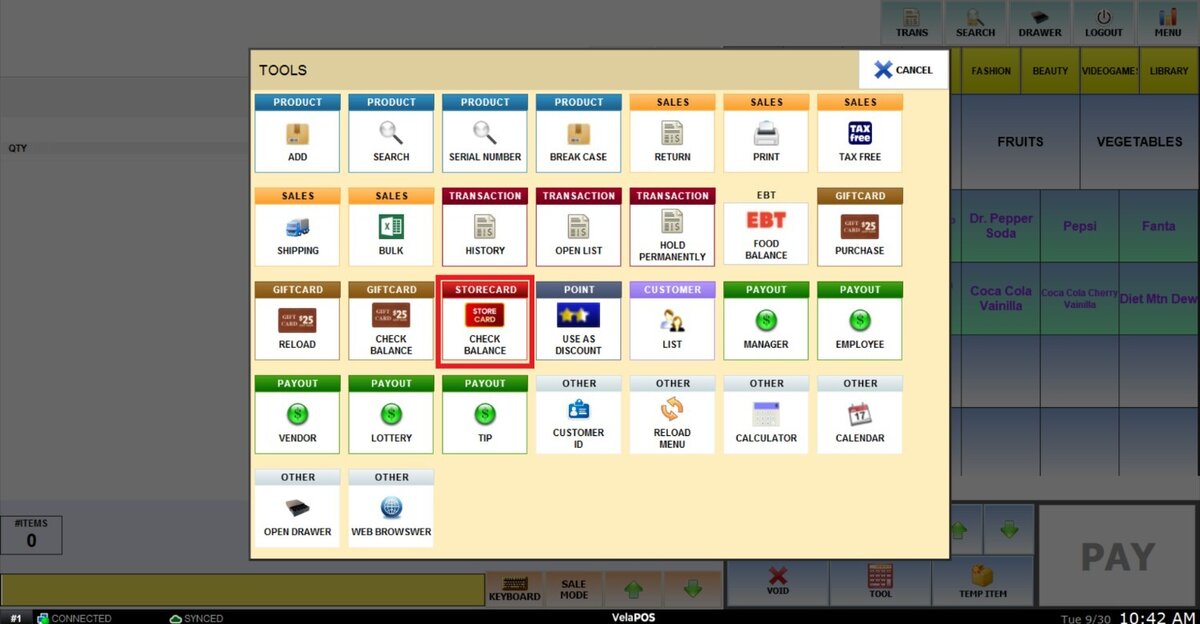
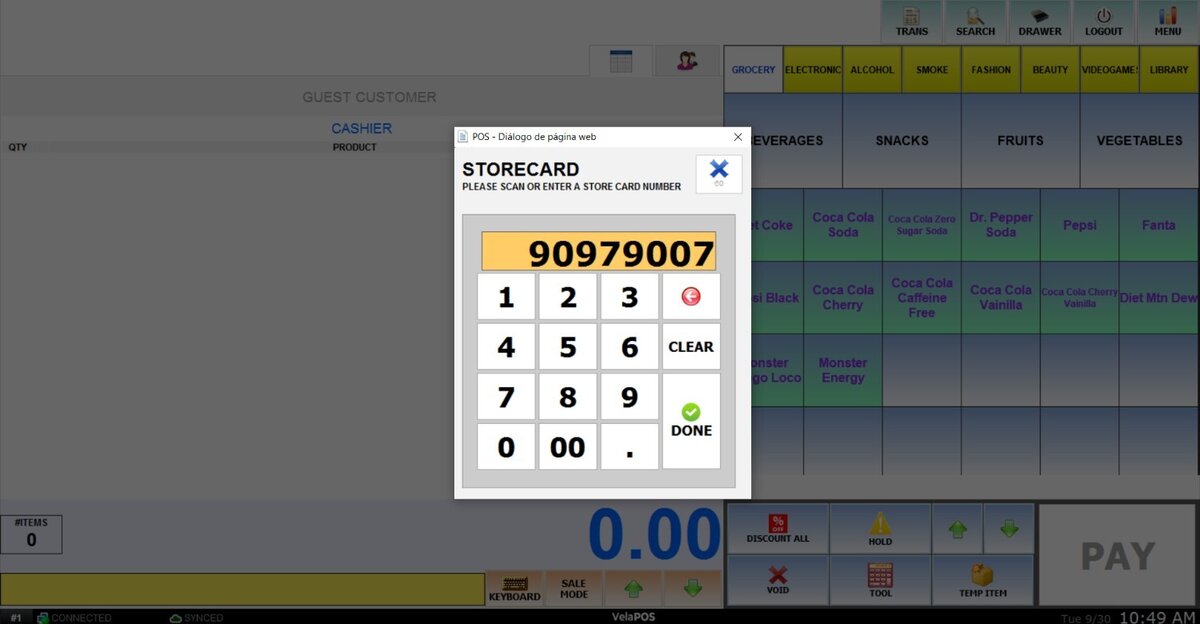
A number pad will be displayed on the screen.
Scan or enter the storecard number.
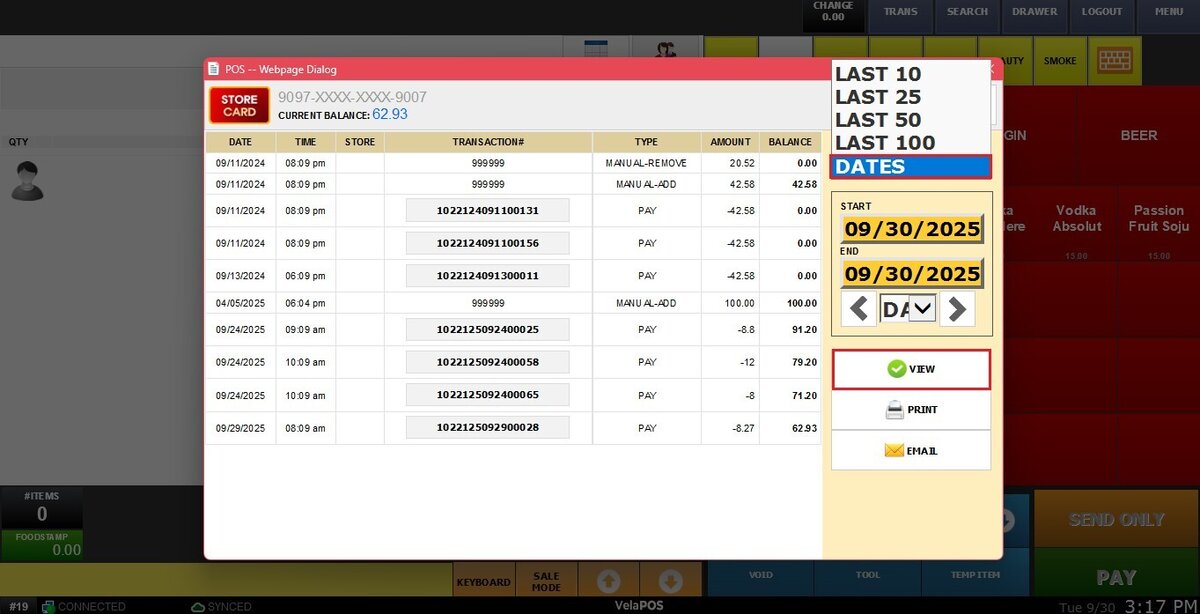
A detailed report of all transactions made with the storecard will pop up, including the current balance at the top of the screen.
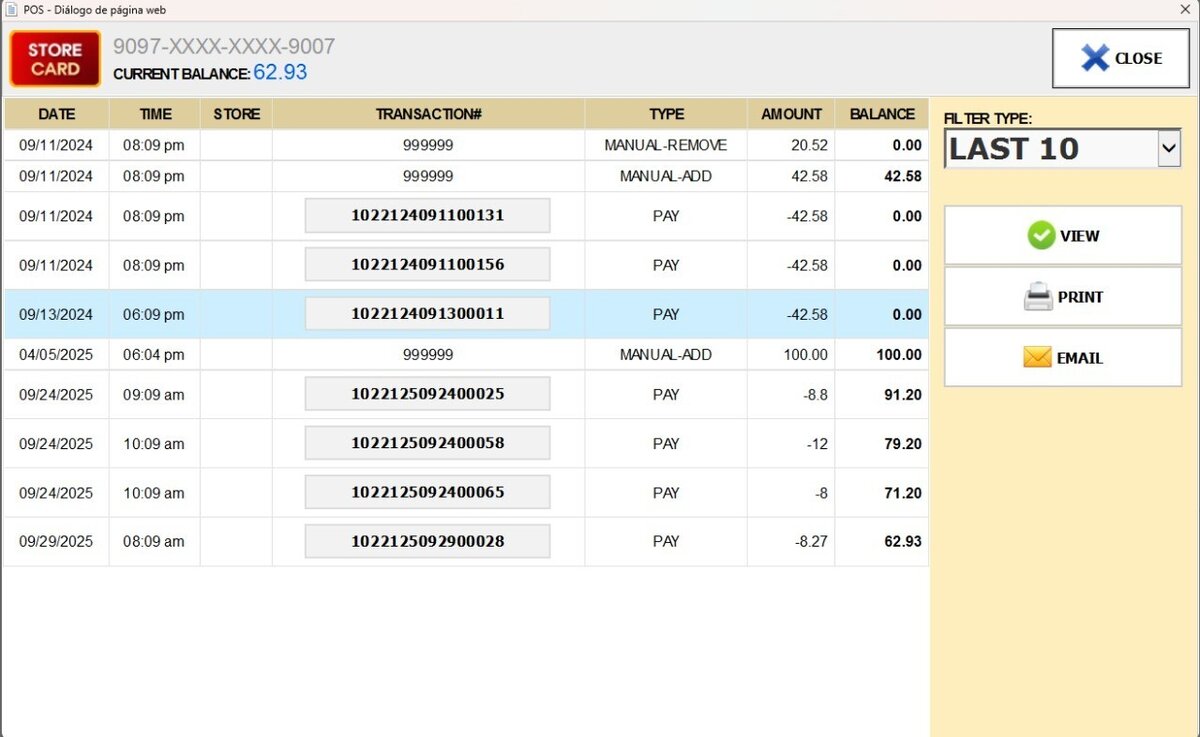
Use the FILTER TYPE option in the top-right corner of the screen to control how transactions are displayed by limiting the number of recent transactions shown or by narrowing results to specific dates.
Open the dropdown menu, select the desired filter, and select VIEW to apply it.
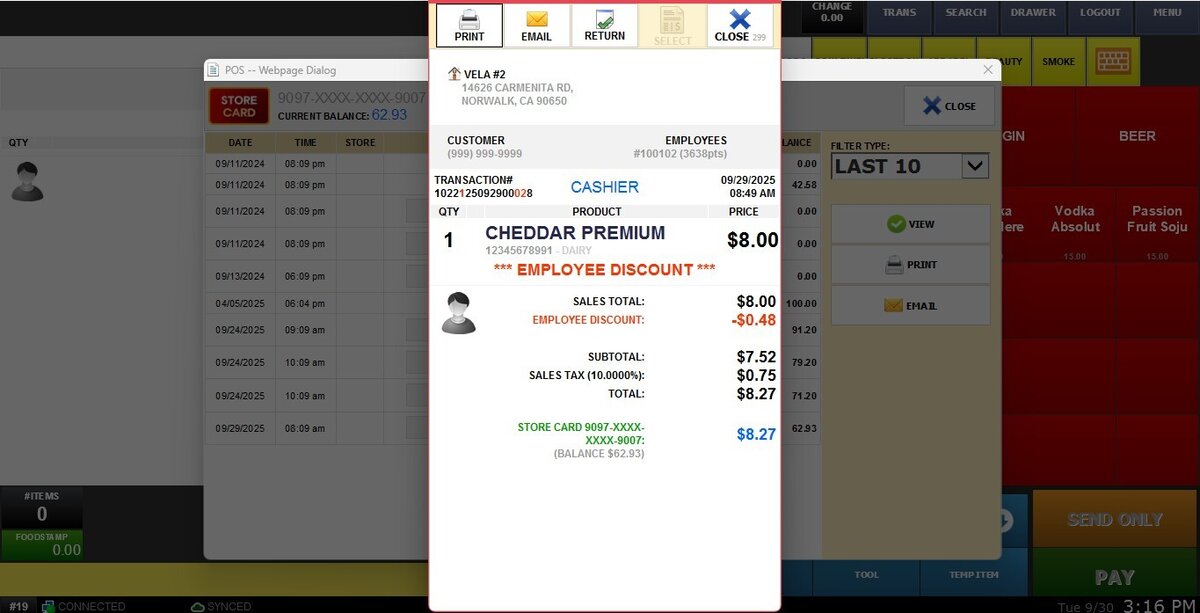
Hint: The ticket for a specific transaction can be accessed by selecting the transaction number.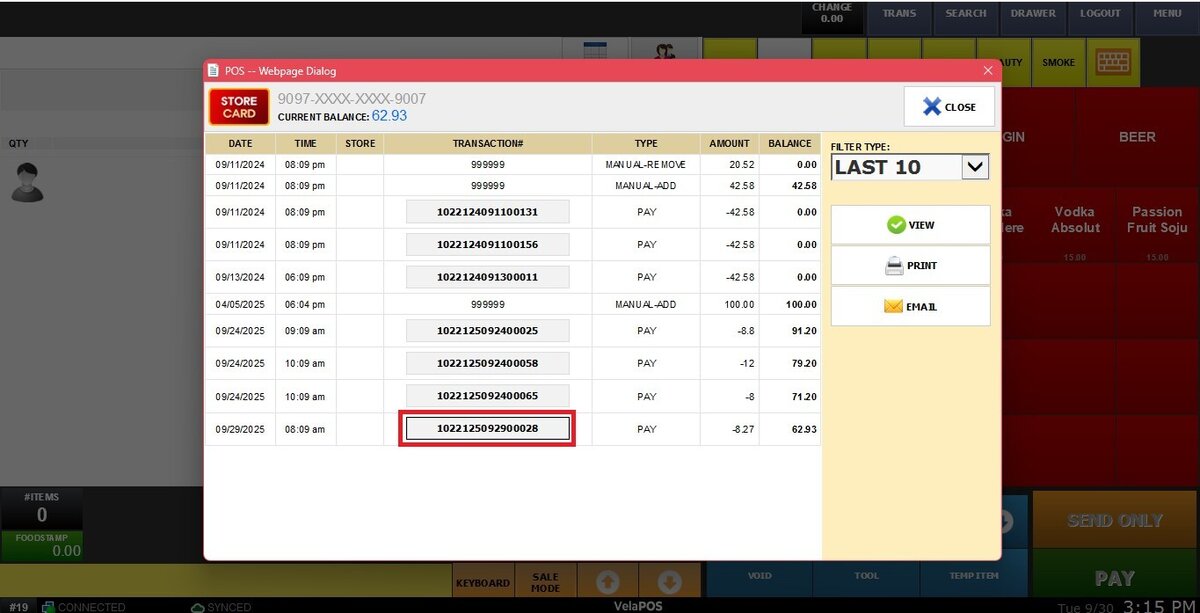
From there, any of the top actions can be applied to the selected ticket:
-
PRINT: Prints the selected transaction.
-
EMAIL: Sends the receipt of the selected transaction by email.
-
RETURN: Processes a return for the selected transaction.