Inventory (Online Report)
This section allows you to review the current inventory levels for the selected store, providing both a general overview and detailed item information. It includes key product data as well as store-specific details, such as price and available stock at each location.
Login Screen> Select Store> MENU> INVENTORY> INVENTORY LOOK UP
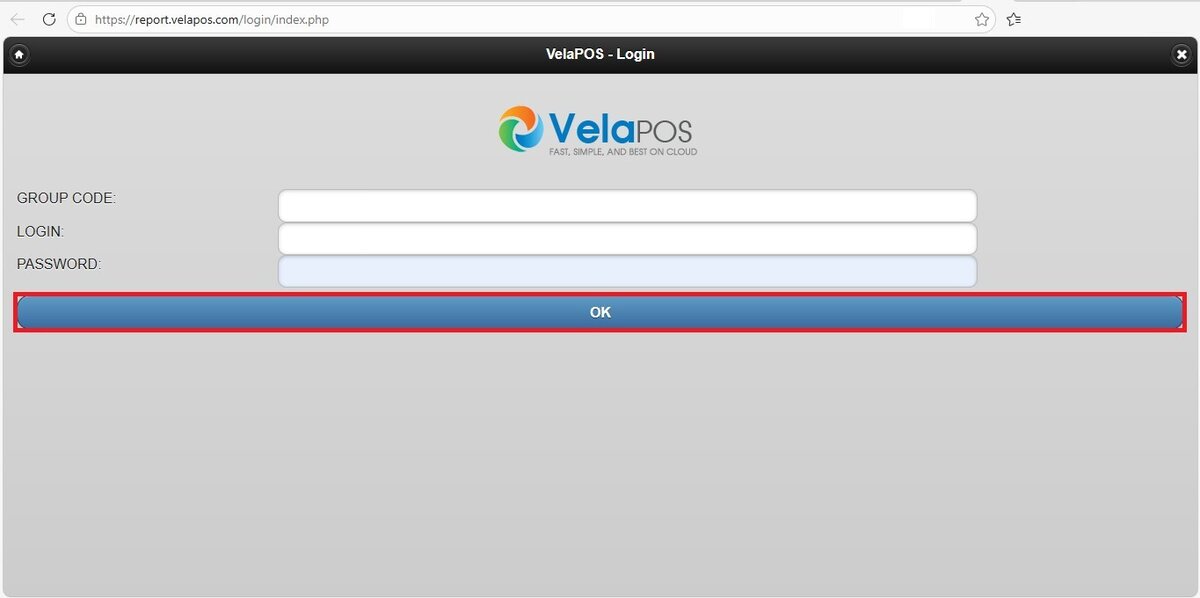
From the Login Screen of Online Reports, enter your credentials and press OK.
Select the store you would like to view, then navigate to the MENU button, select INVENTORY and then click on INVENTORY LOOK UP.

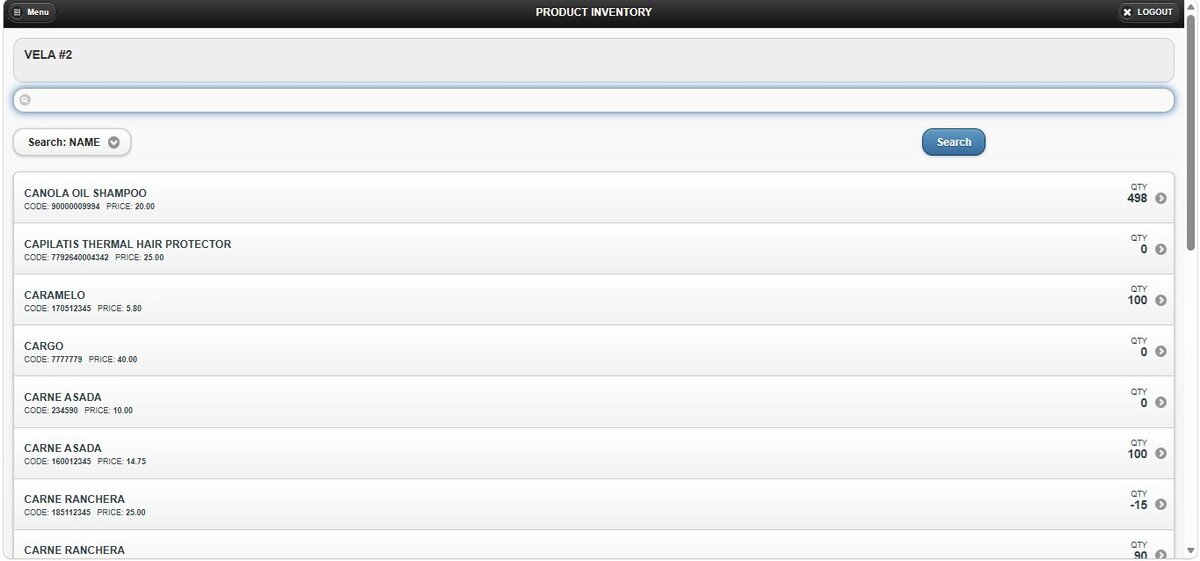
The report for the current store is displayed on the screen, showing a list of inventory quantities.
Filters
You can refine the report using the following filtering options:
1. Search Bar: In this section you can search using different parameters to display a specific group of items in the inventory.
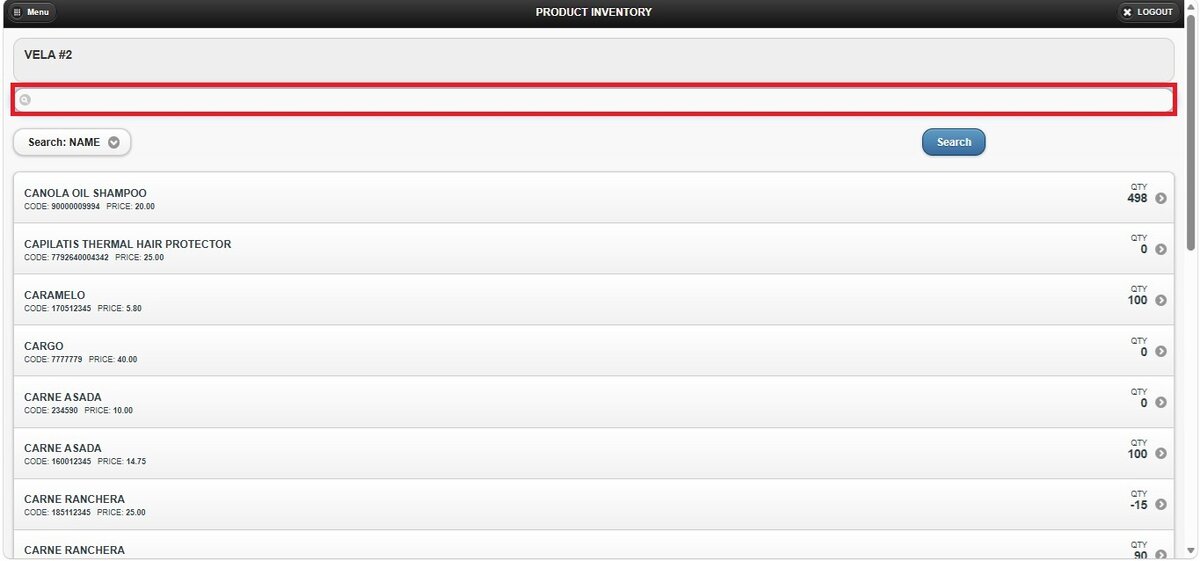
2. Search Parameter: Below the search bar, you can select the parameter you want to use to search your inventory; by default, it is set to CODE.

After selecting the search parameter and entering the keyword, press SEARCH to display the results.

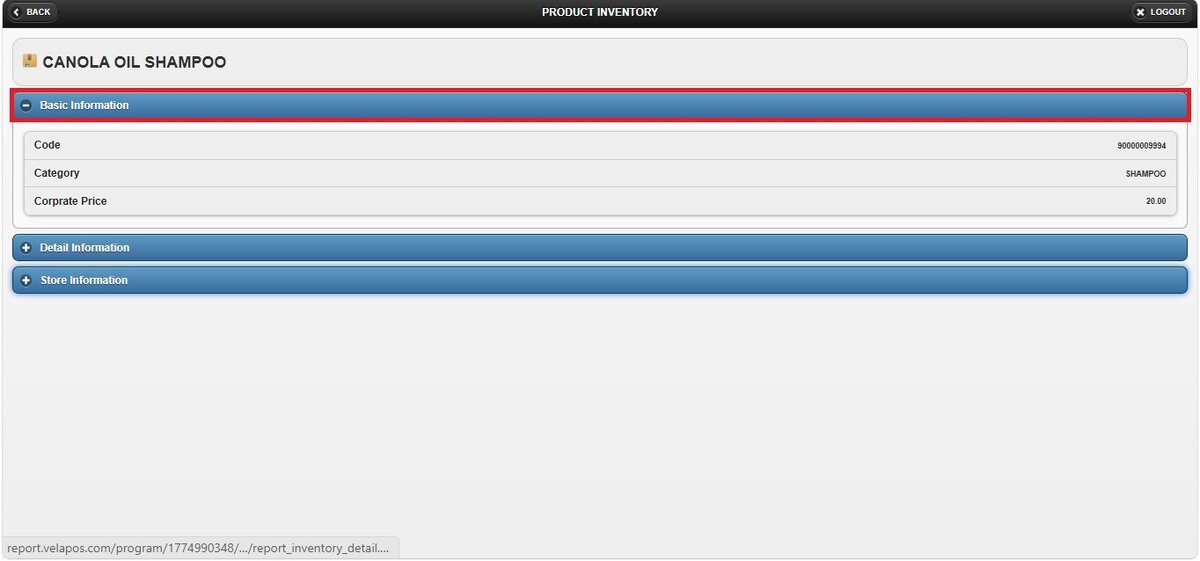
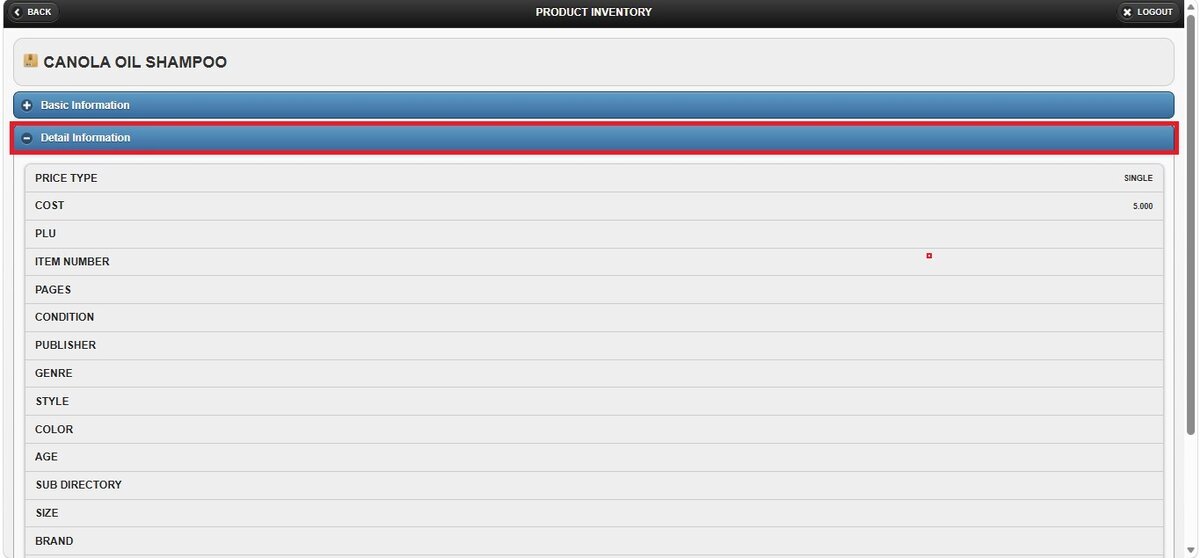
By selecting an item, you can access a detailed view with all the information associated with that item, including basic information, detailed information, and store information, which shows the quantity available at other store locations.
Basic information.
Detail information.
Store information.
