Hold
This feature allows you to temporarily pause a sale without finalizing it. In this article, you'll find a breakdown of the different configuration options that control how held sales behave.
Main Screen> MENU> SETTINGS> MAIN> SALES
Go to MENU and press SETTINGS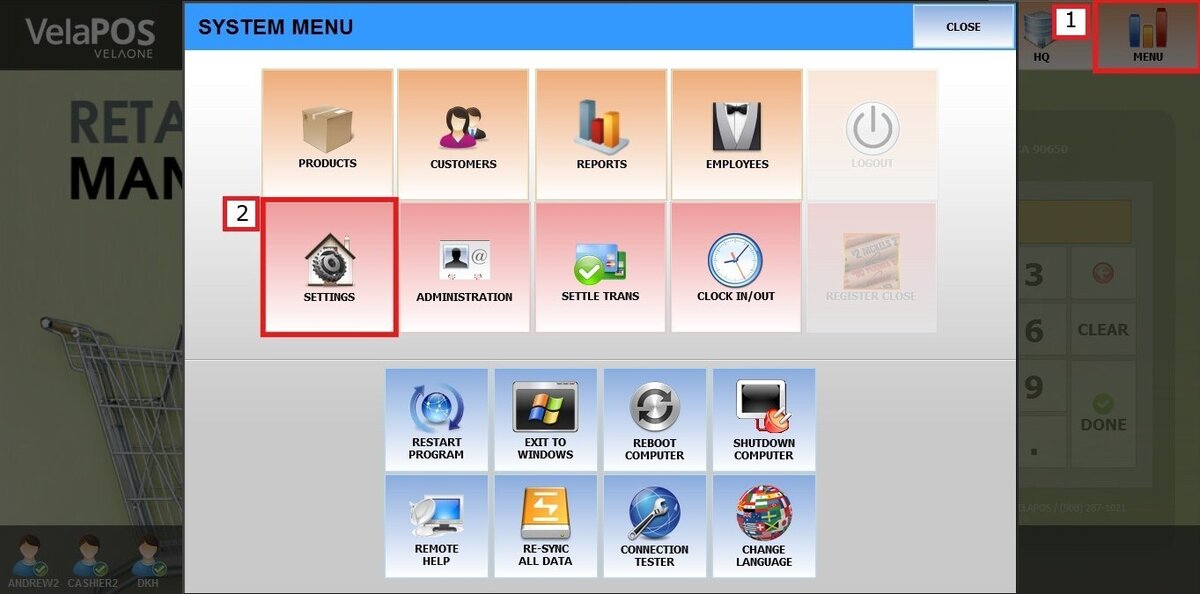
Under MAIN, select SALES. In the HOLD section, review the available configuration options.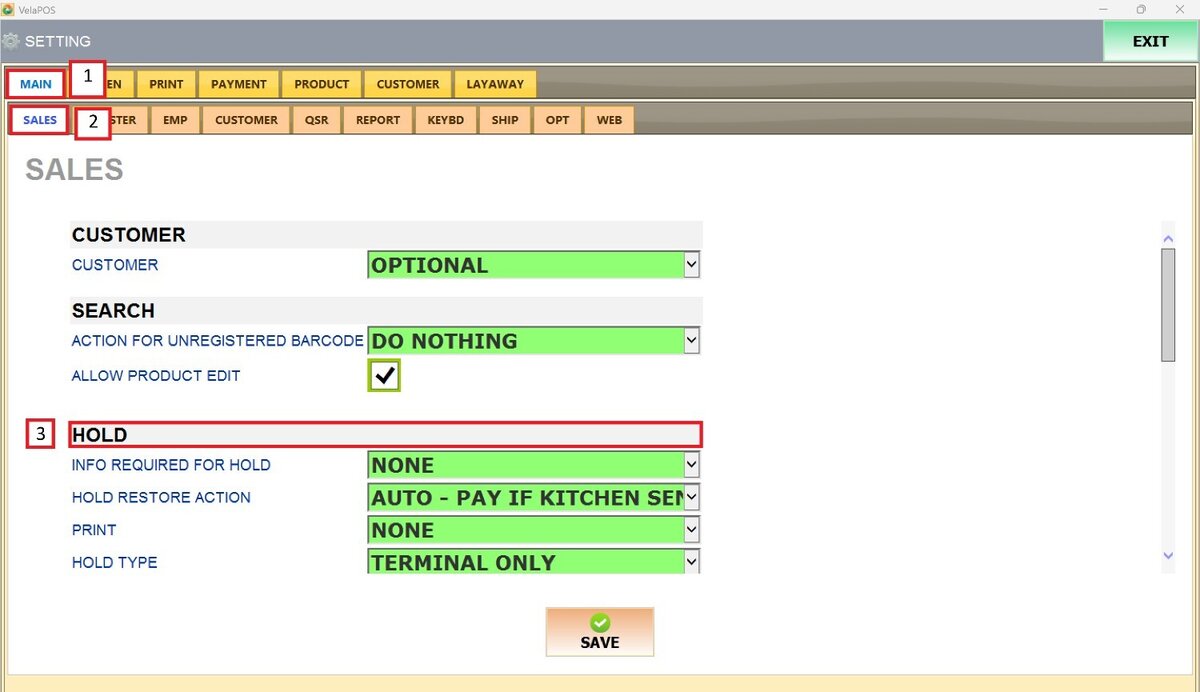
INFO REQUIRED FOR HOLD
Defines what information must be entered before placing a sale on hold.
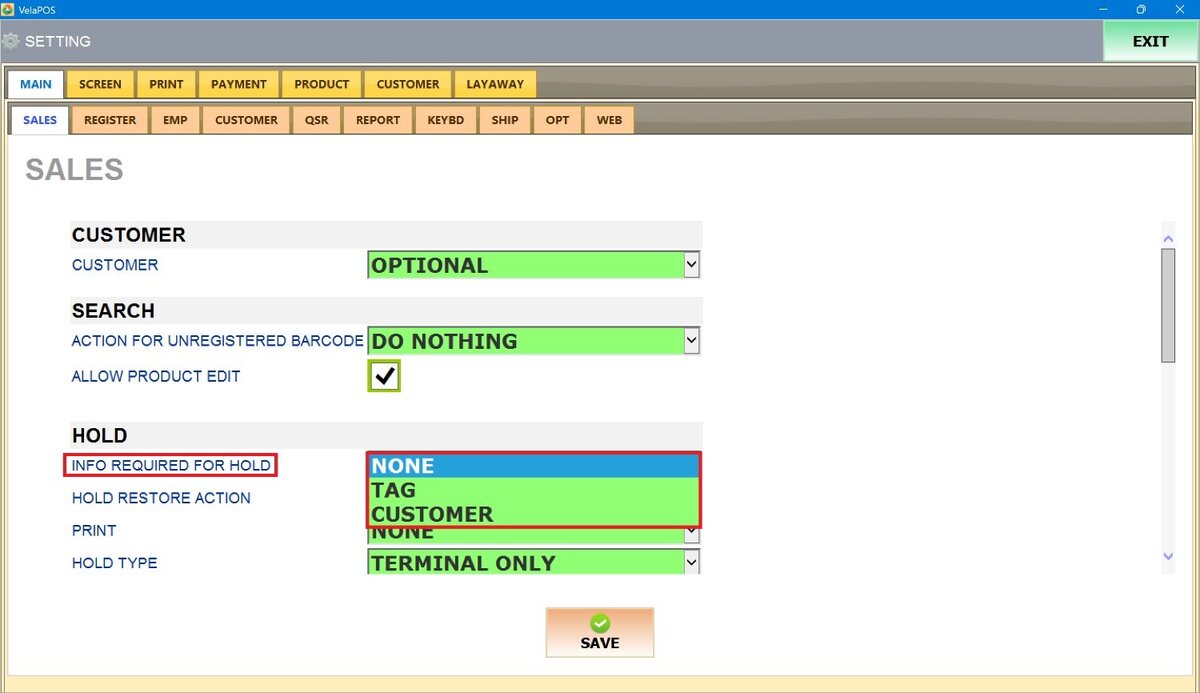
1. NONE: No additional info required.
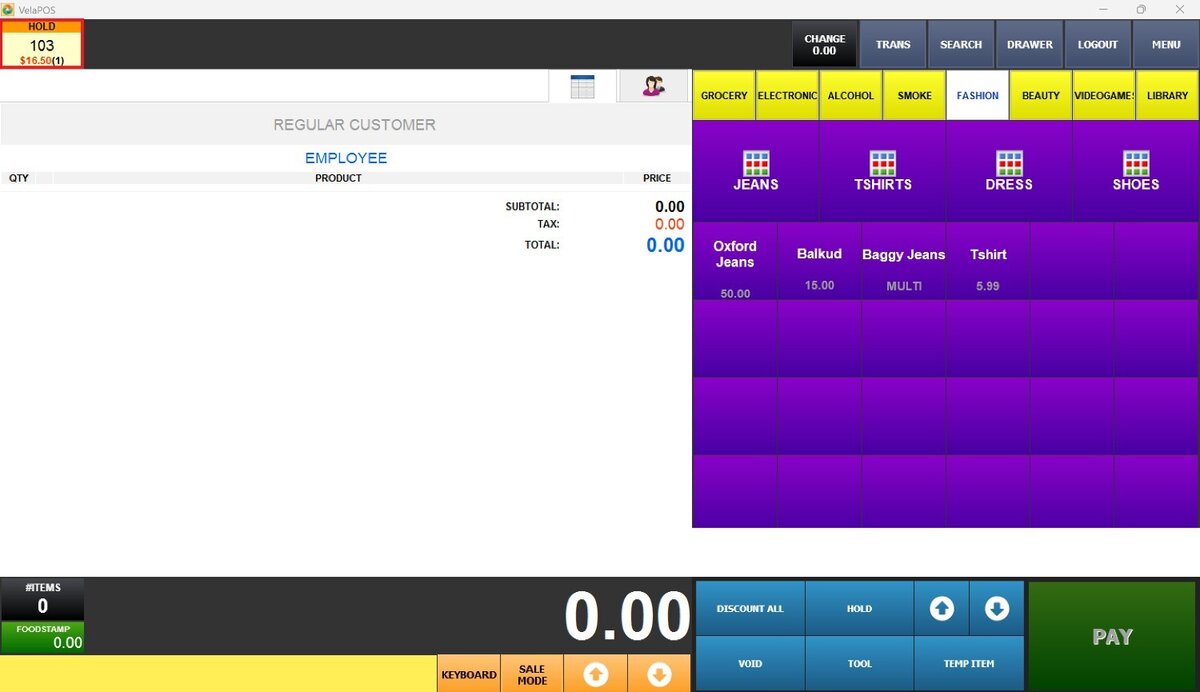
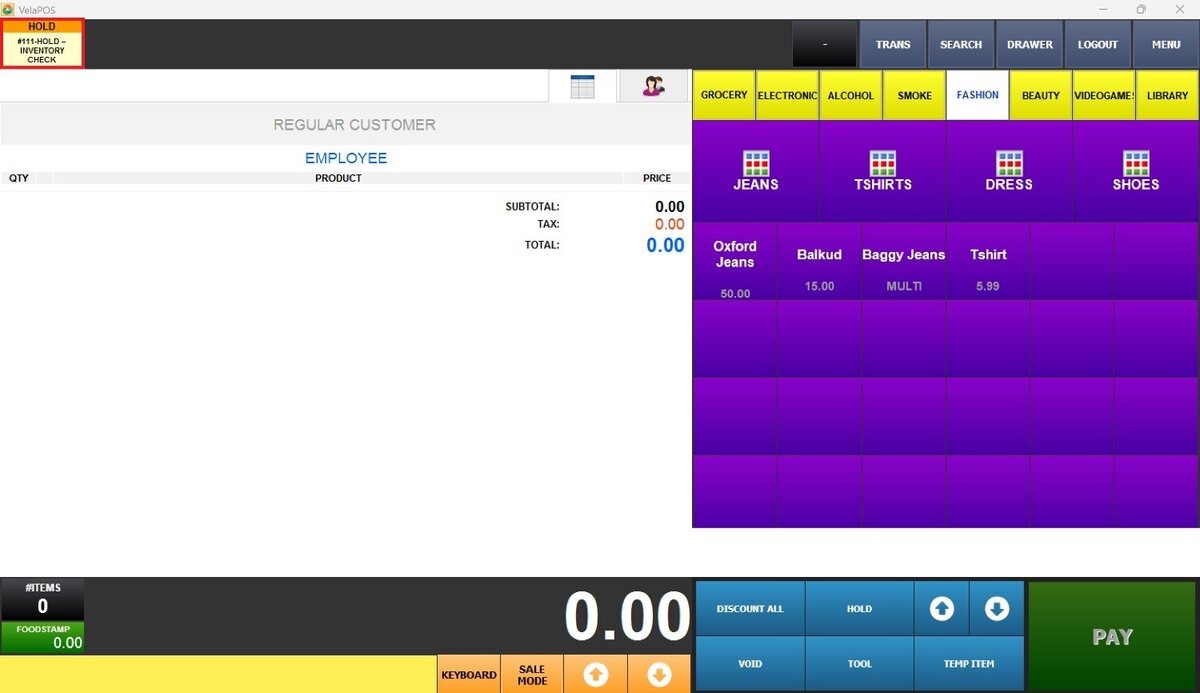
2. TAG: Requires a custom tag or label.

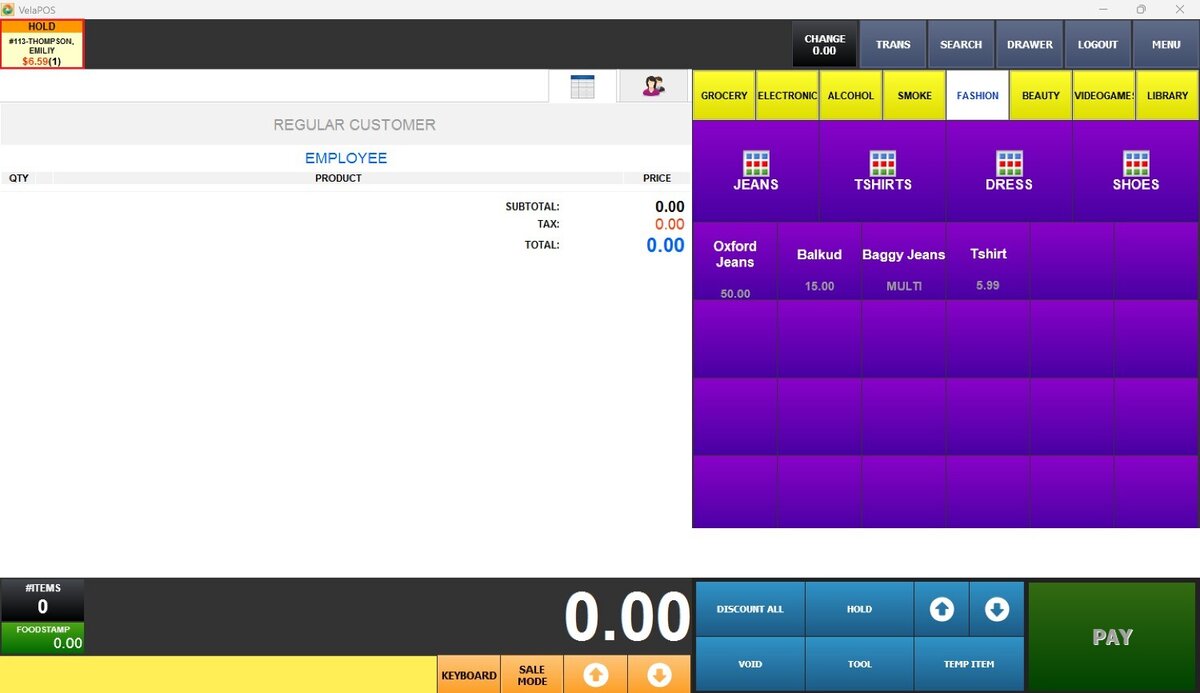
3. CUSTOMER: Requires the customer's details.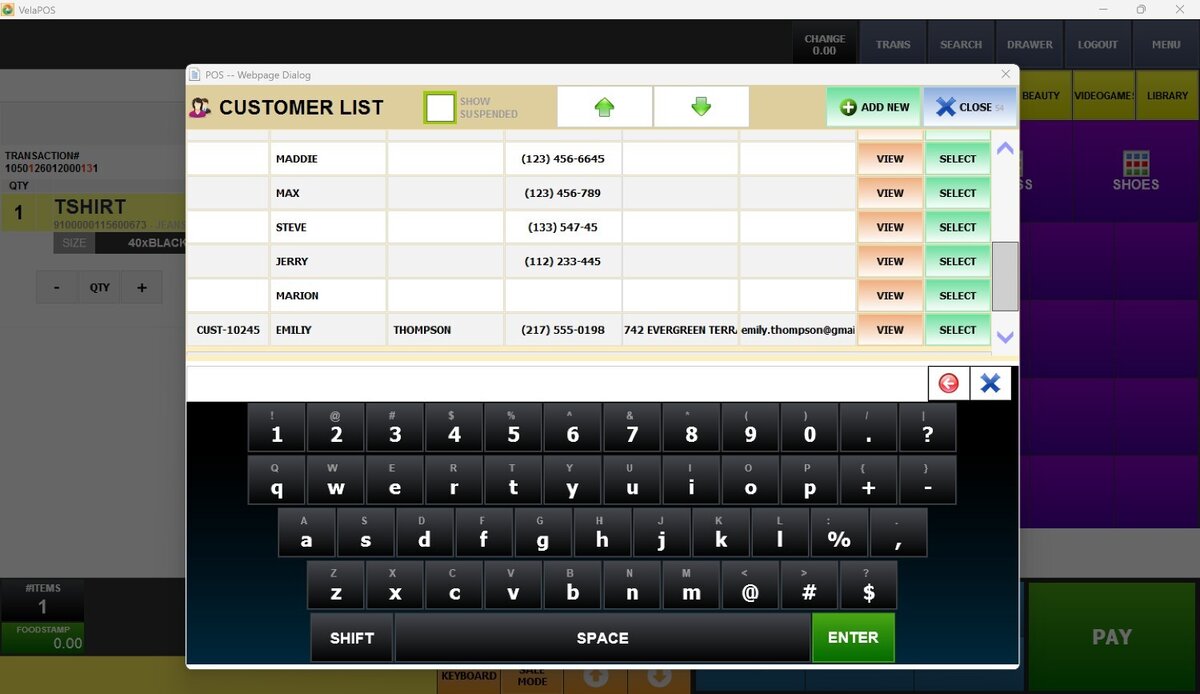
HOLD RESTORE ACTION
Controls what happens when a held sale is resumed.
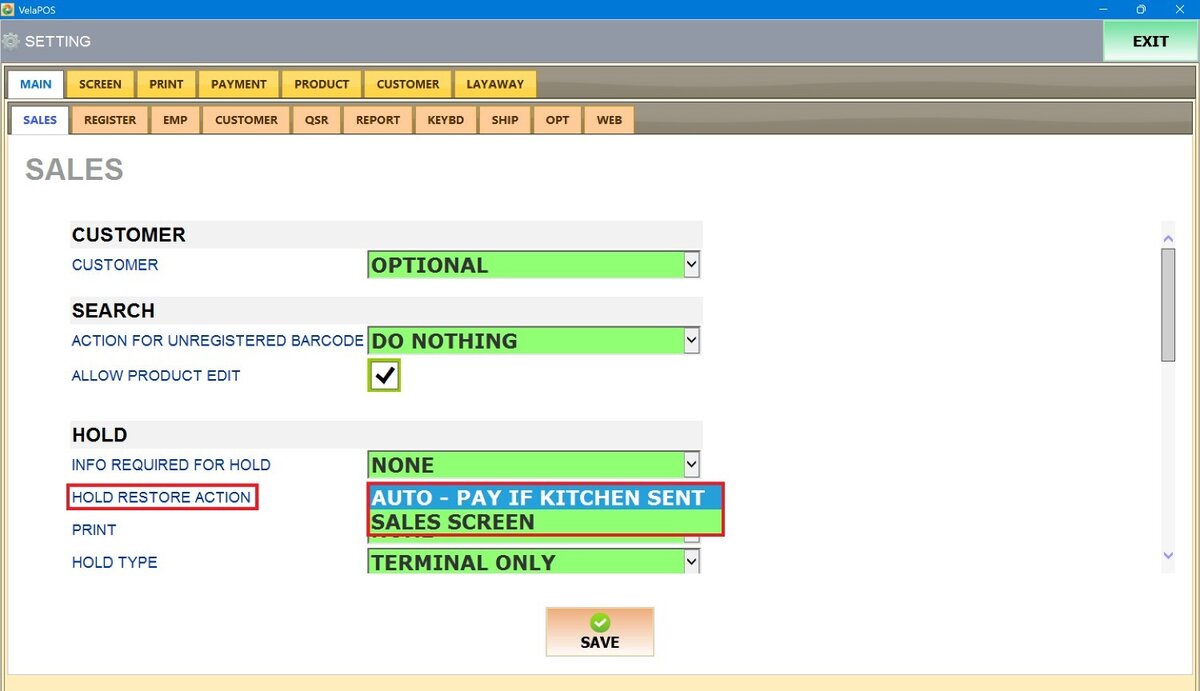
1. SALES SCREEN: Returns to the main sales screen.
2. AUTO-PAY IF KITCHEN SENT: Automatically proceeds to payment if items were sent to the kitchen.
PRINT
Determines what is printed when a sale is placed on hold.
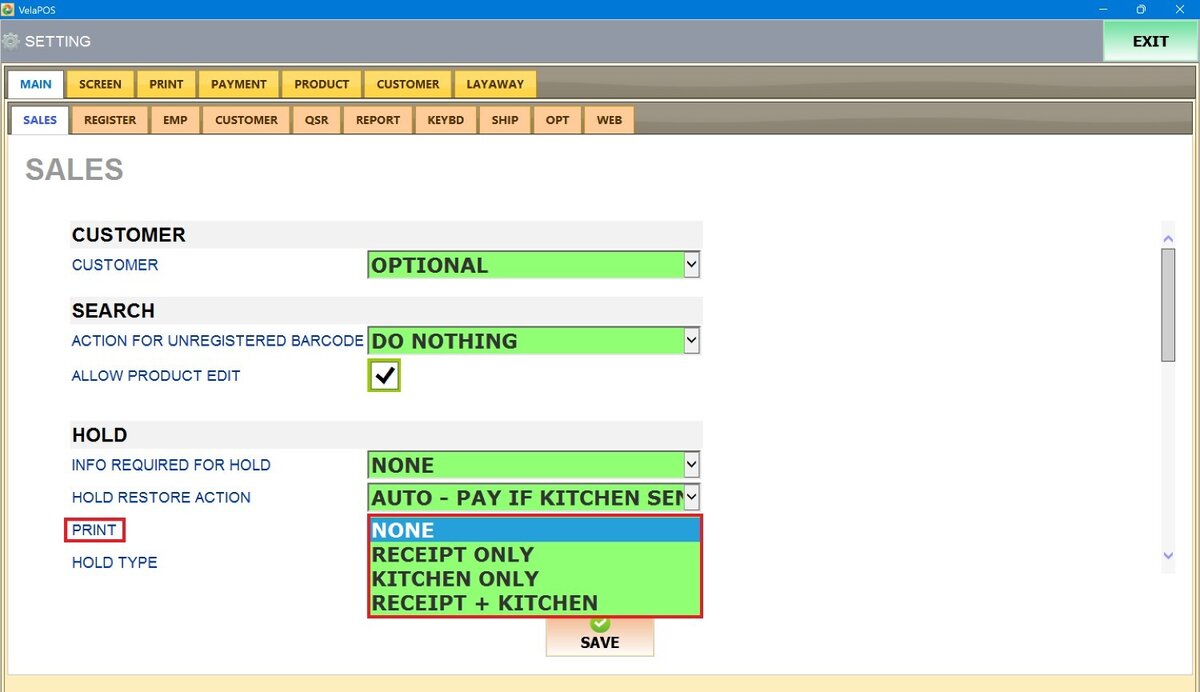
1. NONE: No printout.
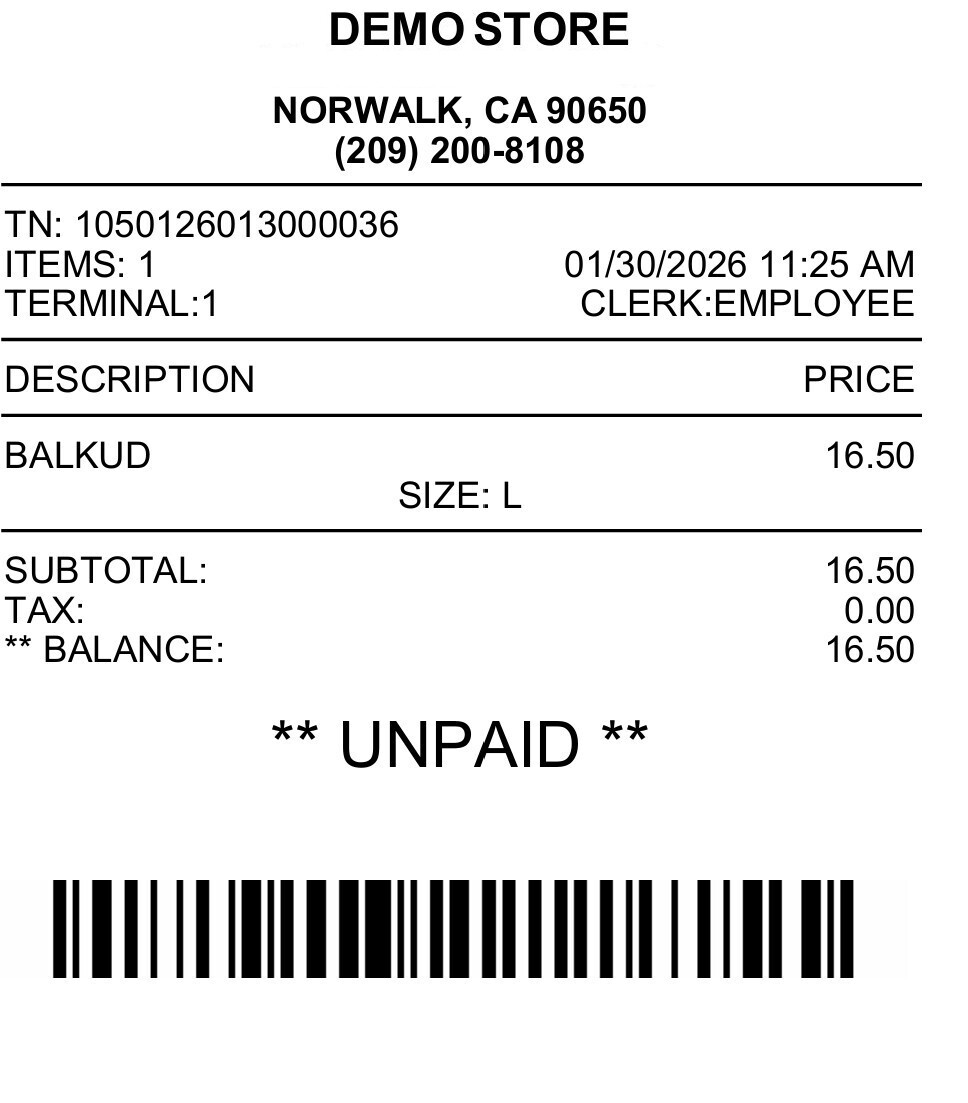
2. RECEIPT ONLY: Prints only the customer receipt.
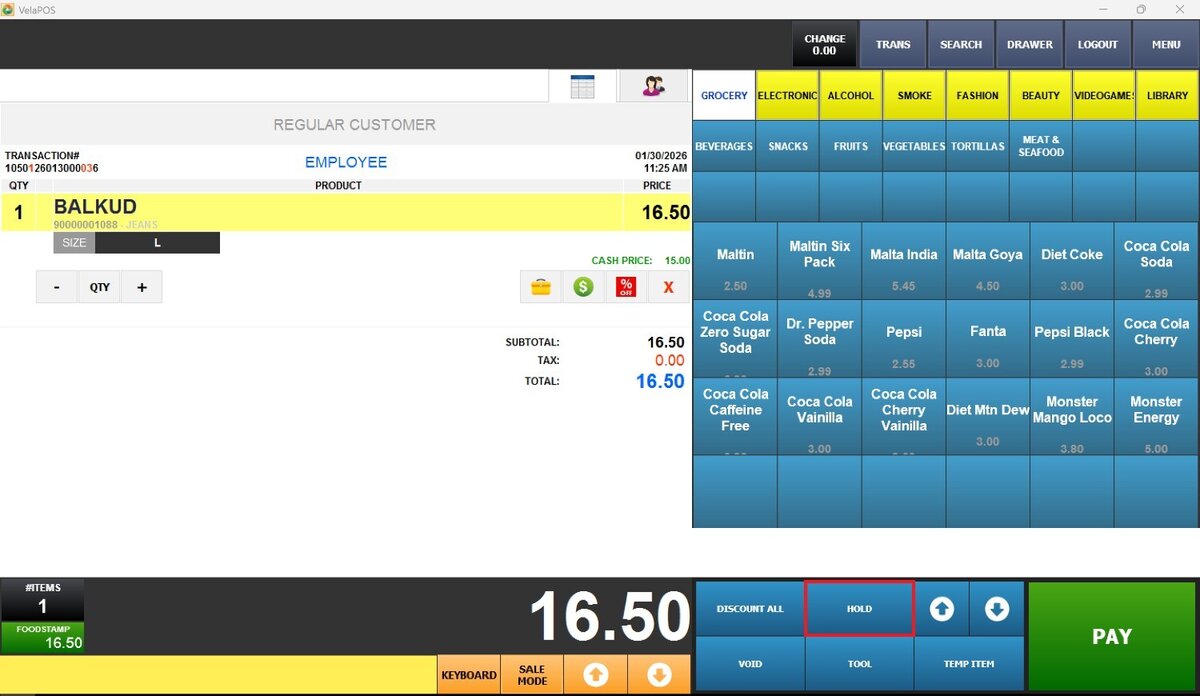
3. KITCHEN ONLY: Sends items to the kitchen printer.
4. RECEIPT+KITCHEN: Prints both receipt and kitchen ticket.
HOLD TYPE
Specifies where held sales are stored.
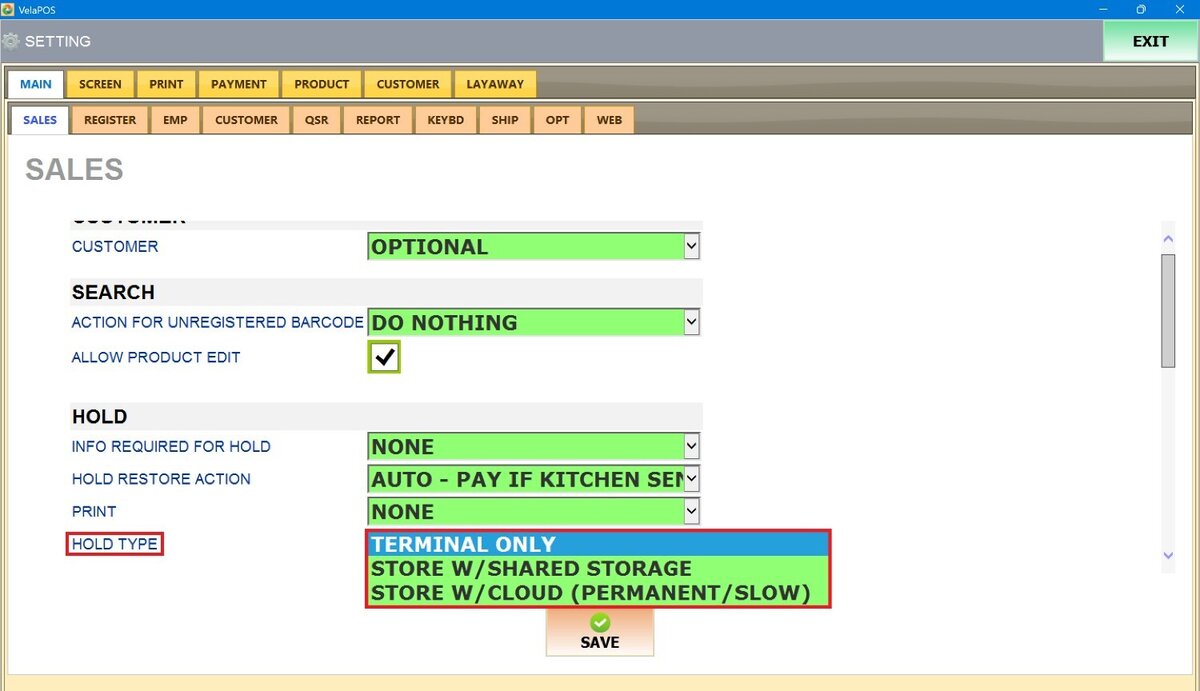 1. TERMINAL ONLY: Held sales remain on the same terminal and cannot be accessed from other terminals.
2. STORE W/SHARED STORAGE: Held sales are saved on a shared network and can be resumed from any terminal.
3. STORE W/CLOUD (PERMANENT/SLOW): Held sales are stored online for permanent access from any terminal, though retrieval may take longer.
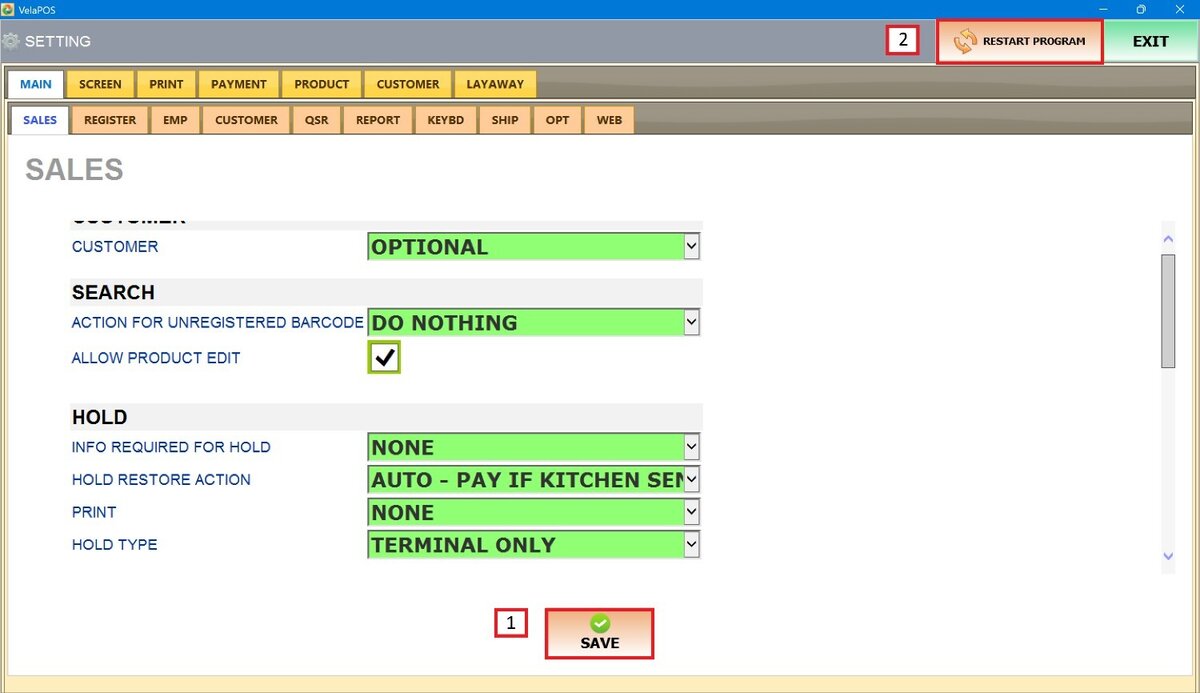
After making any modifications, press SAVE to store them, and RESTART THE PROGRAM to ensure the updates are applied correctly.