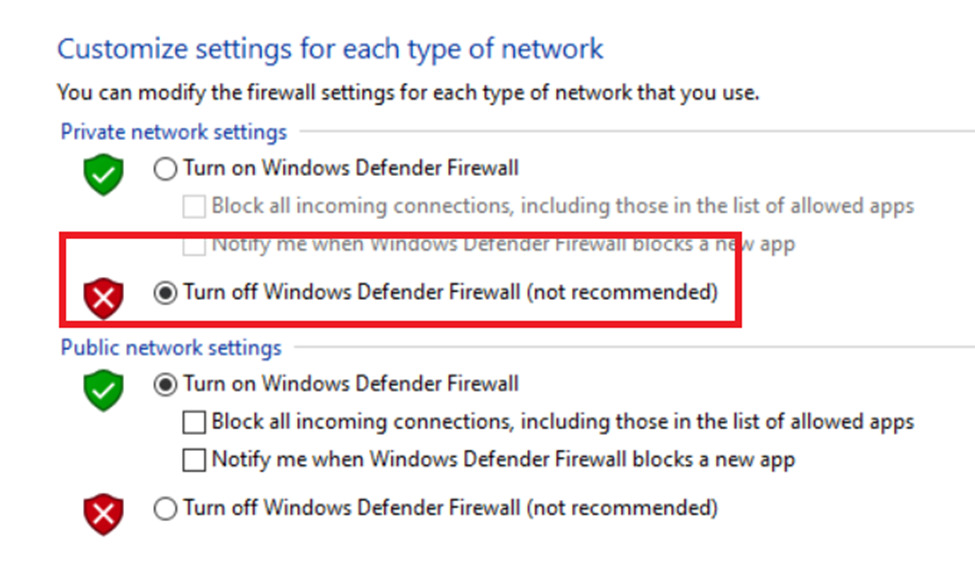
Windows Security Setting
This section walks through the key steps to disable certain protections in Windows (such as real‑time virus scanning and the firewall) so that the POS application can install and run smoothly without interference.
Windows Defender
1. Windows Start> Settings> Update & Security
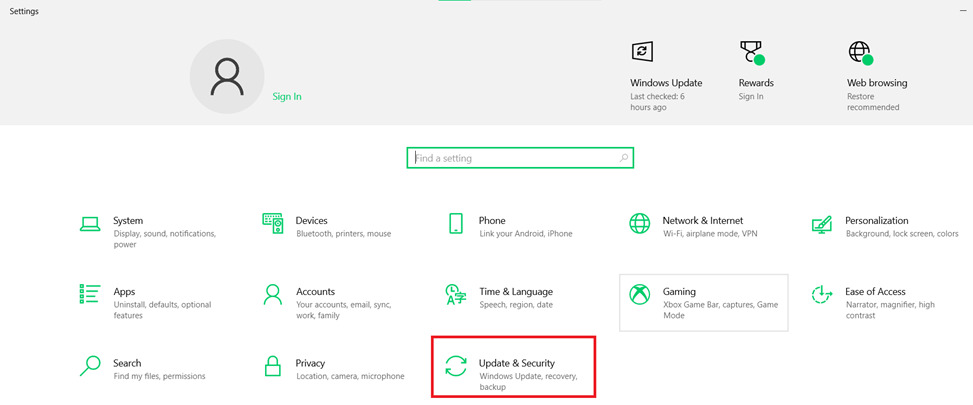
2. Windows Security> Open Windows Security

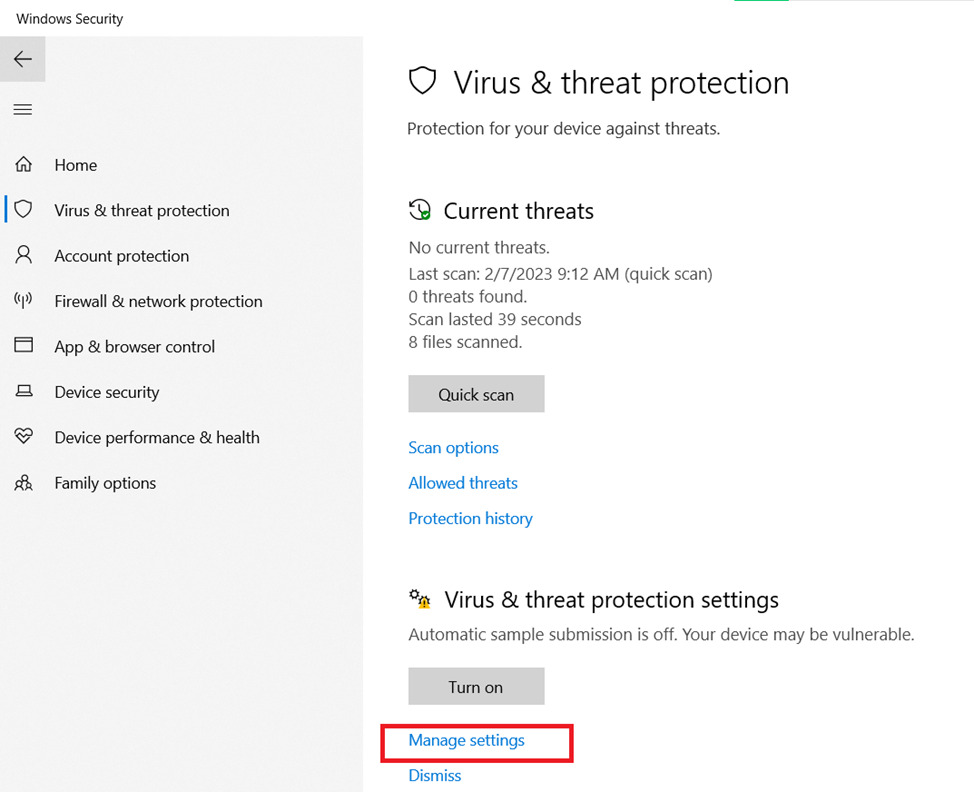
3. Virus & Threat Protection

4. Manage Setting
5. Turn off all options in the section.
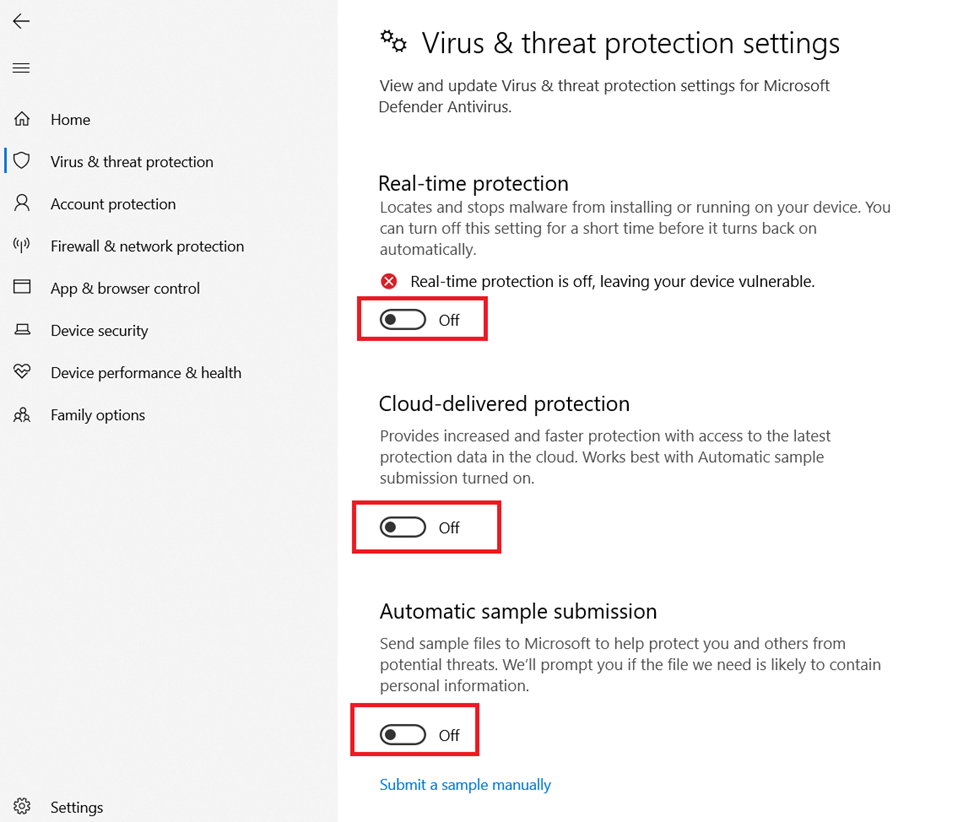
Note: Real-time protection may automatically re-enable after a reboot—this is expected and won’t affect the installation once it’s complete.
Windows Firewall
1. Control Panel> System and Security> Windows Defender Firewall> Turn Windows Defender Firewall on or off
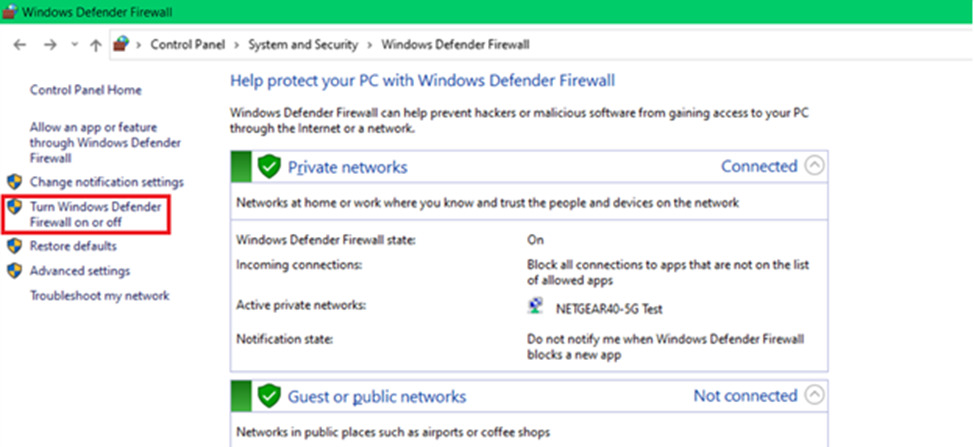
2. Turn off the Windows Defender Firewall for Private Network