Desktop
This section defines how invoices are generated, including the format and the information displayed and printed. Invoices provide a more detailed and formal alternative to standard receipts, typically used for wholesale transactions and record-keeping. It offers a structured layout suitable for professional communication between the store and the customer.
Main Screen> MENU> SETTING> PRINT > DESKTOP
From the Main Screen, click on MENU then select SETTINGS.

Under the PRINT tab, click on DESKTOP.

BASIC
Controls the basic information and overall structure of the invoice.
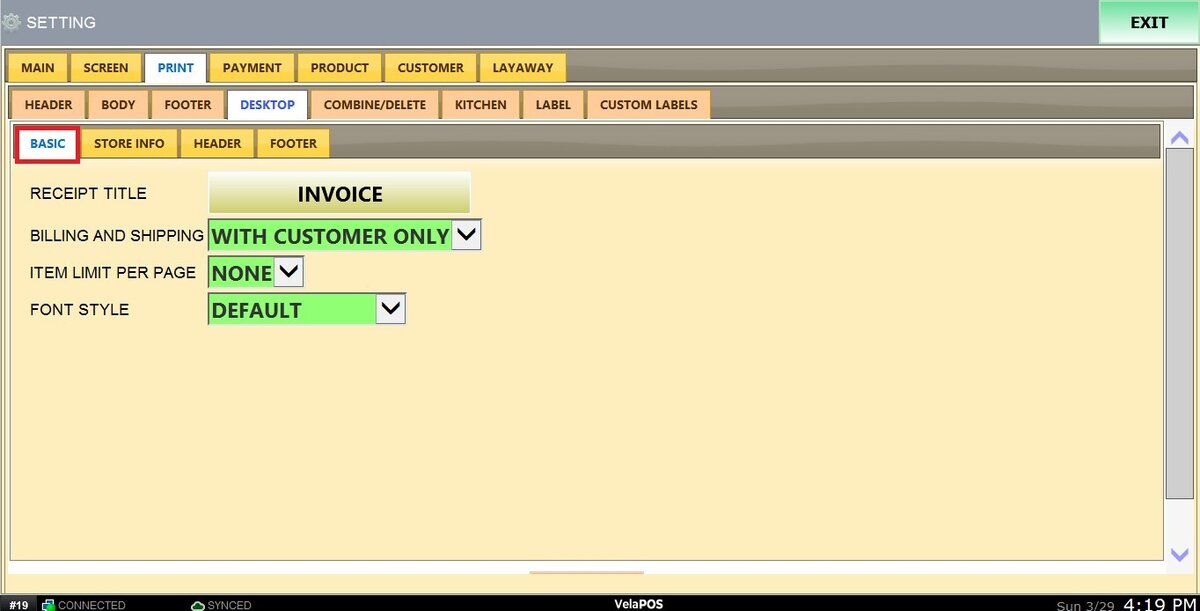
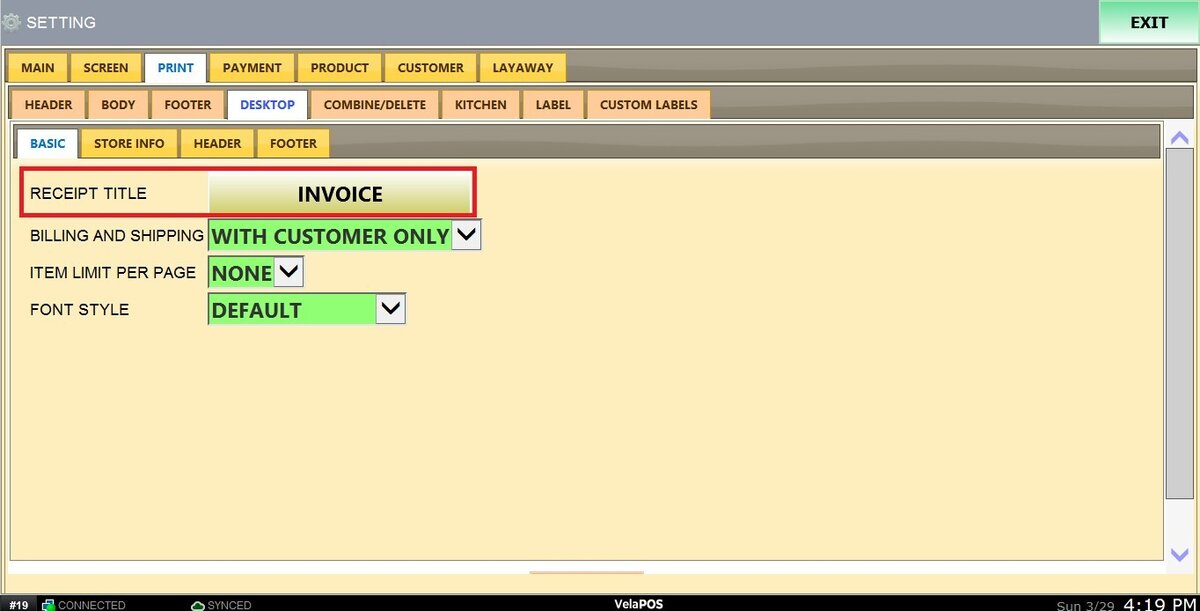
1. RECEIPT TITLE: Defines the main heading of the document.
Click on the field and enter the desired title.
2. BILLING AND SHIPPING: Enables the inclusion of the customer’s billing and shipping information on the invoice.
Select WITH CUSTOMER ONLY to include customer information when available, or ALWAYS to include billing and shipping details on every invoice.

3. ITEM LIMIT PER PAGE: Sets the maximum number of items printed on a single page before continuing onto a new page.
Selecting NONE will prevent the invoice from being split into multiple pages.

4. FONT STYLE: Allows you to customize the font used on the invoice for improved readability.

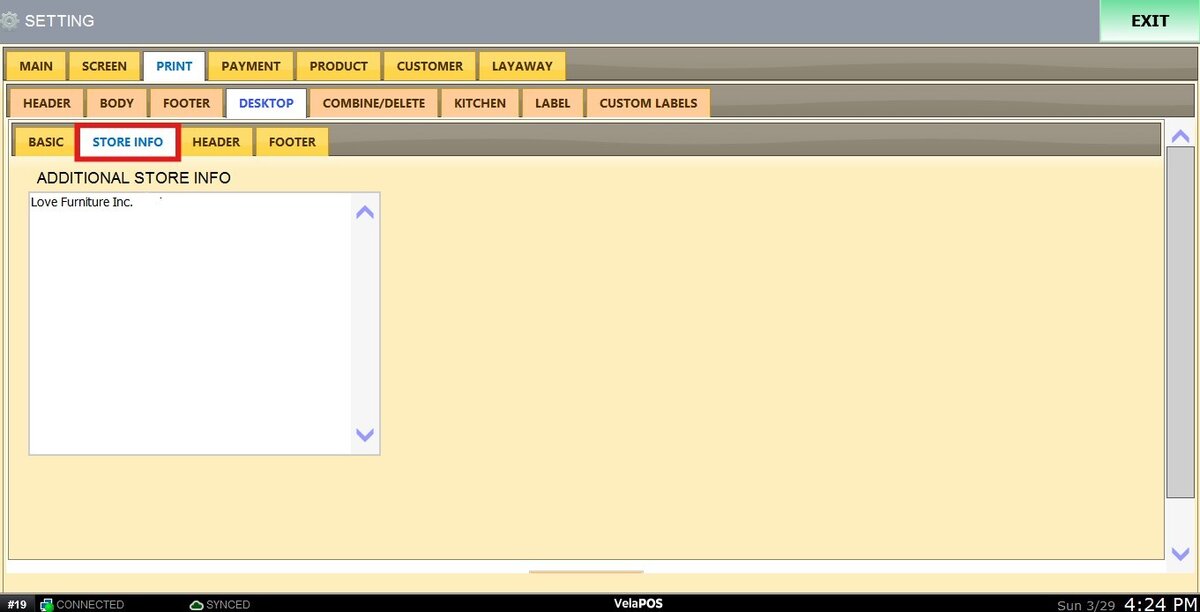
STORE INFO
Customize the store details displayed on the top left of the invoice.
HEADER
Add custom text at the top of the item list. This can be used for messages or internal notes.
Select the header FONT SIZE from the dropdown menu.

FOOTER
Customize the bottom section of the invoice. This is typically used for store policies, such as refund or exchange terms.
Select the footer FONT SIZE from the dropdown menu.

After configuring the invoice settings, click on SAVE and RESTART THE PROGRAM to apply the changes.

Result:
A printed invoice will appear similar to the example below:
