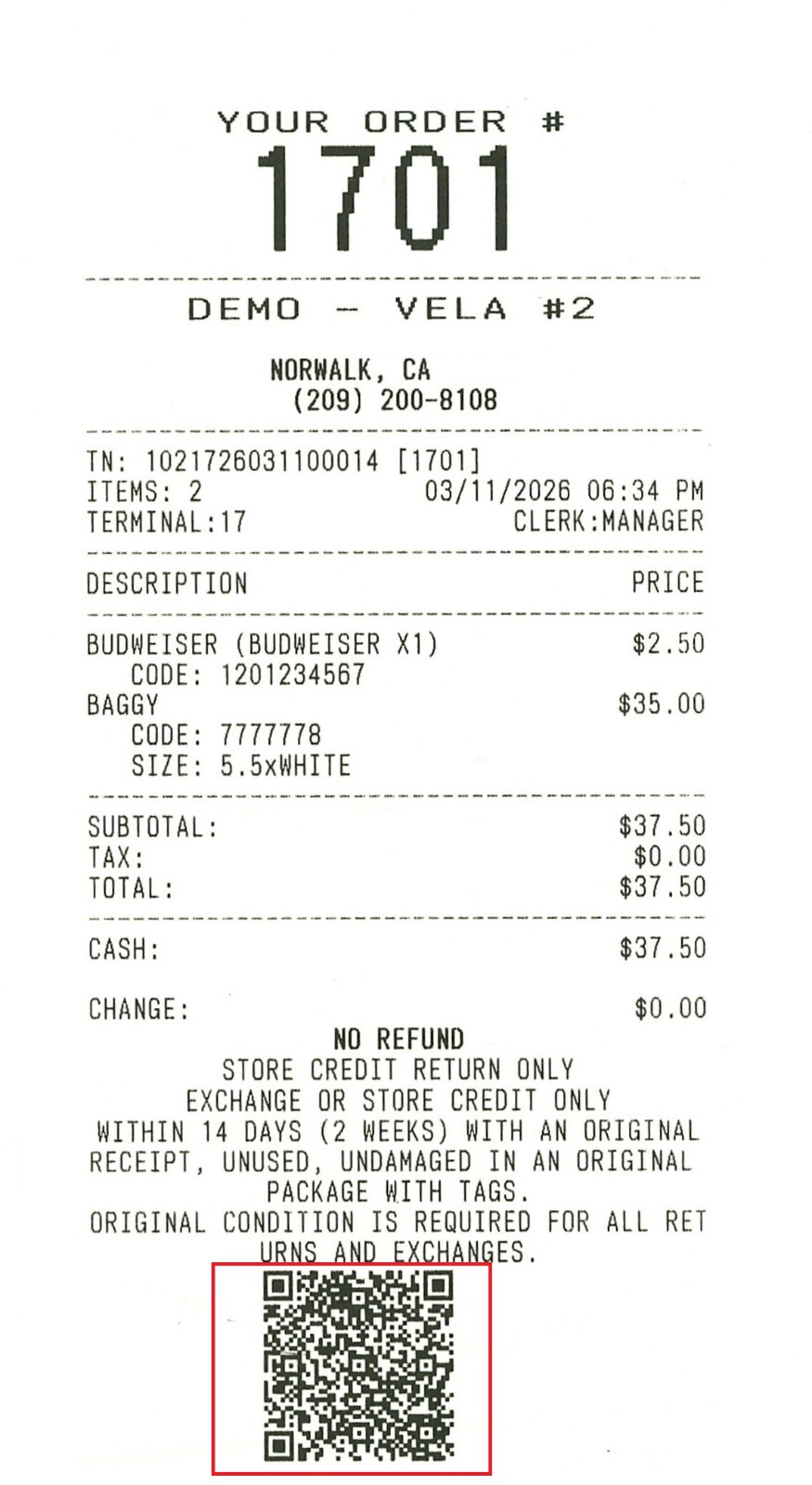
Receipt Barcode / QR
This option allows you to print a barcode or QR code at the bottom of the receipt for transaction tracking and quick access to information.
Main Screen > MENU > SETTINGS > PRINT > FOOTER > BARCODE
Go to MENU, then click on SETTINGS.
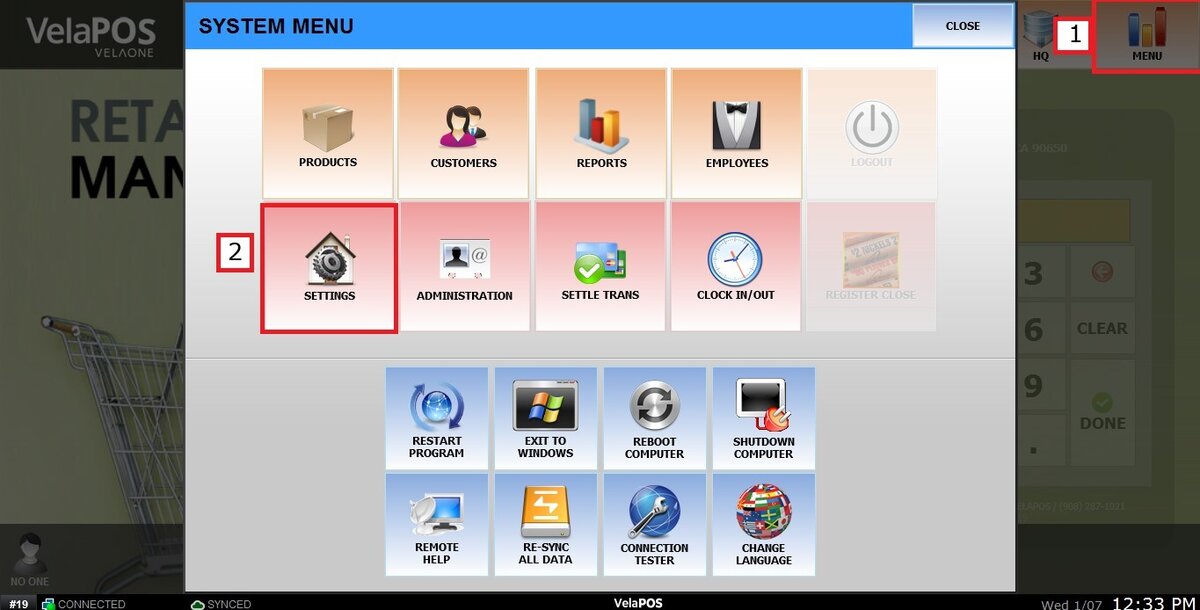
Under the PRINT tab, click on FOOTER.

On the BARCODE section you will see three options:

1. NO: No barcode or QR code will be printed on the receipt.
2. BARCODE: Prints a barcode at the bottom of the receipt.
This typically contains the transaction or receipt number, which can be scanned later for returns, exchanges, or order lookup.
Result:

3. QR CODE: Prints a QR code at the bottom of the receipt.
This may include the transaction information, Store information and Receipt lookup data. Customers or staff can scan the QR code using a smartphone or scanner.
Result: