Purchase Tab
This feature allows you to create a list of products you want to purchase for your store in order to generate a purchase order later.
Main screen> MENU> PRODUCT> PURCHASE
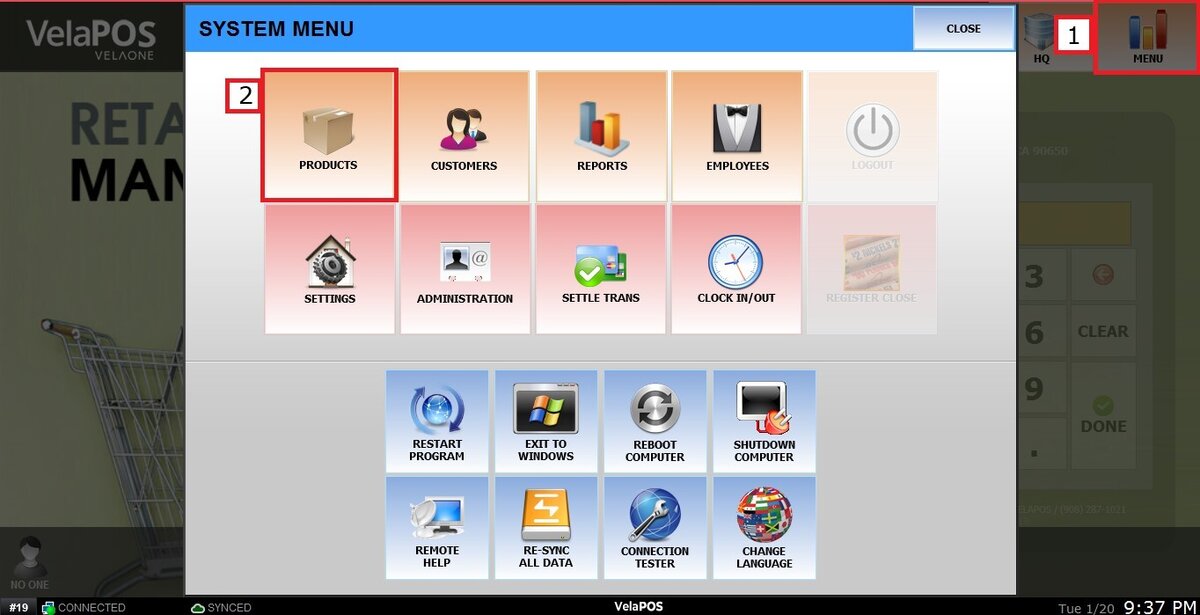
Go to MENU and select PRODUCTS.
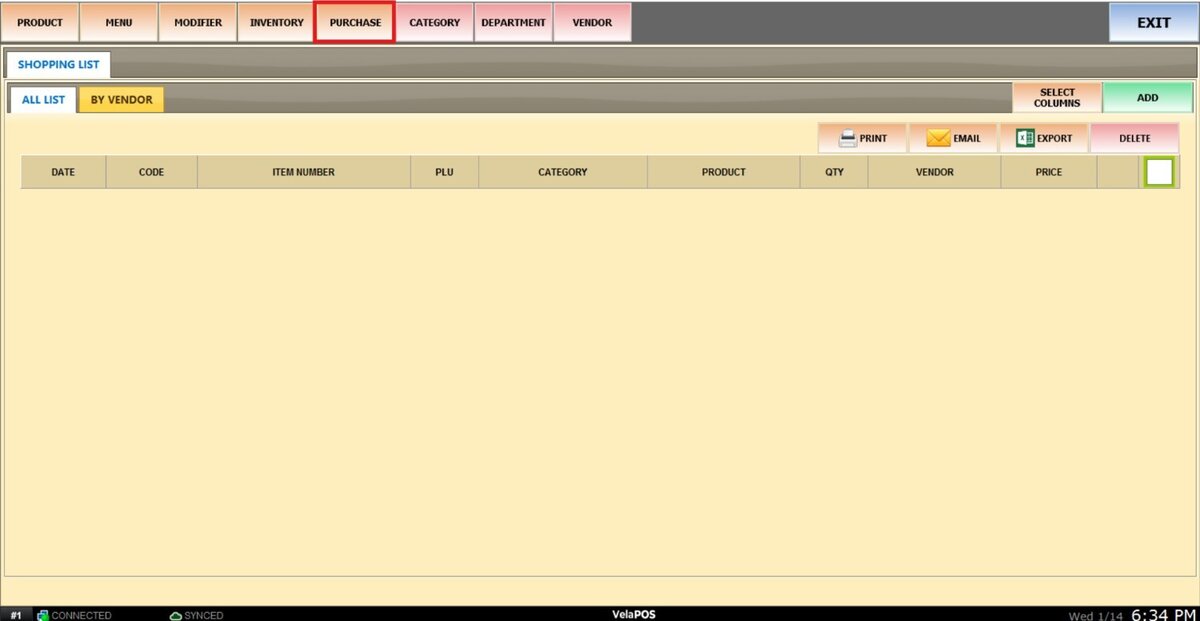
Go to the PURCHASE tab.
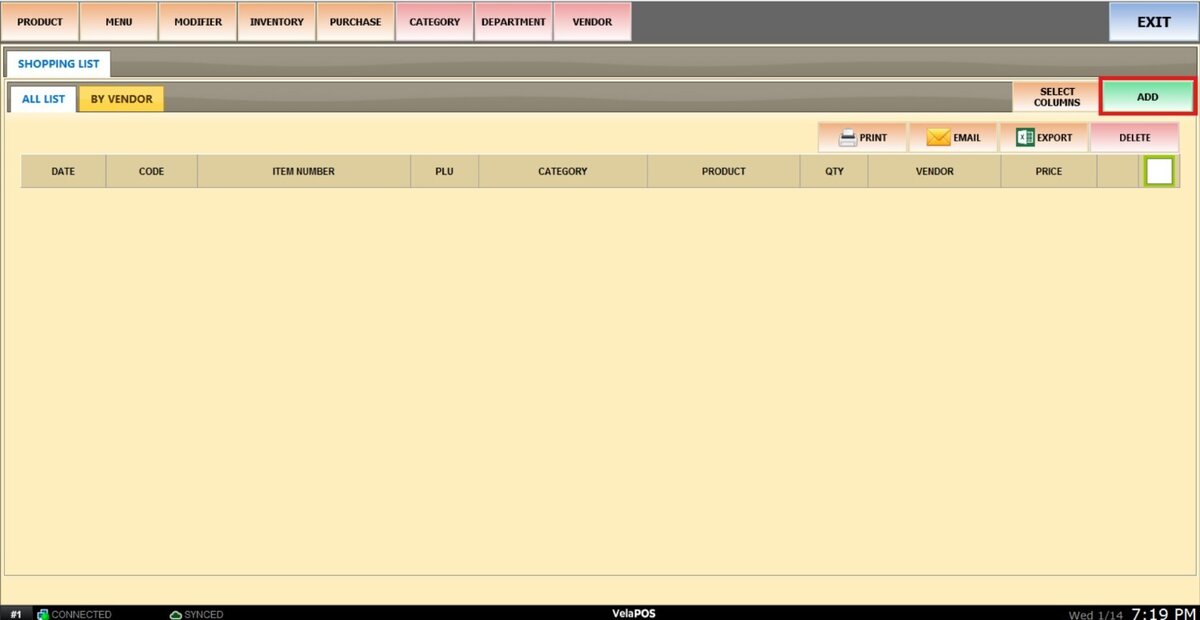
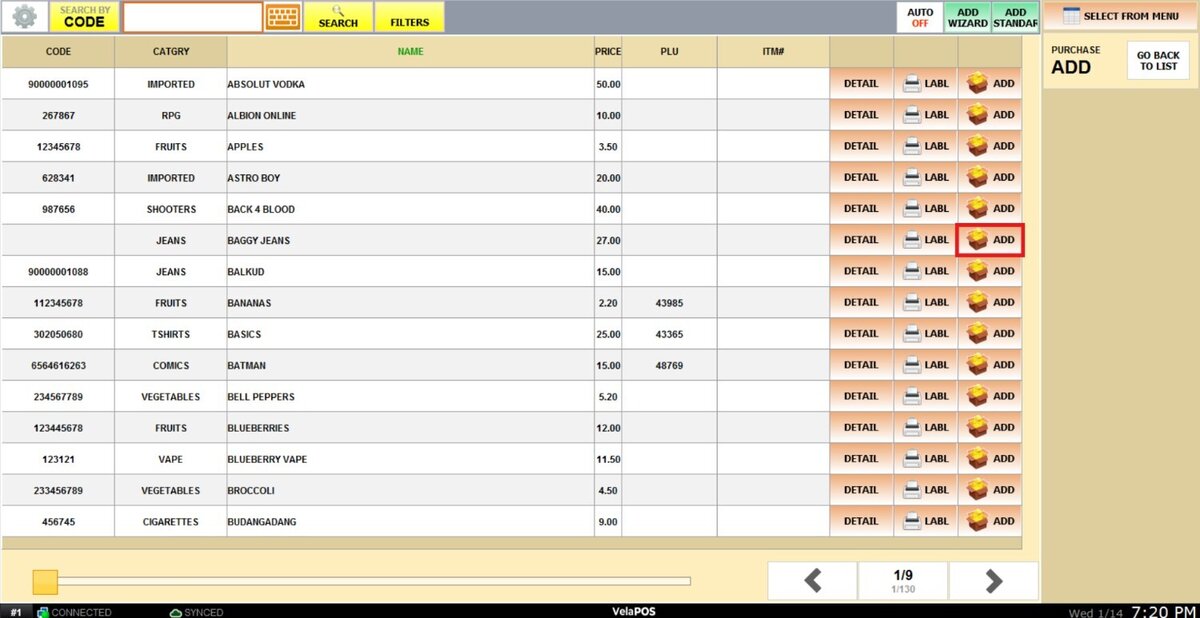
To add products to your shopping list, select ADD.
Select the product you want to add by clicking ADD.
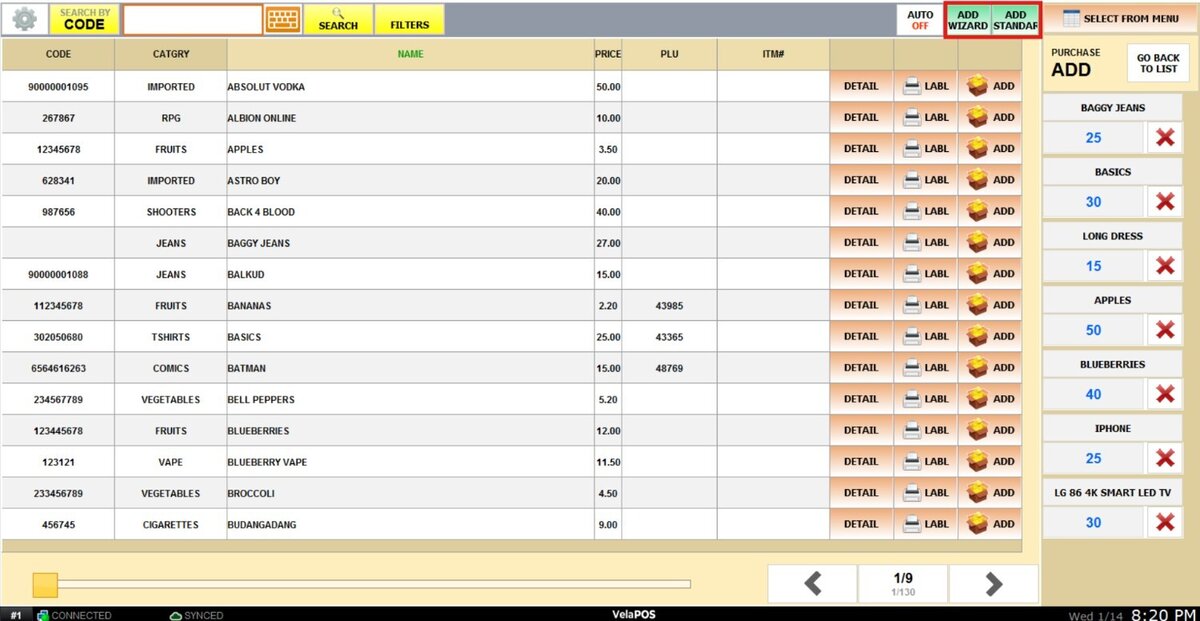
Hint: You can add new products from this screen by pressing on ADD WIZARD or ADD STANDARD.

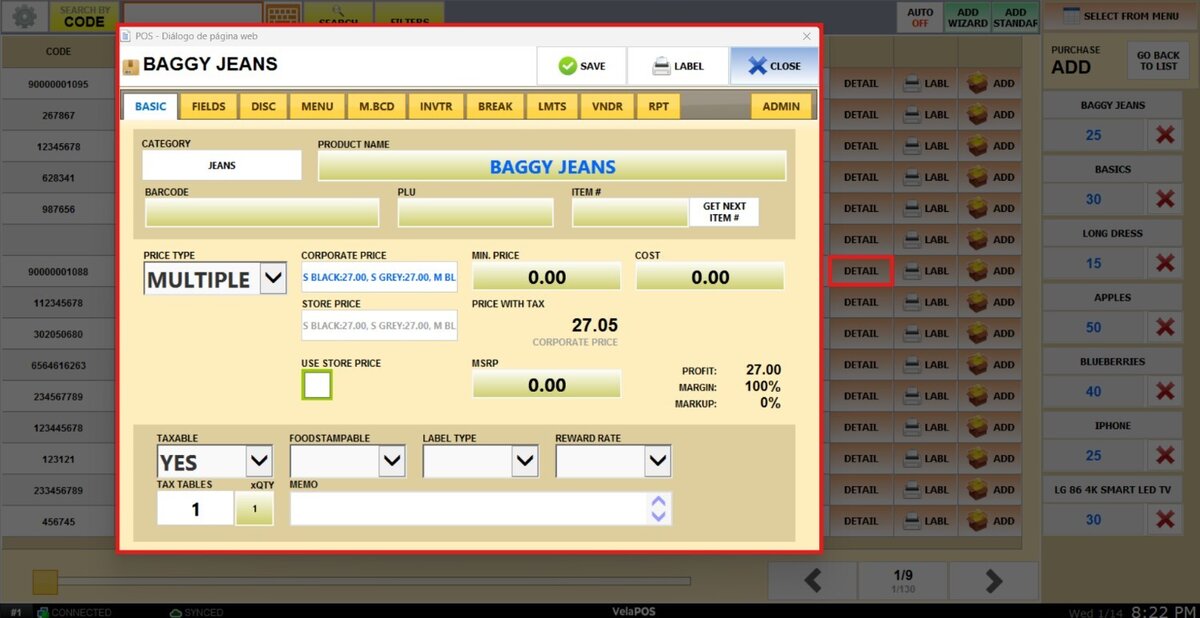
You can also view and edit the product's details by pressing on DETAIL.
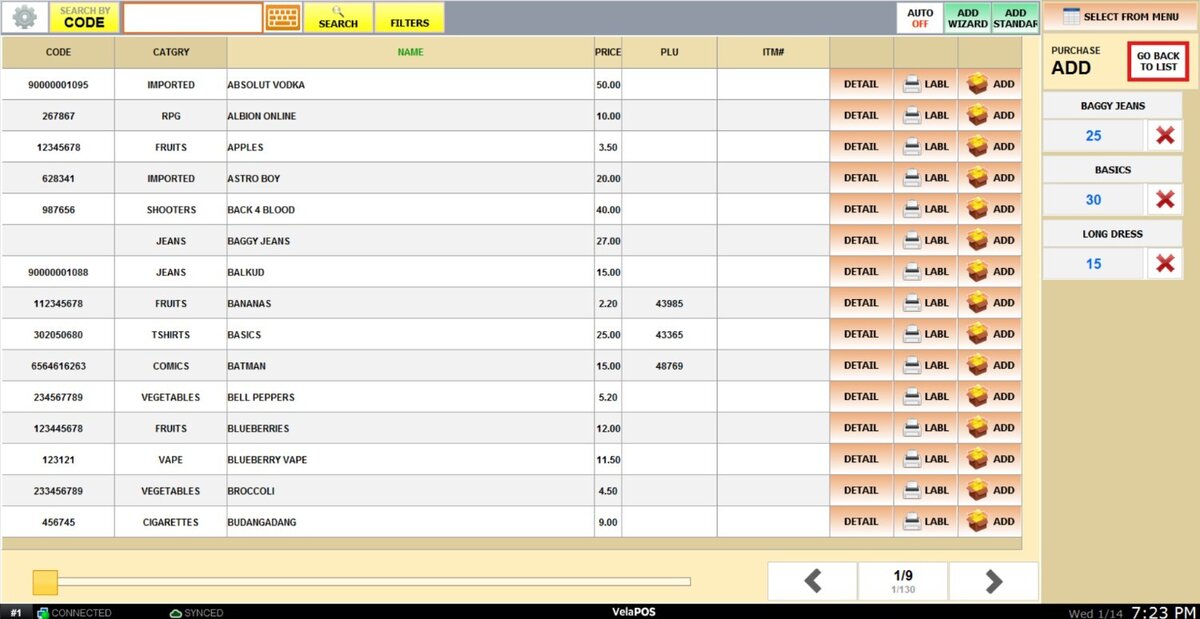
After selecting all the desired products, press GO BACK TO LIST.
On the ALL LIST tab, you can view all the products added to your list.
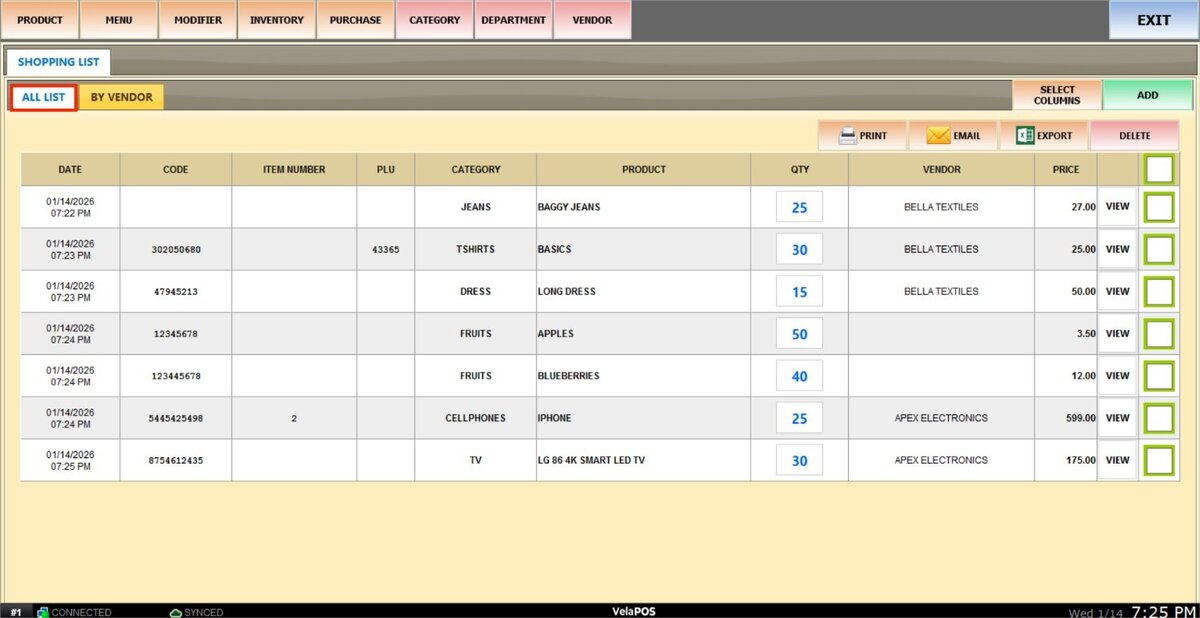
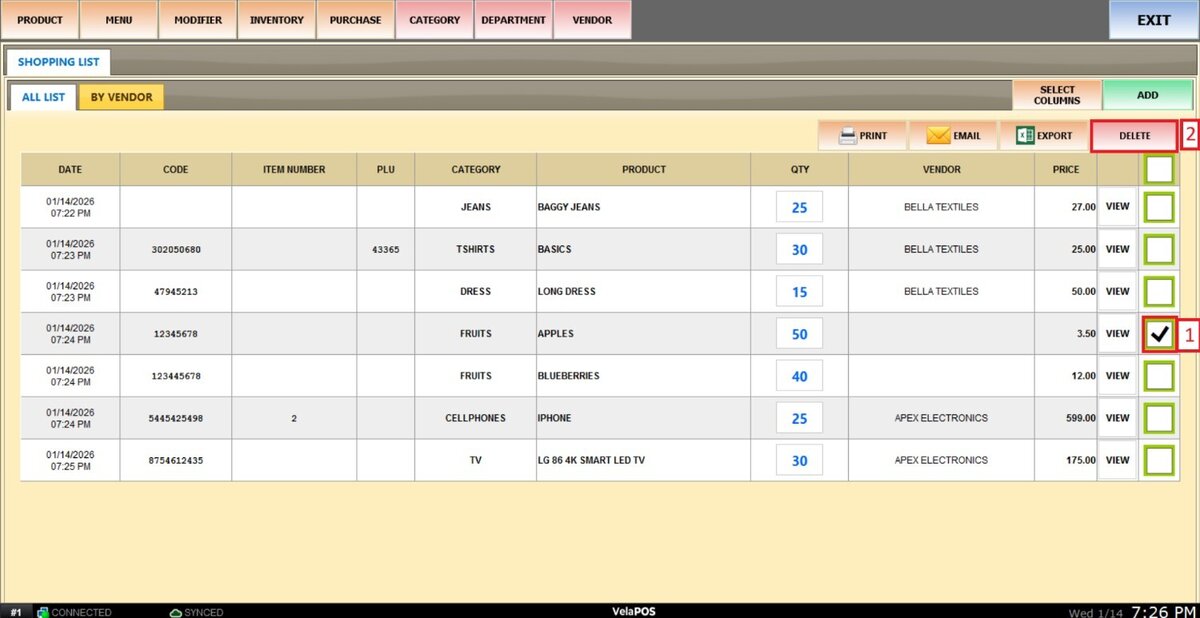
Hint: You can delete one or more products from your list by checking the box next to each product and clicking DELETE.
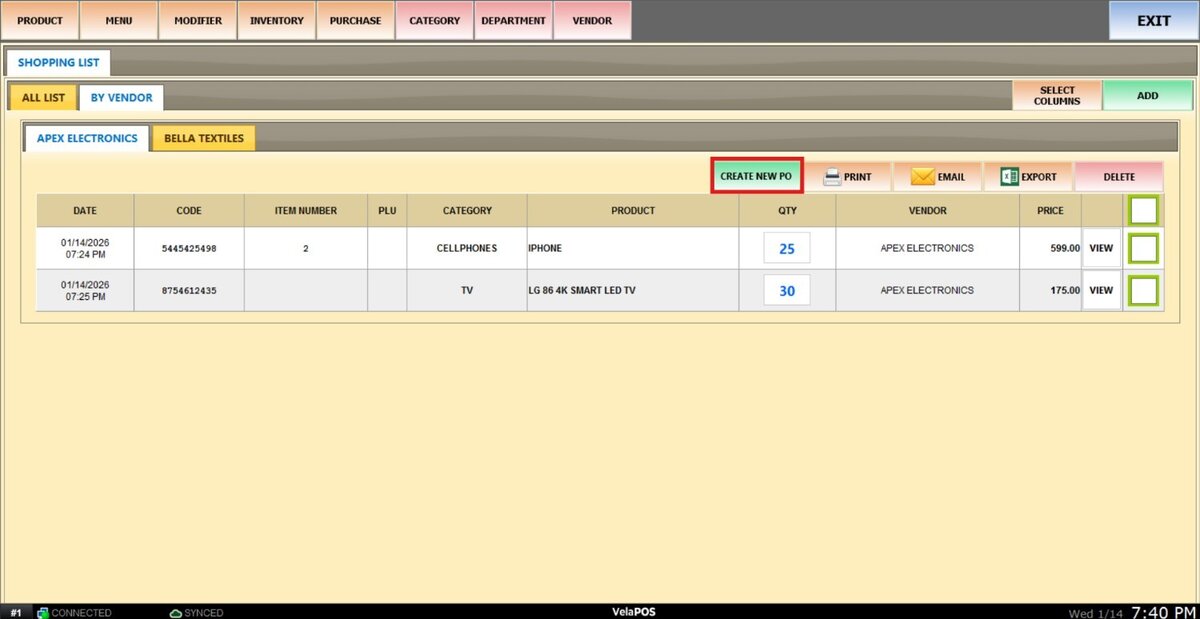
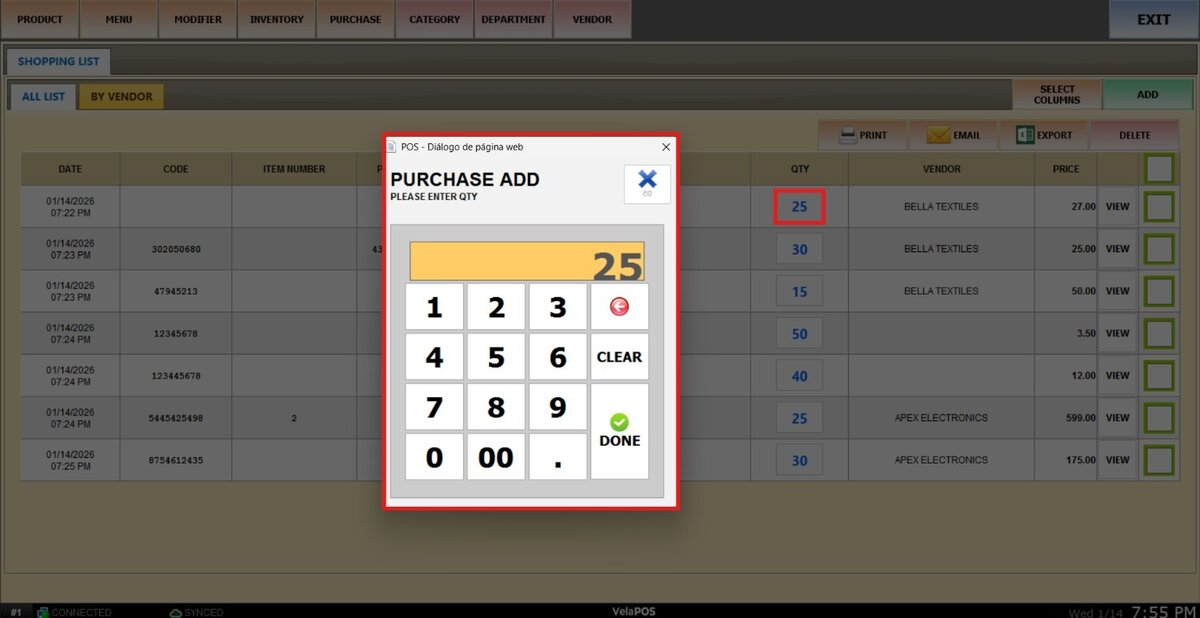
To change a product’s quantity, click the QTY number and input the desired amount.
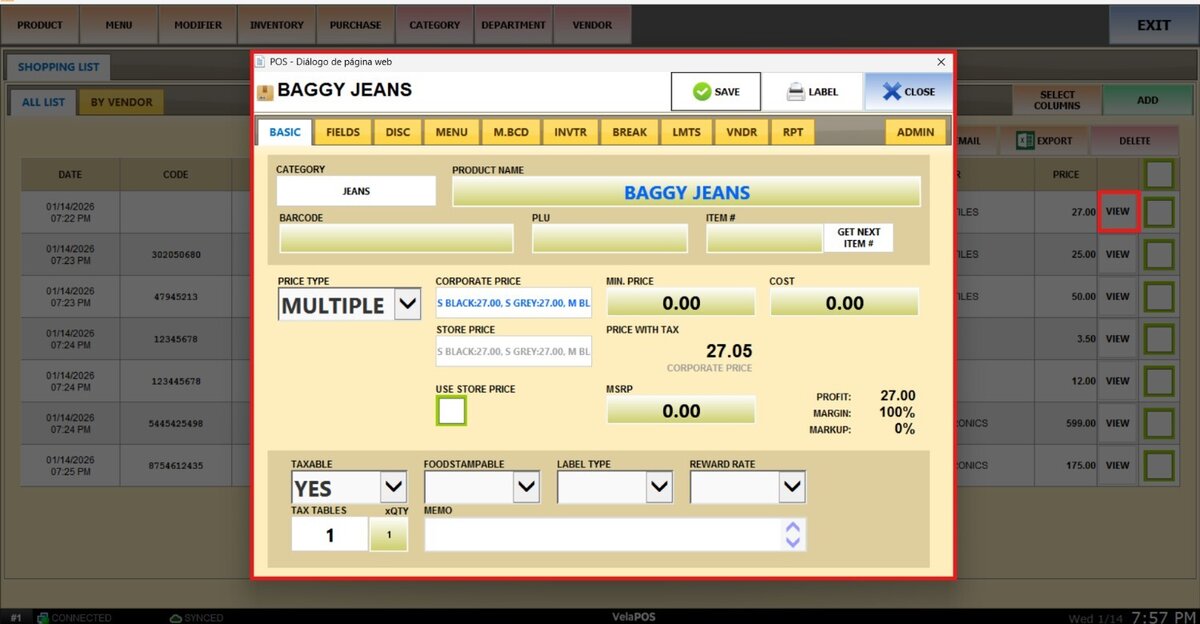
To view and edit the product details from this screen, click VIEW.
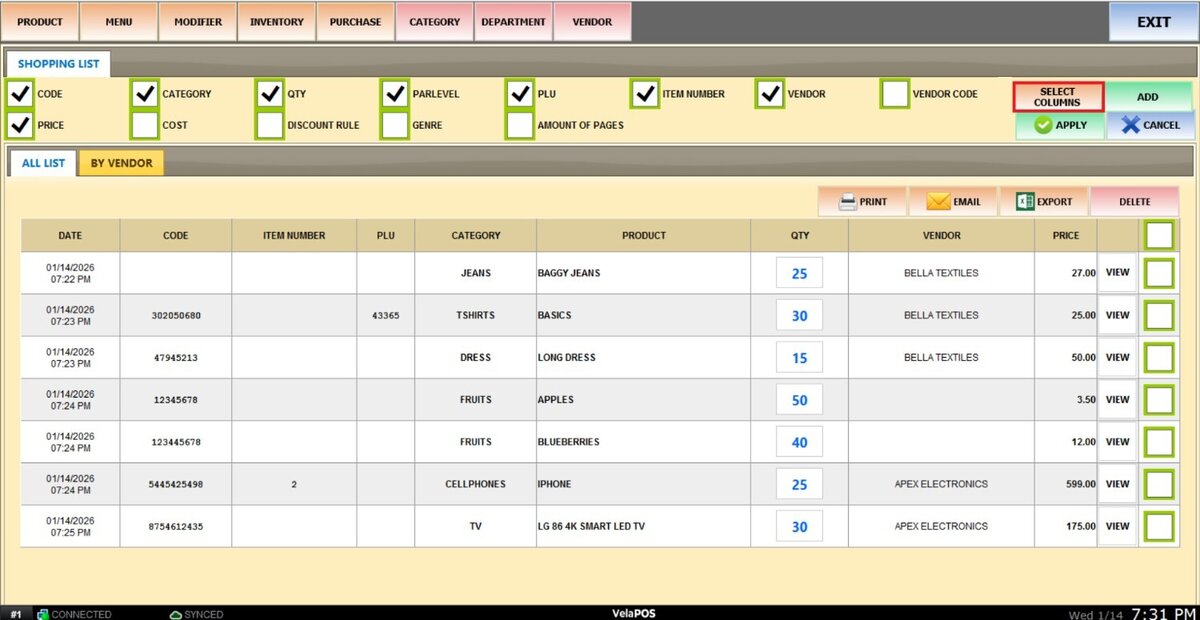
You can also customize the displayed columns on the screen by clicking SELECT COLUMNS and checking the boxes for the desired fields.
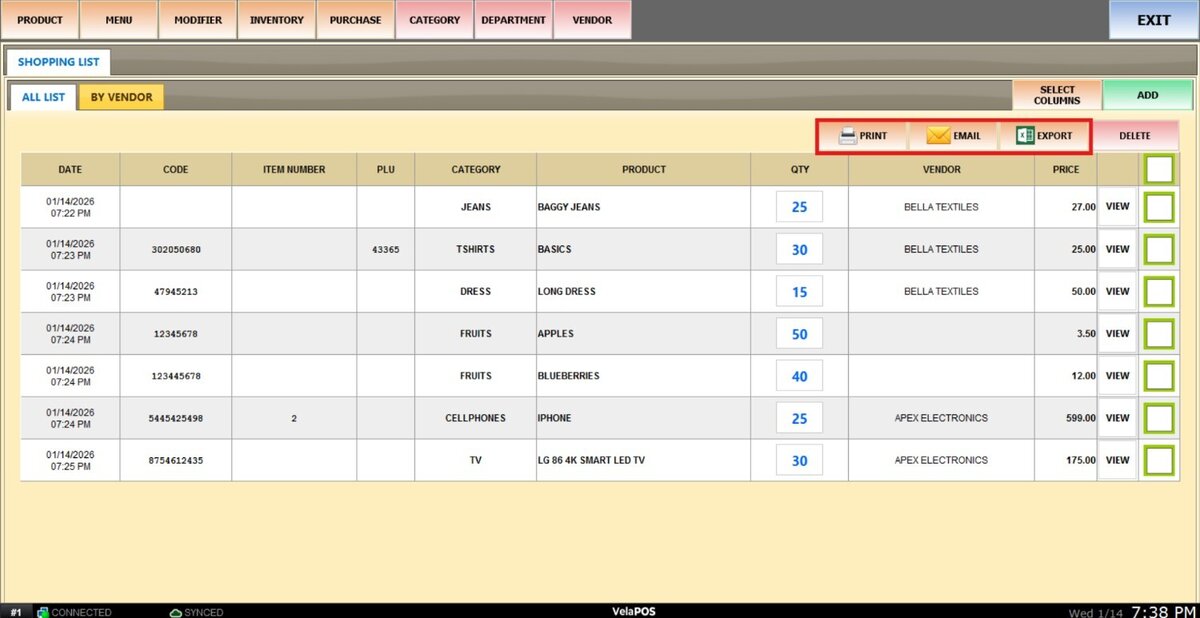
Alternative Actions
PRINT: Generate a printable version of the report.
EXCEL: Export the data to an Excel file for analysis or recordkeeping.
EMAIL: Send the report directly via email.
On the BY VENDOR tab, you can view all selected products grouped by vendor in separate tabs.
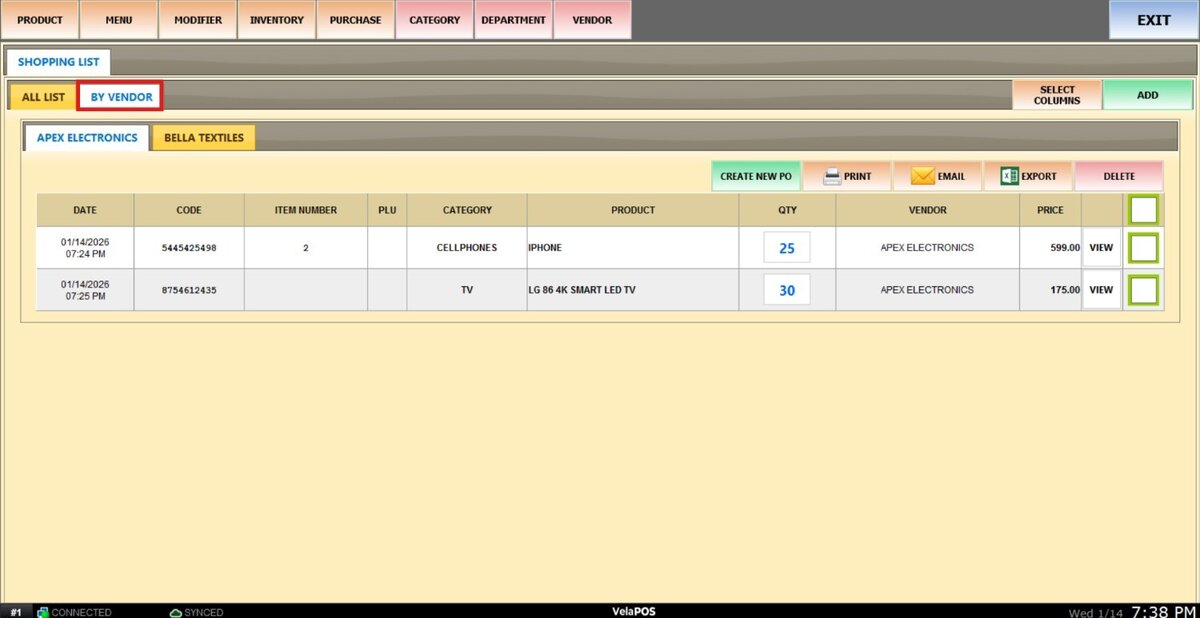
You can perform a purchase order from here by pressing on CREATE NEW PO.