Register
These settings allow you to customize the register open and close process according to your preferences.
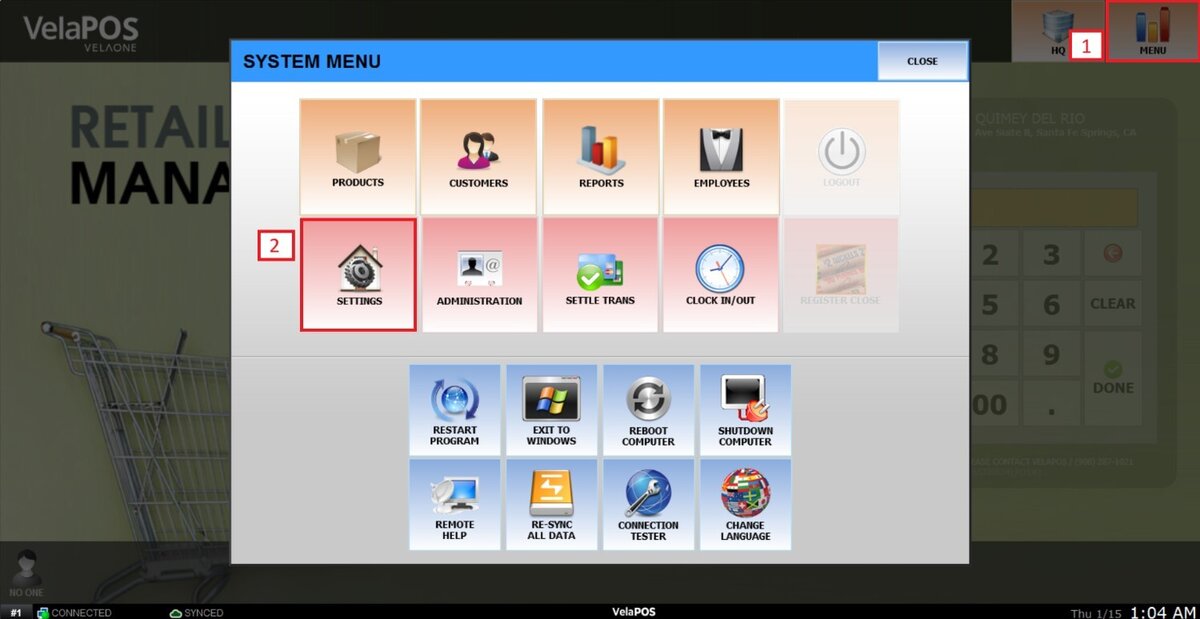
Main Screen> MENU> SETTINGS> MAIN> REGISTER
On the main screen, go to MENU and click SETTINGS.
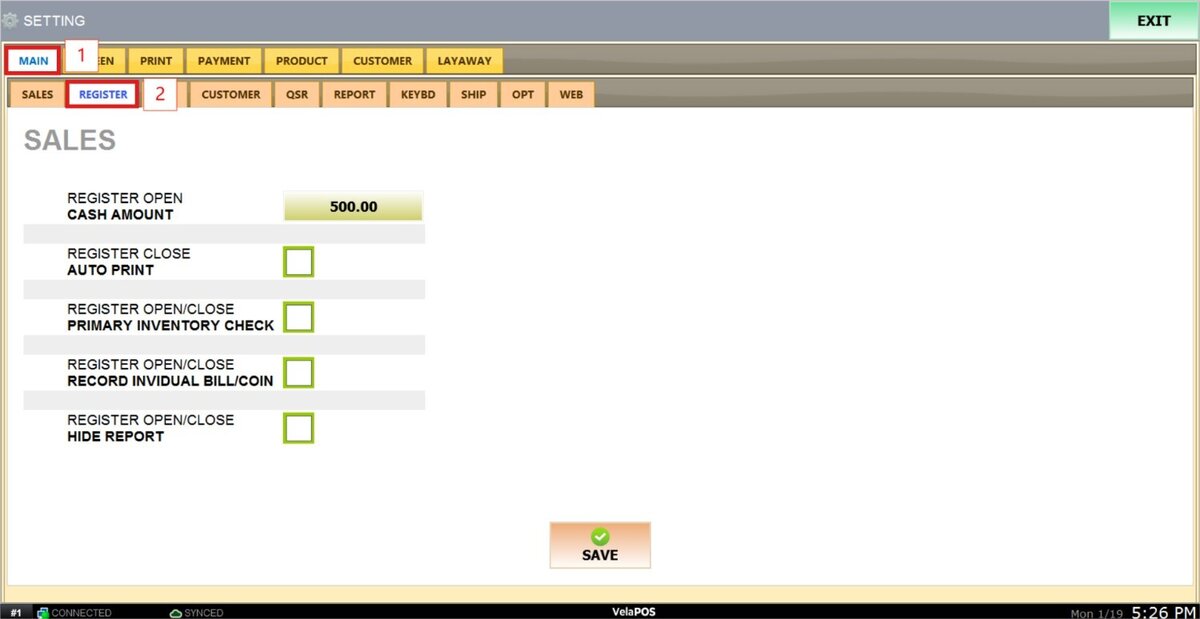
Under MAIN, select the REGISTER tab.
REGISTER OPEN CASH AMOUNT
This setting allows you to define a fixed amount when opening the register.
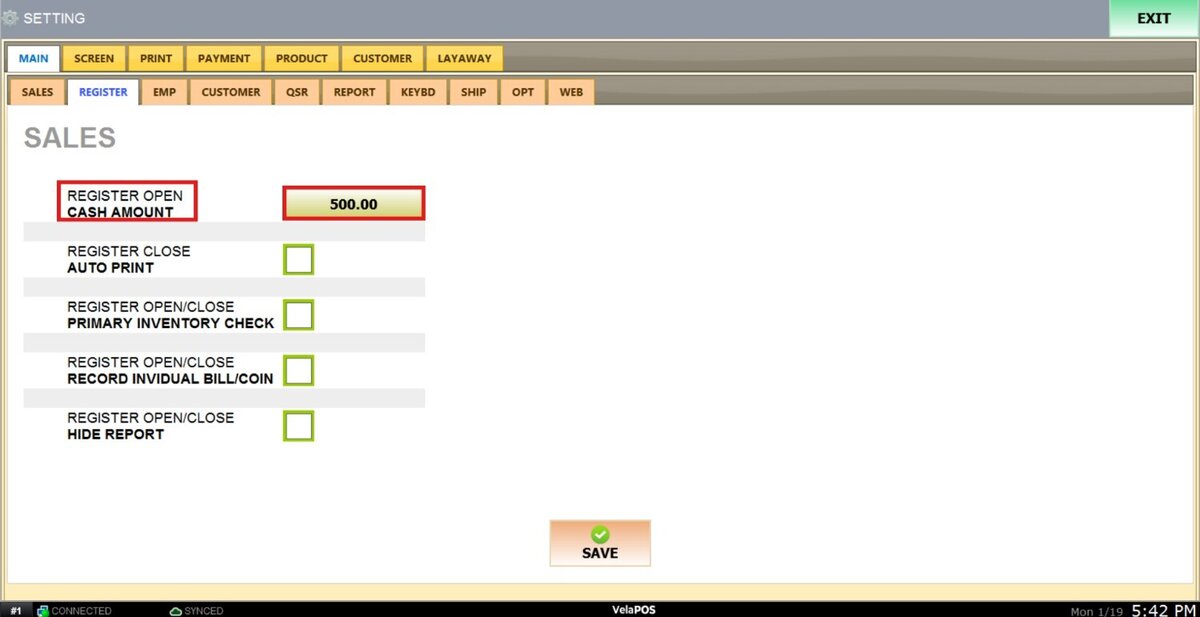
Press the box next to the field to open the number pad and input the desired amount.
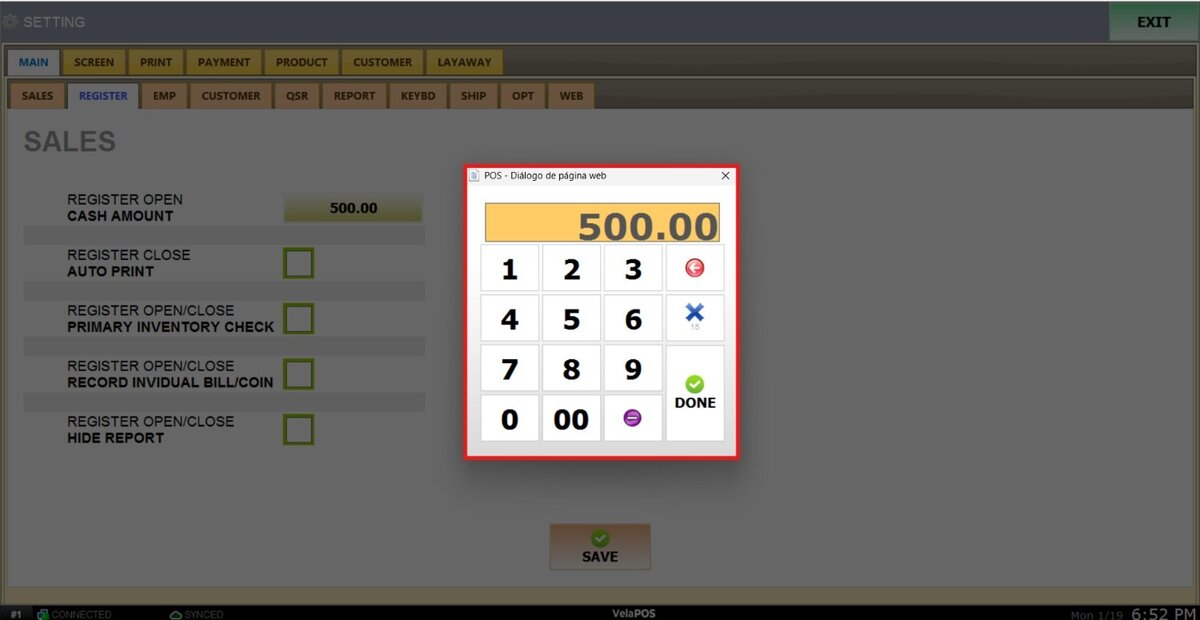
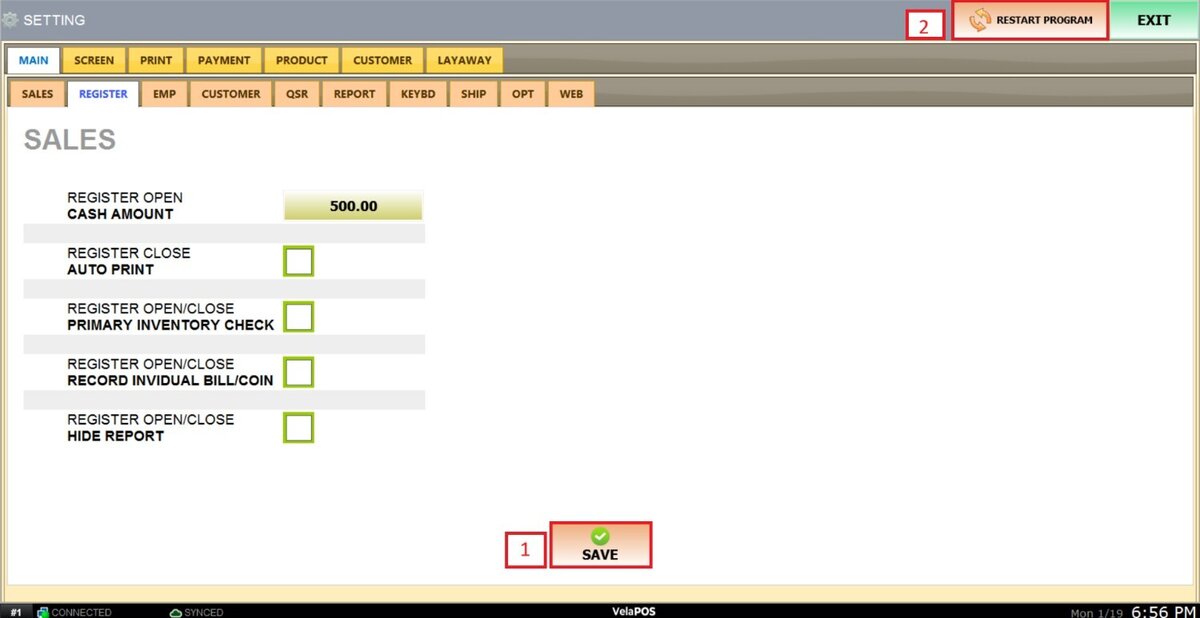
After making changes, press SAVE and RESTART THE PROGRAM to apply them.
Results:
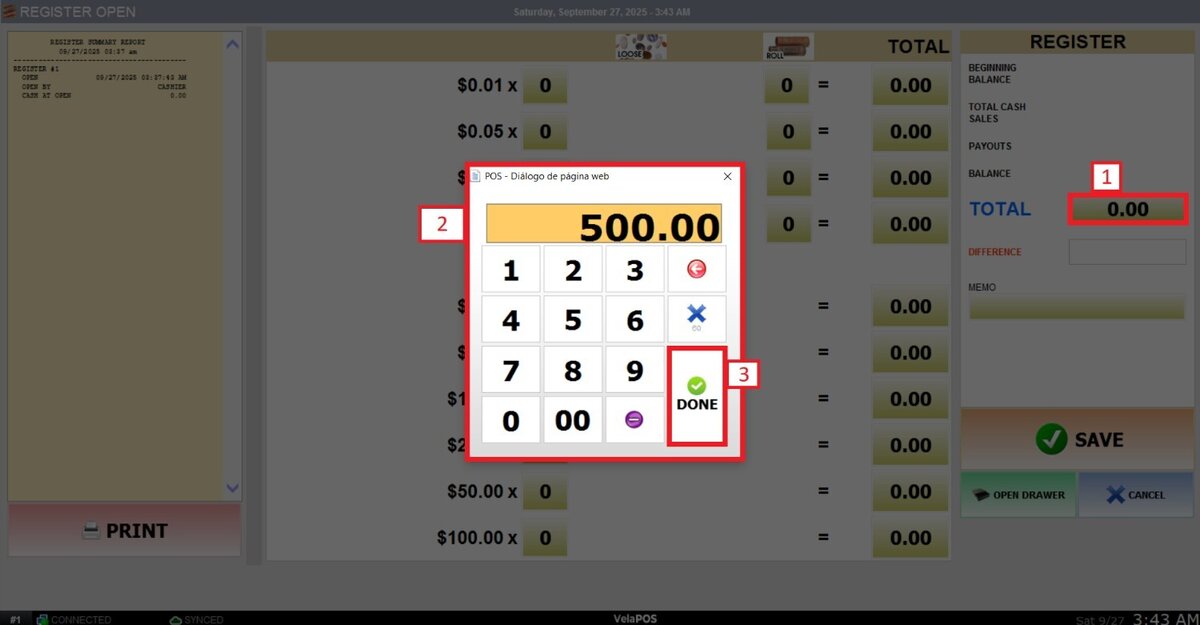
When this feature is set, the fixed amount is displayed in the TOTAL field during the register opening process.

Hint: To edit the amount, press on the number field and input the new amount. This will not change the fixed amount for the following days.
REGISTER CLOSE AUTO PRINT
With this setting, you can configure the system to automatically print the sales summary report displayed on the left side of the screen after completing the register close process.
To enable this feature, check the box next to the field.
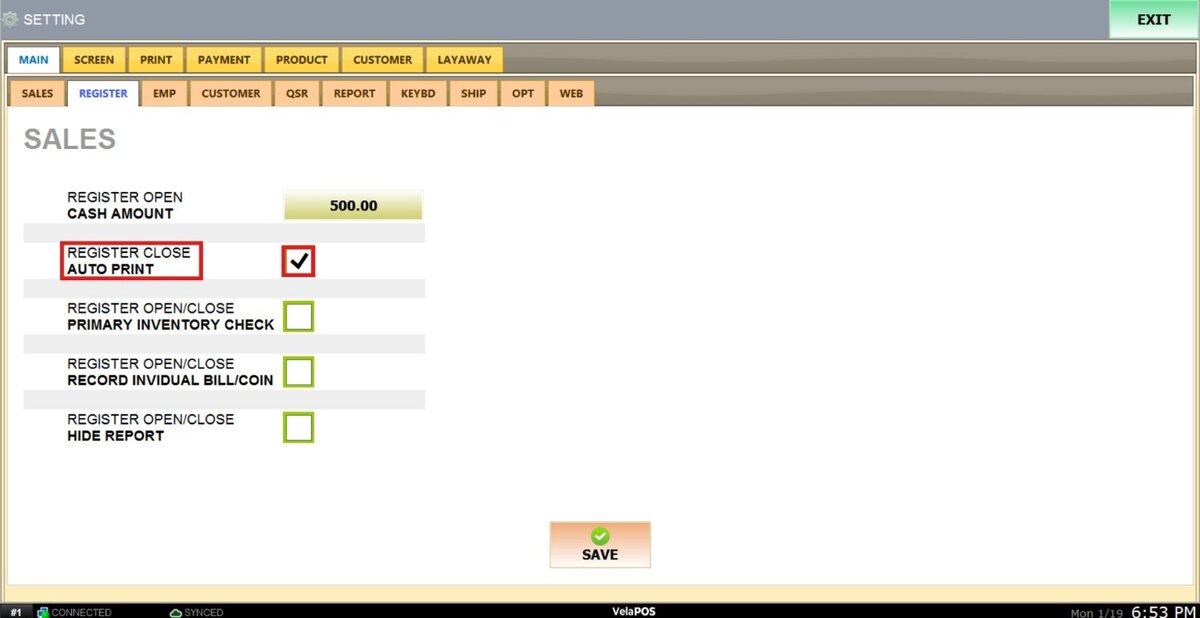
After making changes, press SAVE and RESTART THE PROGRAM to apply them.
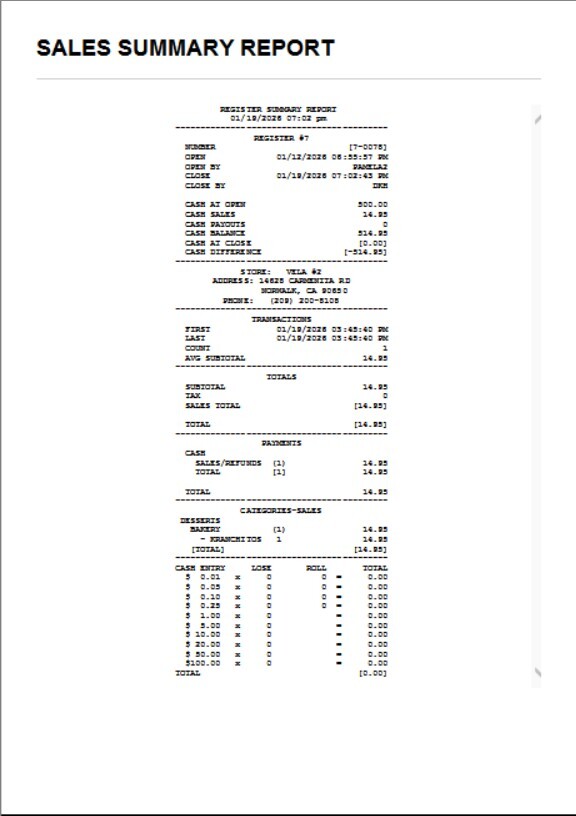
Results:
This is the report that will be printed if you check the box on the settings.
REGISTER/CLOSE RECORD INDIVIDUAL BILL/COIN
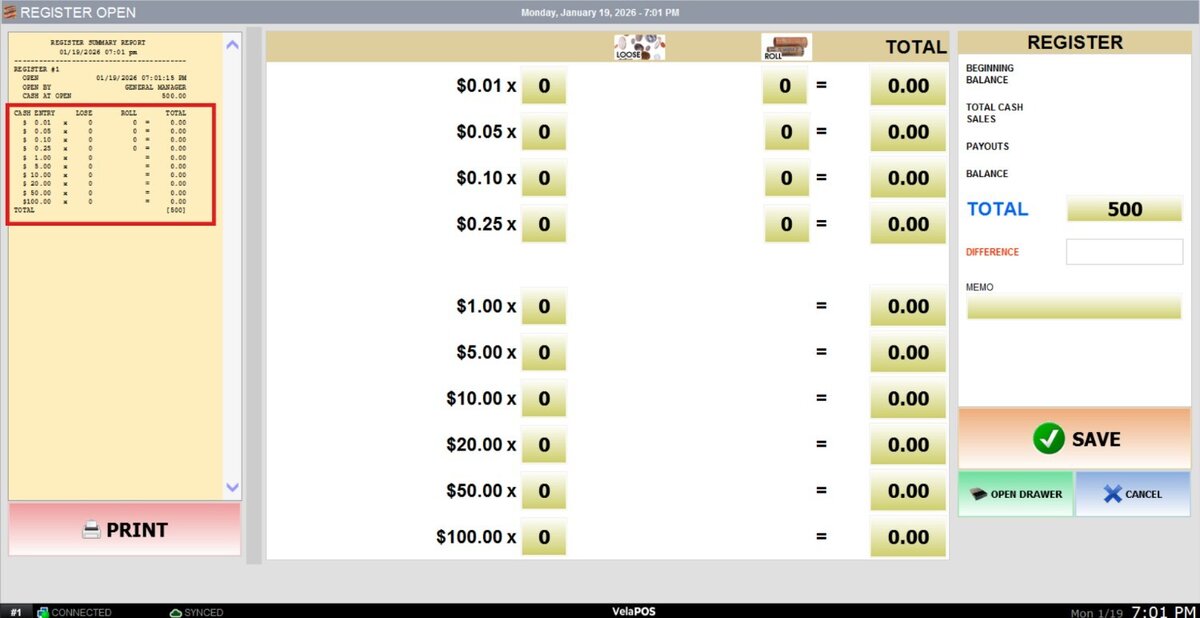
This feature allows you to choose whether recorded individual bills and coins appear on the register summary report.
To enable this feature, check the box next to the feature.
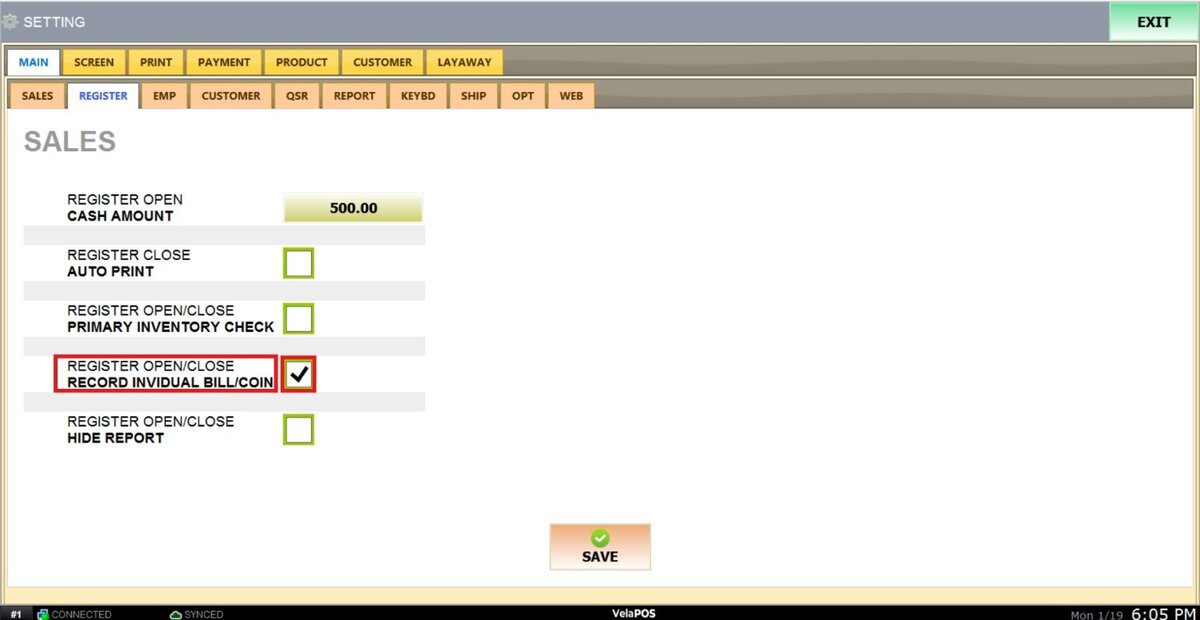
After making changes, press SAVE and RESTART THE PROGRAM to apply them.
Results:
If you leave the box unchecked, the report will look like this.

If you leave the box checked, the individual bills and coins will appear on the report.
REGISTER OPEN/CLOSE HIDE REPORT
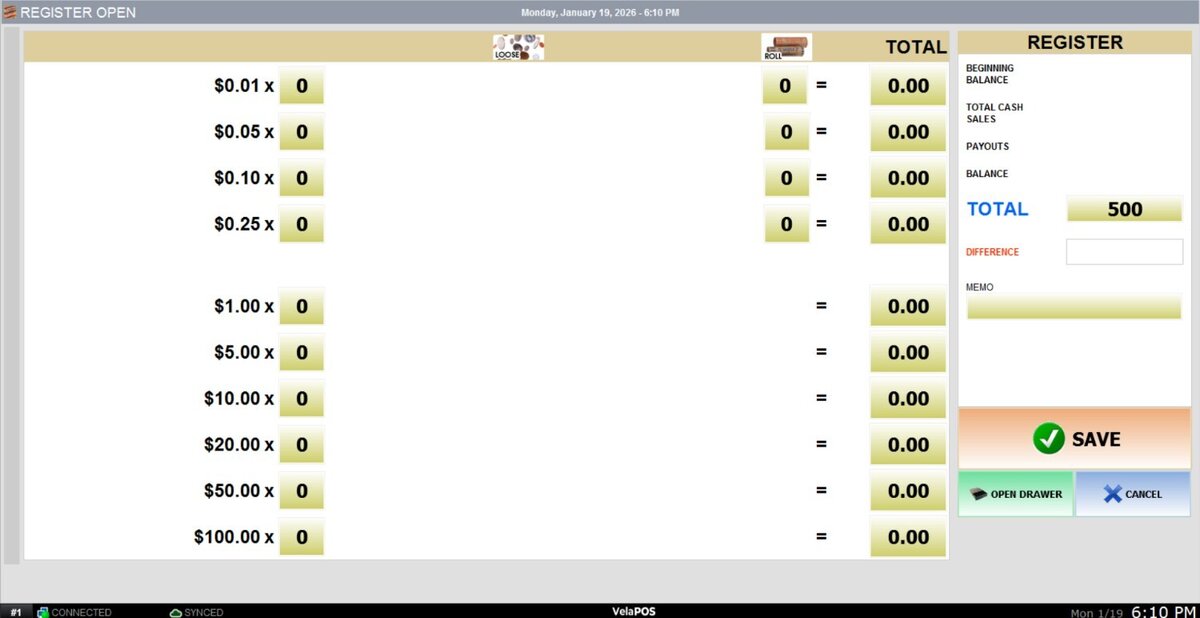
With this setting, you can choose whether the side report appears on the screen when performing the opening and closing process.
To hide the report, check the box next to the field.

After making changes, press SAVE and RESTART THE PROGRAM to apply them.
Results:
If you leave the box unchecked, you will see the register summary report on the right side of the screen.

If you leave the box checked, the report will not appear on the screen.
After making any modifications, press SAVE to store them, and RESTART THE PROGRAM to ensure the updates are applied correctly.