Closed Category
This option updates inventory in Closed mode for a specific category. It resets counts only for the selected category and applies new inventory quantities based on the physical count.
Main Screen > MENU > PRODUCTS > INVENTORY > PHYSICAL > START A NEW
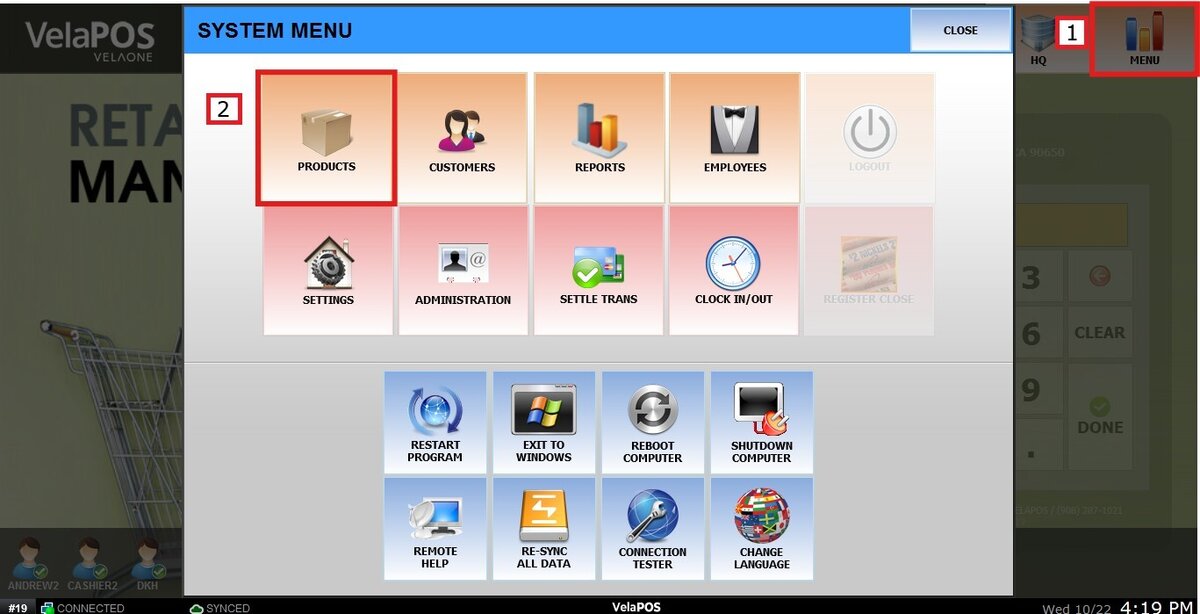
Go to MENU, then select PRODUCTS.
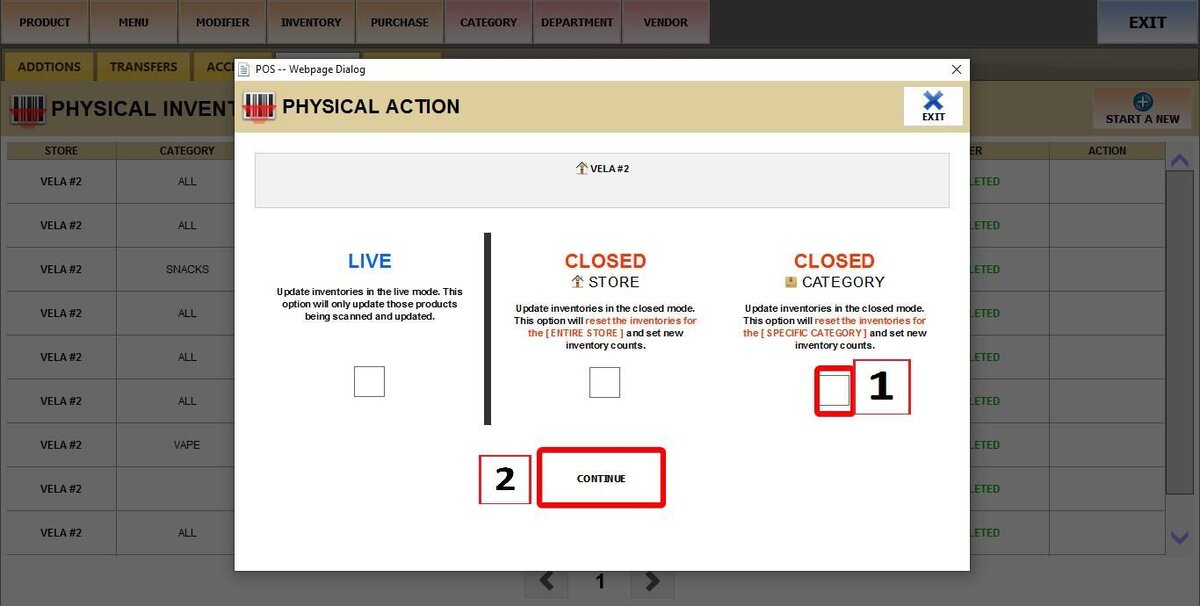
Under the INVENTORY tab, select PHYSICAL and click START A NEW.


Select the CLOSED CATEGORY checkbox, then click CONTINUE.

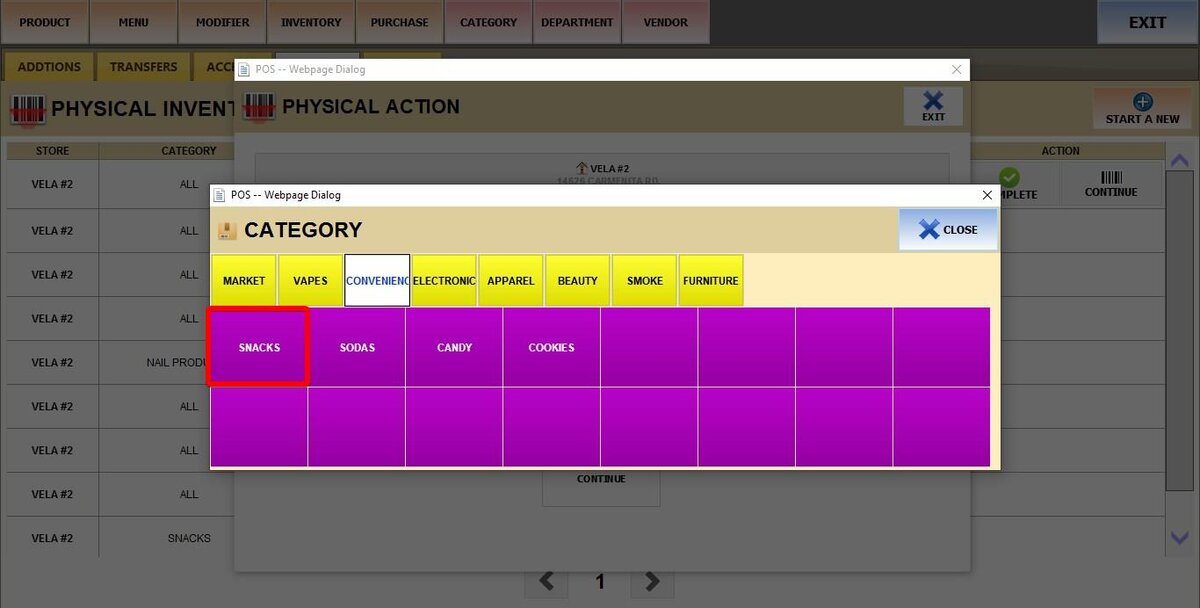
Choose the category you want to count.
Scan the product barcode or manually enter the barcode number.
Enter the QTY (quantity) using the keypad.
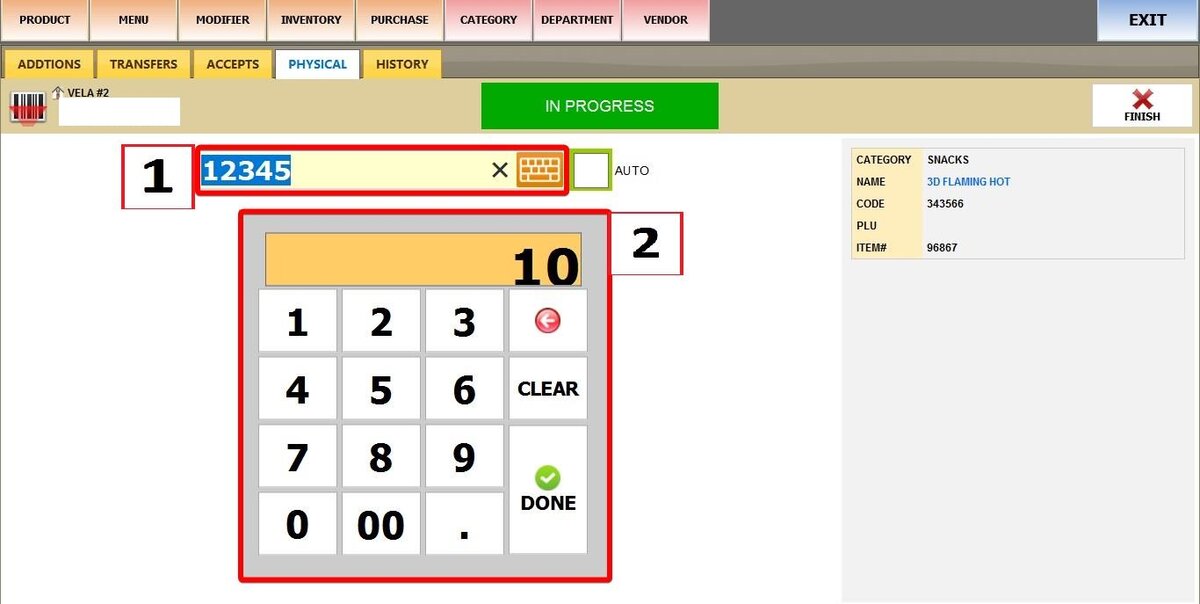
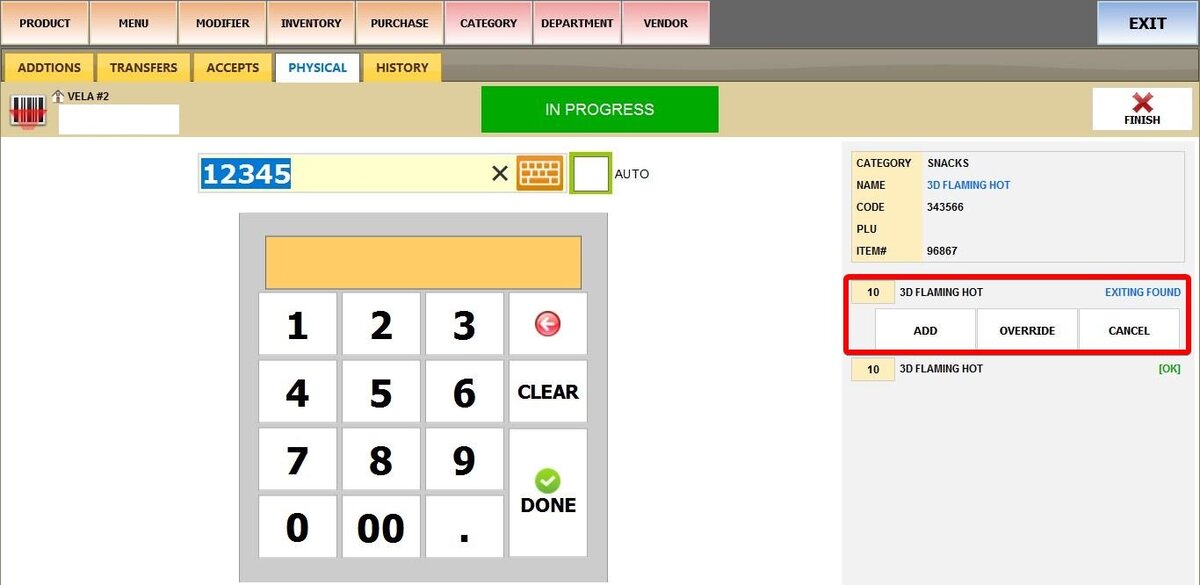
When adding products, you have three stock update options:
1. ADD: Adds the entered quantity to the existing stock level.
2. OVERRIDE: Replaces the current stock level with the entered quantity.
3. CANCEL: Removes that specific quantity entry.
A list on the right side of the screen will display the product name, the counted quantity, and an OK indicator confirming the entry was recorded successfully.
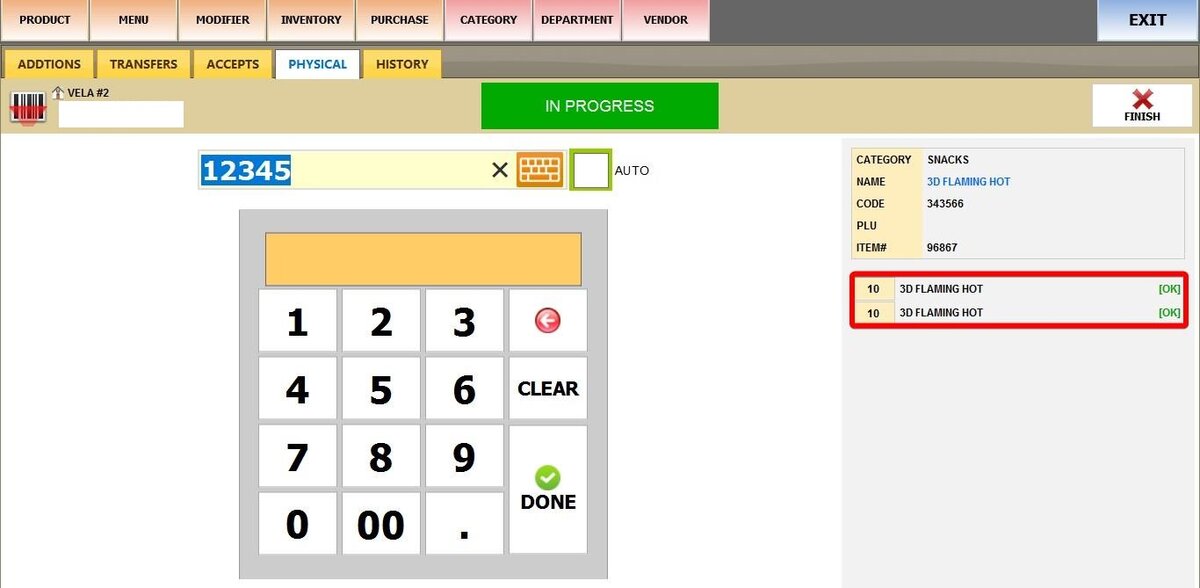
Hint: Enable AUTO to automatically add one unit (QTY 1) each time a barcode is scanned or entered.
Once done, click FINISH.

From the inventory list, select CONTINUE to resume scanning or COMPLETE to finalize the inventory update.
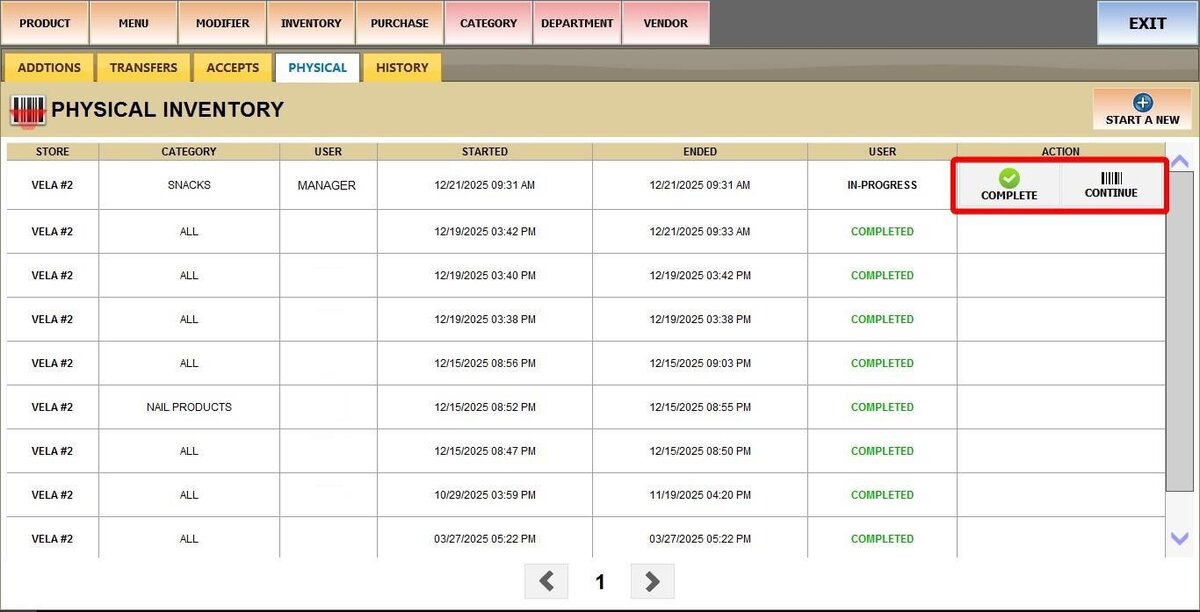
Result:
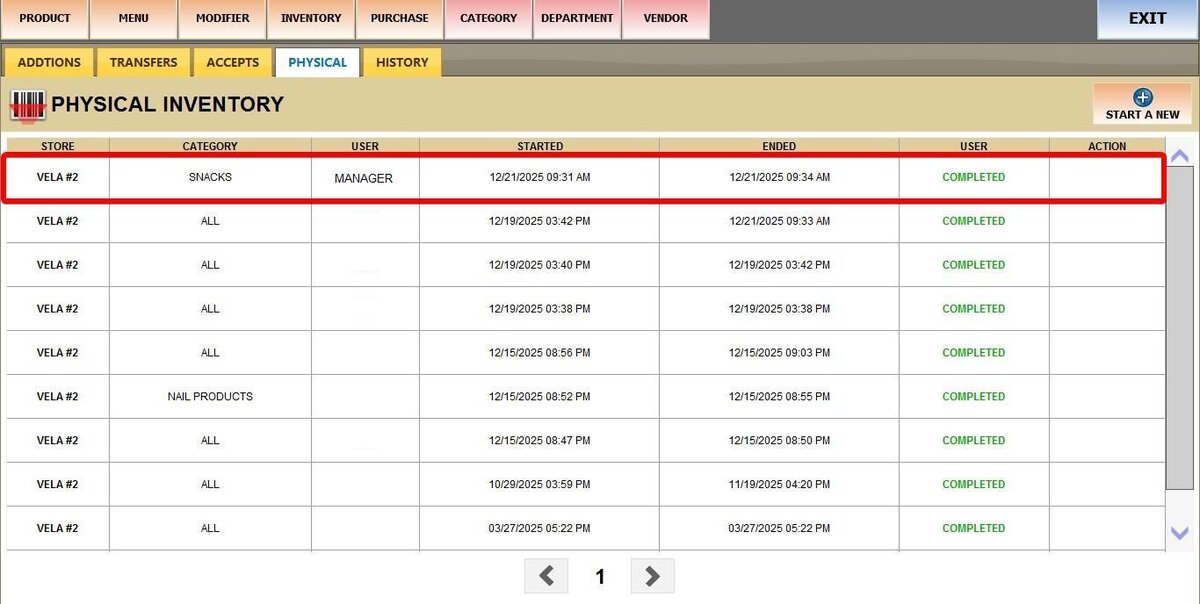
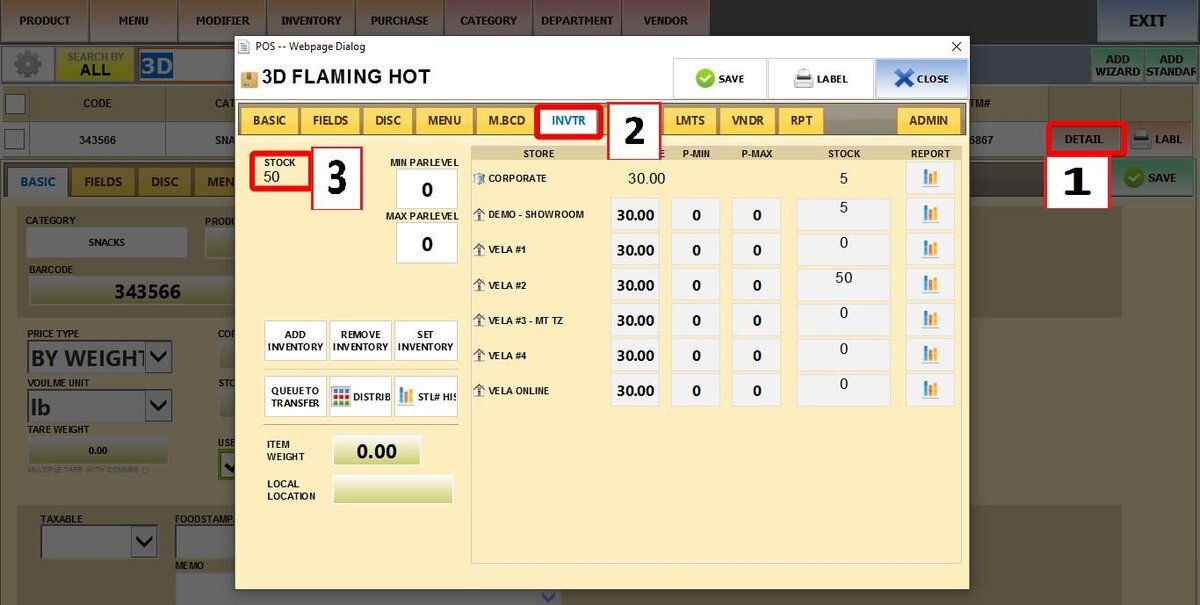
To verify the update, go to the product DETAIL, and navigate to INVENTORY to view the updated stock level.