Select Columns
Allows you to customize which details display in your product list (e.g., Code, Name, Price, Stock, Vendor, Cost, Brand, etc.).
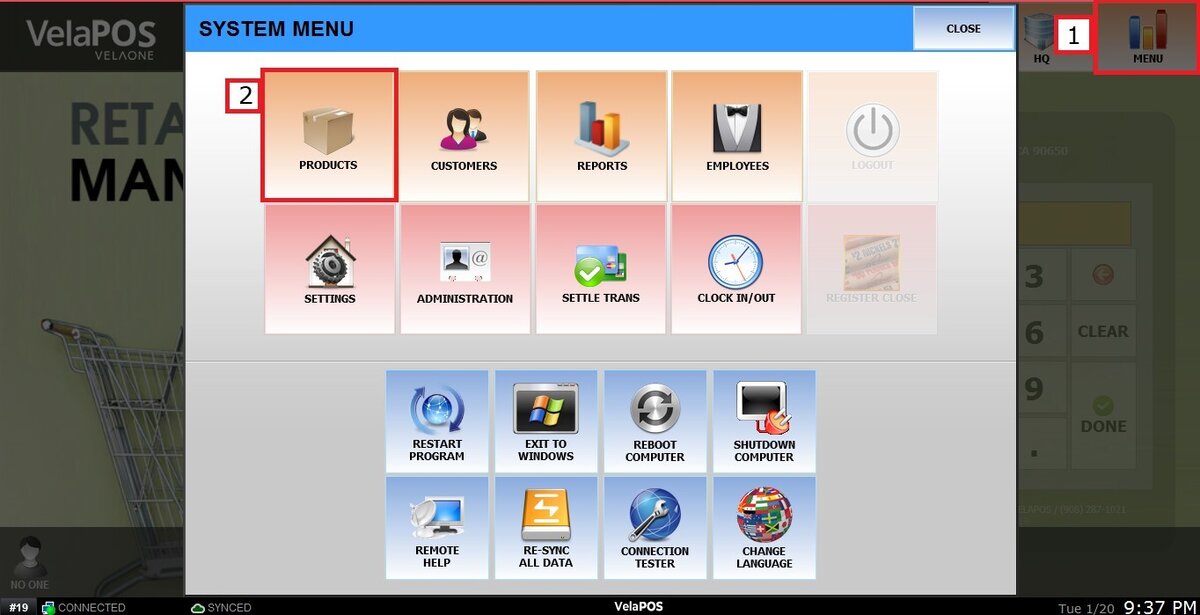
Go to MENU> PRODUCTS> GEAR ICON> SELECT COLUMNS
Click on MENU, then select PRODUCTS.
Click the GEAR ICON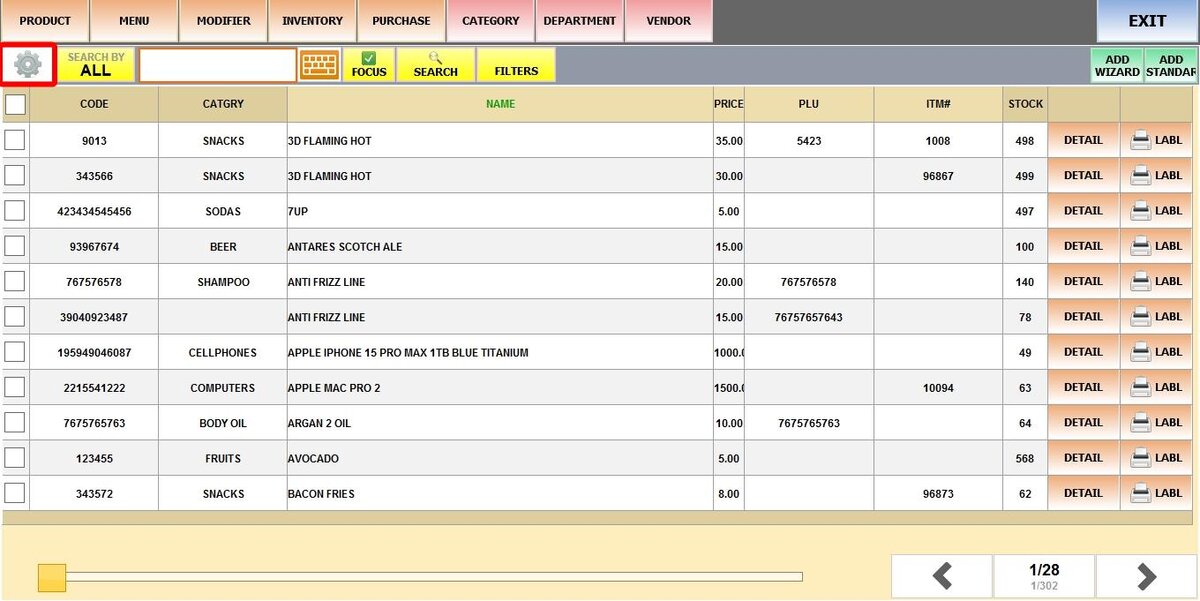
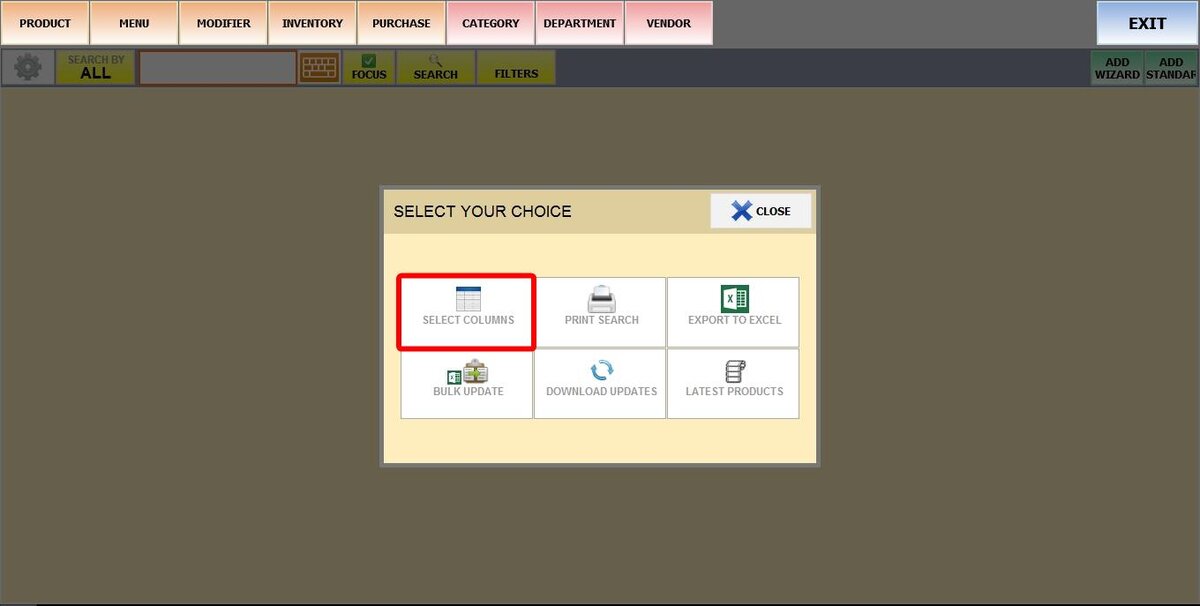
Click SELECT COLUMNS
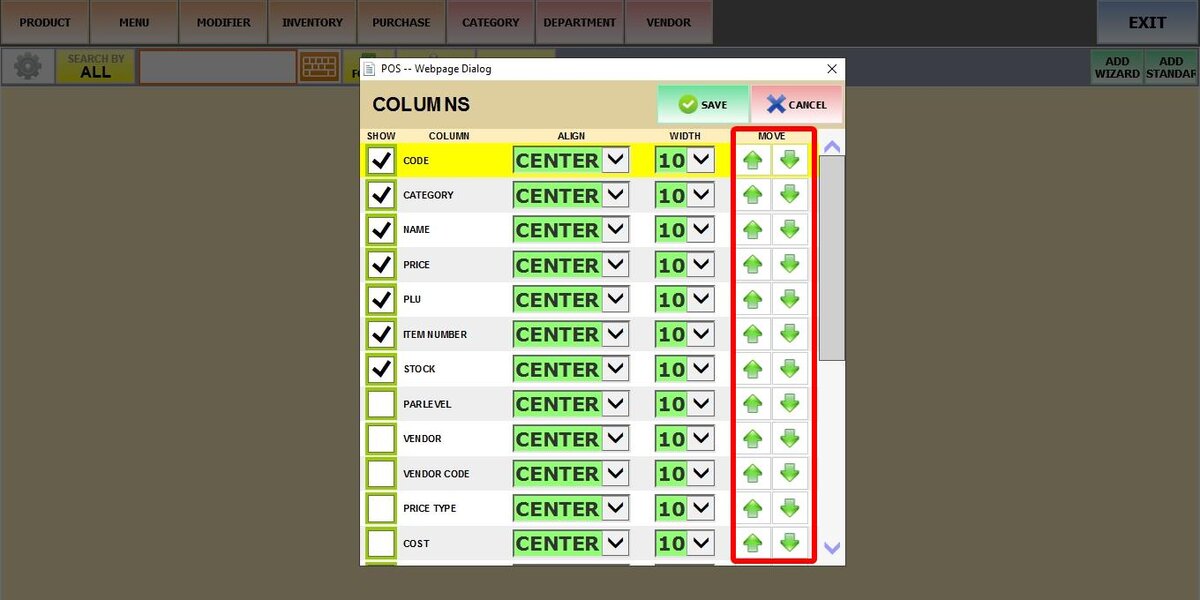
A new screen will open with several options:
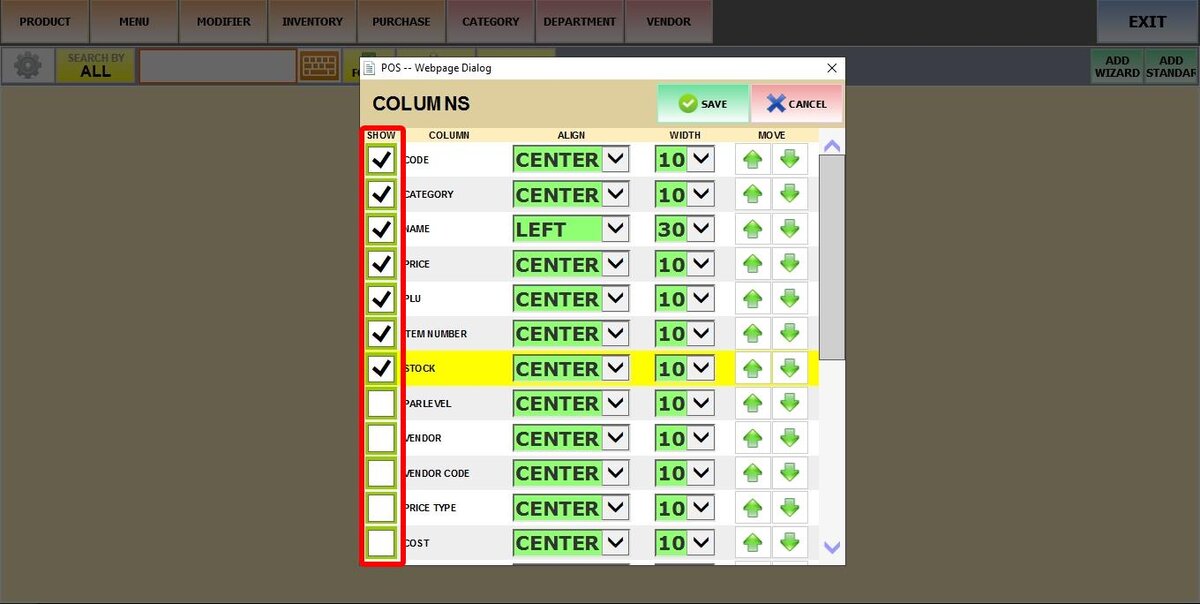
SHOW
Enable or disable each column. When checked, the column is visible in the product list; when unchecked, it’s hidden.
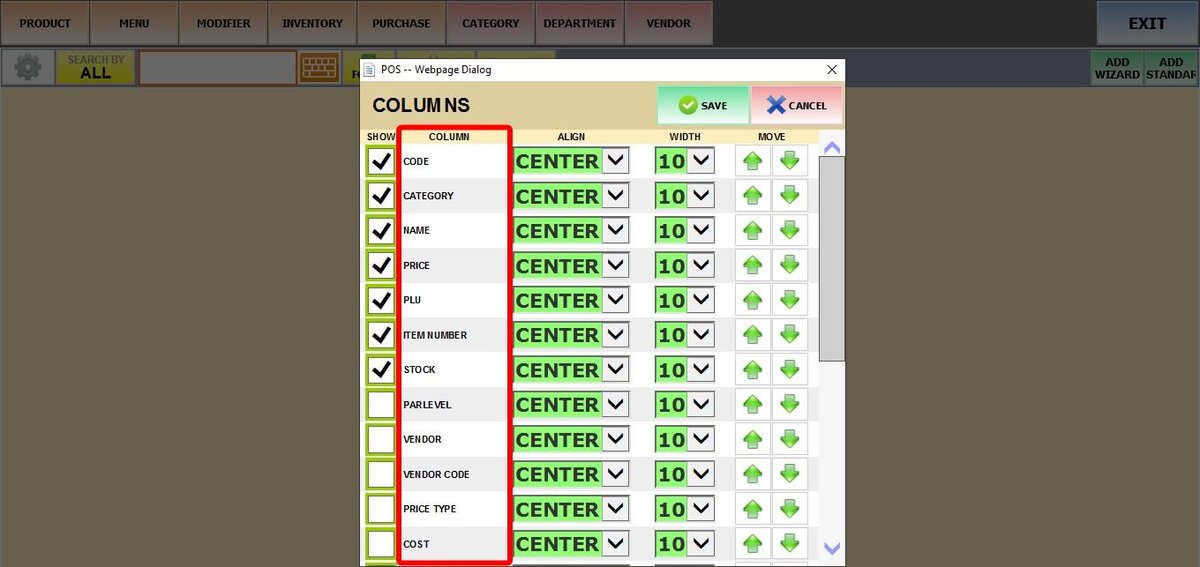
COLUMN
Displays the fixed label for each data type (e.g., NAME, CATEGORY, PRICE). These labels cannot be edited.
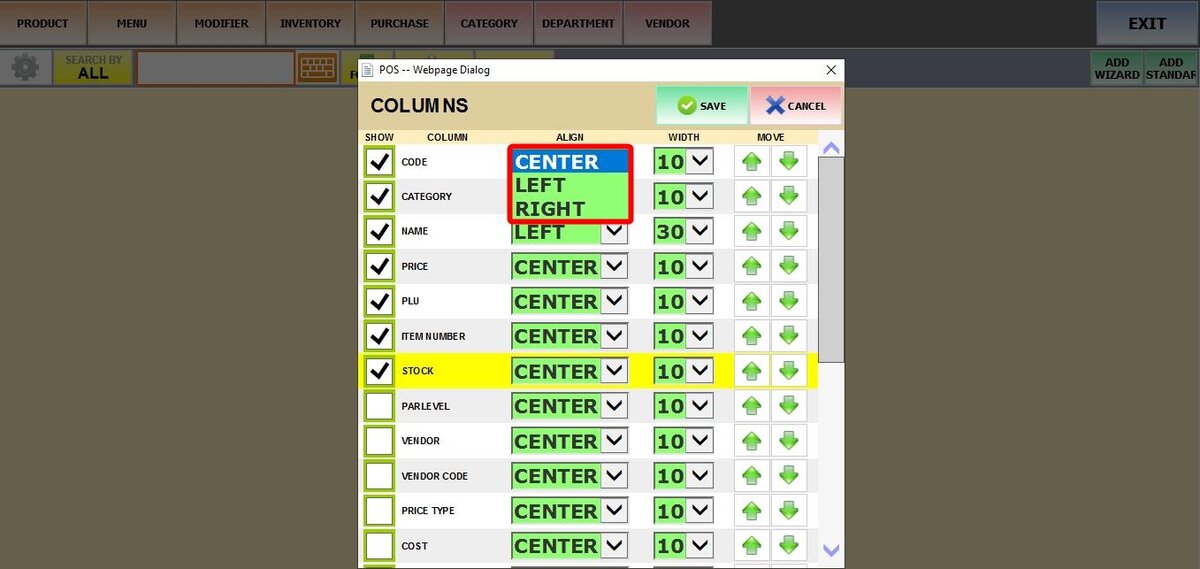
ALIGN / WIDTH
Adjust the text alignment (Left, Center, Right).
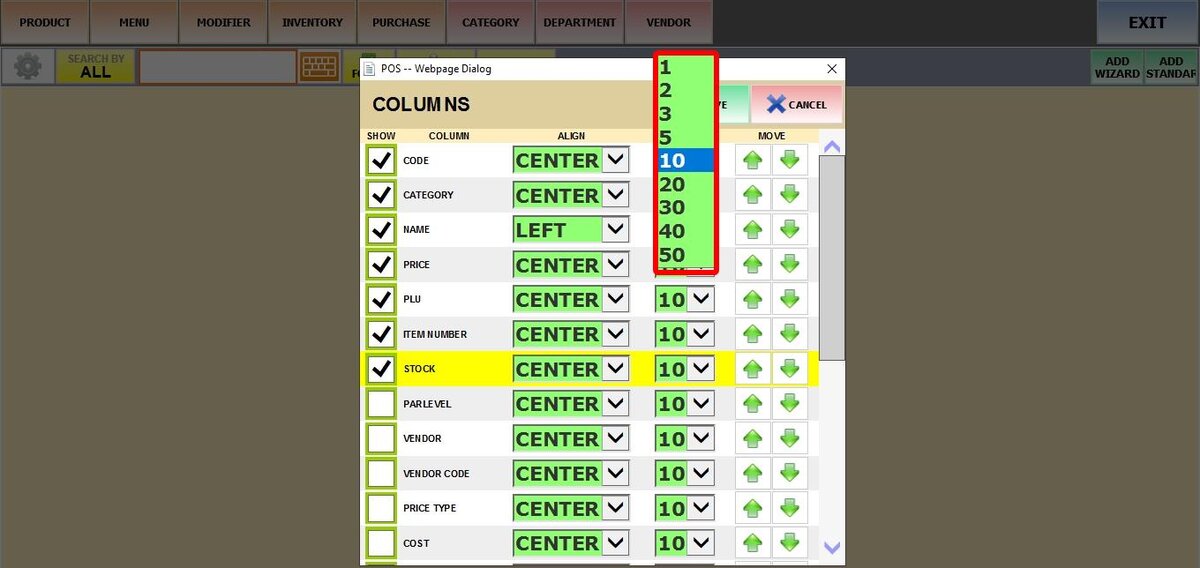
Set the column’s width.
MOVE
Use the up and down arrows to rearrange the column order, shifting it left or right in the product lis.