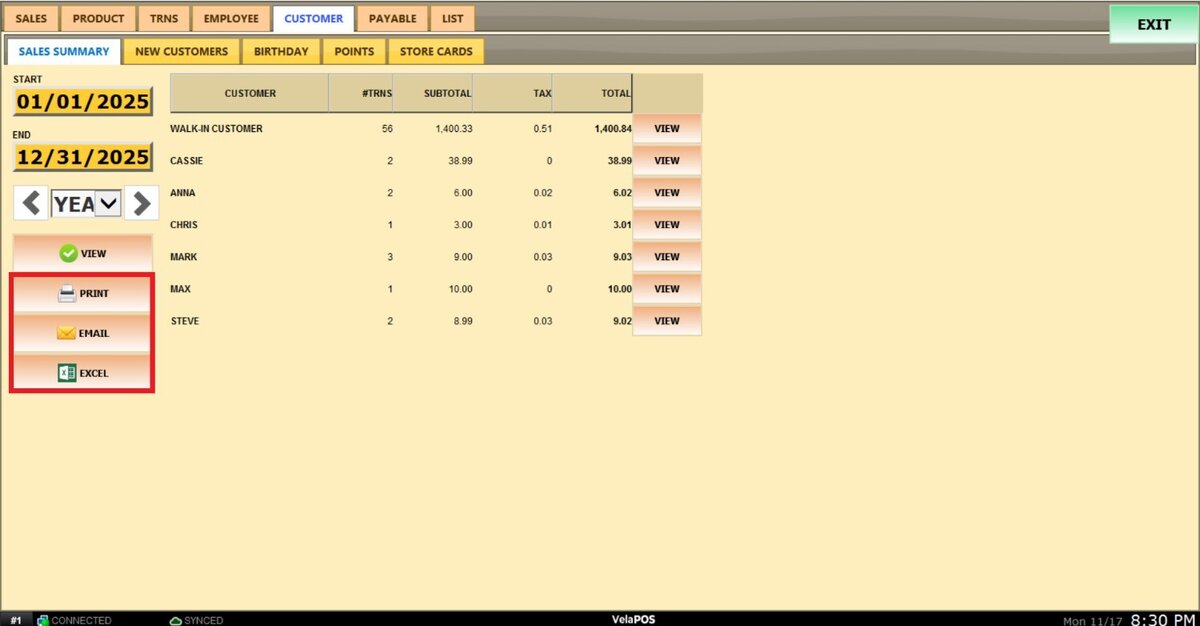
Customer Sales Summary
This report provides an overview of the customer's spending within the store.
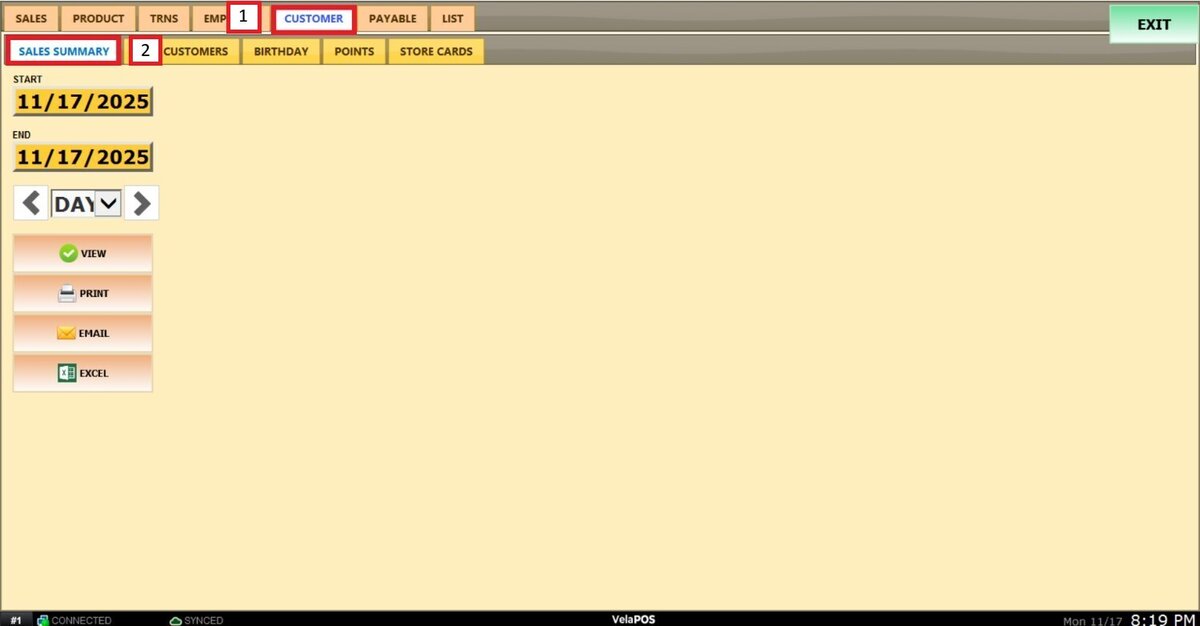
Main Screen> MENU> REPORTS> CUSTOMER> SALES SUMMARY
On the Main Screen, go to MENU and press REPORTS.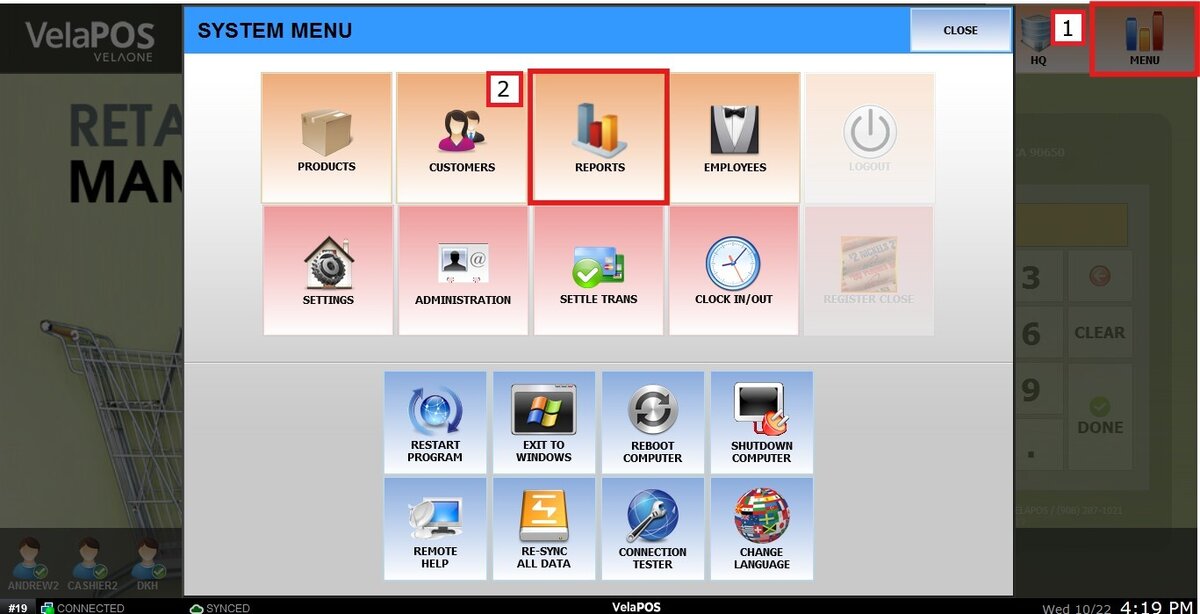
On the reports section, go to CUSTOMER and SALES SUMMARY.
Filters
Use the filters to define how the report is grouped and displayed.
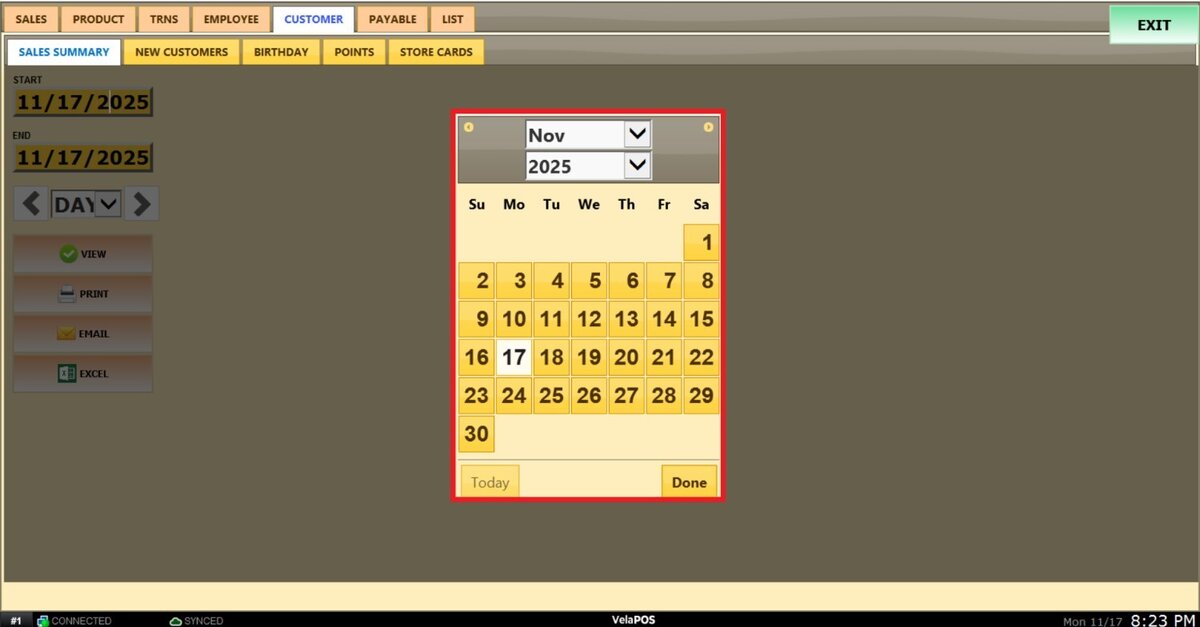
1. Filter by customized range: to view the report, begin by selecting its date range. Press on the START field to input the starting date.
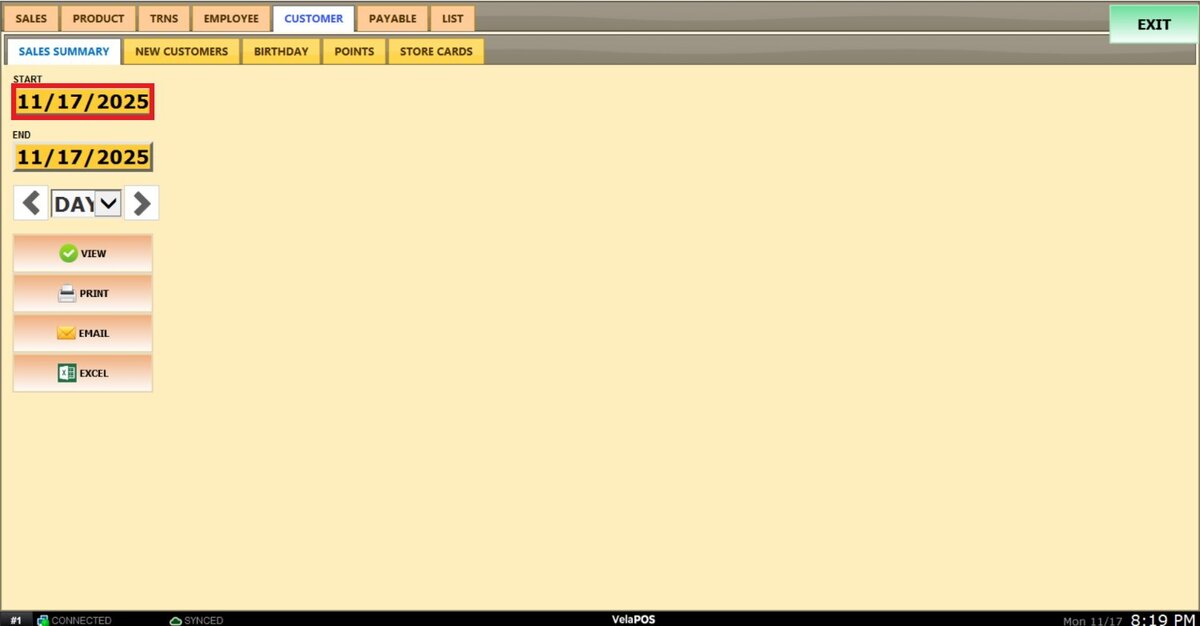
A calendar screen appears, where the date (day, month, and year) can be selected.
Press on DONE.
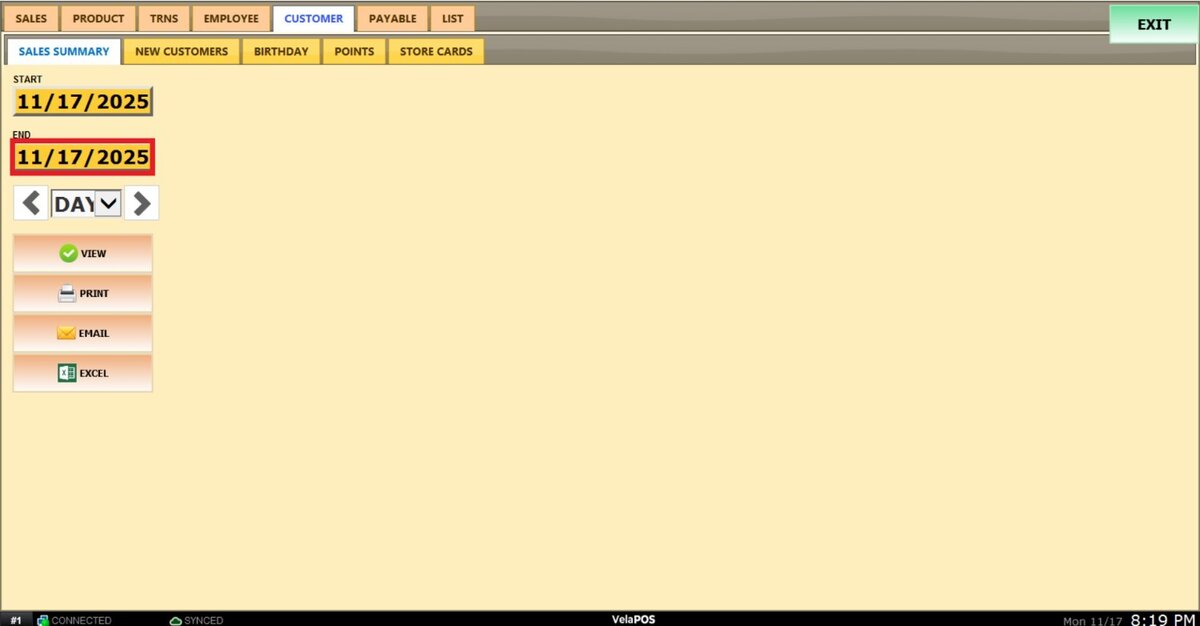
Repeat the same process for the END field to set the final date of the report.
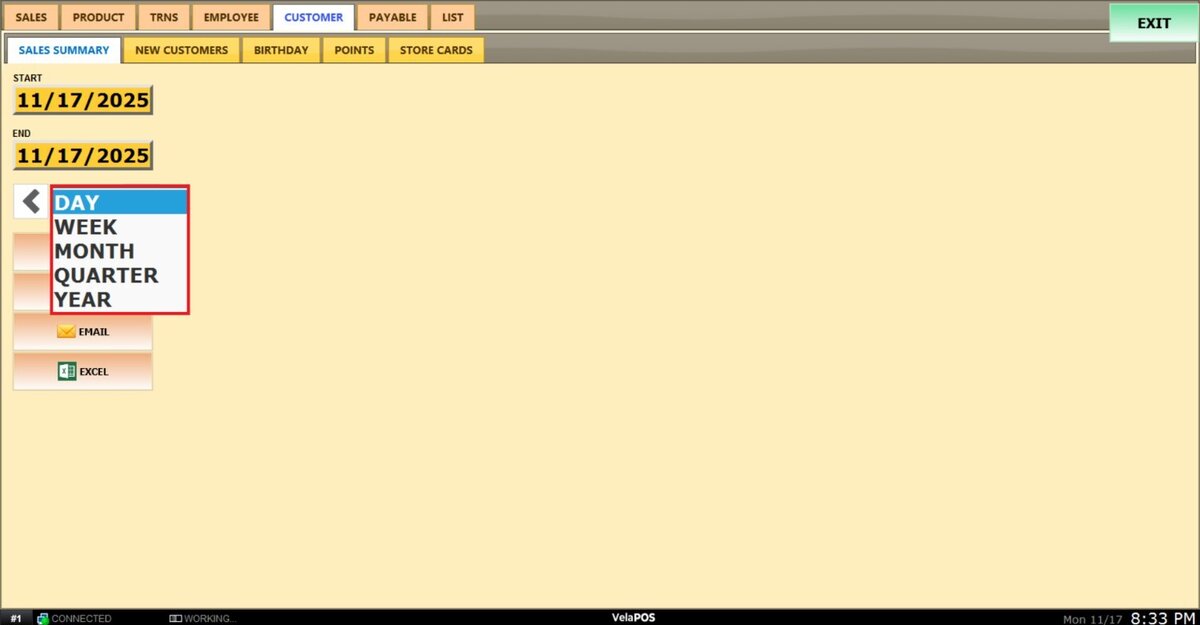
2. Filter by a time frame: The report can be filtered by time frame (day, week, month, quarter, year).
Select the field and choose the desired time duration.
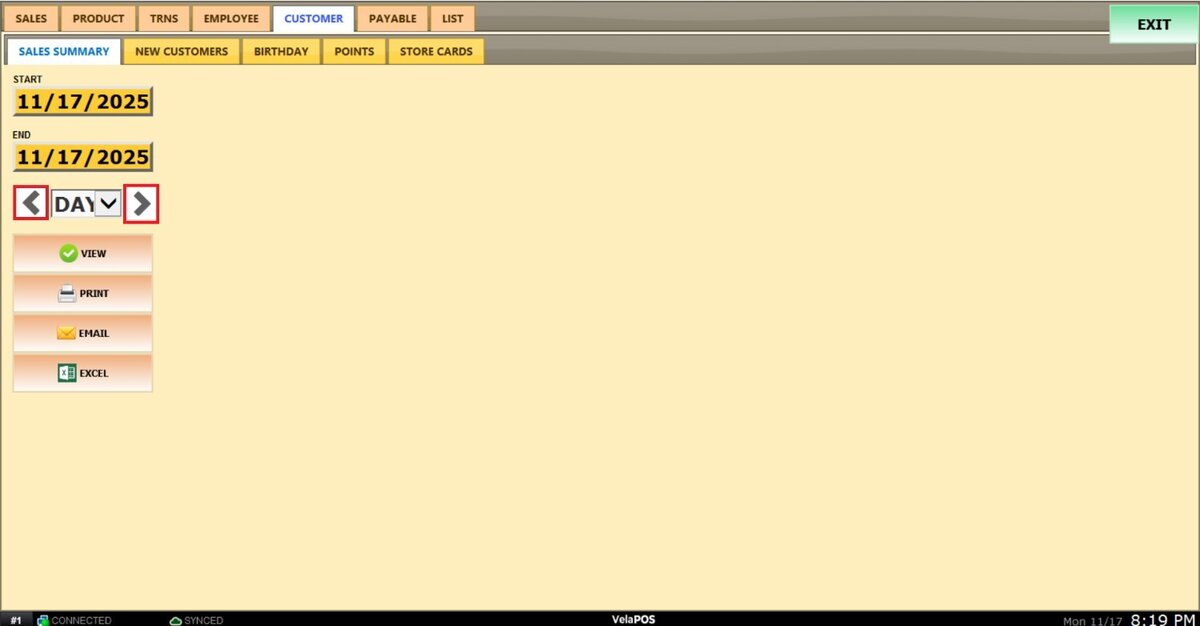
Depending on whether Day, Week, Month, Quarter, or Year is selected, the side arrows can be used to move forward or backward through those time periods.
View
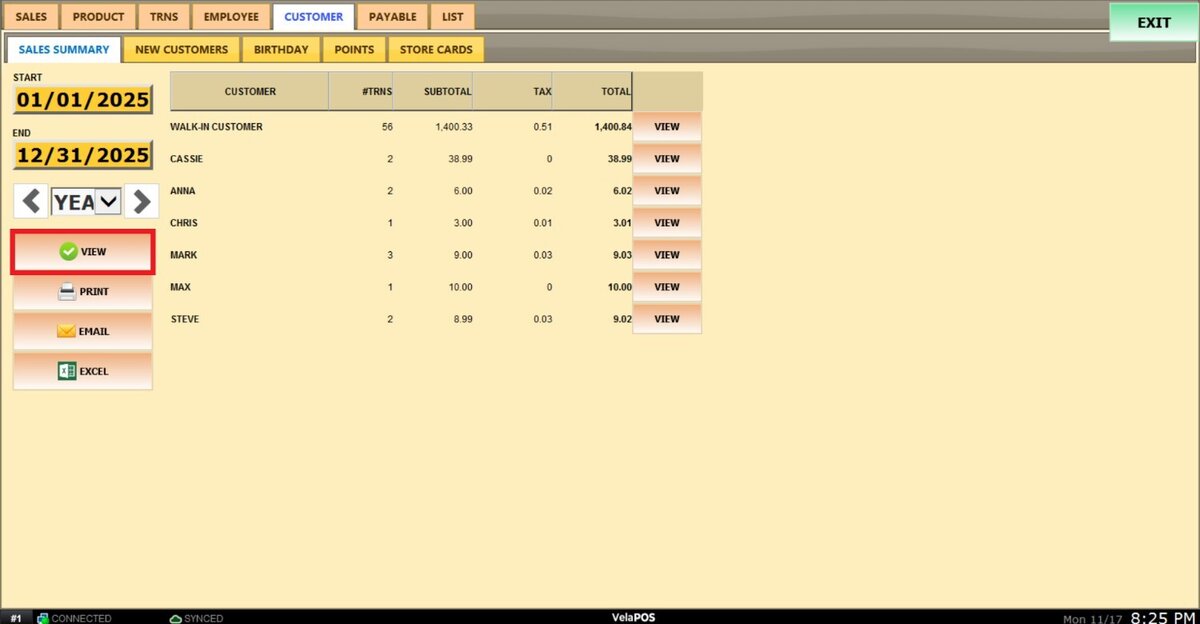
After the date range, time frame, and user filter are set, press VIEW to display the report based on the selected criteria.
Alongside the customer, the system displays the number of transactions linked to their account, the subtotal of those purchases, and the total amount including taxes.
Pressing the customer VIEW displays a sales summary for that specific customer for the selected time period. 
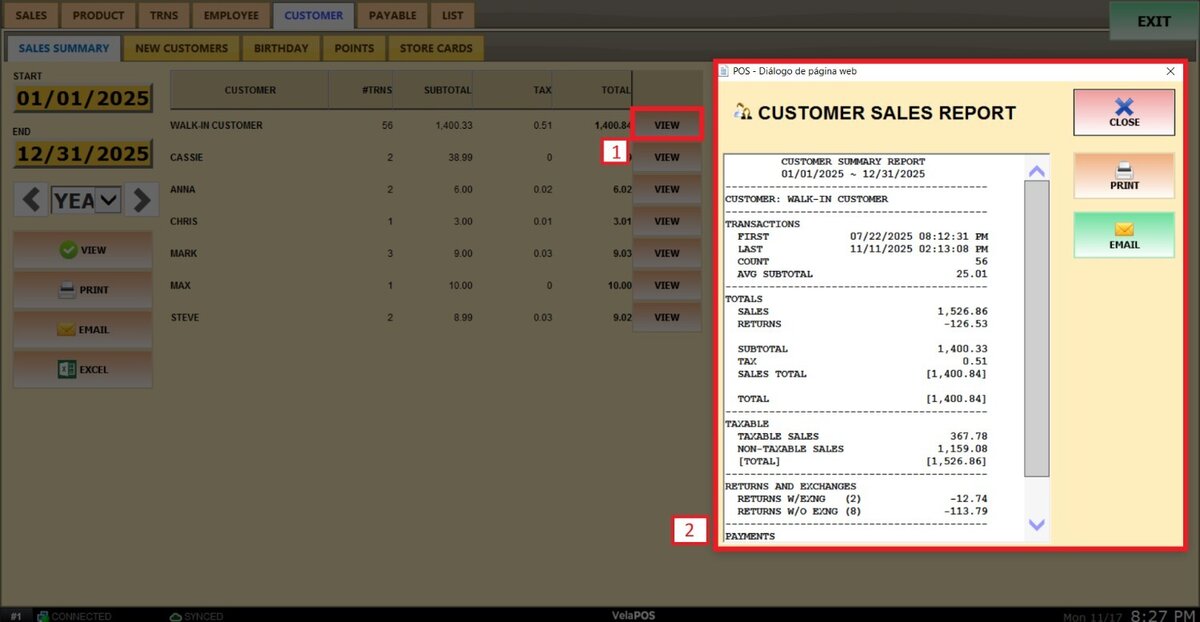
Hint: The summary can be printed or emailed to the customer.
PRINT, EMAIL, and export to EXCEL are available for the entire customized report.