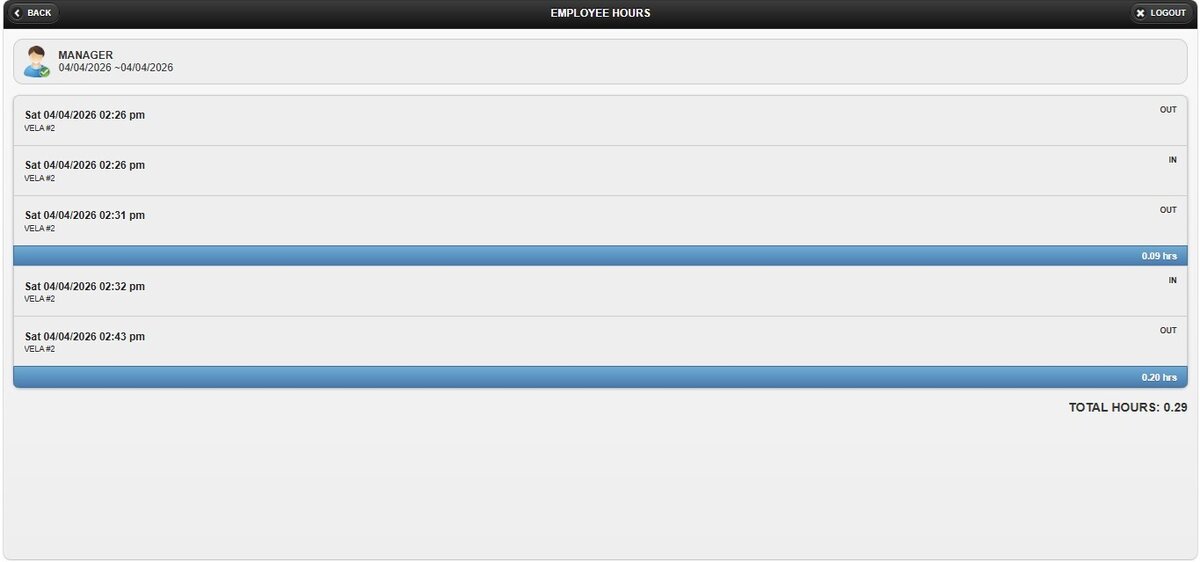
Employee Hours (Online Report)
This report provides a detailed summary of the total hours worked by each employee within a selected date range, offering clear visibility into staff time tracking and work activity.
Login Screen> Select Store> MENU> EMPLOYEE> EMPLOYEE HOURS
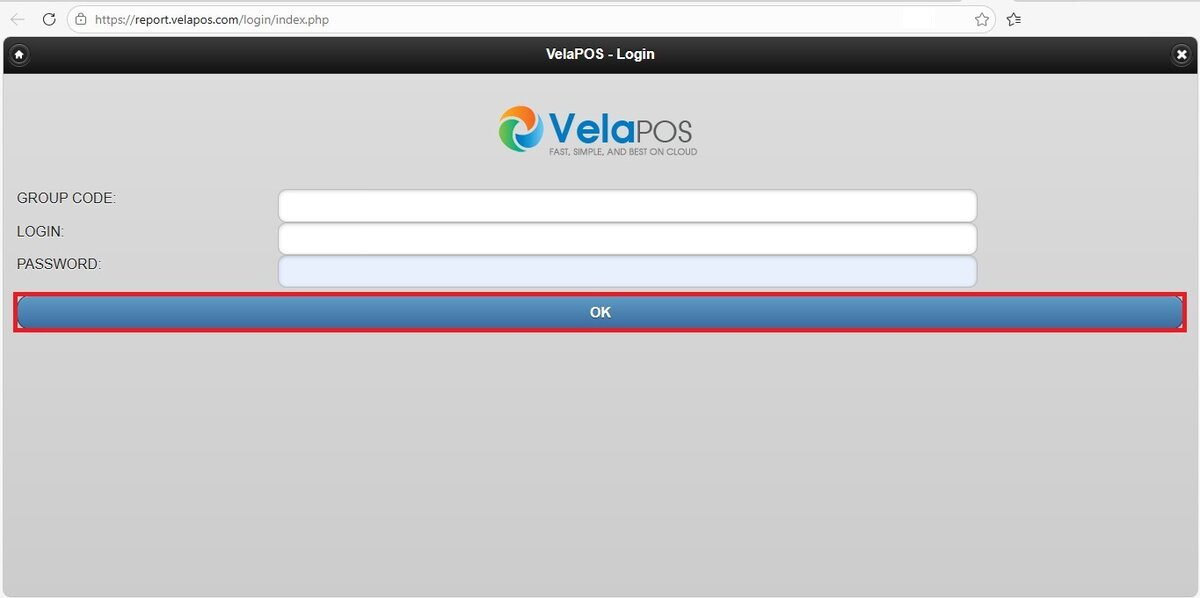
From the Login Screen of Online Reports, enter your credentials and press OK.
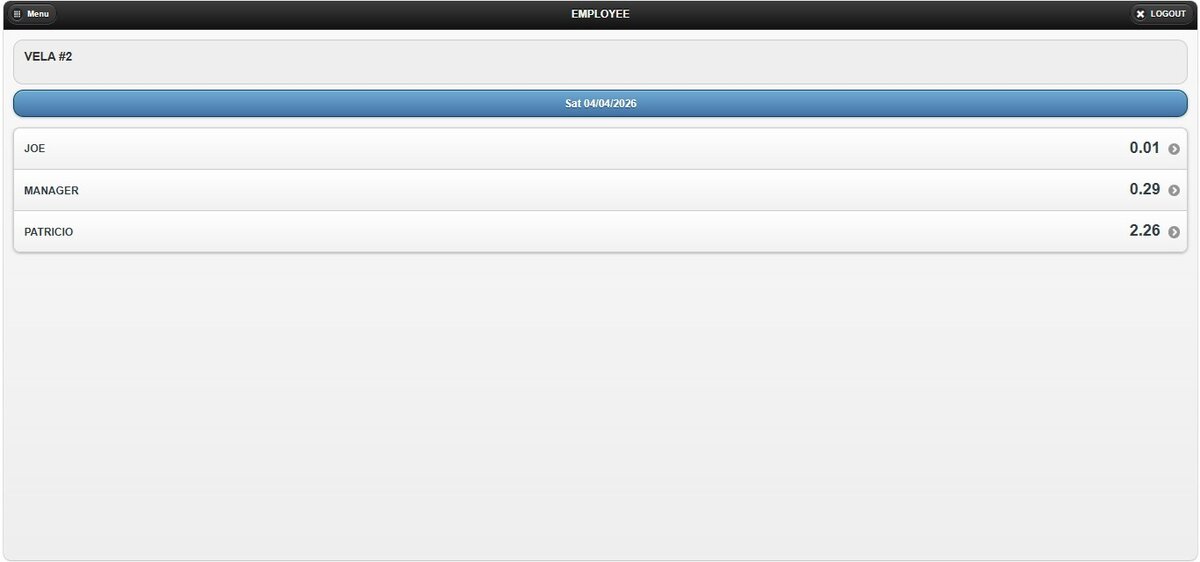
Select the store you would like to view, then navigate to the MENU button, select EMPLOYEE and after that click on EMPLOYEE HOURS.

The report for the current day is displayed on the screen, showing the hours worked by each employee based on their clock-in and clock-out times for that day.
Filters
You can refine the report using the following filtering options:
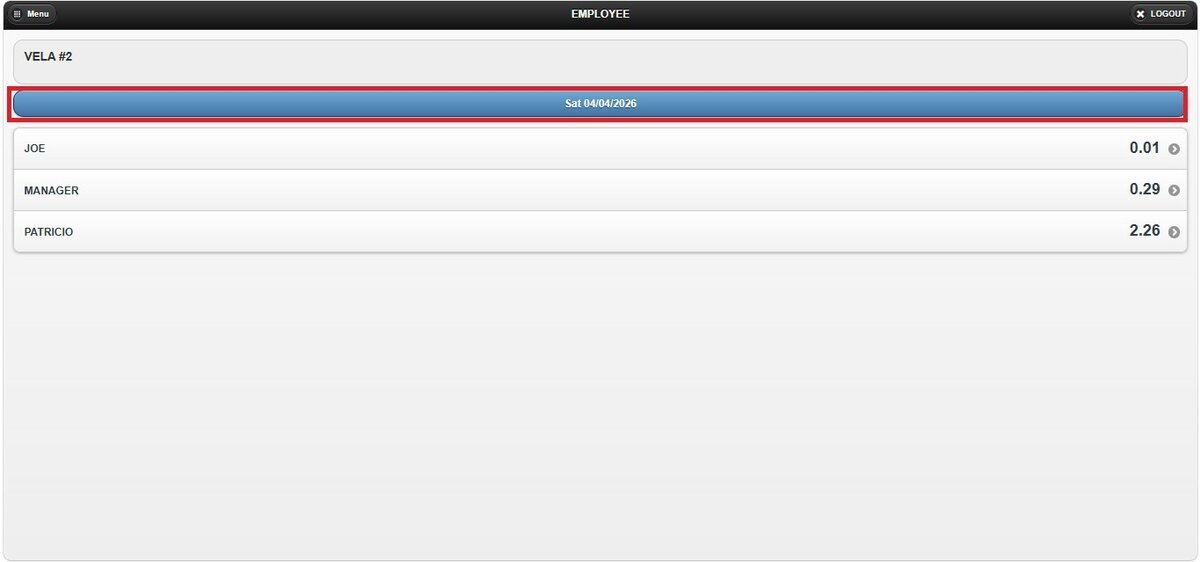
1. Custom Date Range: Located below the store name, this option allows you to view sales within a specific date range.
Click the date field to open the pop-up window.
Select the START DATE using the date picker.
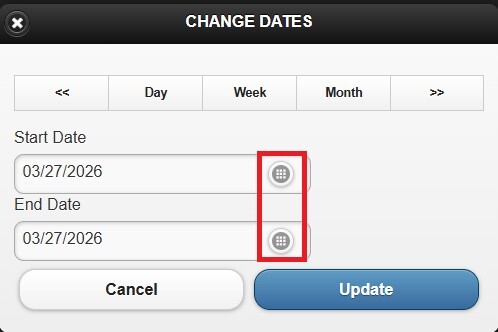
Select the END DATE field to define the final date.
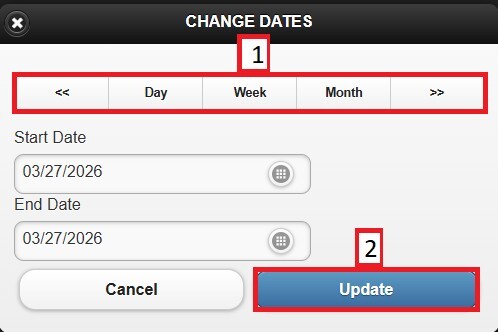
2. Time Frame Filter: Also located in the date section, this option allows quick selection of predefined periods.
On the pop-up window, select DAY, WEEK, or MONTH. Use the side arrows to navigate forward or backward through the selected period.
Click UPDATE to apply the selection.
By selecting an employee, you can access a detailed view of all worked hours associated with that employee.