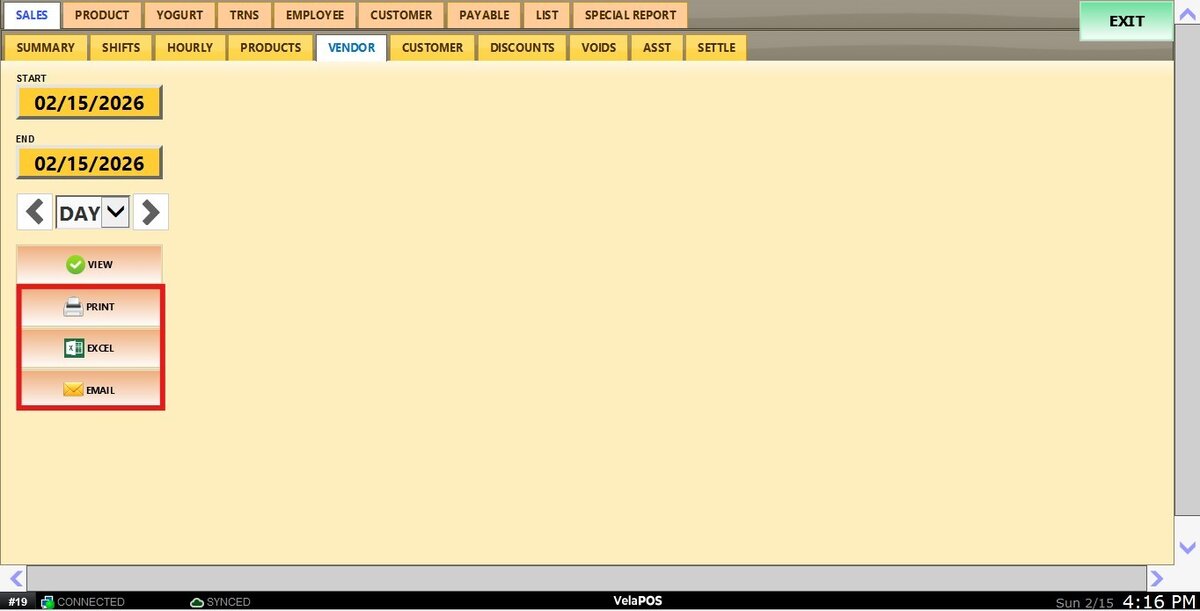
Vendor
This report provides a breakdown of sales performance by product vendor, helping you evaluate quantities sold, revenue, costs, and overall profitability for a selected period.
Main Screen> MENU> REPORTS> SALES> VENDOR.
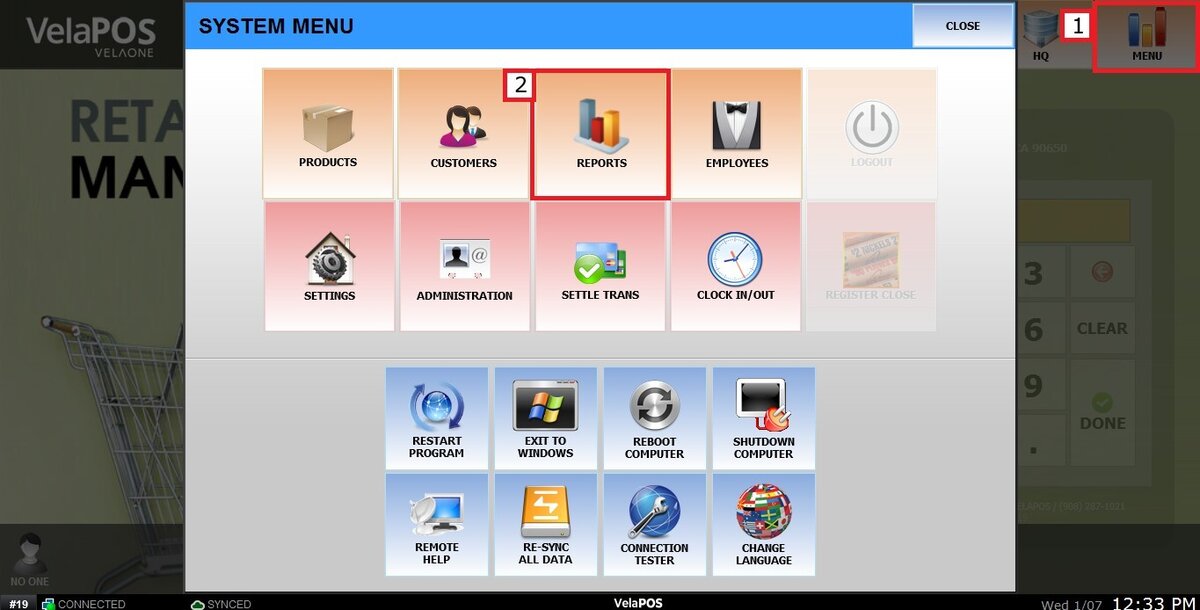
From the Main Screen, click on MENU and then select REPORTS.
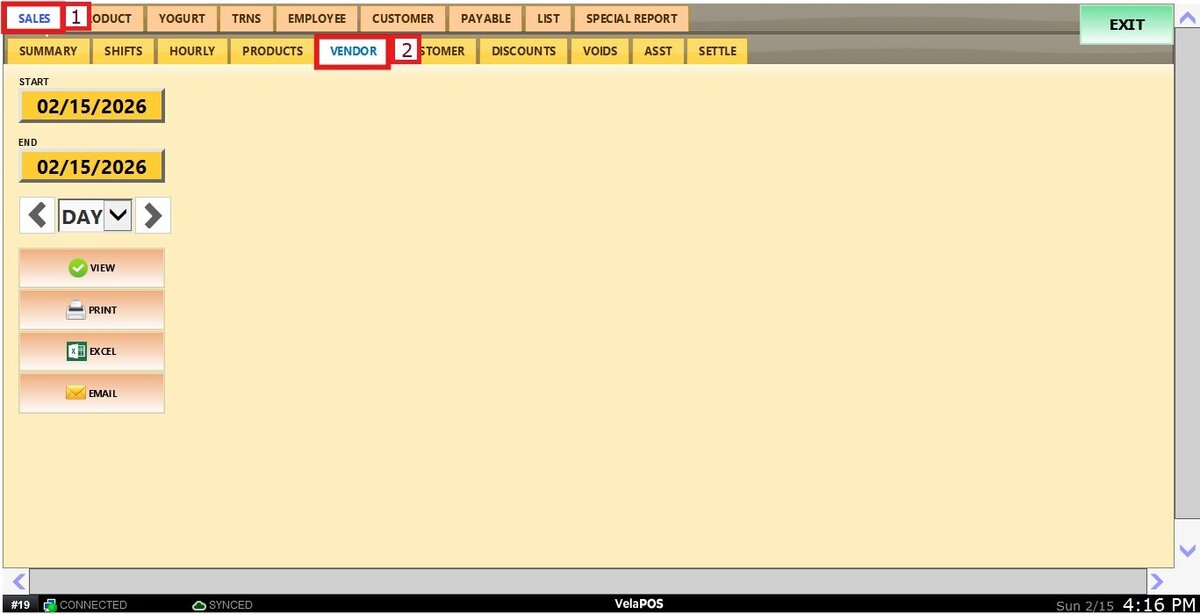
Open the SALES tab and click on VENDOR.
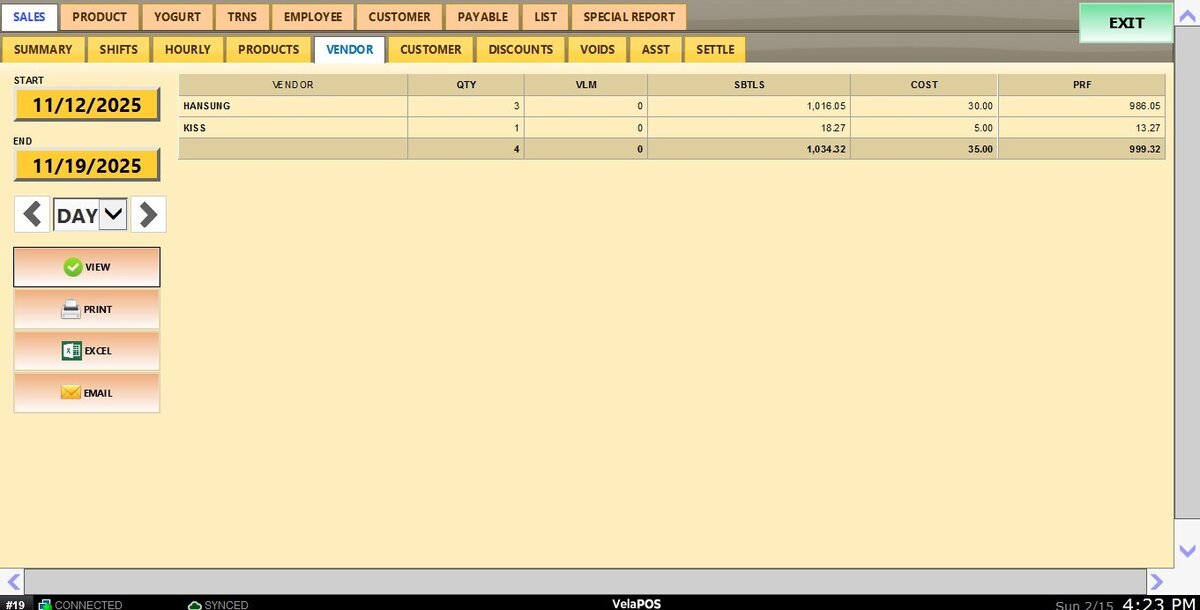
Once filters are applied and VIEW is selected, the report will display all transactions for the chosen period associated with each product vendor, including quantities sold, subtotals, product costs, and calculated profit.
Filters
Use the panel on the left side to customize how the report is displayed.
1. Custom Date Range: Lets you review sales within specific start and end dates.
Press on the START field to input the starting date.

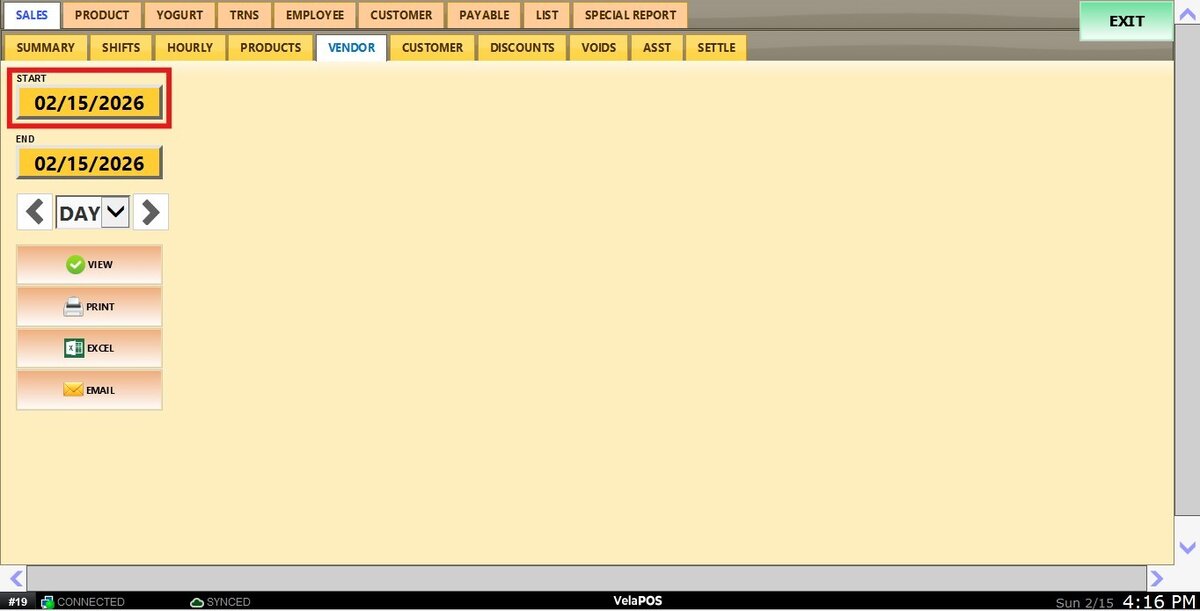
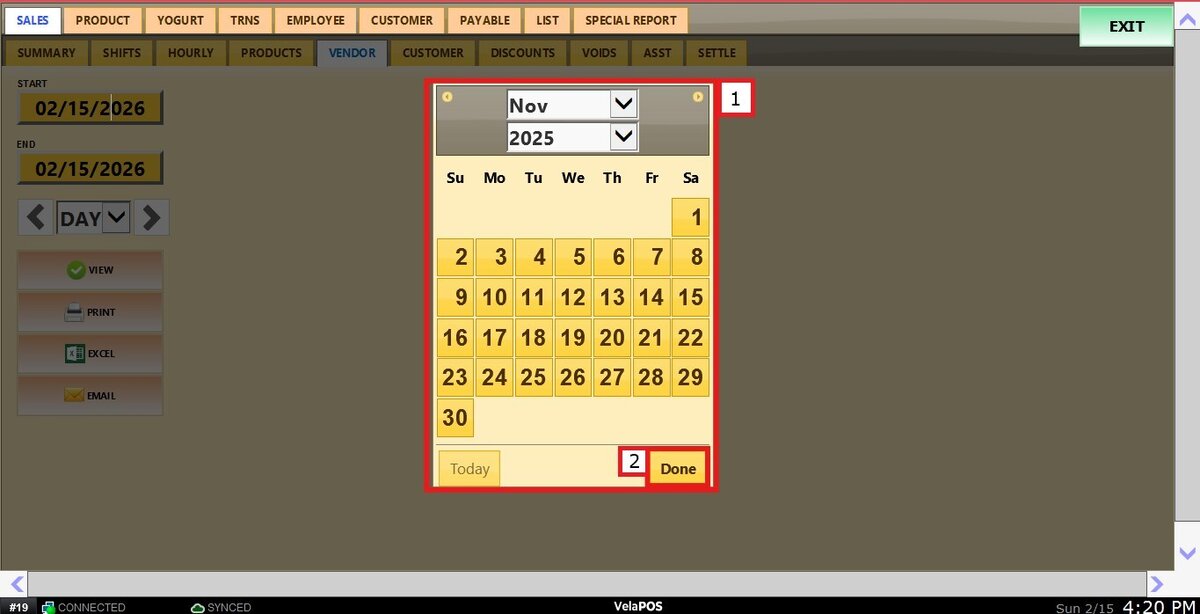
A calendar screen appears where you can select the date (day, month, and year). Press on DONE to confirm.

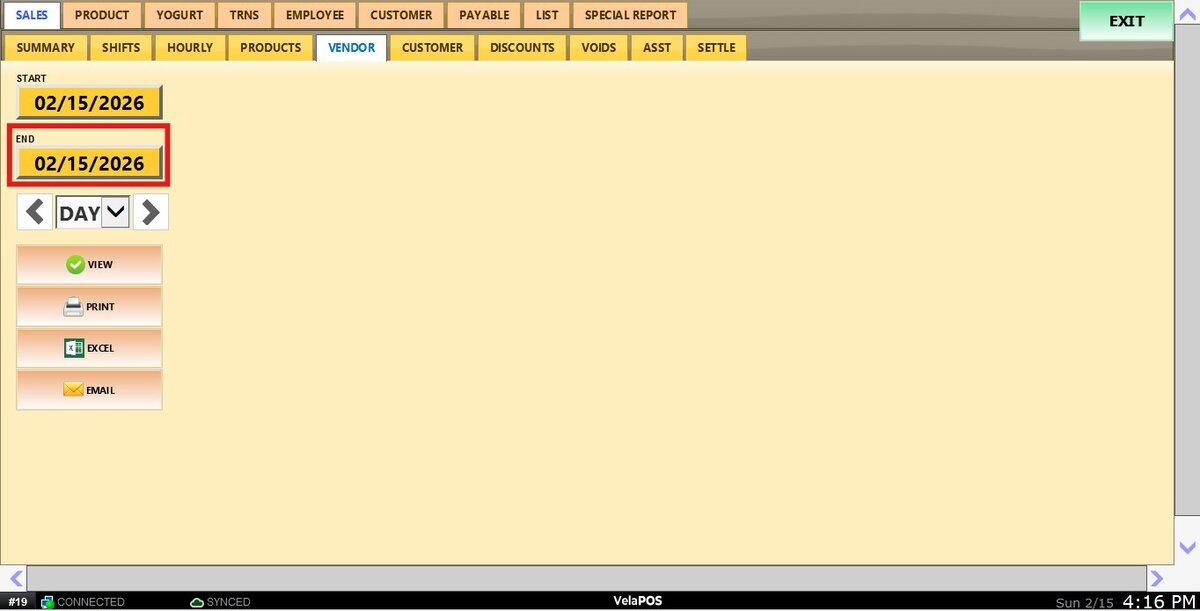
Repeat the same process for the END field to set the final date of your report.

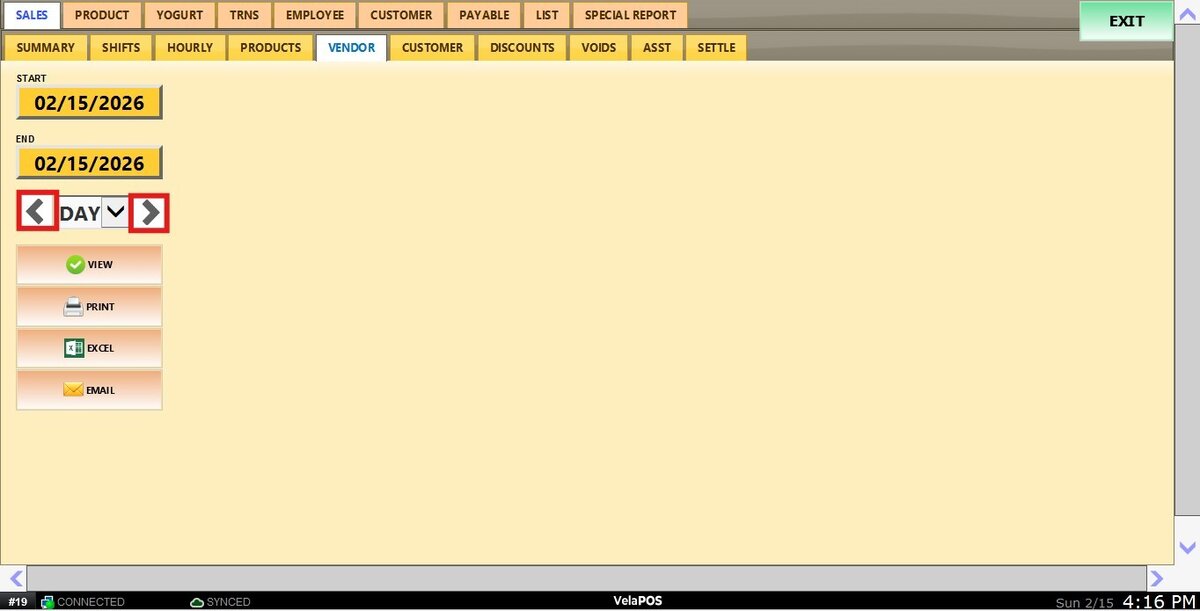
2. Time frame filter: Allows quick filtering by predefined periods such as Day, Week, Month, Quarter, or Year.
Select the desired time frame from the dropdown.
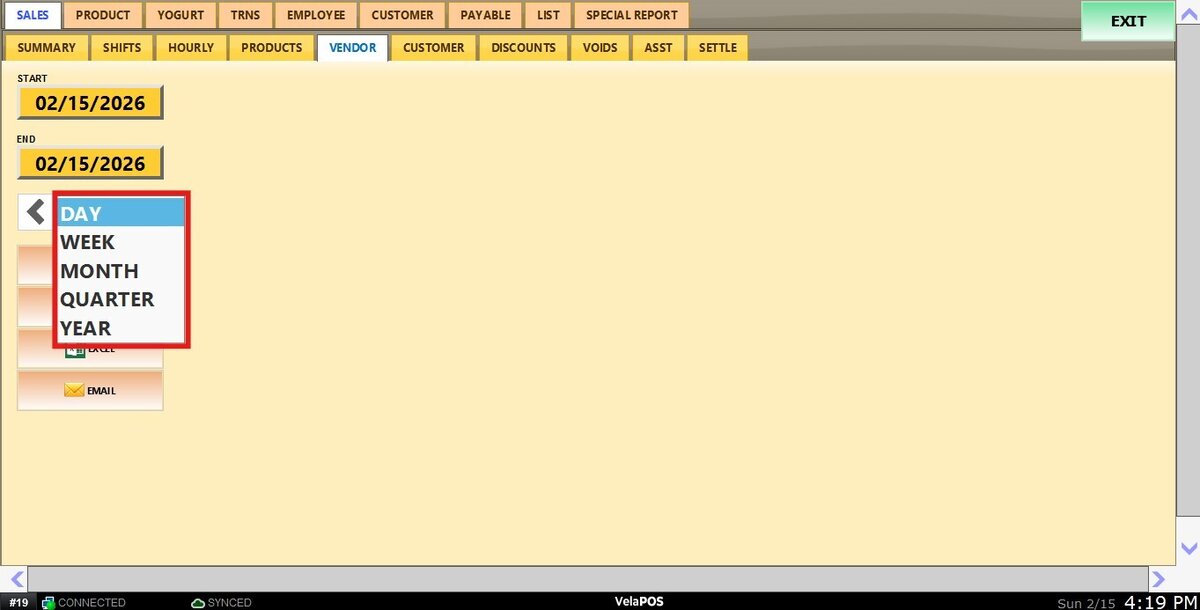
Use the side arrows to move forward or backward through those periods.

View
After configuring filters, click VIEW to refresh the report with your selections.

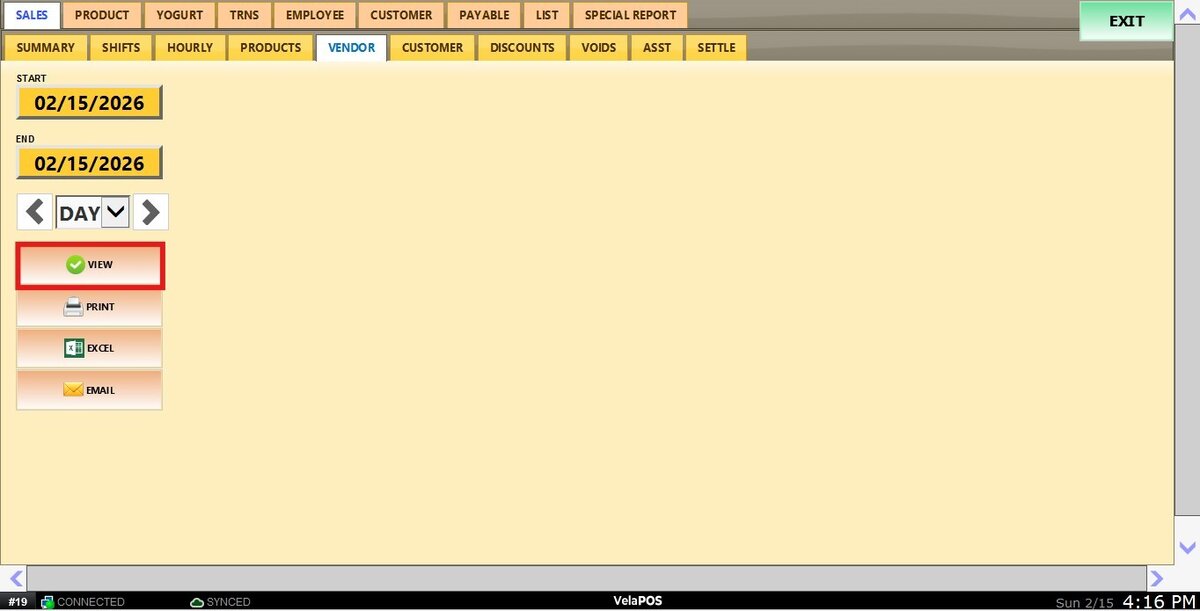
You can always choose to PRINT, convert to EXCEL, and to EMAIL the report you're viewing.