Keyboard
This feature enables keyboard based commands on the Sales screen, allowing quick adjustments to item quantities, deletions, or price changes without relying on on screen buttons. It helps speed up checkout, particularly in high volume environments where efficiency matters.
MENU>SETTINGS>MAIN>KEYBD
Go to MENU and click on SETTINGS.
On the MAIN tab, select KEYBD
From this screen, you can enable and manage keyboard command behavior.
1. USE KEYBOARD COMMANDS: When enabled, the system allows basic keyboard shortcuts to control item quantities and pricing on the Sales screen.
A command reference box shows the available shortcuts and how they work. For example:
+<NUMBER>: Increases the quantity by the entered number.
Example: Typing +5 increases the quantity by 5.
2. USE EXTENDED KEYBOARD COMMANDS: When enabled, additional advanced keyboard commands become available.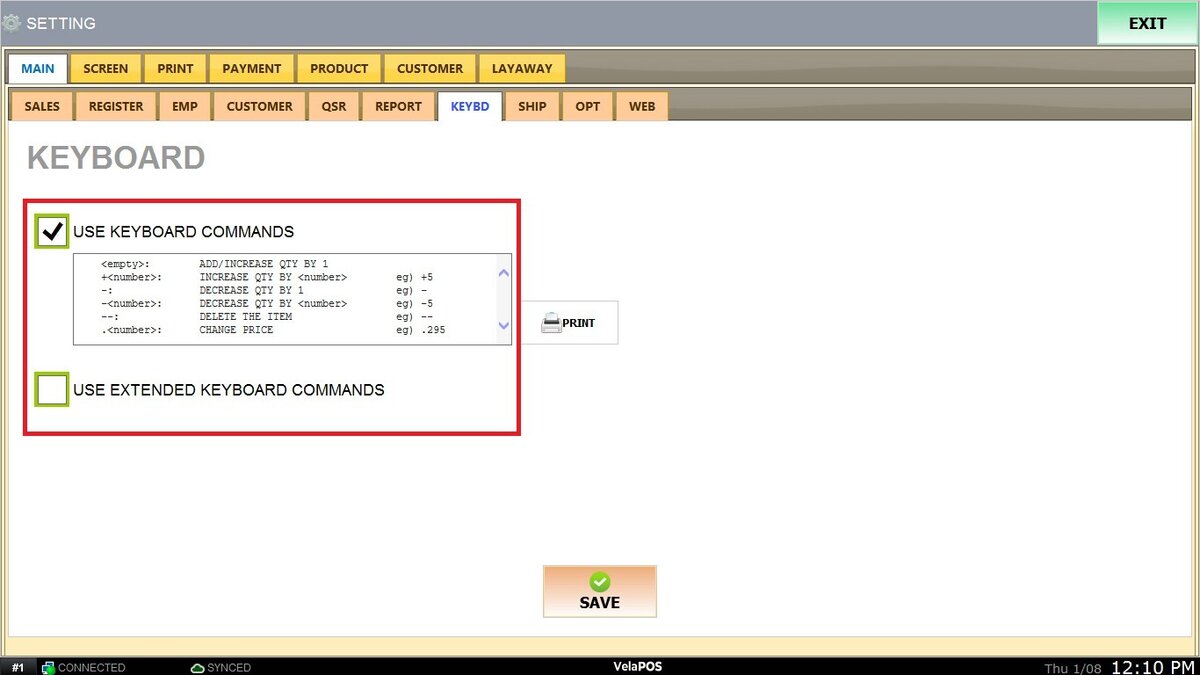
Note: The PRINT button next to the command reference box lets you print a physical copy of the keyboard shortcuts list for quick reference.
Click on SAVE and RESTART PROGRAM to store the configuration.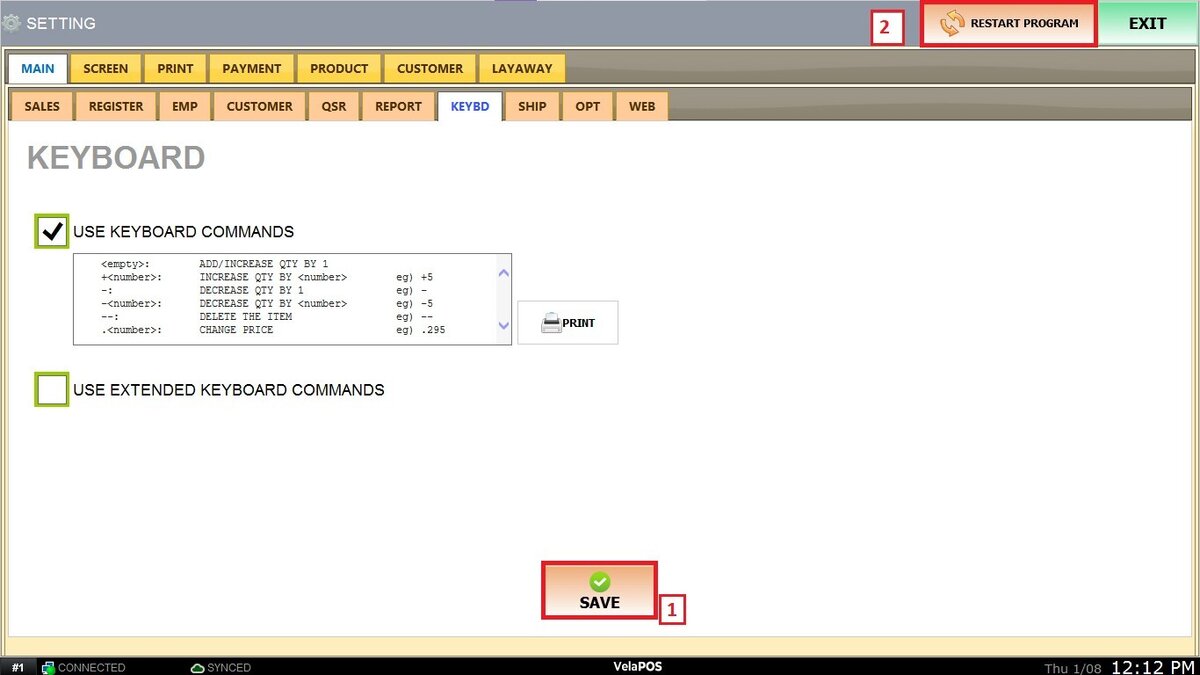
Once enabled, cashiers can enter specific keyboard commands directly while ringing up items to perform common actions instantly.
RESULT:
