Customer
In the customer section, you can control how customer information is handled during a sale.
Main Screen> MENU> SETTINGS> MAIN> SALES
Go to MENU and press SETTINGS.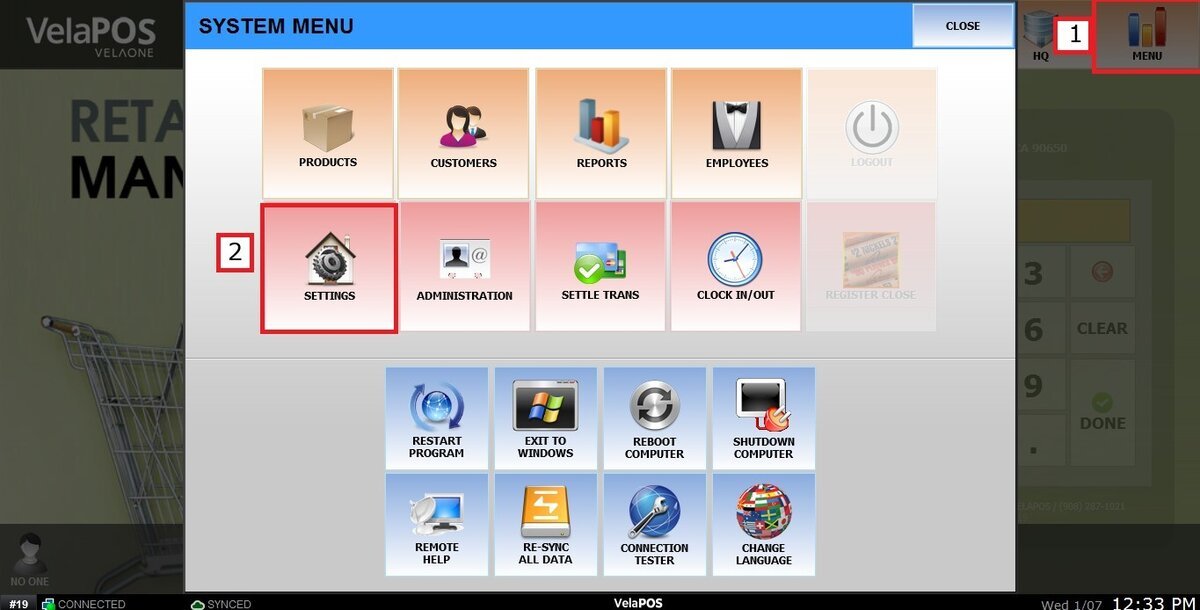
Under MAIN, select to SALES, go to CUSTOMER section.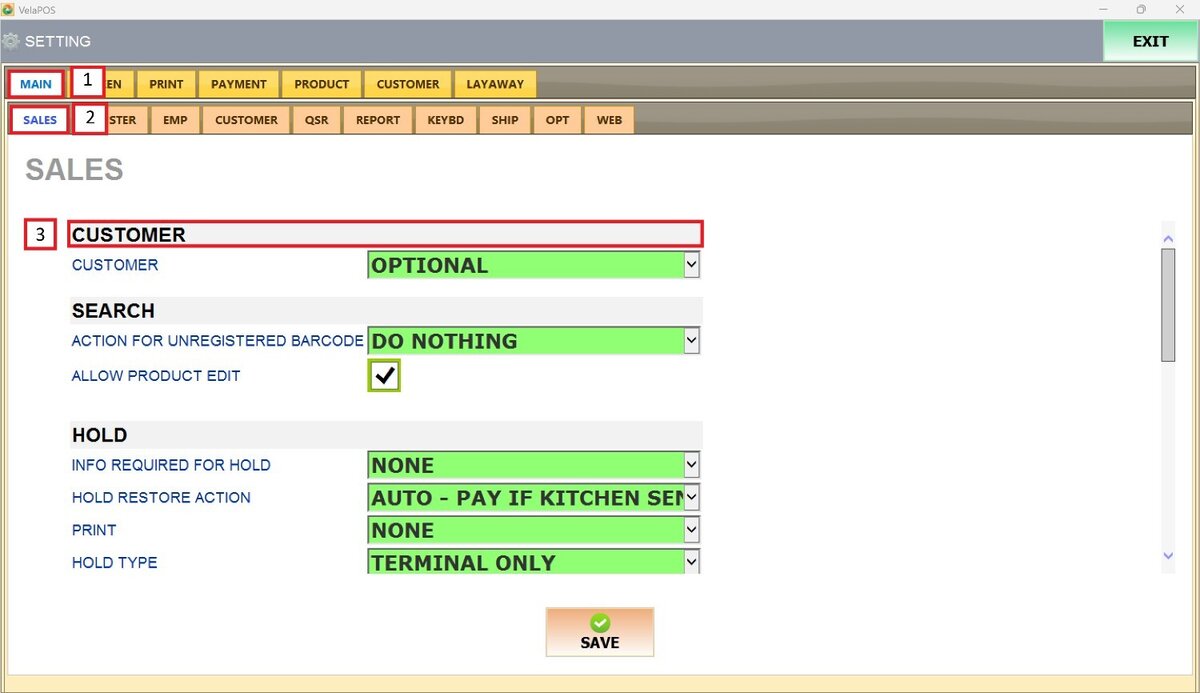
Next to CUSTOMER, use the drop-down menu to define whether and how the cashier must interact with customer information during a transaction.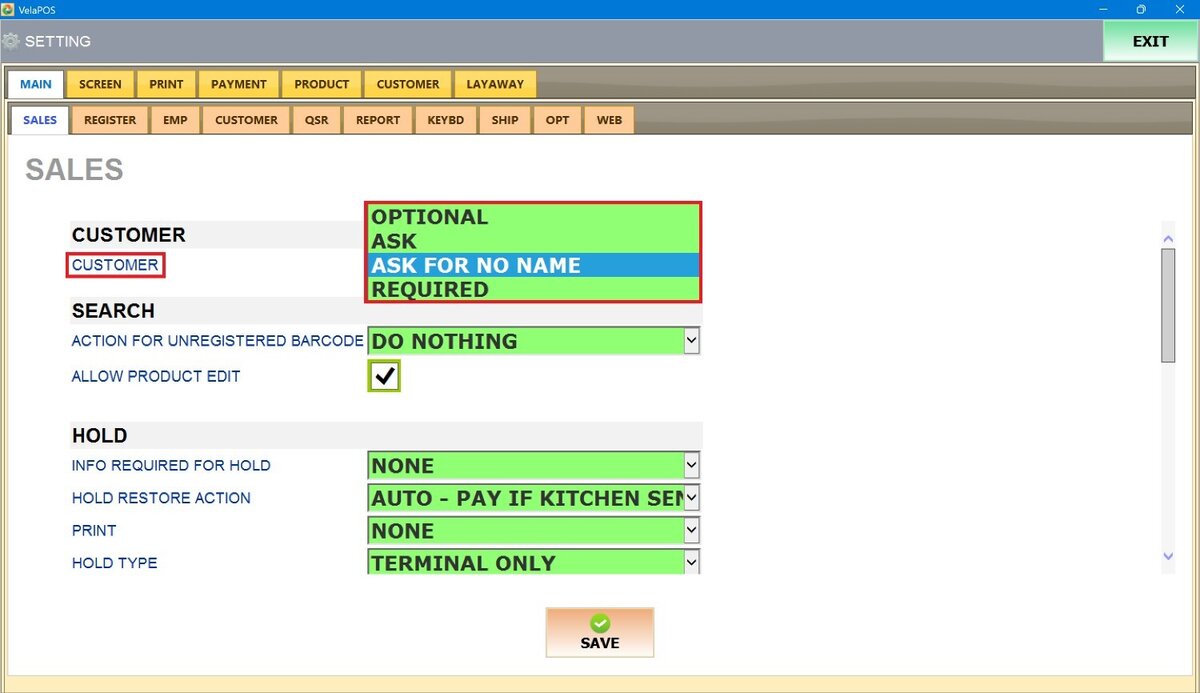
1.OPTIONAL: The Customer List does not appear automatically. Customer information can be added manually, but it is not required and can be skipped.
To learn how to add customers manually, refer to the Sales Screen Customer Guide.
2. ASK: The system prompts the Customer List screen when pressing the PAY button, allowing the selection of a customer account. This step is optional and can be skipped by pressing CLOSE.
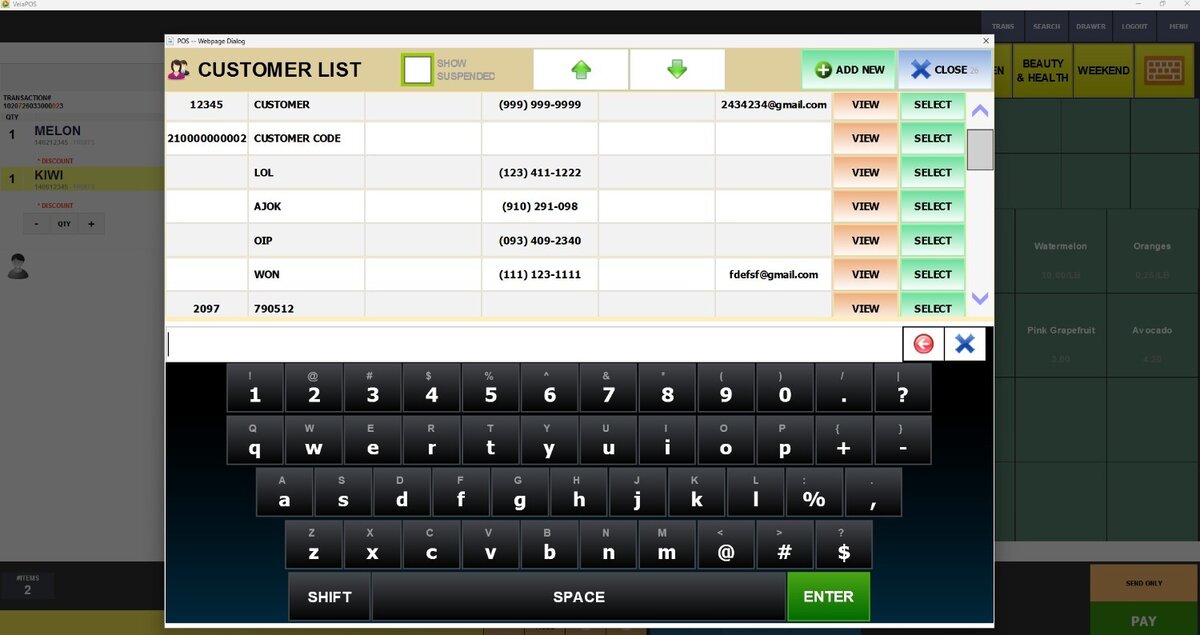
3. ASK FOR NO NAME: A simplified screen appears requesting only the customer’s phone number. No name or additional details are required, and this step can also be skipped.
4. REQUIRED: The Customer List screen appears when the PAY button is pressed. Selecting a customer account is mandatory, and you must choose one to proceed with the sale.
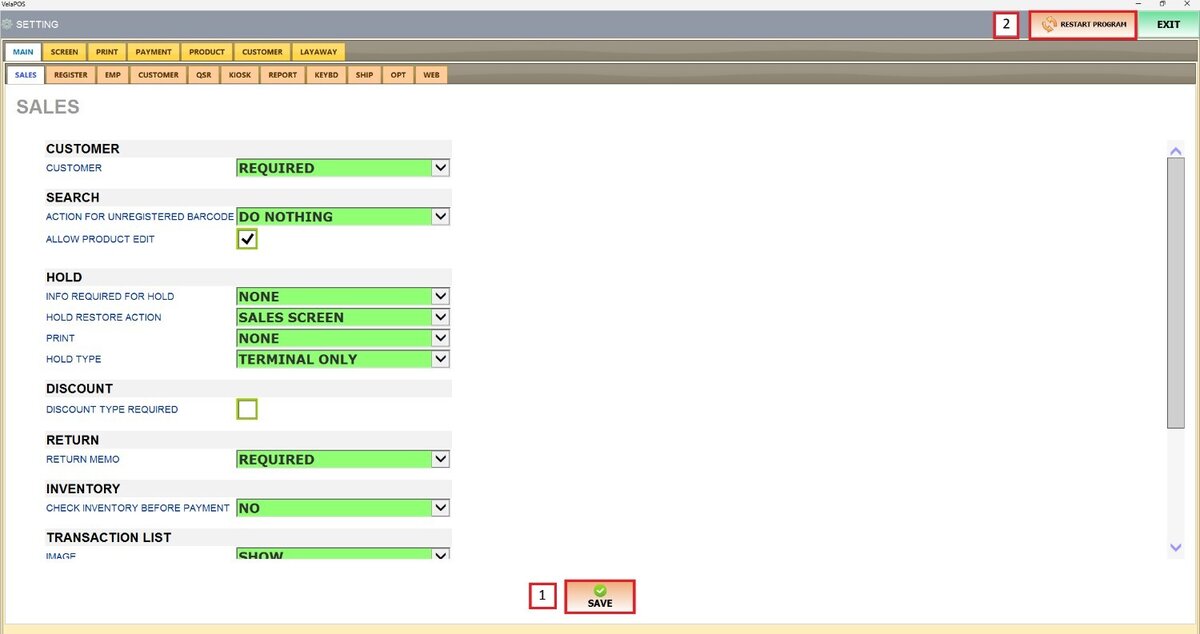
After making any modifications, press SAVE to store them, and RESTART THE PROGRAM to ensure the updates are applied correctly.