Rule
This feature allows you to configure discount rules and define how they are applied. It is commonly used for promotions such as BOGO (Buy One, Get One), 2 for 1 deals, or bulk pricing.
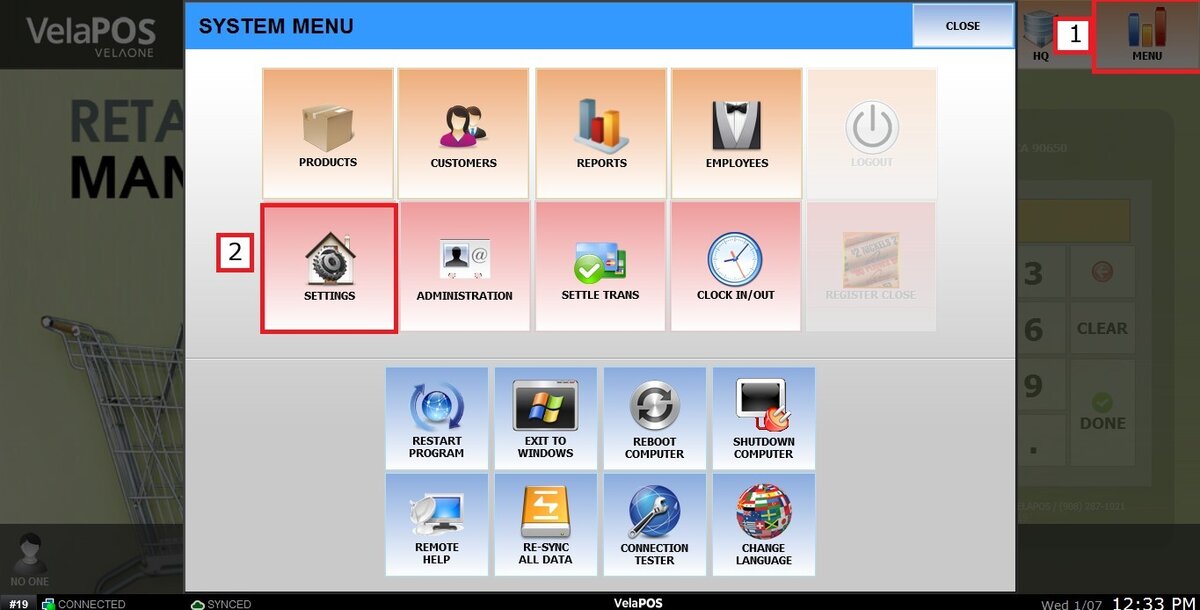
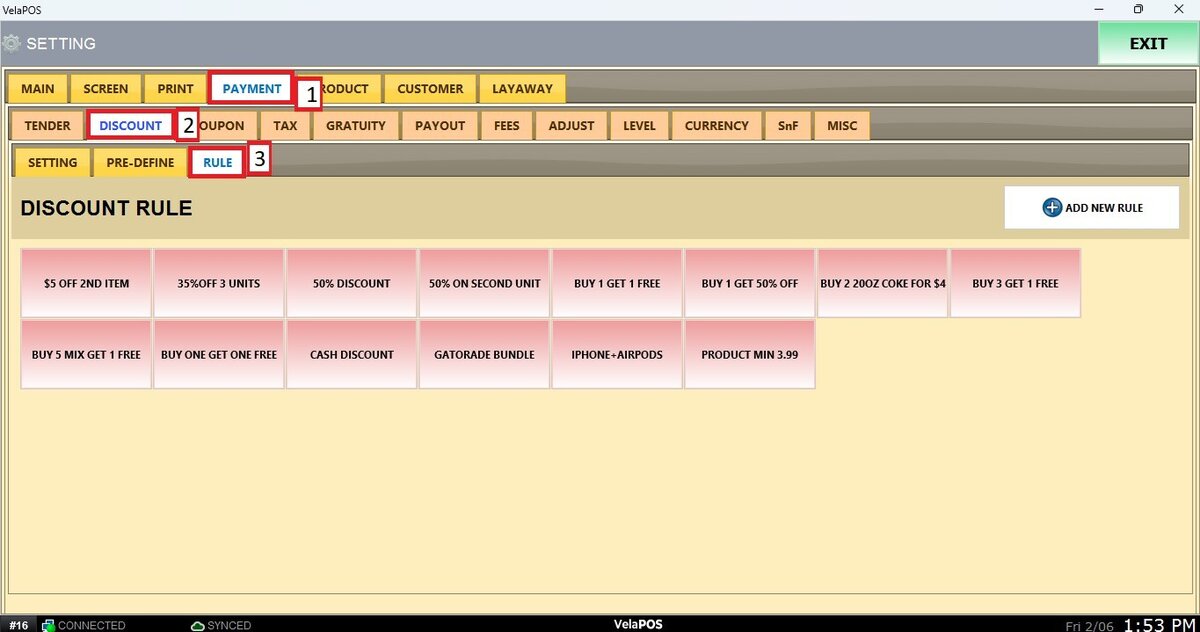
Main Screen> MENU> SETTINGS> PAYMENT> DISCOUNT> RULE
Go to MENU and press SETTINGS.
Go to the PAYMENT tab, click on DISCOUNT and select RULE.
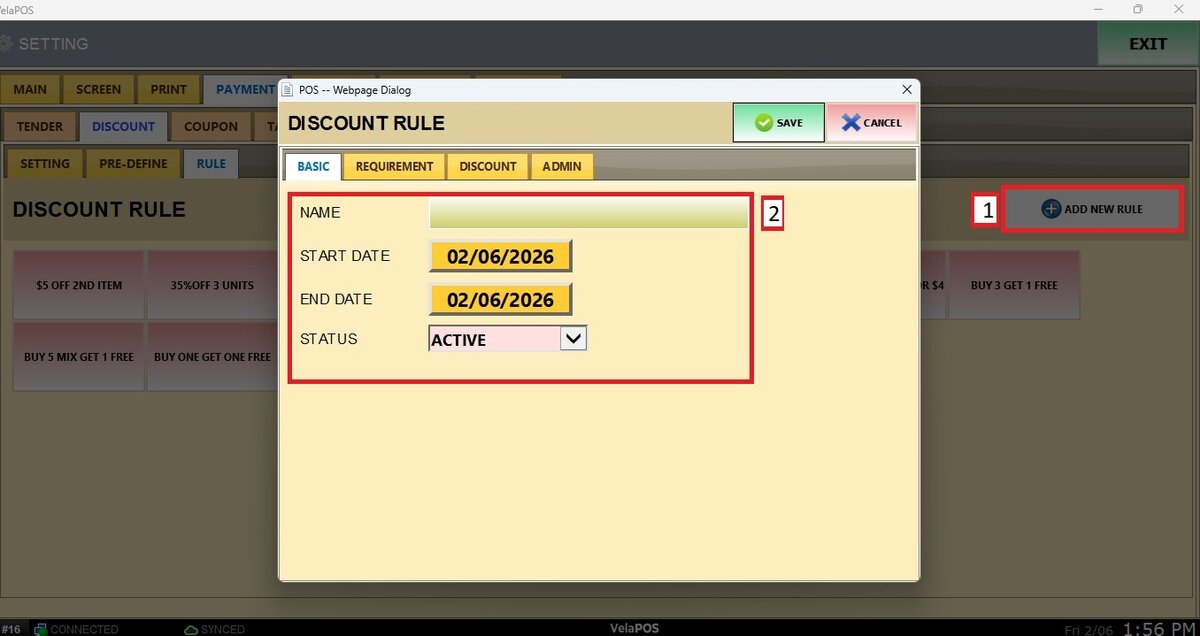
Click on ADD NEW RULE a window will open where the rule details can be entered.
BASIC
NAME: Name of the discount rule.
START / END DATE: Date range during which the rule will be active.
START: From the dropdown menu, select whether the rule is active or inactive.
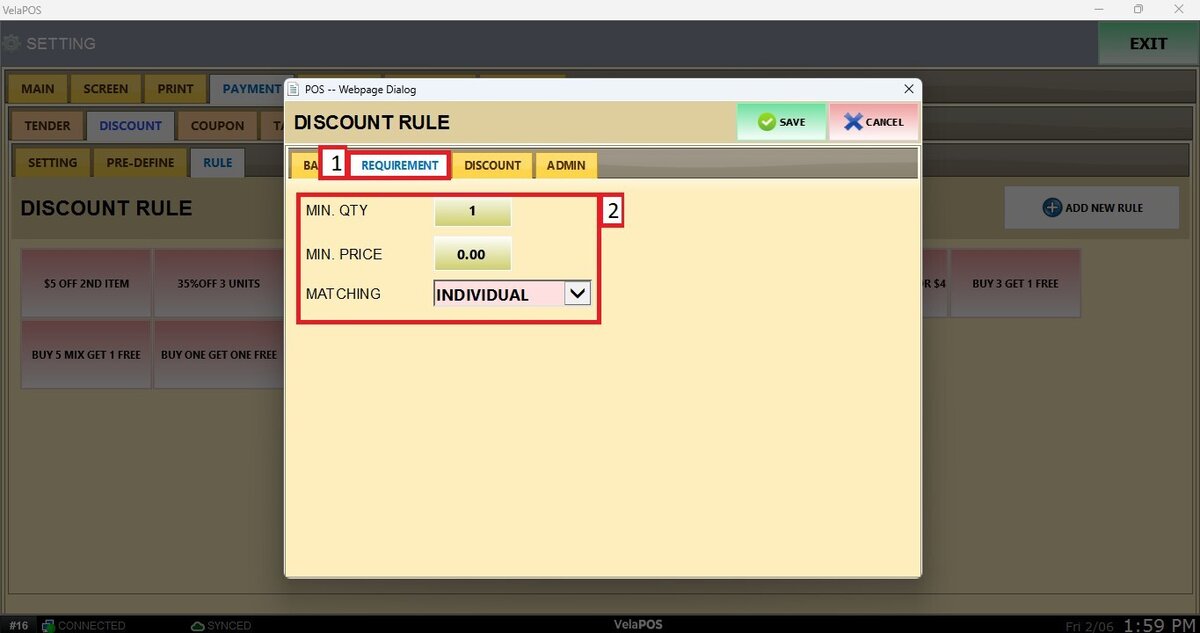
REQUIREMENT
MIN QTY: Minimum quantity of products required to trigger the rule.
MIN PRICE: Minimum order amount required to trigger the rule.
MATCHING: From the dropdown menu, select whether the rule applies to individual items (only the same items) or mix items (different items can be combined to trigger the rule).
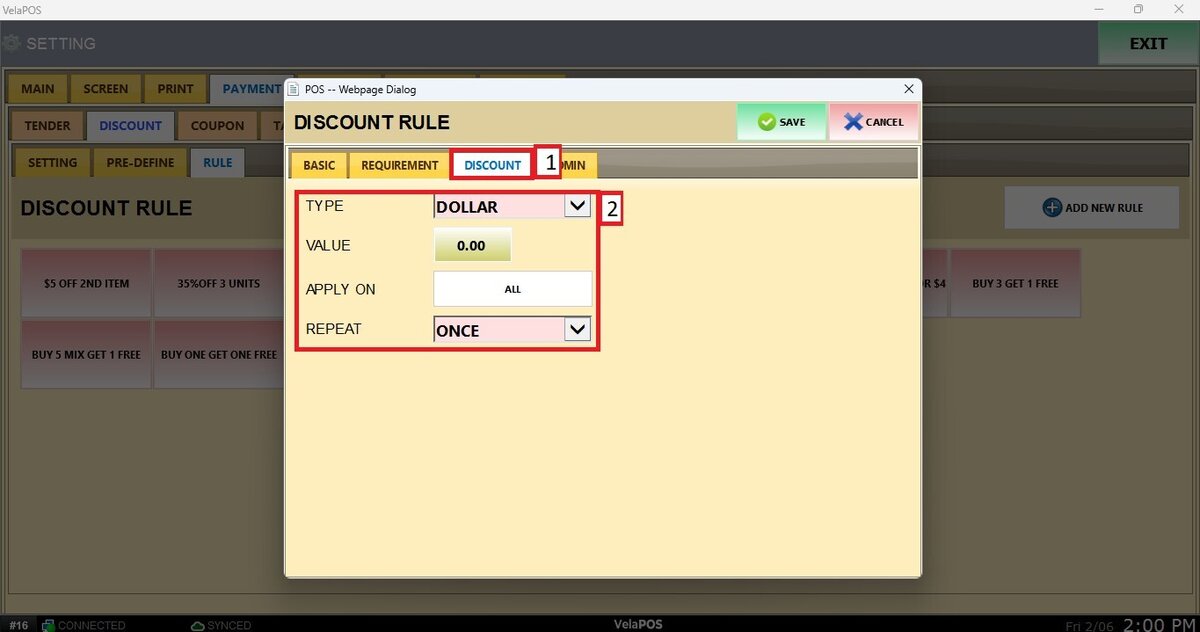
DISCOUNT
TYPE: From the dropdown menu, select whether the discount is applied as a Dollar amount or Percentage.
VALUE: The dollar amount or percentage to be discounted.
APPLY ON: From the dropdown menu, select the item or items the discount will be applied to.
REPEAT: From the dropdown menu, define whether the rule applies once per transaction or repeats for every qualifying item.
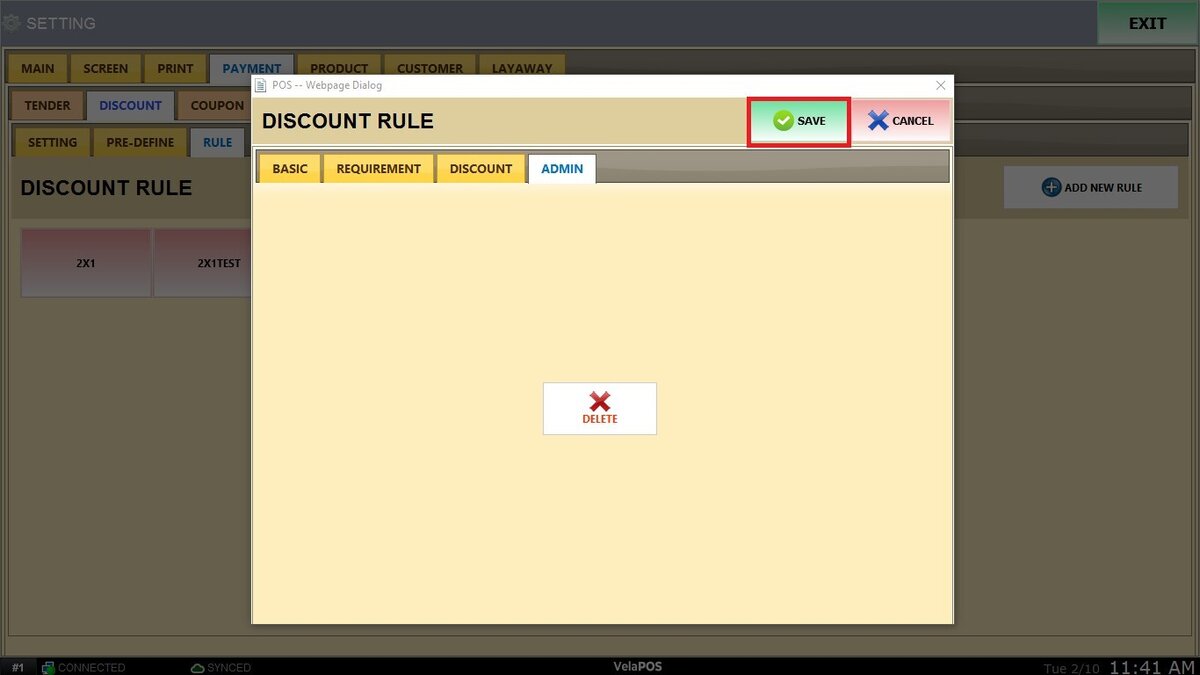
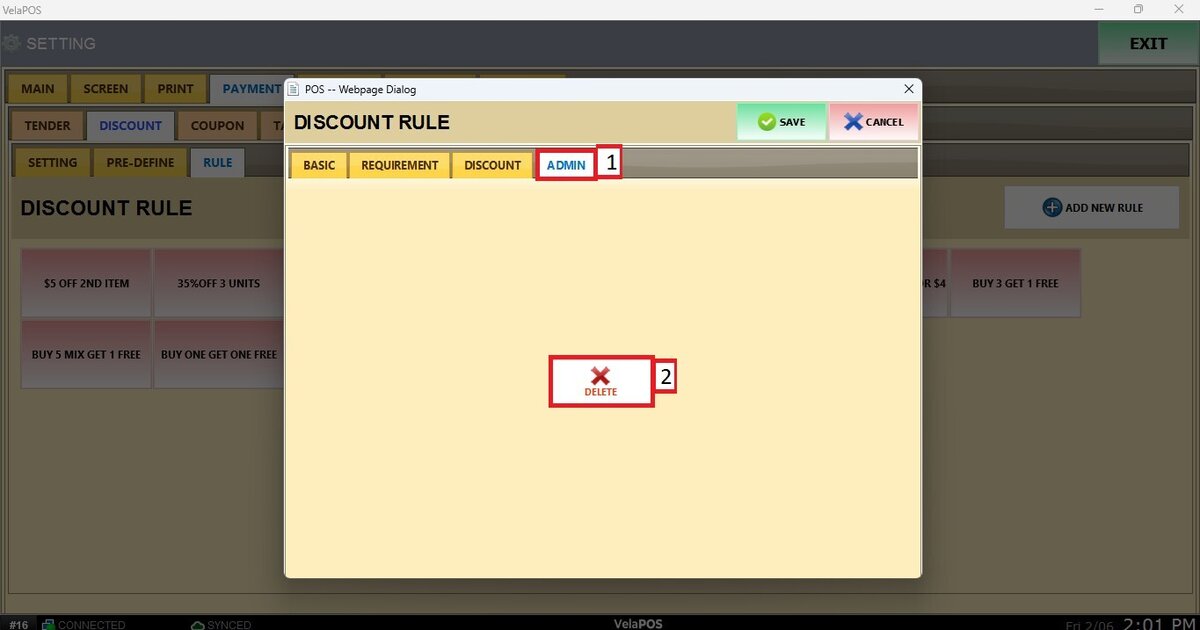
ADMIN
DELETE: Removes the discount rule from the system.
Press on SAVE and restart the program to apply the changes.