Check
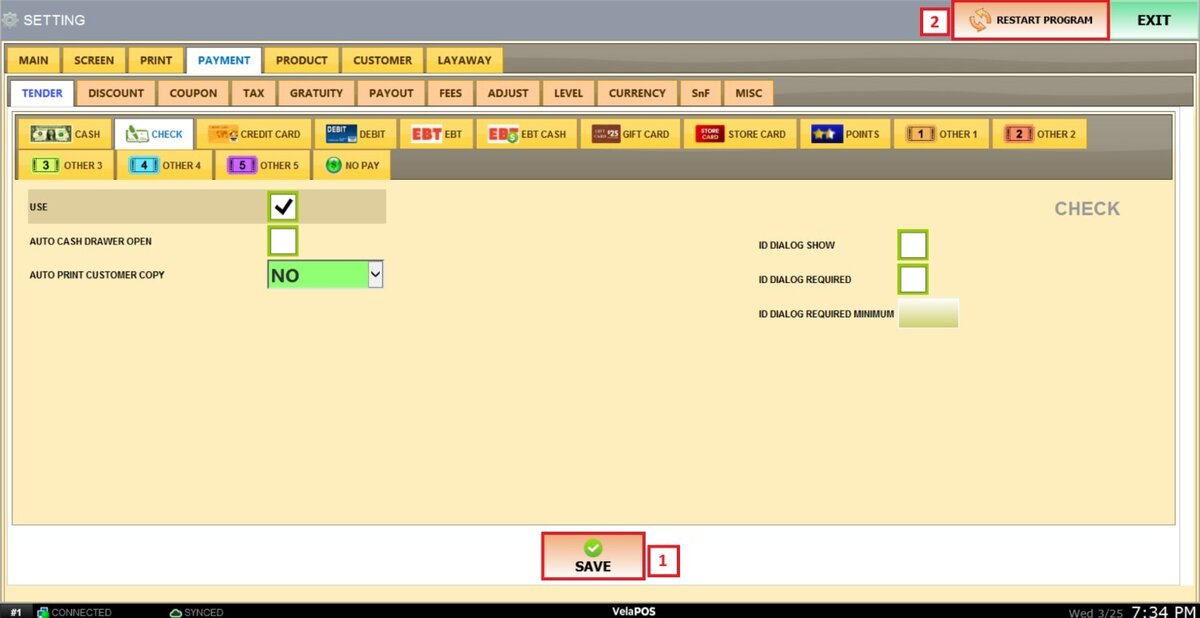
These settings define the behavior of check transactions, including cash drawer operations, receipt printing, and ID verification during transactions.
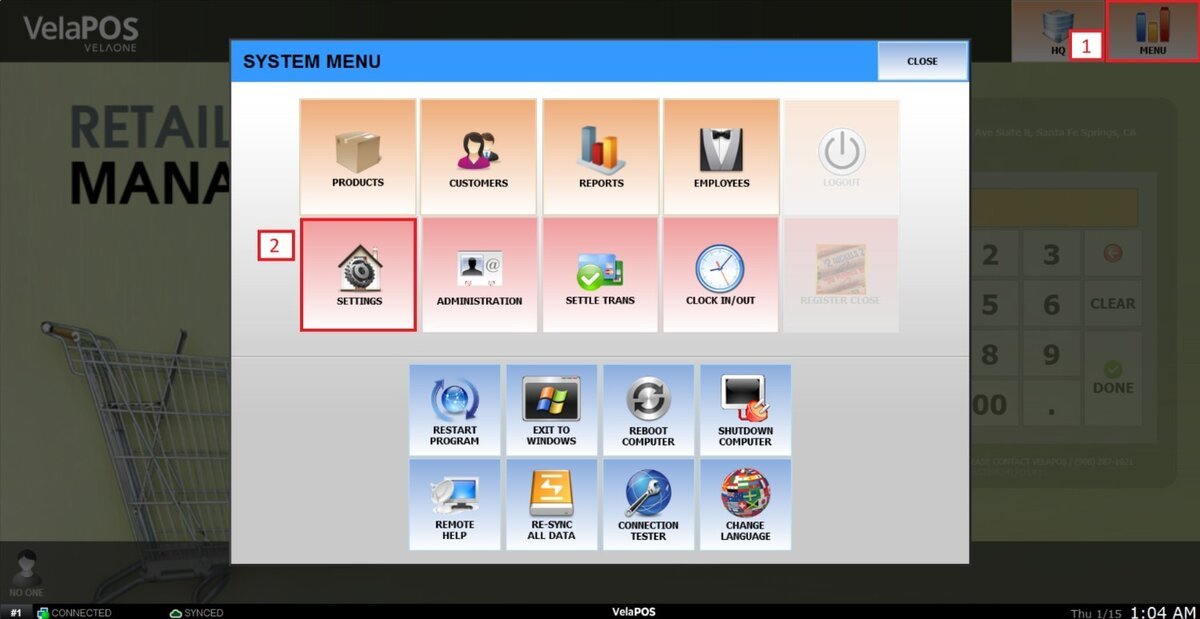
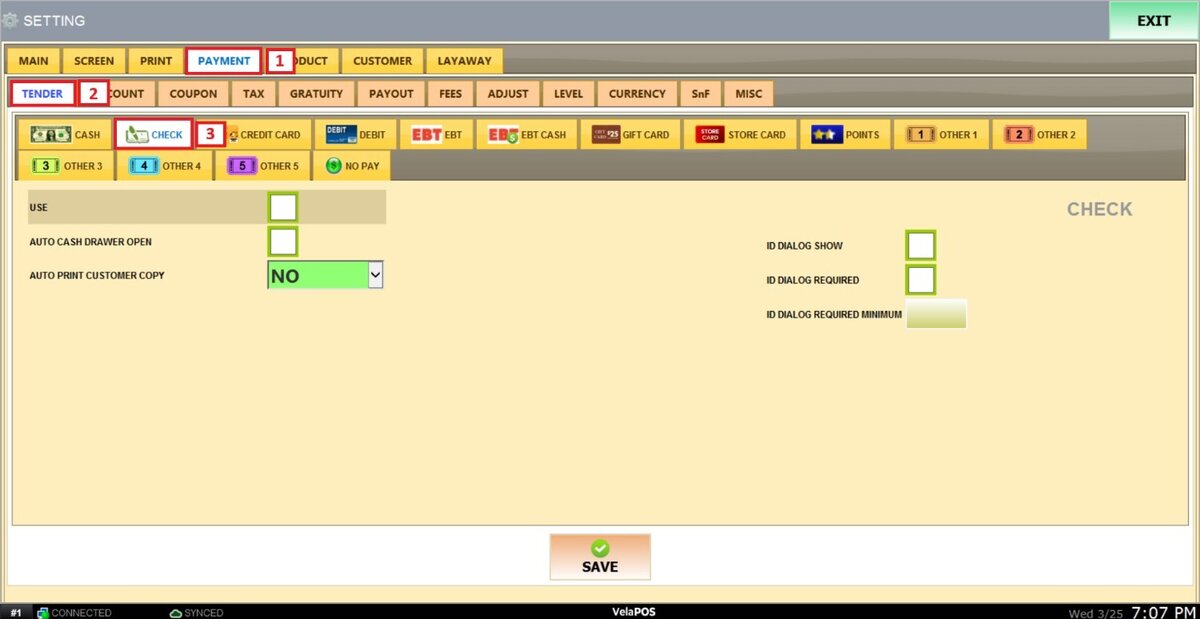
Main Screen > MENU > SETTINGS > PAYMENT > TENDER > CHECK
Go to MENU then press SETTINGS

Under the PAYMENT tab, select TENDER, then click on CHECK.
Refer to Paying With Check to learn how this payment method is used to complete sales.
You will see different settings sections:
USE: Enables or disables check as a payment method.

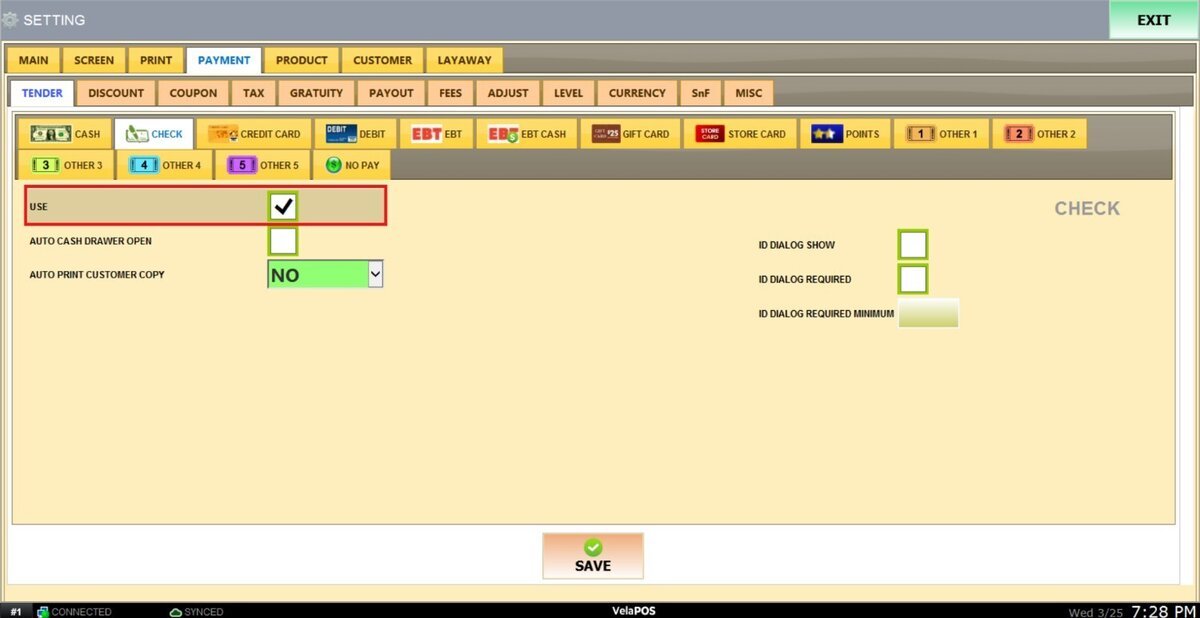
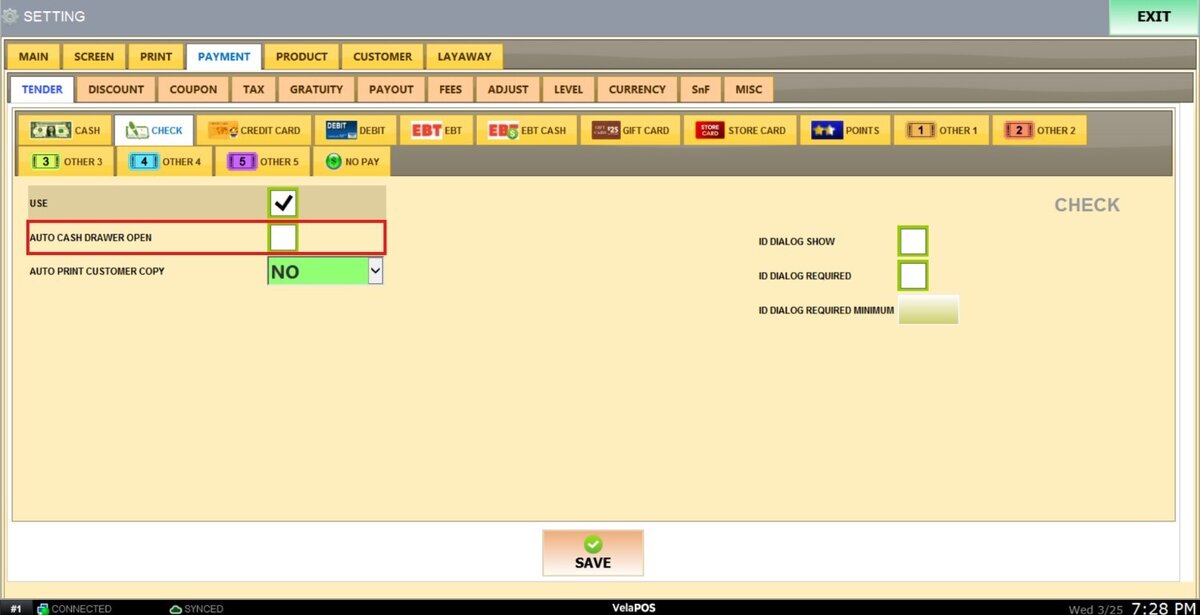
AUTO CASH DRAWER OPEN: Automatically opens the cash drawer when a check payment is completed.

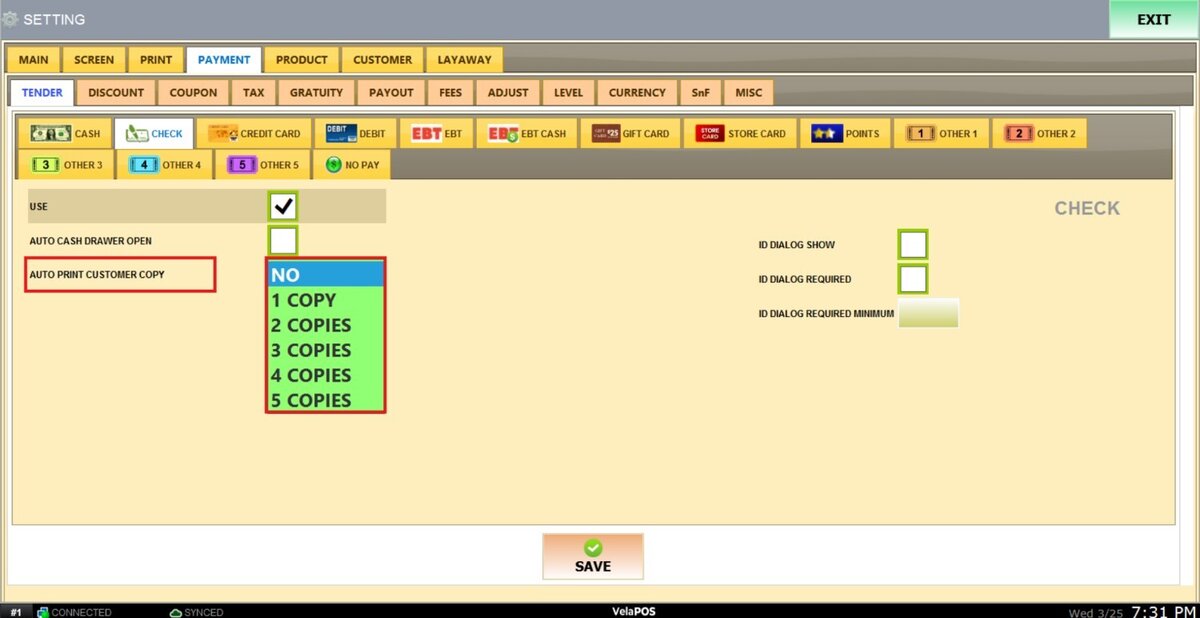
AUTO PRINT CUSTOMER COPY: Sets how many customer receipts print automatically after a check transaction. Options range from NO (0 copies) up to 5 copies.

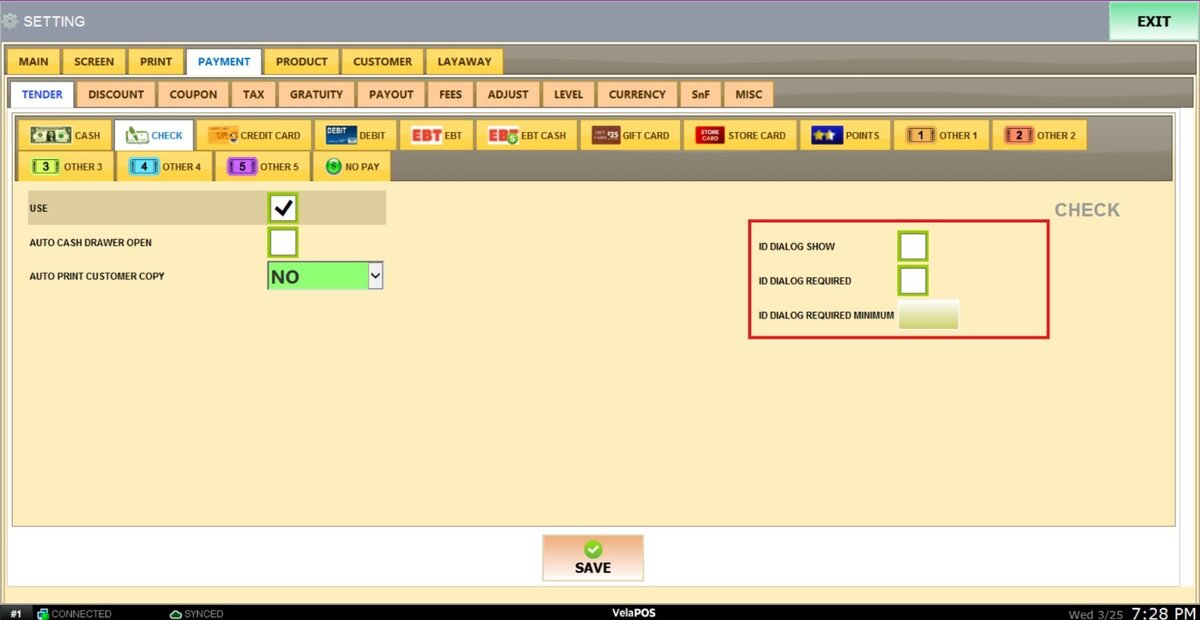
ID DIALOG SHOW: Prompts the cashier to enter a Customer ID when processing a check payment.
ID DIALOG REQUIRED: Requires the cashier to enter a Customer ID to complete the check payment.
ID DIALOG REQUIRED MINIMUM: Requires a Customer ID only when the check payment exceeds a specified amount. Enter the minimum transaction value that will trigger the ID requirement.

After making all the changes, click on SAVE and RESTART THE PROGRAM.