Custom Fields
This setting enables the creation of custom product fields to capture additional details and improve product searches through filtering.
Main screen >MENU >SETTINGS >PRODUCT> CUSTOM FIELD
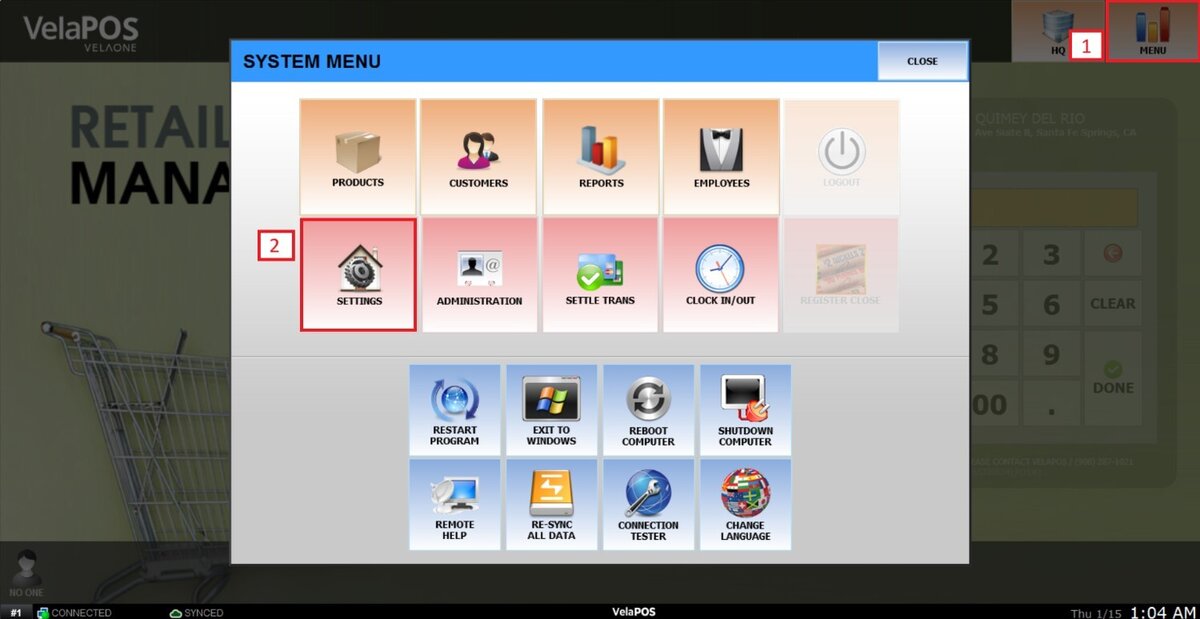
On the main screen, go to MENU and click SETTINGS.
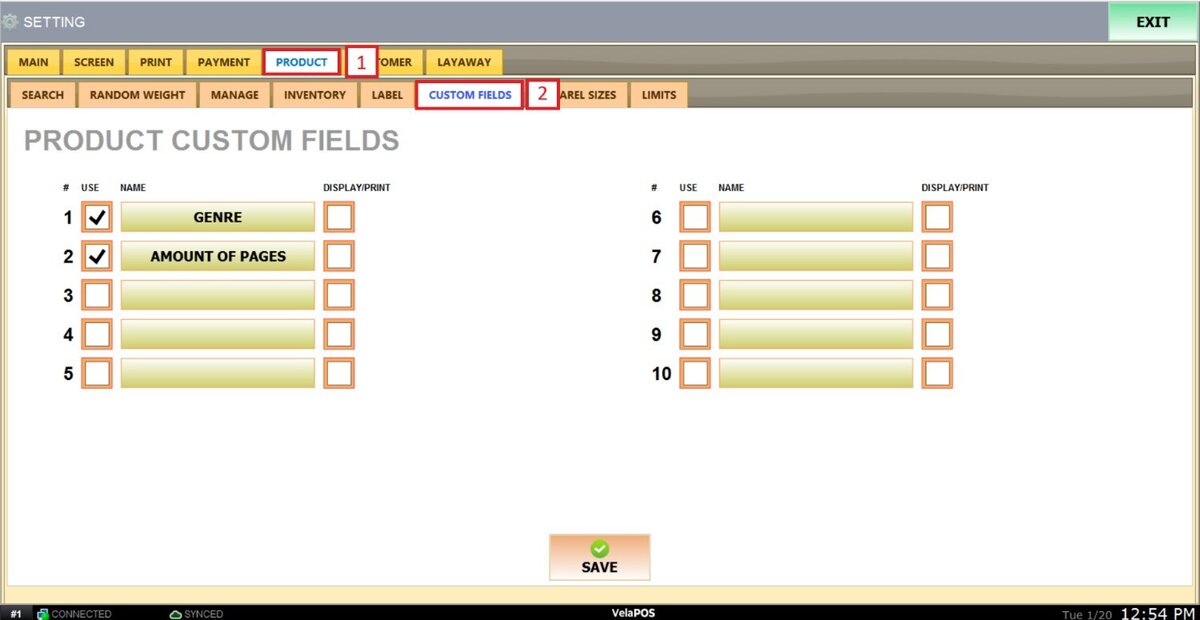
On PRODUCT select the CUSTOM FIELD tab.
To add a new field check the box at the right of an empty field and press the empty field.
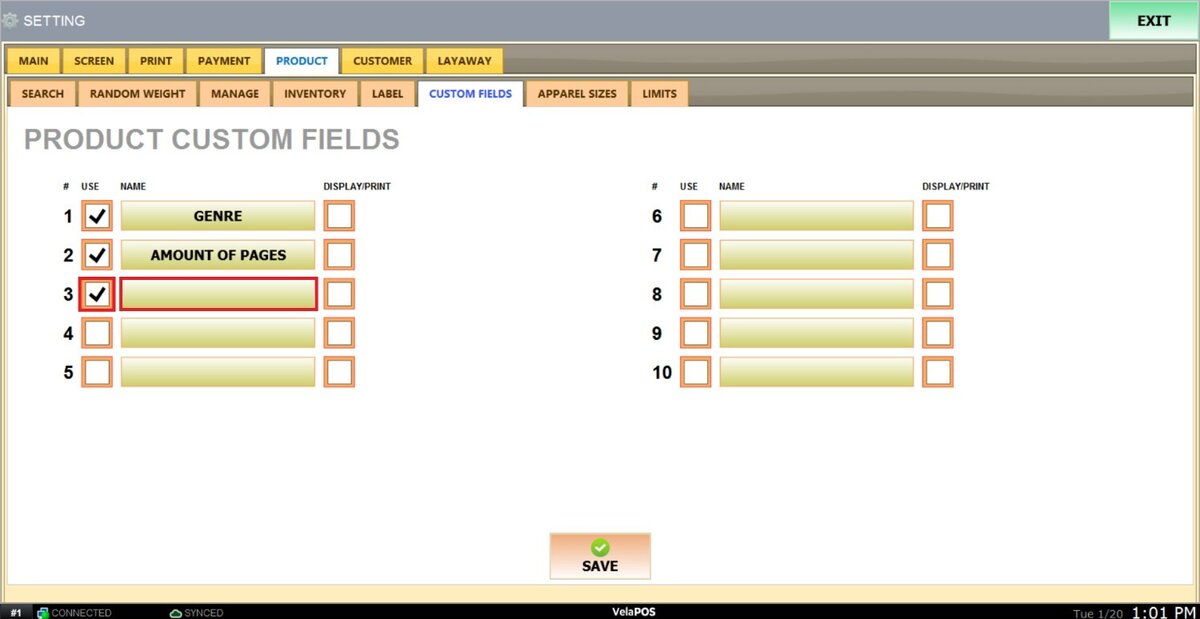
Enter the desired information in the field provided.
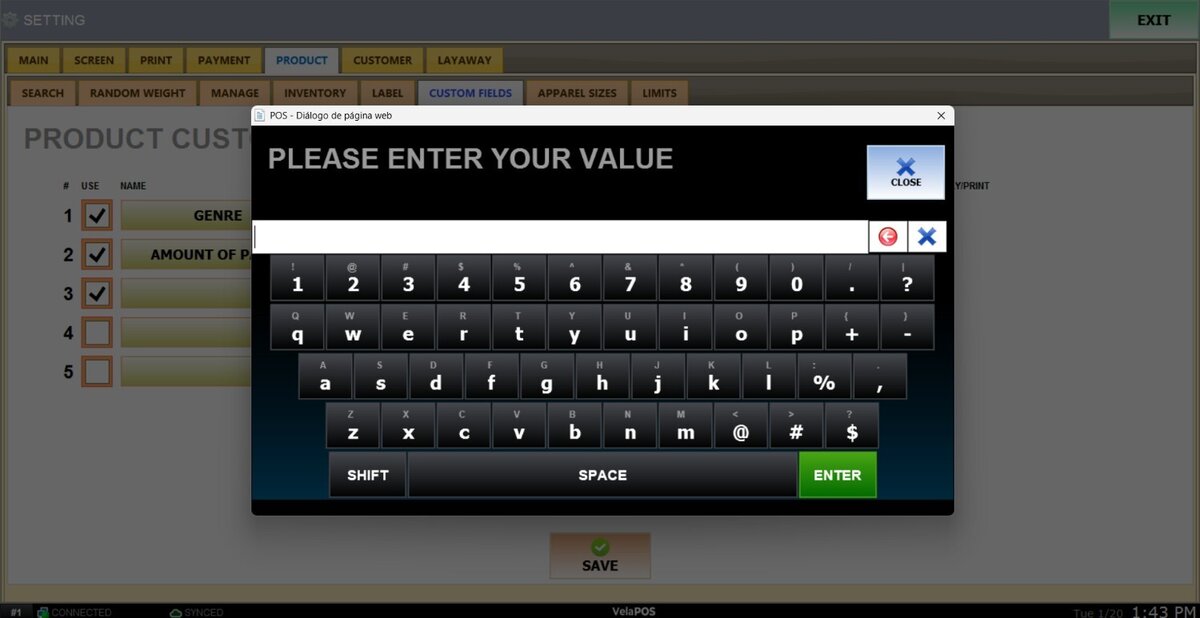
Note: If you check the DISPLAY/PRINT box next to a field, that product information will apear on the ticket.
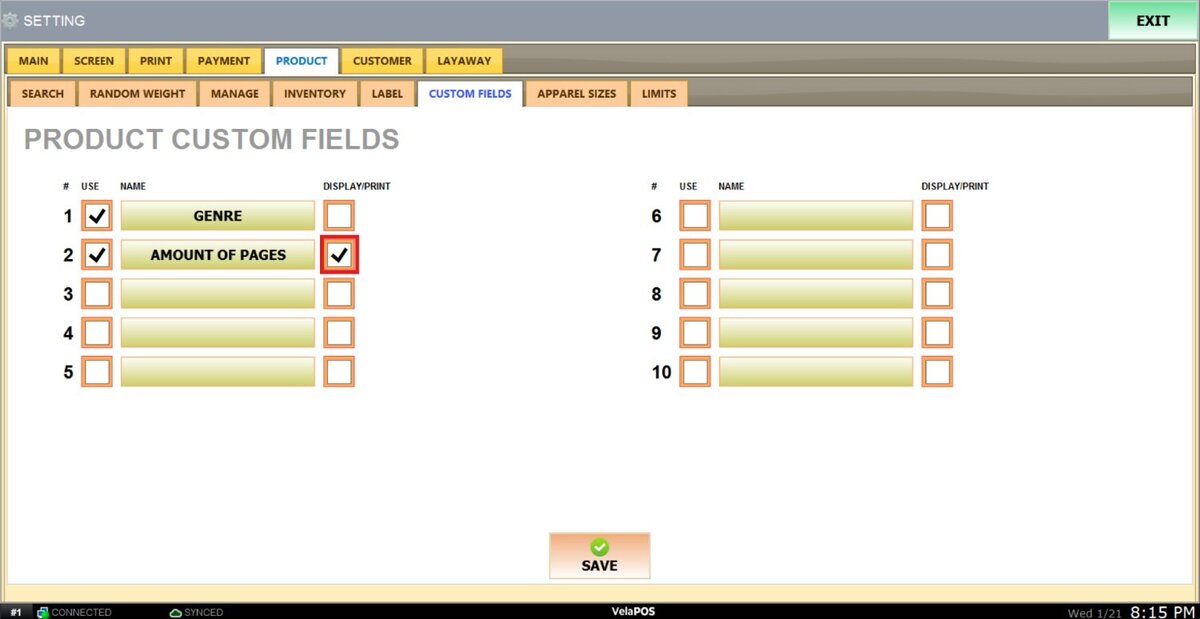
Result:
This is how the receipt will appear when the option is enabled.

Hint: For instructions on how to use these fields and assign them to products, refer to product's fields.
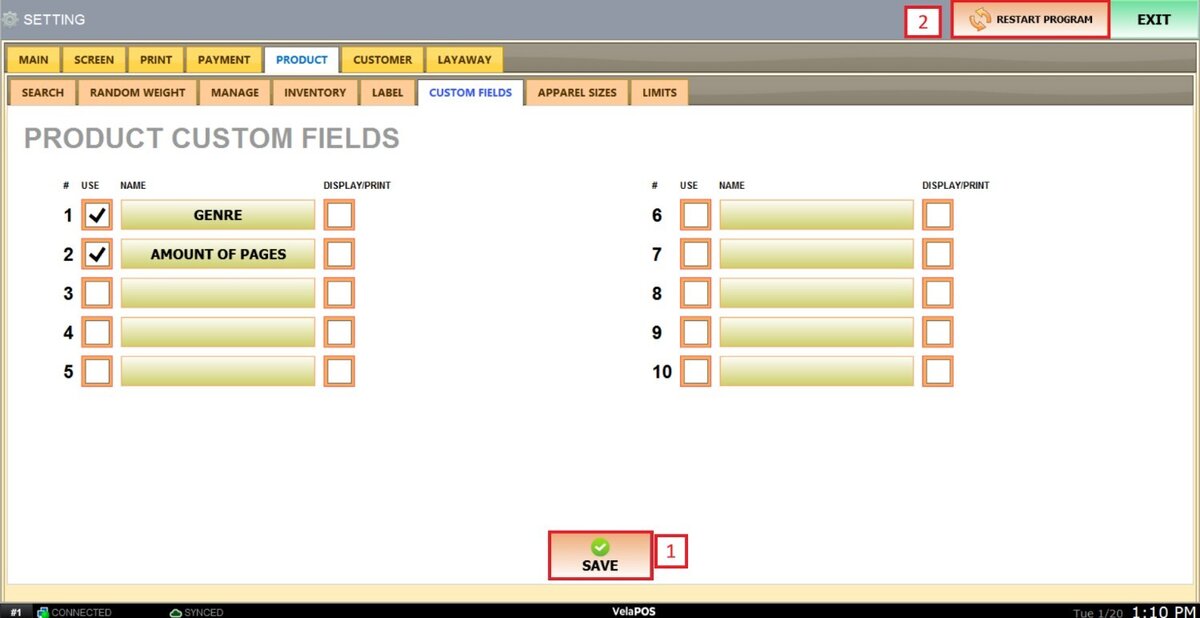
After making any modifications, press SAVE and RESTART THE PROGRAM to ensure the updates are applied correctly.