Inventory Store/ Location Specific
You can define the rules for store pricing authority and inventory accuracy. It ensures that individual stores maintain appropriate control over their pricing and provides essential safeguards during physical inventory counts to prevent accidental data loss.
Main Screen > MENU > SETTINGS > PRODUCT > INVENTORY
Go to MENU, then SETTINGS

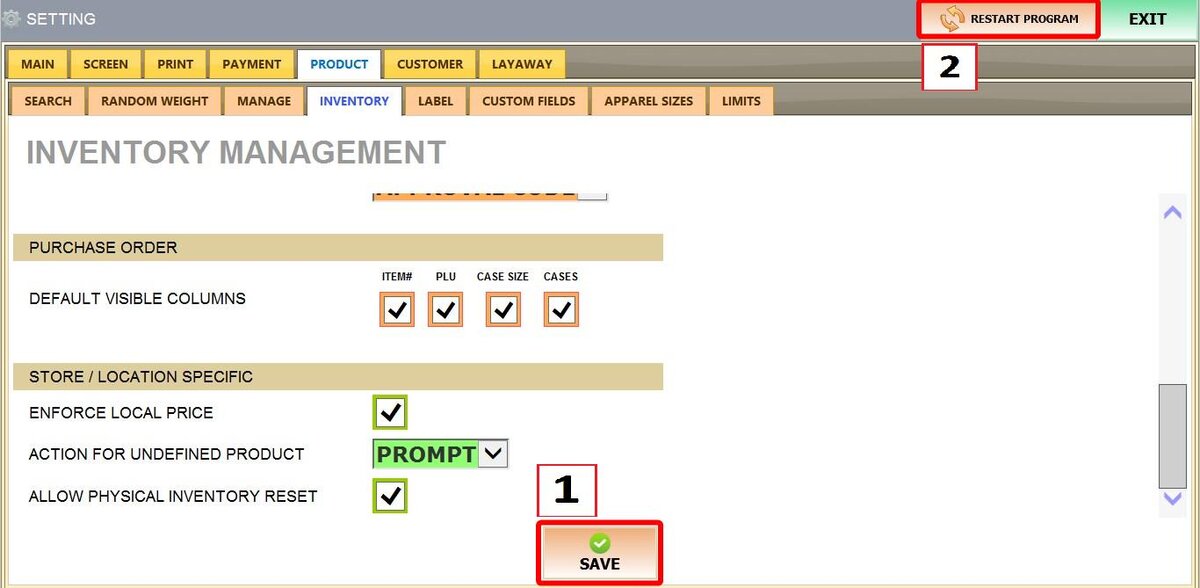
Go to PRODUCT, then select the INVENTORY tab and locate the STORE/LOCATION SPECIFIC section.
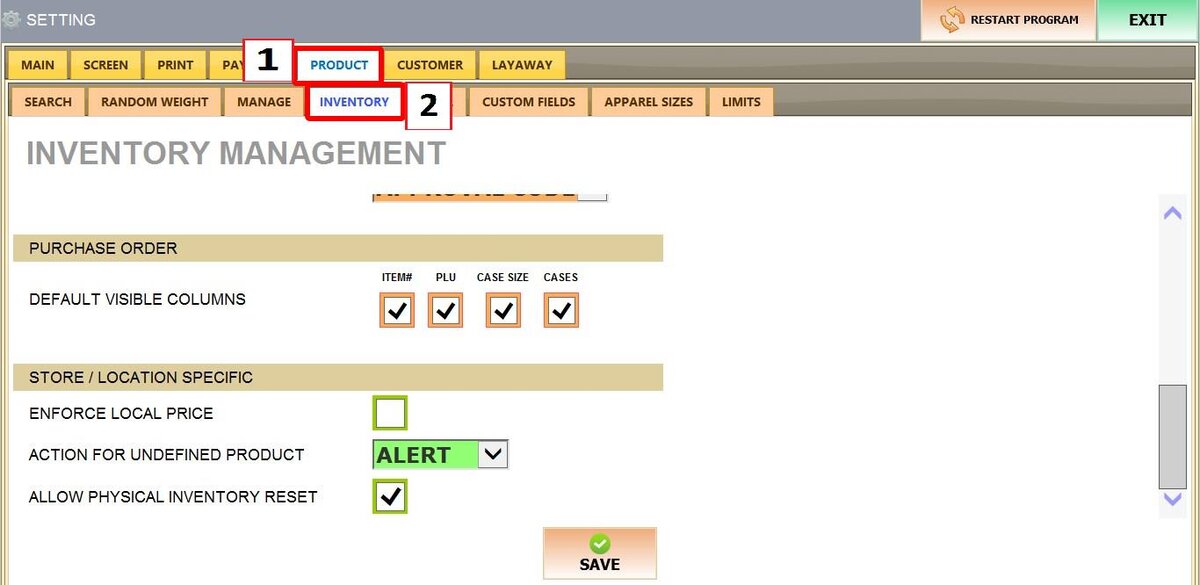
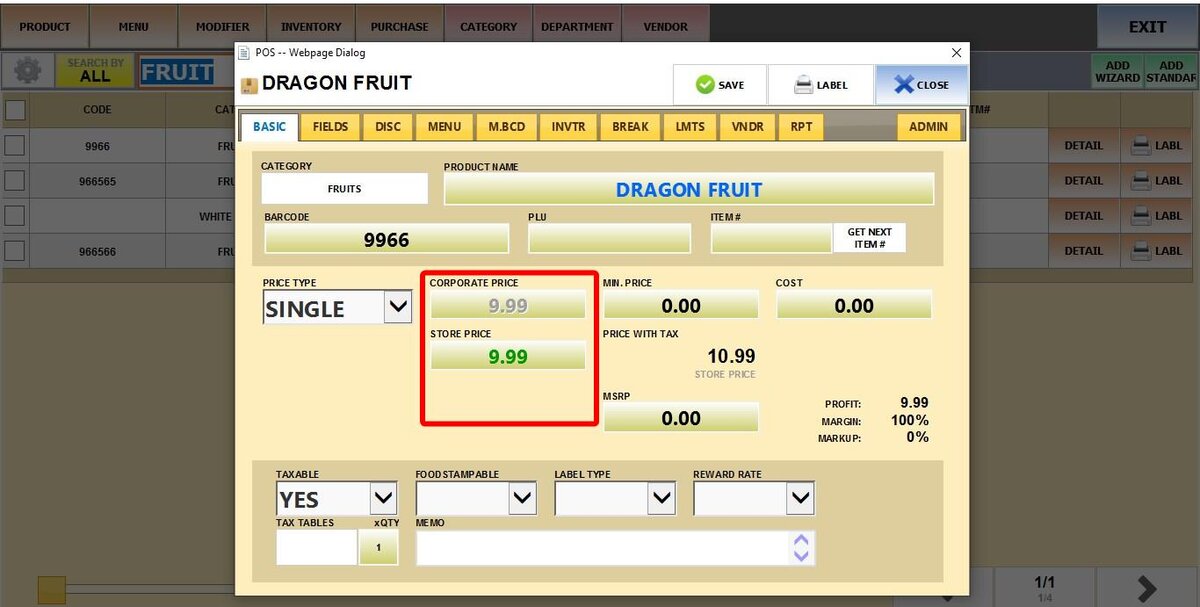
1. ENFORCE LOCAL PRICE: When checked, the system allows you to edit and use "Store Prices" (local) rather than relying on a centralized corporate price. This is useful for multi-store businesses that need to adjust pricing based on location-specific costs.

Checked:
Unchecked:
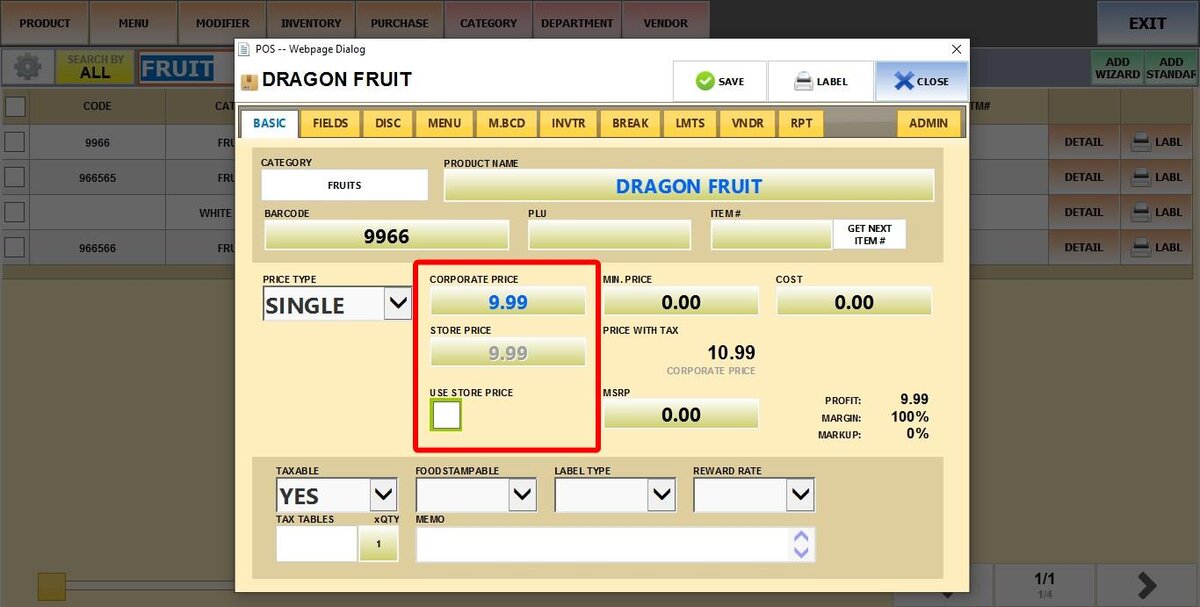
See Price Information for more on Store (Local) vs. Corporate pricing.
2. ACTION FOR UNDEFINED PRODUCT: Manages how the POS handles items with a $0.00 price (Undefined Price) when scanned or selected.

BLANK: No notification or prevention. You can ring up items with undefined price.

ALERT: Blocks the sale and displays a "Price Not Defined" warning. When you ring up an item with undefined price. The item is not added to the Sales Screen.
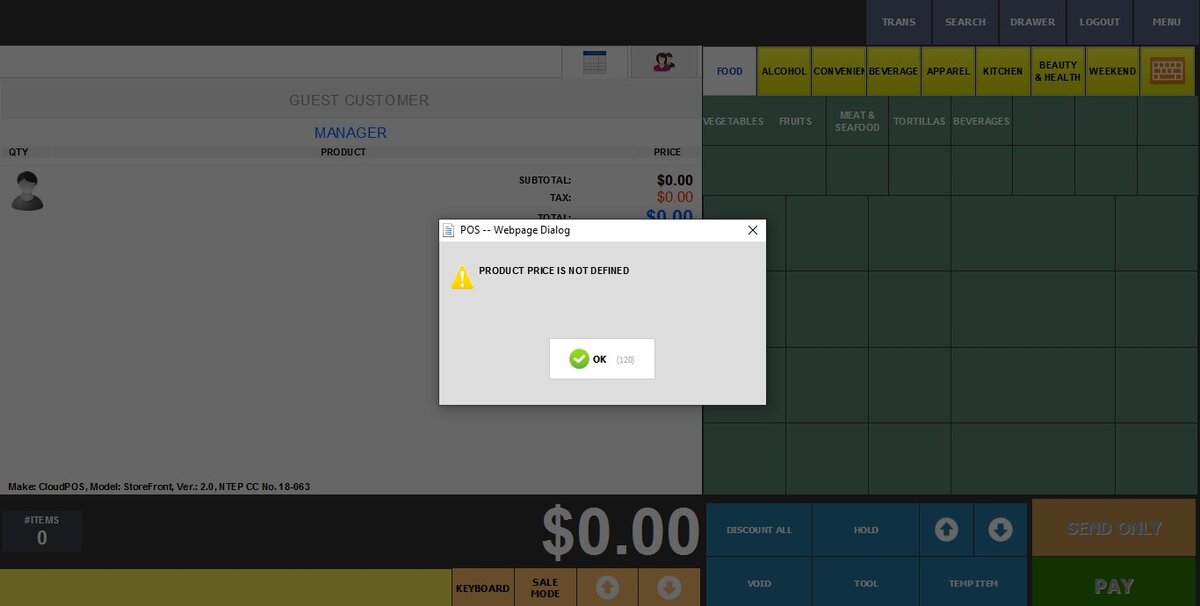
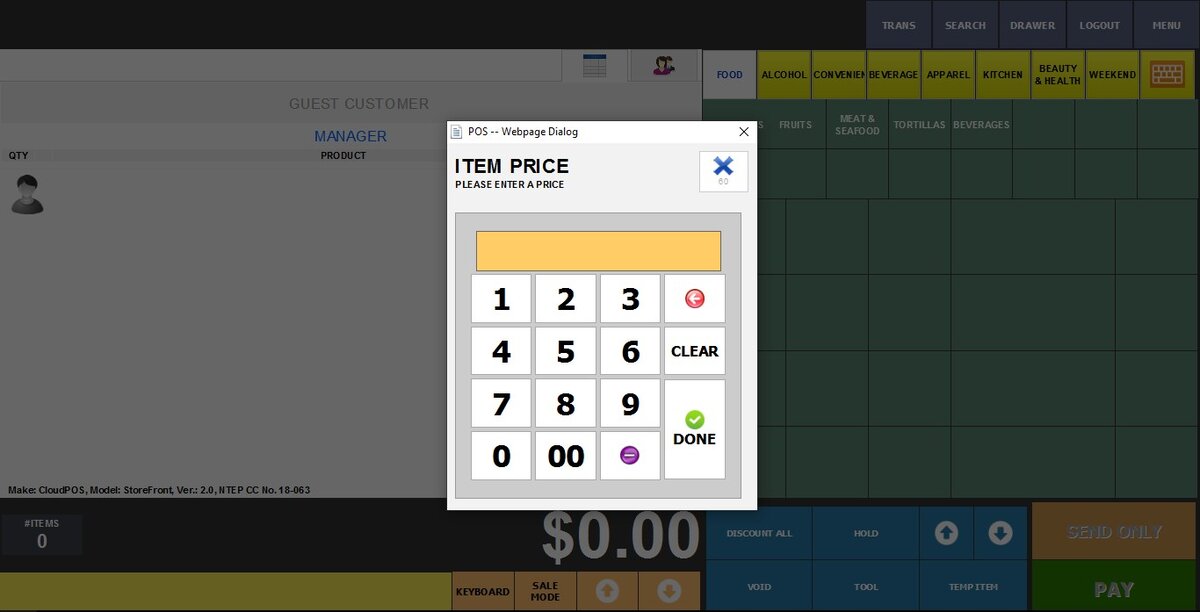
PROMPT: When you ring up an item with undefined price. Opens a window, forcing the cashier to manually enter a price before the item is added.
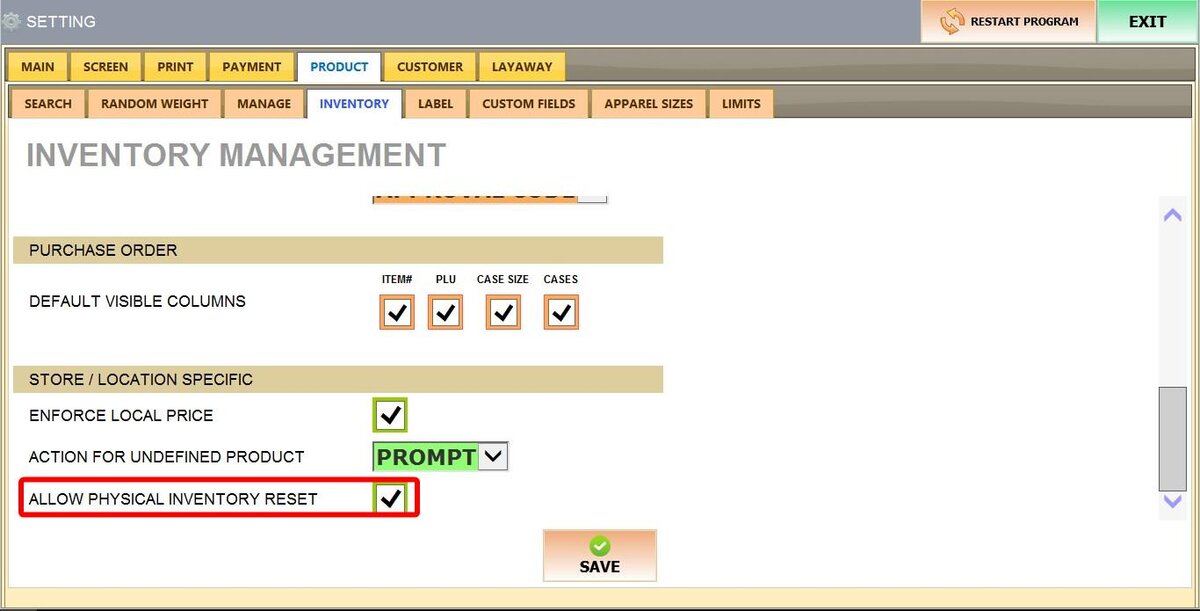
3. ALLOW PHYSICAL INVENTORY RESET: When checked, this setting enables specific inventory modes.
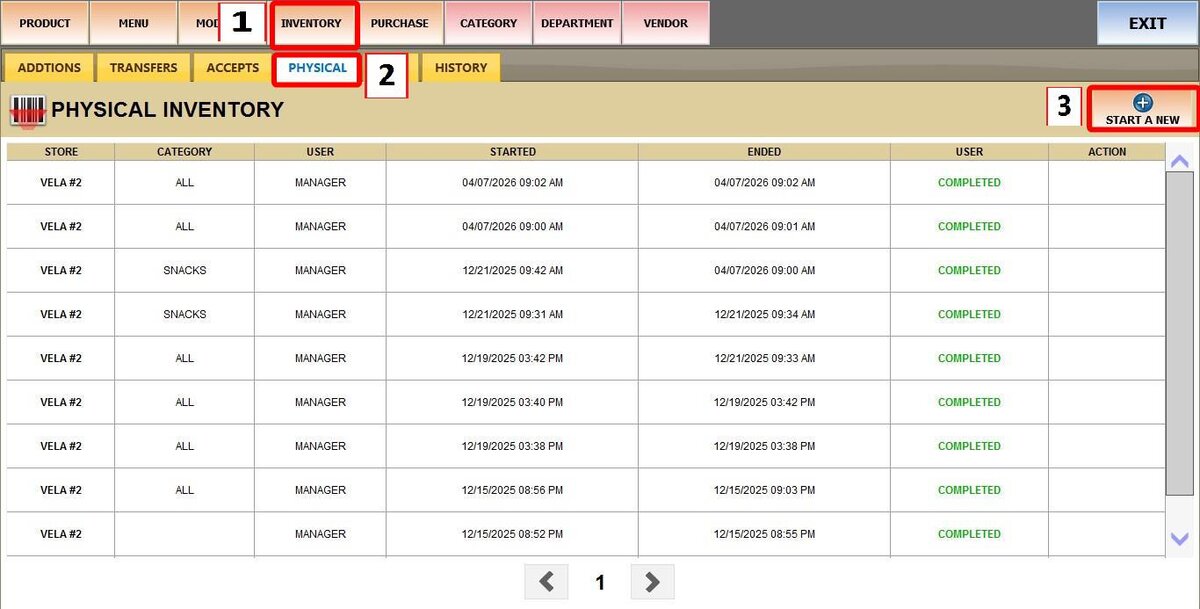
Go to MENU > PRODUCT> INVENTORY > PHYSICAL.
Click START A NEW
CLOSED STORE/CLOSED CATEGORY: Automatically resets counts to zero for the entire store or a specific category.
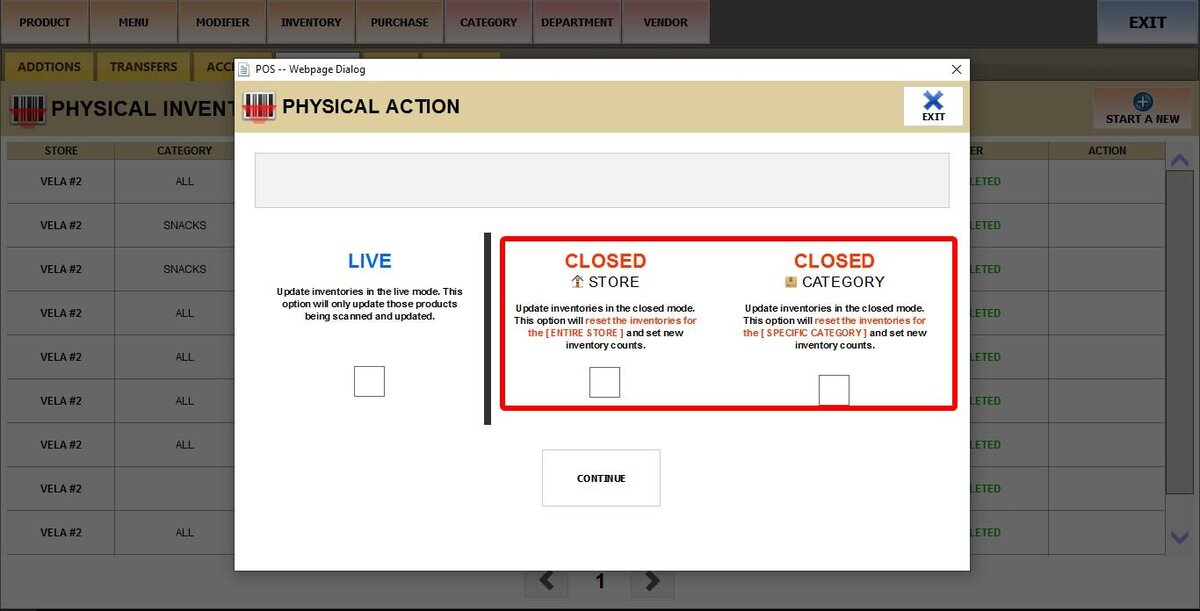
If ALLOW PHYSICAL INVENTORY RESET is unchecked, these 2 options will not be available. Clicking START A NEW will take you automatically to the LIVE option, which does not reset current counts.
After you've changed the settings click SAVE and RESTART PROGRAM
See Physical Inventory to see how a Physical Inventory is done.