Purchase Order
This feature allows you to define which columns are displayed by default on the invoice when creating a new purchase order.
Main Screen > MENU > SETTINGS > PRODUCTS > INVENTORY > Purchase Order
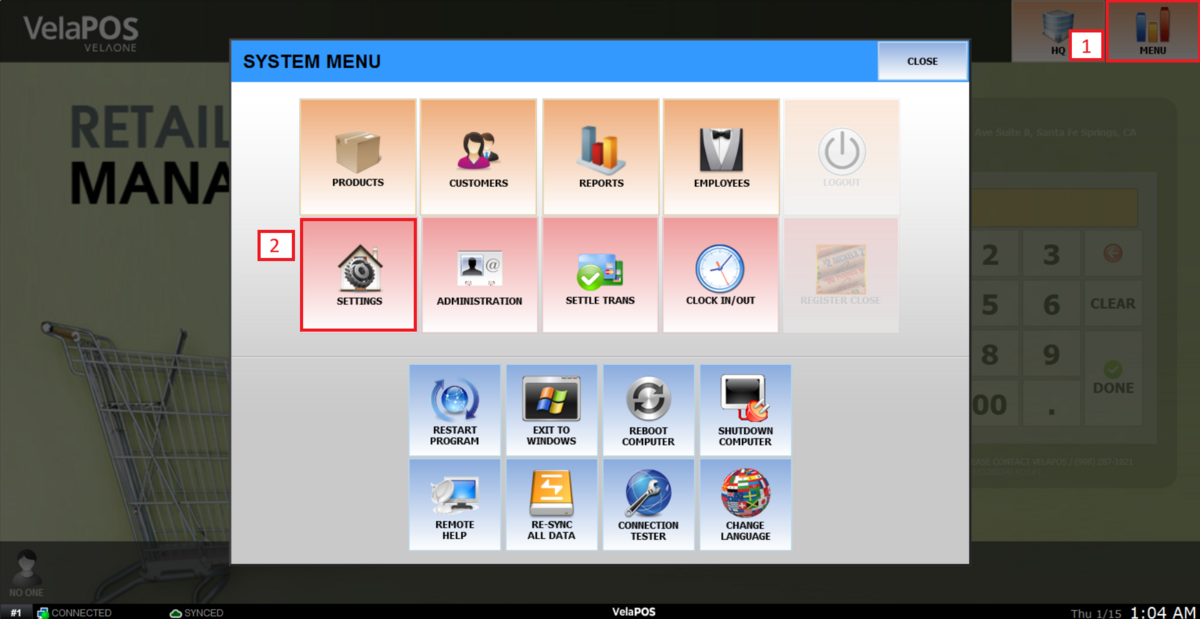
Go to MENU and press SETTINGS.
Under PRODUCTS, open the INVENTORY tab and scroll down to the PURCHASE ORDER section.
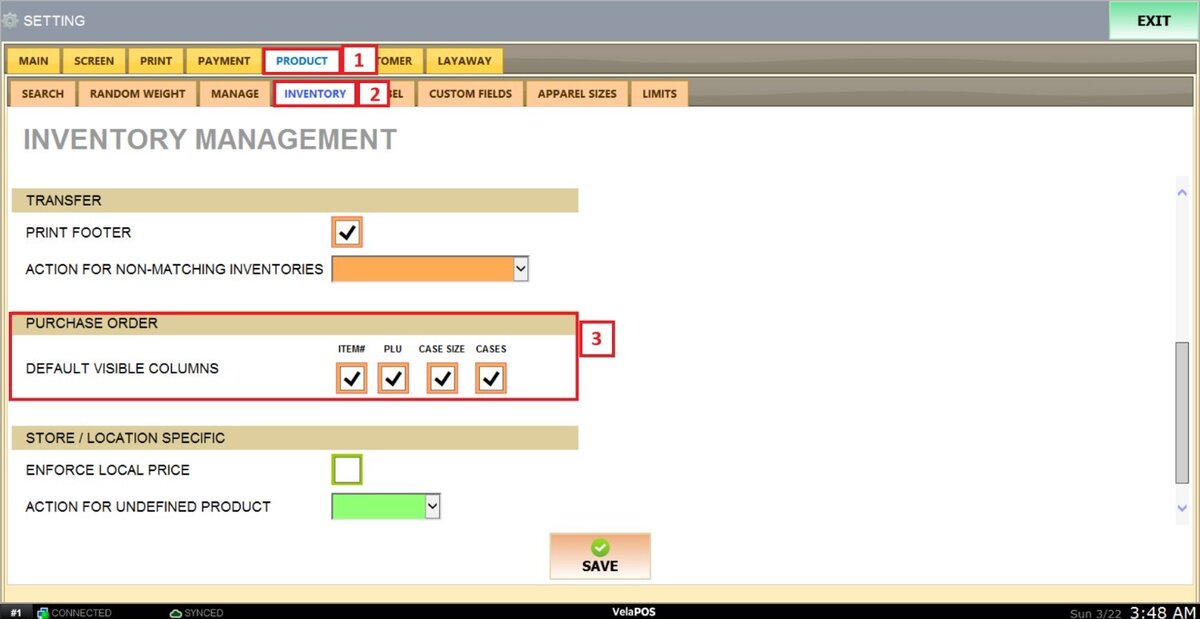
On DEFAULT DIFFERENT COLUMNS, you will find four available options: Item, PLU, Case Size, and Cases.
Uncheck any options you do not want to appear on the vendor invoice. Checked boxes will be displayed as columns, unchecked boxes will be hidden.

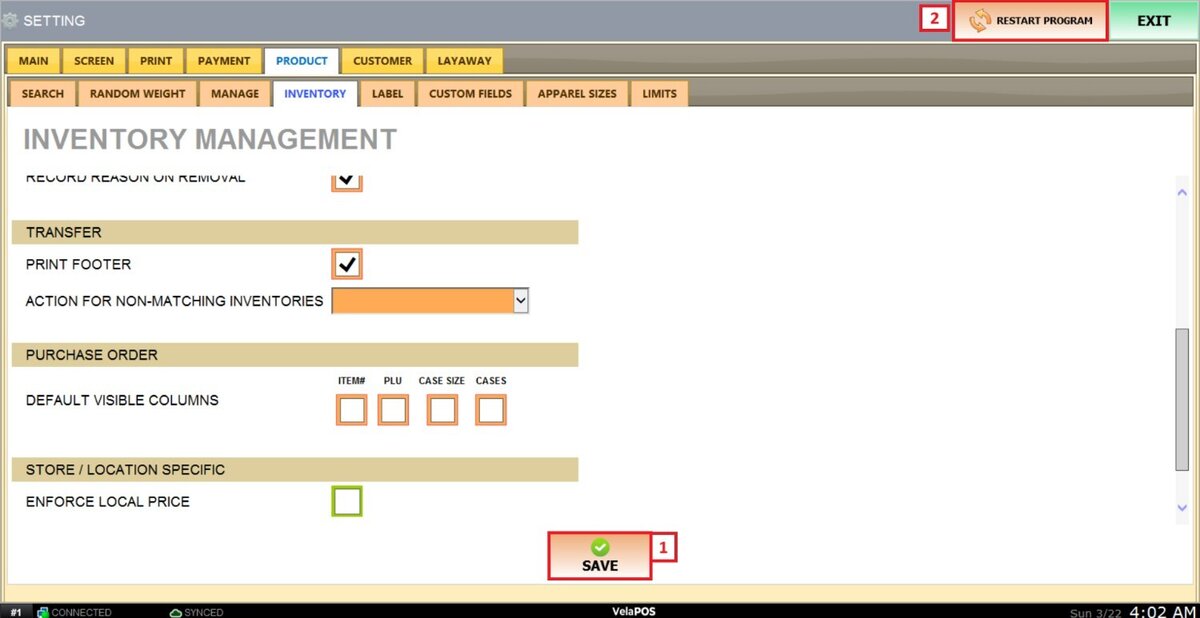
Press SAVE and RESTART THE PROGRAM to apply the changes.
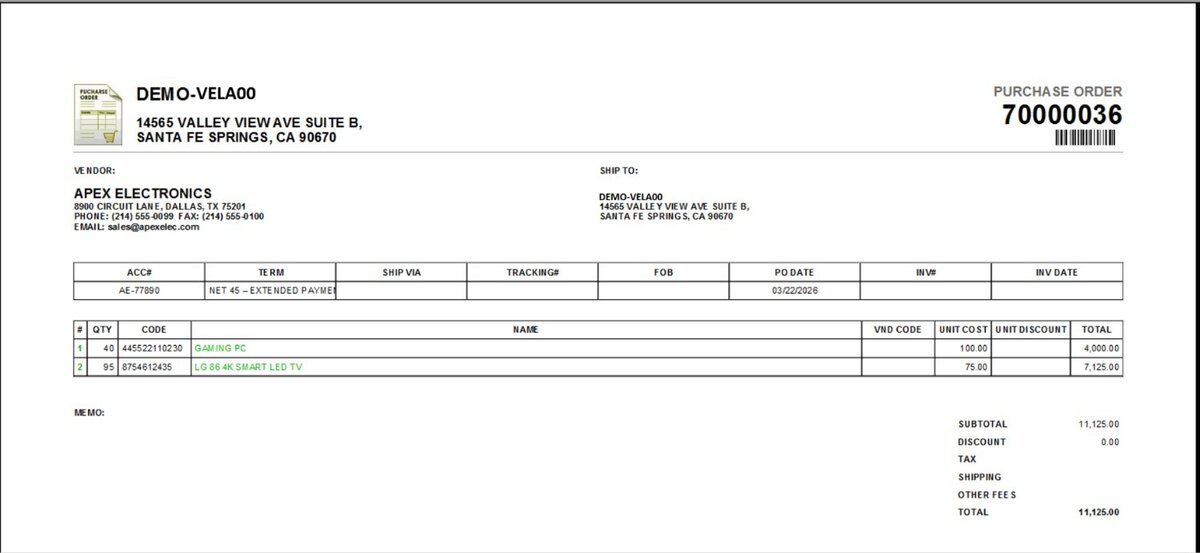
RESULT:
When all options are selected, all corresponding columns will appear on the invoice.
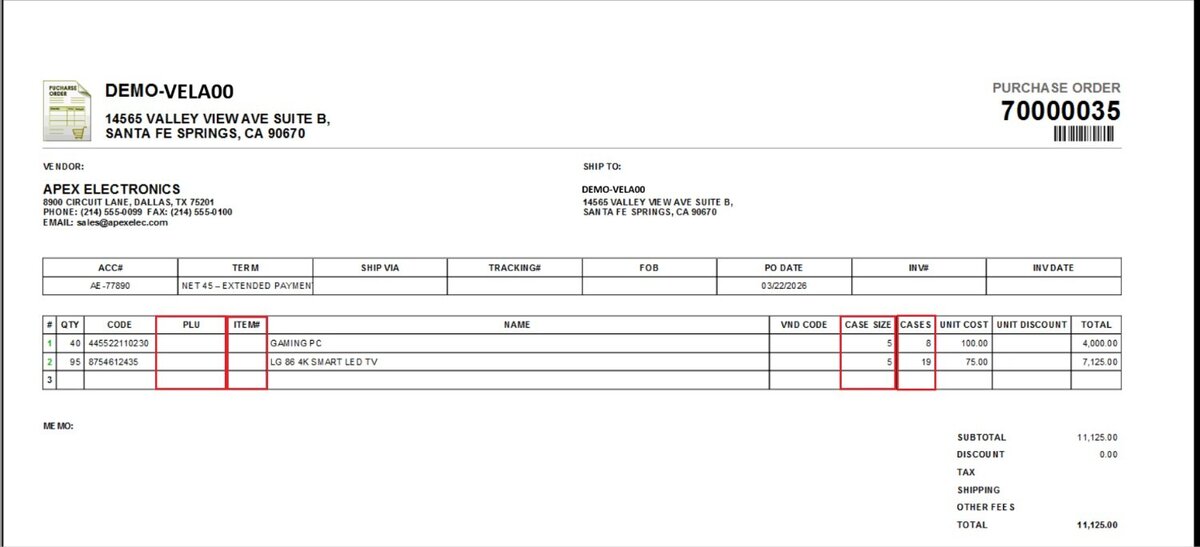
When all options are unchecked, none of these columns will be displayed.
Note: For instructions on creating a purchase order, refer to New Purchase Order.