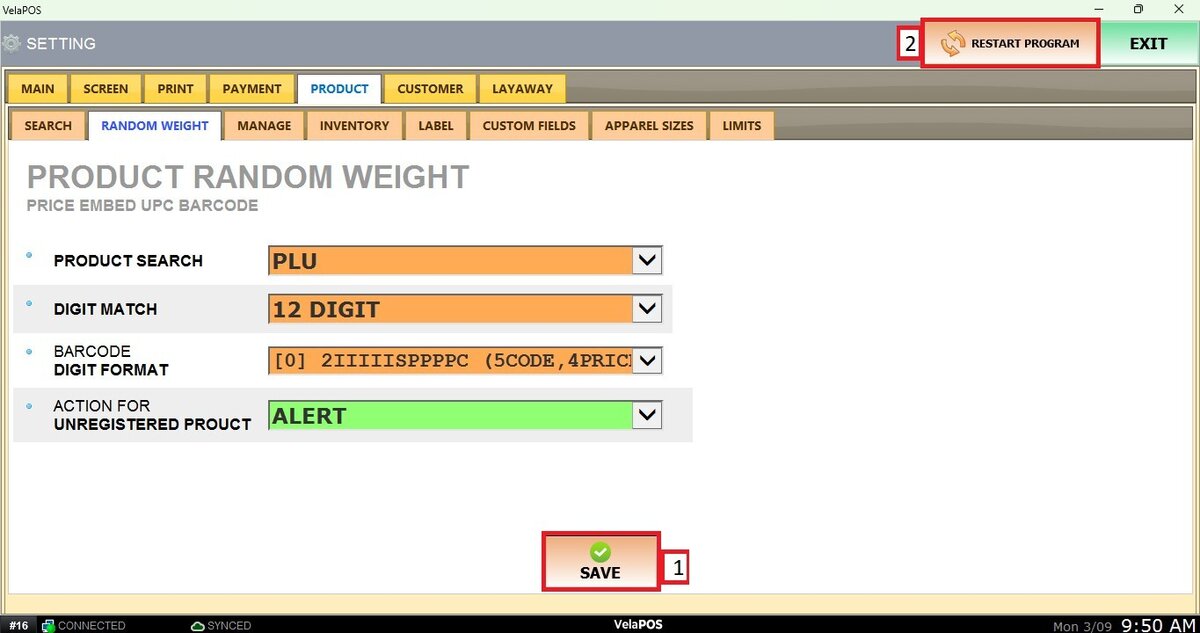
Random Weight
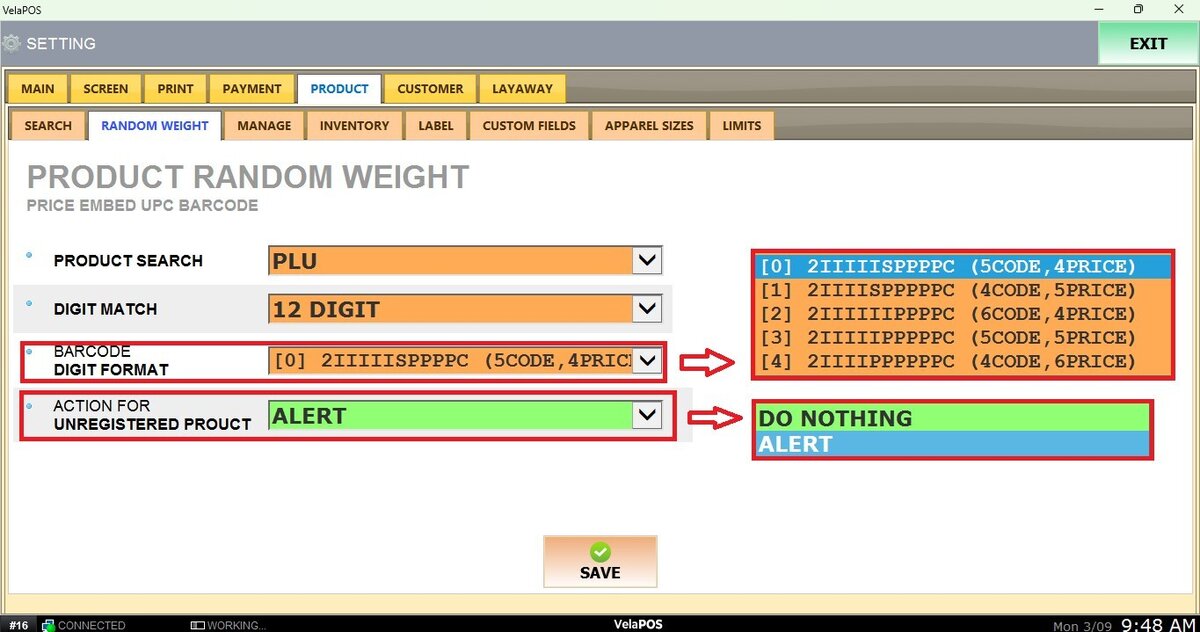
This feature configures barcodes for weighted products, where the item information and price are embedded within the barcode itself. In this section, you can match the barcode format generated by your weighing scale so our POS can properly recognize it. When the barcode is scanned during a sale, the POS automatically identifies the product and applies the corresponding price.
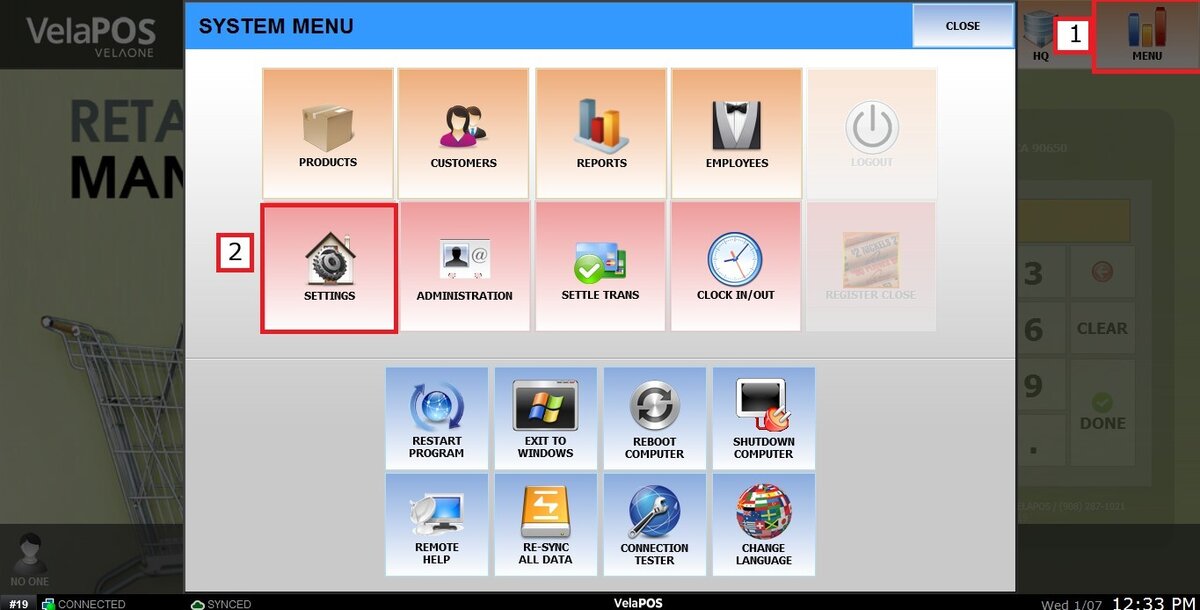
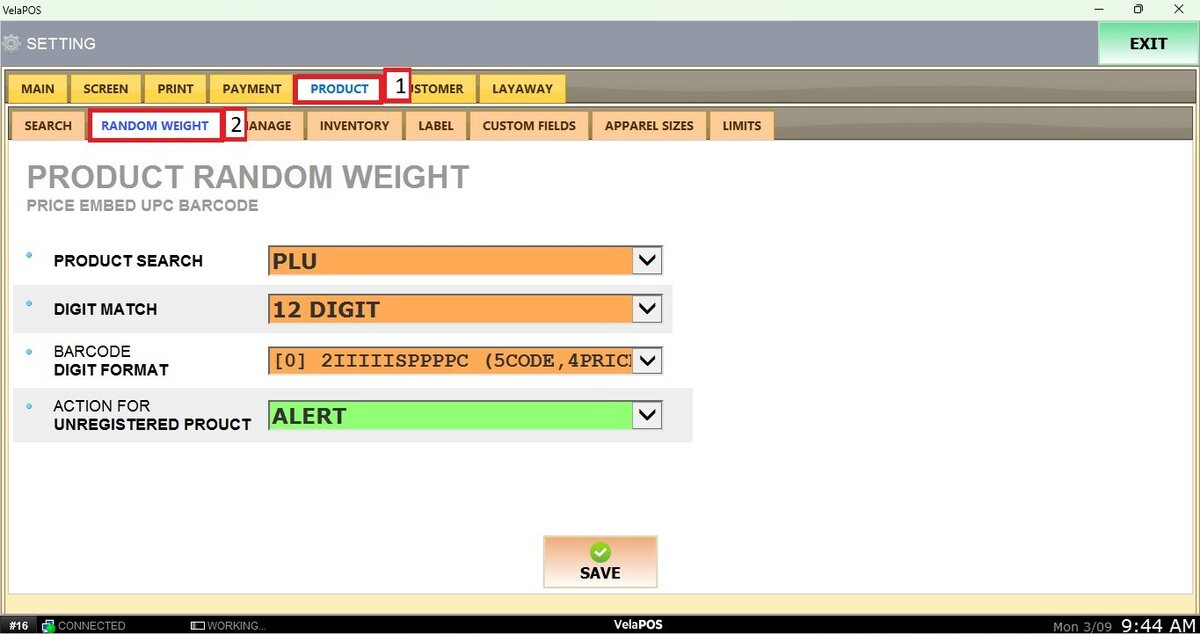
Main Screen> MENU> SETTINGS> PRODUCT> RANDOM WEIGHT
Go to MENU and press SETTINGS.
Go to the PRODUCT tab, click on RANDOM WEIGHT.
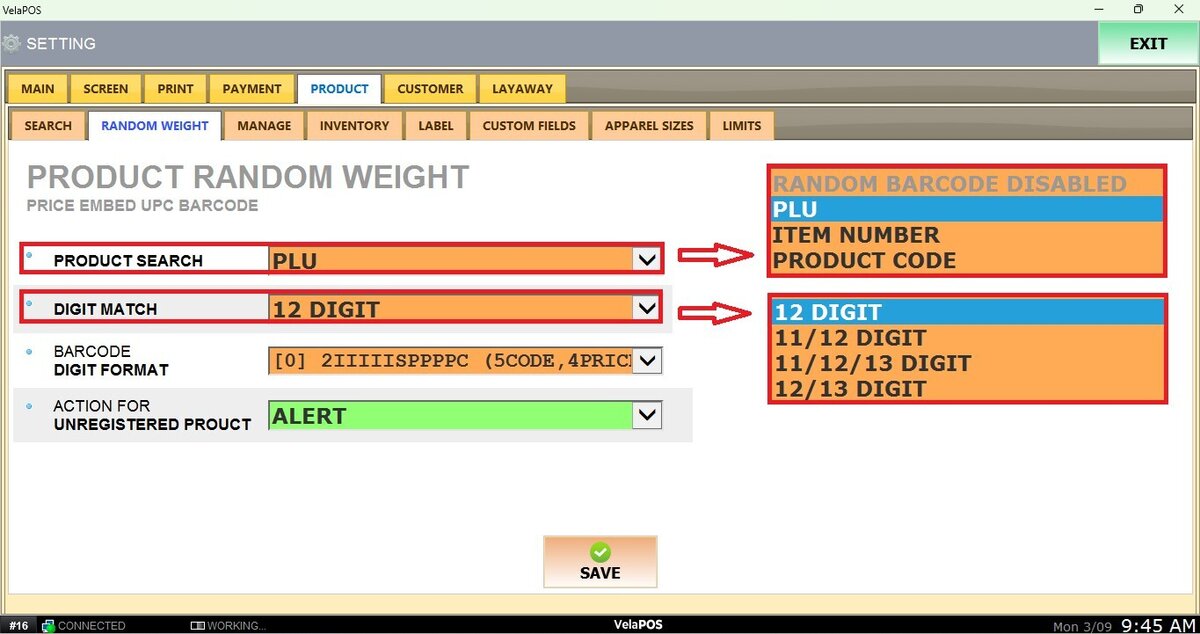
PRODUCT SEARCH:
In the dropdown menu, select how the system searches for products by barcode, using either PLU, Item Number, or Product Code. Select RANDOM BARCODE DISABLED to turn off random barcode recognition.
DIGIT MATCH:
In the dropdown menu, select the minimum number of digits required for the system to recognize and match the product from the barcode.
BARCODE DIGIT FORMAT:
You can select between four options for how the information on the barcode is going to be structured. The printed barcode will contain the following elements:
Header (2): Identifies the barcode as a random weight barcode.
Product Information (I): The product identifier based on the option selected in Product Search. The number of digits printed depends on the Digit Format selected.
Price Header (S): A digit that identifies the section where the price information begins, depending on the format selected.
Price (PPPP): The product price in dollar–dollar–cent–cent format.
Suffix (C): A control digit used for barcode validation.
ACTION FOR UNREGISTERED PRODUCT:
In the dropdown menu, choose how the system should respond when an unregistered product barcode is scanned. The system can either display an ALERT as a pop-up on the Sales Screen or DO NOTHING.
After changing any settings, make sure to click SAVE and then RESTART PROGRAM to apply the changes.