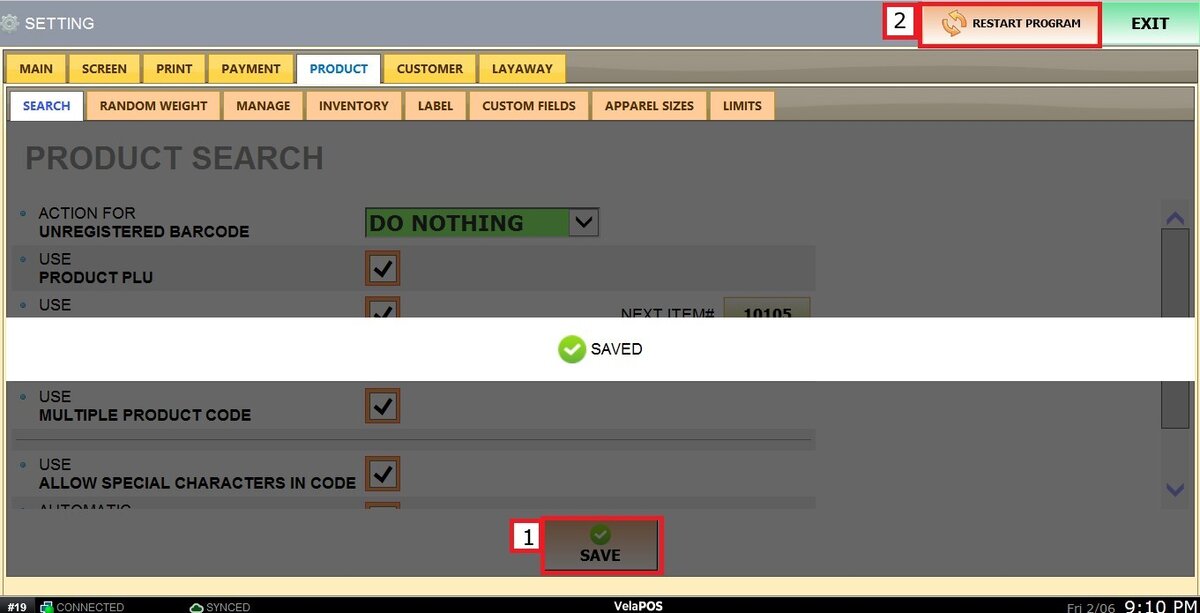
Search
The Product Search settings control how VelaPOS identifies and locates products within the system. This section allows you to define how products are searched, how barcodes are interpreted, and how the system responds when an unregistered barcode is scanned.
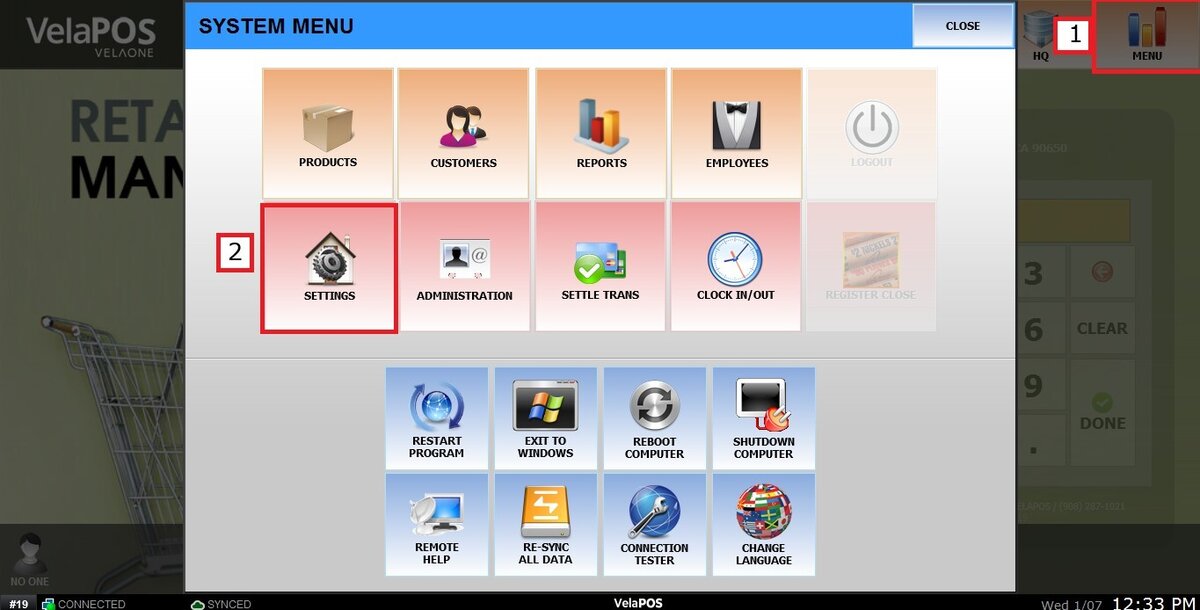
Main Screen>MENU> SETTINGS> PRODUCT> SEARCH
Go to MENU> SETTINGS.
Under the PRODUCTS tab, select SEARCH.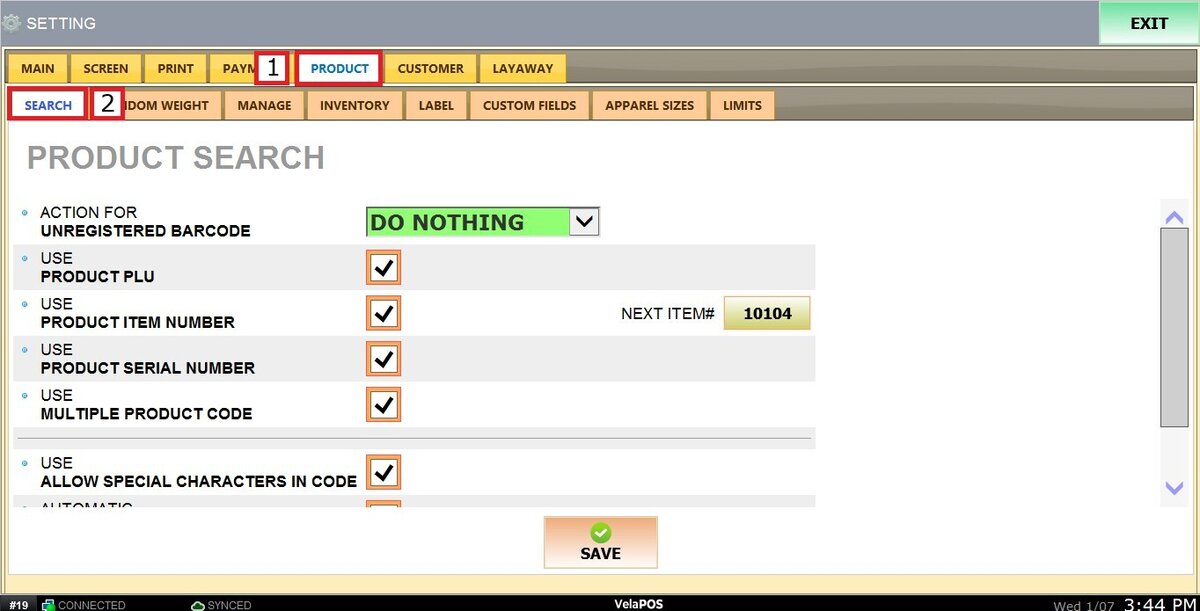
This section contains six different configuration options:
ACTION FOR UNREGISTERED BARCODE.
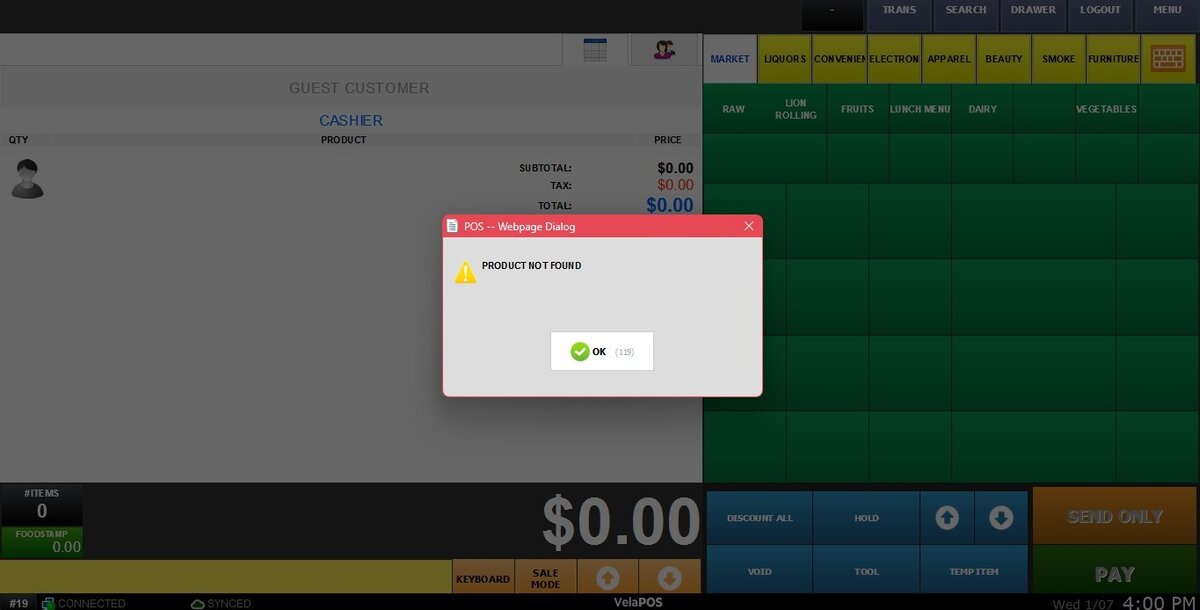
This setting defines how the system behaves when a barcode that does not exist in the inventory is scanned or entered.
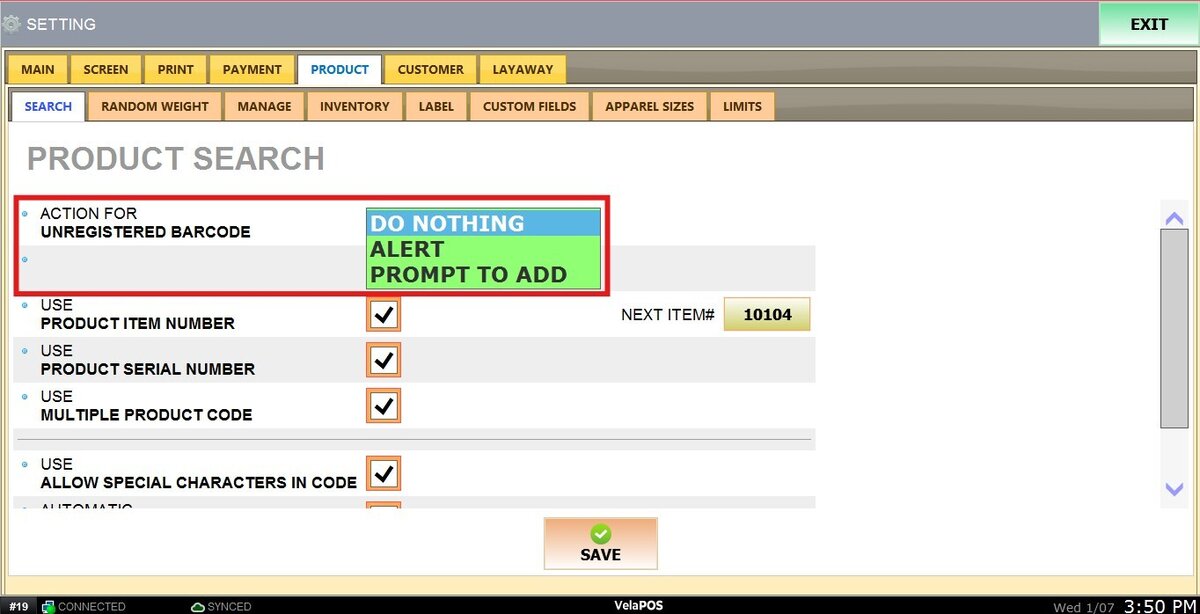
1. DO NOTHING: The system takes no action when an unregistered barcode is scanned or entered.
2. ALERT: The system displays a warning message informing the employee that the product is not registered.
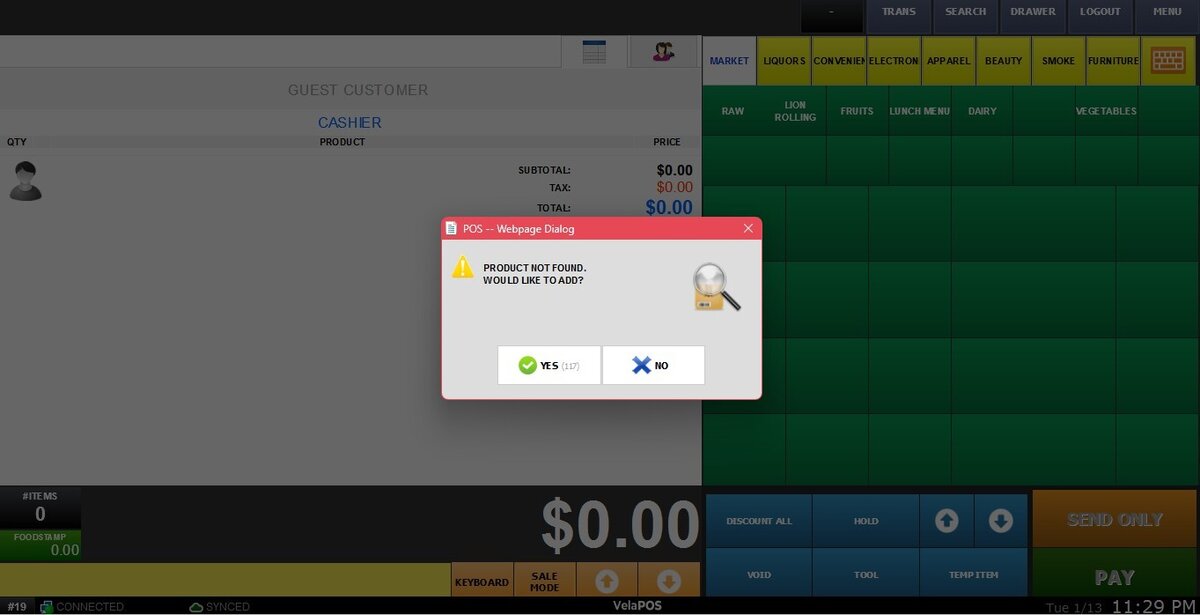
3. PROMPT TO ADD: The system displays a prompt allowing the employee to add the product directly to the inventory.
USE PRODUCT PLU, ITEM NUMBER, SERIAL NUMBER, MULTIPLE PRODUCT CODE.
This section allows you to enable different ways to search for products. Checking the box next to each option activates that search method.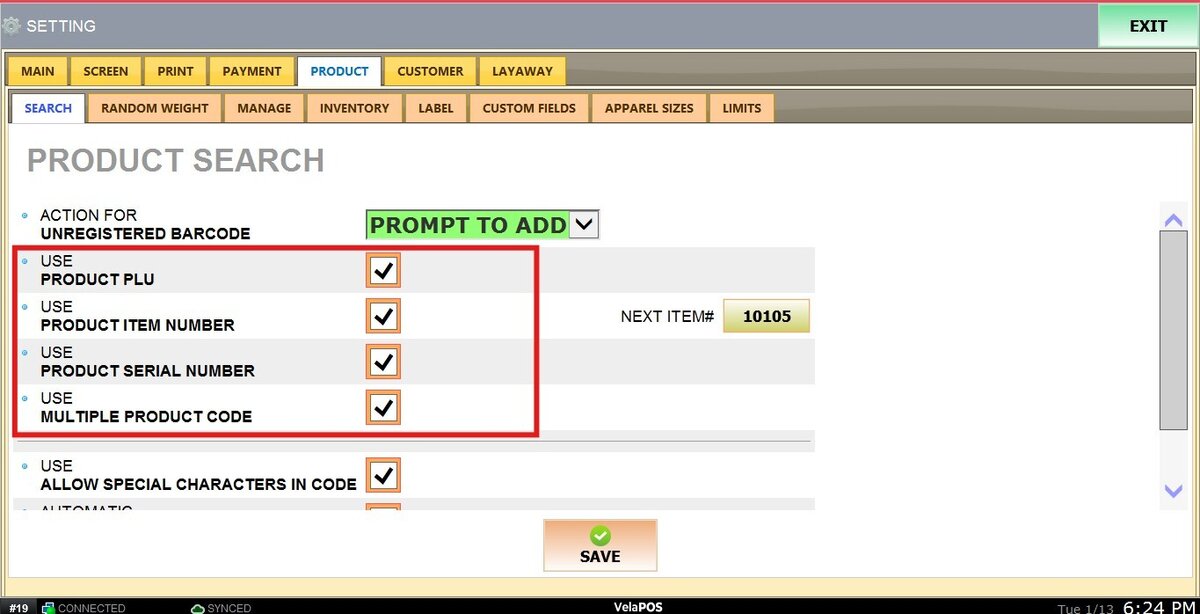
NEXT ITEM#
Displays the item number that will be automatically assigned to the next product added to the system.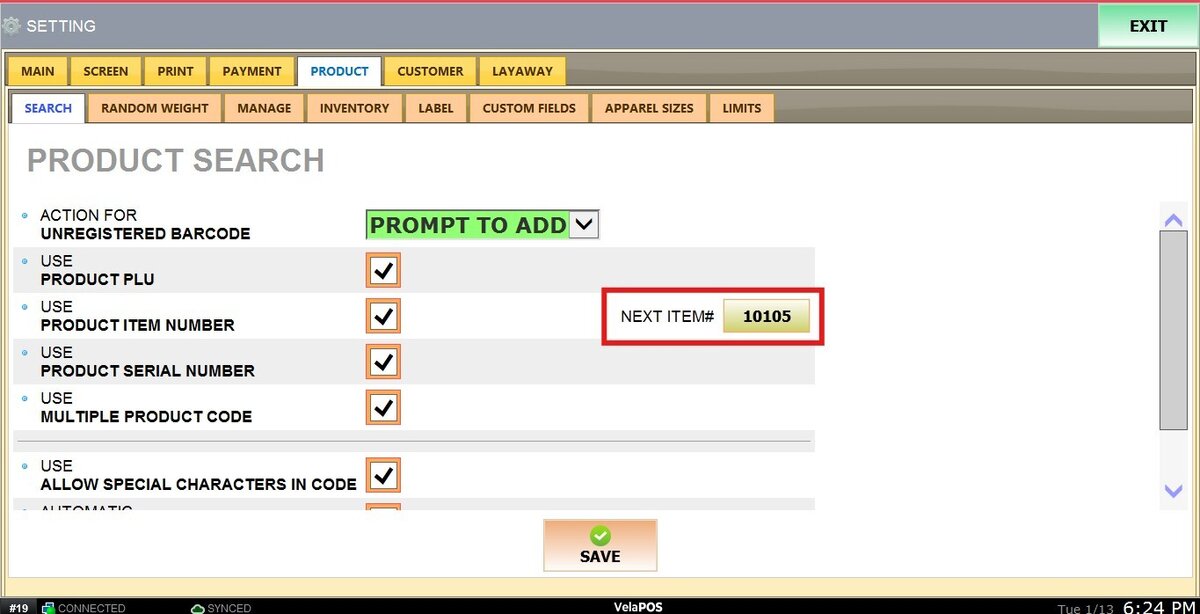
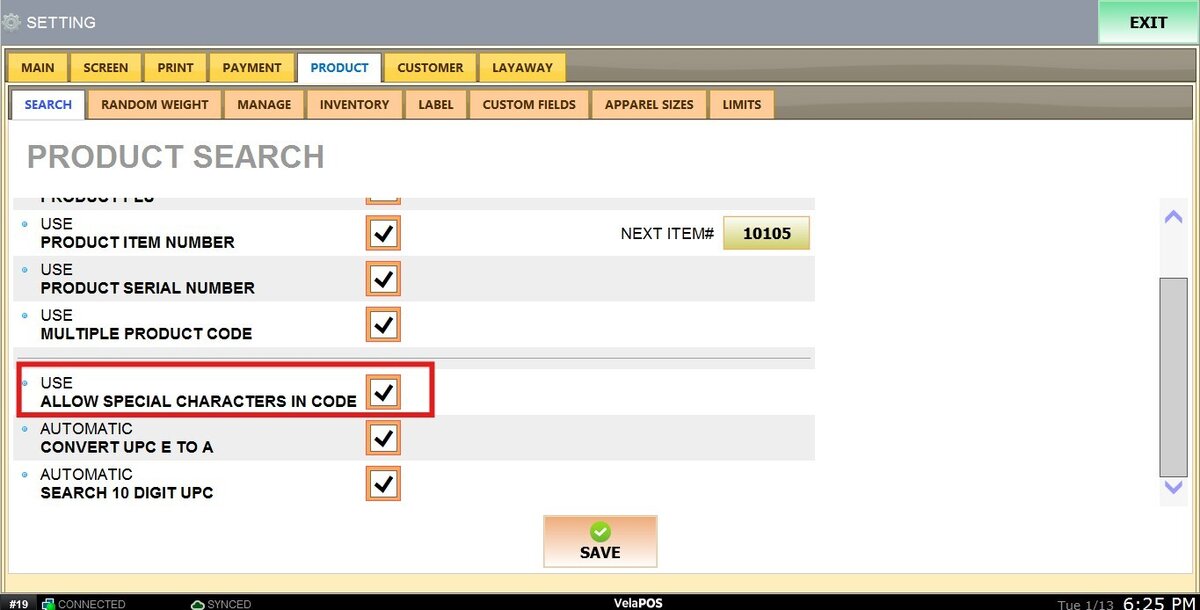
USE ALLOW SPECIAL CHARACTERS IN CODE.
When enabled, product codes can include special characters in addition to letters and numbers (for example: ABC - 123).
AUTOMATIC CONVERT UPC E TO A.
When enabled, the system automatically converts UPC-E (6-digit) codes into UPC-A (12-digit) codes during product searches.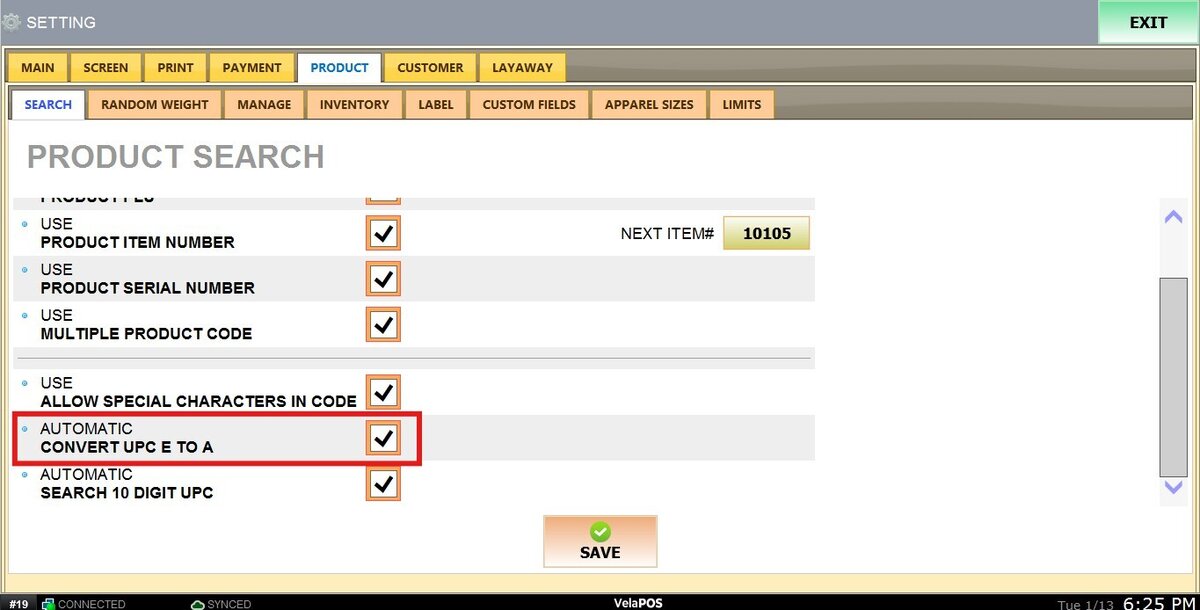
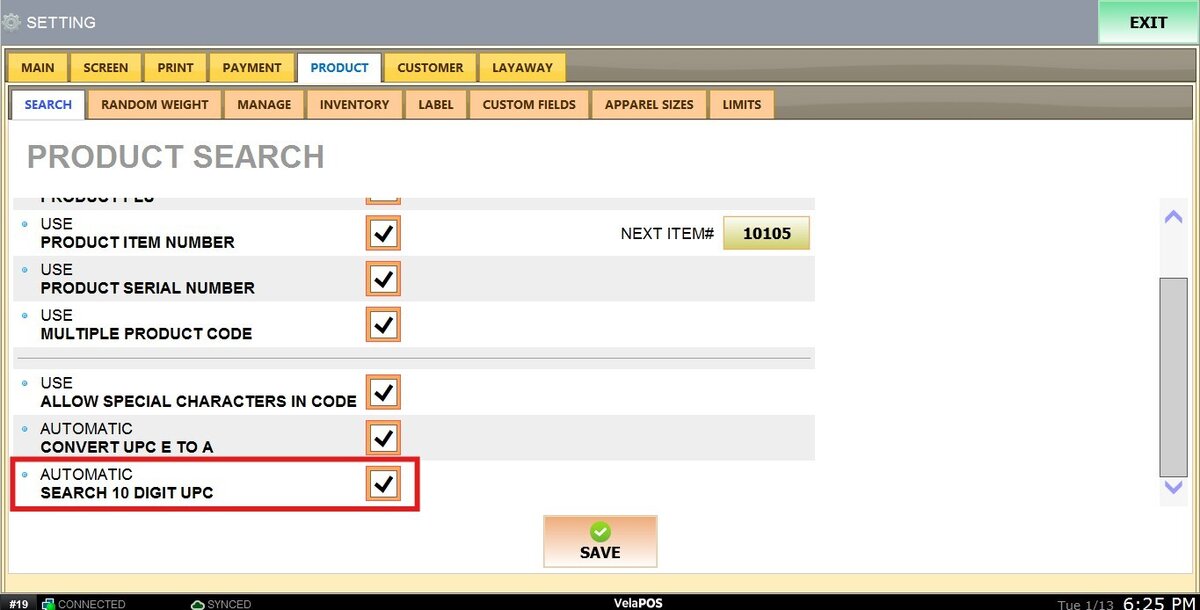
AUTOMATIC SEARCH 10 DIGIT UPC.
Allows VelaPOS to match products when only 10 digits of a UPC are entered or scanned.
After making any change please remember to click on SAVE and RESTART THE PROGRAM.