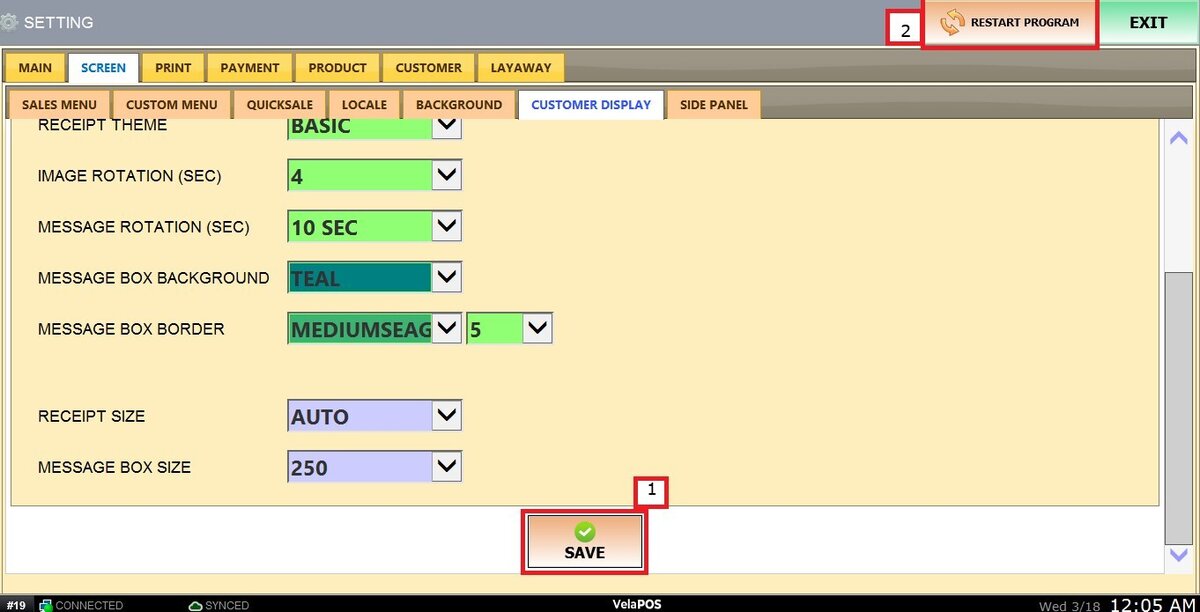
Layout
This setting configures the appearance and information displayed on the customer-facing screen. It supports displaying customer details, loyalty points, images, and rotating messages to enhance the customer experience.
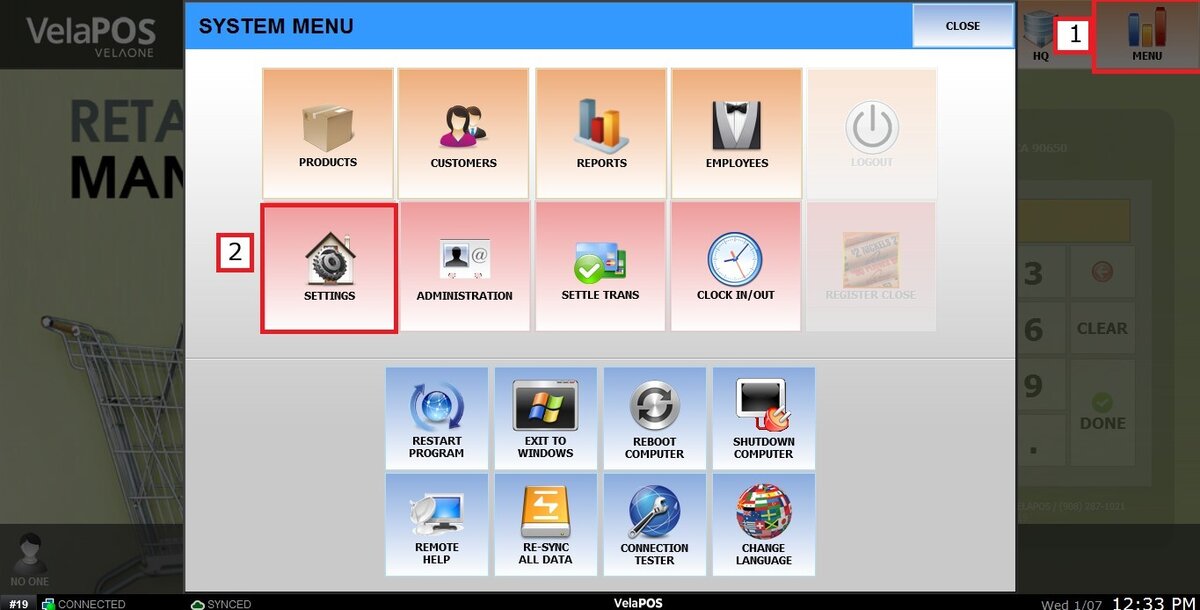
Main Screen>MENU > SETTING > SCREEN > CUSTOMER DISPLAY > LAYOUT
Go to MENU, then click on SETTINGS.
Under the SCREEN tab, click on CUSTOMER DISPLAY, then select LAYOUT.
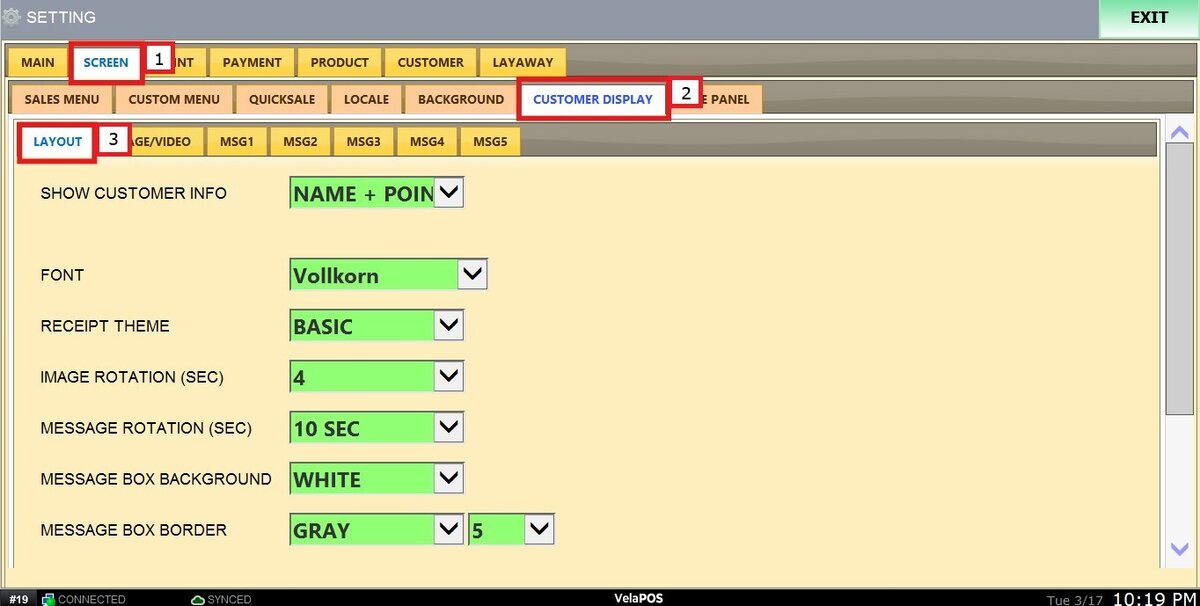
You will find different settings:
SHOW CUSTOMER INFO
Displays the customer’s name or loyalty points on the customer display.
You can choose how customer information is displayed: hide it, show the customer’s name, display loyalty points, or show both.
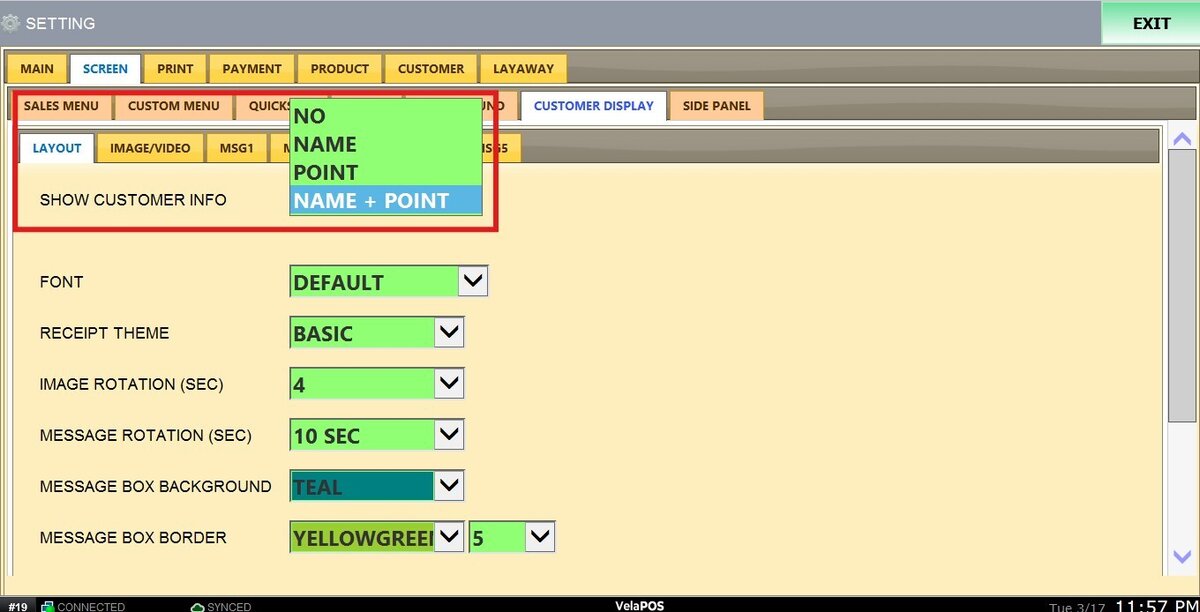
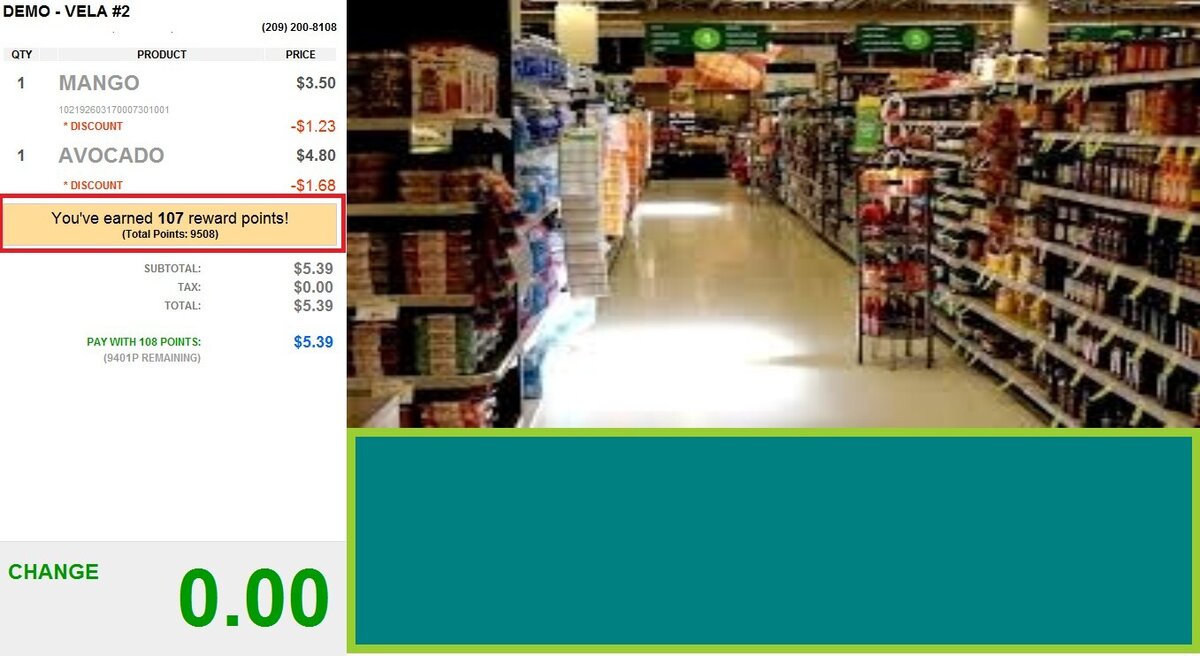
Result:
This is how the display appears when only loyalty points are selected.
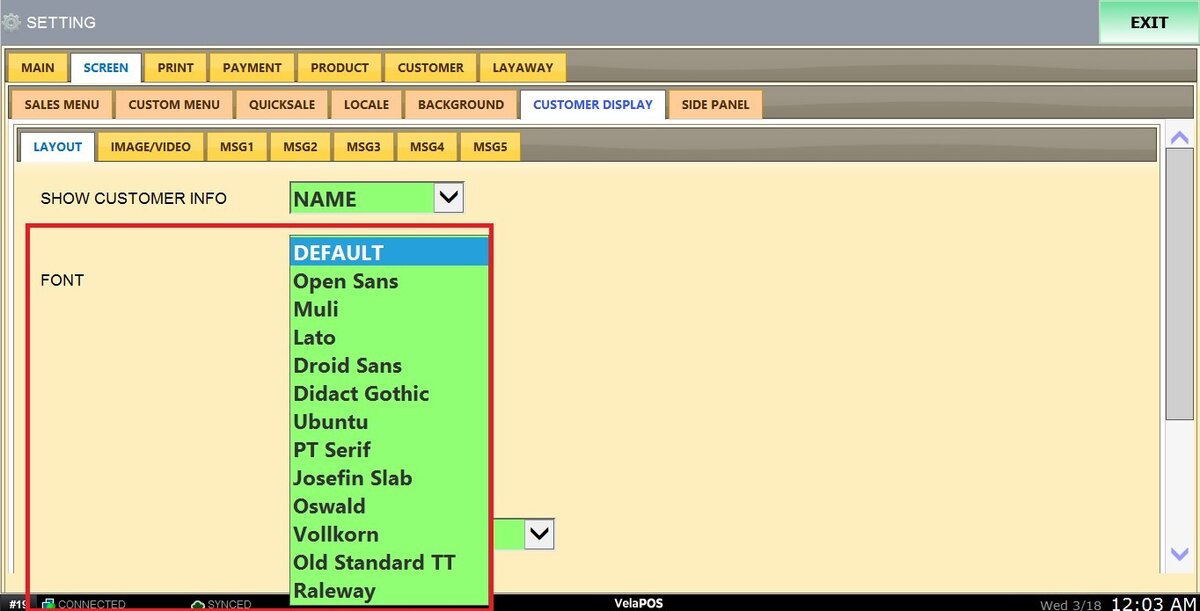
FONT
Changes the font style shown on the customer display.
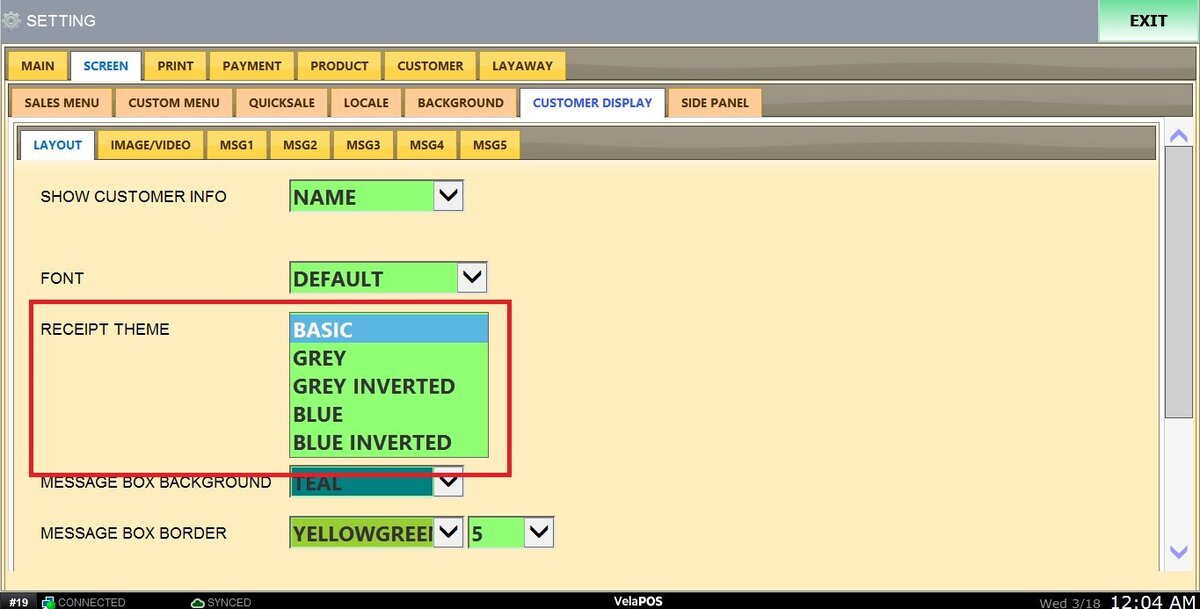
RECEIPT THEME
Defines the visual theme applied to the receipt view on the display.
Result:
This is how the display appears when Basic is selected as the theme.
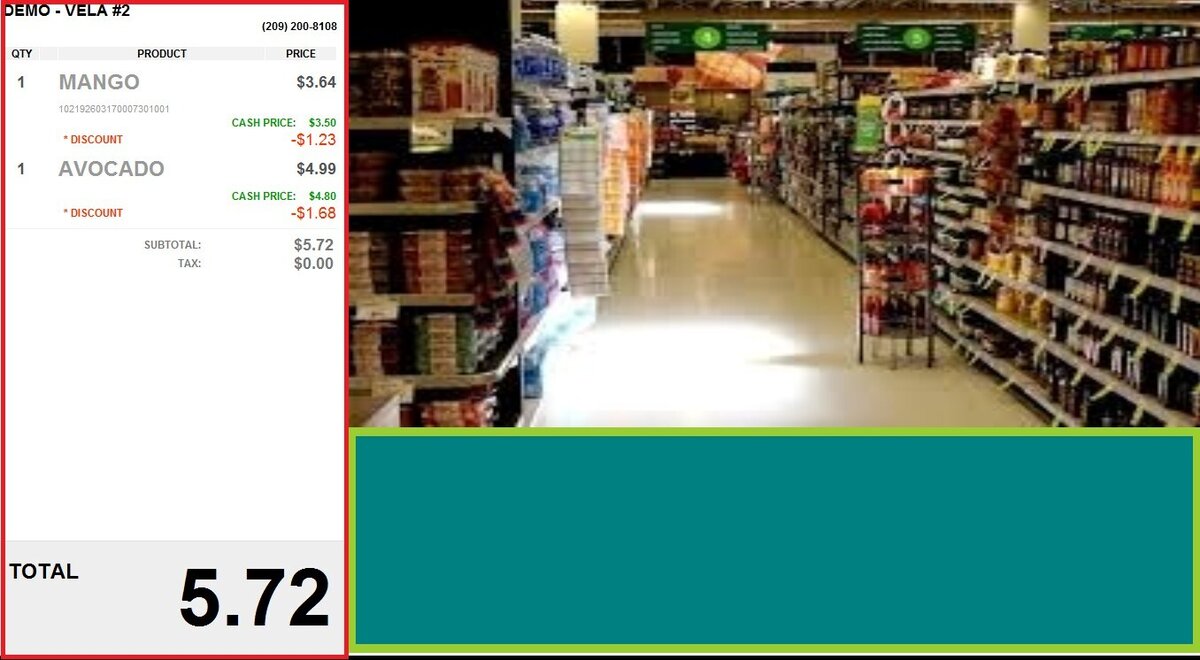
IMAGE ROTATION
Sets how frequently images rotate on the screen.
MESSAGE ROTATION
Controls how often messages rotate on the customer display.
MESSAGE BOX BACKGROUND
Sets the background color of the message box.
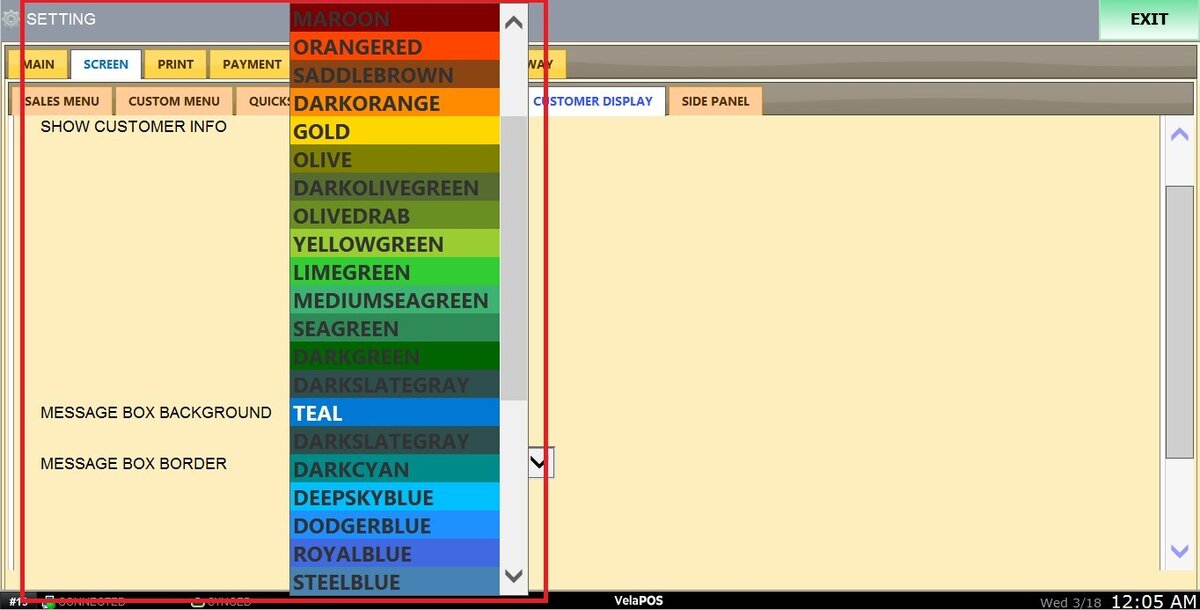
MESSAGE BOX BORDER
Defines the border color and thickness of the message box.
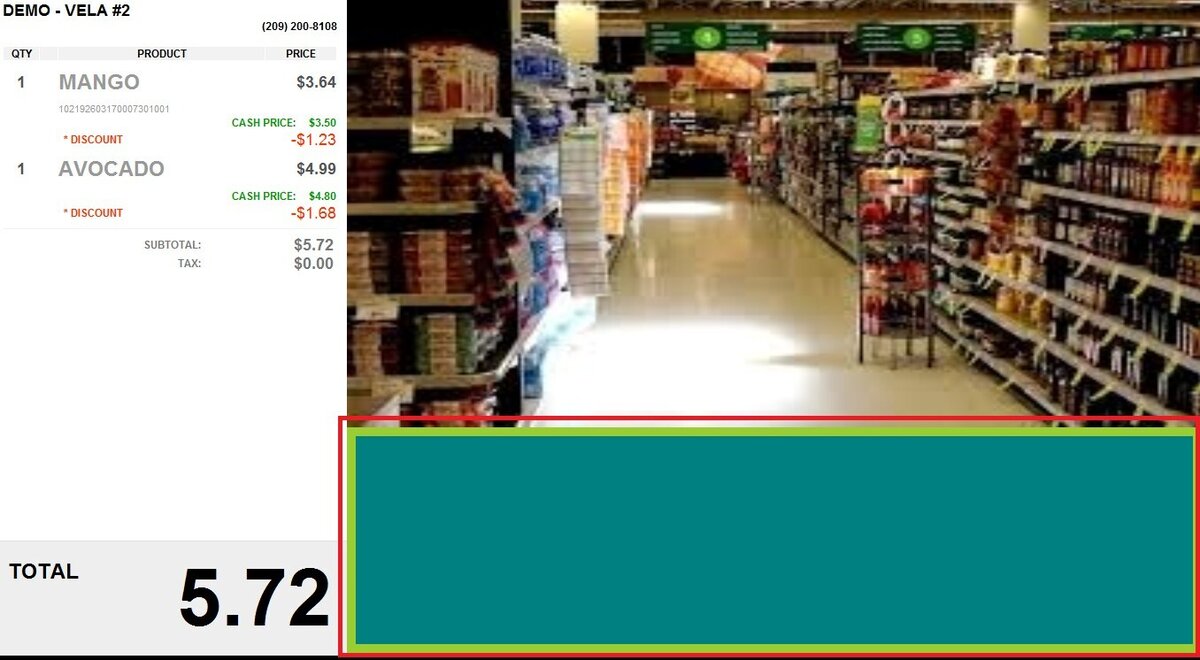
Result:
This is how the message box appears when TEAL is selected as the background and YELLOWGREEN as the border.
RECEIPT SIZE
Adjusts the size of the receipt shown on the display.
MESSAGE BOX SIZE
Adjusts the size of the message box.
After applying all these changes, please click on SAVE and RESTART THE PROGRAM.