Sales
These settings control how employees interact with the Sales Screen. They help prevent unauthorized transactions, enforce policies, and maintain staff accountability.
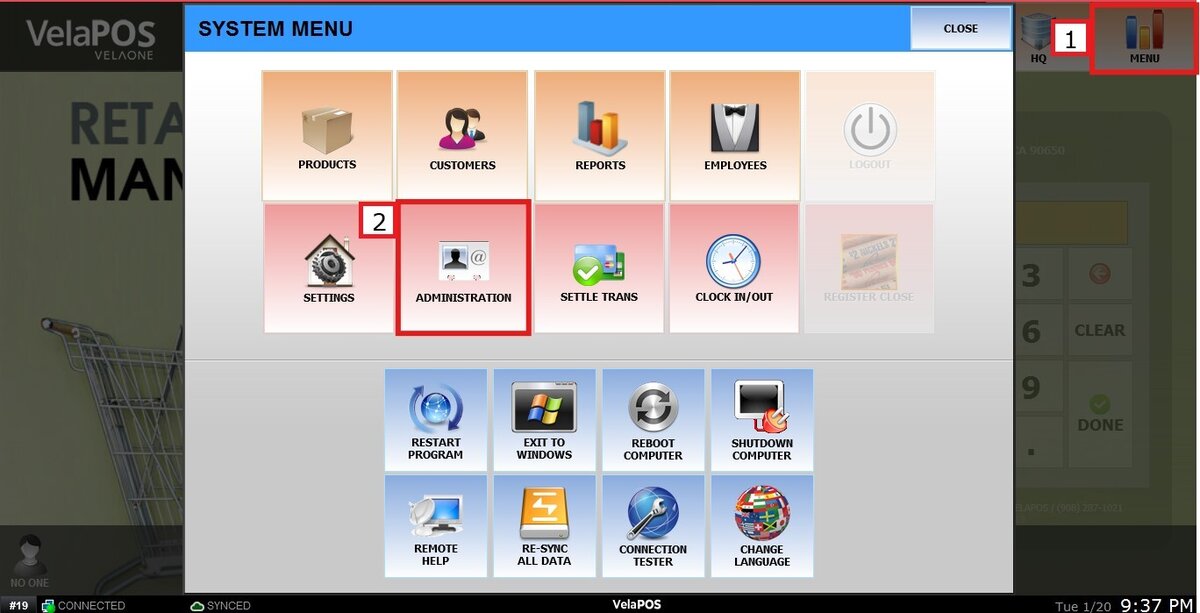
Main Screen > MENU > ADMINISTRATION > SECURTY > SALES
Go to MENU and click ADMINISTRATION.
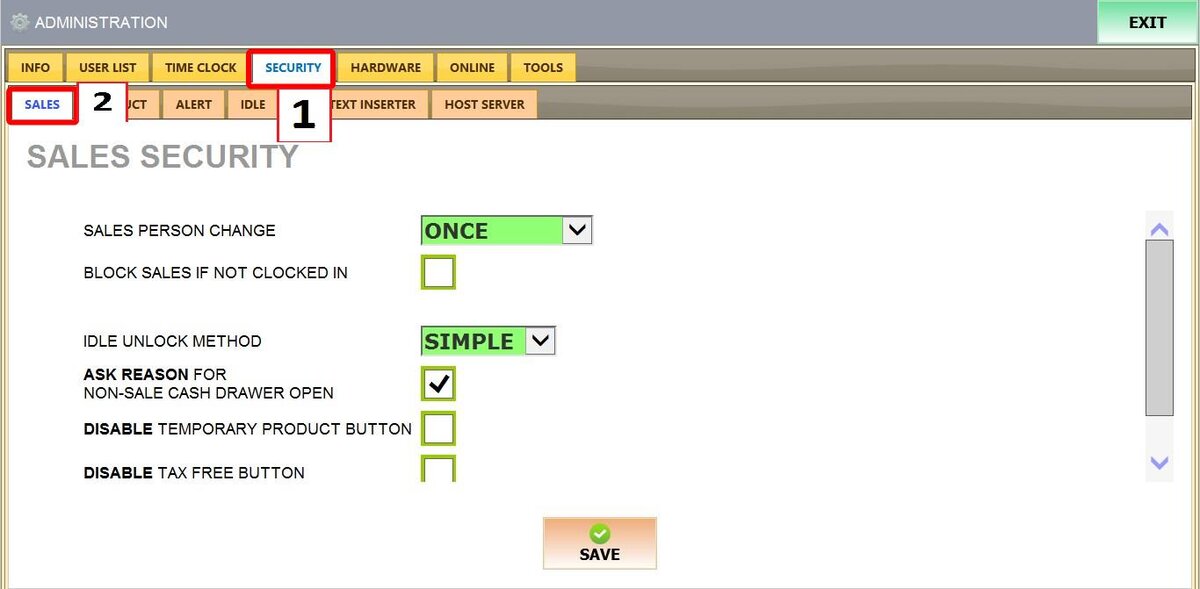
Go to the SECURITY tab, then select SALES.
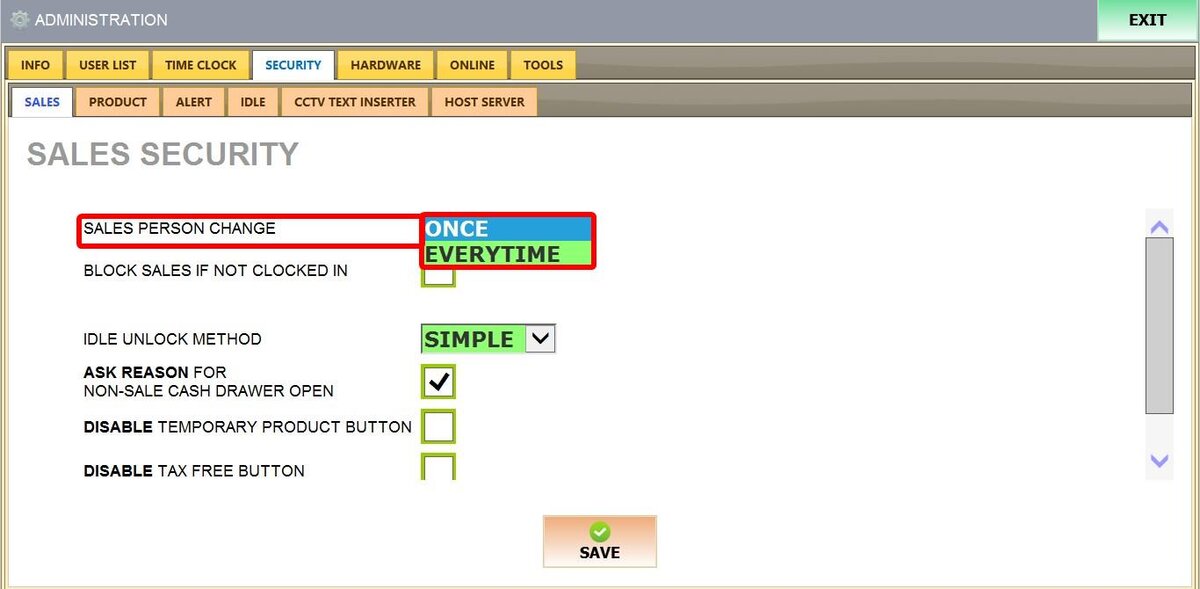
SALES PERSON CHANGE
Controls which employee is assigned to the sale.
-
ONCE: The system will use the employee name associated with the password used to log into the Sales Screen.
-
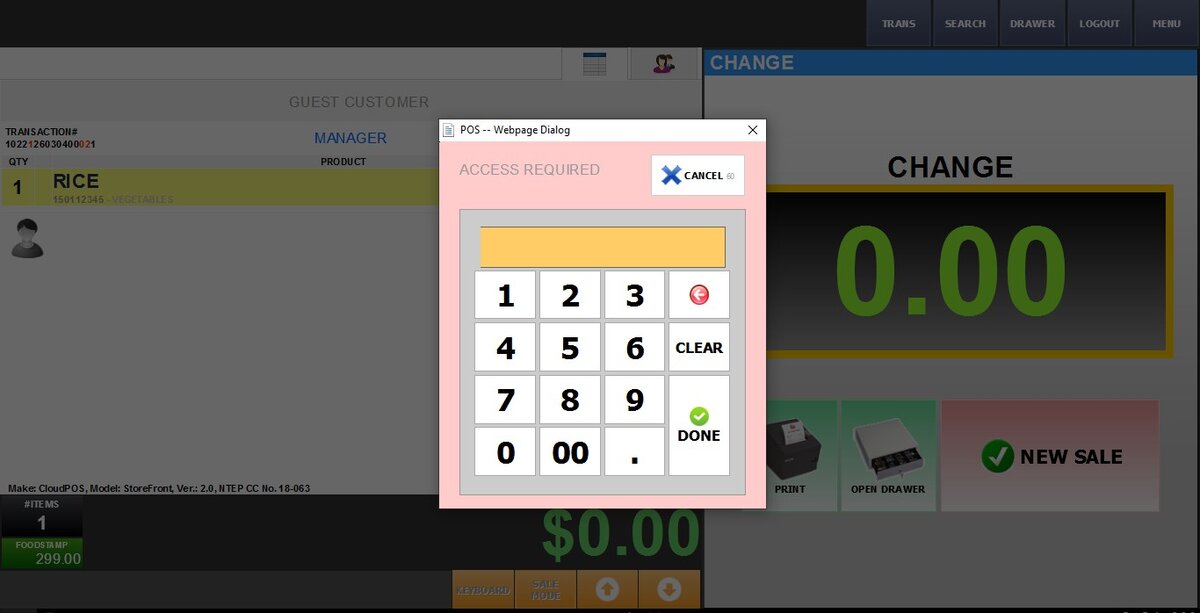
EVERYTIME: The system will prompt the employee to enter their personal password before each new transaction.
If set to EVERYTIME, the prompt will appear after clicking NEW SALE.
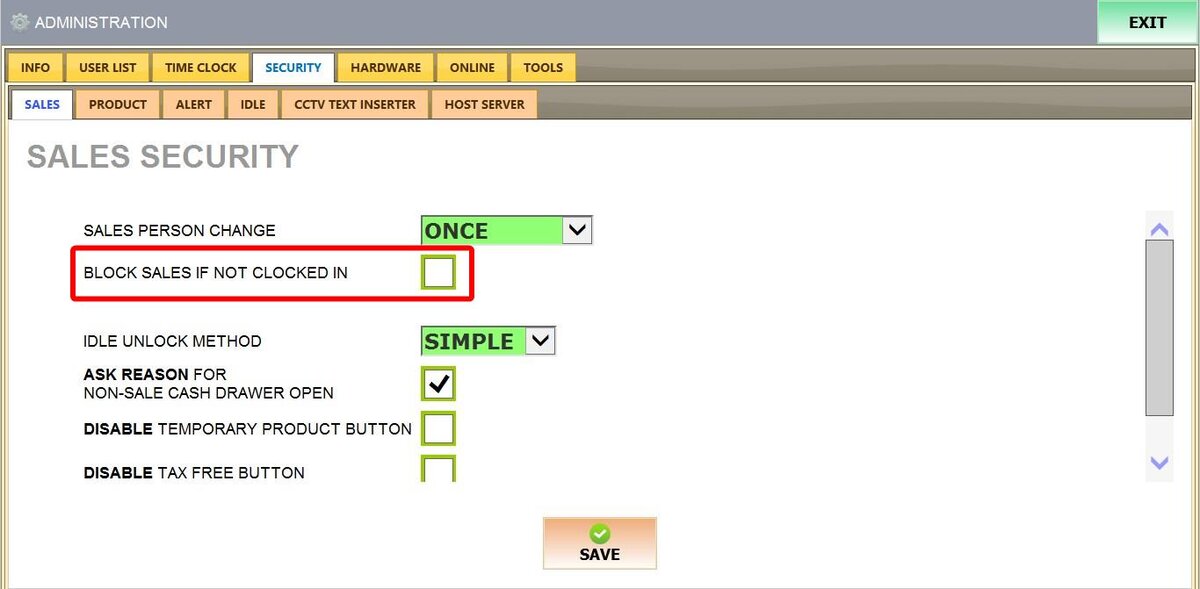
BLOCK SALES IF NOT CLOCKED IN
When enabled, employees cannot process sales unless they are clocked in.
This prevents unauthorized transactions and ensures that only active staff members can operate the register.
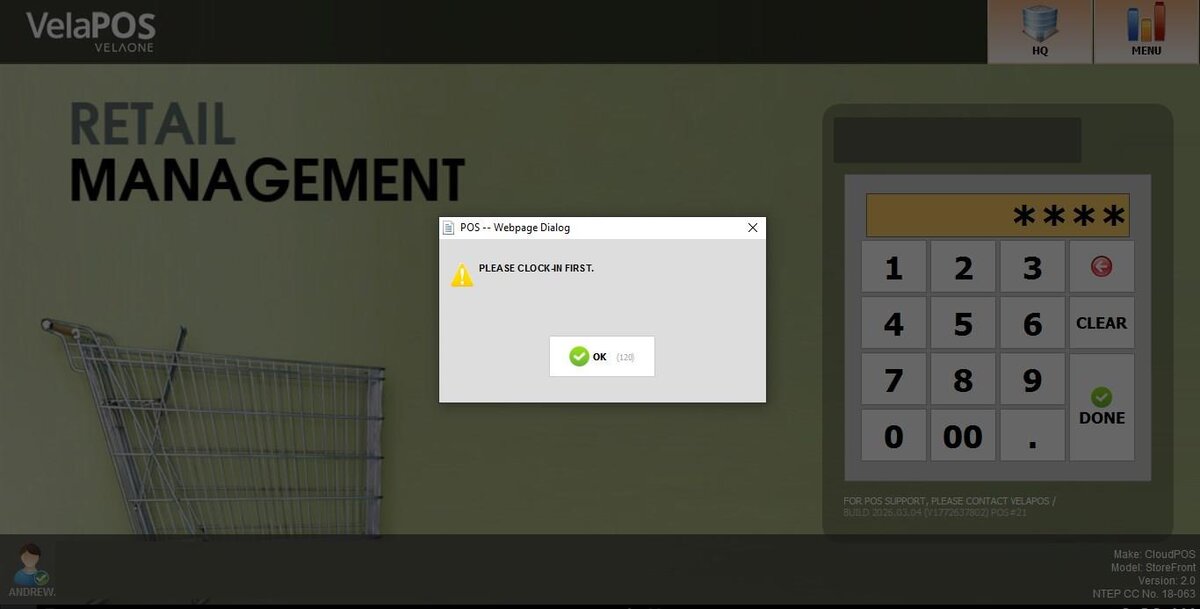
If an employee is not clocked in, the system will not allow that employee to go to the Sales Screen.
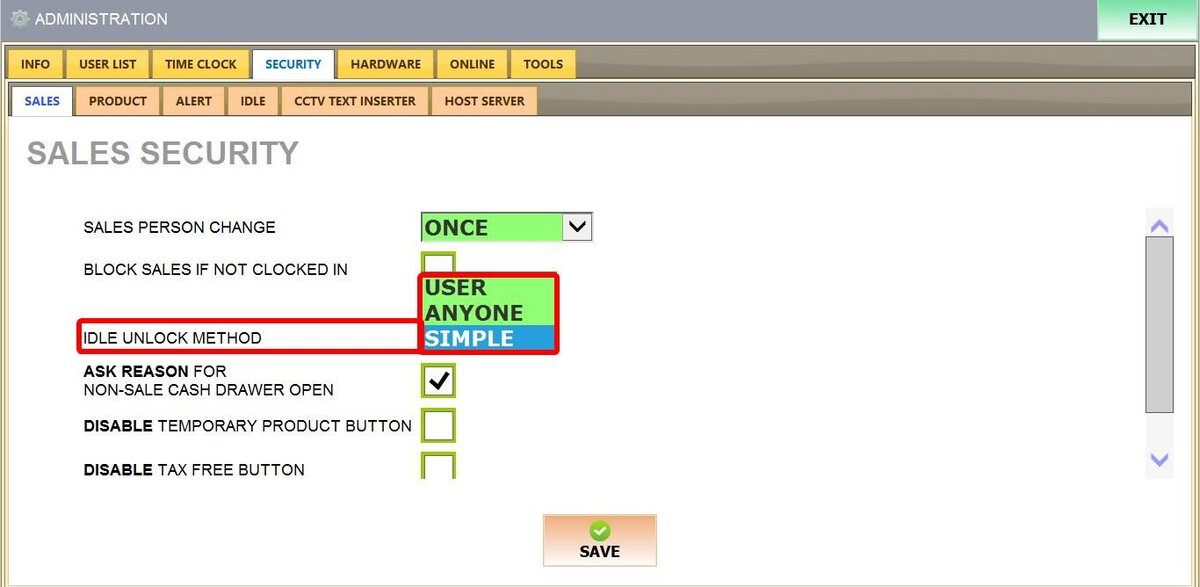
IDLE UNLOCK METHOD
Determines how the POS is unlocked after being idle.
-
SIMPLE: Press any key to unlock
-
ANYONE: Any employee can unlock the POS using their access code
-
USER: Restricted to the current user to unlock.
Hint: Refer to Idle Settings for instructions on modifying idle settings.
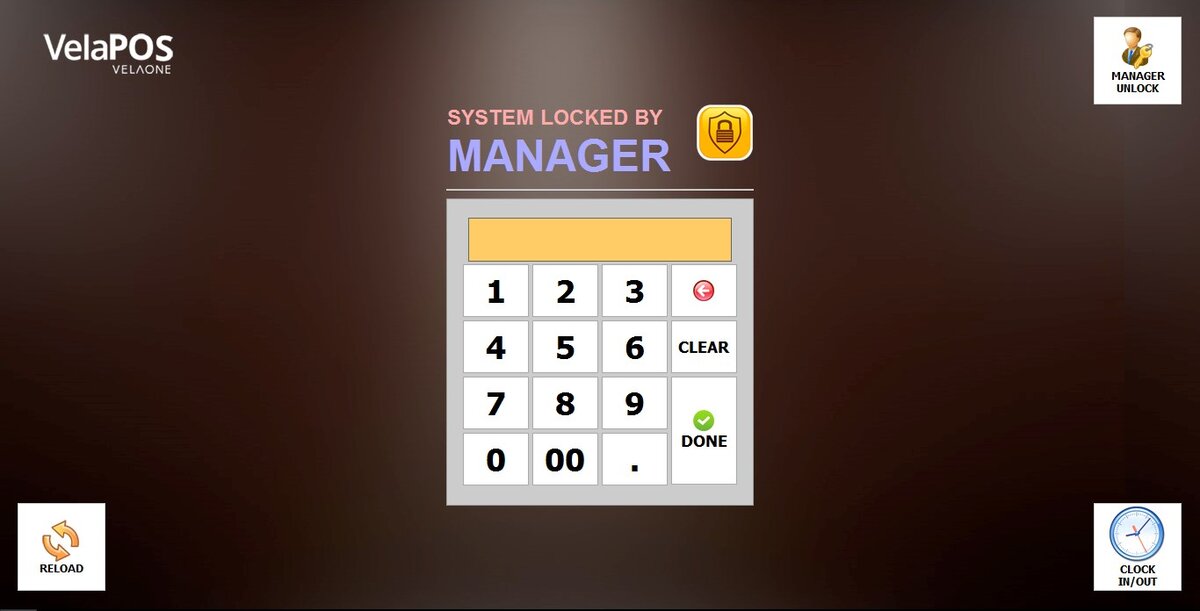
If set to USER, it requires the current employee’s access code or Manager override to unlock the POS.
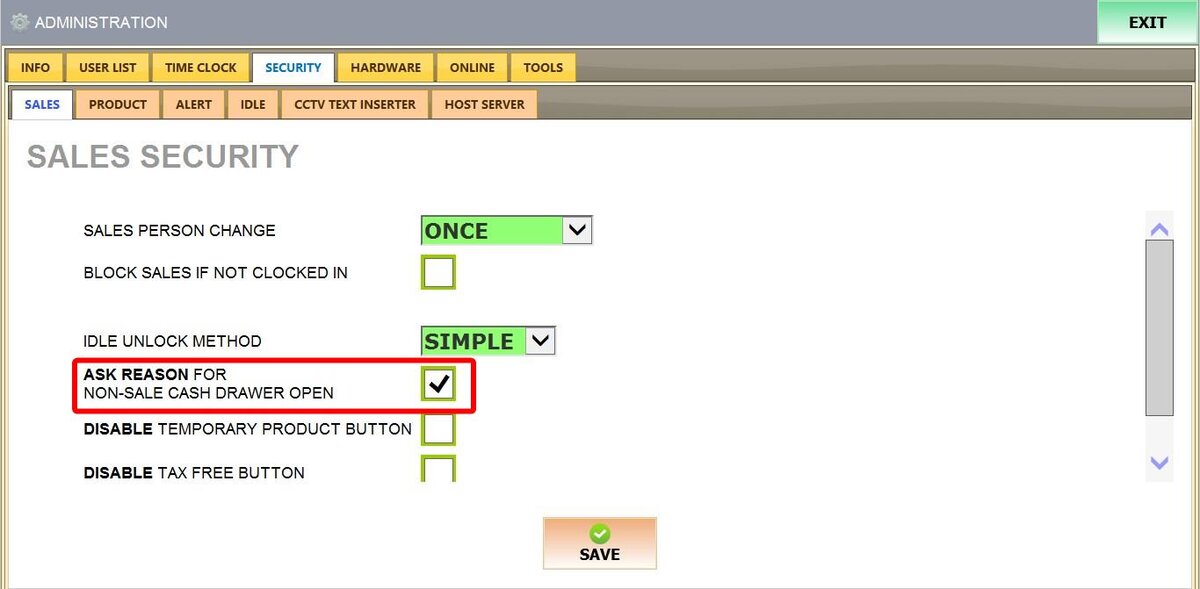
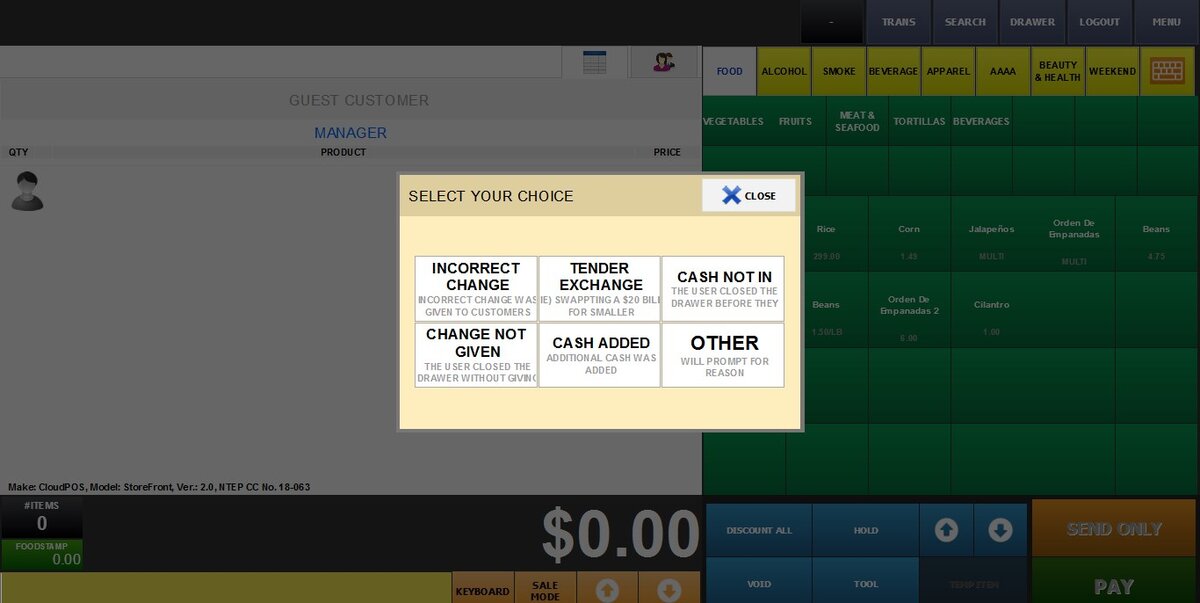
ASK REASON FOR NON-SALE CASH DRAWER OPEN
When enabled, it prompts the employee to enter a reason whenever the cash drawer is opened without a sale (for example: giving change or adding cash).
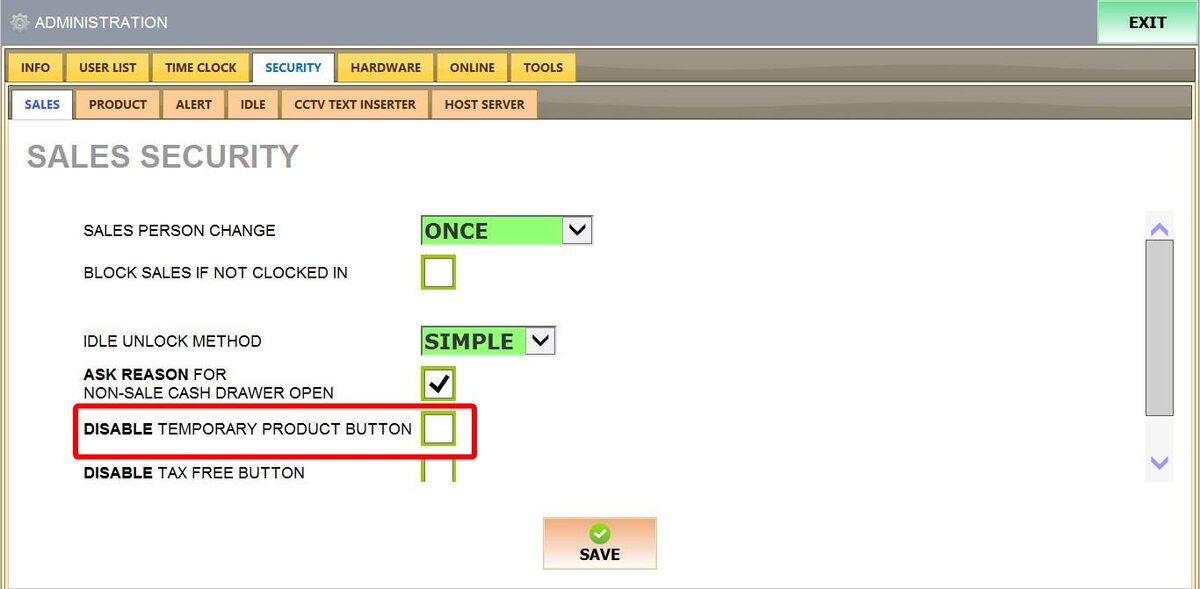
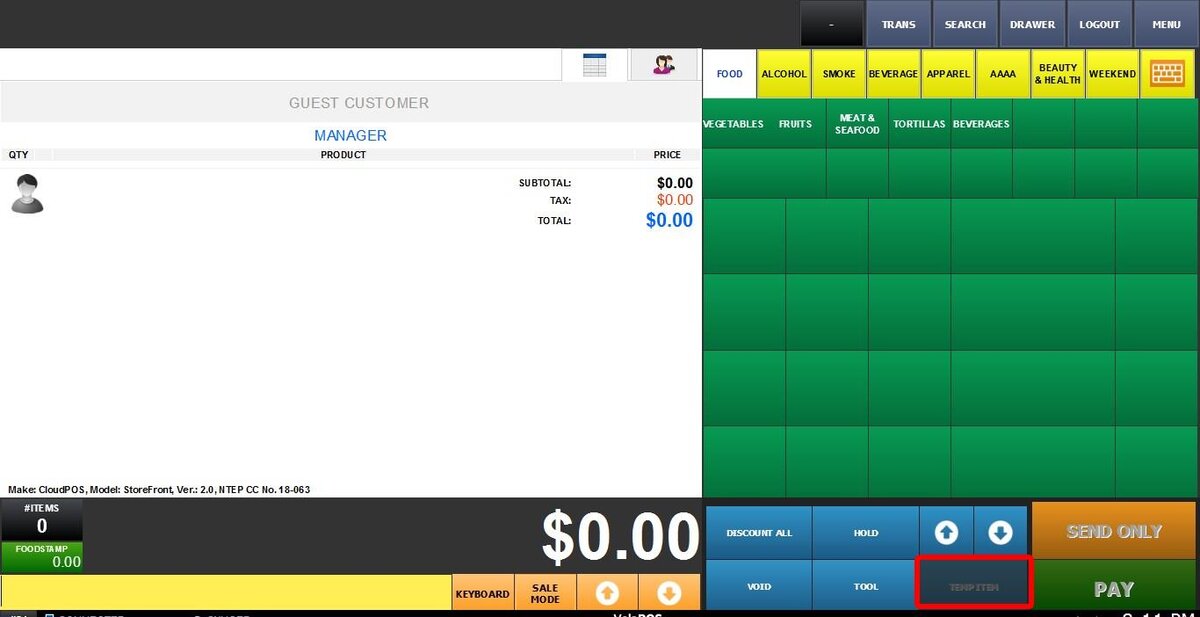
DISABLE TEMPORARY PRODUCT BUTTON
Removes the option to add temporary or unsaved products during a sale.
This is useful for businesses that want to ensure only preconfigured menu items are used.
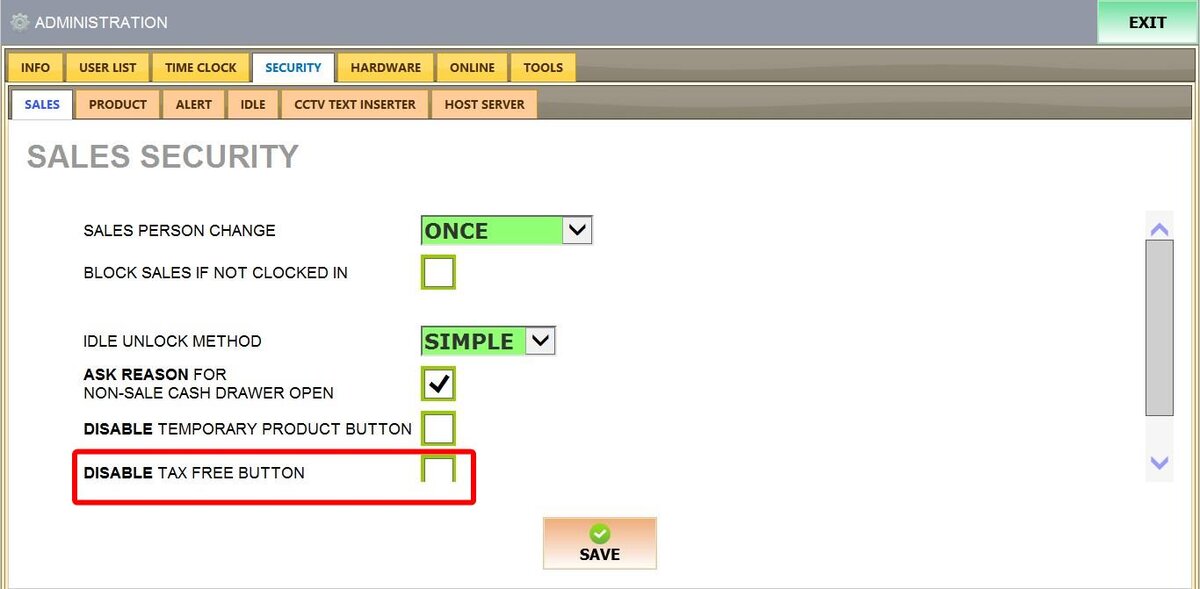
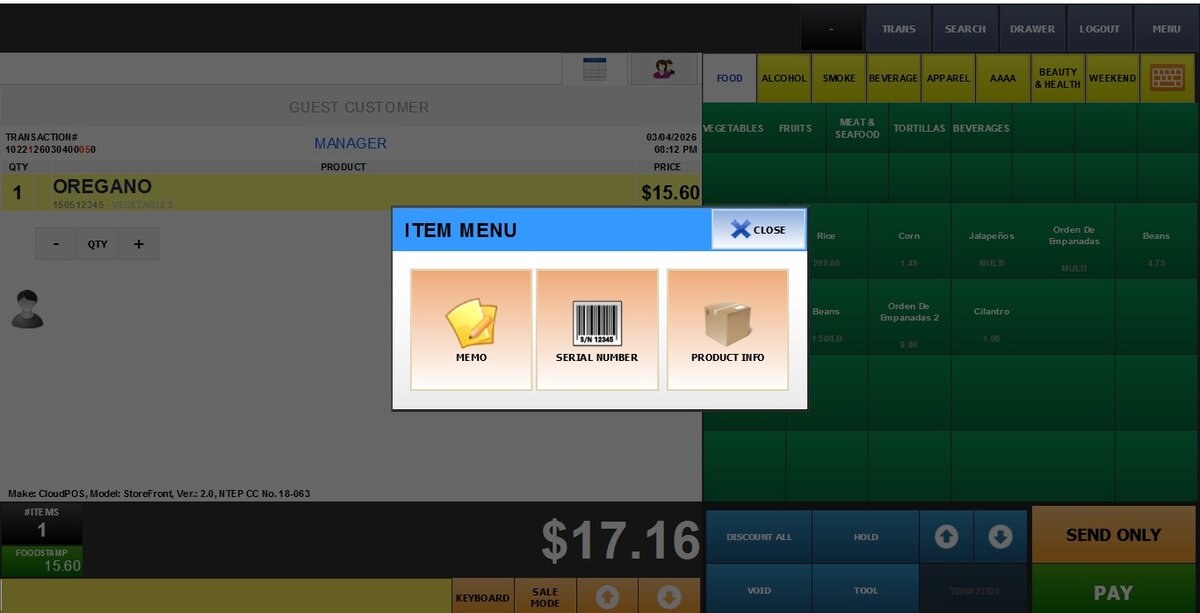
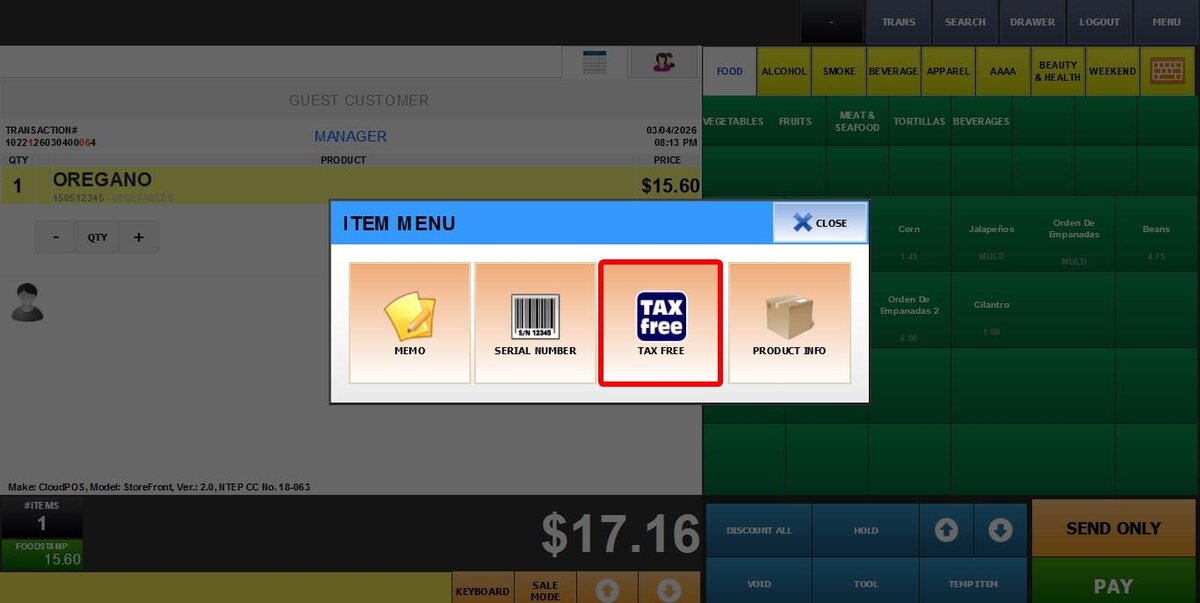
DISABLE TAX FREE BUTTON
Prevents cashiers from marking items as tax exempt.
This ensures taxes are always applied correctly and reduces the risk of errors or misuse.
Hint: Refer to Tax Free for instructions on how the tax free feature works.
When checked:
When unchecked:
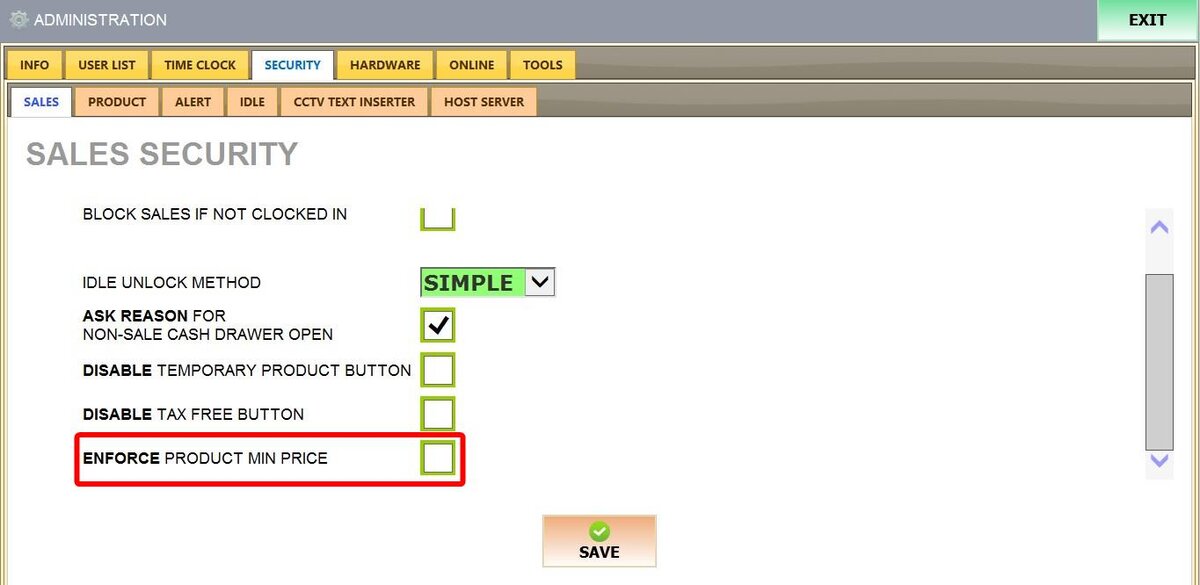
ENFORCE PRODUCT MIN PRICE
When enabled, the system prevents an item from being sold below its configured minimum price. If a discount or price change would lower the price below the minimum, the system automatically stops the reduction at the minimum price. No warning or prompt is shown; the price simply cannot go lower.
Hint: Refer to Price Information for instructions on configuring minimum product prices.