Sales Summary
This report provides a consolidated view of daily or period based sales performance, including totals, payment breakdowns, and transaction activity.
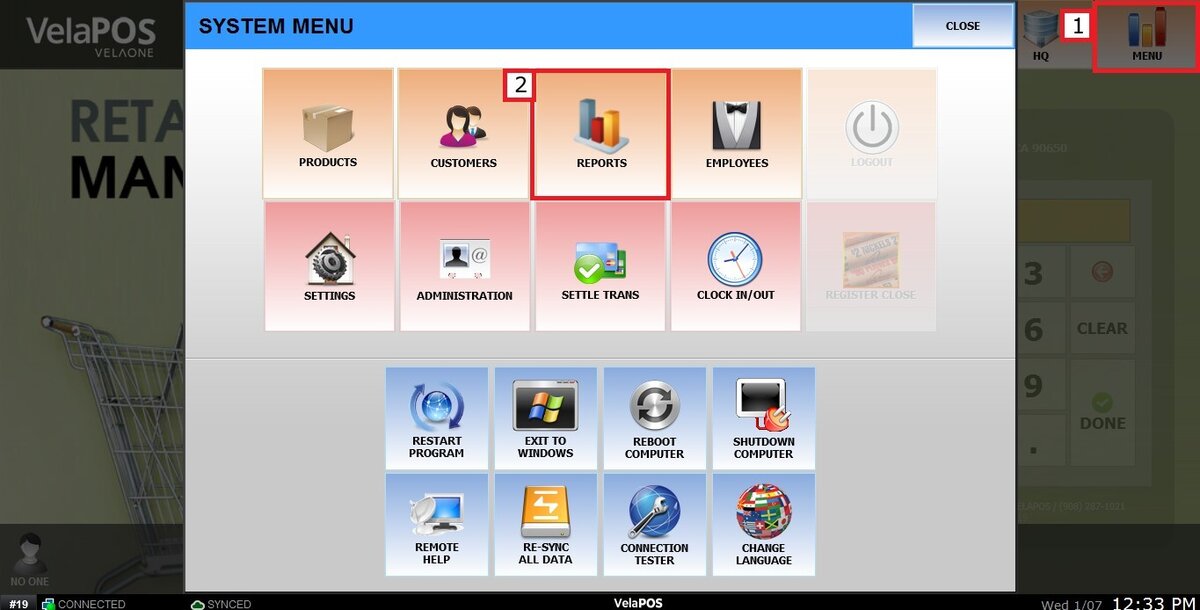
Main Screen> MENU> REPORTS> SALES> SUMMARY.
From the Main Screen, click on MENU, then select REPORTS.
Open the SALES tab and click SUMMARY.
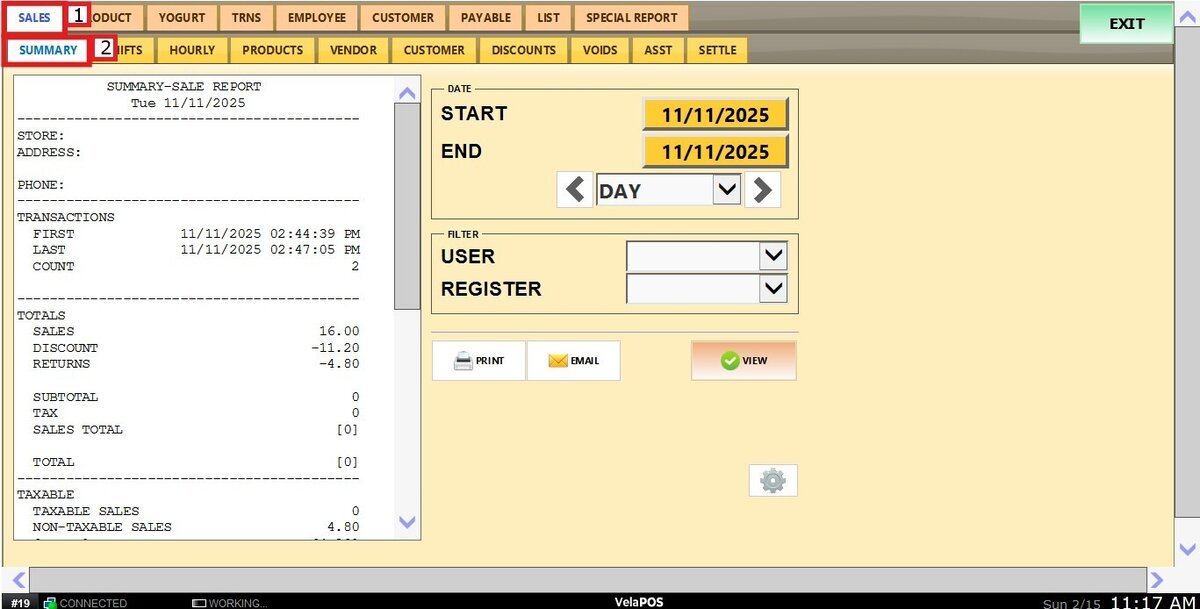
The report for the current day will automatically appear on the left side of the screen.
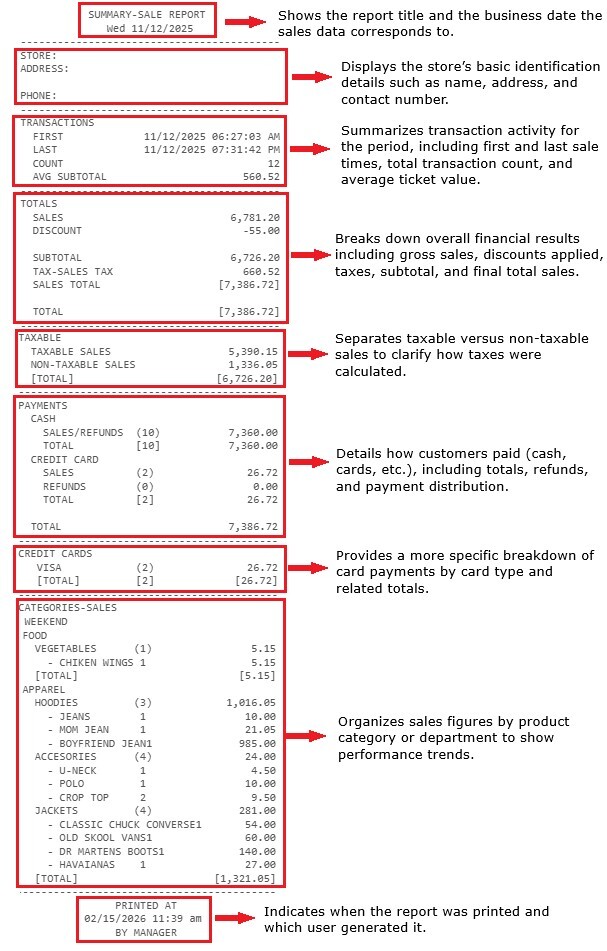
FILTERS
Use the panel on the right side to customize how the report is displayed.
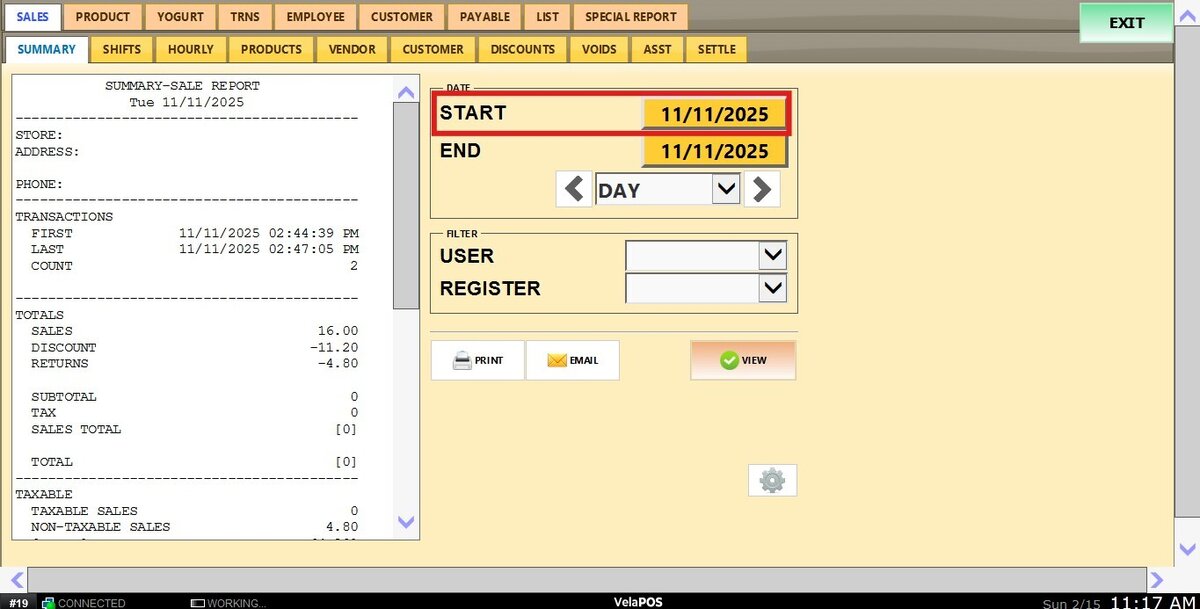
1. Custom Date Range: Lets you review sales within specific start and end dates.
Press on the START field to input the starting date.
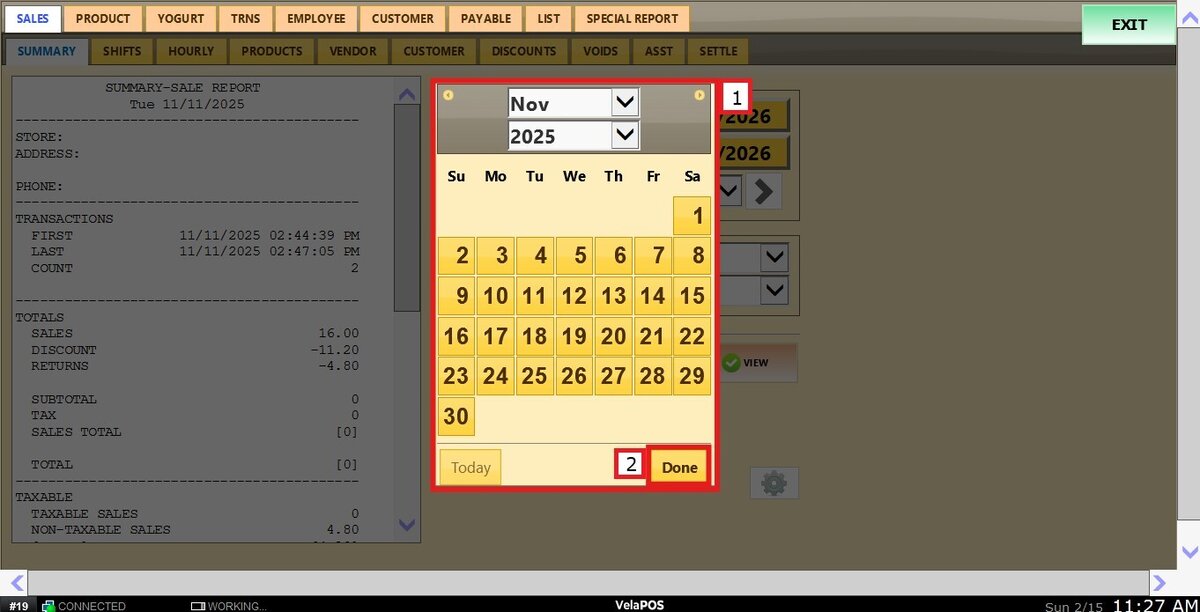
A calendar screen appears where you can select the date (day, month and year). Press on DONE to confirm.
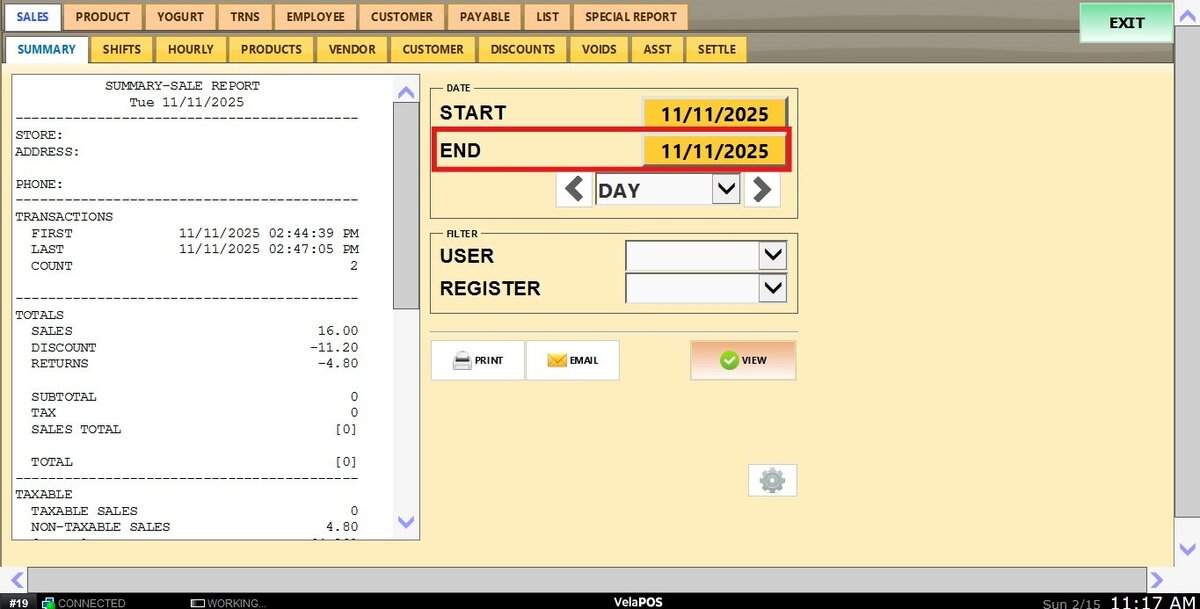
Repeat the same process for the END field to set the final date of your report.
2. Time frame filter: Allows quick filtering by predefined periods such as Day, Week, Month, Quarter, or Year.
Select the desired time frame from the dropdown.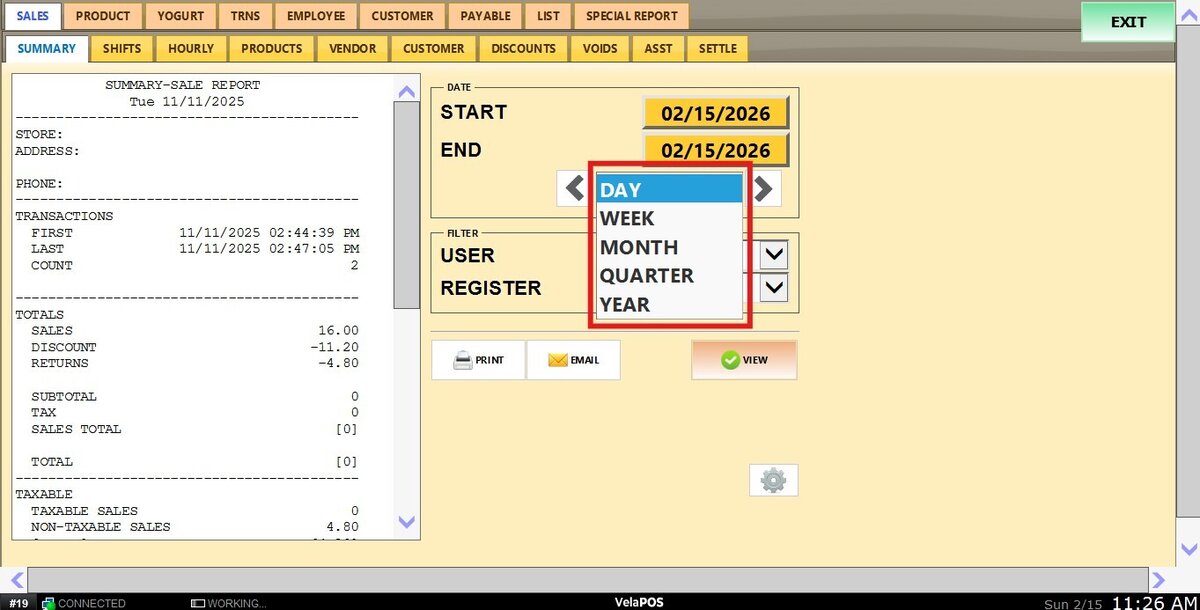
Use the side arrows to move forward or backward through those periods.

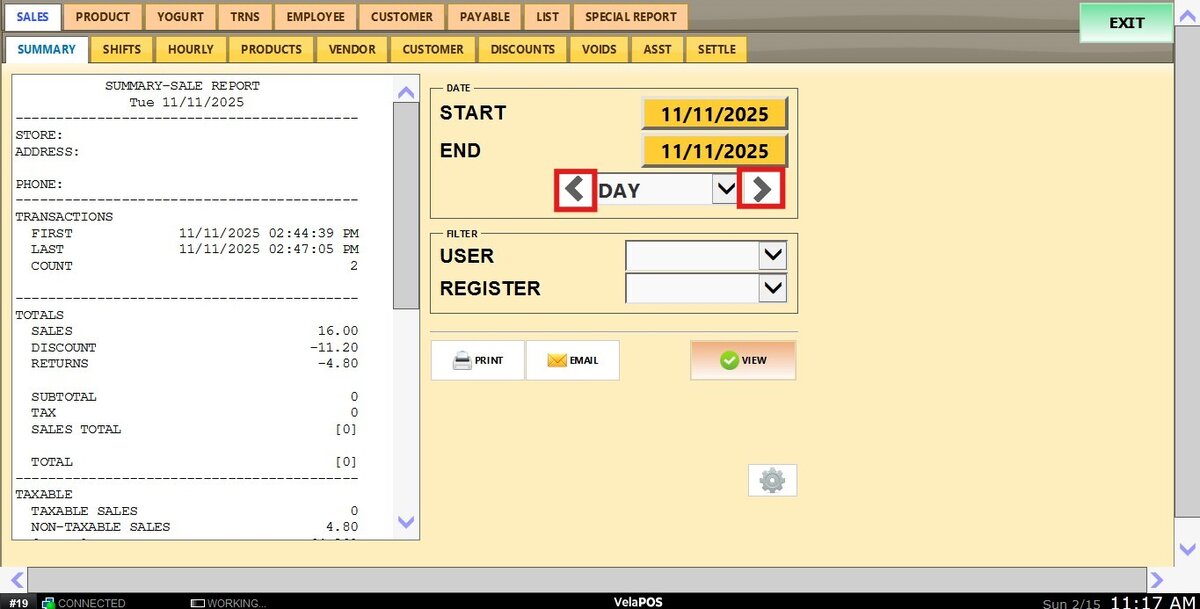
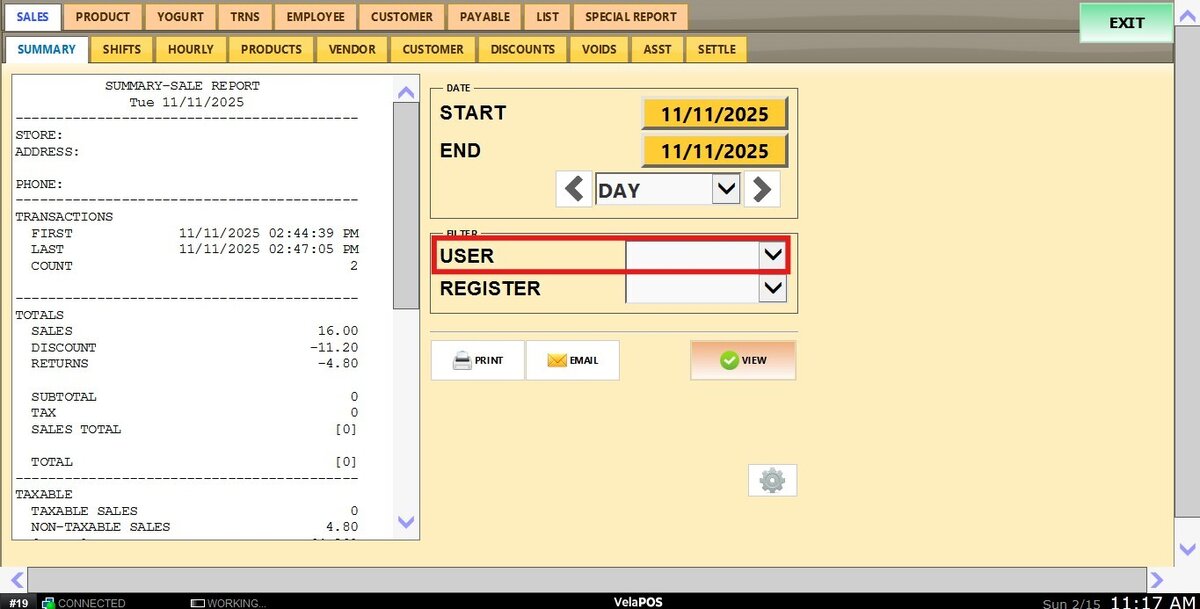
3. User (employee) Filter: Displays sales linked to a specific staff member.
Click the USER field and choose the employee.
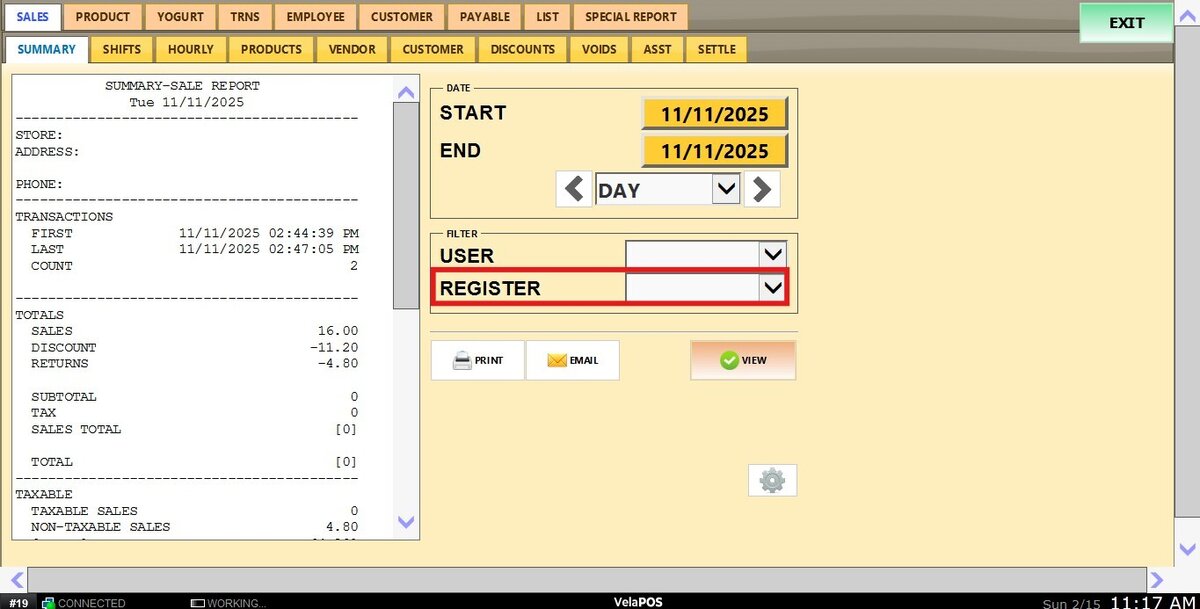
4. Register Filter: Shows sales by POS station.
Leave it blank to include all registers or select a specific register to narrow the report.
View
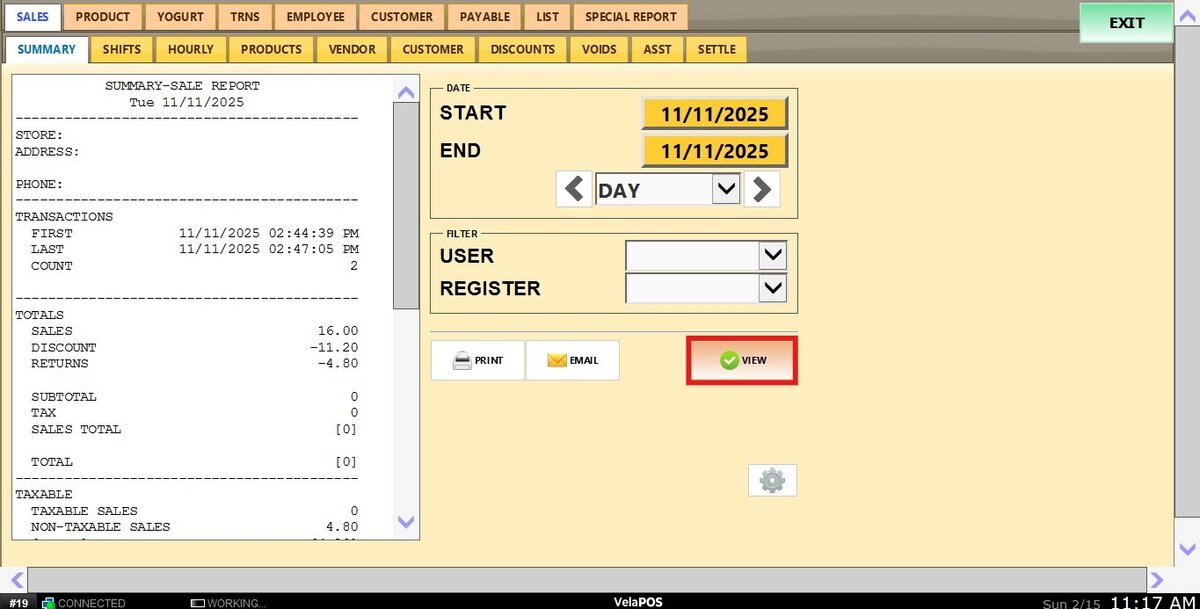
After configuring filters, click VIEW to refresh the report with your selections.
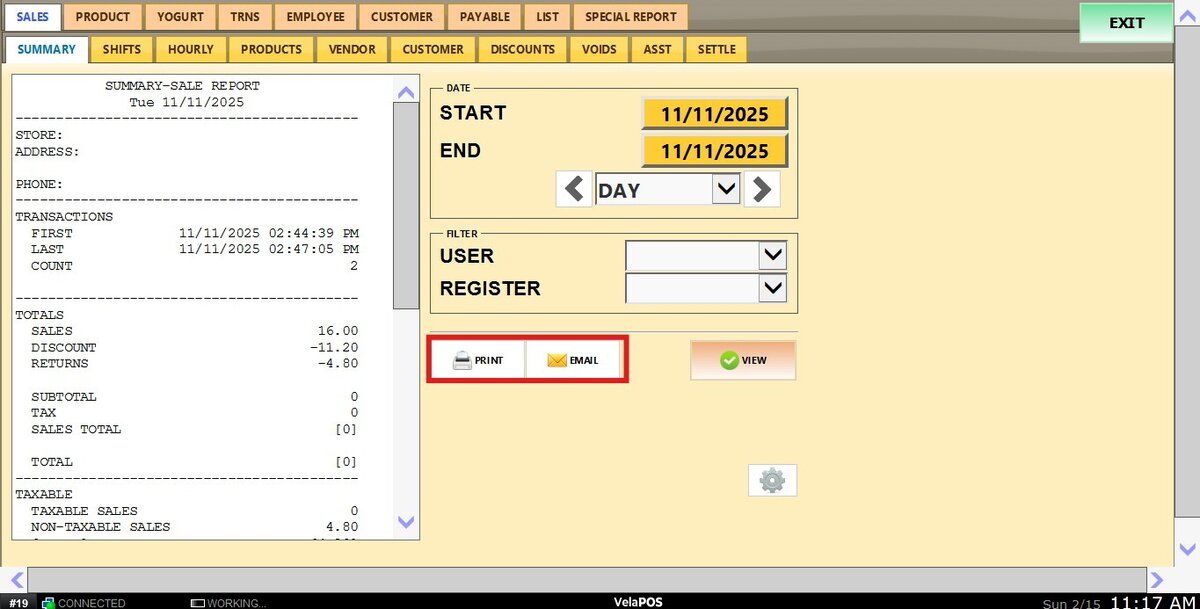
You can always choose to PRINT and to EMAIL the report you're viewing.
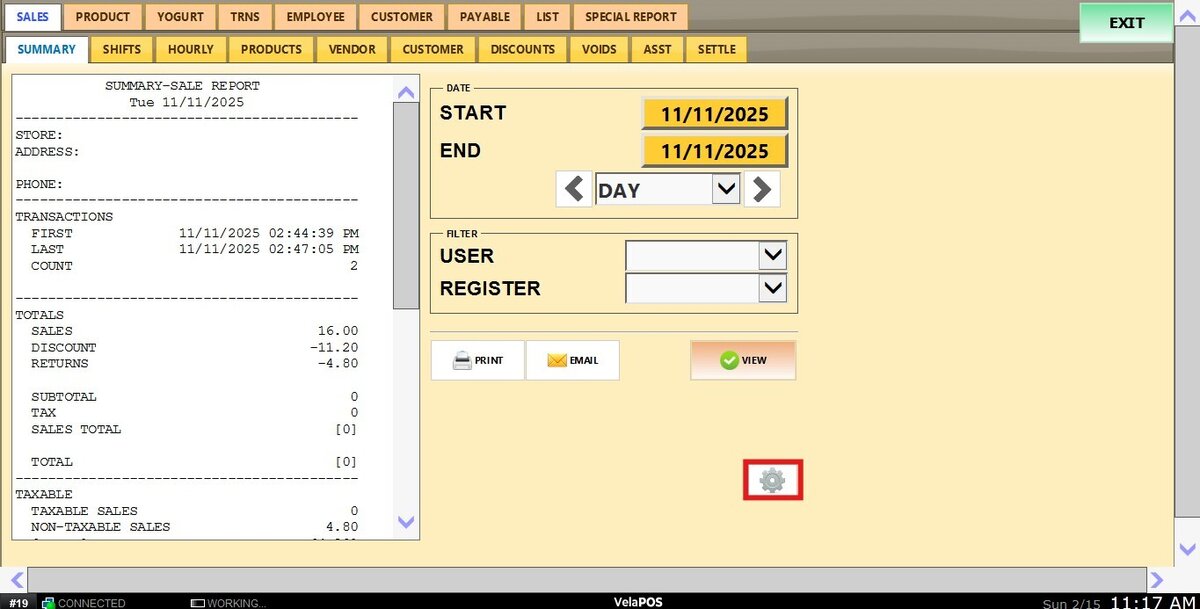
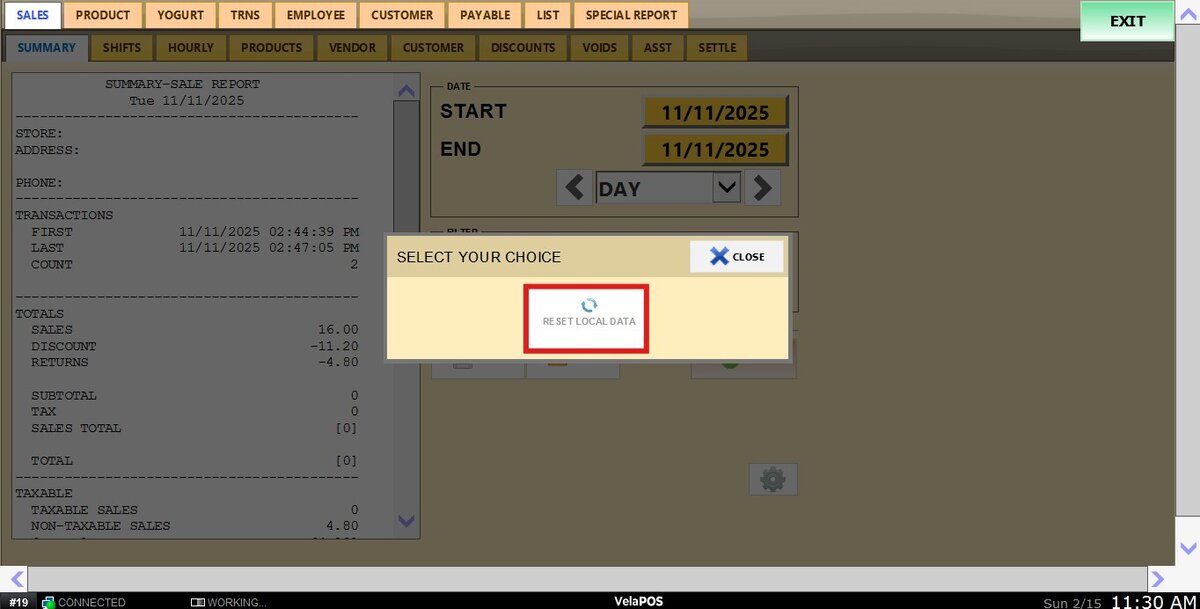
Gear Icon
Use the gear icon if POS information appears outdated or inconsistent. This option forces a data re-sync to ensure the report reflects the latest information.