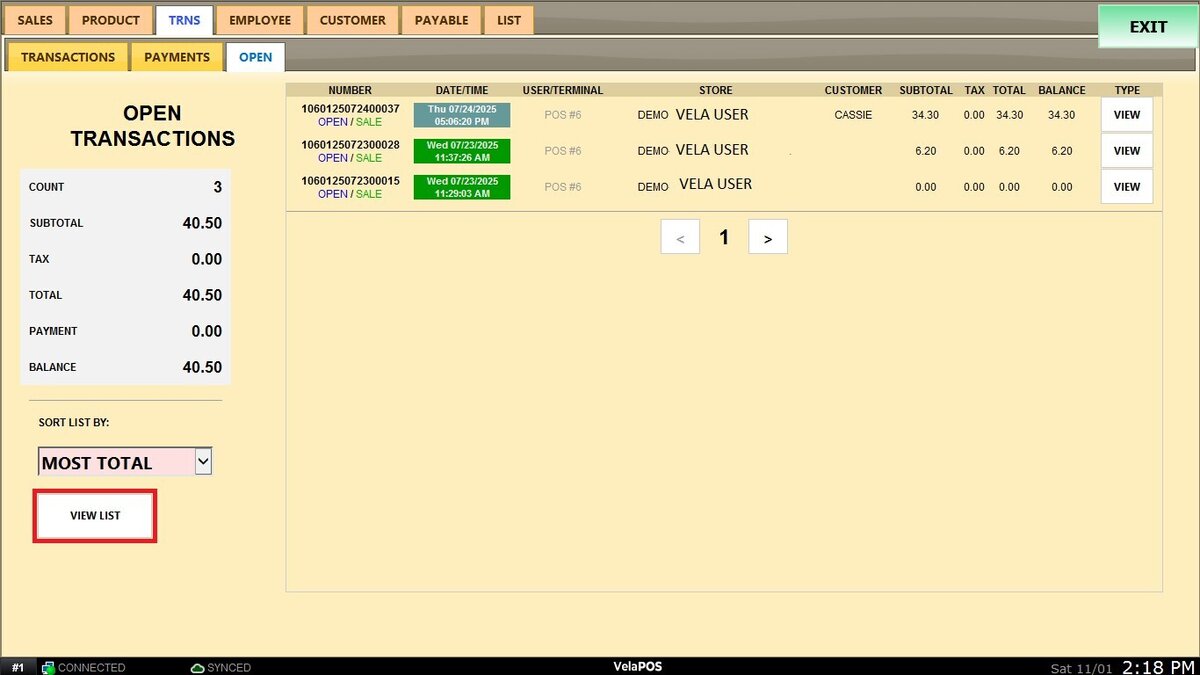
Open Transactions Report
This report provides a detailed view of all transactions that are currently open or pending completion within the system. This helps track unfinished sales and manage customer balances effectively.
Main Screen>MENU>REPORTS>TRNS>OPEN
On the Main Screen, go to MENU and press REPORTS.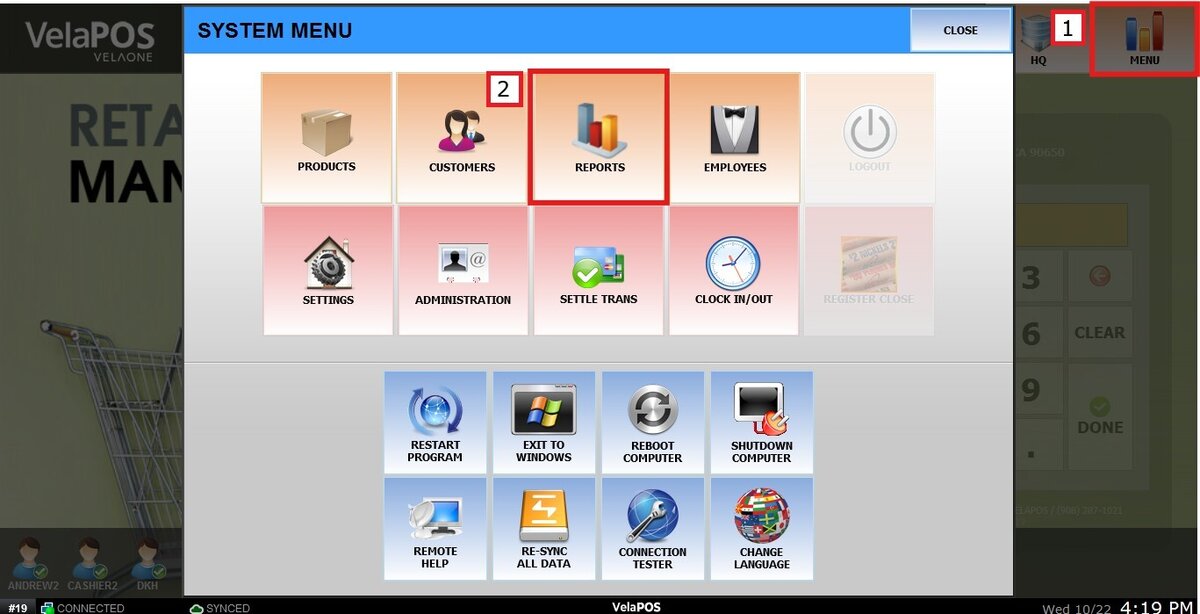
On the reports section, go to TRNS and click on OPEN.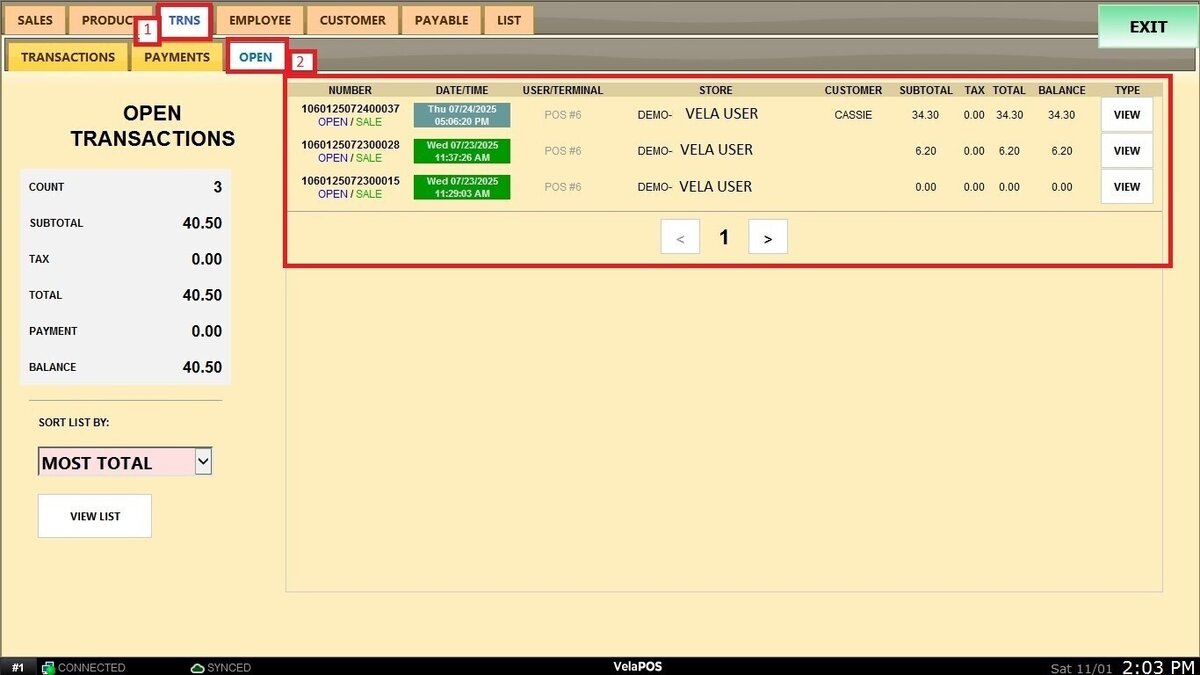
Report Overview
At the top, the report lists all open transactions with key details, including:
-
Transaction Number.
-
Date/Time of creation or last update.
-
User/Terminal where the transaction was made.
-
Store location.
-
Customer Name.
-
Subtotal, Tax, Total, and Balance.
Use the side arrows (< and >) to navigate between pages if multiple transactions are listed.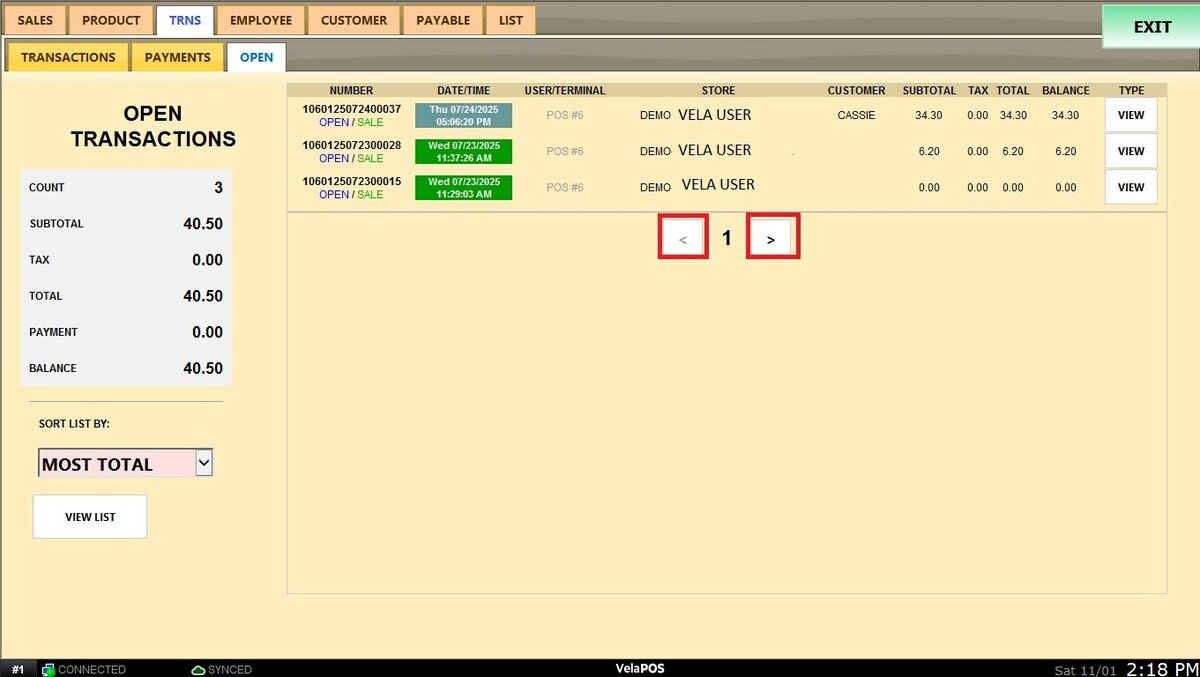
View Transaction
Click on VIEW to review the details of a specific open transaction directly from the report.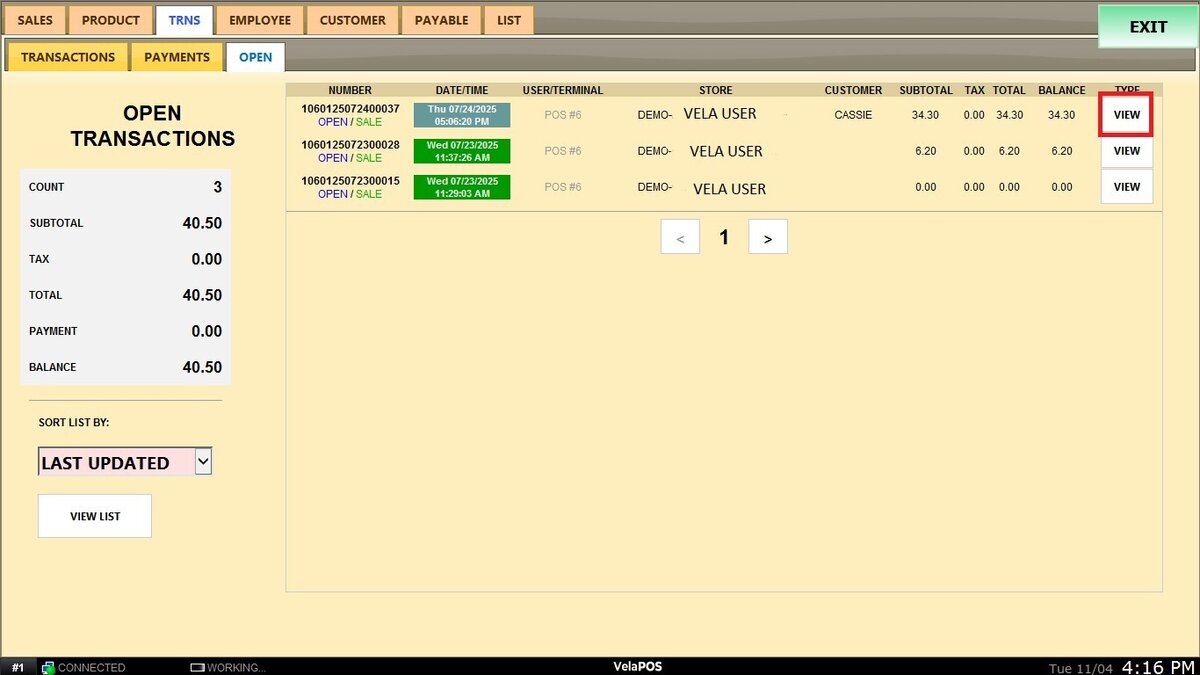
From this screen, the report can be printed or sent by email.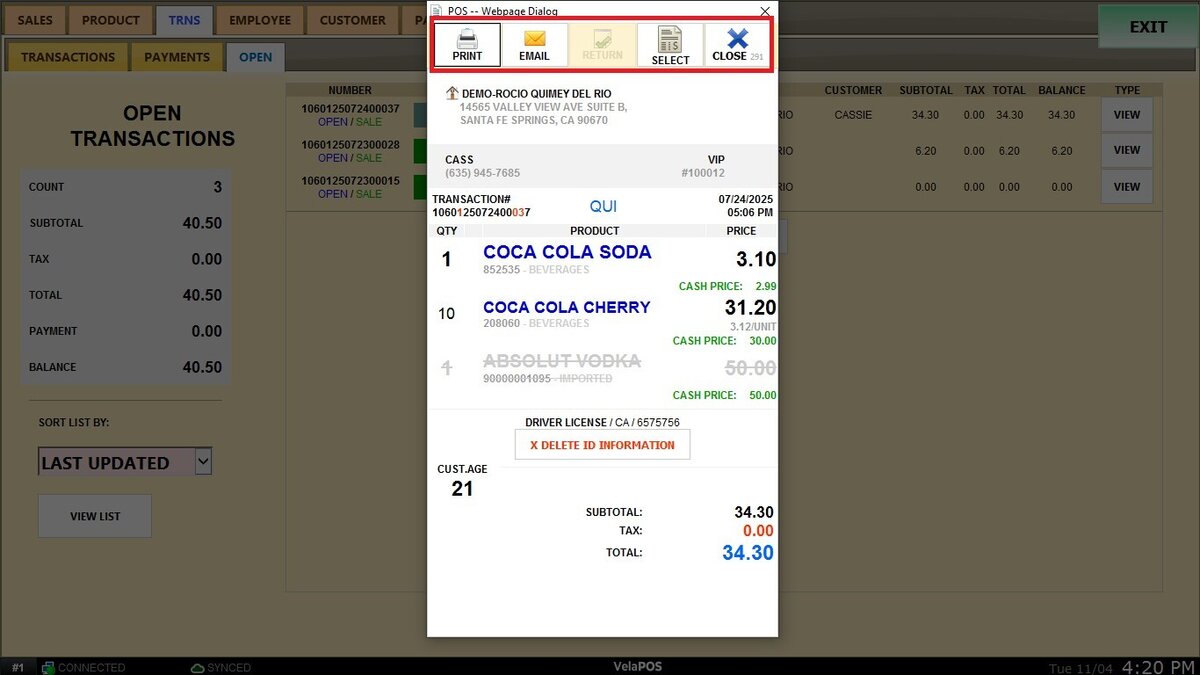
Hint: This report does not support payments or refunds. To complete those actions, search for the transaction in the Transaction List.
Summary Section
The summary panel on the left provides aggregated data, including:
COUNT: Total number of open transactions.
SUBTOTAL, TAX, TOTAL, PAYMENT, and BALANCE: Combined values for all listed transactions.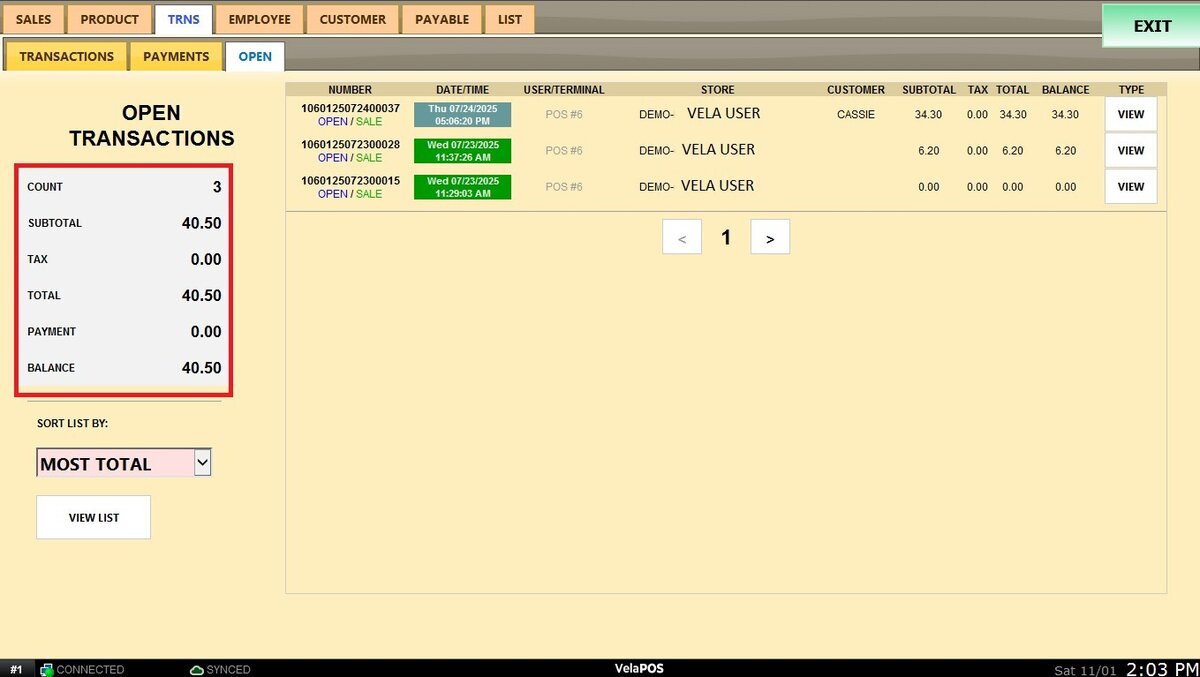
Sorting Options
Sort the transaction list by different criteria to help locate specific records:
LAST UPDATED: Displays the most recently modified transactions first.
MOST TOTAL / LEAST TOTAL: Sorts by total sale amount.
MOST BALANCE / LEAST BALANCE: Sorts by the remaining balance.
CREATED: Lists transactions by their creation date.
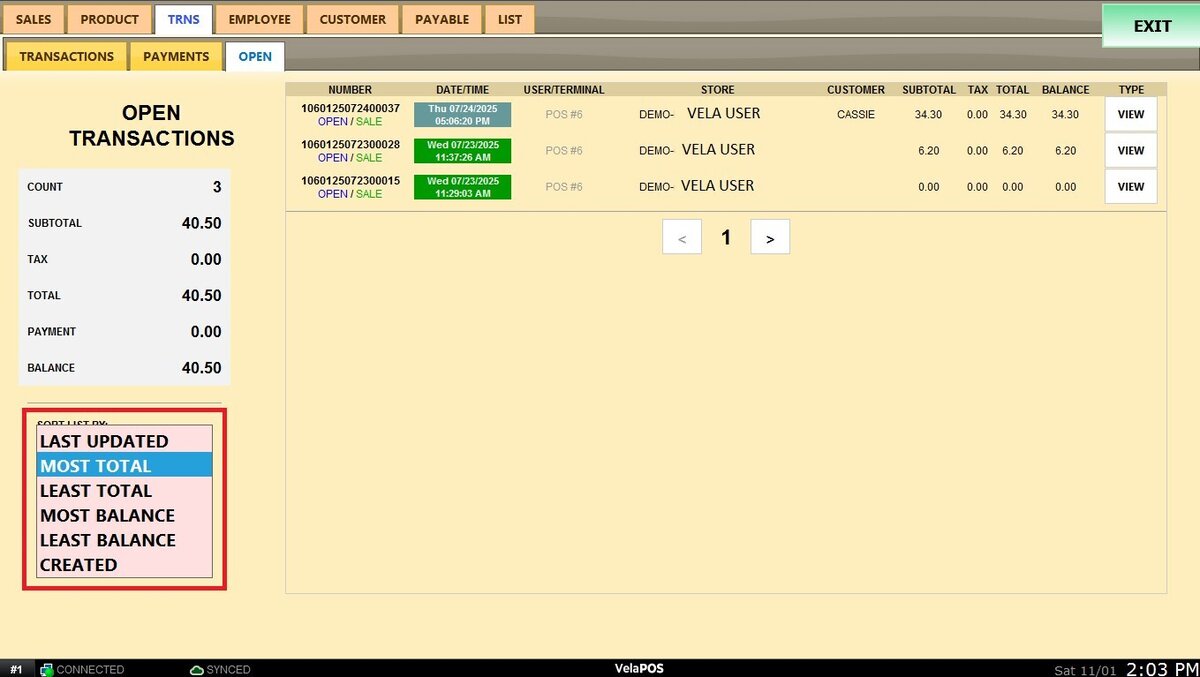
Click on VIEW LIST to update the list with the selected sort.