Transaction List
This section provides access to the transaction list, where detailed store activity can be reviewed, and actions such as returns and prints can be performed.
Main Screen> Number Pad> Sales Screen> TRANS (TRANSACTIONS).
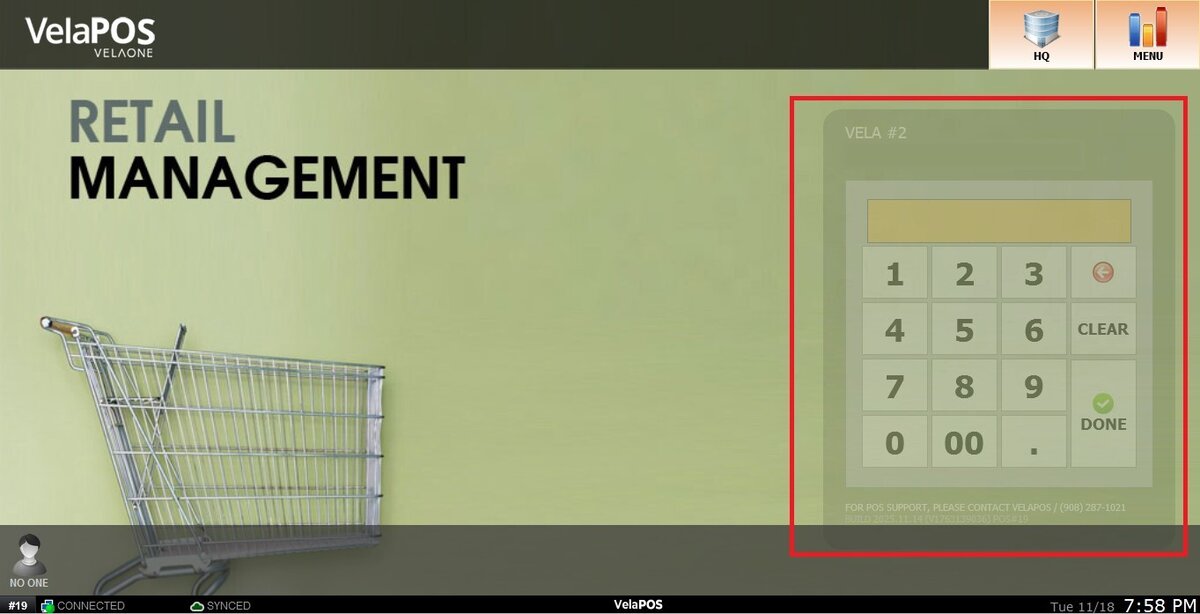
On the Main screen, click on the number pad and input the assigned personal password.
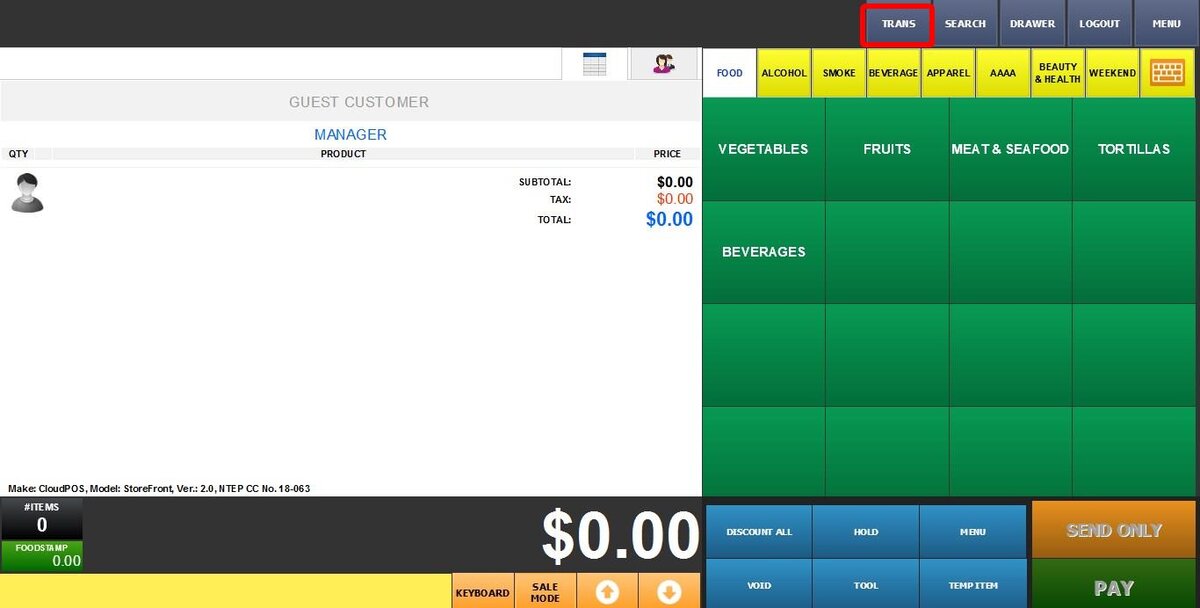
On the Sales Screen, click on TRANS.

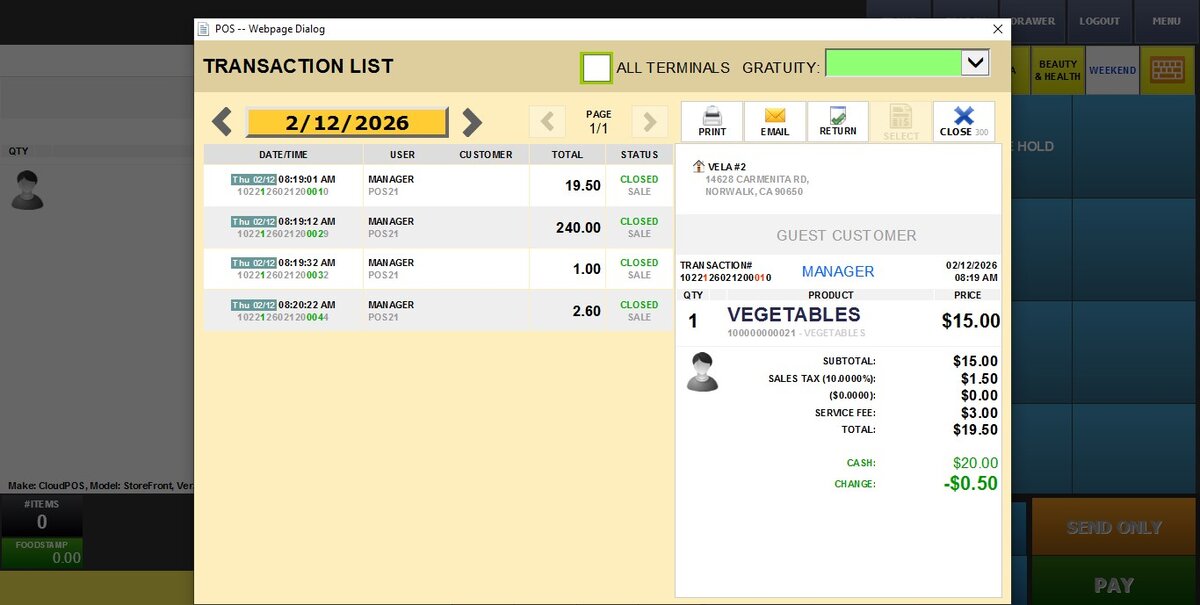
In the TRANSACTION LIST, all tickets from this POS are displayed on the left.
To see the details of a particular ticket, select it, and the details will be shown on the right side.


Filters
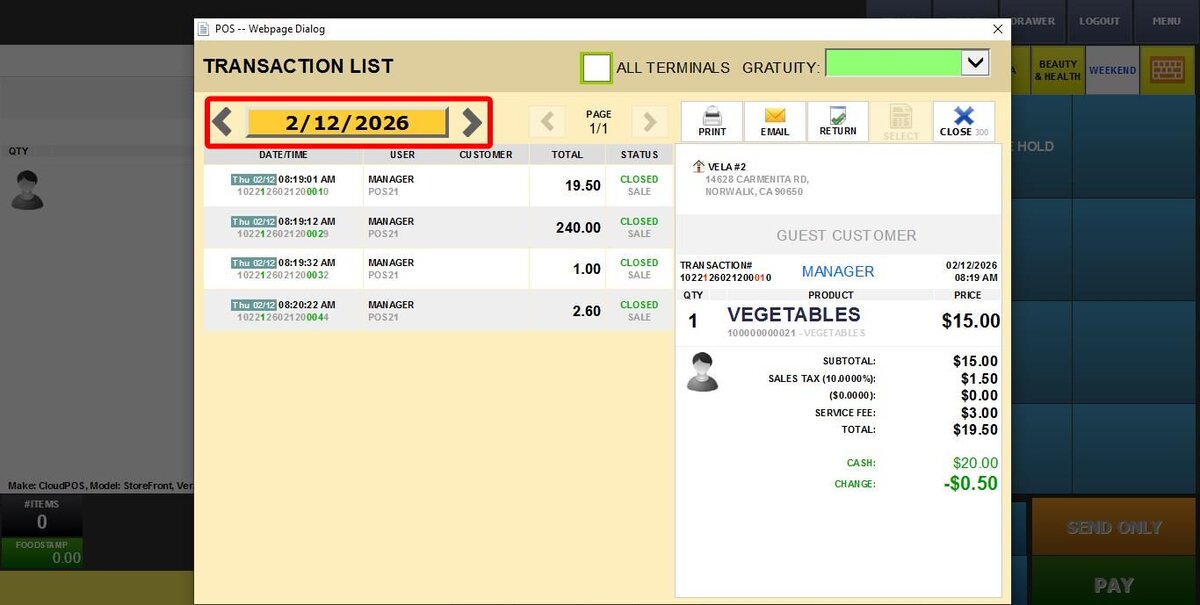
You can navigate through previous dates' transactions with the DATE BUTTON.
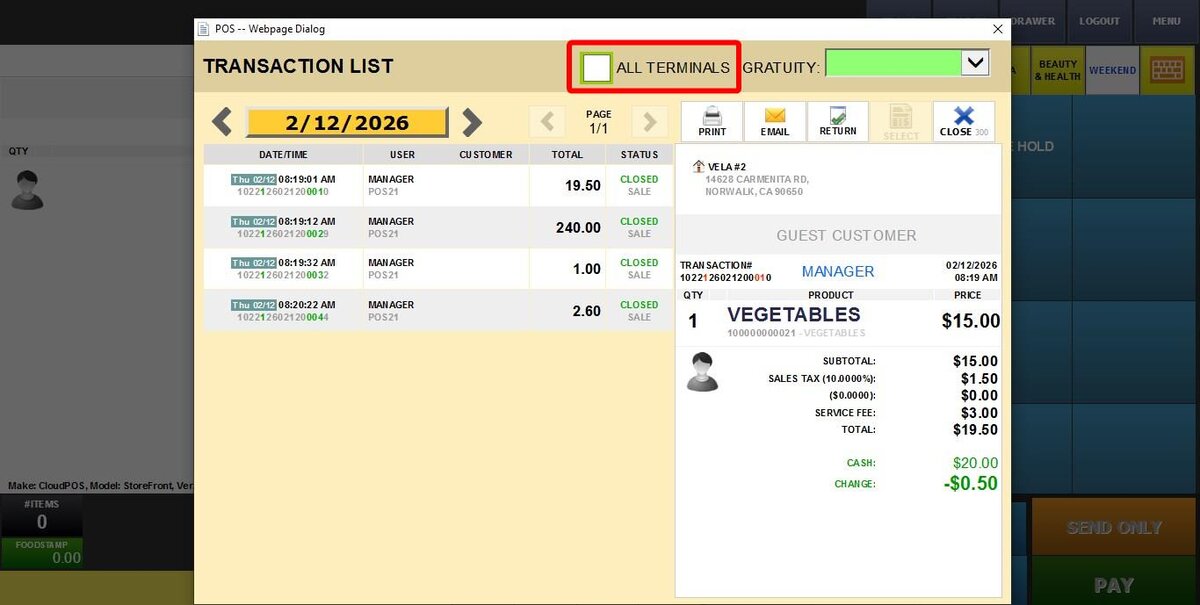
If you have multiple POS, you can view all terminals' sales records by checking the ALL TERMINALS box.
These buttons let you perform additional actions on a selected transaction.
PRINT: Prints the selected transaction.
EMAIL: You can send the ticket to a Custom email address.
RETURN: Processes a return for the selected transaction. See RETURN for more information
SELECT: Selects the transaction so you can resume it or edit it.

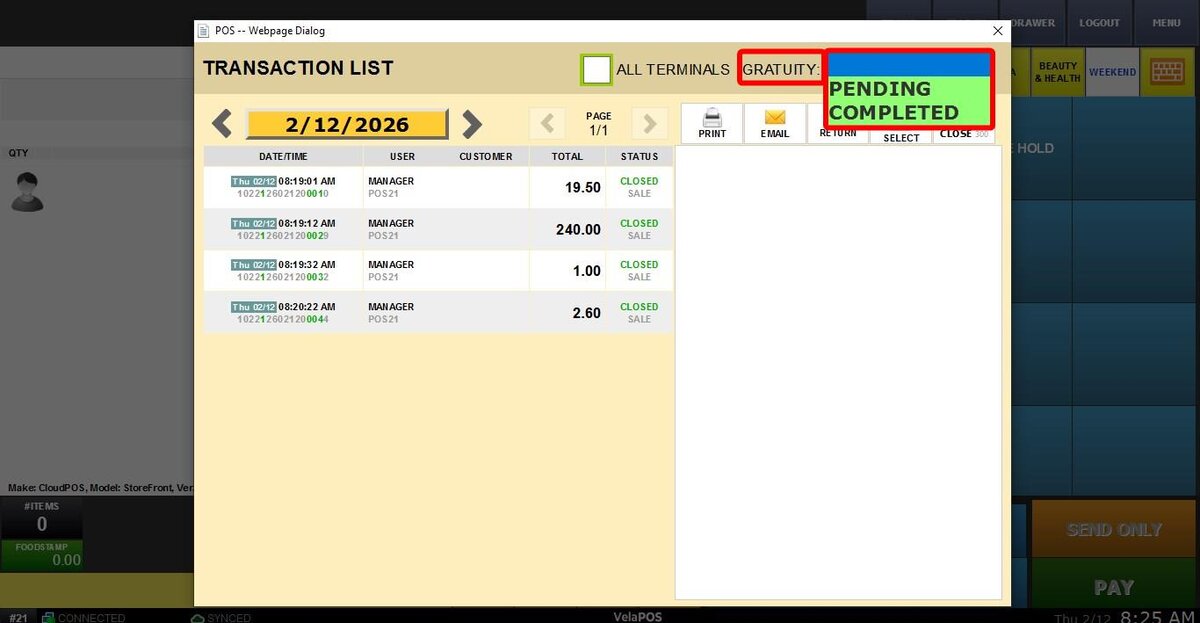
GRATUITY
When gratuity is enabled, the option to add a tip will be available during transactions.
To add a tip to an existing transaction from the POS
Locate and select the desired transaction
Click on GRATUITY
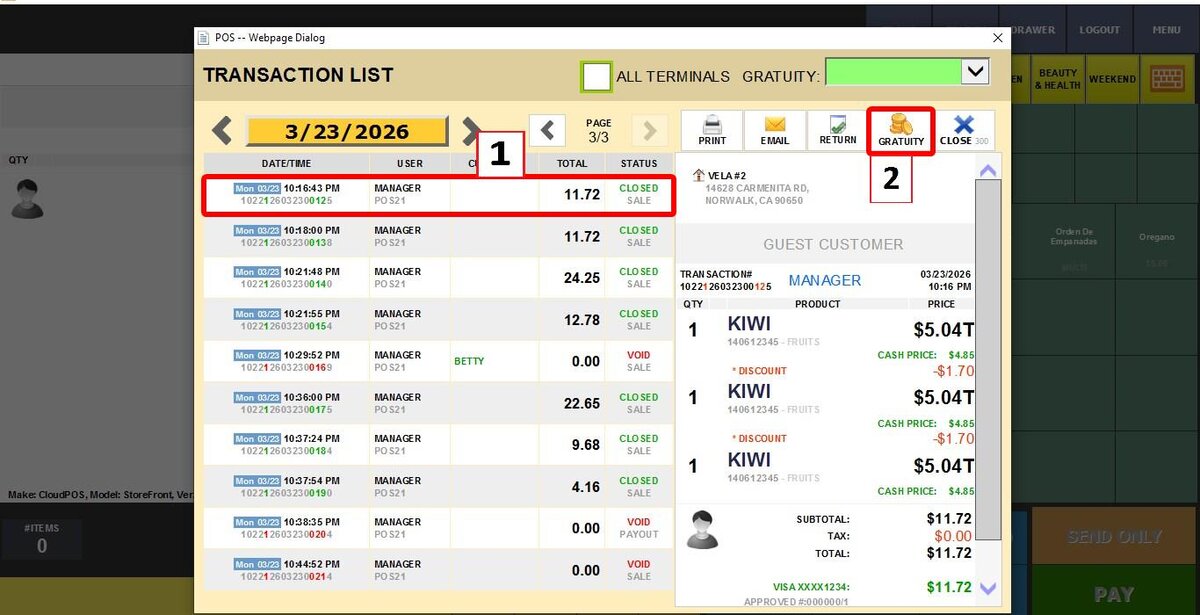
Enter the tip amount in the GRATUITY AMOUNT field
Click CONFIRM to apply the tip
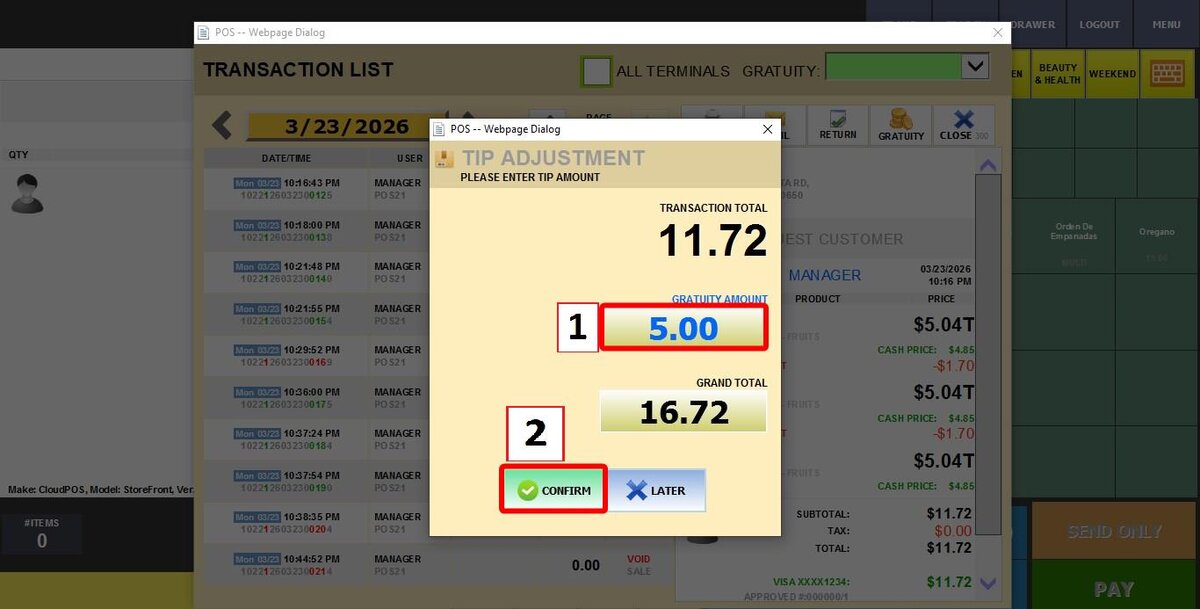
Once confirmed, the transaction will be updated to include the gratuity.
To enable this feature, please refer to the Gratuity Settings guide.
TRANSACTION FILTERS
You can filter by
1. BLANK: Displays all transactions.
2. PENDING: Shows credit and debit card transactions without a tip.
3. COMPLETED: Shows transactions where a tip has already been added.