Pre Define
Creating a predefined discount allows you to set a customized discount for specific departments or categories. This discount can then be assigned to customer groups for targeted pricing.
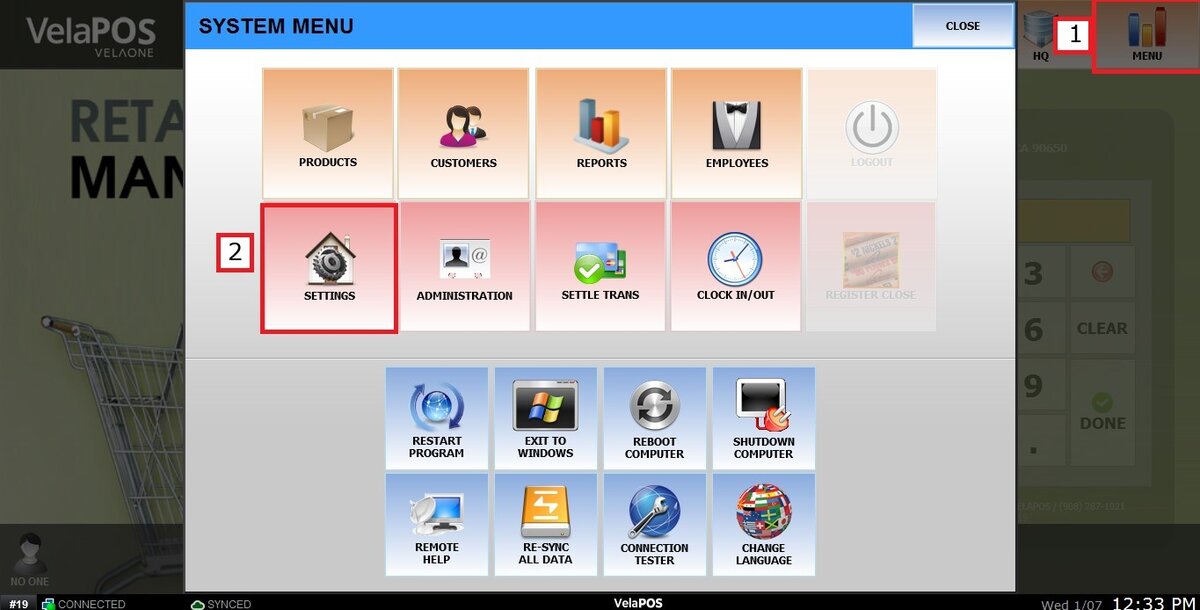
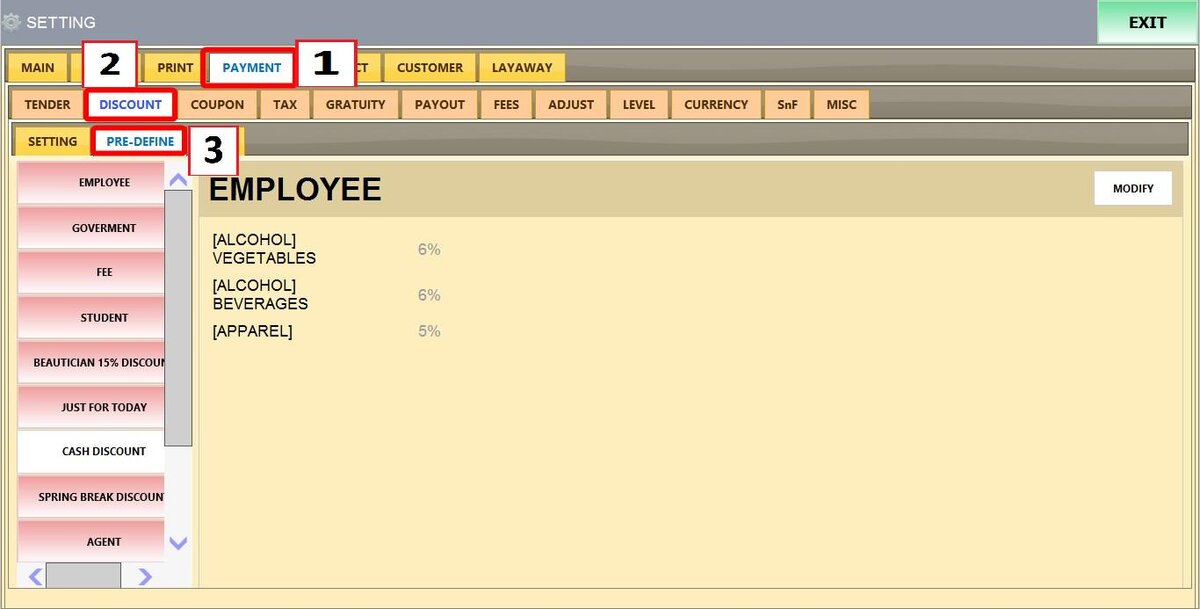
Main Screen > MENU > SETTINGS > PAYMENT > DISCOUNT > PRE-DEFINE
Click MENU, then SETTINGS.
Click PAYMENT, then DISCOUNT, and select the PRE-DEFINE tab
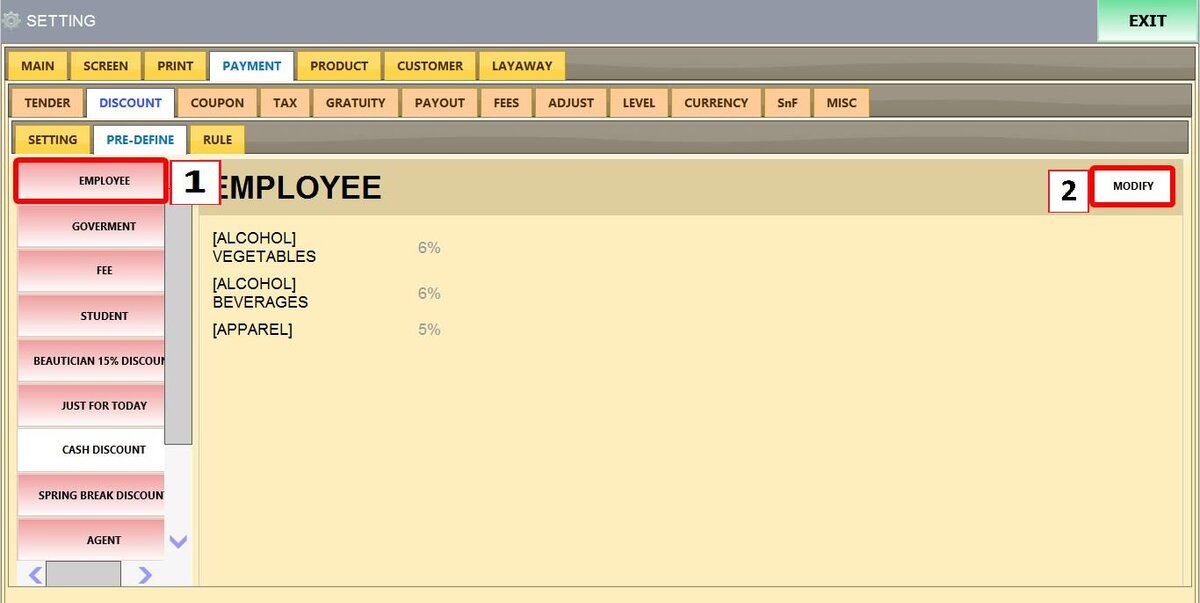
Select any slot on the left and click MODIFY.
Hint: You have 12 slots for pre-defined discounts. If you want new ones you will have to overwrite the old ones
Setting Up a Predefined Discount
Name: Enter a name for the discount.
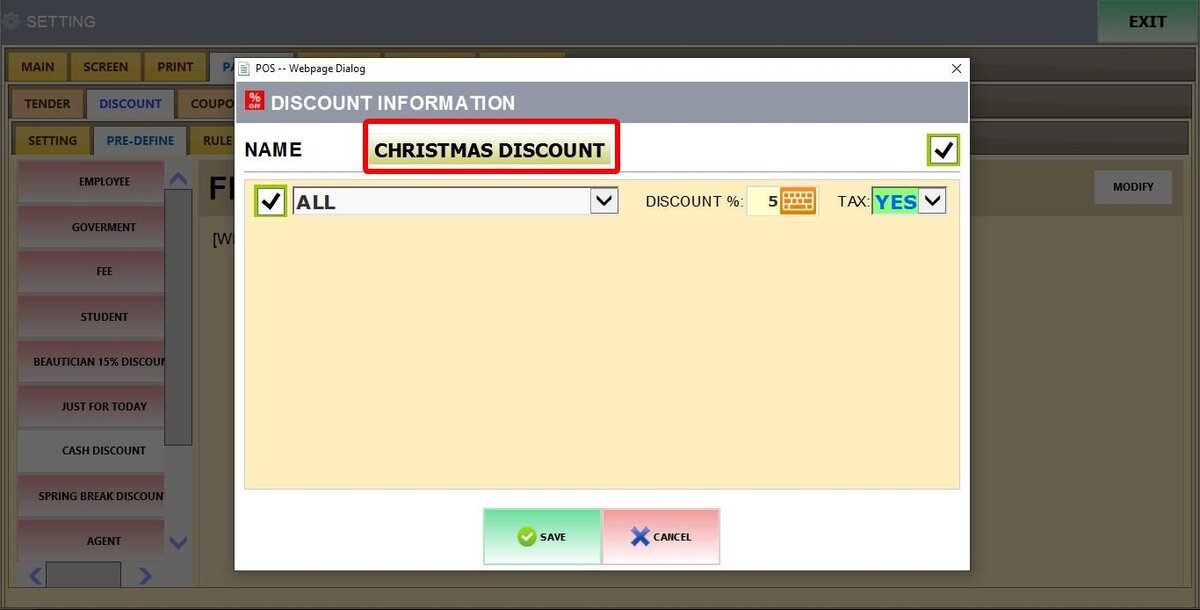
Percentage: Set the discount percentage.
Tax: Choose YES or NO to apply tax on the discounted amount.
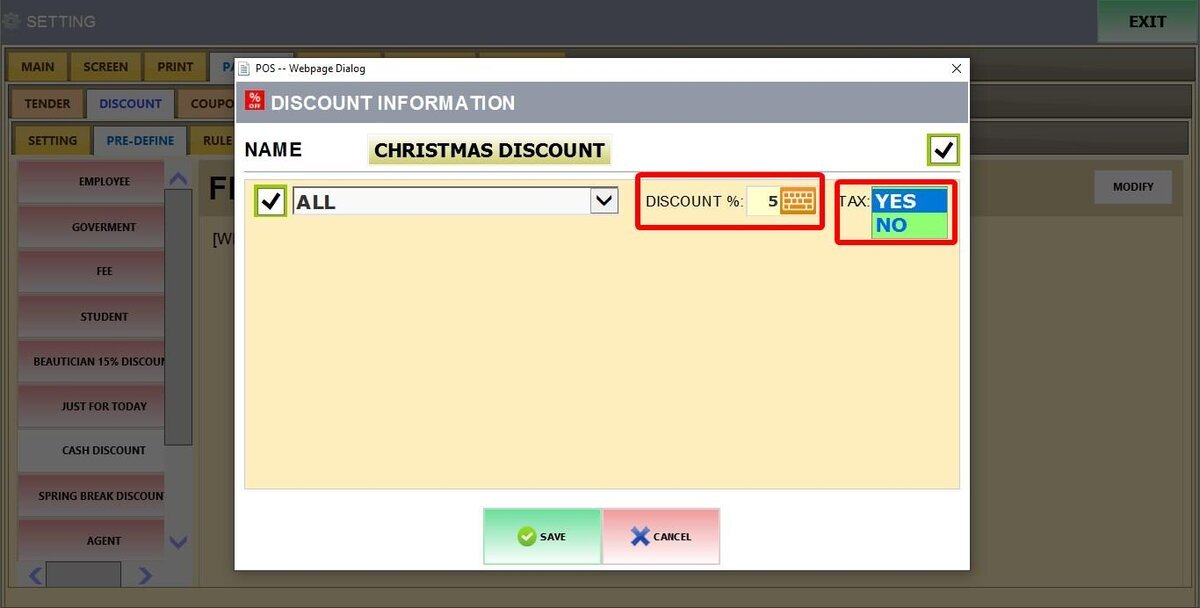
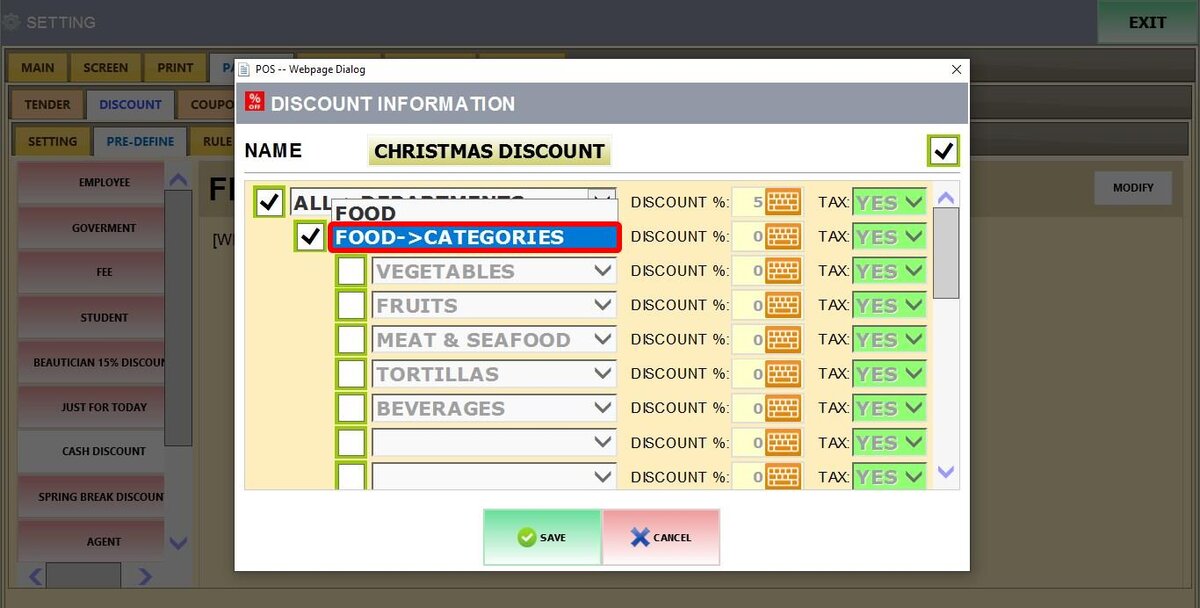
"ALL" Dropdown Menu: Applies the discount to all departments
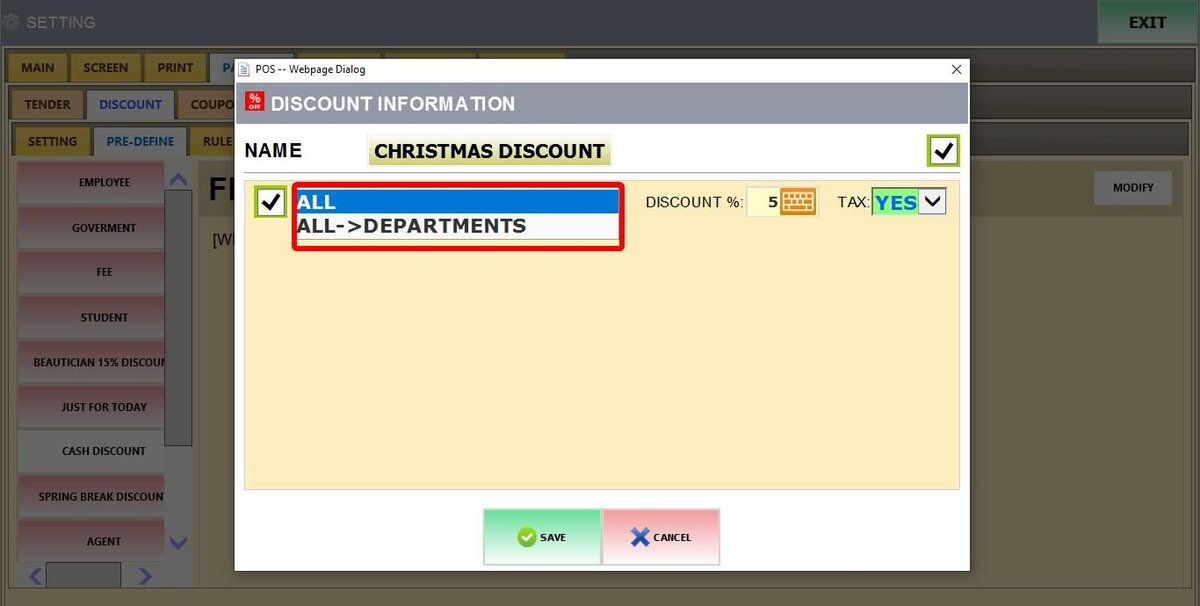
"ALL > DEPARTMENTS": Lets you select specific departments and set different percentages for each
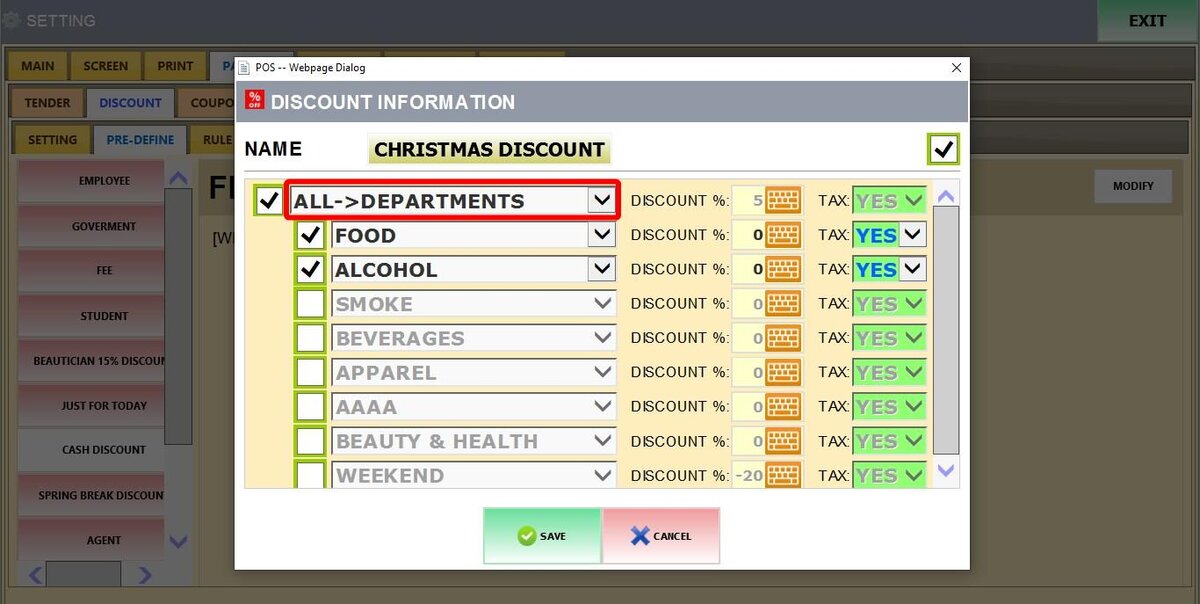
When you select a department, you have two options:
Department Name (e.g Food): Apply the discount to the entire department
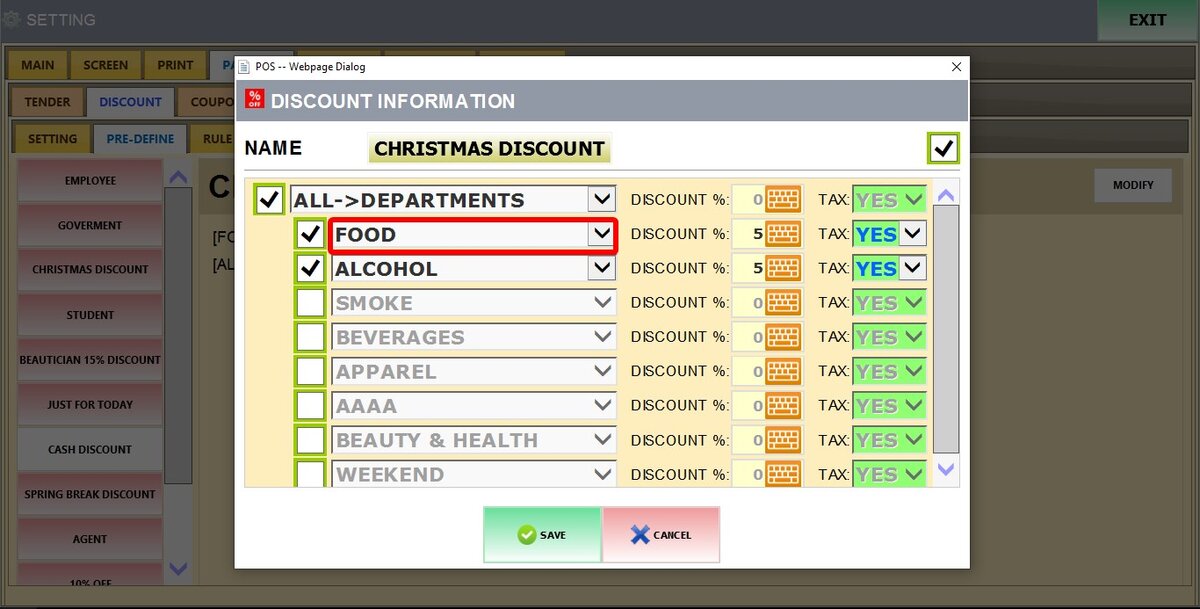
Department Name (e.g Food) > CATEGORIES: Apply different discounts to specific categories within the department
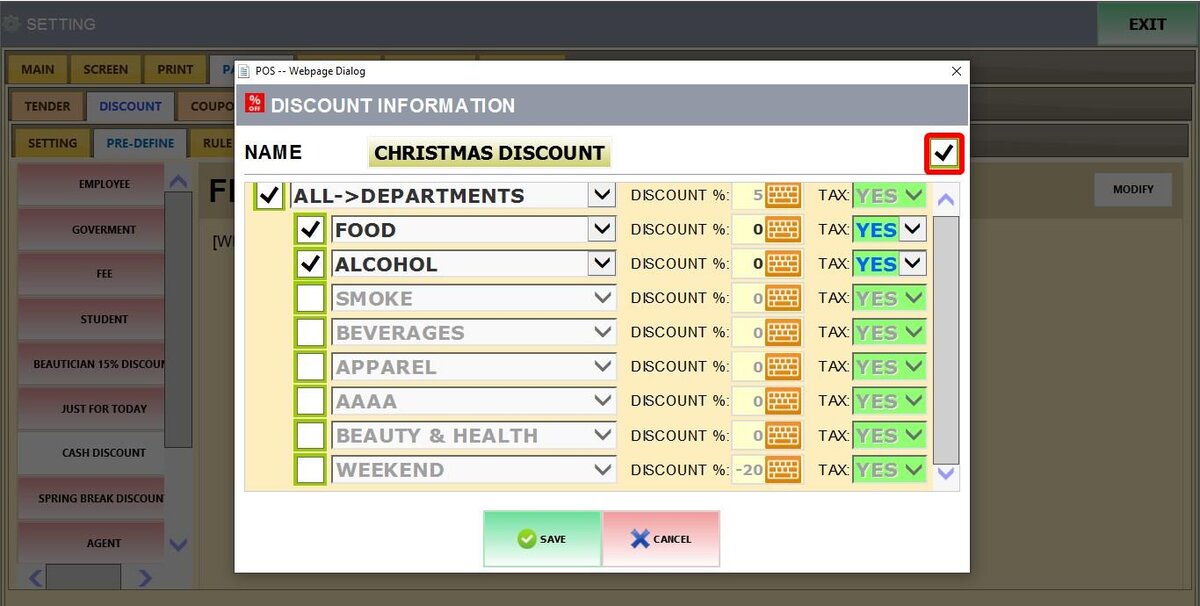
Top Right Checkbox: Enable or disable the entire predefined discount
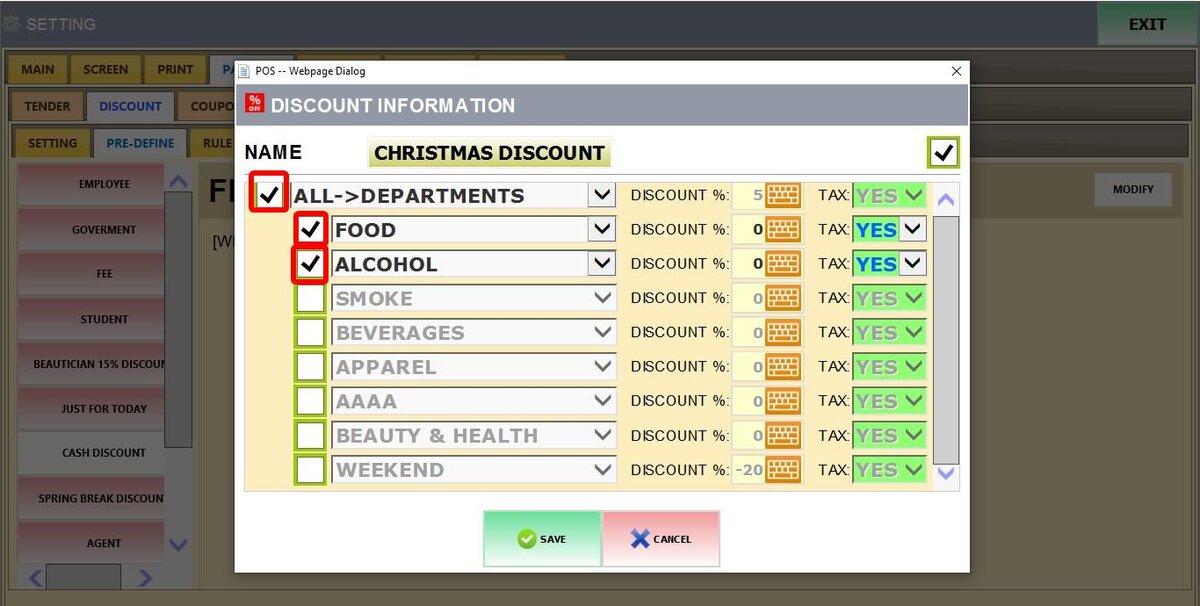
Left Side Checkboxes: Turn the discount on or off for specific departments or categories
Click SAVE and RESTART PROGRAM for changes to take effect.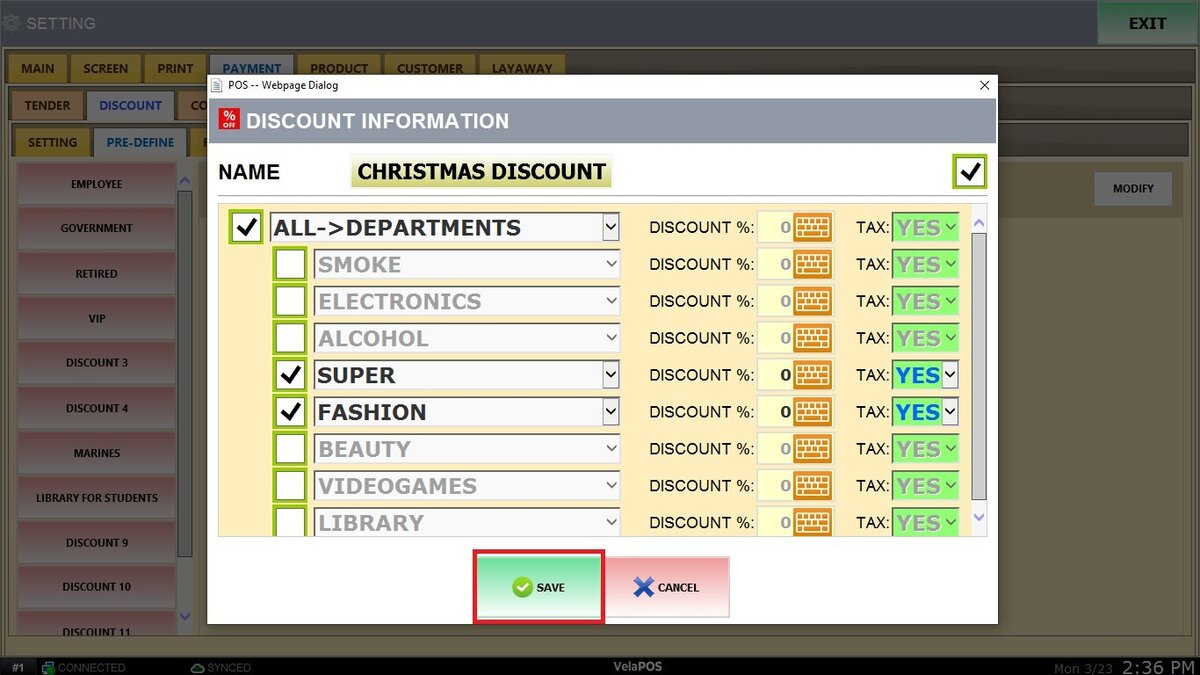
See Customer Group to learn how to assign predefined discounts to customer groups.
See Apply Pre-Defined Discount for instructions on how to use predefined discounts in sales.