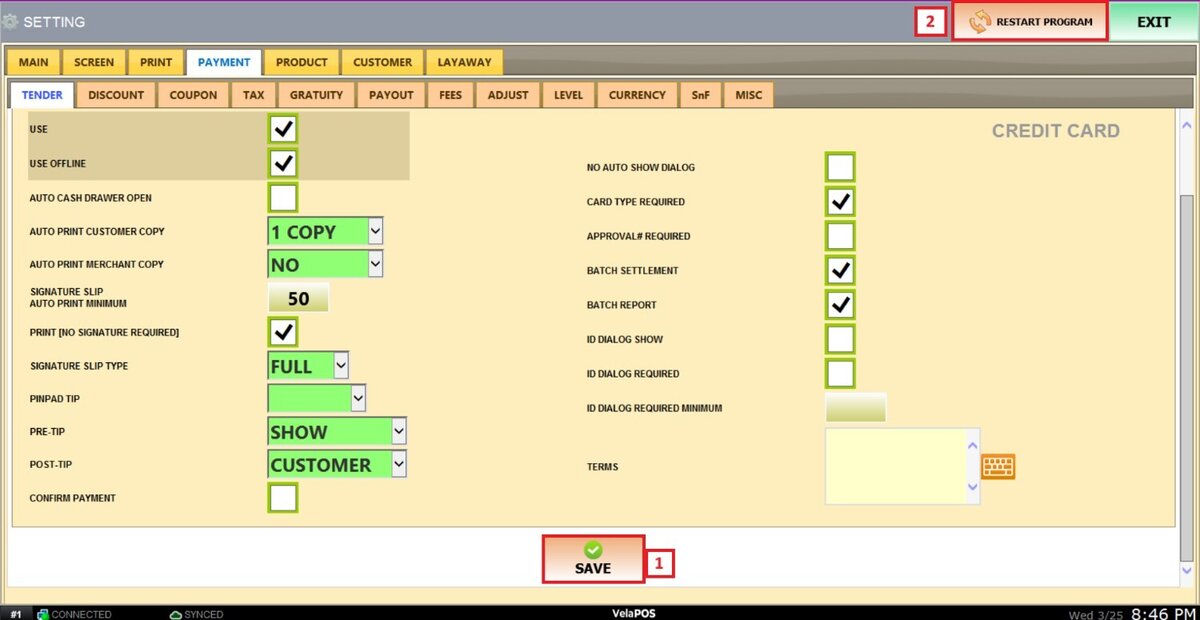
Credit Card
This setting allows you to configure how credit card payments are processed and managed within the system.
Each option helps customize the payment flow, receipt printing, and PIN pad interaction to match your store’s operational needs.
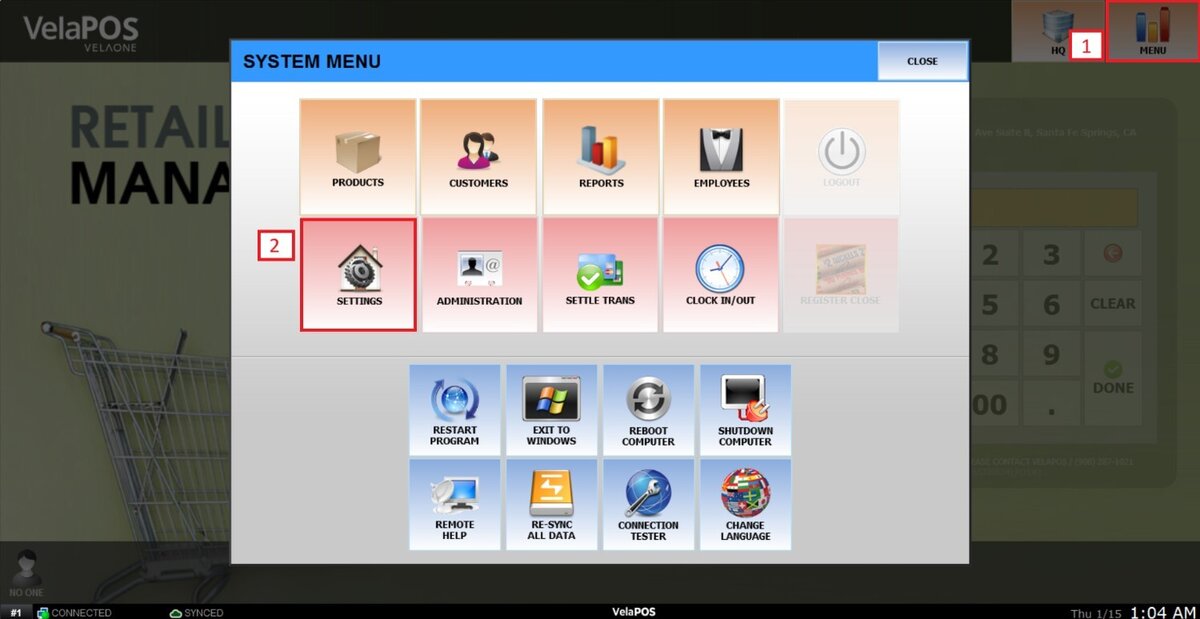
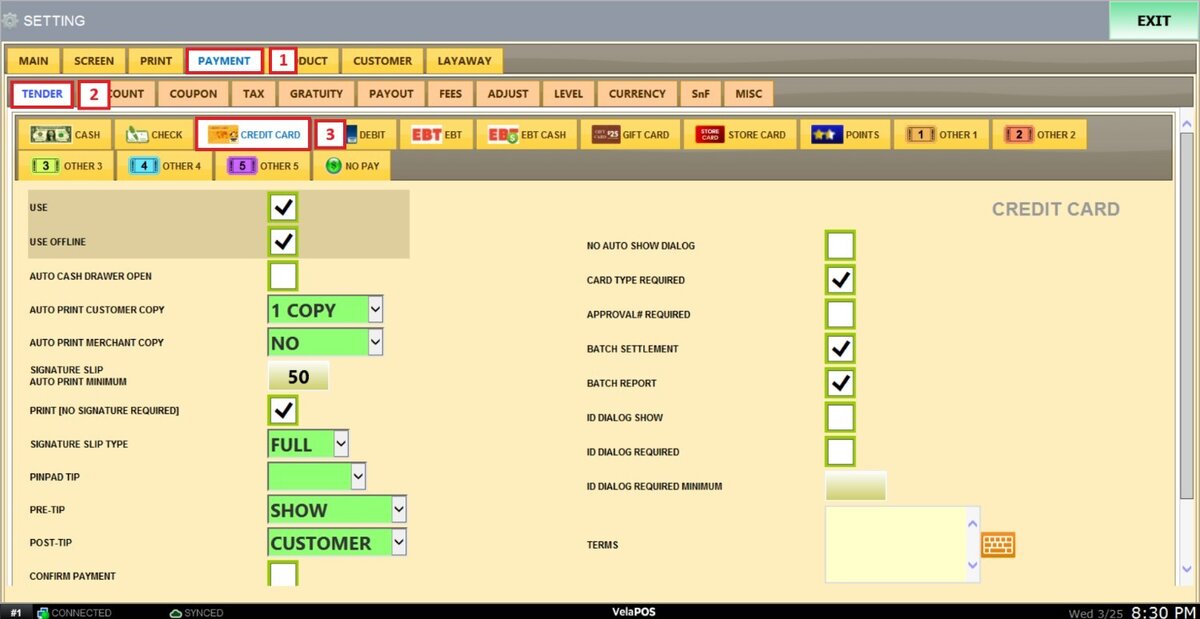
Main Screen> MENU>SETTINGS> PAYMENT> TENDER> CREDIT CARD
Go to MENU and select SETTINGS.
Go to the PAYMENT tab, click on TENDER and select CREDIT CARD.
Refer to Paying with Credit Card to learn how this payment method is used to complete sales.
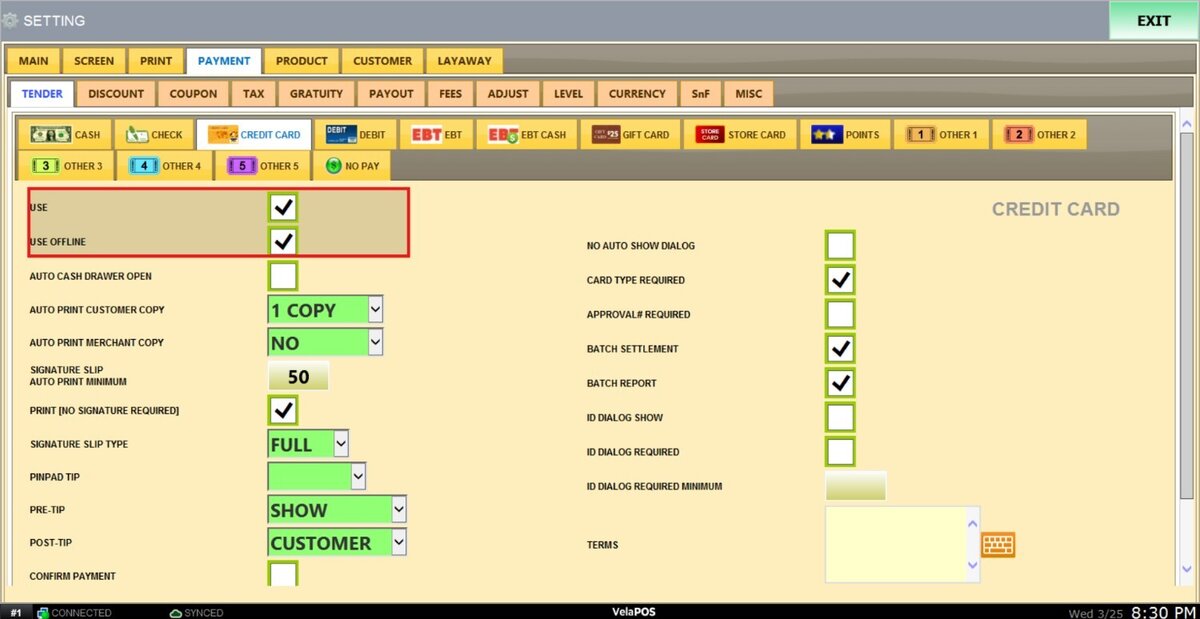
Check the boxes as desired for the following options:
USE: When checked enables the credit card as an accepted tender type.
USE OFFLINE: Allows credit transactions to be processed even if the POS temporarily loses connection.
AUTO CASH DRAWER OPEN: Automatically opens the cash drawer after a credit transaction is completed.
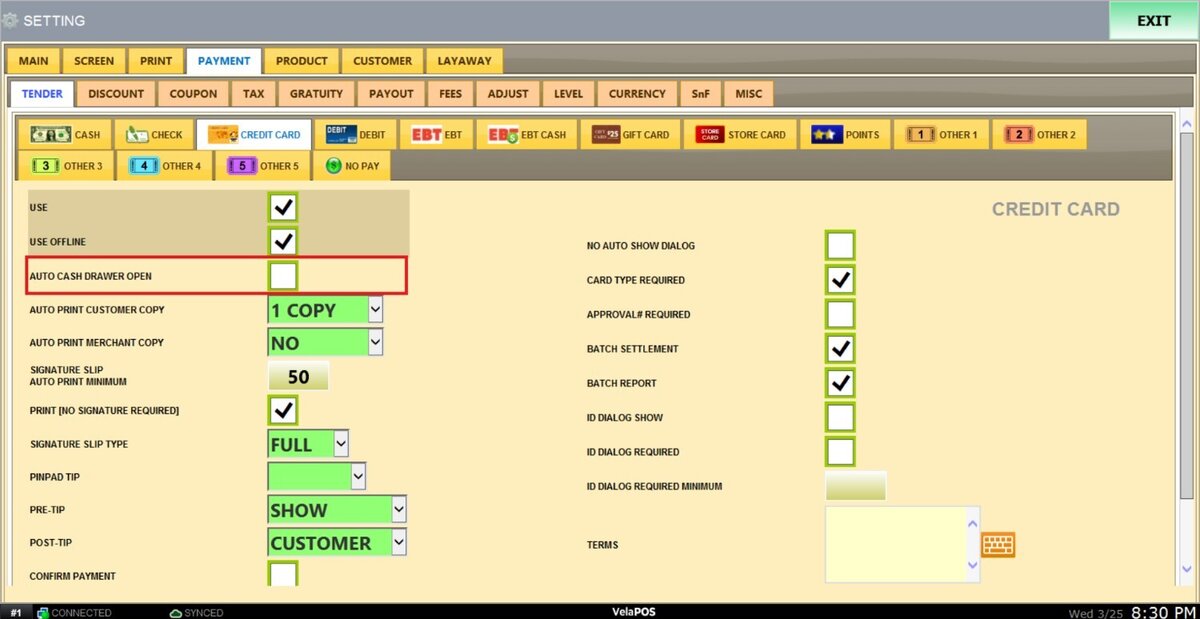
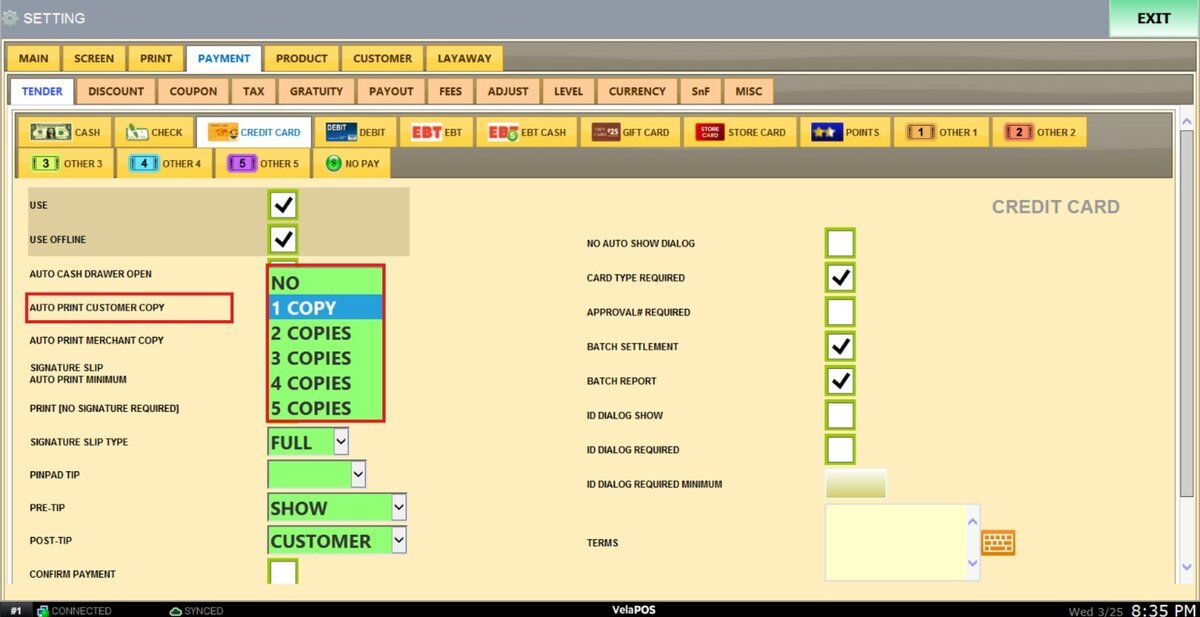
AUTO PRINT CUSTOMER COPY: Sets how many customer receipt copies print automatically.
Options range from NO copies to 1–5 copies.

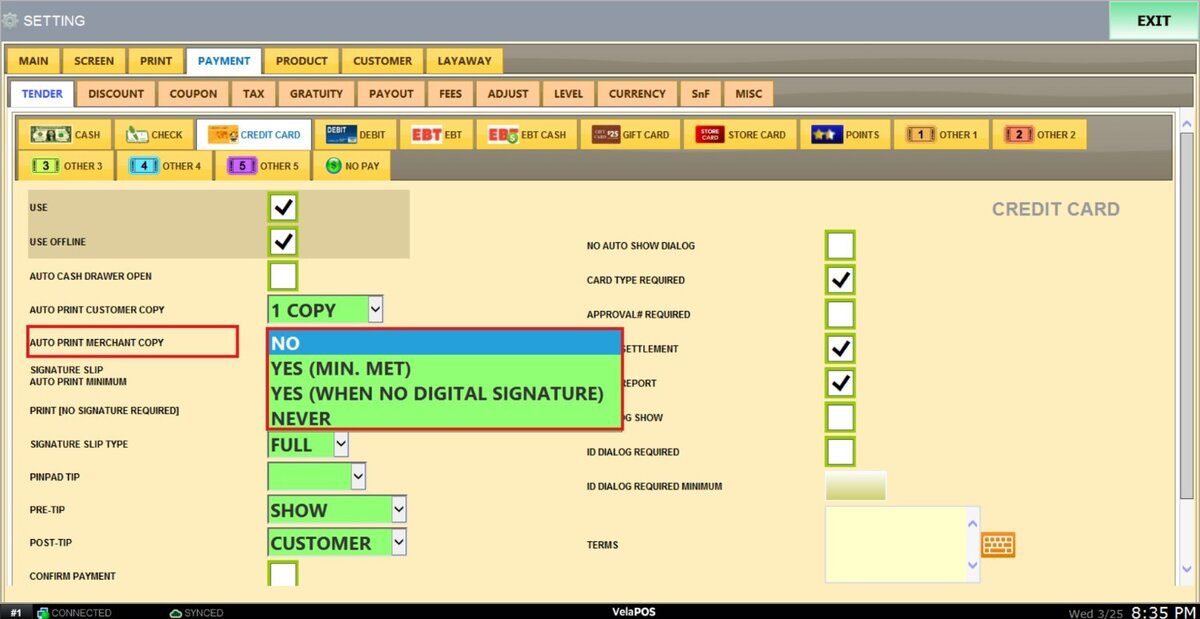
AUTO PRINT MERCHANT COPY: Determines whether a merchant receipt prints automatically after each transaction.
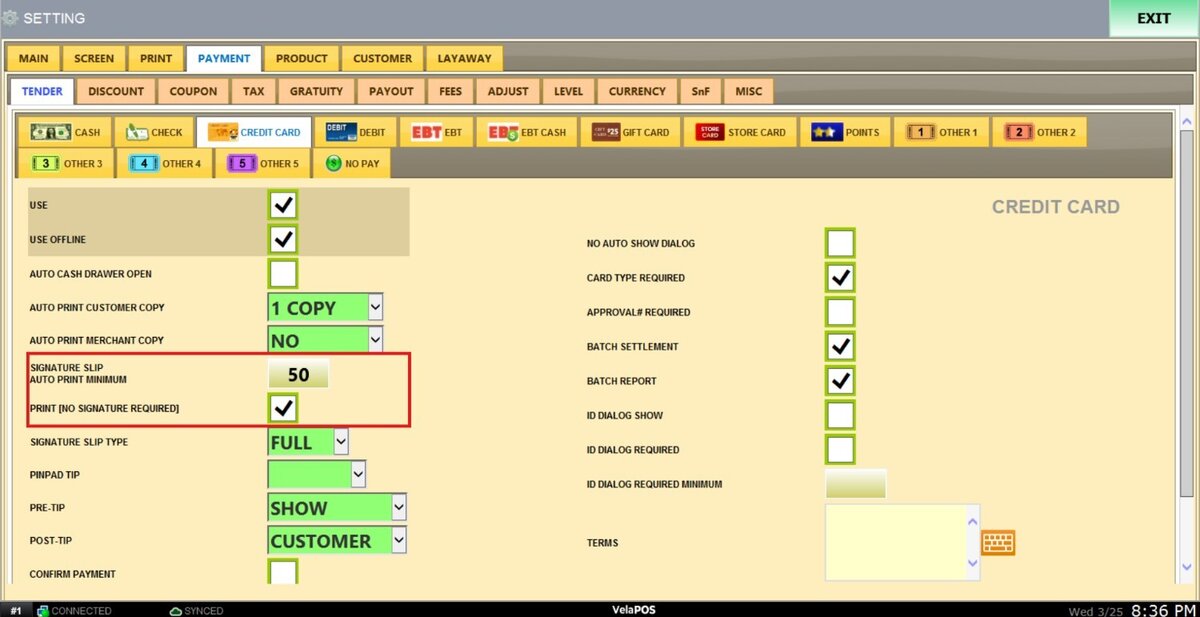
SIGNATURE SLIP AUTO PRINT MINIMUM: Defines the minimum transaction amount required for the system to automatically print a signature slip.
PRINT [NO SIGNATURE REQUIRED]: Determines whether a receipt is printed even when no signature is required for the transaction.
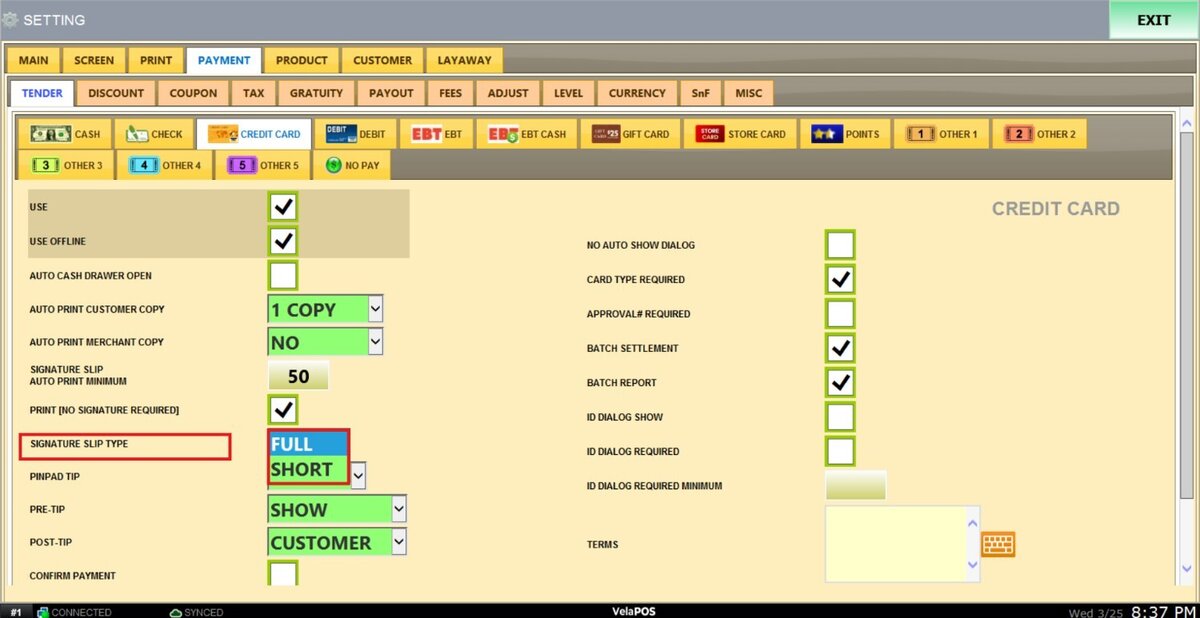
SIGNATURE SLIP TYPE: Allows you to select the format of the signature slip that will be printed for credit card transactions.
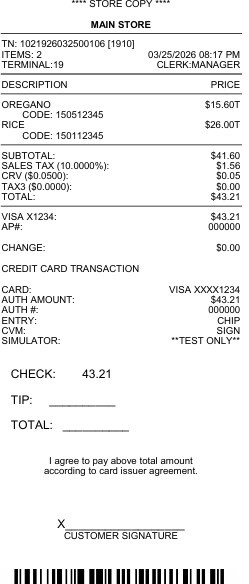
1. FULL: Prints a detailed signature slip including full transaction information.
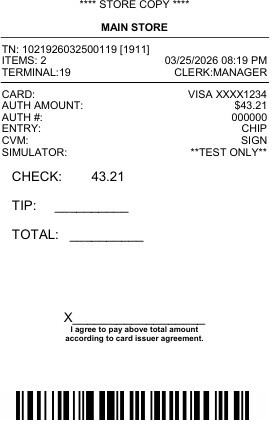
2. SHORT: Prints a simplified signature slip with only essential transaction details.
RESULT:
This is how it looks when the option SHORT it's selected.
This is how it looks when the option FULL it's selected.
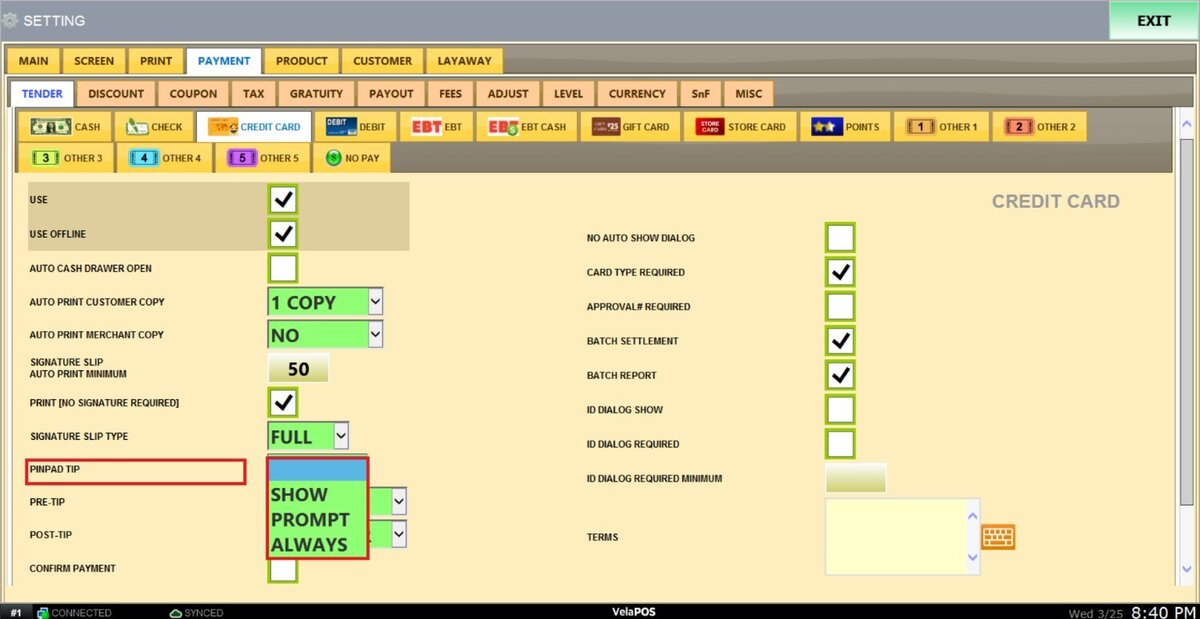
PINPAD TIP: Controls how tipping is presented on the PIN pad.
Options include:
1. SHOW: Displays the tip option on the PIN pad.
2. PROMPT: Asks the customer whether they want to add a tip.
3. ALWAYS: Automatically shows the tip option for every transaction.

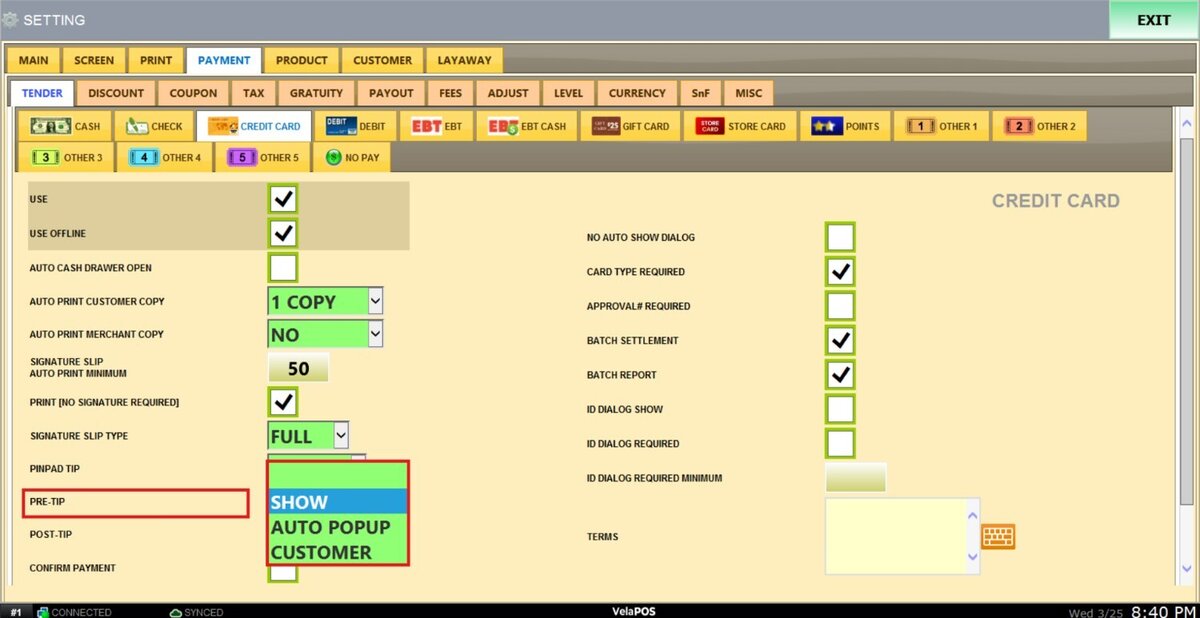
PRE-TIP: Defines whether tipping appears before the payment is finalized.
The available options are:
1. SHOW: Displays the tip screen before completion.
2. AUTO POP UP: Automatically opens the tip screen without cashier action.
3. CUSTOMER: Shows the tip option directly on the pin pad for customer input.
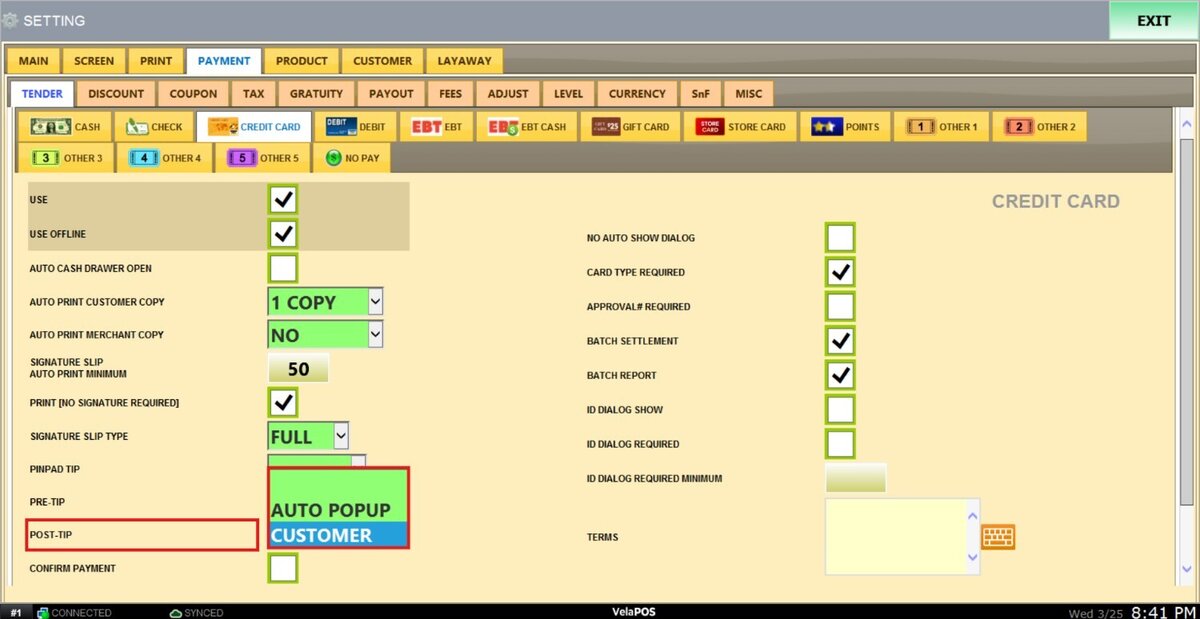
POST-TIP: This setting defines how tips are handled after a transaction is completed.
1. AUTO POP UP: The system will automatically display a prompt after the transaction, allowing you to enter or adjust the tip amount.
2. CUSTOMER: The tip is entered directly by the customer, typically through the payment device, such as the pinpad during the transaction.
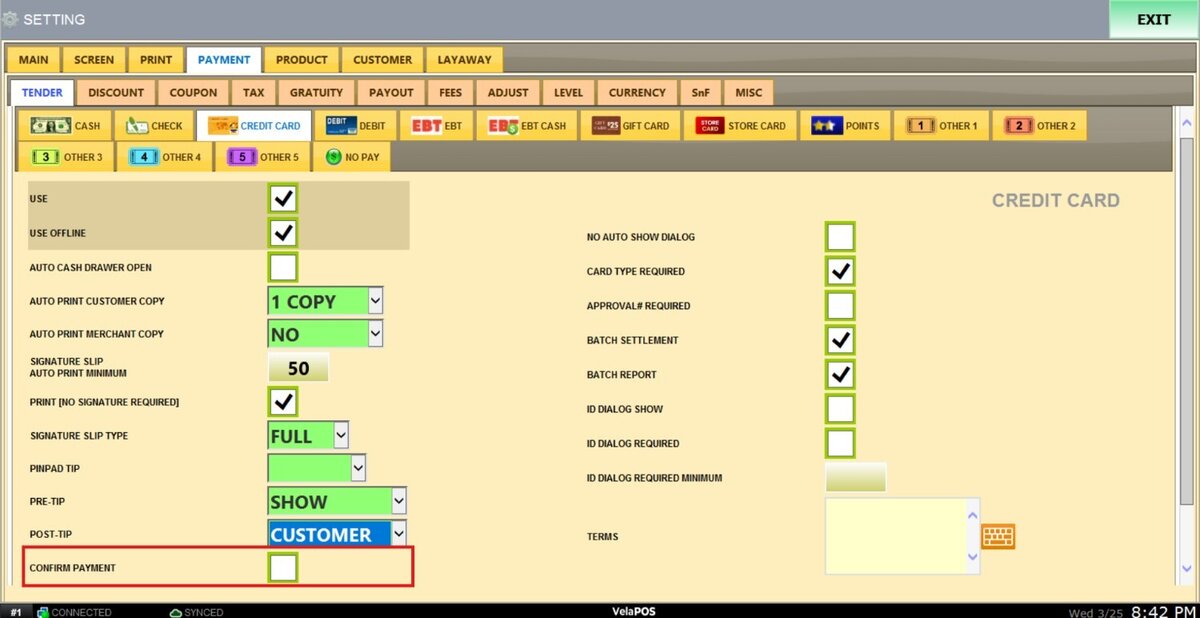
CONFIRM PAYMENT: Requires manual confirmation on the POS screen before completing a credit transaction.
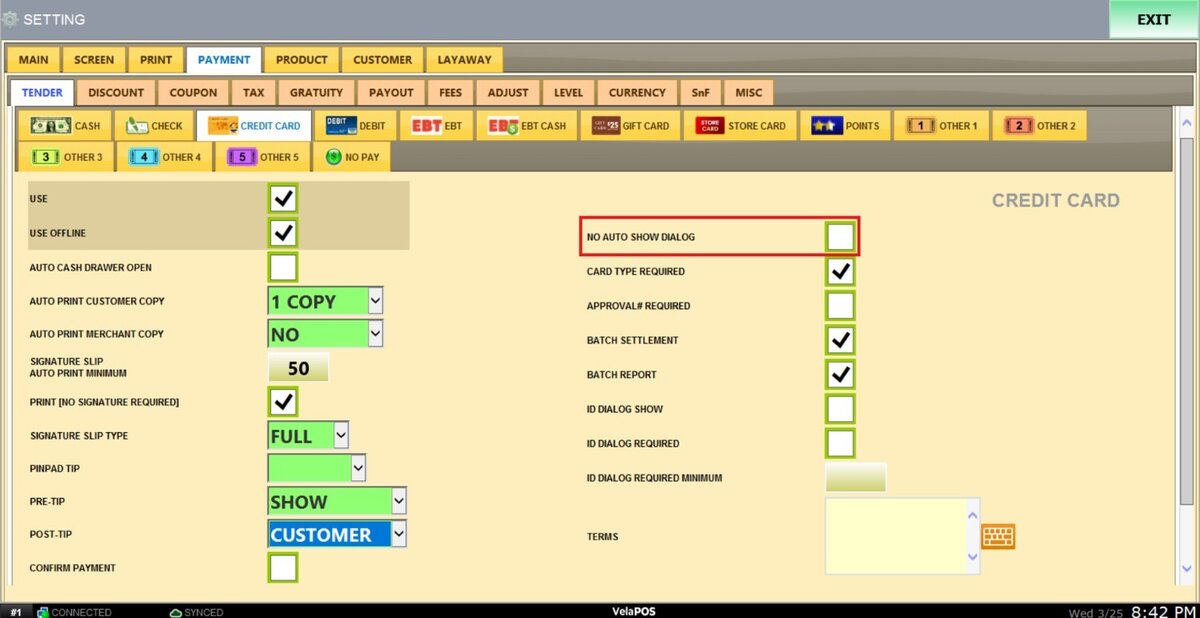
 NO AUTO SHOW DIALOG: Prevents automatic display of approval or ID confirmation dialogs after card transactions
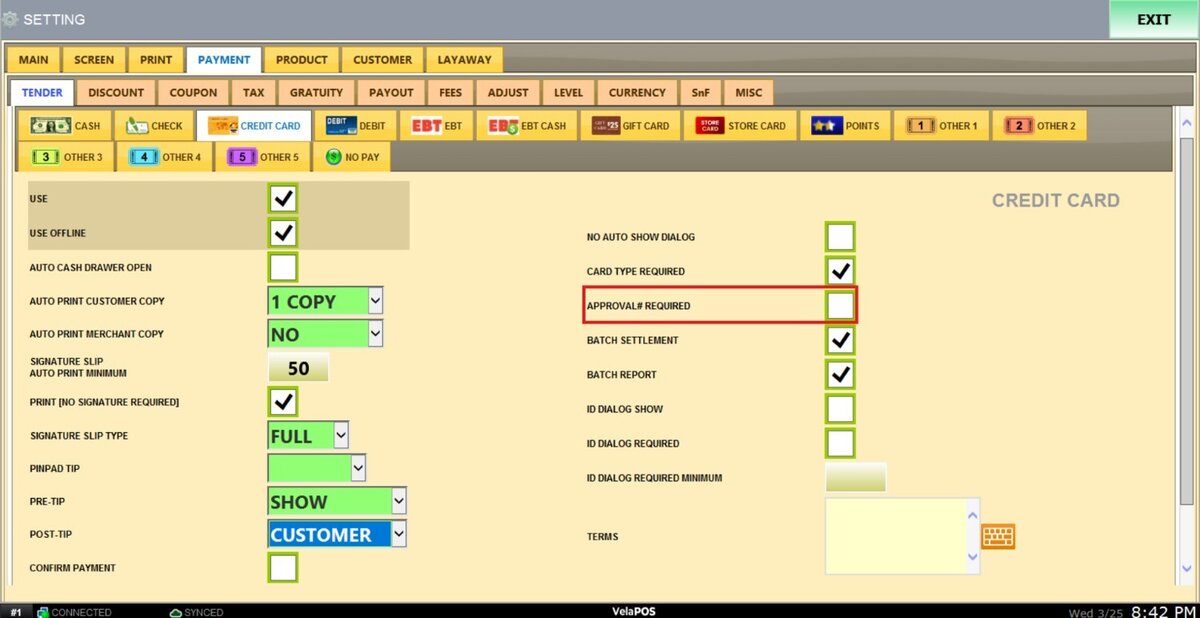
APPROVAL# REQUIRED: Requires an approval or authorization number before finalizing the transaction.
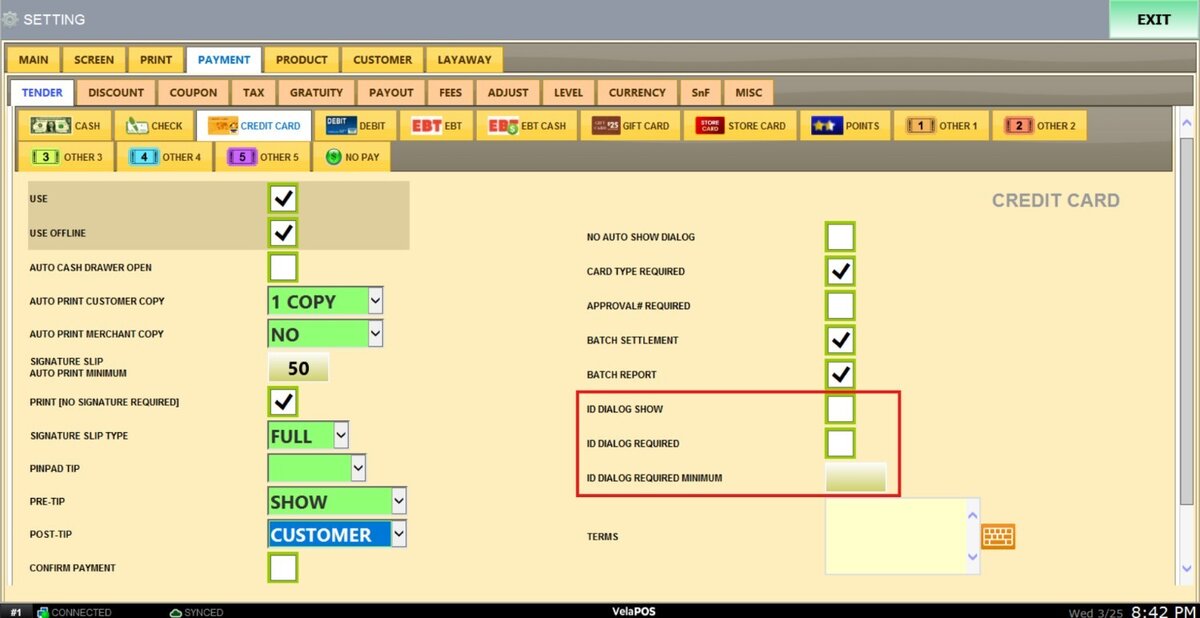
ID DIALOG SHOW/REQUIRED/REQUIRED MINIMUM: Controls ID verification prompts during transactions, including whether ID is optional, required, or required above a certain amount.
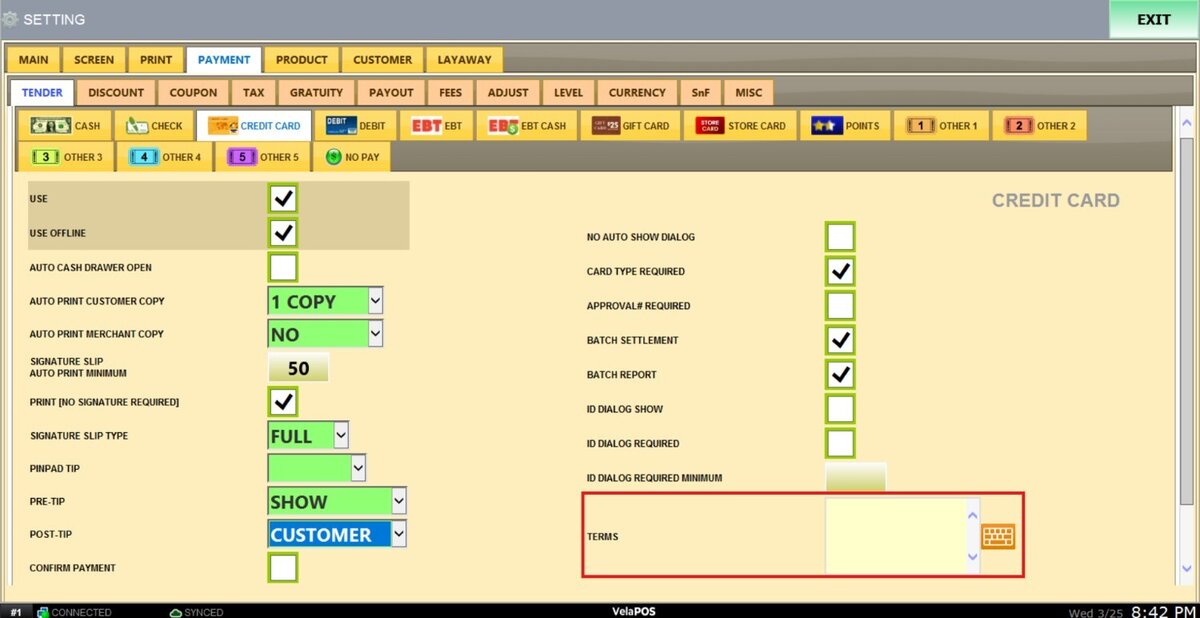
TERMS: Optional text field for adding specific terms, conditions, or notes related to debit transactions.
 Click on SAVE and RESTART PROGRAM to apply all configured settings.