Gift Card
Configure how gift cards work as a payment method in the system. These settings control gift card acceptance, printing options, dialog behavior, and ID requirements for gift card transactions.
Main Screein > MENU > SETTINGS > PAYMENT > TENDER > GIFT CARD
Select MENU, then SETTINGS
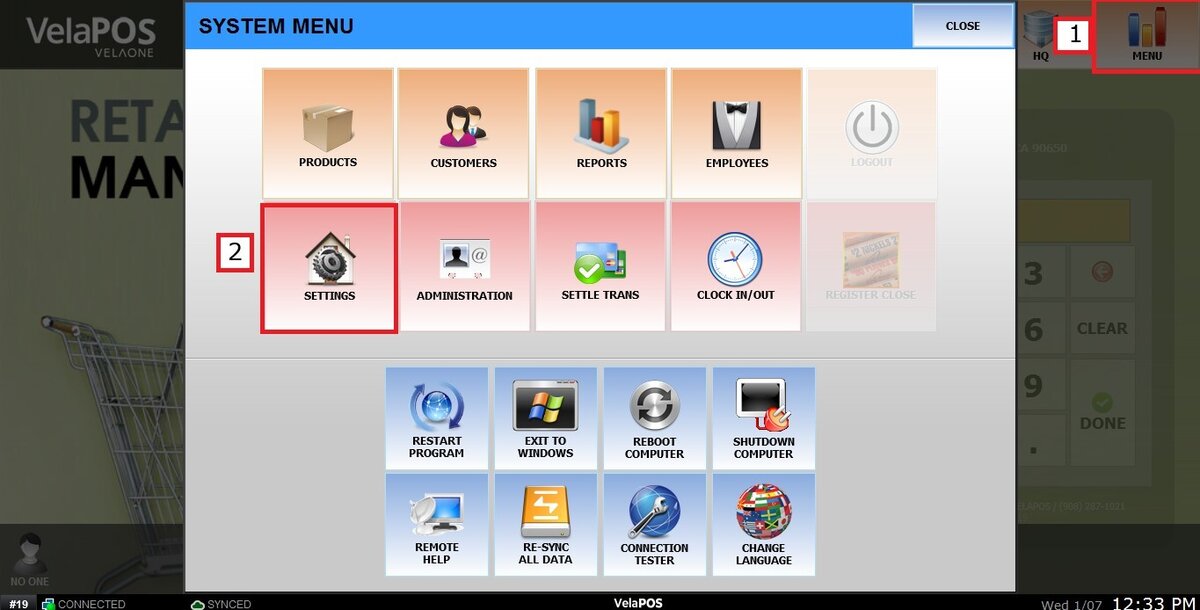
Click PAYMENT, then TENDER, and select the GIFT CARD tab.

Refer to Paying With Gift Card for general information about using store cards during transactions.
You will see different settings sections:
1. USE: Enable or disable gift cards as a payment method.
2. USE OFFLINE: Allow gift card transactions to process even when the system is not connected to the internet.
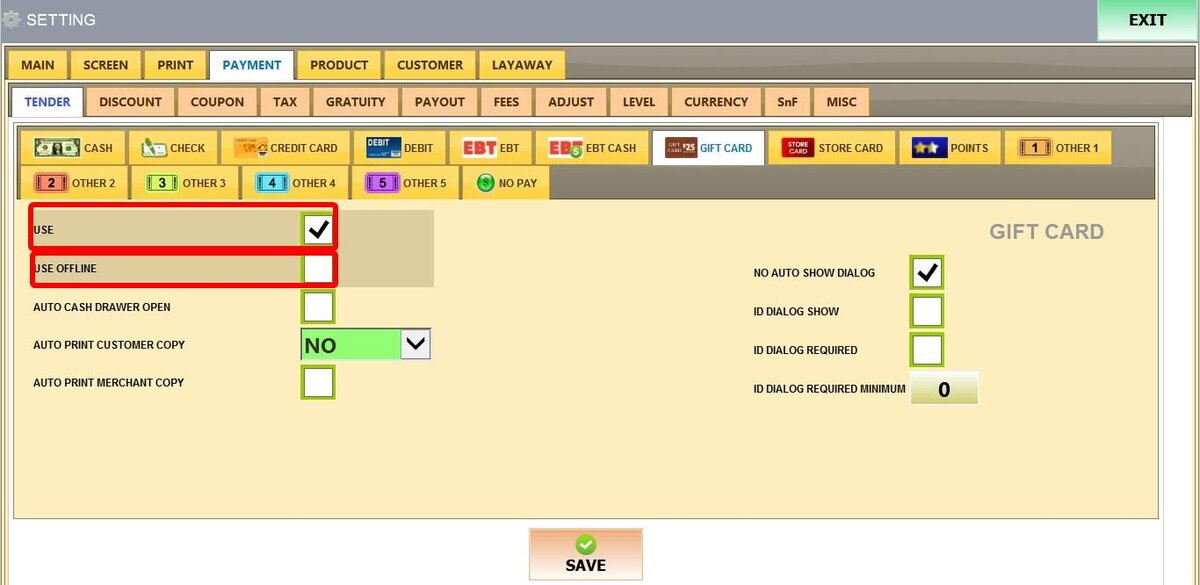
3. AUTO CASH DRAWER OPEN: Cash drawer opens automatically when a gift card payment is completed.

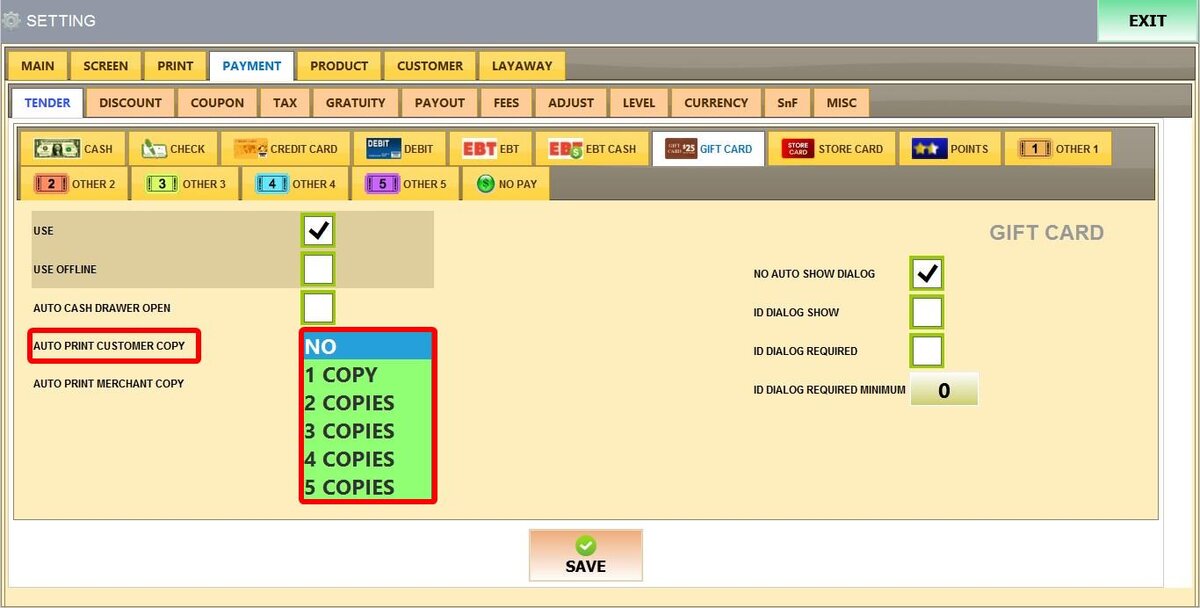
4. AUTO PRINT CUSTOMER COPY: Choose how many customer receipts to print automatically. Options: "NO" (0 COPIES), 1 COPY to 5 COPIES.
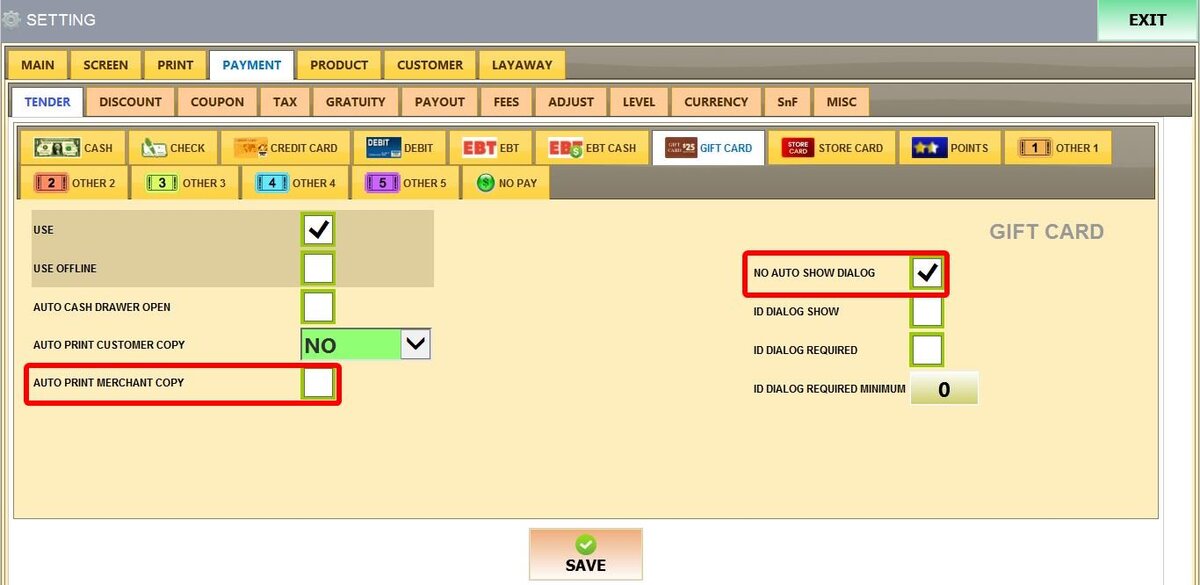
5. AUTO PRINT MERCHANT COPY: When enabled, automatically prints a merchant copy of the receipt.
6. NO AUTO SHOW DIALOG: When enabled, the system will not automatically display the gift card balance window when processing a gift card payment.
7. ID DIALOG SHOW: Prompts for customer ID when processing gift card payments.
8. ID DIALOG REQUIRED: Makes entering customer ID mandatory to complete gift card payment.
9. ID DIALOG REQUIRED MINIMUM: Only requires ID for gift card transactions above a certain amount. Enter the minimum amount in the field.

After making all the changes, click on SAVE and RESTART THE PROGRAM.
