Store Card
These settings control how Store Cards function in the system. Store cards are typically used for in-house credit accounts or store-specific payment methods where customers load funds and use them to pay for purchases.
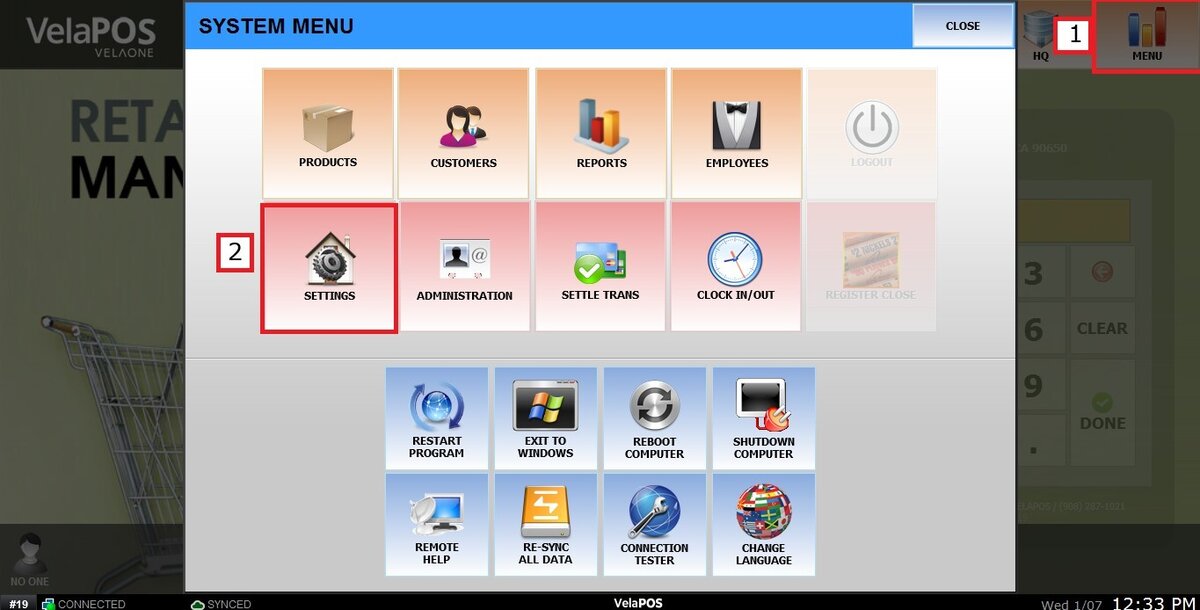
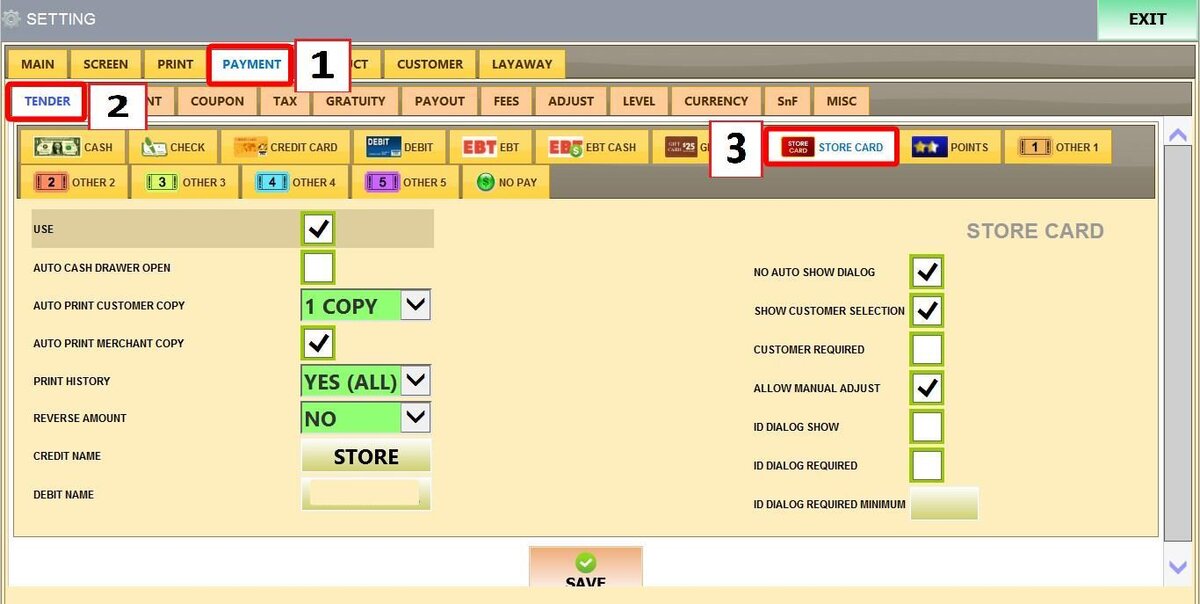
Main Screen > MENU > SETTINGS > PAYMENT > TENDER > STORE CARD
Go to MENU, then press SETTINGS
Under the PAYMENT tab, select TENDER, then click on STORE CARD.
Refer to Paying with Store Card for general information about using store cards during transactions.
You will see different settings sections:
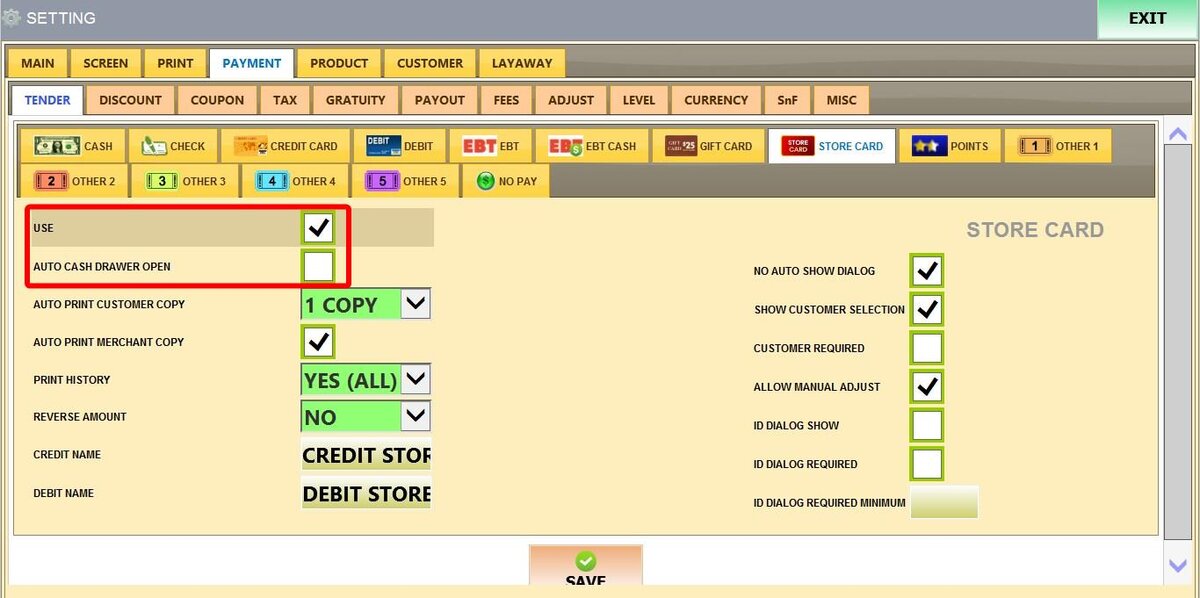
1. USE: Enables or disables store card as a payment method.
2. AUTO CASH DRAWER OPEN: Automatically opens the cash drawer when a store card payment is completed.
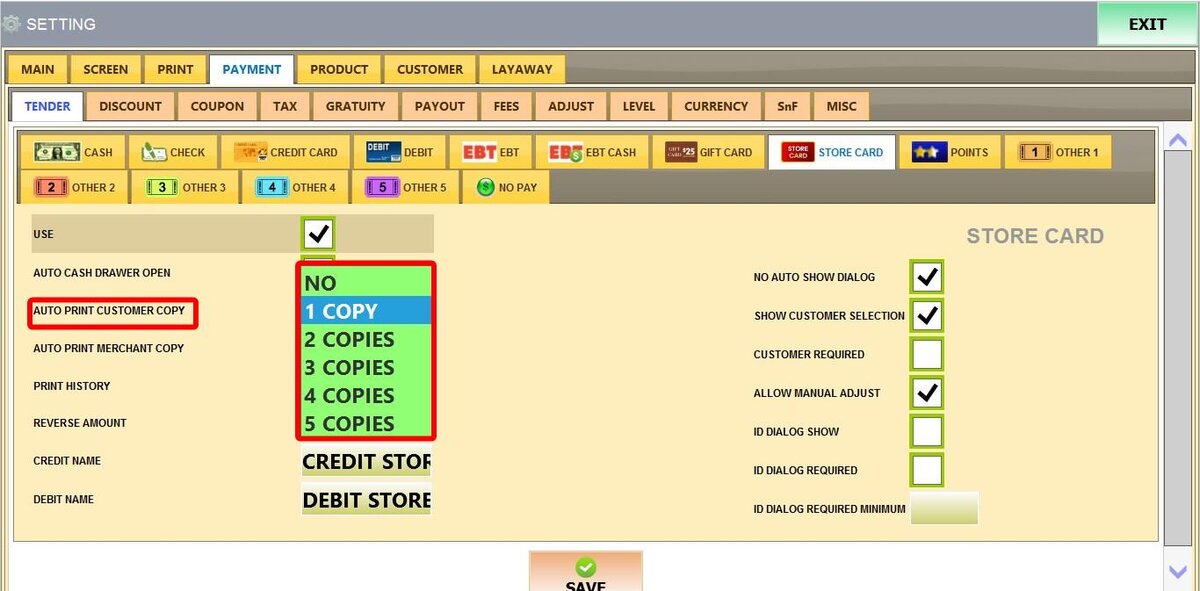
3. AUTO PRINT CUSTOMER COPY: Determines how many customer receipts are automatically printed. Options include NO (0 copies) or 1 to 5 copies.
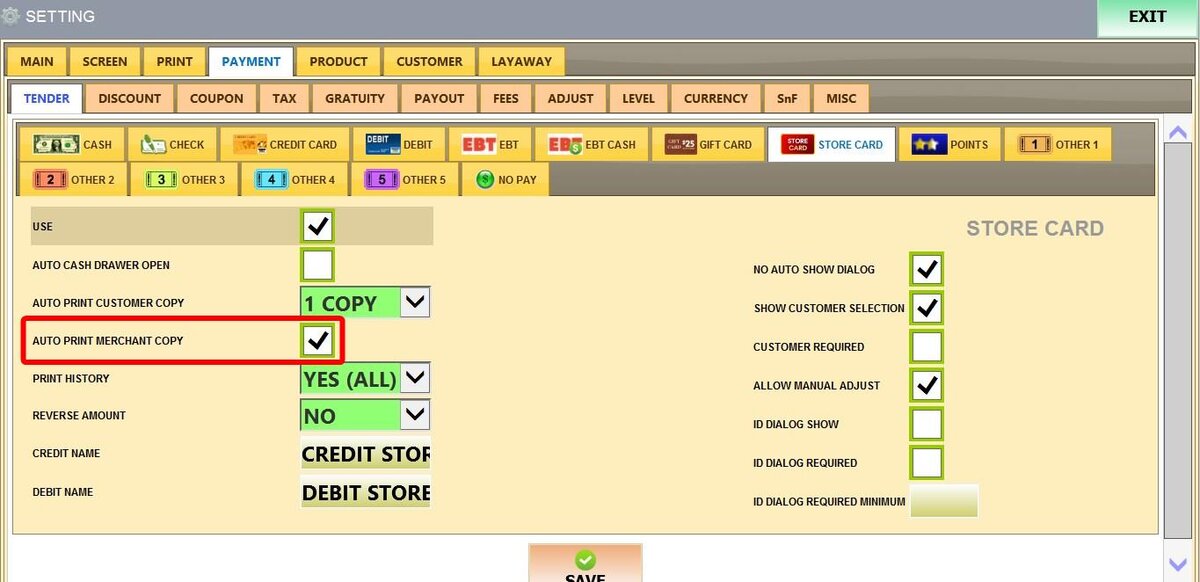
4. AUTO PRINT MERCHANT COPY: When enabled, the system automatically prints a merchant copy of the receipt.
6. PRINT HISTORY: Controls how many previous store card transactions appear when viewing a customer's store card history.
YES (ALL): Shows every transaction.
NO: Shows none.
LAST 5 through LAST 30 displays only the most recent transactions.

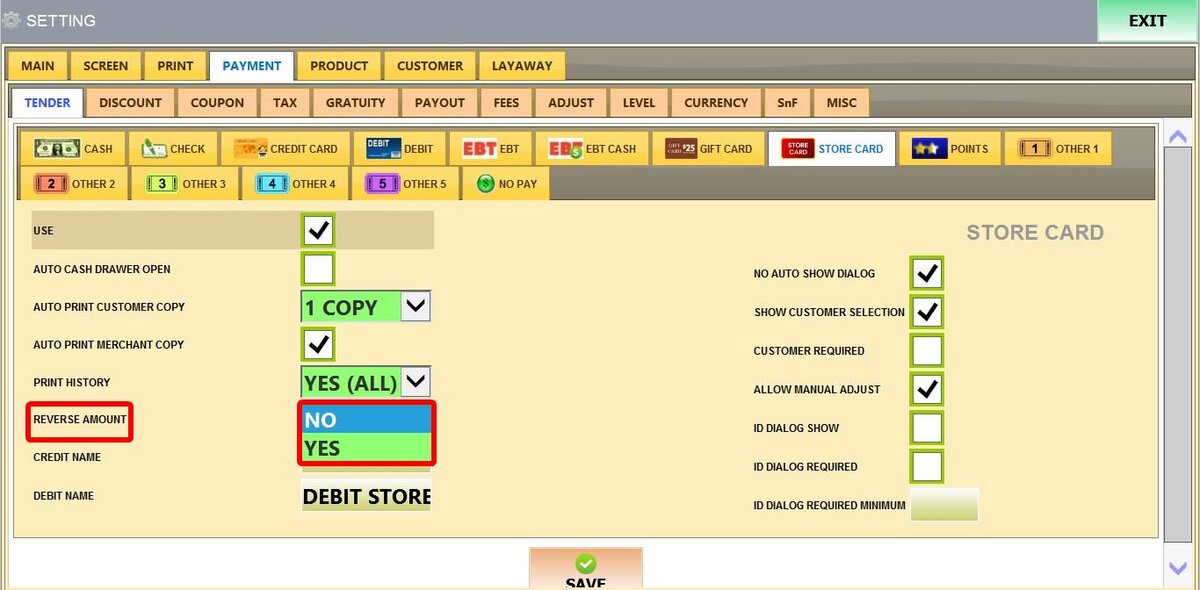
7. REVERSE AMOUNT: Changes how store card transactions appear when updating the card balance (positive or negative values). This can be useful for businesses that follow specific accounting practices, such as recording store card balances as liabilities instead of assets.
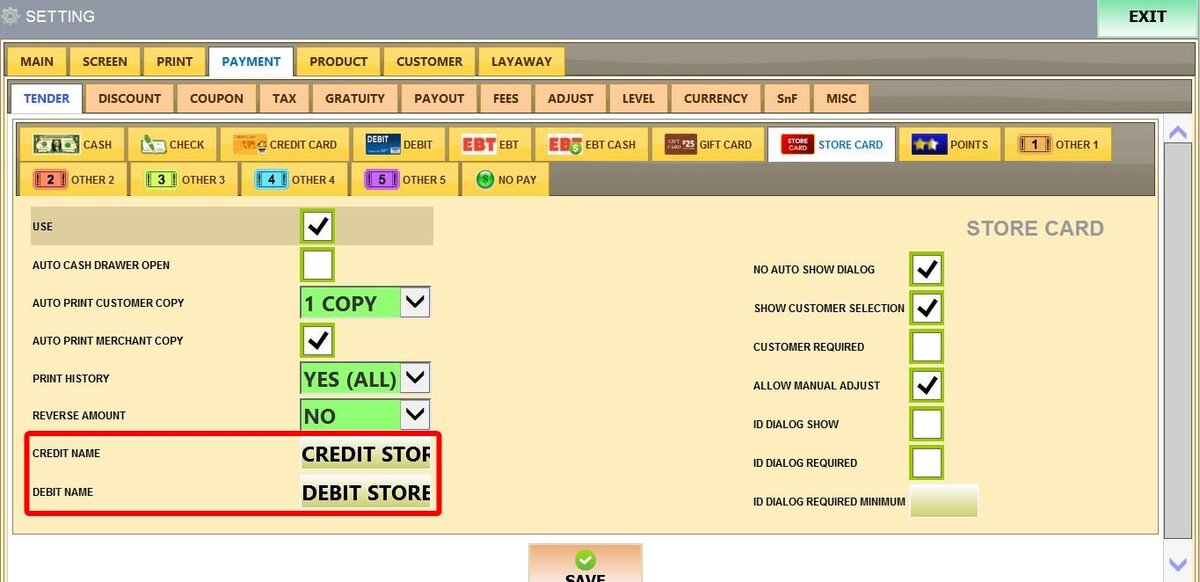
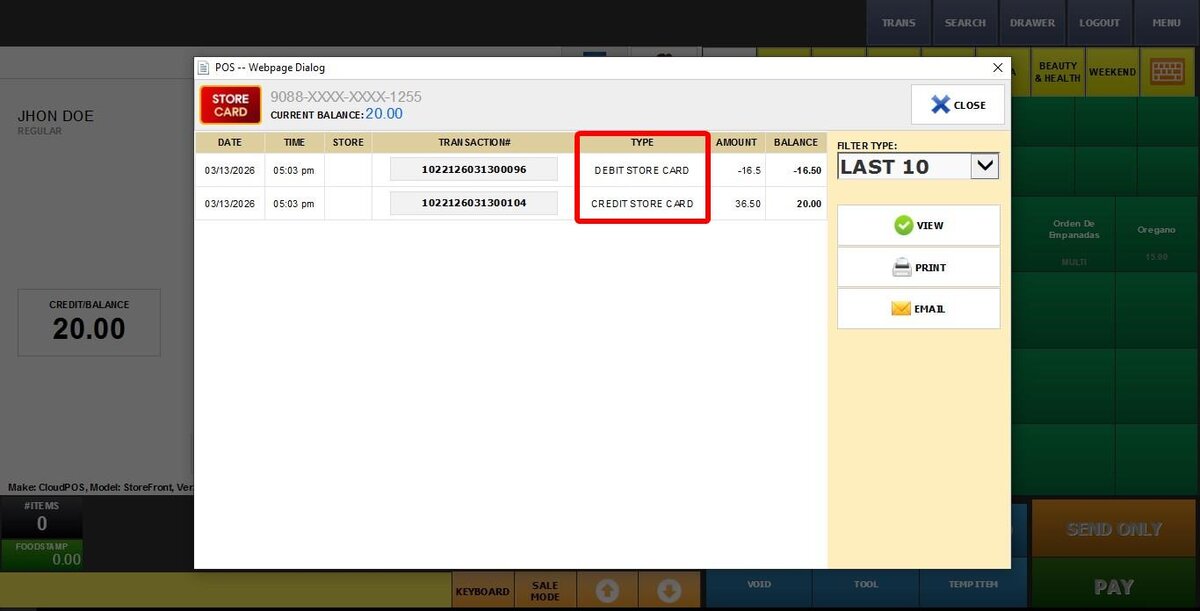
8. CREDIT NAME: Defines the label used for transactions where money is added to a customer's account, such as payments toward an outstanding balance.
9. DEBIT NAME: Defines the label used for transactions where money is deducted from a customer's account, such as purchases.
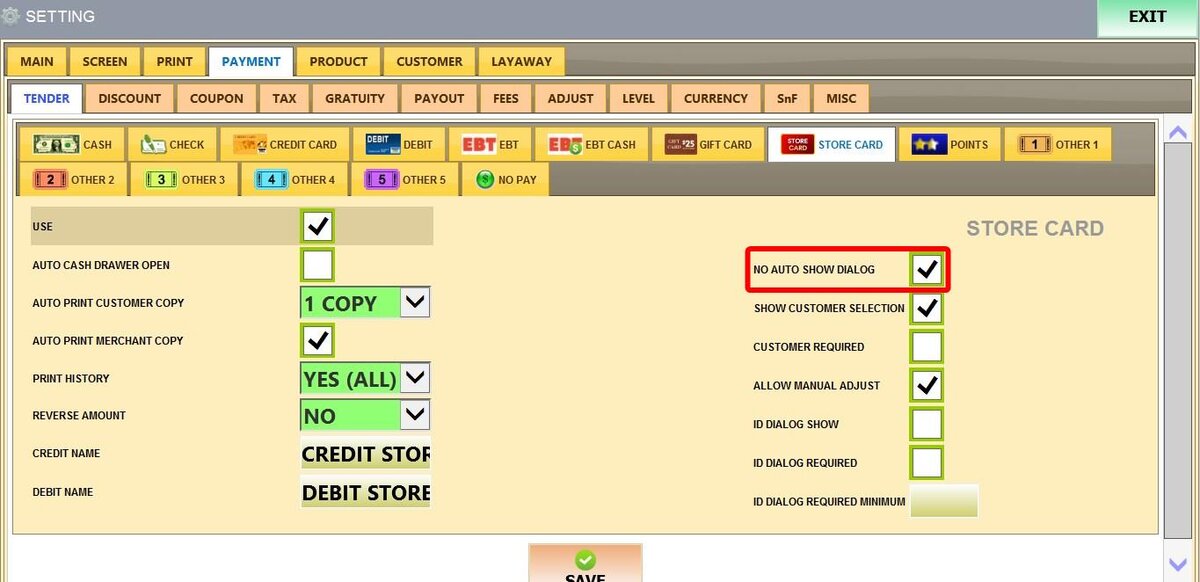
10. NO AUTO SHOW DIALOG: When enabled, the system will not automatically display the customer balance window when processing a store card payment.
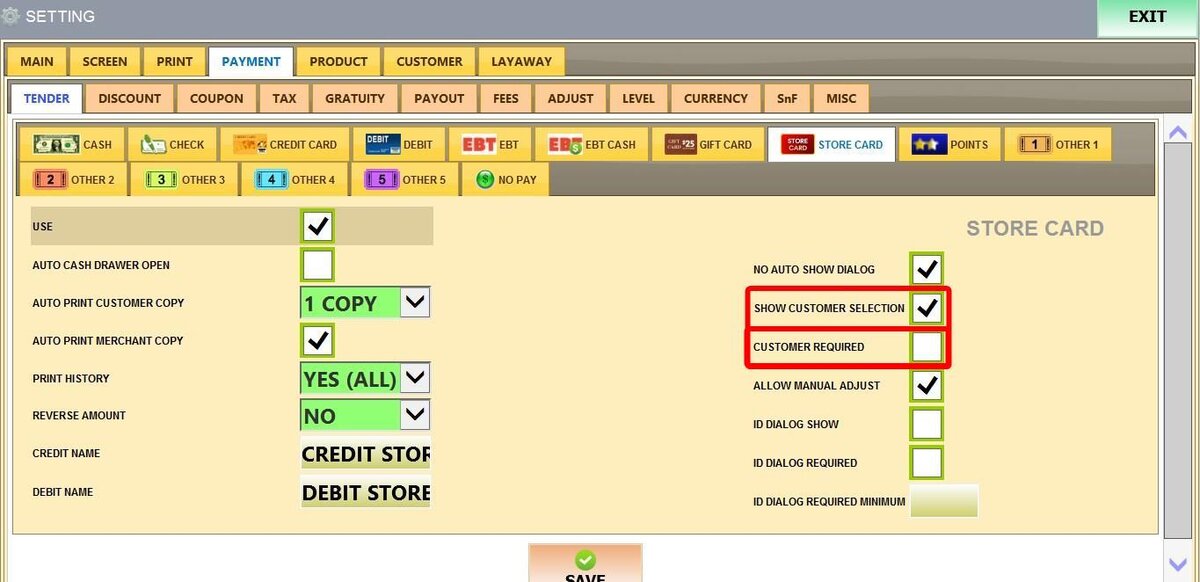
11. SHOW CUSTOMER SELECTION: Displays two options when processing a store card payment.
Customer Account: Select a customer from the list.
Guest Customer: Complete the sale without selecting a customer.
12. CUSTOMER REQUIRED: Requires a customer to be selected or entered before completing a store card payment.

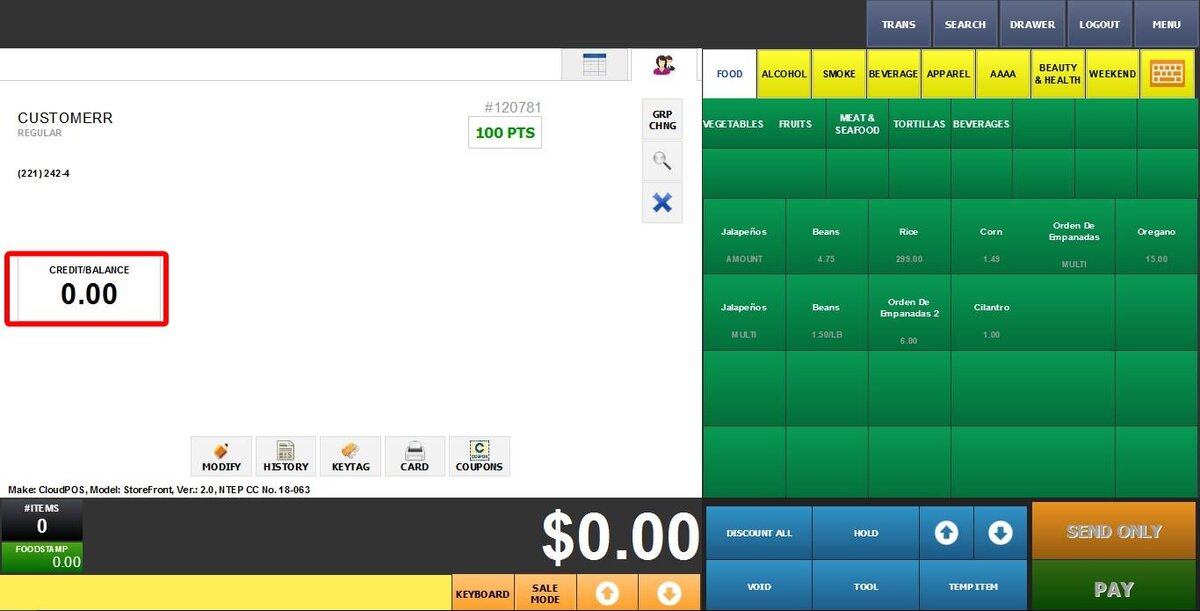
13. ALLOW MANUAL ADJUST: When enabled, clicking the customer balance box on the Sales Screen allows staff to manually add, remove, or adjust funds in the customer's account. This affects store card balances and other customer account transactions.

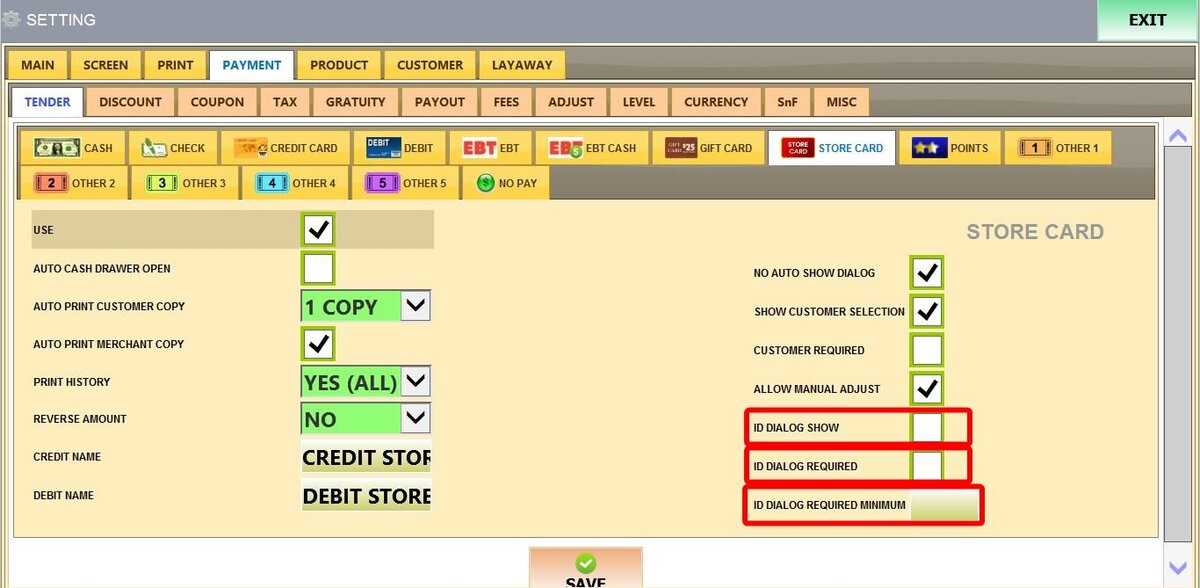
14. ID DIALOG SHOW: Prompts the cashier to optionally enter the customer's ID when processing a store card payment.
15. ID DIALOG REQUIRED: Requires the cashier to enter the customer's ID before completing the store card payment.
16. ID DIALOG REQUIRED MINIMUM: Requires the customer ID only for transactions above a specified amount. Enter the minimum value that will trigger the ID requirement.
After making all the changes, click on SAVE and RESTART THE PROGRAM.
