Image / video
This Customer Display Type setting allows to control what is shown on the customer-facing screen, including standard transaction details, images, or videos
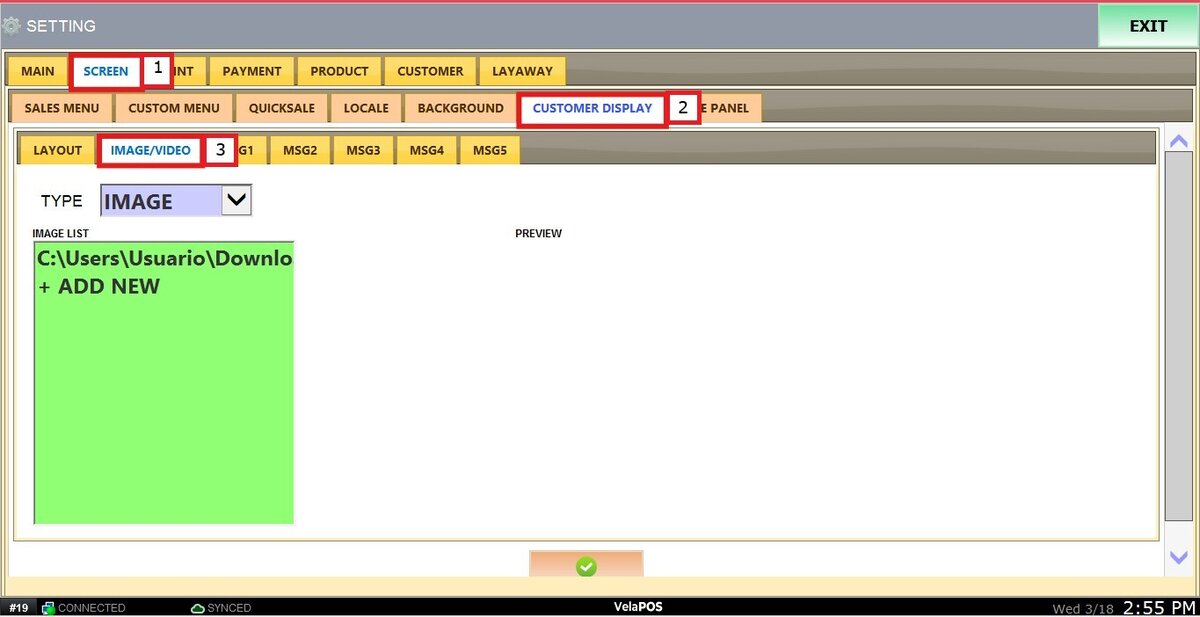
Main Screen > MENU> SETTINGS> SCREEN> CUSTOMER DISPLAY> IMAGE/VIDEO.
Go to MENU, then select SETTINGS.
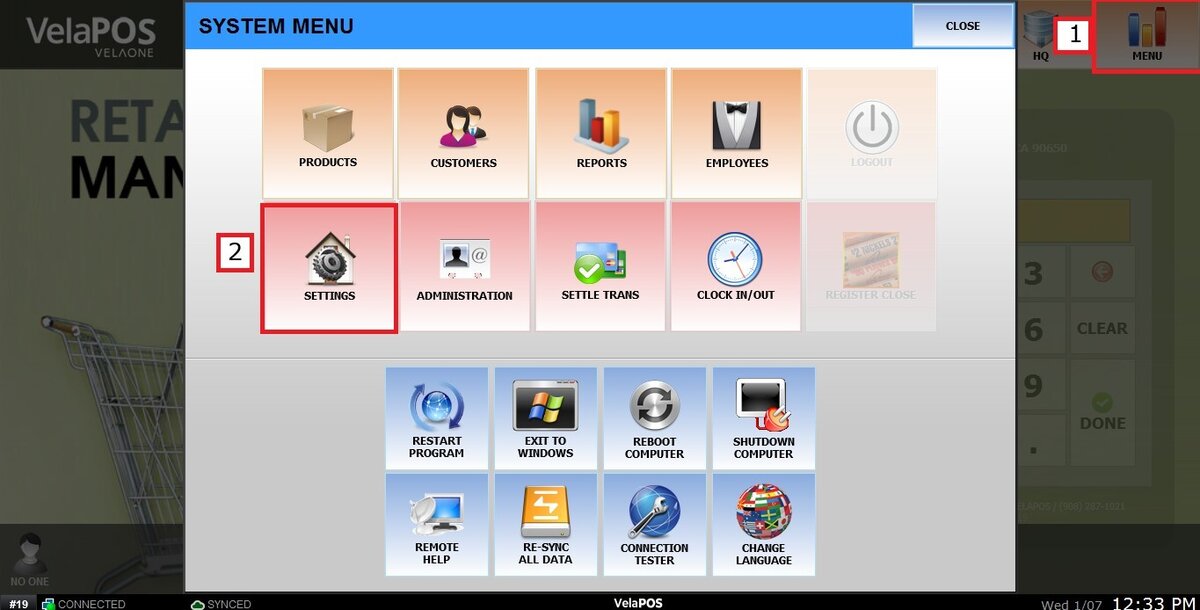
Under the SCREEN tab, click on CUSTOMER DISPLAY and select IMAGE/VIDEO.
There are 3 options available in the TYPE drop-down menu:
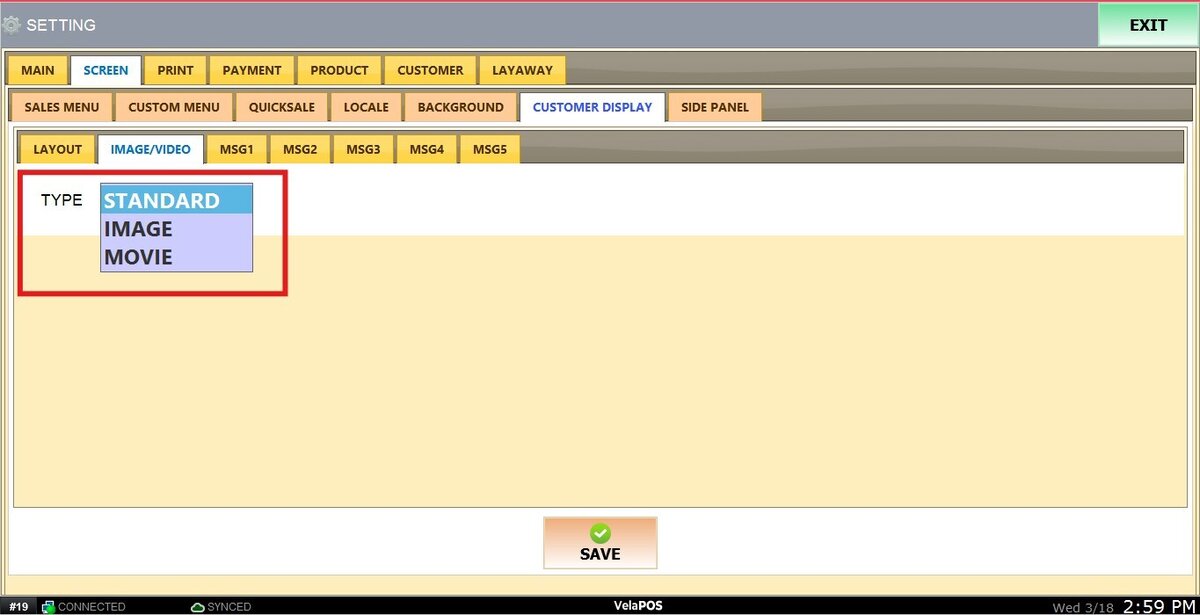
STANDARD
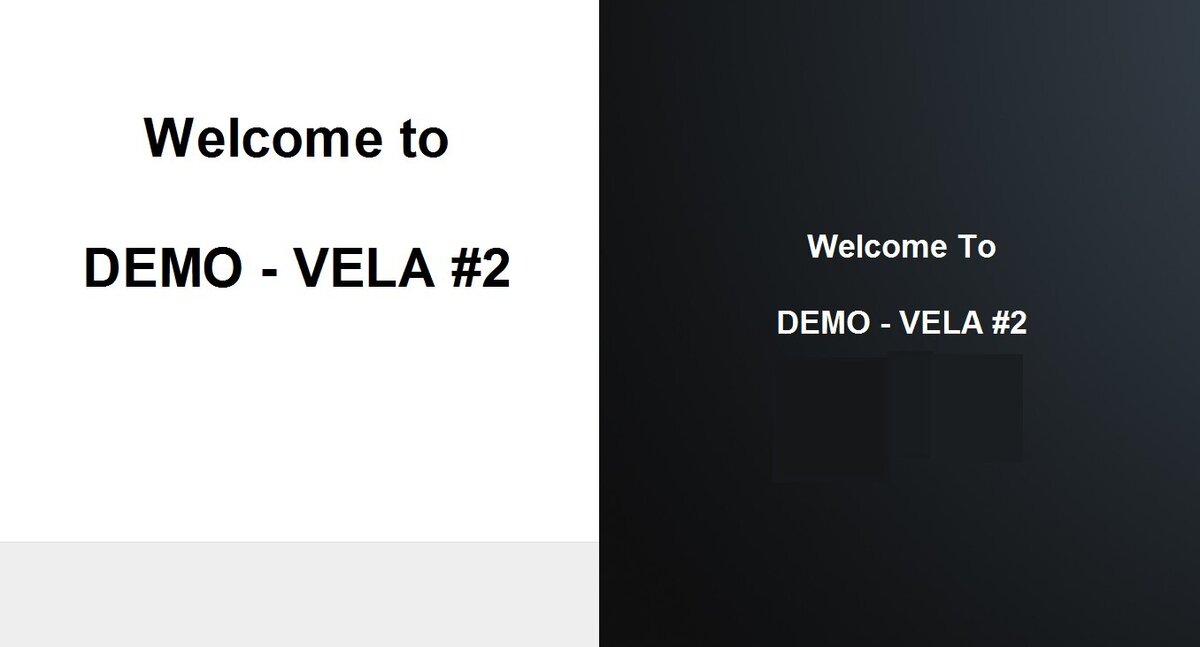
Default setting that shows basic store information (name, address, phone number) along with real-time transaction details.
Result:
IMAGE
Allows you to upload and display static promotional images or advertisements.
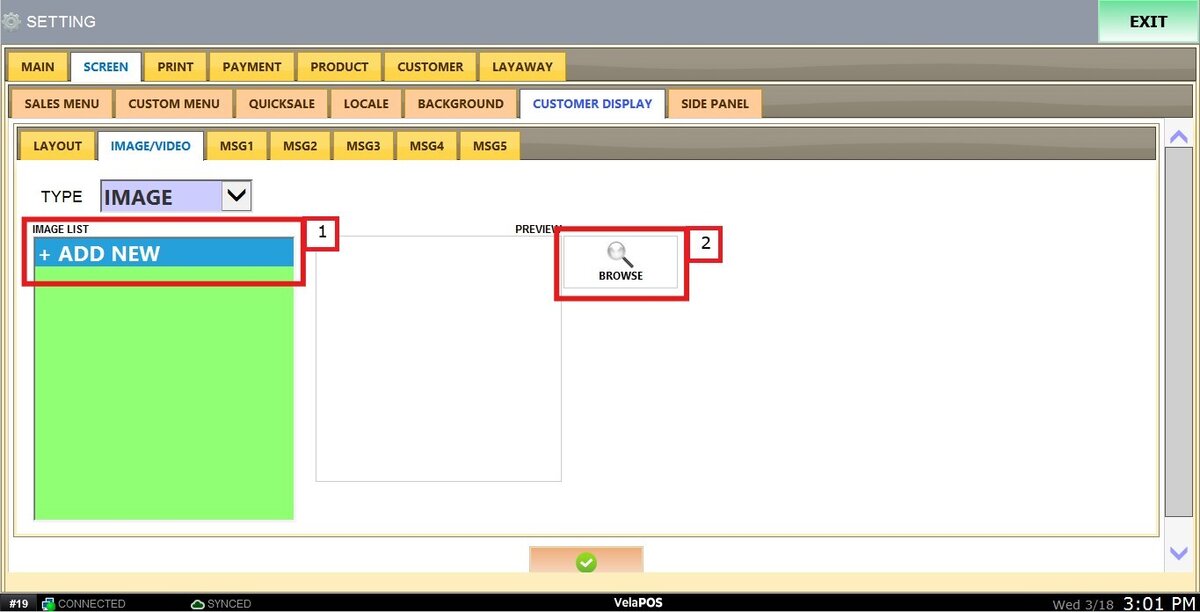
To add an Image, click on +ADD NEW, then click on BROWSE.
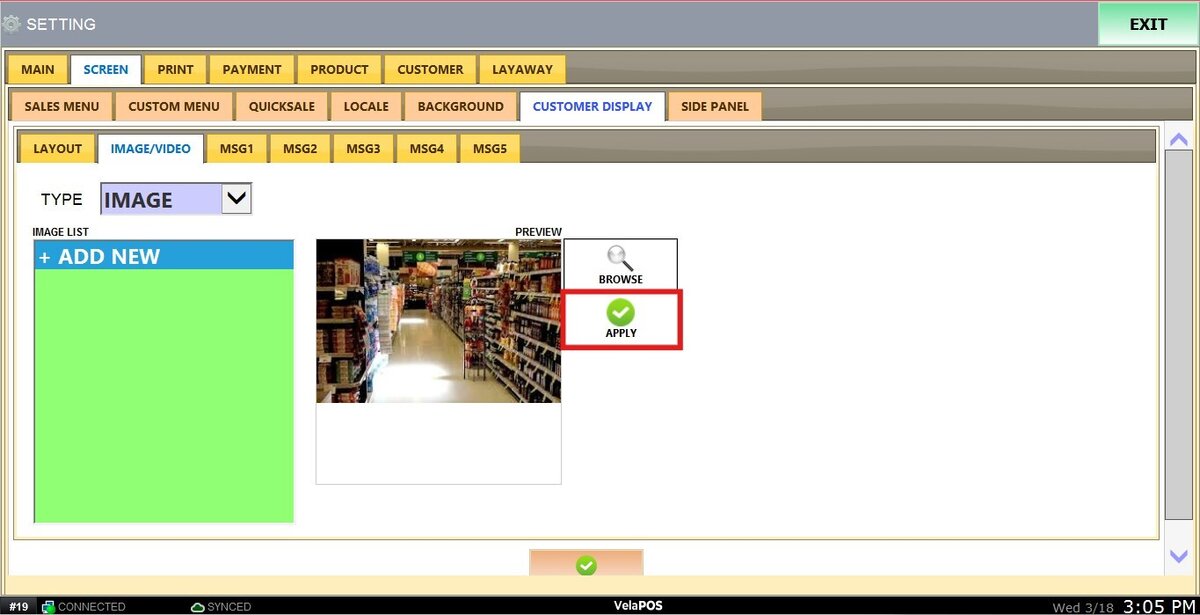
Choose an image file from your computer and click on APPLY to confirm.
Hint: Add more images by clicking again on +ADD NEW, to choose their rotation time, refer to Customer Display Layout.
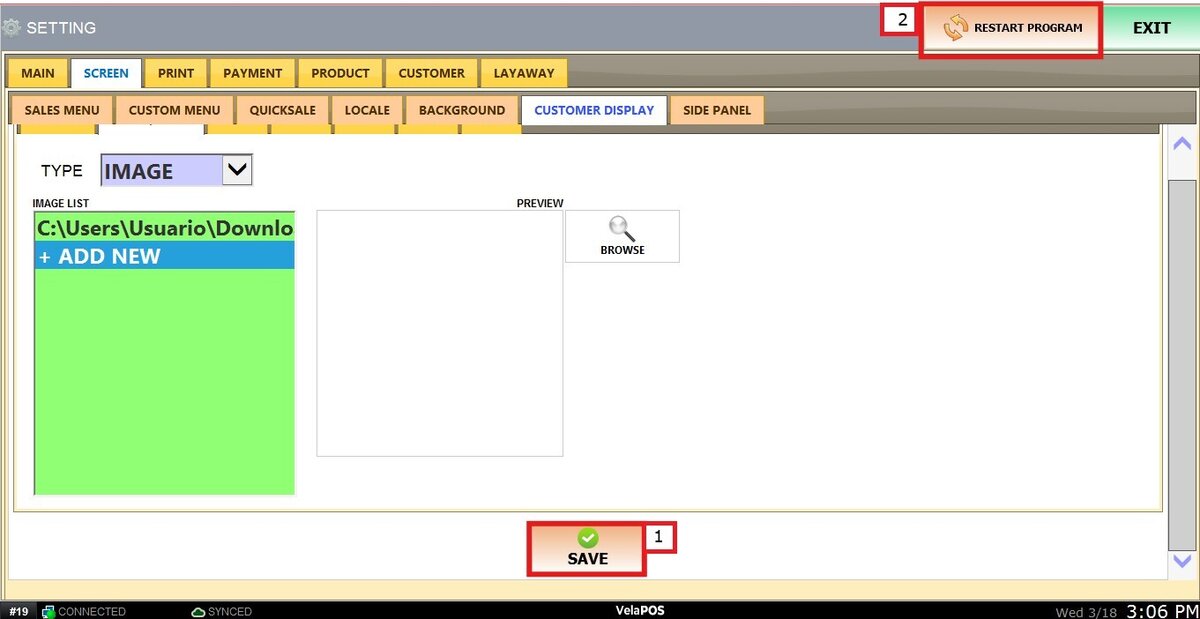
Click on SAVE and RESTART THE PROGRAM
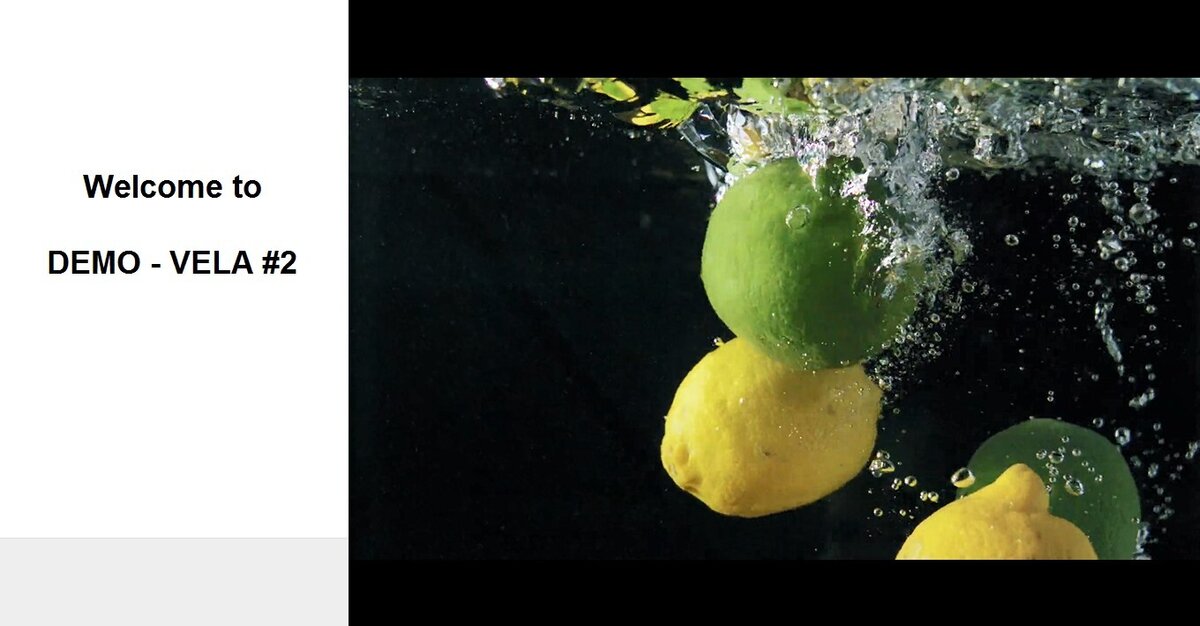
Result:
The selected media will be displayed on the customer monitor alongside the store information.

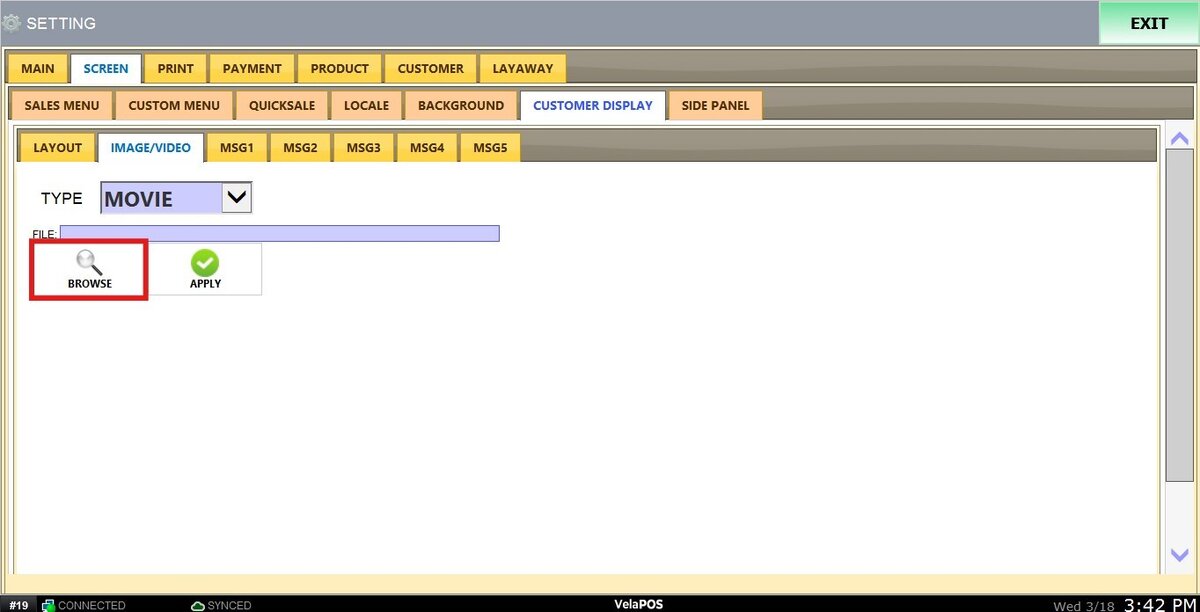
MOVIE
Enables playback of video files on the customer display.
To add a video, use the BROWSE button to locate your video file.
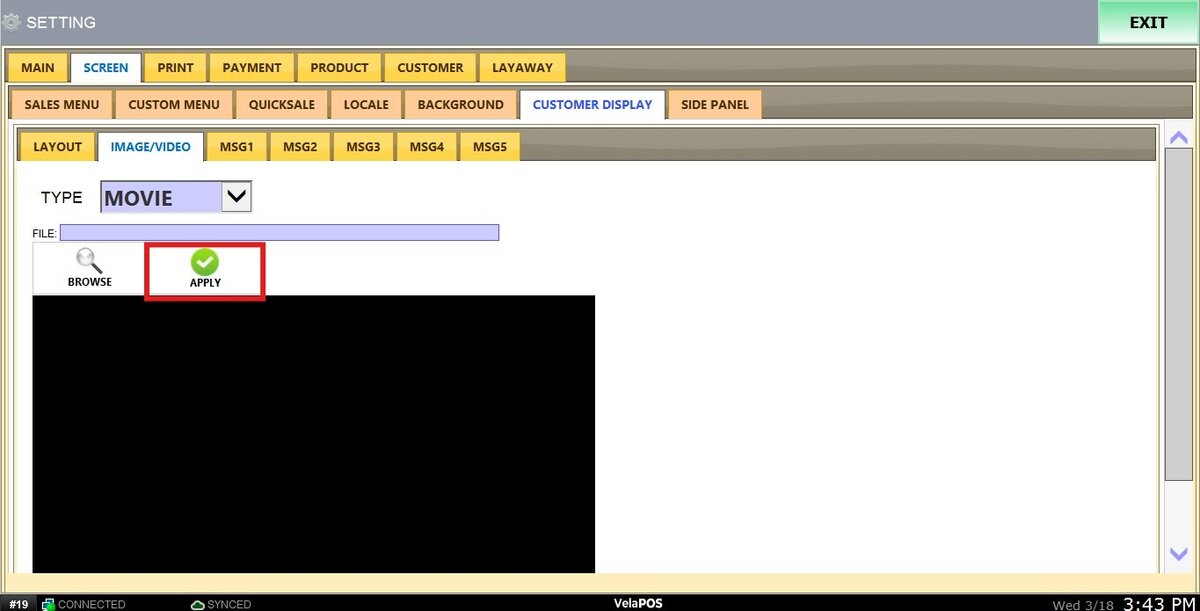
Once the file has been selected, click APPLY to load it.
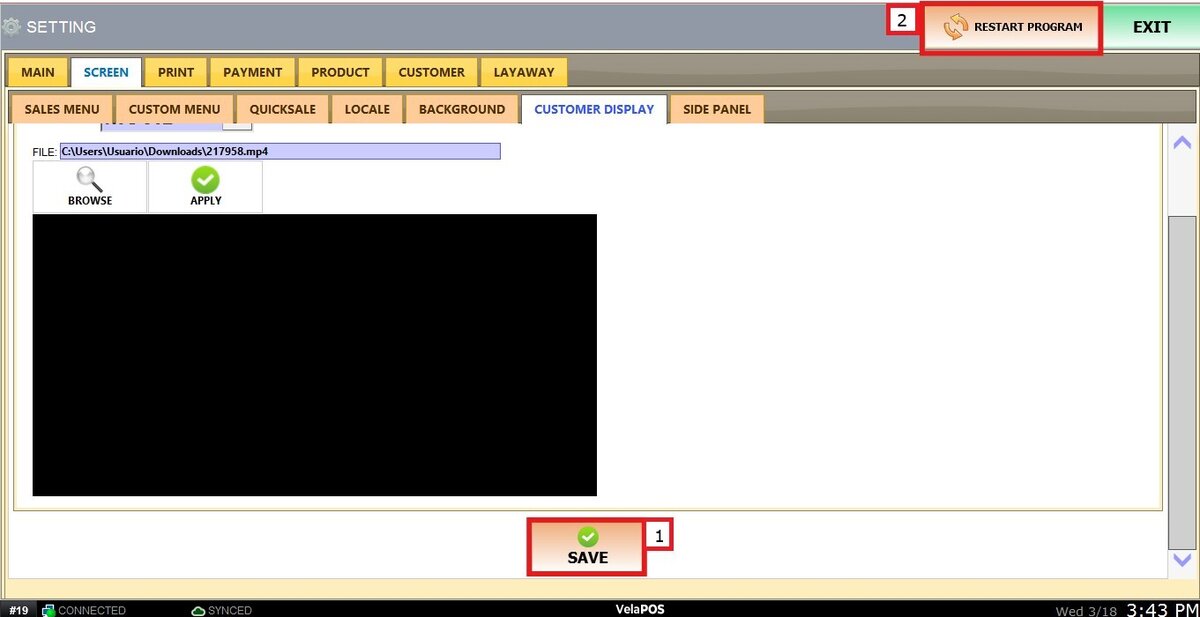
Click on SAVE and RESTART THE PROGRAM.
Result:
The selected media will be displayed on the customer monitor alongside the store information.