Layout
The Sales Screen Layout determines how products are displayed and accessed within the sales interface
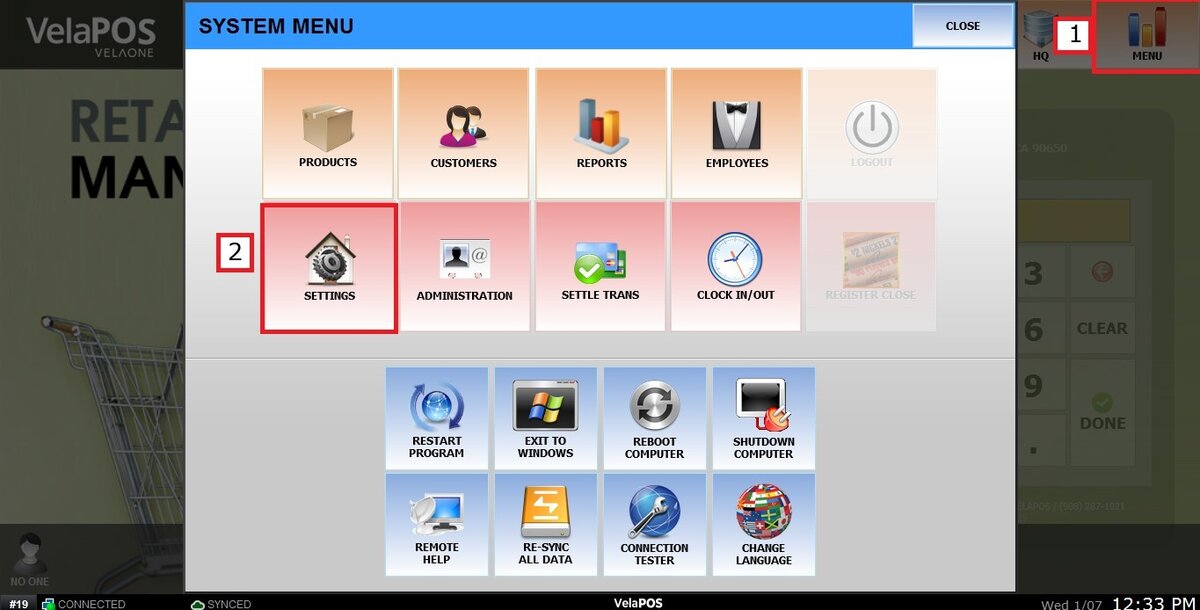
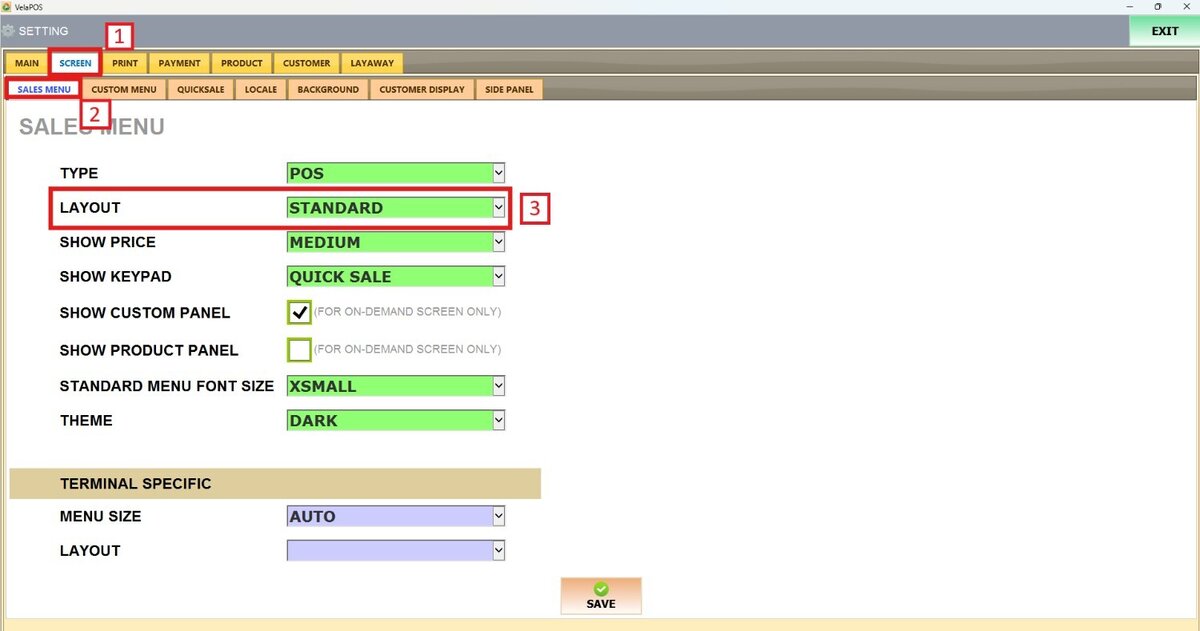
Main Screen> MENU> SETTINGS> SCREEN > SALES MENU
Go to MENU and press SETTINGS.
Under the SCREEN tab, select SALES MENU and navigate to the LAYOUT section.
On LAYOUT, there are 4 options to choose from:
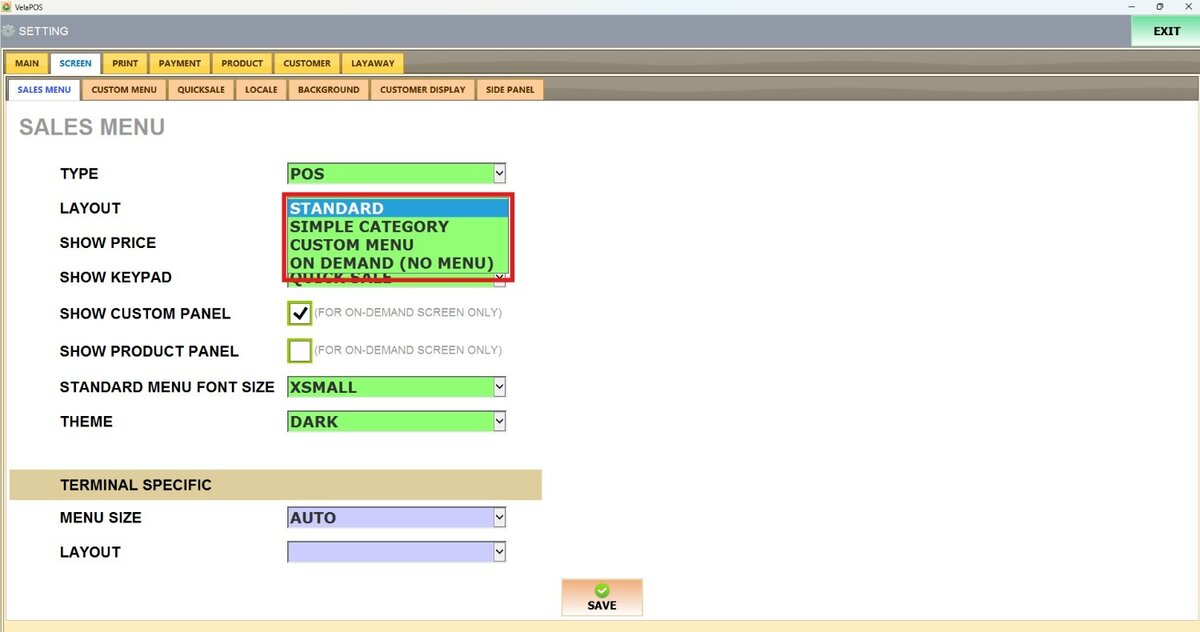
1. STANDARD: Displays the default layout, with Departments, Categories, and Items organized on the right side of the screen, while selected items appear on the left.
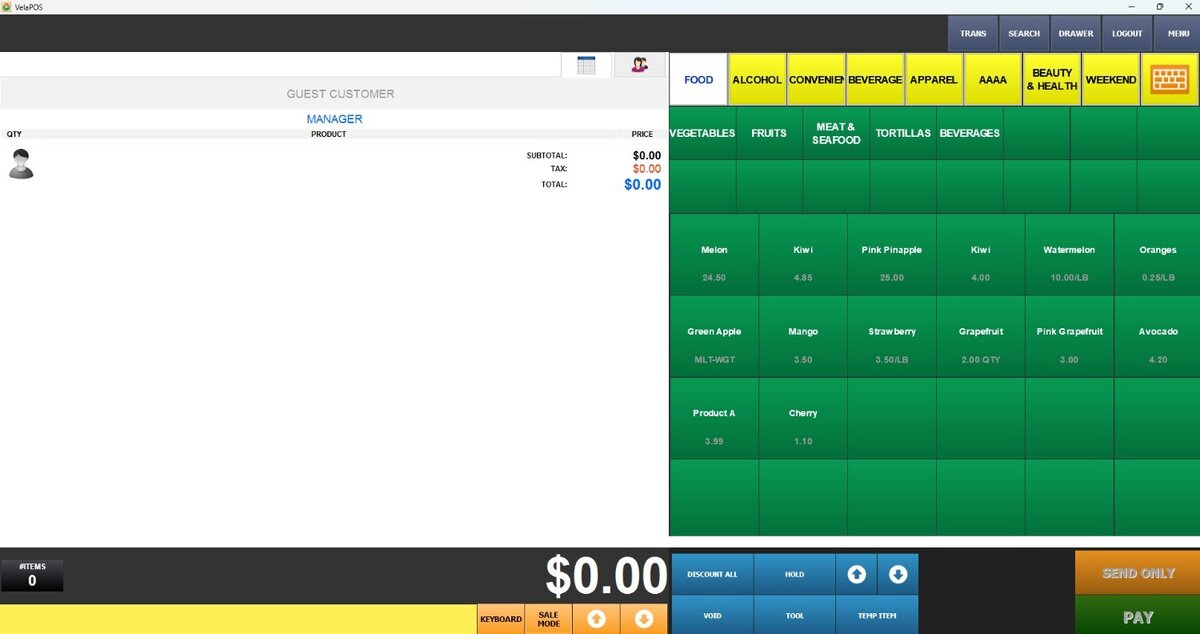
2. SIMPLE CATEGORY: Simplifies the menu by showing only Departments and Categories on the right side
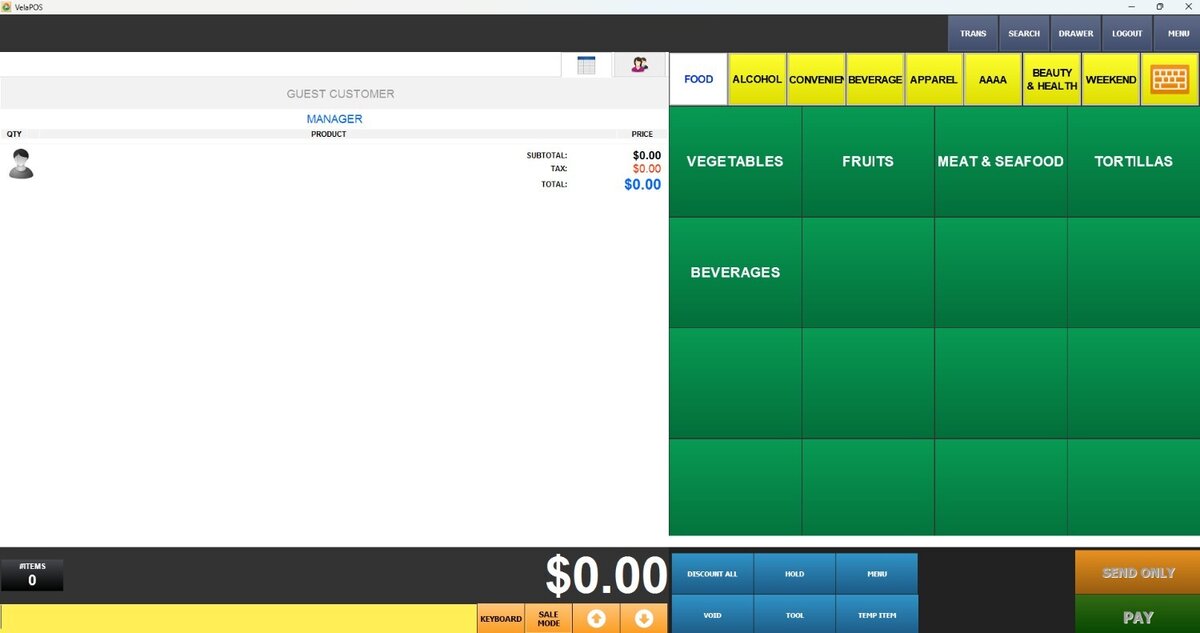
3. CUSTOM MENU: Provides full control over the menu structure by allowing you to define which items or categories are displayed.
To choose which categories will be displayed, refer to Custom Menu settings.
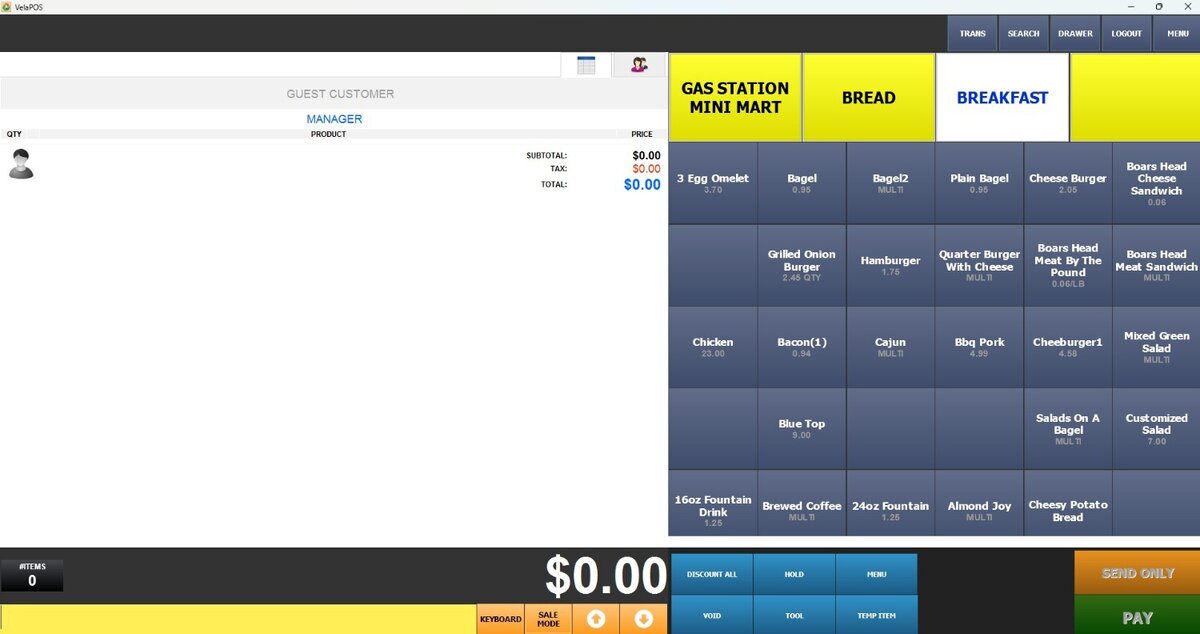
4. ON DEMAND: No menu is displayed on the sales screen. Items are typically added by scanning, and the keyboard remains available for manual entry when needed.
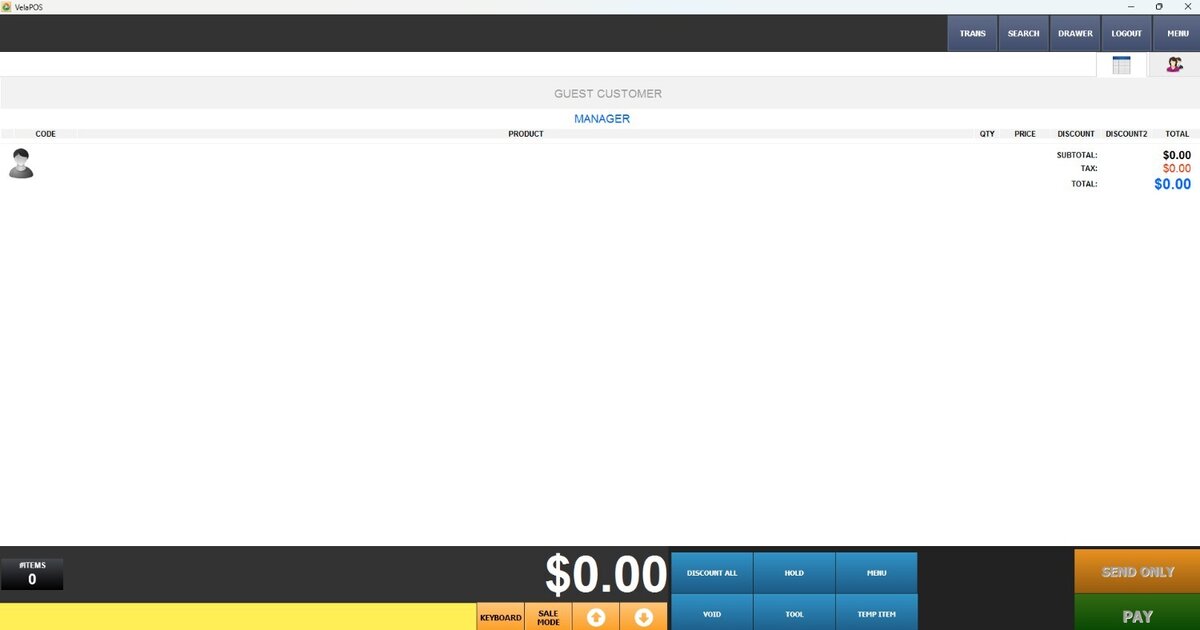
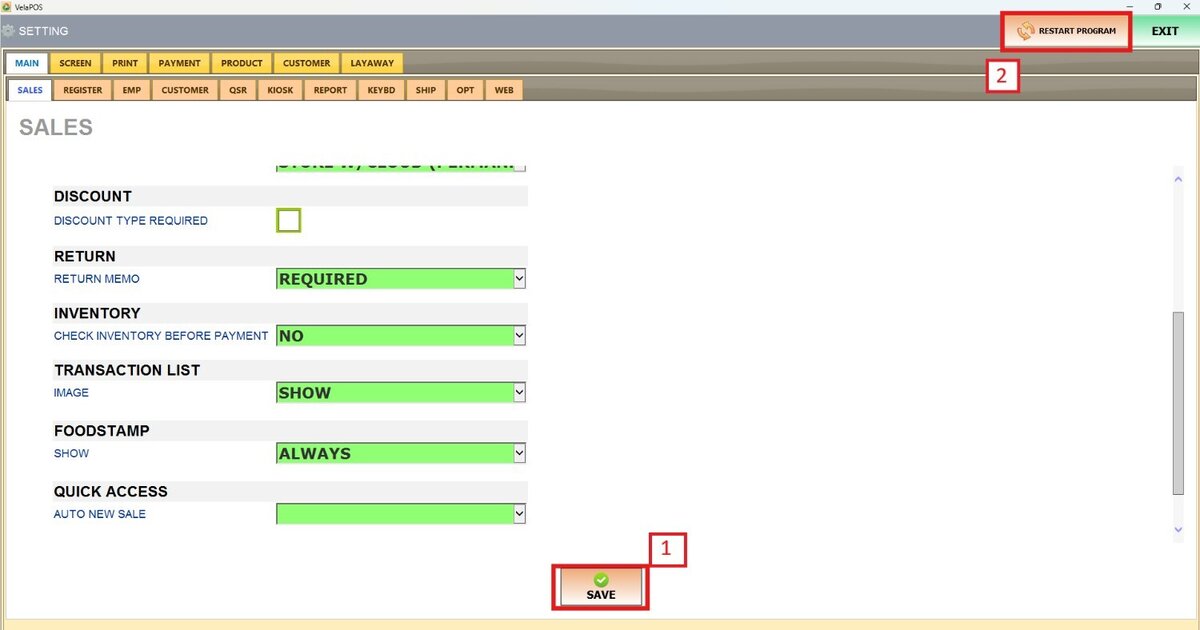
Don't forget to press SAVE and RESTART THE PROGRAM to apply the changes.