Custom Menu
This section allows you to organize and display predefined menu templates directly on the main sales screen.
Main Screen> MENU> SETTINGS> SCREEN> CUSTOM MENU.
Click on MENU, then select SETTINGS.
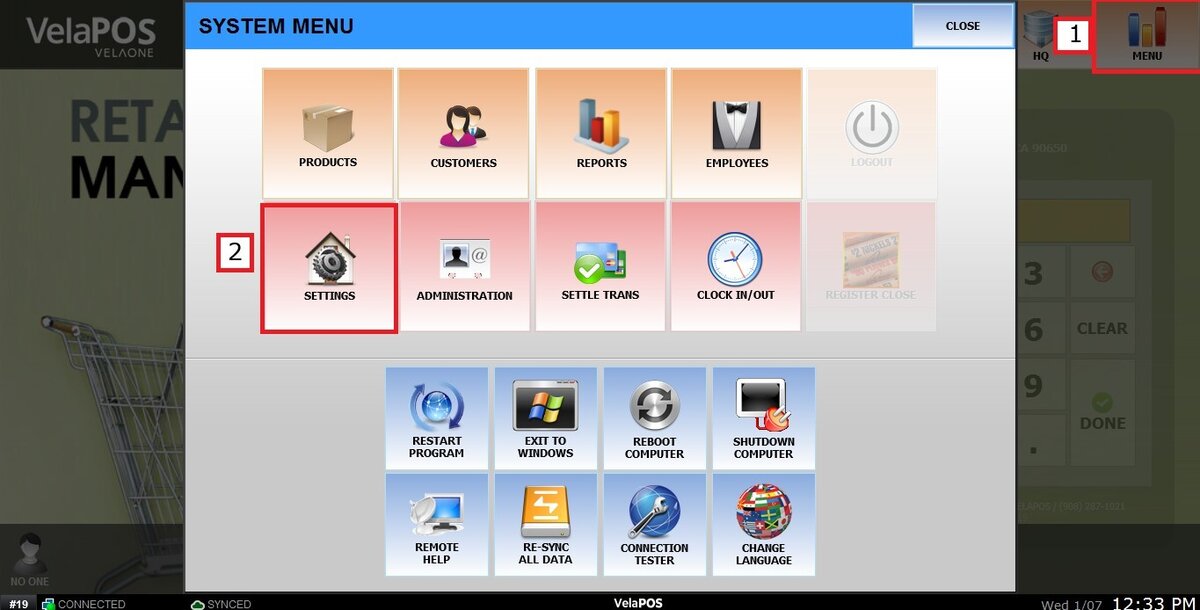
Under the SCREEN tab, click CUSTOM MENU.

Click on any available slot and select one of the previously created templates. Refer to Inventory Custom Menu for instructions on creating templates.
The position of each template determines the order in which it appears on the main screen. You can assign a color to each template using the available 8 color selection.
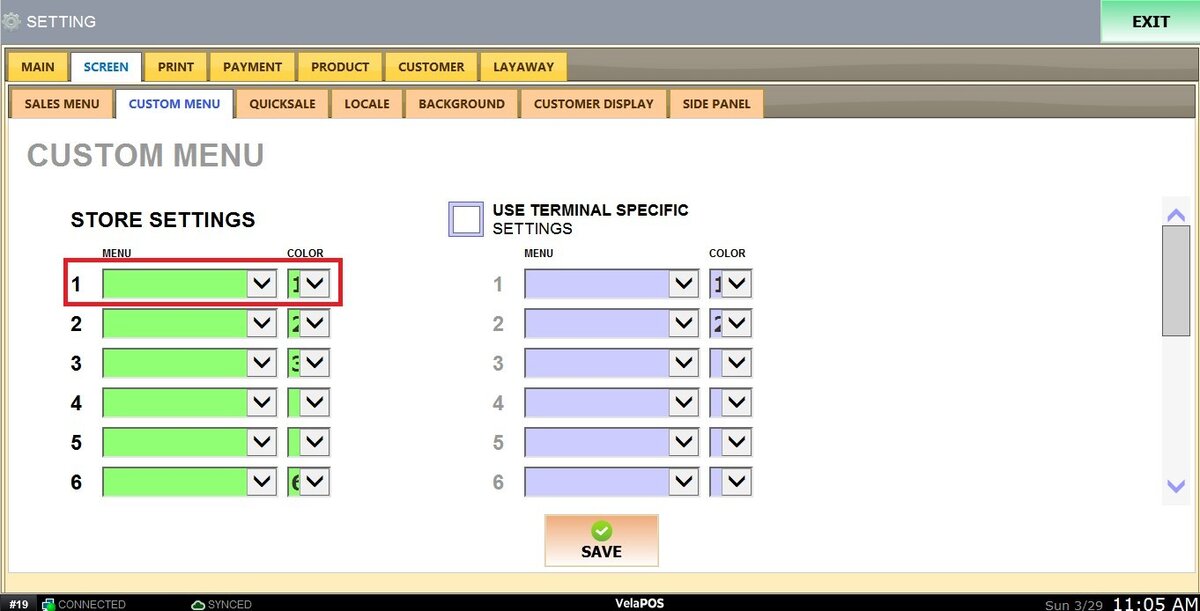
Note: Any slot left empty will not be displayed on the main screen. Enabling the KEYPAD option will display a keypad for quick product searches.
Use USE SPECIFIC TERMINAL SETTING to assign custom menus to a particular terminal only.
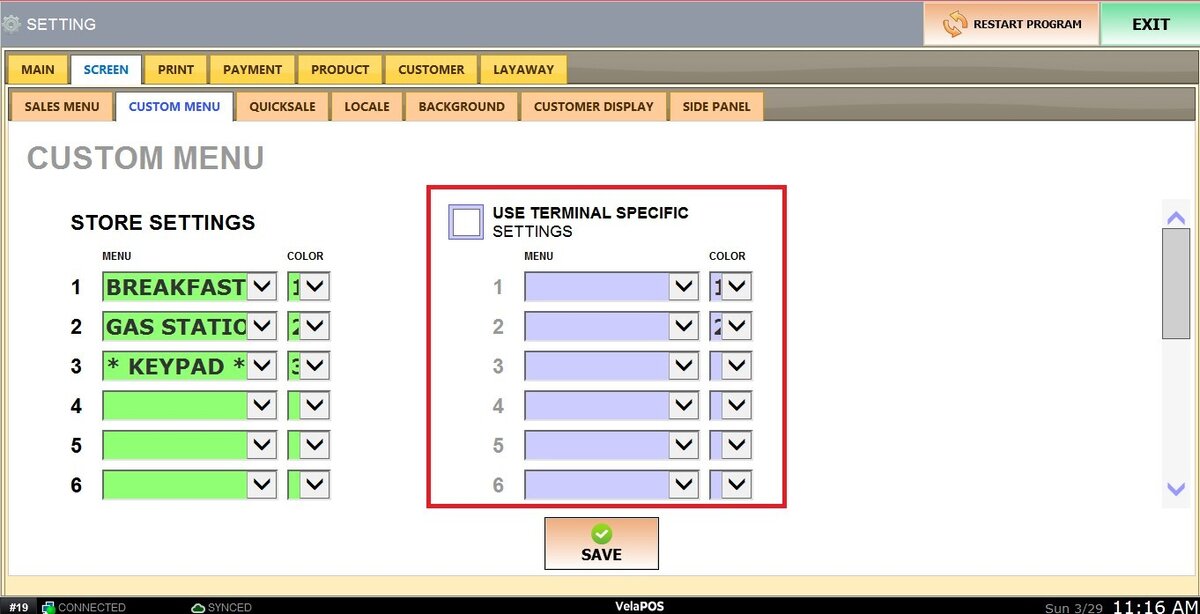
Once all templates are configured, click on SAVE and RESTART THE PROGRAM.
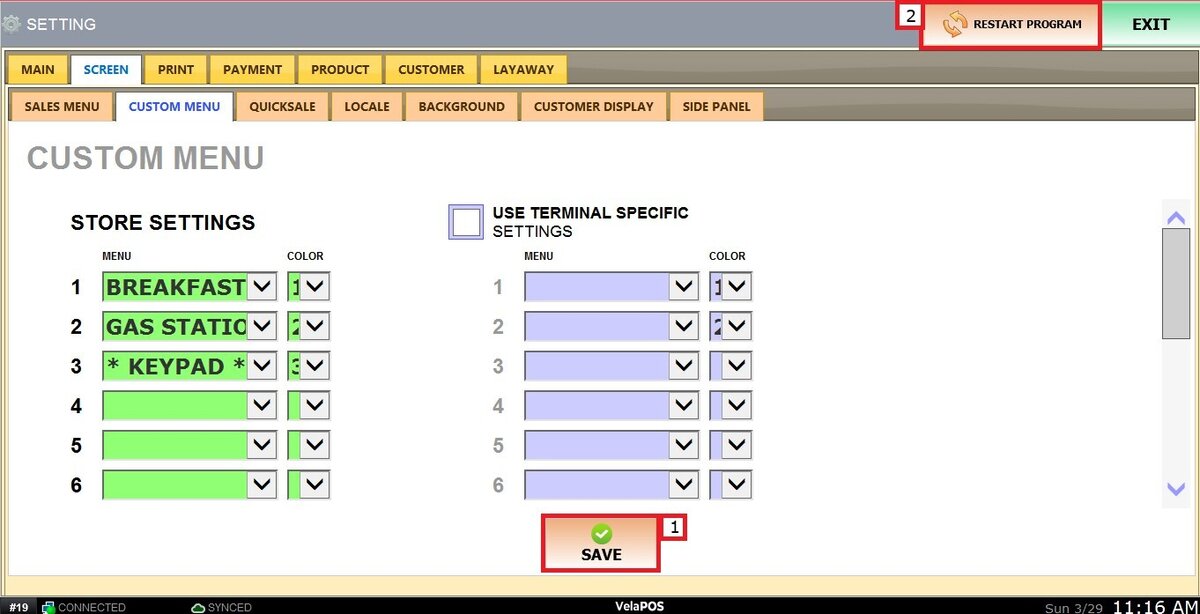
To display the Custom Menu on the sales screen, you must select the CUSTOM MENU LAYOUT.
For more details, refer to Sales Screen Layout.
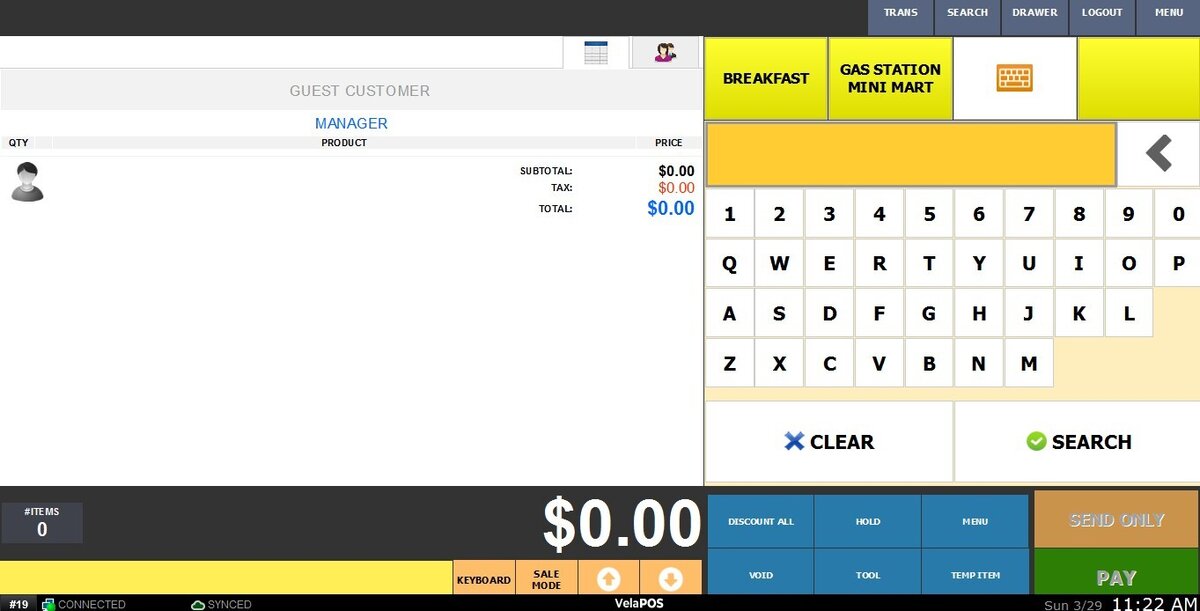
Result:
A configured Custom Menu will display the selected templates in the defined order.
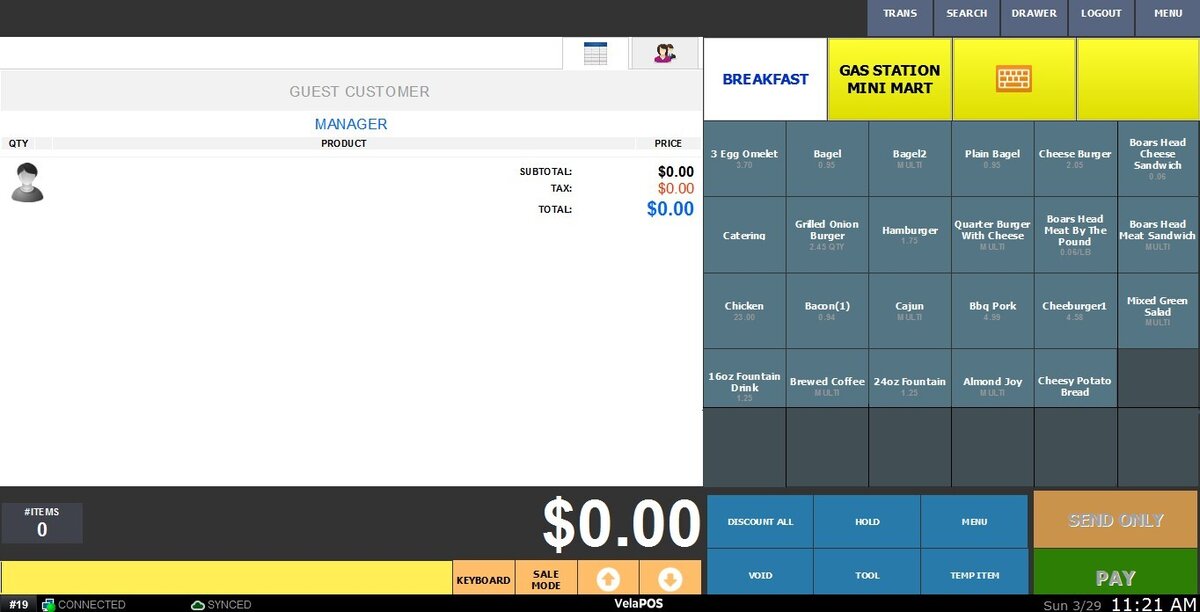
If enabled, the keypad will appear alongside the templates for quick product lookup.