Voids
This report shows all voids in the system. Helps track void activity, identify patterns, and maintain control over transactions.
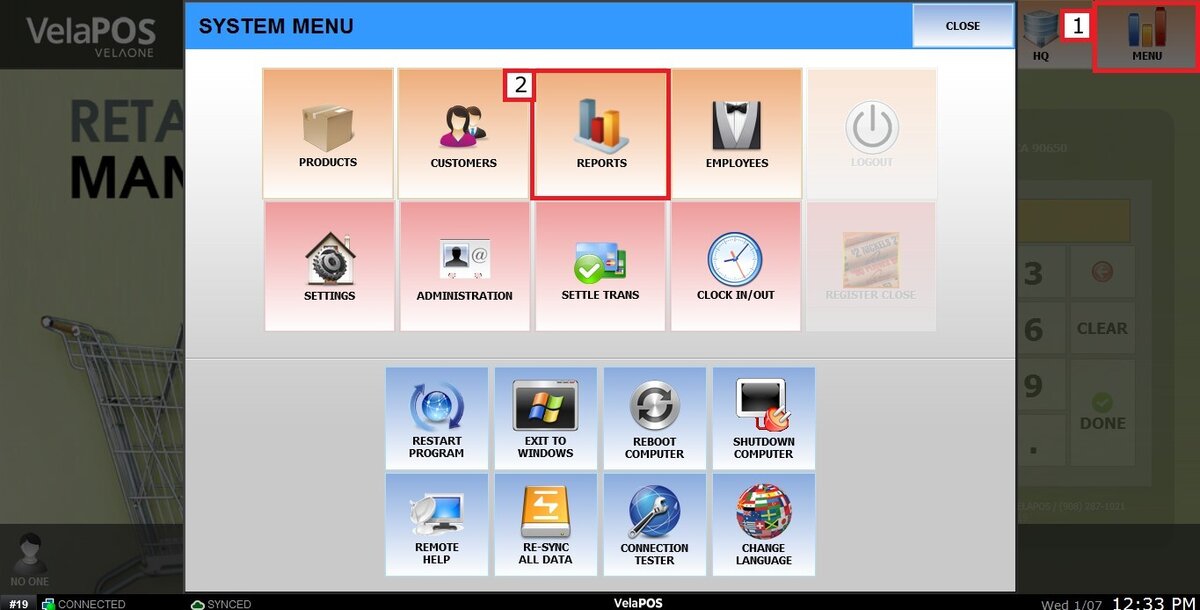
Main Screen > MENU > REPORTS > SALES > VOIDS
On the Main Screen, go to MENU, then select REPORTS.
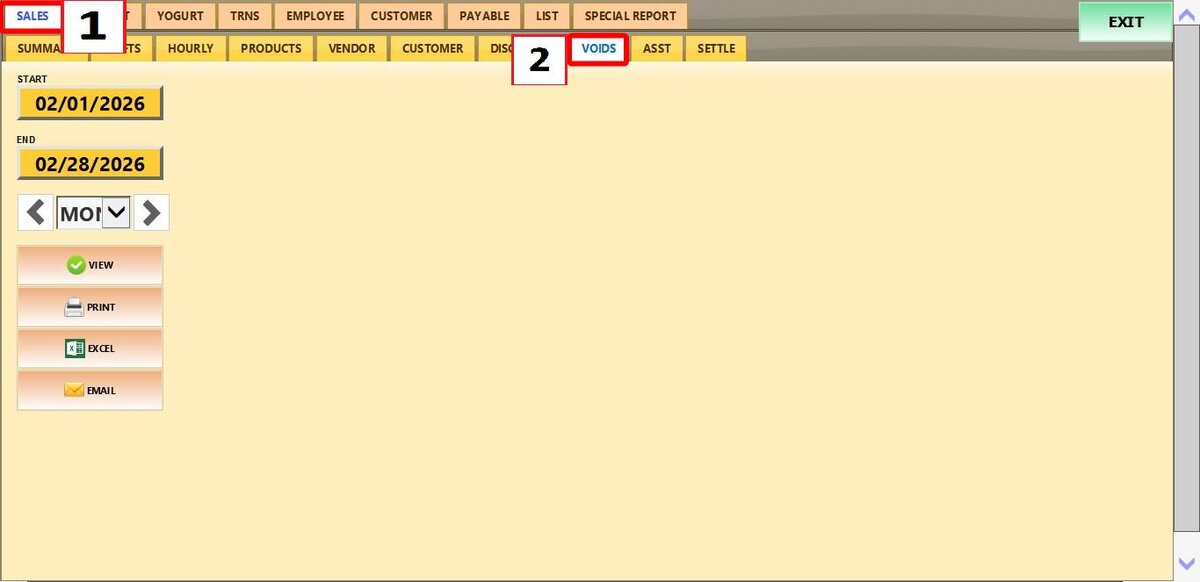
Open the SALES tab, then select VOIDS.
Filters
Use the filters to define how the report is grouped and displayed.
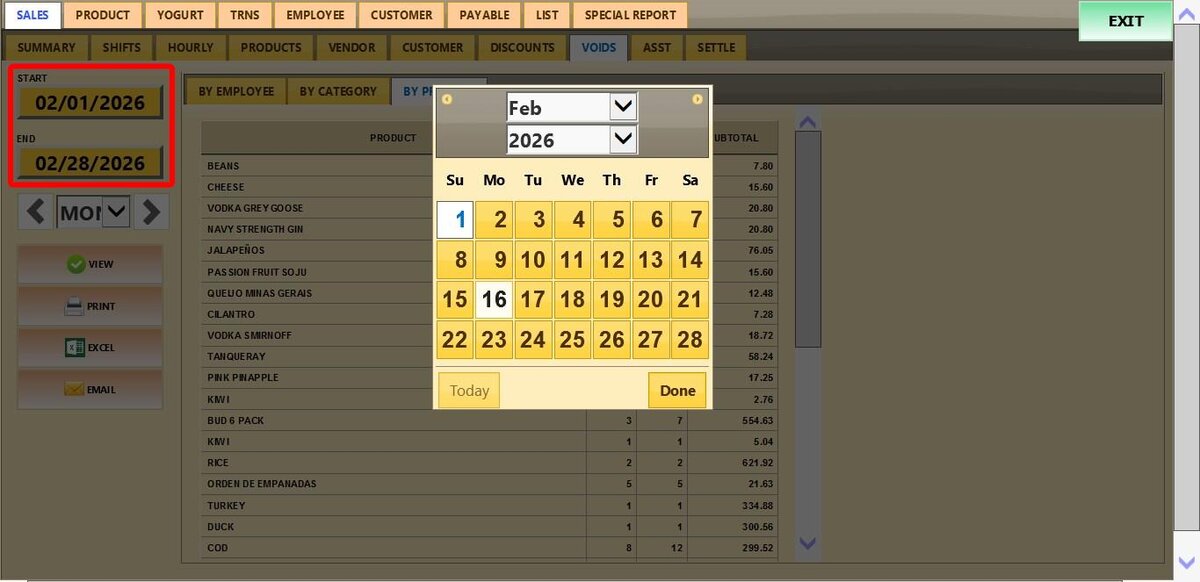
1. Filter by customized range: Tap START DATE to select a start date from the calendar. Tap DONE. Repeat for END DATE to set the end date.
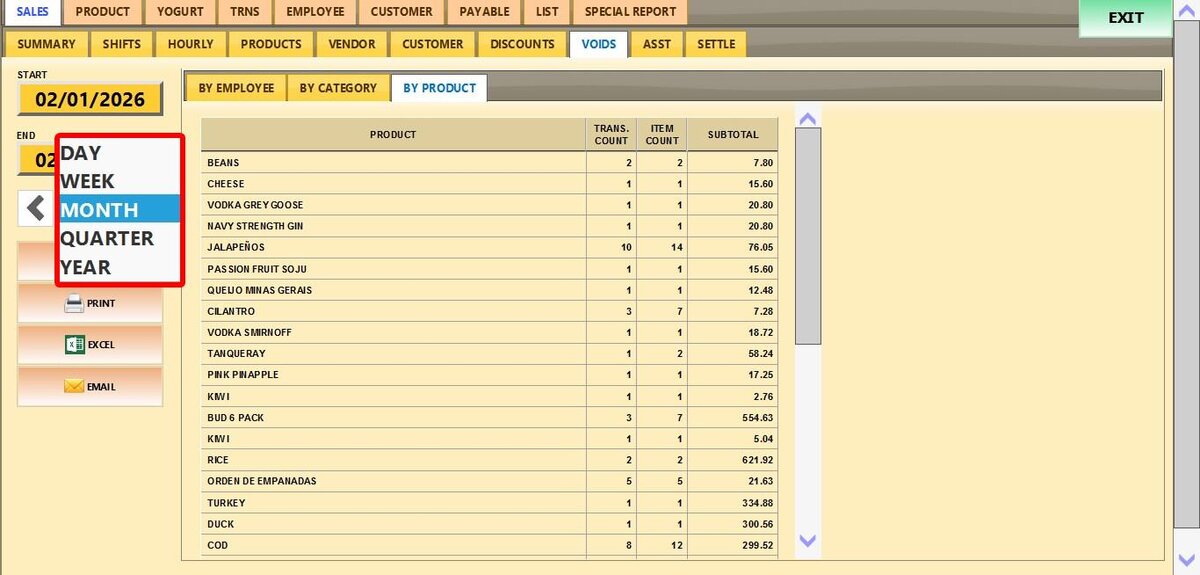
2. Filter by a time frame: Filter the report by time frame (day, week, month, quarter, year).
Select the field and choose the desired time duration.
View
After setting the date range, time frame, and user filter, press VIEW to display the report based on the selected criteria.

After loading the report, three tabs will appear:
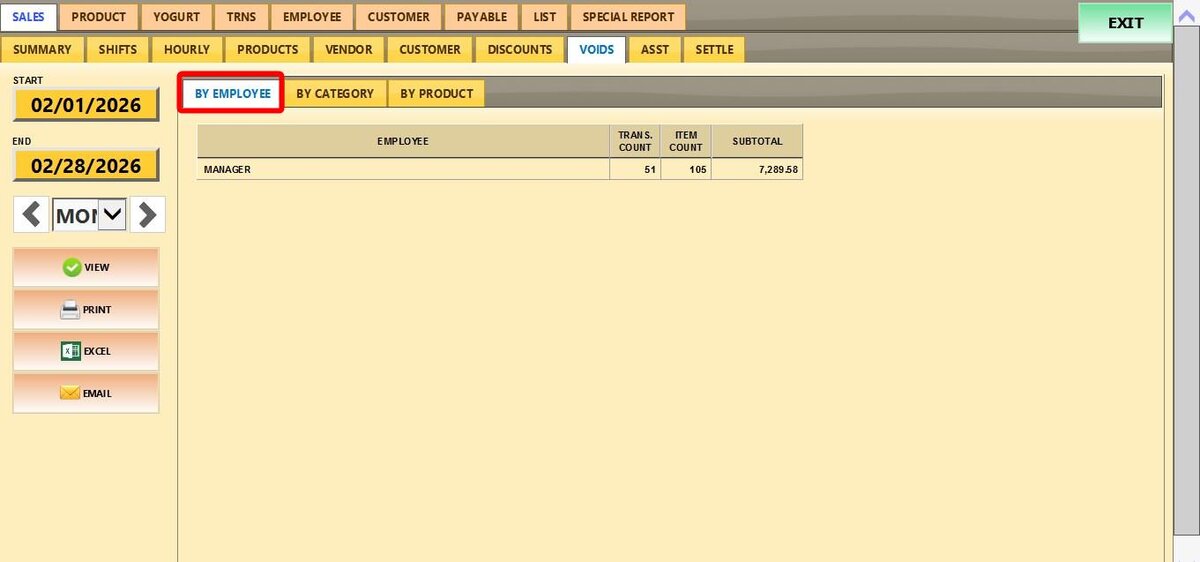
BY EMPLOYEE:
Shows voids grouped by the employee who processed them.Useful for tracking employee activity and accountability.
All three tabs include:
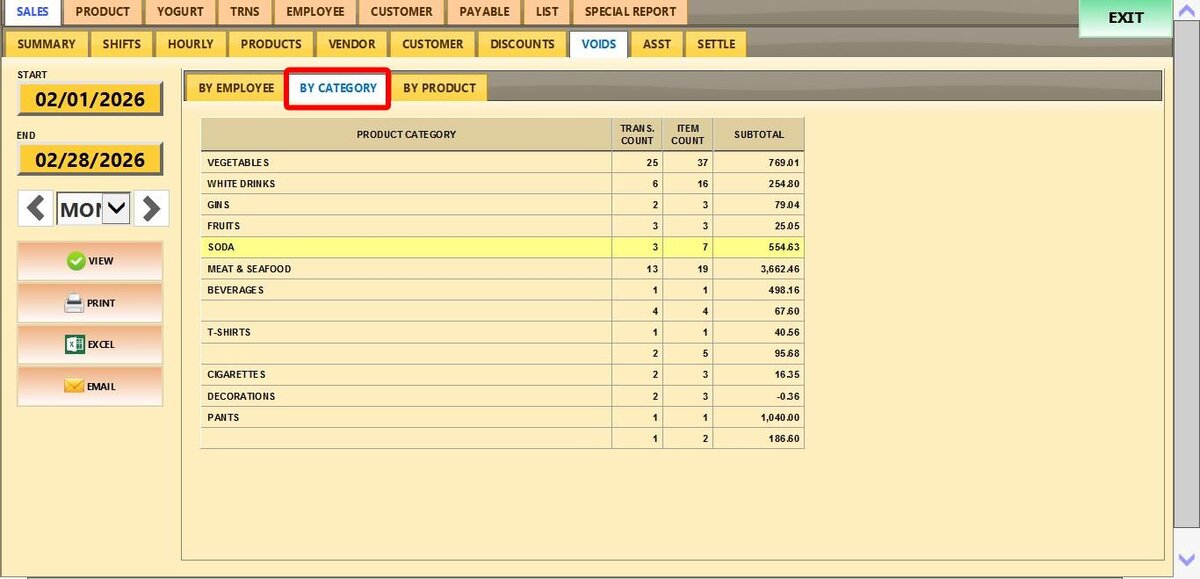
1. TRANSACTION COUNT: Number of checks containing voids.
2. ITEM COUNT: Total number of items voided
3. SUBTOTAL: Total monetary value of voided items
BY CATEGORY:
Groups void by product category (e.g., drinks, appetizers). Helps identify which product categories generate the most voids
BY PRODUCT:
Displays voids by individual product. Ideal for spotting specific items that are frequently voided.
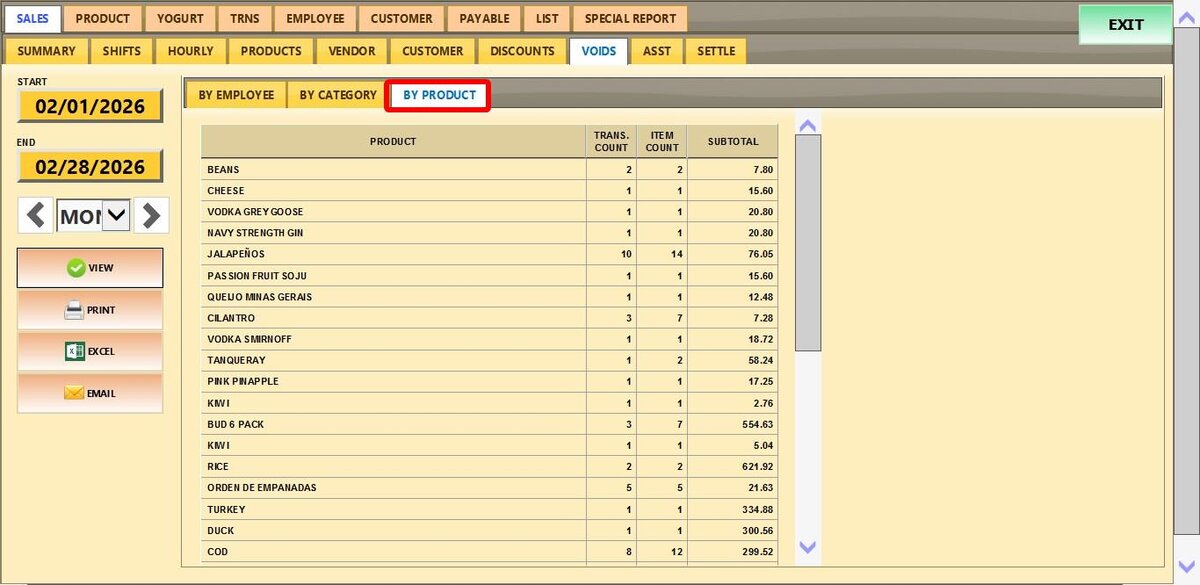
All the reports view, whether it's By Employee, By Category, or By Product, include the options to PRINT, export to EXCEL, and to EMAIL it.
To learn how to perform a void, please refer to Void.